HUAWEI Analytics
A tag mainly consists of parameters and conditions. The following uses HUAWEI Analytics as an example to describe how to create a tag.
- On the Create tag page, enter a tag name and set Extension to HUAWEI Analytics.
- Use the default value Modify event for Operation. When Extension is set to HUAWEI Analytics, the Add event, Modify event, and Block event options are available for Operation.
Operation Type
Description
Add event
When an event meeting the specific condition occurs, the app sends an additional event to HUAWEI Analytics. You can configure a name for the additional event. By default, parameters of the additional event are inherited from the source event. You can also add, modify, and delete event parameters.
Modify event
When an event meeting the specific condition occurs, you can rename the event and send the renamed event to HUAWEI Analytics. You can also add, modify, and delete event parameters.
Block event
Specified events will be blocked and not sent to HUAWEI Analytics. Adding and modification events in other tags are not affected.
- (Optional) Enter a new event name in the New event name text box.
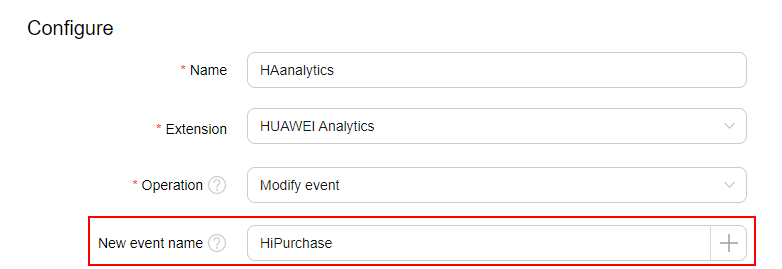

The event name must begin with a letter or reference, and can contain only digits, letters, and underscores (_). If a variable is referenced in the event name, you need to ensure that the value of the referenced variable meets the event name constraints. Otherwise, the event may fail to be reported.
- (Optional) Click Add below Parameters for addition or modification and set Key and Value for the added parameter. If the reported original event parameter contains the specified key, the parameter value is changed to the specified value mapping the key. Otherwise, the specified key-value pair will be added to the event.

- (Optional) Click Add below Parameters to be deleted and set Key for the parameter. If a reported original event parameter contains the specified key, the parameter will be deleted.

- Click Add under Trigger condition and set a trigger condition for the tag.
- (Optional) Click Add under Exception condition and set an exception condition for the tag.
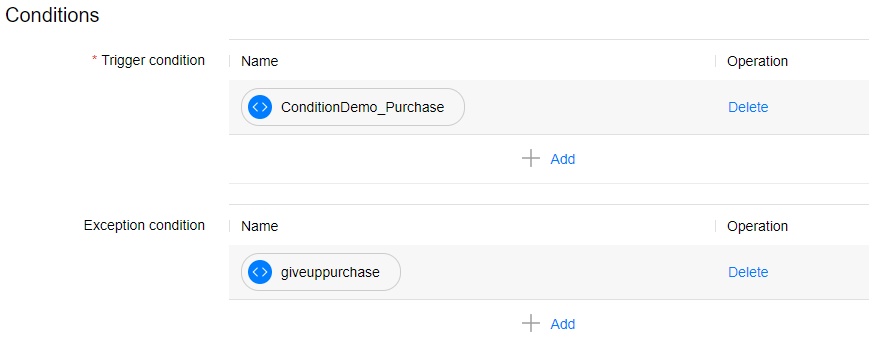
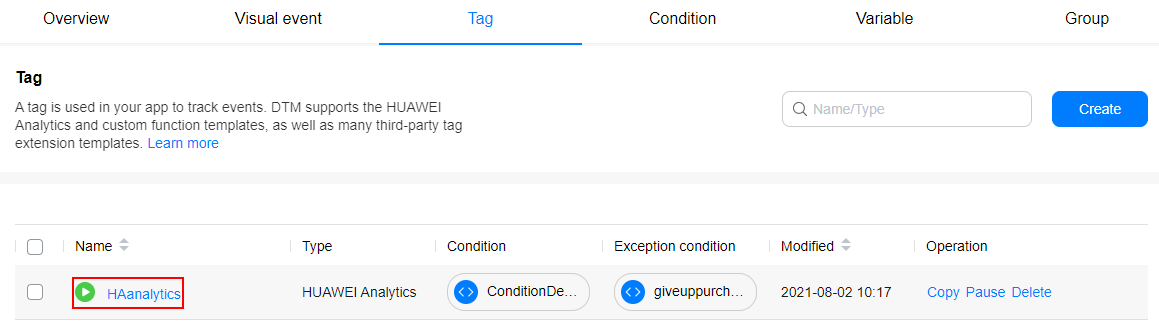
- Click Save. You can view the created tag on the Tag tab page.
Google Analytics (Firebase)
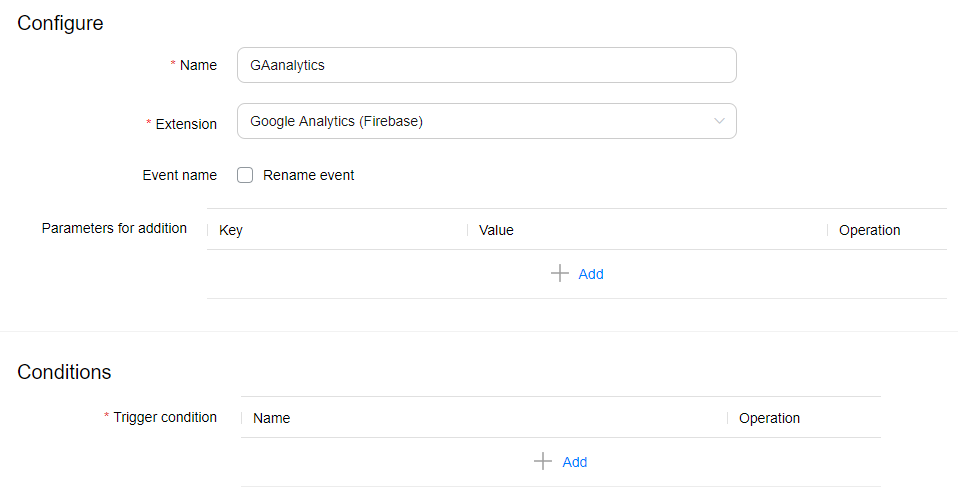
- On the Create tag page, enter a tag name and set Extension to Google Analytics (Firebase).
- (Optional) Select Rename event to rename the original event.
- Configure Parameters for addition and Trigger condition. The procedure is similar to that in Creating a Tag (HUAWEI Analytics).

To report data to Firebase, you need to integrate both the DTM SDK and Firebase-analytics SDK into your app. For details, please refer to Add Firebase to your Android project.
- Download the Android configuration file (google-services.json) from Firebase, and move the file to the module (app-level) directory in your project.
- Add rules in the project-level build.gradle file to include the Google Services Gradle plugin.
- Declare dependencies related to Firebase in the app-level build.gradle file (for example, app/build.gradle). The dependency items must include the Firebase-analytics SDK.
[h2]Use Cases
The enhanced e-commerce function in the Google Analytics: Universal Analytics template is supported, allowing you to easily track user interactions with your product, including product display, product click, viewing product details, adding your product to the shopping cart, checkout, transaction, and refund.
[h2]Prerequisites
You have integrated Analytics Kit 5.2.0.300 or later. For details, please refer to Accessing Analytics Kit.
[h2]Procedure
- Add code of the supported events in Supported Events to your code file.
- Set Value in the Trigger area to the actual value of the corresponding event.
- Click Create on the Condition tab page.
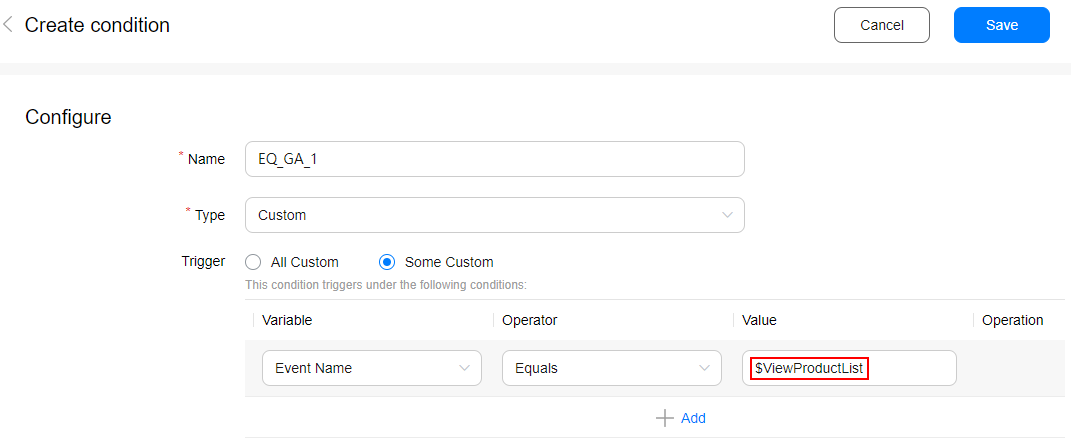
- On the Create condition page displayed, set Type to Custom and Trigger to Some events.
- Set Value in the Trigger area to the actual value of the corresponding event, as shown in the figure below.
- Enable the enhanced e-commerce function.
- Click Create on the Tag tab page.
- On the Create tag page displayed, enter a tag name, set Extension to Google Analytics: Universal Analytics, select Enable enhanced e-commerce, and set related parameters.

If settings on the Create tag page are inconsistent with those in the tag, settings on the Create tag page take precedence.
[h2]Supported Events
Event |
HUAWEI Analytics Key Value |
Actual Value |
|---|---|---|
HAEventType.VIEWPRODUCTLIST |
$ViewProductList |
|
HAEventType.VIEWCONTENT |
$ViewContent |
|
HAEventType.VIEWPRODUCT |
$ViewProduct |
|
HAEventType.ADDPRODUCT2CART |
$AddProduct2Cart |
|
HAEventType.DELPRODUCTFROMCART |
$DelProductFromCart |
|
HAEventType.VIEWPRODUCT |
$ViewProduct |
|
HAEventType.VIEWCONTENT |
$ViewContent |
|
HAEventType.STARTCHECKOUT |
$StartCheckout |
|
HAEventType.VIEWCHECKOUTSTEP |
$ViewCheckoutStep |
|
HAEventType.UPDATECHECKOUTOPTION |
$UpdateCheckoutOption |
|
HAEventType.COMPLETEPURCHASE |
$CompletePurchase |
|
HAEventType.REFUNDORDER |
$RefundOrder |
[h2]Product Display
HUAWEI Analytics Parameter |
Name |
Google Analytics Field |
Value Example |
|---|---|---|---|
PRODUCTID |
Product SKU |
pr<productIndex>id |
HUAWEI_Mate_40_AI8I03Q423G |
PRODUCTNAME |
Product Name |
pr<productIndex>nm |
HUAWEI Mate 40 Pro |
CATEGORY |
Product Category |
pr<productIndex>ca |
Phone/Mate/Black |
PRODUCTFEATURE |
Product Variant |
pr<productIndex>va |
Black |
BRAND |
Product Brand |
pr<productIndex>br |
HUAWEI |
PRICE |
Product Price |
pr<productIndex>pr |
6999.00 |
CURRNAME |
Currency Code |
cu |
CNY |
POSITIONID |
Product Position |
pr<productIndex>ps |
1 |
PRODUCTLIST |
Product Impression List Name |
pal |
Search Results |
The sample code is as follows:
    HiAnalyticsInstance hiAnalytics = HiAnalytics.getInstance(this);

    Bundle product1 = new Bundle();
    product1.putString(HAParamType.PRODUCTID, "HUAWEI_Mate_40_AI8I03Q423G");
    product1.putString(HAParamType.PRODUCTNAME, "HUAWEI Mate 40 Pro");
    product1.putString(HAParamType.CATEGORY, "Phone/Mate/Black");
    product1.putString(HAParamType.PRODUCTFEATURE, "Black");
    product1.putString(HAParamType.BRAND, "HUAWEI");
    product1.putDouble(HAParamType.PRICE, 6999.00);
    product1.putString(HAParamType.CURRNAME, "CNY");
    product1.putLong(HAParamType.POSITIONID, 1);

    Bundle product2 = new Bundle();
    product2.putString(HAParamType.PRODUCTID, "HUAWEI_Mate_40_AI8I03QJ2J90");
    product2.putString(HAParamType.PRODUCTNAME, "HUAWEI Mate 40 Pro");
    product2.putString(HAParamType.CATEGORY, "Phone/Mate/Yellow");
    product2.putString(HAParamType.PRODUCTFEATURE, "Yellow");
    product2.putString(HAParamType.BRAND, "HUAWEI");
    product2.putDouble(HAParamType.PRICE, 6999.00);
    product2.putString(HAParamType.CURRNAME, "CNY");
    product2.putLong(HAParamType.POSITIONID, 2);

    ArrayList items = new ArrayList();
    items.add(product1);
    items.add(product2);

    Bundle ecommerceBundle = new Bundle();
    ecommerceBundle.putParcelableArrayList("items", items);
    ecommerceBundle.putString(HAParamType.PRODUCTLIST, "Search Results");

    hiAnalytics.onEvent(HAEventType.VIEWPRODUCTLIST, ecommerceBundle);
[h2]Product Click/Selection
HUAWEI Analytics Parameter |
Name |
Google Analytics Field |
Value Example |
|---|---|---|---|
PRODUCTID |
Product SKU |
pr<productIndex>id |
HUAWEI_Mate_40_AI8I03Q423G |
PRODUCTNAME |
Product Name |
pr<productIndex>nm |
HUAWEI Mate 40 Pro |
CATEGORY |
Product Category |
pr<productIndex>ca |
Phone/Mate/Black |
PRODUCTFEATURE |
Product Variant |
pr<productIndex>va |
Black |
BRAND |
Product Brand |
pr<productIndex>br |
HUAWEI |
PRICE |
Product Price |
pr<productIndex>pr |
6999.00 |
CURRNAME |
Currency Code |
cu |
CNY |
POSITIONID |
Product Position |
pr<productIndex>ps |
1 |
PRODUCTLIST |
Product Impression List Name |
pal |
Search Results |
The sample code is as follows:
    HiAnalyticsInstance hiAnalytics = HiAnalytics.getInstance(this);

    Bundle product1 = new Bundle();
    product1.putString(HAParamType.PRODUCTID, "HUAWEI_Mate_40_AI8I03Q423G");
    product1.putString(HAParamType.PRODUCTNAME, "HUAWEI Mate 40 Pro");
    product1.putString(HAParamType.CATEGORY, "Phone/Mate/Black");
    product1.putString(HAParamType.PRODUCTFEATURE, "Black");
    product1.putString(HAParamType.BRAND, "HUAWEI");
    product1.putDouble(HAParamType.PRICE, 6999.00);
    product1.putString(HAParamType.CURRNAME, "CNY");
    product1.putLong(HAParamType.POSITIONID, 1);

    Bundle ecommerceBundle = new Bundle();
    ecommerceBundle.putBundle("items", product1);
    ecommerceBundle.putString(HAParamType.PRODUCTLIST, "Search Results");

    hiAnalytics.onEvent(HAEventType.VIEWCONTENT, ecommerceBundle);
[h2]Product Details View
HUAWEI Analytics Parameter |
Name |
Google Analytics Field |
Value Example |
|---|---|---|---|
PRODUCTID |
Product SKU |
pr<productIndex>id |
HUAWEI_Mate_40_AI8I03Q423G |
PRODUCTNAME |
Product Name |
pr<productIndex>nm |
HUAWEI Mate 40 Pro |
CATEGORY |
Product Category |
pr<productIndex>ca |
Phone/Mate/Black |
PRODUCTFEATURE |
Product Variant |
pr<productIndex>va |
Black |
BRAND |
Product Brand |
pr<productIndex>br |
HUAWEI |
PRICE |
Product Price |
pr<productIndex>pr |
6999.00 |
CURRNAME |
Currency Code |
cu |
CNY |
The sample code is as follows:
    HiAnalyticsInstance hiAnalytics = HiAnalytics.getInstance(this);

    Bundle product1 = new Bundle();
    product1.putString(HAParamType.PRODUCTID, "HUAWEI_Mate_40_AI8I03Q423G");
    product1.putString(HAParamType.PRODUCTNAME, "HUAWEI Mate 40 Pro");
    product1.putString(HAParamType.CATEGORY, "Phone/Mate/Black");
    product1.putString(HAParamType.PRODUCTFEATURE, "Black");
    product1.putString(HAParamType.BRAND, "HUAWEI");
    product1.putDouble(HAParamType.PRICE, 6999.00);
    product1.putString(HAParamType.CURRNAME, "CNY");

    Bundle ecommerceBundle = new Bundle();
    ecommerceBundle.putBundle("items", product1);

    hiAnalytics.onEvent(HAEventType.VIEWPRODUCT, ecommerceBundle);
[h2]Adding Product to Shopping Cart
HUAWEI Analytics Parameter |
Name |
Google Analytics Field |
Value Example |
|---|---|---|---|
PRODUCTID |
Product SKU |
pr<productIndex>id |
HUAWEI_Mate_40_AI8I03Q423G |
PRODUCTNAME |
Product Name |
pr<productIndex>nm |
HUAWEI Mate 40 Pro |
CATEGORY |
Product Category |
pr<productIndex>ca |
Phone/Mate/Black |
PRODUCTFEATURE |
Product Variant |
pr<productIndex>va |
Black |
BRAND |
Product Brand |
pr<productIndex>br |
HUAWEI |
PRICE |
Product Price |
pr<productIndex>pr |
6999.00 |
CURRNAME |
Currency Code |
cu |
CNY |
QUANTITY |
Product Quantity |
pr<productIndex>qt |
1 |
The sample code is as follows:
    HiAnalyticsInstance hiAnalytics = HiAnalytics.getInstance(this);

    Bundle product1 = new Bundle();
    product1.putString(HAParamType.PRODUCTID, "HUAWEI_Mate_40_AI8I03Q423G");
    product1.putString(HAParamType.PRODUCTNAME, "HUAWEI Mate 40 Pro");
    product1.putString(HAParamType.CATEGORY, "Phone/Mate/Black");
    product1.putString(HAParamType.PRODUCTFEATURE, "Black");
    product1.putString(HAParamType.BRAND, "HUAWEI");
    product1.putDouble(HAParamType.PRICE, 6999.00);
    product1.putString(HAParamType.CURRNAME, "CNY");
    product1.putLong(HAParamType.QUANTITY, 1);

    Bundle ecommerceBundle = new Bundle();
    ecommerceBundle.putBundle("items", product1);

    hiAnalytics.onEvent(HAEventType.ADDPRODUCT2CART, ecommerceBundle);
[h2]Removing Product from Shopping Cart
HUAWEI Analytics Parameter |
Name |
Google Analytics Field |
Value Example |
|---|---|---|---|
PRODUCTID |
Product SKU |
pr<productIndex>id |
HUAWEI_Mate_40_AI8I03Q423G |
PRODUCTNAME |
Product Name |
pr<productIndex>nm |
HUAWEI Mate 40 Pro |
CATEGORY |
Product Category |
pr<productIndex>ca |
Phone/Mate/Black |
PRODUCTFEATURE |
Product Variant |
pr<productIndex>va |
Black |
BRAND |
Product Brand |
pr<productIndex>br |
HUAWEI |
PRICE |
Product Price |
pr<productIndex>pr |
6999.00 |
CURRNAME |
Currency Code |
cu |
CNY |
QUANTITY |
Product Quantity |
pr<productIndex>qt |
1 |
The sample code is as follows:
    HiAnalyticsInstance hiAnalytics = HiAnalytics.getInstance(this);

    Bundle product1 = new Bundle();
    product1.putString(HAParamType.PRODUCTID, "HUAWEI_Mate_40_AI8I03Q423G");
    product1.putString(HAParamType.PRODUCTNAME, "HUAWEI Mate 40 Pro");
    product1.putString(HAParamType.CATEGORY, "Phone/Mate/Black");
    product1.putString(HAParamType.PRODUCTFEATURE, "Black");
    product1.putString(HAParamType.BRAND, "HUAWEI");
    product1.putDouble(HAParamType.PRICE, 6999.00);
    product1.putString(HAParamType.CURRNAME, "CNY");
    product1.putLong(HAParamType.QUANTITY, 1);

    Bundle ecommerceBundle = new Bundle();
    ecommerceBundle.putBundle("items", product1);

    hiAnalytics.onEvent(HAEventType.DELPRODUCTFROMCART, ecommerceBundle);
[h2]Promotion Information Display
HUAWEI Analytics Parameter |
Name |
Google Analytics Field |
Value Example |
|---|---|---|---|
CLICKID |
Promotion ID |
promo<promoIndex>id |
PROMO_NEW_PHONE_XXX |
PROMOTIONNAME |
Promotion Name |
promo<promoIndex>nm |
New Phone Promotion |
MATERIALNAME |
Promotion Creative |
promo<promoIndex>cr |
new_phone_banner_x |
MATERIALSLOT |
Promotion Position |
promo<promoIndex>ps |
banner_slot_x |
The sample code is as follows:
    HiAnalyticsInstance hiAnalytics = HiAnalytics.getInstance(this);

    Bundle promotion = new Bundle();
    promotion.putString(HAParamType.TRANSACTIONID, "PROMO_NEW_PHONE_XXX");
    promotion.putString(HAParamType.PROMOTIONNAME, "New Phone Promotion");
    promotion.putString(HAParamType.MATERIALNAME, "new_phone_banner_x");
    promotion.putString(HAParamType.MATERIALSLOT, "banner_slot_x");

    ArrayList promotions = new ArrayList();
    promotions.add(promotion);

    Bundle ecommerceBundle = new Bundle();
    ecommerceBundle.putParcelableArrayList("promotions", promotions);

    hiAnalytics.onEvent(HAEventType.VIEWPRODUCT, ecommerceBundle);
[h2]Promotion Information Click/Selection
HUAWEI Analytics Parameter |
Name |
Google Analytics Field |
Value Example |
|---|---|---|---|
CLICKID |
Promotion ID |
promo<promoIndex>id |
PROMO_NEW_PHONE_XXX |
PROMOTIONNAME |
Promotion Name |
promo<promoIndex>nm |
New Phone Promotion |
MATERIALNAME |
Promotion Creative |
promo<promoIndex>cr |
new_phone_banner_x |
MATERIALSLOT |
Promotion Position |
promo<promoIndex>ps |
banner_slot_x |
CONTENTTYPE |
Product Action List |
pal |
Internal Promotions |
The sample code is as follows:
    HiAnalyticsInstance hiAnalytics = HiAnalytics.getInstance(this);

    Bundle promotion = new Bundle();
    promotion.putString(HAParamType.TRANSACTIONID, "PROMO_NEW_PHONE_XXX");
    promotion.putString(HAParamType.PROMOTIONNAME, "New Phone Promotion");
    promotion.putString(HAParamType.MATERIALNAME, "new_phone_banner_x");
    promotion.putString(HAParamType.MATERIALSLOT, "banner_slot_x");

    ArrayList promotions = new ArrayList();
    promotions.add(promotion);

    Bundle ecommerceBundle = new Bundle();
    ecommerceBundle.putParcelableArrayList("promotions", promotions);
    ecommerceBundle.putString(HAParamType.MEDIUM, "Internal Promotions");
    hiAnalytics.onEvent(HAEventType.VIEWCONTENT, ecommerceBundle);
[h2]Checkout
HUAWEI Analytics Parameter |
Name |
Google Analytics Field |
Value Example |
|---|---|---|---|
PRODUCTID |
Product SKU |
pr<productIndex>id |
HUAWEI_Mate_40_AI8I03Q423G |
PRODUCTNAME |
Product Name |
pr<productIndex>nm |
HUAWEI Mate 40 Pro |
CATEGORY |
Product Category |
pr<productIndex>ca |
Phone/Mate/Black |
PRODUCTFEATURE |
Product Variant |
pr<productIndex>va |
Black |
BRAND |
Product Brand |
pr<productIndex>br |
HUAWEI |
PRICE |
Product Price |
pr<productIndex>pr |
6999.00 |
CURRNAME |
Currency Code |
cu |
CNY |
QUANTITY |
Product Quantity |
pr<productIndex>qt |
1 |
STEP |
Checkout Step |
cos |
1 |
OPTION |
Checkout Step Option |
col |
Visa |
The sample code is as follows:
    HiAnalyticsInstance hiAnalytics = HiAnalytics.getInstance(this);

    Bundle product1 = new Bundle();
    product1.putString(HAParamType.PRODUCTID, "HUAWEI_Mate_40_AI8I03Q423G");
    product1.putString(HAParamType.PRODUCTNAME, "HUAWEI Mate 40 Pro");
    product1.putString(HAParamType.CATEGORY, "Phone/Mate/Black");
    product1.putString(HAParamType.PRODUCTFEATURE, "Black");
    product1.putString(HAParamType.BRAND, "HUAWEI");
    product1.putDouble(HAParamType.PRICE, 6999.00);
    product1.putString(HAParamType.CURRNAME, "CNY");
    product1.putLong(HAParamType.QUANTITY, 1);

    ArrayList items = new ArrayList();
    items.add(product1);

    Bundle ecommerceBundle = new Bundle();
    ecommerceBundle.putParcelableArrayList("items", items);

    ecommerceBundle.putLong(HAParamType.STEP, 1);
    ecommerceBundle.putString(HAParamType.OPTION, "Visa");

    hiAnalytics.onEvent(HAEventType.STARTCHECKOUT, ecommerceBundle);
[h2]Other Checkout Step
HUAWEI Analytics Parameter |
Name |
Google Analytics Field |
Value Example |
|---|---|---|---|
PRODUCTID |
Product SKU |
pr<productIndex>id |
HUAWEI_Mate_40_AI8I03Q423G |
PRODUCTNAME |
Product Name |
pr<productIndex>nm |
HUAWEI Mate 40 Pro |
CATEGORY |
Product Category |
pr<productIndex>ca |
Phone/Mate/Black |
PRODUCTFEATURE |
Product Variant |
pr<productIndex>va |
Black |
BRAND |
Product Brand |
pr<productIndex>br |
HUAWEI |
PRICE |
Product Price |
pr<productIndex>pr |
6999.00 |
CURRNAME |
Currency Code |
cu |
CNY |
QUANTITY |
Product Quantity |
pr<productIndex>qt |
1 |
STEP |
Checkout Step |
cos |
2 |
OPTION |
Checkout Step Option |
col |
Visa |
The sample code is as follows:
    HiAnalyticsInstance hiAnalytics = HiAnalytics.getInstance(this);

    Bundle product1 = new Bundle();
    product1.putString(HAParamType.PRODUCTID, "HUAWEI_Mate_40_AI8I03Q423G");
    product1.putString(HAParamType.PRODUCTNAME, "HUAWEI Mate 40 Pro");
    product1.putString(HAParamType.CATEGORY, "Phone/Mate/Black");
    product1.putString(HAParamType.PRODUCTFEATURE, "Black");
    product1.putString(HAParamType.BRAND, "HUAWEI");
    product1.putDouble(HAParamType.PRICE, 6999.00);
    product1.putString(HAParamType.CURRNAME, "CNY");
    product1.putLong(HAParamType.QUANTITY, 1);

    ArrayList items = new ArrayList();
    items.add(product1);

    Bundle ecommerceBundle = new Bundle();
    ecommerceBundle.putParcelableArrayList("items", items);

    ecommerceBundle.putLong(HAParamType.STEP, 2);
    ecommerceBundle.putString(HAParamType.OPTION, "Visa");

    hiAnalytics.onEvent(HAEventType.VIEWCHECKOUTSTEP, ecommerceBundle);
[h2]Checkout Option
HUAWEI Analytics Parameter |
Name |
Google Analytics Field |
Value Example |
|---|---|---|---|
STEP |
Checkout Step |
cos |
2 |
OPTION |
Checkout Step Option |
col |
Mastercard |
The sample code is as follows:
    HiAnalyticsInstance hiAnalytics = HiAnalytics.getInstance(this);

    Bundle ecommerceBundle = new Bundle();
    ecommerceBundle.putLong(HAParamType.STEP, 2);
    ecommerceBundle.putString(HAParamType.OPTION, "Mastercard");
    hiAnalytics.onEvent(HAEventType.UPDATECHECKOUTOPTION, ecommerceBundle);
[h2]Purchase
HUAWEI Analytics Parameter |
Name |
Google Analytics Field |
Value Example |
|---|---|---|---|
PRODUCTID |
Product SKU |
pr<productIndex>id |
HUAWEI_Mate_40_AI8I03Q423G |
PRODUCTNAME |
Product Name |
pr<productIndex>nm |
HUAWEI Mate 40 Pro |
CATEGORY |
Product Category |
pr<productIndex>ca |
Phone/Mate/Black |
PRODUCTFEATURE |
Product Variant |
pr<productIndex>va |
Black |
BRAND |
Product Brand |
pr<productIndex>br |
HUAWEI |
PRICE |
Product Price |
pr<productIndex>pr |
6999.00 |
CURRNAME |
Currency Code |
cu |
CNY |
QUANTITY |
Product Quantity |
pr<productIndex>qt |
1 |
TRANSACTIONID |
Transaction ID |
ti |
T12345 |
STORENAME |
Transaction Affiliation |
ta |
HUAWEI Store - Online |
REVENUE |
Transaction Revenue |
tr |
37.39 |
TAXFEE |
Transaction Tax |
tt |
2.85 |
SHIPPING |
Transaction Shipping |
ts |
5.34 |
CURRNAME |
Currency Code |
cu |
CNY |
VOUCHER |
Coupon Code |
tcc |
NEW_PHONE_2020 |
The sample code is as follows:
    HiAnalyticsInstance hiAnalytics = HiAnalytics.getInstance(this);

    Bundle product1 = new Bundle();
    product1.putString(HAParamType.PRODUCTID, "HUAWEI_Mate_40_AI8I03Q423G");
    product1.putString(HAParamType.PRODUCTNAME, "HUAWEI Mate 40 Pro");
    product1.putString(HAParamType.CATEGORY, "Phone/Mate/Black");
    product1.putString(HAParamType.PRODUCTFEATURE, "Black");
    product1.putString(HAParamType.BRAND, "HUAWEI");
    product1.putDouble(HAParamType.PRICE, 6999.00);
    product1.putString(HAParamType.CURRNAME, "CNY");
    product1.putLong(HAParamType.QUANTITY, 1);

    Bundle product2 = new Bundle();
    product2.putString(HAParamType.PRODUCTID, "HUAWEI_Mate_40_AI8I03QJ2J90");
    product2.putString(HAParamType.PRODUCTNAME, "HUAWEI Mate 40 Pro");
    product2.putString(HAParamType.CATEGORY, "Phone/Mate/Yellow");
    product2.putString(HAParamType.PRODUCTFEATURE, "Yellow");
    product2.putString(HAParamType.BRAND, "HUAWEI");
    product2.putDouble(HAParamType.PRICE, 6999.00);
    product2.putString(HAParamType.CURRNAME, "CNY");
    product2.putLong(HAParamType.QUANTITY, 1);

    ArrayList items = new ArrayList();
    items.add(product1);
    items.add(product2);

    Bundle ecommerceBundle = new Bundle();
    ecommerceBundle.putParcelableArrayList("items", items);

    ecommerceBundle.putString(HAParamType.TRANSACTIONID, "T12345");
    ecommerceBundle.putString(HAParamType.STORENAME, "HUAWEI Store - Online");
    ecommerceBundle.putDouble(HAParamType.REVENUE, 37.39);
    ecommerceBundle.putDouble(HAParamType.TAXFEE, 2.85);
    ecommerceBundle.putDouble(HAParamType.SHIPPING, 5.34);
    ecommerceBundle.putString(HAParamType.CURRNAME, "CNY");
    ecommerceBundle.putString(HAParamType.VOUCHER, "NEW_PHONE_2020");

    hiAnalytics.onEvent(HAEventType.COMPLETEPURCHASE, ecommerceBundle);
[h2]Refund
HUAWEI Analytics Parameter |
Name |
Google Analytics Field |
Value Example |
|---|---|---|---|
TRANSACTIONID |
Transaction ID |
ti |
T12345 |
REVENUE |
Transaction Revenue |
tr |
37.39 |
PRODUCTID |
Product SKU |
pr<productIndex>id |
HUAWEI_Mate_40_AI8I03Q423G |
QUANTITY |
Product Quantity |
pr<productIndex>qt |
1 |
The sample code is as follows:
    HiAnalyticsInstance hiAnalytics = HiAnalytics.getInstance(this);

    Bundle ecommerceBundle = new Bundle();
    ecommerceBundle.putString(HAParamType.TRANSACTIONID, "T12345");
    ecommerceBundle.putDouble(HAParamType.REVENUE, 37.39 );

    Bundle refundedProduct = new Bundle();
    refundedProduct.putString(HAParamType.PRODUCTID, "HUAWEI_Mate_40_AI8I03Q423G");
    refundedProduct.putLong(HAParamType.QUANTITY, 1);

    ArrayList items = new ArrayList();
    items.add(refundedProduct);
    ecommerceBundle.putParcelableArrayList("items", items);

    hiAnalytics.onEvent(HAEventType.REFUNDORDER, ecommerceBundle);