You can add a traffic condition layer on the map to display the real-time traffic status. Colors on a route signify the congestion status. For example, dark red signifies that the route is heavily congested, and green signifies that traffic on the route is light. Traffic conditions will be updated frequently but not immediately. You can use the autoRefresh and interval attributes to specify whether to automatically update the traffic conditions and the interval for updating them.
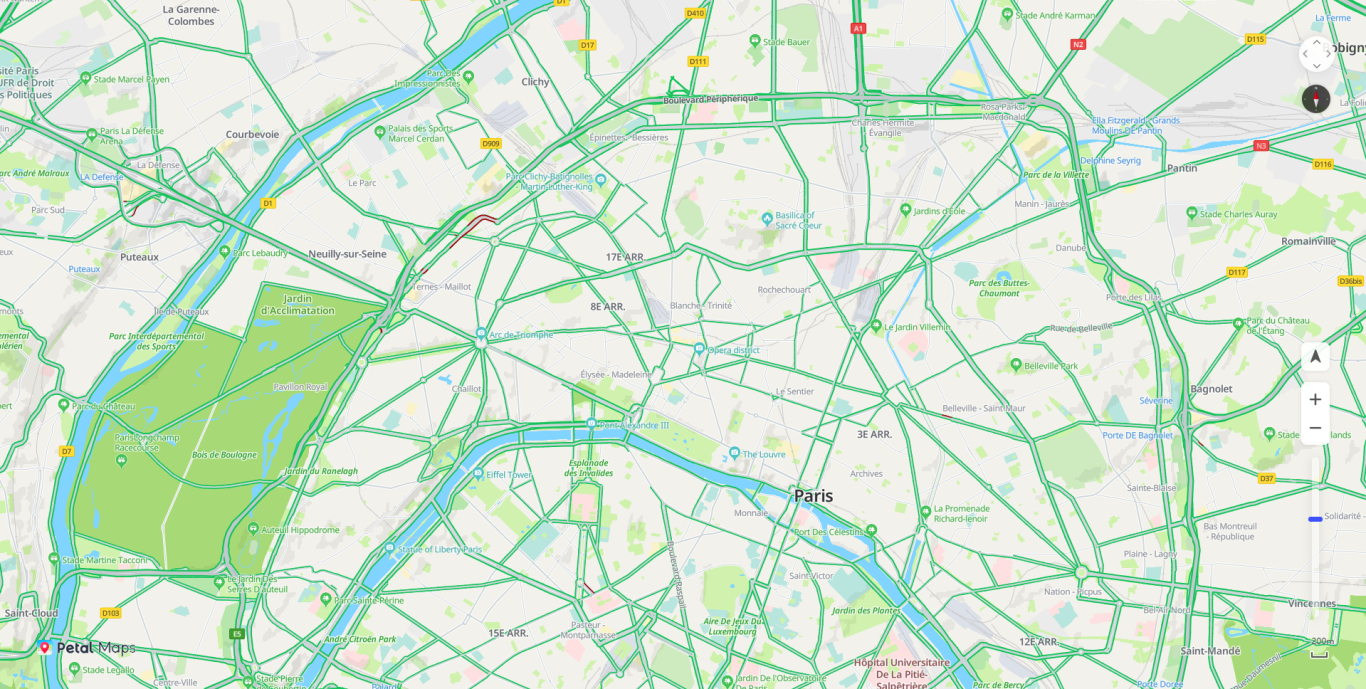
Adding a Traffic Condition Layer
Call HWMapJsSDK.HWTrafficLayer(map, opts) to add a traffic condition layer.
function initMap() {
    var mapOptions = {};
    mapOptions.center = {
        lat: 48.856613,
        lng: 2.352222,
    };
    mapOptions.zoom = 8;
    mapOptions.language = 'en';
    mapOptions.sourceType = 'vector';
    mapOptions.navigationControl = true;
    mapOptions.locationControl = true;
    mapOptions.rotateControl = true;
    mapOptions.zoomControl = true;
    mapOptions.zoomSlider = true;
    mapOptions.scaleControl = true;
    mapOptions.copyrightControl = true;
    mapOptions.logoPosition = 'TOP_LEFT';

    map = new HWMapJsSDK.HWMap(document.getElementById('map'), mapOptions);
    // Add a real-time traffic condition layer.
    trafficMap = new HWMapJsSDK.HWTrafficLayer(map, {
        // Set the update interval. The default value is 120 seconds.
        interval: 40,
        // Set whether to enable automatic update. The default value is false.
        autoRefresh: true
    });
} 
If the base map is a raster map (sourceType being set to raster), the traffic condition layer will not be displayed.