Importing a GTM Configuration File
To use GTM configuration policies in DTM, you can export the GTM configuration file of your app and then import the file to DTM, simplifying the configuration process.
The exported GTM configuration file contains preset variables, custom variables, conditions, tags, and groups.

If no groups are configured, the configuration file will not contain any group information.
- Sign in to Google Tag Manager, and export a JSON configuration file. For details, please refer to Container export and import.
- Click Import on the Configuration tab page in DTM.
- Select the JSON file to be imported, specify an import policy, and click Import.
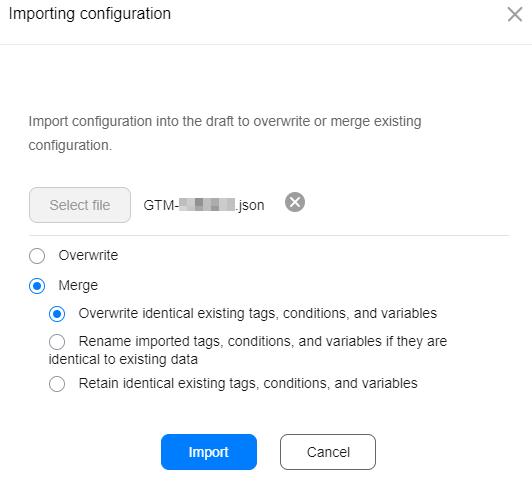

The name of the JSON-format GTM configuration file to be imported must begin with GTM-.
- View the import result.
- If the import is successful, no further operation is required.
- If the Ignored resources dialog box is displayed, click OK or close the dialog box to finish the import.
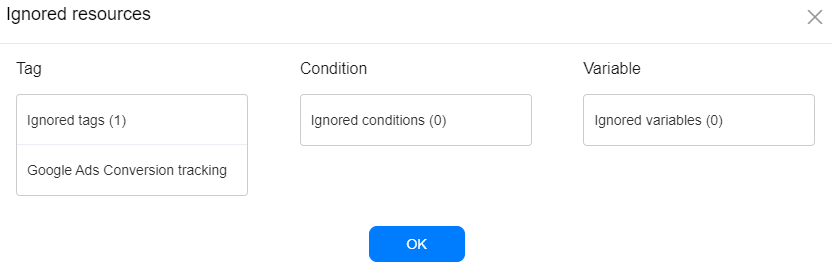 When the GTM configuration file is imported, DTM will ignore relevant resources in the following situations.
Resource Type
Ignored When
Preset variable
DTM does not support the preset variable type.
Custom variable
- DTM does not support the custom variable type.
- DTM supports the custom variable type, but the custom variable references an ignored variable.
- Variable parameters are inconsistent with those in DTM.
Condition
- DTM does not support the condition type.
- DTM supports the condition type, but the condition references an ignored variable.
- Condition parameters are inconsistent with those in DTM.
Tag
- DTM does not support the tag type.
- DTM supports the tag type, but the tag references an ignored variable or condition.
- Tag parameters are inconsistent with those in DTM.
- If the import fails, modify the configuration file based on the error message and then try again.

The GTM configuration file will fail to be imported if parameters in it do not comply with DTM rules. (For example, the parameter format, verification rule, or length does not comply with the DTM rules.)


Importing a Visual Event Configuration File
- Click Import on the Configuration tab page in DTM.
- Select the JSON file to be imported, specify an import policy, and click Import.
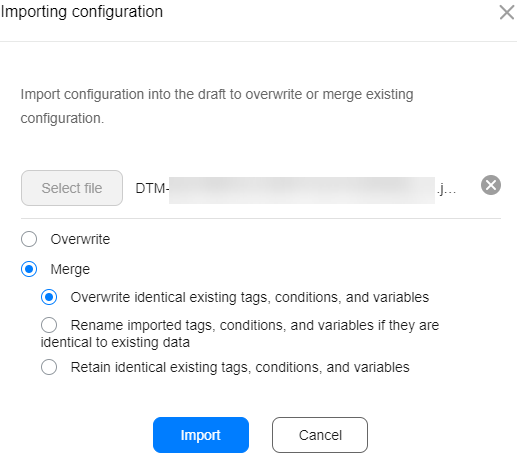
- View the import result.
- If the import is successful, no further operation is required.
- If the Ignored resources dialog box is displayed, click OK or close the dialog box to finish the import.
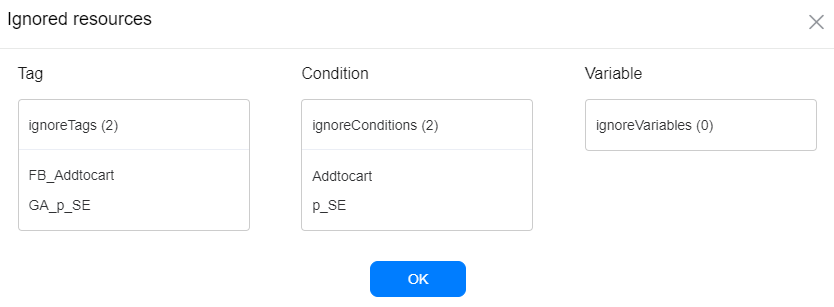

When the configuration file is imported, DTM will ignore relevant resources when:
- You select Merge, and the condition of the visual event is duplicate with that of a non-visual event.
- You select Merge, and visual event positions in the configuration file are duplicate with those in the database.
- You select Merge, and visual event names in the configuration file are duplicate with those in the database.
- If the import fails, modify the configuration file based on the error message and then try again.

