Currently, Analytics Kit provides the APIs for importing custom user attributes and reporting user behavior. To reduce the coding workload, a Node.js SDK is provided for you to efficiently use the capabilities provided by these APIs.
Procedure
- Download the Node.js SDK installation package to your local device.
- Decompress the package locally and run the following command to install the SDK:
npm install hw-hmscore-analytics-node-6.4.0-303.tgz
- Integrate the Node.js SDK.
Currently, the Node.js SDK supports two integration modes: CommonJS and ESM.
CommonJS
const HaNodeSDK = require('@hw-hmscore/analytics-node');
ESM import { HuaweiApp, CachePolicy, HuaweiAnalyticsClient } from '@hw-hmscore/analytics-node'; - Configure logging.
To capture exceptions, you can call the initLogger API of the Node.js SDK to record logs.
CommonJS
// Integrate winston.
const winston = require('winston');
const logger = winston.createLogger({
  transports: [
    new winston.transports.Console(),
    new winston.transports.File({filename: 'combined.log'})
  ]
});

HaNodeSDK.HuaweiAnalyticsClient.initLogger(logger);
ESM // Integrate winston. const winston = require('winston'); const logger = winston.createLogger({ transports: [ new winston.transports.Console(), new winston.transports.File({filename: 'combined.log'}) ] }); HuaweiAnalyticsClient.initLogger(logger); - Obtain app information.
- Sign in to AppGallery Connect and click My projects.
- Find your app project and click the app that needs to integrate the SDK.
- On the Project settings page, obtain the app information.
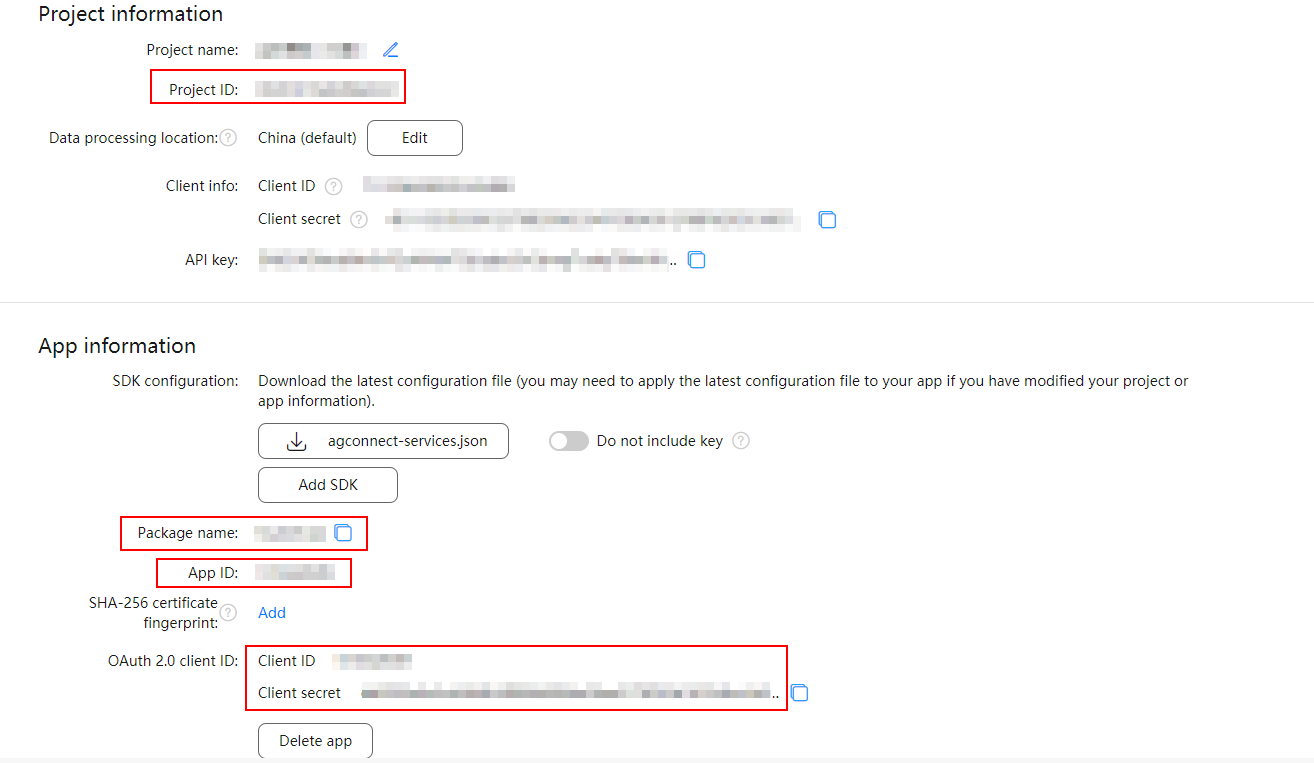
- Create an app list, create a HuaweiApp instance, and add app information. If your server receives requests from multiple apps, you need to add information about all these apps.
CommonJS
let apps = []; // Create an app list.
let huaweiApp = new HaNodeSDK.HuaweiApp(Android, https://test.test.cn, https://oauth-login.cloud.huawei.com/oauth2/v3/authorize); // Create a HuaweiApp instance.

// Add app information.
huaweiApp.setAppID(123);
huaweiApp.setClientID(123);
huaweiApp.setProductID(123);
huaweiApp.setPackageName(123.123);
huaweiApp.setClientSecret(123);

apps.push(huaweiApp); // Add the app to the app list.
ESM
let apps = []; // Create an app list.
let huaweiApp = new HuaweiApp(Android, https://test.test.cn, https://oauth-login.cloud.huawei.com/oauth2/v3/authorize); // Create a HuaweiApp instance.

// Add app information.
huaweiApp.setAppID(123);
huaweiApp.setClientID(123);
huaweiApp.setProductID(123);
huaweiApp.setPackageName(123.123);
huaweiApp.setClientSecret(123);

apps.push(huaweiApp); // Add the app to the app list.
The details are as follows:

- For an iOS app, go to HUAWEI Analytics > Management > Apps and obtain the app ID and app package name. Then set setAppID to the app ID and setPackageName to the app package name.
- For a web app, set setPackageName to the app ID.
- huaweiApp must contain instantiation parameters.
- Android: type of the app to be added, for example, Android, iOS, HarmonyOS, WEB, or Quick App.
- https://test.test.cn: storage address corresponding to your app's data processing location.
Data Processing Location
Storage Address
China
- Find your project, and click the app for which you want to configure analysis data.
- Go to HUAWEI Analytics > Management > Analysis settings > API management and obtain the storage address.
Singapore
Russia
Germany
- https://oauth-login.cloud.huawei.com/oauth2/v3/authorize: current authentication address of the Node.js SDK. For details, please refer to OAuth 2.0-based Authentication.
- setAppID: Set this parameter to the value of App ID displayed under App information on the Project settings page.
- setClientID: Set this parameter to the value of Client ID displayed under App information on the Project settings page.
- setProductID: Set this parameter to the value of Project ID displayed under Project information on the Project settings page.
- setPackageName: Set this parameter to the value of Package name displayed under App information on the Project settings page.
- setClientSecret: Set this parameter to the value of Client secret displayed under App information on the Project settings page.
- Initialize the data reporting configuration.
- Using the default configuration
- Using the custom configuration
CommonJS
let config = new HaNodeSDK.CachePolicy();

config.setCacheTime(10); // Set the cache duration, in seconds.
config.setMaxRetry(2); // Set the number of reporting retries upon failure.
config.setUserSendSize(100); // Set the number of custom user attributes reported at a time.
config.setEventSendSize(100); // Set the number of user behavior records reported at a time.
config.setMaxCacheSize(10000); // Set the maximum number of cached data records.

HaNodeSDK.HuaweiAnalyticsClient.init(apps, config);
ESM
let config = new CachePolicy();

config.setCacheTime(10); // Set the cache duration, in seconds.
config.setMaxRetry(2); // Set the number of reporting retries upon failure.
config.setUserSendSize(100); // Set the number of custom user attributes reported at a time.
config.setEventSendSize(100); // Set the number of user behavior records reported at a time.
config.setMaxCacheSize(10000); // Set the maximum number of cached data records.

HuaweiAnalyticsClient.init(apps, config);
Parameter
Description
setCacheTime
Interval for reporting cached data, in seconds.
The value is an integer ranging from 1 to 1800, and the default value is 10.
setMaxRetry
Number of reporting retries upon failure due to server errors. If the reporting still fails after maximum retries, a log will be recorded.
The value is an integer ranging from 0 to 5, and the default value is 2.
setUserSendSize
Number of custom user attributes reported at a time.
The value is an integer ranging from 1 to 100, and the default value is 100.
setEventSendSize
Number of user behavior records reported at a time.
The value is an integer ranging from 1 to 100, and the default value is 100.
setMaxCacheSize
Maximum number of cached data records. When the number of cached data records reaches the maximum, the earliest data records will be deleted and recorded in logs.
The value is an integer ranging from 1 to 1000000, and the default value is 10000.
- Send data. For details about API parameters, please refer to Importing Custom User Attributes and Reporting User Behavior.
- Reporting user attributes
CommonJS
let userData = {
    "id": "123",
     "properties": [
        {
            "id": "favorite_sport",
             "value": "football"
        },
         {
            "id": "vip_users",
             "value": "true"
        }
    ]
};

HaNodeSDK.HuaweiAnalyticsClient.addUser(`${appId}`, userData);
ESM let userData = { "id": "123", "properties": [ { "id": "favorite_sport", "value": "football" }, { "id": "vip_users", "value": "true" } ] }; HuaweiAnalyticsClient.addUser(`${appId}`, userData); - Reporting user behavior
CommonJS
let eventData =  {
  "aaid":"76F752E9-D793-4321-975D-43DA9189B071",
  "userid":"",
  "androidid":"",
  "pushtoken":"",
  "eventtime":1587867045291,
  "event_session_name":"e508bb99af7f41f5b1573690a0987b88_1587866781700",
  "eventid":"$EnterScreen",
  "first_session_event":"true",
  "properties":{
      "$PrevActivityName":"",
      "$PrevActivityId":"",
      "$CurActivityName":"https://localhost:30401/",
      "$CurActivityId":"https://localhost:30401/"
  }
};

HaNodeSDK.HuaweiAnalyticsClient.addEvent(`${appId}`, eventData);
ESM let eventData = { "aaid":"76F752E9-D793-4321-975D-43DA9189B071", "userid":"", "androidid":"", "pushtoken":"", "eventtime":1587867045291, "event_session_name":"e508bb99af7f41f5b1573690a0987b88_1587866781700", "eventid":"$EnterScreen", "first_session_event":"true", "properties":{ "$PrevActivityName":"", "$PrevActivityId":"", "$CurActivityName":"https://localhost:30401/", "$CurActivityId":"https://localhost:30401/" } }; HuaweiAnalyticsClient.addEvent(`${appId}`, eventData);
- Reporting user attributes
- Refresh data to report all data to the server immediately.

When your app process is stopped due to an app update, restart, or other reasons, you can call the flush method to report all data.
CommonJS
// Send all collected data.
HaNodeSDK.HuaweiAnalyticsClient.flush();
ESM // Send all collected data. HuaweiAnalyticsClient.flush();