Analytics Kit provides the function of downloading event data. The downloaded data can then be imported into your analytics systems to customize reports and audiences. This helps you perform personalized analysis and formulate marketing activities.
You can export data in either of the following ways:
- Create a data export task through the UI. After the export is successful, the status is displayed as Finished. You can click Download to download the data.
- Create a data export task through an API. An API for exporting data (as described in Creating a Data Export Task) is provided for you to periodically extract data through coding.

Currently, the data export function is available only to invited partners. You can apply for this function by submitting a ticket online. For details about the request template, click here. If you need to obtain all data at a specified time every day, you are advised to integrate the DTM SDK.
Typical Application Scenarios
- Create a data export task. After the export is successful, click the download link to download the data.
- If the export fails, view the solution displayed next to Export failed.
[h2]Procedure
- Sign in to AppGallery Connect and click My projects.
- Find your project, and click the app for which you want to view analysis data.
- Go to HUAWEI Analytics > Management > Export data.
- Create a data export task through the UI or an API. For details, please refer to Creating a Data Export Task Through the UI or Creating a Data Export Task Through an API.
- If the export fails, view the solution displayed next to Export failed. For details, please refer to Viewing the Solution to the Export Failure.
[h2]Creating a Data Export Task Through the UI
- Go to HUAWEI Analytics > Management > Export data.
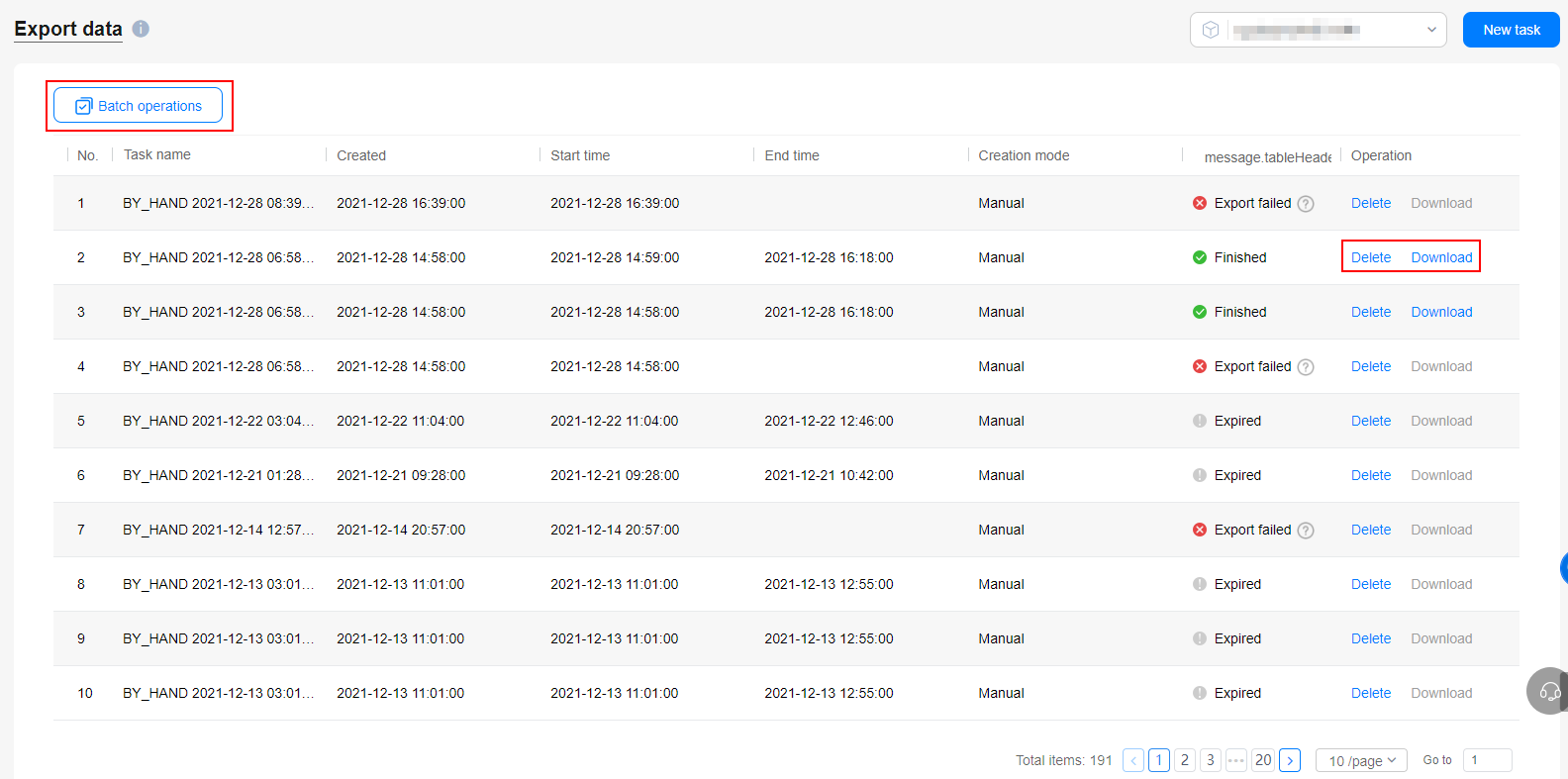
On the Export data page, you can view basic information about the data export task, including the task name, creation time, start time, end time, creation mode, and status.
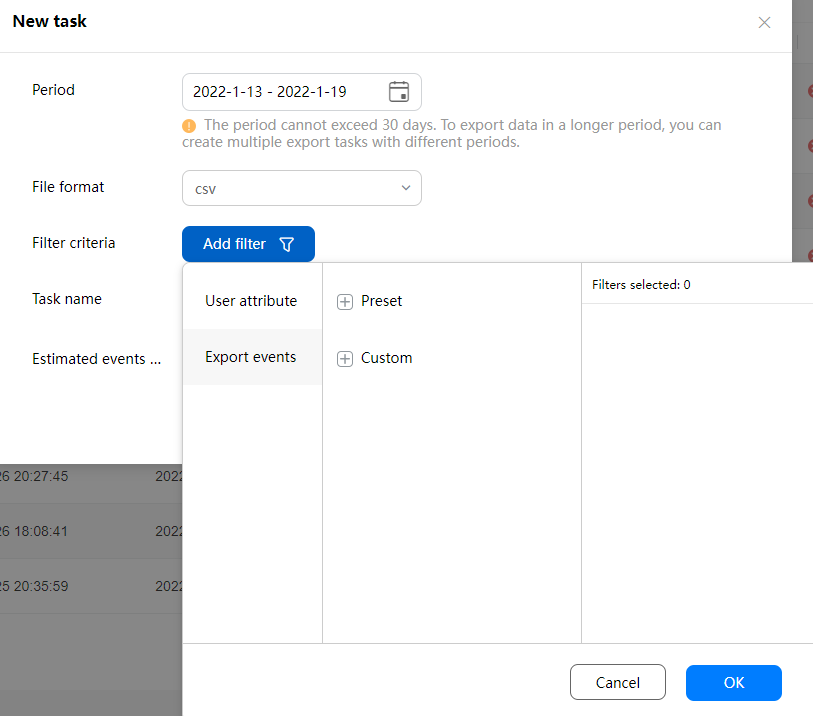
- Click New task in the upper right corner of the page to export event data within a specified period.
You can add user attributes or export events as the filter criteria. The estimated number of events to be exported is displayed and will change as you change the period or filter criteria.

- After an export task is created, To be started is displayed in the Status column. The export task is executed every hour. For a task in such state, if you want to shorten the queuing time, you are advised to create that task before the hour.
- You can add user attributes or events to be exported (only predefined and custom events) as the filter criteria.
- When the number of data records exceeds 1 million or the data size is greater than 1 GB, the data is exported in multiple CSV files.
- When the number of data records exceeds 5 million, a total of 5 million records will be exported randomly.
- After the data is successfully exported, click Download to download the data. For details about fields in the exported data file, please refer to Fields in the Exported Data File.
You can delete expired or failed tasks one by one or in batches. The batch operation applies only to tasks on the current page, and tasks in Exporting state cannot be selected.

The validity period of the download link is 48 hours.
[h2]Creating a Data Export Task Through an API
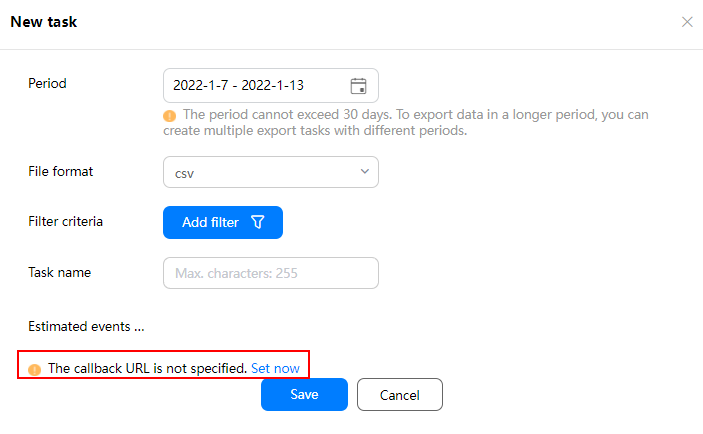
Before creating a data export task through an API, you need to set the callback address and callback certificate. If they have not been set, you can click Set now, as shown in the following figure.
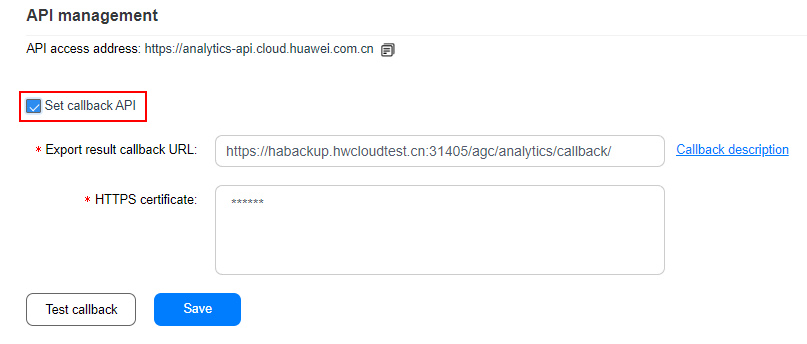
On the Analysis settings page displayed, set the callback API in the API management area. For details, please refer to Setting the Callback API.
[h2]Viewing the Solution to the Export Failure
- Go to HUAWEI Analytics > Management > Export data.
- If the export fails, try again or click Customer Service to contact Huawei technical support.

[h2]What Can I Do If the Precision Is Lost When I View the Exported Data in Excel?
When you use Excel to open the exported .csv file, data precision may be lost. For details about how to solve the problem, please refer to How Can I Avoid Loss of Precision After Opening Data Exported in CSV Format in an Excel File?.