In Default View mode, Scan Kit scans barcodes using the camera or from images in the album, and also provides activities that can be directly used. You do not need to worry about designing a UI as Scan Kit provides one.

Before using this mode, ensure that hardware acceleration is not disabled for your app. That is, ensure that the value of hardwareAccelerated is true. Otherwise, the black screen may occur on some models.
Service Process
The process of using Scan Kit in Default View mode is as follows.
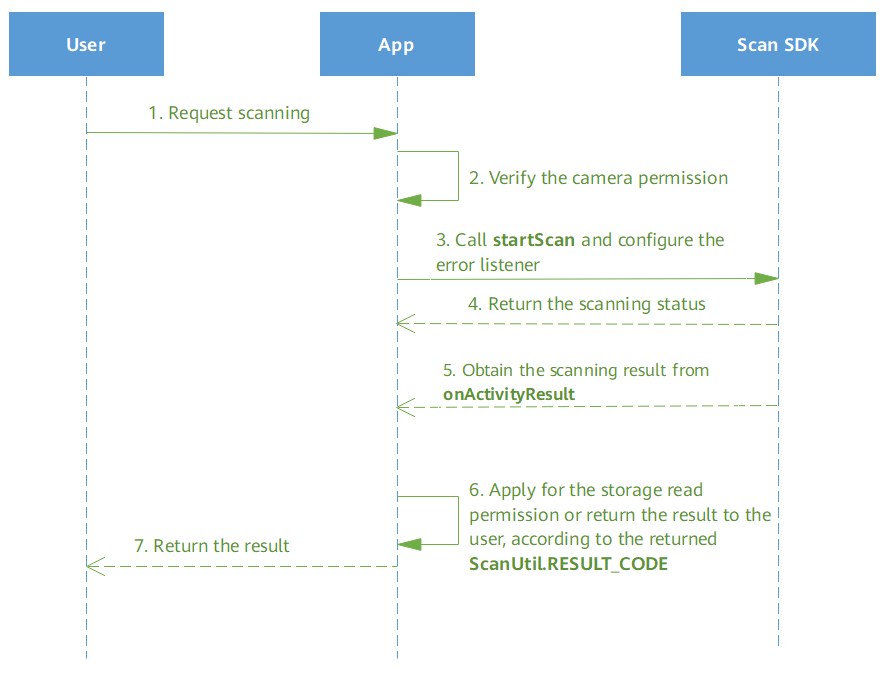
- A user launches an app and sends a request for scanning a barcode.
- The app checks whether the camera permission has been assigned.
- If the app has the permission, the startScan API of the HMS Core Scan SDK will be called to bring up the scanning UI. If there are requirements on the minimum permission and scenario-based permission request (the file read permission request is triggered after a user enters the scanning UI), set the error listener. When it is detected that the file read permission is not granted, Scan Kit will report an error and exit the Default View mode.
- The HMS Core SDK checks whether the scanning UI is successfully displayed.
- The HMS Core Scan SDK calls the onActivityResult API of the app.
- The app obtains the scanning result according to the scanning status (RESULT_CODE). If the result is SUCCESS, the app returns the scanning result to the user; if the result is ERROR_NO_READ_PERMISSION, the app needs to apply for the file read permission and enters the Default View mode again.
- The app encapsulates the scanning result and sends it to the user.
Development Process
- (Optional) Set scanning parameters. Scan Kit supports 14 barcode formats (listed in Barcode Formats Supported by HMS Core Scan Kit). If only some of them are required, add configurations for Scan Kit to support only these required ones. This will improve the scanning speed. For example, if only the QR code and DataMatrix code need to be scanned, construct the HmsScanAnalyzerOptions object based on the following sample code. If you do not need to specify the barcode format, the HmsScanAnalyzerOptions object is not required. 1 is one of the parameter values for the scanning UI titles, corresponding to the var1 parameter in setViewType.
Java
// QRCODE_SCAN_TYPE and DATAMATRIX_SCAN_TYPE indicate that Scan Kit will support only the QR code and DataMatrix code. setViewType is used to set the scanning UI title. 0 is the default value, indicating title Scan QR code/barcode, and 1 indicates title Scan QR code. setErrorCheck is used to set the error listener. true indicates that the scanning UI is exited upon detection of an error; false indicates that the scanning UI is exited upon detection of the scanning result, without reporting the error.
HmsScanAnalyzerOptions options = new HmsScanAnalyzerOptions.Creator().setHmsScanTypes(HmsScan.QRCODE_SCAN_TYPE, HmsScan.DATAMATRIX_SCAN_TYPE).setViewType(1).setErrorCheck(true).create();
Kotlin // QRCODE_SCAN_TYPE and DATAMATRIX_SCAN_TYPE indicate that Scan Kit will support only the QR code and DataMatrix code. setViewType is used to set the scanning UI title. 0 is the default value, indicating title Scan QR code/barcode, and 1 indicates title Scan QR code. setErrorCheck is used to set the error listener. true indicates that the scanning UI is exited upon detection of an error; false indicates that the scanning UI is exited upon detection of the scanning result, without reporting the error. val options = HmsScanAnalyzerOptions.Creator().setHmsScanTypes(HmsScan.QRCODE_SCAN_TYPE, HmsScan.DATAMATRIX_SCAN_TYPE).setViewType(1).setErrorCheck(true).create() - Call the static method startScan of ScanUtil to bring up the scanning UI in Default View mode. The user can use the camera to scan a barcode or tap the album button on the scanning UI to go to the album and detect the barcode in an image.
- REQUEST_CODE_SCAN_ONE indicates the request ID, corresponding to the requestCode parameter of the onActivityResult method, which is used to check whether the call to onActivityResult is from the scanning result callback of Scan Kit. If requestCode in the onActivityResult method is exactly the request ID you defined here, the scanning result is successfully obtained from Scan Kit.
- If you want Scan Kit to scan barcodes in all formats supported by Scan Kit, set options to null here.
Java
ScanUtil.startScan(this, REQUEST_CODE_SCAN_ONE, options);
Kotlin ScanUtil.startScan(this, REQUEST_CODE_SCAN_ONE, options) - Receive the scanning result using the callback API, no matter whether the scanned object is captured by the camera or from an image in the album.
- Call the onActivityResult method of the activity to obtain the intent, in which the scanning result object HmsScan is encapsulated. For details about how to obtain intent parameters, please refer to RESULT.
- If the value of requestCode is the same as that of REQUEST_CODE_SCAN_ONE defined in step 2, the received intent comes from Scan Kit.
- Obtain the code scanning status through RESULT_CODE in the intent.
- Use RESULT in the intent to obtain the object of the HmsScan class. For the information contained in this object, please refer to Parsing Barcodes.
Java
@Override
protected void onActivityResult(int requestCode, int resultCode, Intent data) {
    super.onActivityResult(requestCode, resultCode, data);
    if (resultCode != RESULT_OK || data == null) {
        return;
    }
    if (requestCode == REQUEST_CODE_SCAN_ONE) {
        // Input an image for scanning and return the result.
        int errorCode = data.getIntExtra(ScanUtil.RESULT_CODE, ScanUtil.SUCCESS);
        if (errorCode == ScanUtil.SUCCESS) {
            Object obj = data.getParcelableExtra(ScanUtil.RESULT);
            if (obj != null) {
                // Display the scanning result.
                ...
            }
        }
        if (errorCode == ScanUtil.ERROR_NO_READ_PERMISSION) {
            // The file read permission is not assigned. Apply for this permission.
            ...
        }
    }
}
Kotlin override protected fun onActivityResult(requestCode: Int, resultCode: Int, data: Intent?) { super.onActivityResult(requestCode, resultCode, data) if (resultCode != RESULT_OK || data == null) { return } if (requestCode == REQUEST_CODE_SCAN_ONE) { // Input an image for scanning and return the result. val errorCode: Int = data.getIntExtra(ScanUtil.RESULT_CODE, ScanUtil.SUCCESS) if (errorCode == ScanUtil.SUCCESS) { val obj: Any = data.getParcelableExtra(ScanUtil.RESULT) if (obj != null) { // Display the scanning result. ... } } if (errorCode == ScanUtil.ERROR_NO_READ_PERMISSION) { // The file read permission is not assigned. Apply for this permission. ... } } } - If you want to use the function of scanning barcodes from images, perform the following operations:
- Click the button for going to the album.
- For details, please refer to Scanning Barcodes from Images.