Configuration Files
- Sign in to AppGallery Connect and click My projects.
- Find your project, and click the desired app name.
- Go to Project settings > General information. In the App information area, click agconnect-services.json to download the configuration file.


If you have made any changes in the development, such as changing the data processing location, or enabling or disabling APIs, download the latest agconnect-services.json file and replace the existing file in the app directory.
- (Optional) Create a Flutter project if you do not have one.
- Copy the agconnect-services.json file to the android/app directory of your Flutter project.
- Copy the signature file that is generated in Generating a Signature File to the android/app directory of your Flutter project.
- Check whether the agconnect-services.json file and signature file are successfully added to the android/app directory of your Flutter project.
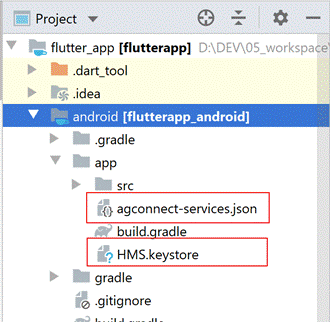
Configuration
- Open the build.gradle file in the android directory of your Flutter project.
- Configure the Maven repository address and the AppGallery Connect plugin for the HMS Core SDK in buildscript.
buildscript { repositories { google() jcenter() maven { url 'https://developer.huawei.com/repo/' } } dependencies { /* * <Other dependencies> */ classpath 'com.huawei.agconnect:agcp:1.4.2.301' } } - Configure the Maven repository address for the HMS Core SDK in allprojects.
allprojects {
     repositories {
         google()
         jcenter()
         maven { url 'https://developer.huawei.com/repo/' }
     }
 }
- Configure the Maven repository address and the AppGallery Connect plugin for the HMS Core SDK in buildscript.
- Open the build.gradle file in the android/app directory of your Flutter project.
- Add the apply plugin: 'com.huawei.agconnect' line after apply entries.
apply plugin: 'com.android.application'
apply from: "$flutterRoot/packages/flutter_tools/gradle/flutter.gradle"
apply plugin: 'com.huawei.agconnect'
- Set minSdkVersion to 19 or higher in defaultConfig.
defaultConfig {
    applicationId "<package_name>"
    minSdkVersion 19
    /*
    * <Other configurations>
    */
}
applicationId must match the package_name entry in the agconnect-services.json file.
- Configure signing information in android according to the signature file information.
android {
    /*
     * <Other configurations>
     */
    signingConfigs {
        config {
            storeFile file('<keystore_file>')
            storePassword '<keystore_password>'
            keyAlias '<key_alias>'
            keyPassword '<key_password>'
        }
    }

    buildTypes {
       debug {
            signingConfig signingConfigs.config
        }
        release {
            signingConfig signingConfigs.config
        }
    }
}
Replace <keystore_file>, <keystore_password>, <key_alias>, and <key_password> with matching entries in your signature file. For details about app signing in Flutter, please refer to Signing the app.
- Add the apply plugin: 'com.huawei.agconnect' line after apply entries.
Configuring Obfuscation Scripts
Before building the APK, configure the obfuscation scripts to prevent the HMS Core SDK from being obfuscated.
The obfuscation configuration file in Android Studio is proguard-rules.pro.
- Open the obfuscation configuration file in the android/app directory.
- Add the following configurations to exclude the HMS Core SDK from obfuscation:
-ignorewarnings -keepattributes *Annotation* -keepattributes Exceptions -keepattributes InnerClasses -keepattributes Signature -keep class com.hianalytics.android.**{*;} -keep class com.huawei.updatesdk.**{*;} -keep class com.huawei.hms.**{*;} ## Flutter wrapper -keep class io.flutter.app.** { *; } -keep class io.flutter.plugin.** { *; } -keep class io.flutter.util.** { *; } -keep class io.flutter.view.** { *; } -keep class io.flutter.** { *; } -keep class io.flutter.plugins.** { *; } -dontwarn io.flutter.embedding.** -keep class com.huawei.hms.flutter.** { *; } -repackageclasses - Go to android\app\build.gradle and change the release section of buildTypes as follows:
buildTypes {
     debug {
         signingConfig signingConfigs.config
     }
     release {
         signingConfig signingConfigs.config
         // Enables code shrinking, obfuscation and optimization for release builds
         minifyEnabled true
         // Unused resources will be removed.
         shrinkResources true
         proguardFiles getDefaultProguardFile('proguard-android.txt'), 'proguard-rules.pro'
     }
}
Flutter Integration

Make sure that you have installed the Flutter and Dart plugins for your editor. For more information about setting up an editor, please refer to Flutter Documentation.
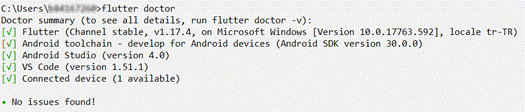
- Run the following command from a console window that has Flutter directory in the path, and make sure that no errors are found.
flutter doctor
- Download the Map Kit plugin for Flutter and decompress the package.
- Add the library path to dependencies in the pubspec.yaml file located in your Flutter project directory.
- If the package of Map Kit plugin for Flutter is downloaded from HUAWEI Developers, specify a library path on your local device.
dependencies:
     huawei_map:
         path: {library path}
Replace {library path} with the actual library path of the Map Kit plugin for Flutter.
# Relative path example
path: ../huawei_map
# Absolute path example path: D:\Projects\Libraries\huawei_mapFor details, please refer to Using packages.
- If the package is downloaded from pub.dev, specify the package in the pubspec.yaml file.
dependencies:
     huawei_map: {library version}
- If the package of Map Kit plugin for Flutter is downloaded from HUAWEI Developers, specify a library path on your local device.
- Integrate the Map Kit plugin for Flutter in either of the following ways:
- Run the following command from a console window that has Flutter directory in the path.
[project_path]> flutter pub get
- Click the corresponding button in your editor.
- In Android Studio/IntelliJ, click Packages get in the action bar at the top of the pubspec.yaml file.
- In VS Code, click Get Packages on the right of the action button at the top of the pubspec.yaml file.
- Run the following command from a console window that has Flutter directory in the path.
- Run the following command or click the startup button on the main toolbar to start the app.
[project_path]> flutter run

If there are no errors, the following screen will be displayed when you run your app. For details about the sample code, please refer to Flutter Sample Code.


If an error occurs, check the network connection and the configurations in the build.gradle file, and delete the android/gradle/wrapper directory.