HUAWEI Analytics Kit provides server APIs for developers to export event data collected on devices and import the data to their BI systems for unified data analysis. The processing on the API for export is asynchronous. After the export is successful, the exported data is uploaded to Object Storage Service on the cloud. The export result and the storage path of exported data are returned to your server through a callback API. If the export is successful, you need to download the data from the path to your server in a timely manner. To ensure data security, the download link becomes invalid after two hours.
The following table describes export states that are currently supported.
| Status Code | Status Description | Cause and Troubleshooting |
|---|---|---|
EXPORTED | Exported successfully. | Click the download link to download the data in a timely manner. |
NO_DATA | No record meets the conditions. | |
EXPORT_FAILED | Export failed. | Server error. Try again. |
TOO_MANY_RECORDS | Too much data is exported at a time. | Narrow down the data export scope and try again. |
Suggestion: Your server processes the download link in asynchronous mode and returns the success status to the HUAWEI Analytics Kit server in a timely manner.
The following table lists the data filter criteria.
| Attribute | Description |
|---|---|
app_ver | App version. |
device_maker | Device brand. |
device_name | Device model. |
region_cd | Location code. |
os_language | System language. |
os_ver | OS version. |
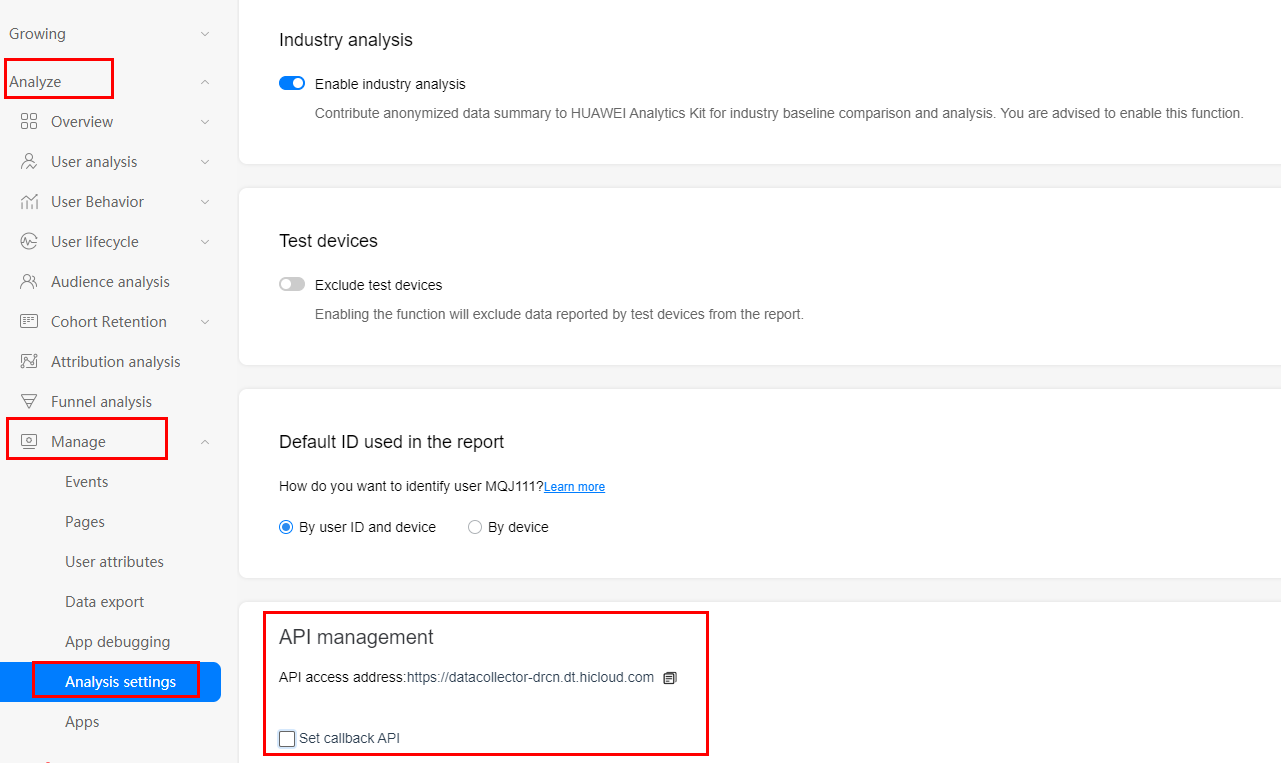
Sign in to AppGallery Connect. Go to "My Projects > Analyze > Manage > Analysis setting", and select Set Callback API to set related parameters.
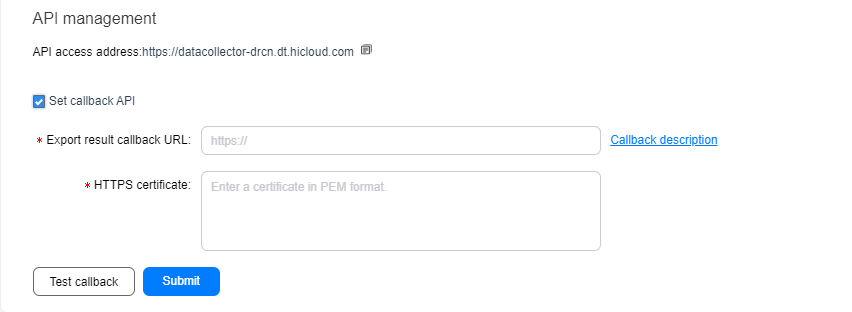
1. Configure the callback API URL for receiving the data download link.
2. Configure the HTTPS certificate.
3. Click Test callback to test the function of the callback API. After the test is successful, click Submit to complete the callback API configuration.
Before developing a callback API, you need to prepare a public network domain name and an API that can receive POST requests. Ensure that the POST API has an HTTPS certificate.
The development procedure is as follows:
1. Develop the callback API. In the sample code, the domain name is habackup.hwcloudtest.cn, which is accessible by your server.
- @RequestMApping(value = "/agc/analytics/callback", method = RequestMethod.POST)
- public ResultResp callback(@RequestBody @Valid ExportDataCallbackReq req) {
- ResultResp result = new ResultResp();
- // Receive the callback after the export task is generated.
- if (LOGGER.isDebugEnabled()) {
- LOGGER.debug("the download url: {}", req.getFilePath());
- }
- // Obtain the download link to continue.
- result.setResultCode("0");
- result.setResultMsg("success");
return result;
}
Requested object:
- public class ExportDataCallbackReq implements Serializable {
- private static final long serialVersionUID = -8014011591749838257L;
- @JsonProperty("request_id")
- private String requestId;
- @JsonProperty("App_id")
- private String AppId;
- @JsonProperty("status")
- private String status;
- @JsonProperty("file_path")
- private String filePath;
- @JsonProperty("status_time")
- private String statusTime;
- }
2. Go to" Manage > Analysis setting" to configure the callback interface.
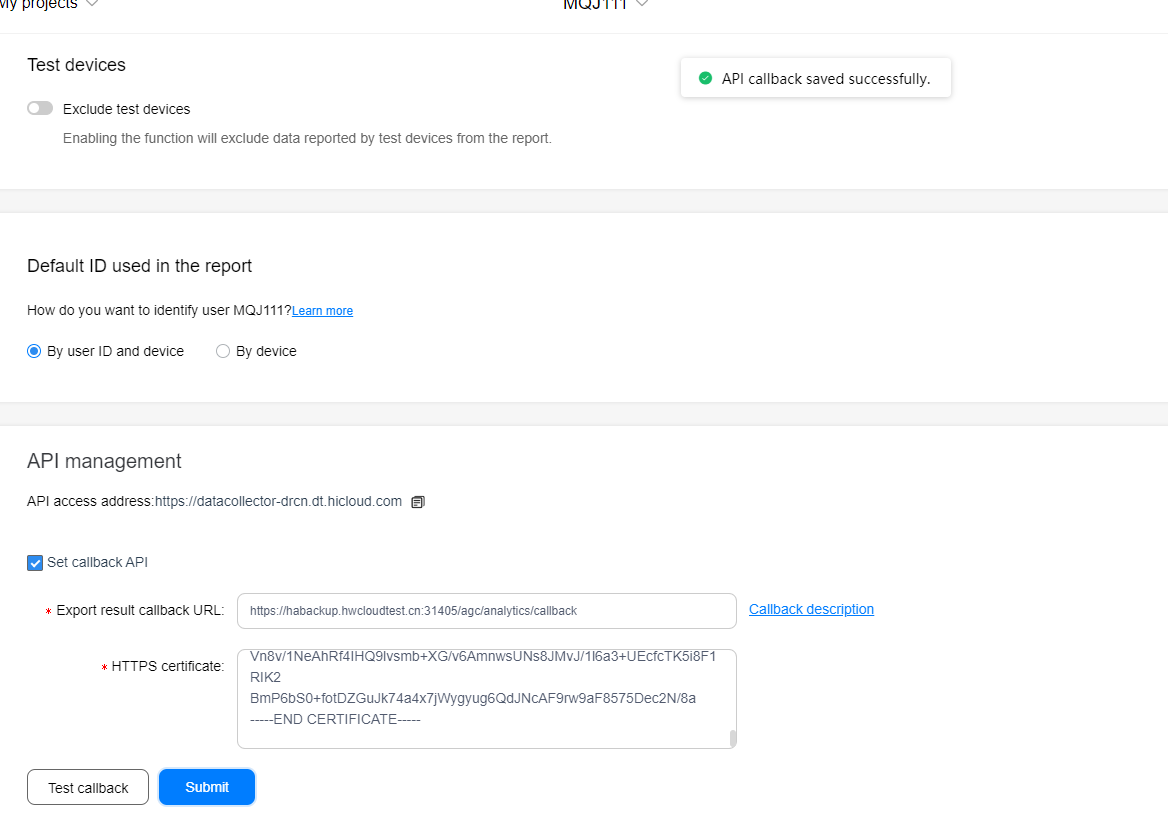
3. Call the public API to obtain the token.
POST request:
URI: https://oauth-login.cloud.huawei.com/oauth2/v2/token
Header: Content-Type:application/x-www-form-urlencoded
Body:
- grant_type:client_credentials
- client_id:100664247
- client_secret:170e4ecb457bd73fa7c977de976274a7
Response:
- {
- "access_token": "CV6qeoJReXe+YfDRQomDe9VW1B6fzIH1QU260T94x4RBLUSZRjTRIcY7IngF1cPIEYaPhJCjVNOxrhvAo49Ay\/Ukkf+p",
- "expires_in": 3600,
- "token_type": "Bearer"
- }
4. Start data export.
POST request:
URI: https://datacollector-drcn.dt.hicloud.com/analytics/export/raw_data_requests/v2
Header:
Authorization:Bearer CV6qeoJReXe+YfDRQomDe9VW1B6fzIH1QU260T94x4RBLUSZRjTRIcY7IngF1cPIEYaPhJCjVNOxrhvAo49Ay\/Ukkf+p (token_type + space + access_token, obtained from the token response)
x-app-id:100664247
Content-Type:application/json
x-product-id:9105163812218569643
Body:
- {
- "date_range": {
- "start_date": "2020-2-29",
- "end_date": "2020-3-10"
- },
- "file_format": "csv",
- "filters": [],
- "field_map": []
- }
Response:
- {
- "result_code": "0",
- "result_msg": "success"
- }
5. View the export progress.
Go to" My projects > Analyze > Manage > Data export".
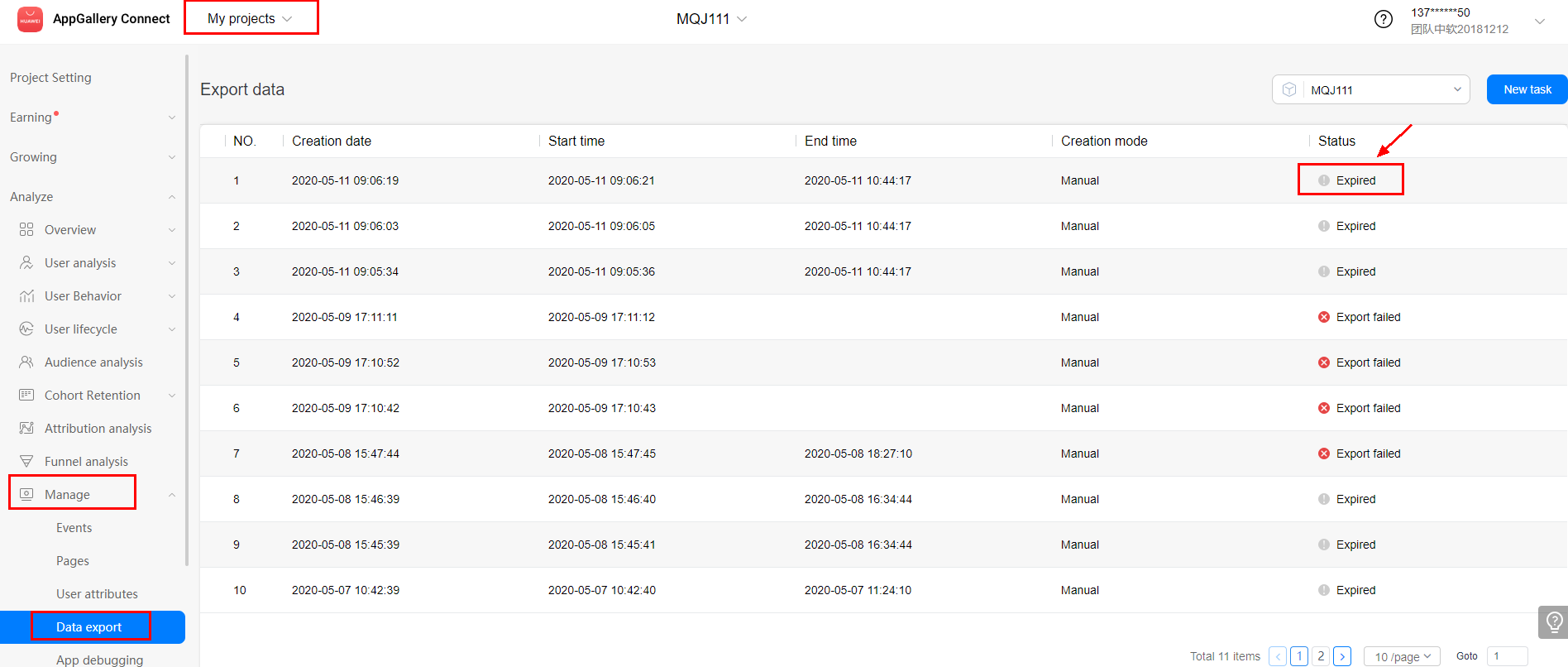
6. After the export is complete, the Analytics Kit automatically calls the callback API to obtain the export result. Obtain the download link from the file_path field. The link is effective in 6 hours.
7. View the export result. If the following information is displayed, the export is successful.
[{"request_id":"c0b41debe8064c54ab200d30907f40c5","app_id":"100664247","status":"EXPORTED","file_path":"https://nsp-ha-gdpr-drcn.nbs.cn-north-2.myhuaweicloud.com/20200430_14_c0b41debe8064c54ab200d30907f40c5.csv?X-Amz-Algorithm=AWS4-HMAC-SHA256&X-Amz-Credential=F9WBKUUWDQODJO4FQMBF%2F20200430%2Fcn-north-2%2Fs3%2Faws4_request&X-Amz-Date=20200430T073623Z&X-Amz-Expires=86400&X-Amz-SignedHeaders=host&X-Amz-Signature=9145e80d51e21cd295861a5a0688bbcfbf8805e071cd8b98e08b5eacf2171fdb","status_time":"2020-04-3007:37:02"}]
The following table lists the fields in the exported file and provides the sample values.
| Field | Value |
|---|---|
Event type | 0ba25bb8-b1aa-4320-aebd-92438979662f |
Android ID | 729c3f6e8030b59d |
User ID | user_id_0ba25bb8-b1aa-4320-aebd-92438979662f |
Location code | PK |
Data received time | 2020-03-24 22:15:43.309 |
App ID | 101358513 |
App package name | com.huawei.analytics |
App version | 2.0 |
ROM version | EML-AL009.0.0.187(C00E82R1P21) |
EMUI version | EMOTIONUI_10.0.1 |
Device model | DCOR-T8 |
SDK version | 2.2.0.102 |
SDK name | hianalytics |
Channel | channeltest |
OS | HONGMENG |
OS version | HONGMENG:9.0 |
System language | ZH_CN |
Device maker | HONOR |
Screen height | 1920 |
Screen width | 1080 |
Event type | oper |
Event collected time | 2020-03-24 22:15:39.193 |
Event ID | HA_VEDIO_SEARC |
Event session name | 3a1eba2f34aef8fff847e1eabaf22b06_1585059342757 |
Whether it is the first event | true |
Custom event information (JSON) | {"HA_SEARCH_STAR":"Johnson"",""HA_SEARCH_SEX"":""MALE"",""HA_SEARCH_VIDEO_TYPE"":"" Novel","HA_SEARCH_LOACATION":"United States"",""HA_SEARCH_PRICE"":""450"",""HA_SEARCH_KEYWORDS"":""ADI""} |
Global event attributes (user attributes in JSON format) | {""up2"":""789"",""up1"":""xyz"",""up4"":""a1"",""up3"":""*_*"",""up5"":""@@@""} |
ETL time | 2020-03-27 17:45:12 |
Date | 20200327 |
Hour | 13 |
Request ID | 4880c836495b42f7a414c9ca6efc3bb7 |
Remarks: Obtaining an HTTPS Certificate in Windows
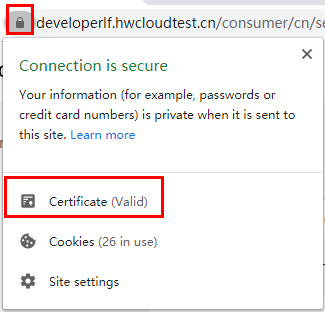
1. Click the lock icon on the left of the Google Chrome browser address box and then click Certificate.
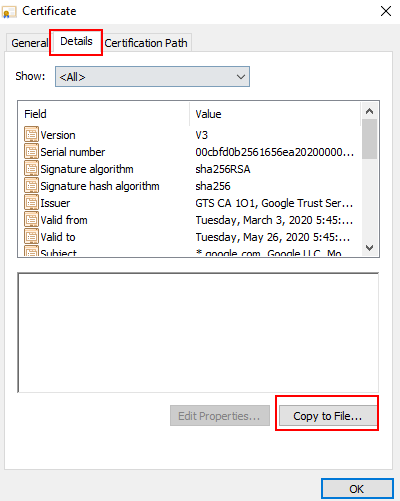
2. Click the Details tab, click Copy to File on the tab page, and then click OK.
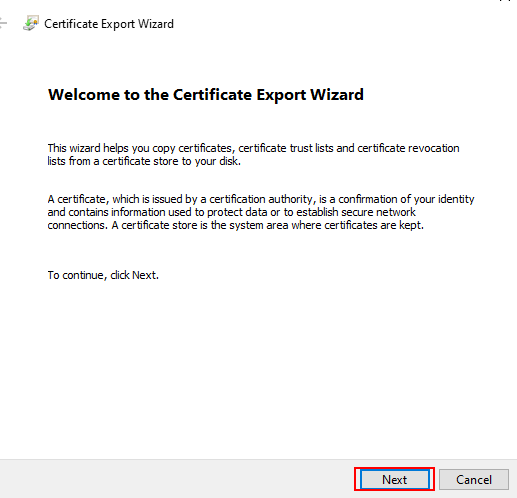
3. Click Next.
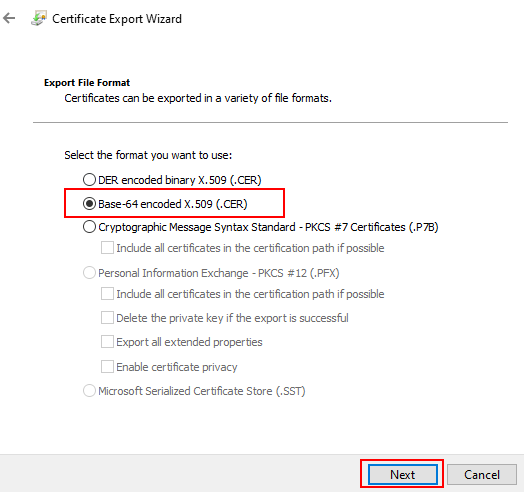
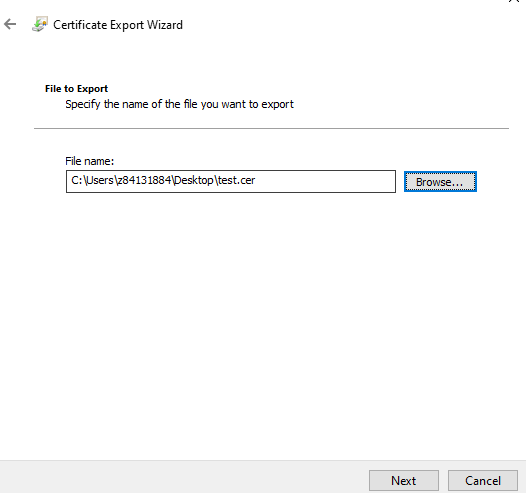
4. Select Base-64 encoded X.509 (.CER), click Next, specify the export destination path, click Next, and then click Finish.
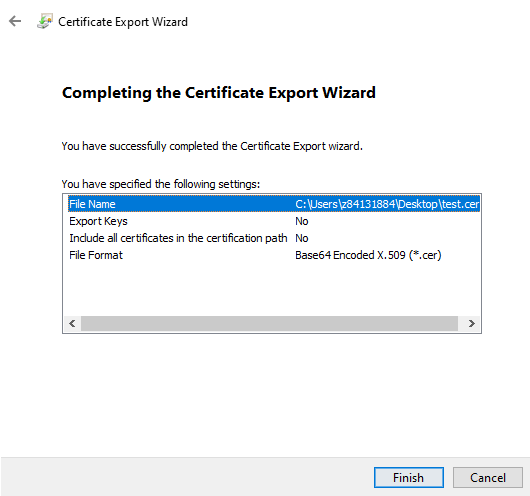
Open the exported certificate file in a text editor and copy the file content to the callback API configuration page as the value of HTTPS certificate.