1. Add the AppGallery Connect configuration file of the app to your XCode project.
a. Sign in to AppGallery Connect and select My projects.
b. Find your app project and click the app that needs to integrate the HMS Core SDK.
c. Go to Project Setting > Convention. In the App information area, download the agconnect-services.plist file.
d. Copy the agconnect-services.plist file to the app's root directory of your Xcode project.
(1) Before obtaining the agconnect-services.plist file, ensure that you have enabled the advanced analytics service. For details, please refer to Enabling Advanced Analytics.
(2) If you have made any changes on the Project setting page, such as setting the data storage location and enabling or managing APIs, you need to download the latest agconnect-services.plist file and replace the existing file in the app's root directory.
2. Edit the Podfile file.
Add pod 'HiAnalytics', that is, the dependency for pod.
Example Podfile file:
- # Uncomment the next line to define a global platform for your project
- # platform :ios, '9.0'
- target 'hmsAnalyticsKitDemo' do
- # Comment the next line if you don't want to use dynamic frameworks
- use_frameworks!
- # Pods for hmsAnalyticsKitDemo
- pod 'HiAnalytics'
- target 'hmsAnalyticsKitDemoUITests' do
- # Pods for testing
- end
- end
3. Run the pod install command to install the pod.
- $ pod install
1. Download HUAWEI Analytics Kit SDK and the SDKs on which it depends. For details, please refer to Integration Without CocoaPods.
| SDK | Description | Remarks |
|---|---|---|
AGConnectCore-x.x.x.x.zip | AppGallery Connect framework package. | The SDK is mandatory. |
AGConnectCredential-x.x.x.x.zip | AppGallery Connect gateway authentication package. | The SDK is mandatory. |
HMSFoundation-x.x.x.x.zip | Task package. | The SDK is mandatory. |
Decompress the downloaded packages.
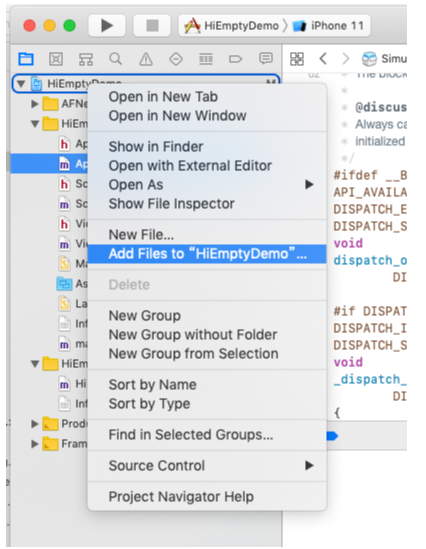
2. Choose Add Files to project name to import all framework libraries to your workspace.
a. Right-click and choose Add Files to project name, and then click Select.
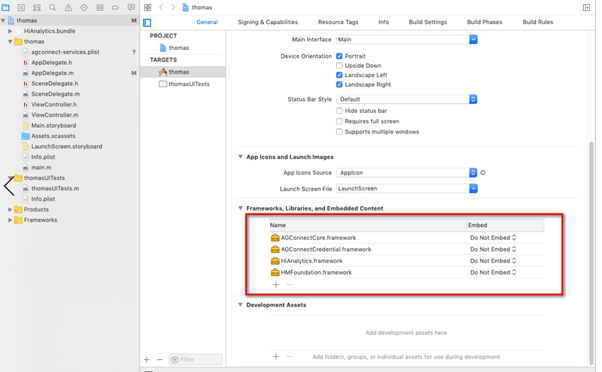
b. On the General page, click + to add the framework libraries.
1. Add the resource files.
On the Build Phases page, click + to add the libraries that contain the HiAnalytics.bundle and AGCResources.bundle resource files to Copy Bundle Resources.
| Resource File | Library |
|---|---|
HiAnalytics.bundle | HiAnalytics |
AGCResources.bundle | Agconnect-credential |
2. Modify the project configuration.
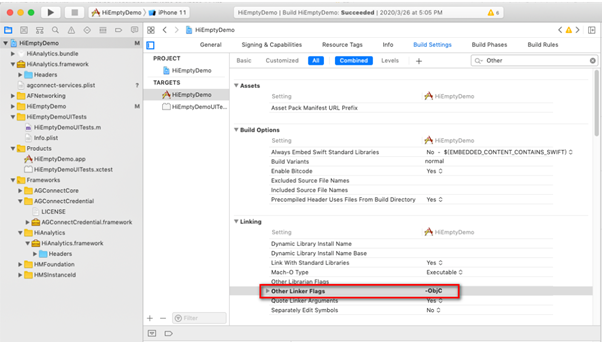
a. On the Build Settings page, add the -ObjC linker flag to Other Linker Settings.
- -ObjC
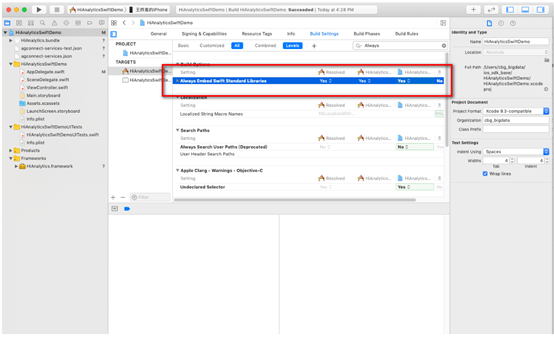
b. If you are using the Swfit language, also set Always Embed Swift Standard Libraries to Yes on the Build Settings page.