After sending a message to a user device, HUAWEI Push Kit sends the message delivery status to your app receipt server in a message receipt.
The message receipt is sent when the HUAWEI Push Kit server receives the response from the user device. However, it may not reach your app receipt server immediately due to actual network conditions and message volume. This is normal.
Currently, HUAWEI Push Kit supports message receipts only for Android apps.
You can collect statistics on and analyze message data based on the received message receipts. Currently, message receipts are available for messages in one of the following states.
Receipt State | Description | Cause and Handling Suggestion |
0 | Success | N/A |
2 | The app is not installed. | Install the app on the device. |
5 | The specified token does not belong to the current Android user. | Switch to the user to which the specified token belongs or change the token to that of the current Android user. |
6 | Notification messages are not displayed. | Possible causes are:
|
10 | Inactive device. | The target device did not access HUAWEI Push Kit in past 30 days. Therefore, the message is not sent. |
15 | The offline message is overwritten. | An offline message overwriting policy has been set through collapse_key in the server API Sending Messages. Based on the policy, the message is overwritten and therefore not delivered to the device. |
27 | The target app process does not exist on the device. As a result, the data message is cached. | The target app process does not exist. |
102 | The message is discarded due to frequency control. | The number of messages sent to a single device reaches the upper limit. Therefore, the message is discarded. For details, please refer to FAQs. |
201 | The message is cached due to management control. | The message is cached by the HUAWEI Push Kit server due to management control. After receiving a management control cancellation notification from the client, the server delivers the message if it is still valid. Possible causes are:
|
Suggestion:
Filter out tokens whose message status is 2, 5, 6, 10, or 201 to reduce messages sent to devices corresponding to the tokens.
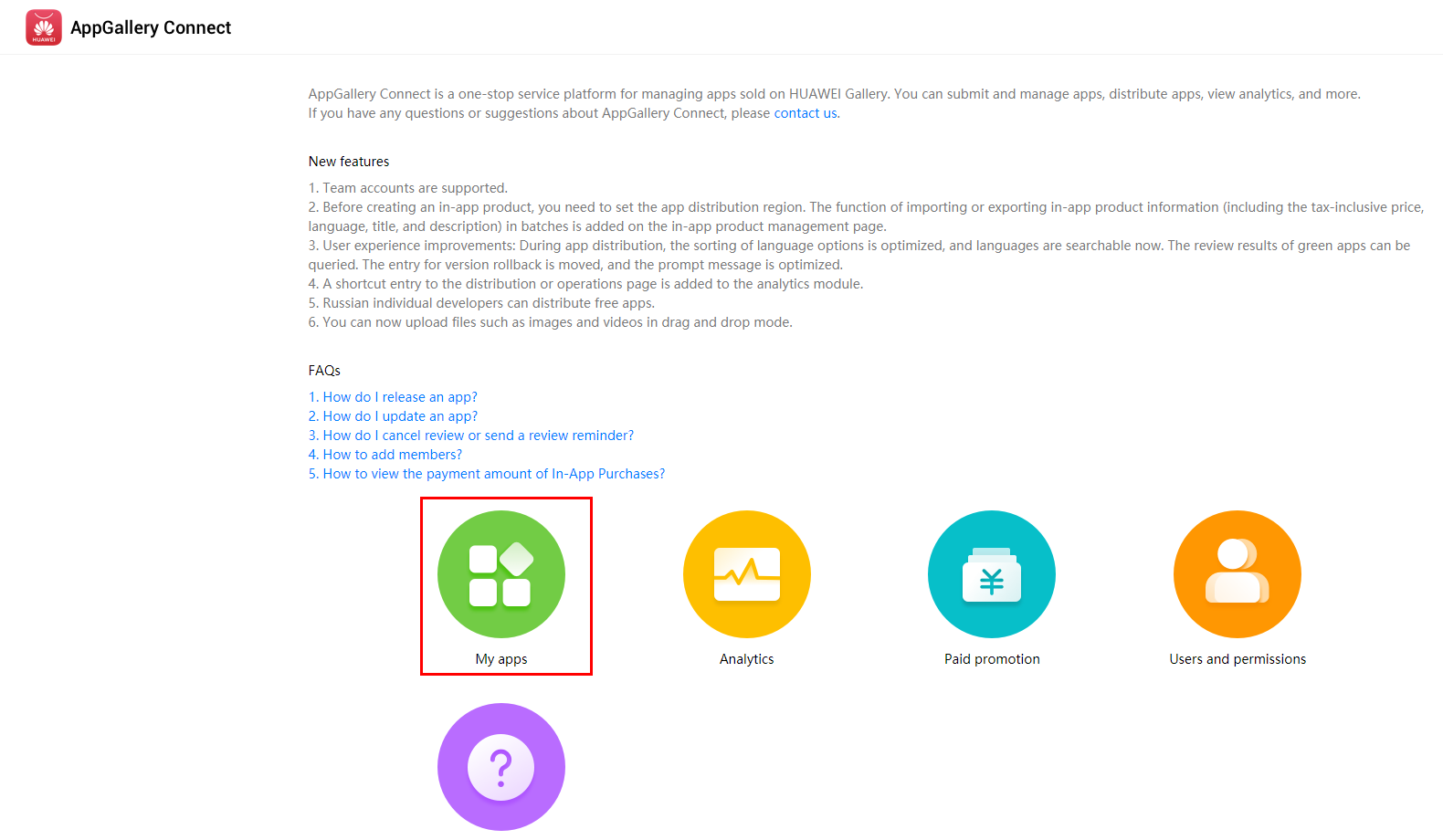
1. Sign in to AppGallery Connect and select My apps.
2. Select the parent product name of the app for which HUAWEI Push Kit is to be enabled. The app information page is displayed.
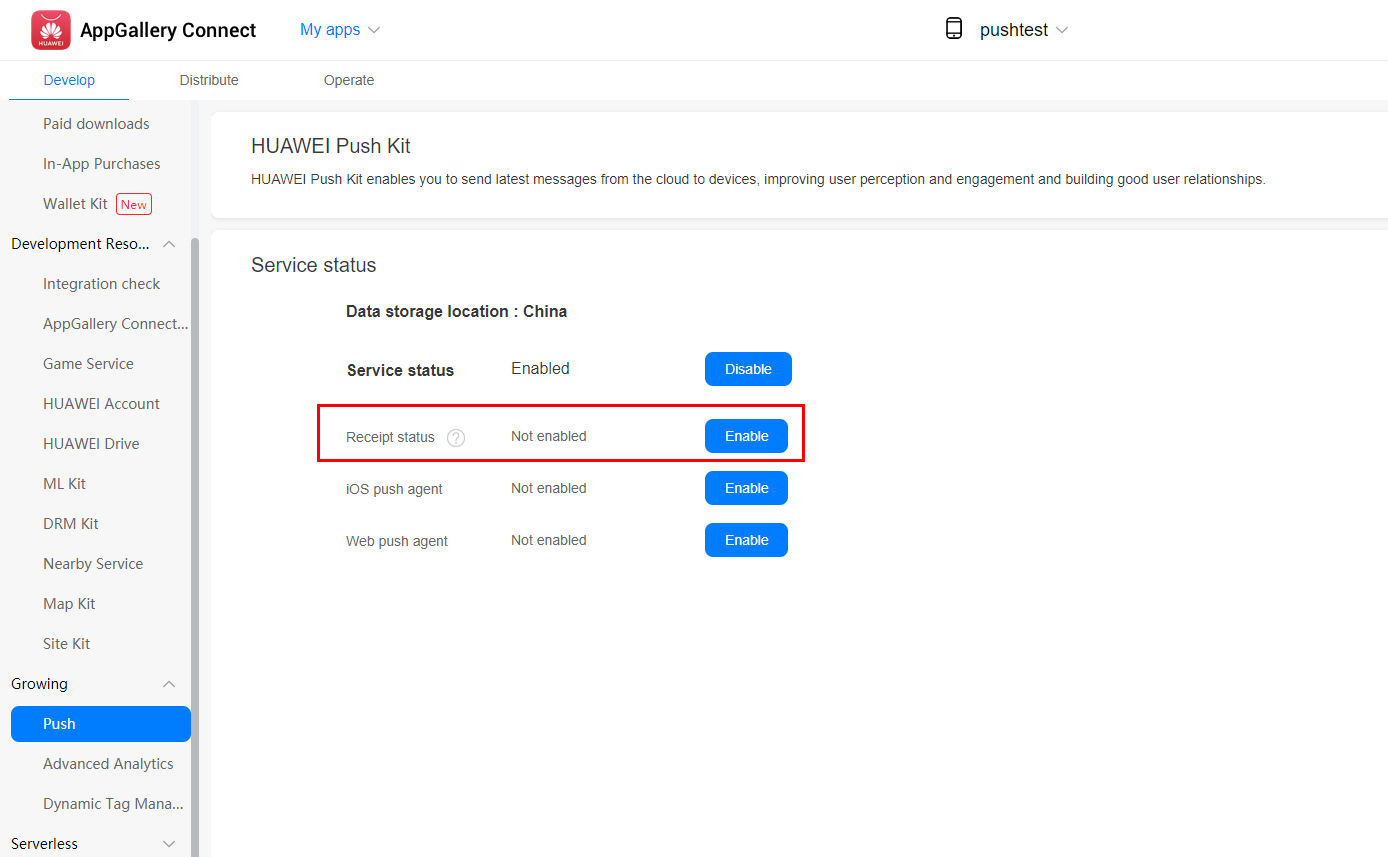
3. Click the Develop tab and go to Growing > Push from the navigation bar on the left.
4. Click Enable to enable HUAWEI Push Kit.
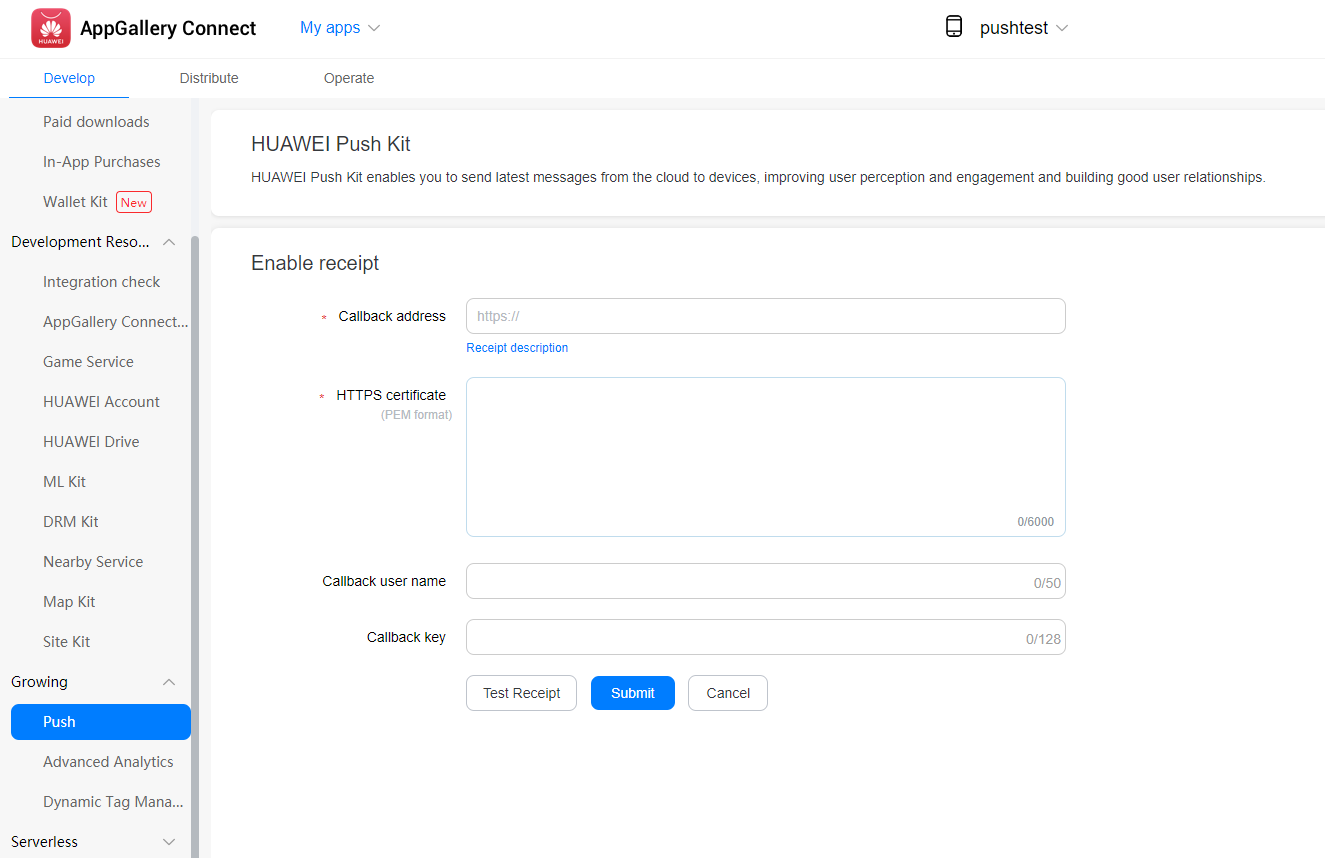
1. Set the message receipt callback address to the URL for receiving your message receipts.
2. Configure the HTTPS certificate.
Notice: At present, the HUAWEI Push Kit server and the app server that receives message receipts adopt the HTTPS protocol for communication. The HUAWEI Push Kit server will verify the certificate provided by the app server. Therefore, ensure that your app server uses a commercial HTTPS certificate.
3. Configure the callback user name and callback key (optional) for authentication.
4. Click Test Receipt to test the receipt callback address. After completing the test, click Submit. The service enabling process ends.
In a messaging request to the Sending Messages API, you can set the bi_tag parameter, whose value will be returned to you in a message receipt and used for analyzing message delivery.
Sample code:
- {
- "validate_only": false,
- "message": {
- "notification": {
- "title": "message title",
- "body": "message body"
- },
- "android": {
- "bi_tag": "your bi_tag",
- "notification": {
- "click_action": {
- "type": 1,
- "intent": "#Intent;compo=com.rvr/.Activity;S.W=U;end"
- }
- }
- },
- "token": [
- "pushtoken1"
- ]
- }
- }