The projects to be imported must be located in the same drive as the workspace, for example, D:\. If they are not in the same drive, select Copy projects into workspace to copy the project file to the workspace.
This guide describes how to integrate the HUAWEI Ads SDK into your app. It is the first step toward displaying ads and earning revenue. Once the SDK is integrated, you can choose an ad format (such as native or rewarded ads) and follow the required steps to implement it.
You have installed HMS Core (APK) 4.0.0 or later. If this requirement is not met, using the APIs in the HUAWEI Ads SDK may result in errors.
You have registered as a HUAWEI developer and completed identity verification on the HUAWEI Developer website. For details, please refer to Register a HUAWEI ID.
Create an app by referring to Creating a Project and Creating an App in the Project.
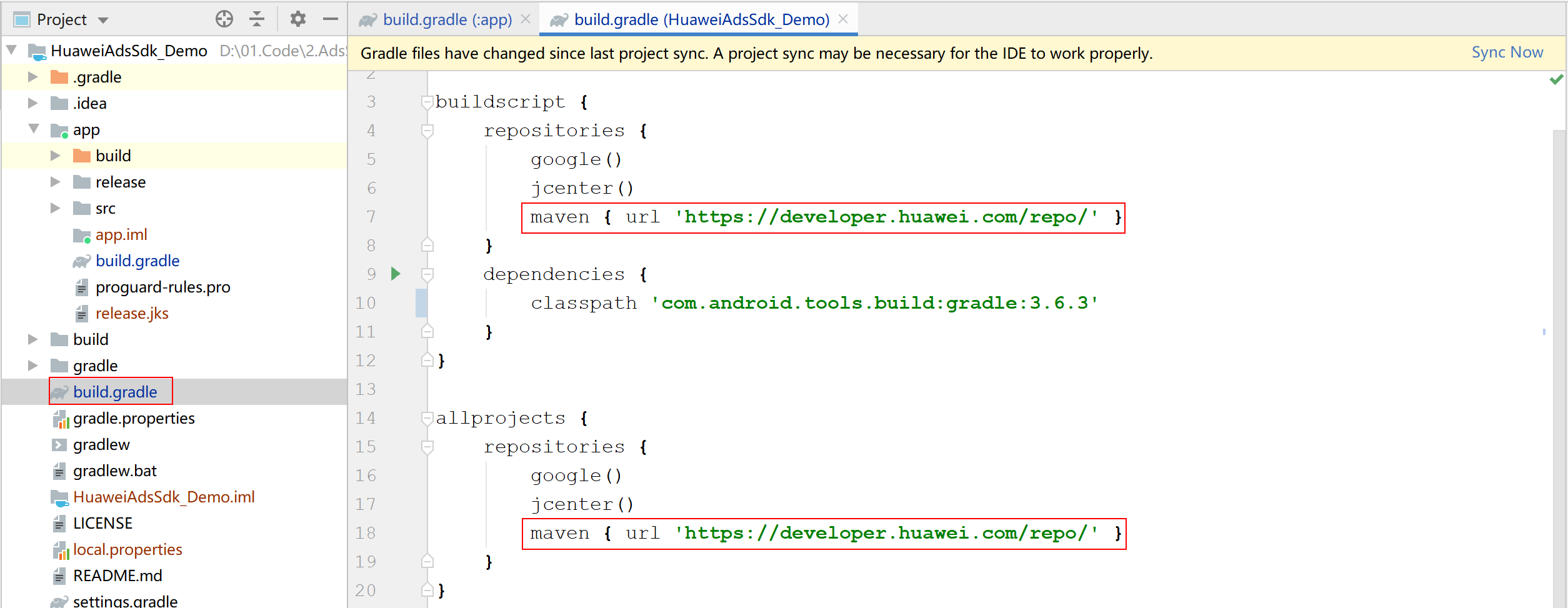
Configure the Maven repository address in the project-level build.gradle file.
- buildscript {
- repositories {
- google()
- jcenter()
- maven { url 'http://developer.huawei.com/repo/' }
- }
- ...
- }
- allprojects {
- repositories {
- google()
- jcenter()
- maven { url 'http://developer.huawei.com/repo/' }
- }
- }
Add build dependencies to the app-level build.gradle file.
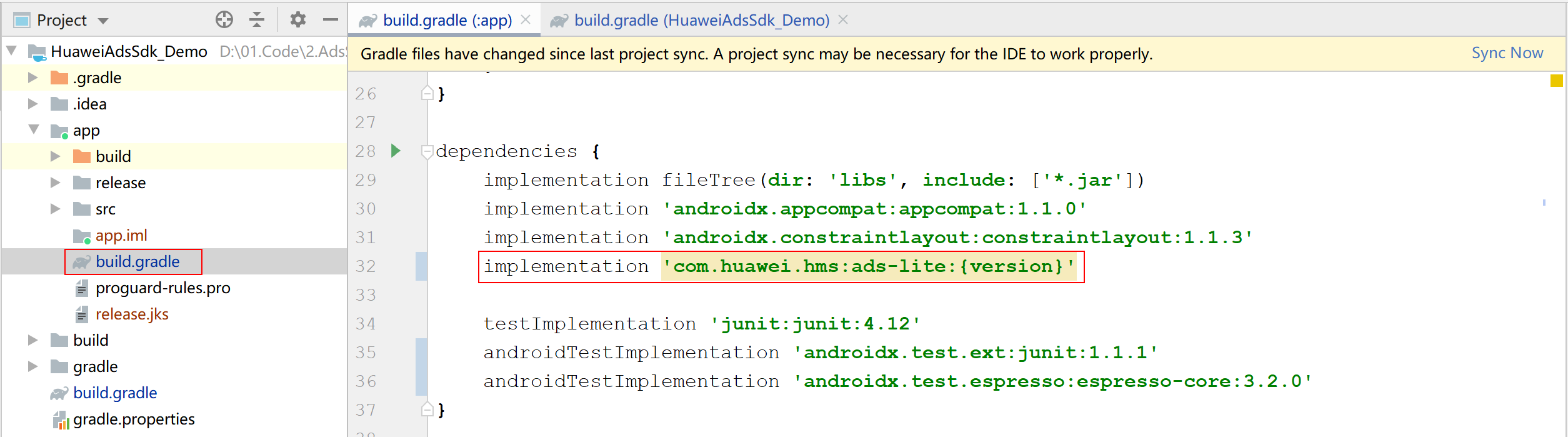
Replace {version} with the actual SDK version number, for example:
- dependencies {
- implementation 'com.huawei.hms:ads-lite:13.4.30.301'
- }
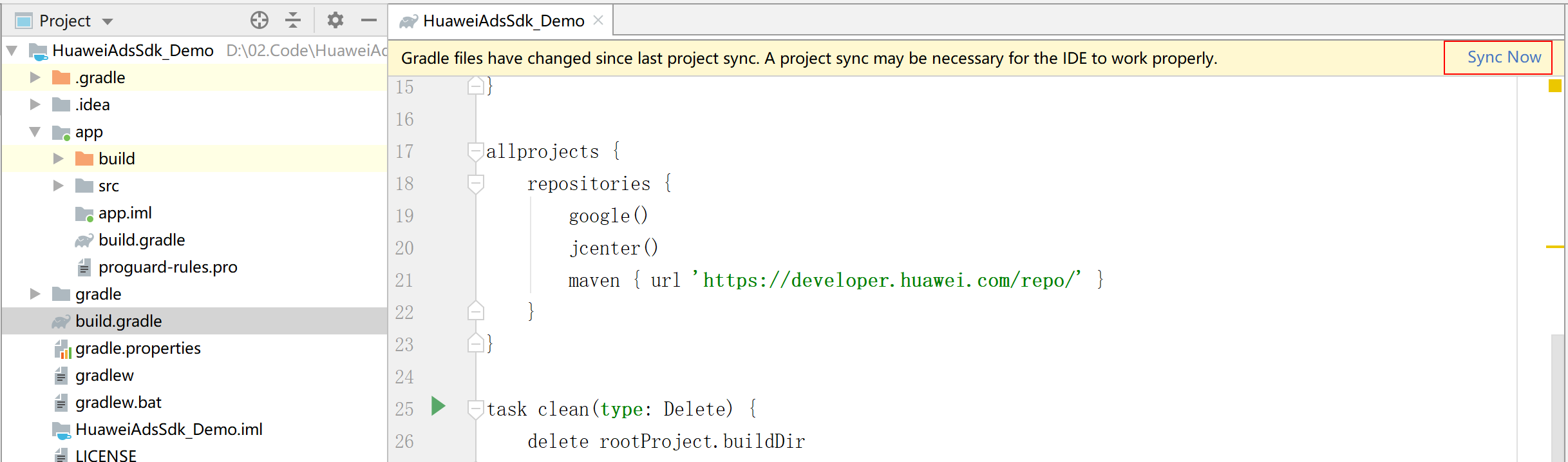
Click Sync Now and wait until synchronization is complete.
Before starting your development in the Eclipse Integrated Development Environment (IDE), download the HUAWEI Ads SDK and integrate it into your app project.
Step1 Download and decompress adssdk-eclipse-{version}.zip. Eight Eclipse Library projects are generated, as listed in the following table.
Project | Description | Remarks |
ads-base | HMS Ads SDK basic function package. | The project is mandatory. |
ads-banner | Provides the banner ad capability. | This project and the ads-base and ads-native projects are required only if you want to integrate the banner ad capability. |
ads-consent | Provides the capability of collecting consent from users. | This project and the ads-base project are required only if you want to integrate the capability of collecting consent from users. |
ads-lang | Provides the multi-language capability. | This project and the ads-base project are required only if you want to integrate the multi-language capability. |
ads-native | Provides the native ad capability. | This project and the ads-base project are required only if you want to integrate the native ad capability. |
ads-reward | Provides the rewarded ad capability. | This project and the ads-base project are required only if you want to integrate the rewarded ad capability. |
ads-interstitial | Provides the interstitial ad capability. | This project and the ads-base project are required only if you want to integrate the interstitial ad capability. |
ads-splash | Provides the splash ad capability. | This project and the ads-base project are required only if you want to integrate the splash ad capability. |
Step2 Import all SDK projects to your workspace.
a. Go to File > Import > Android > Existing Android Code Into Workspace and click Next.
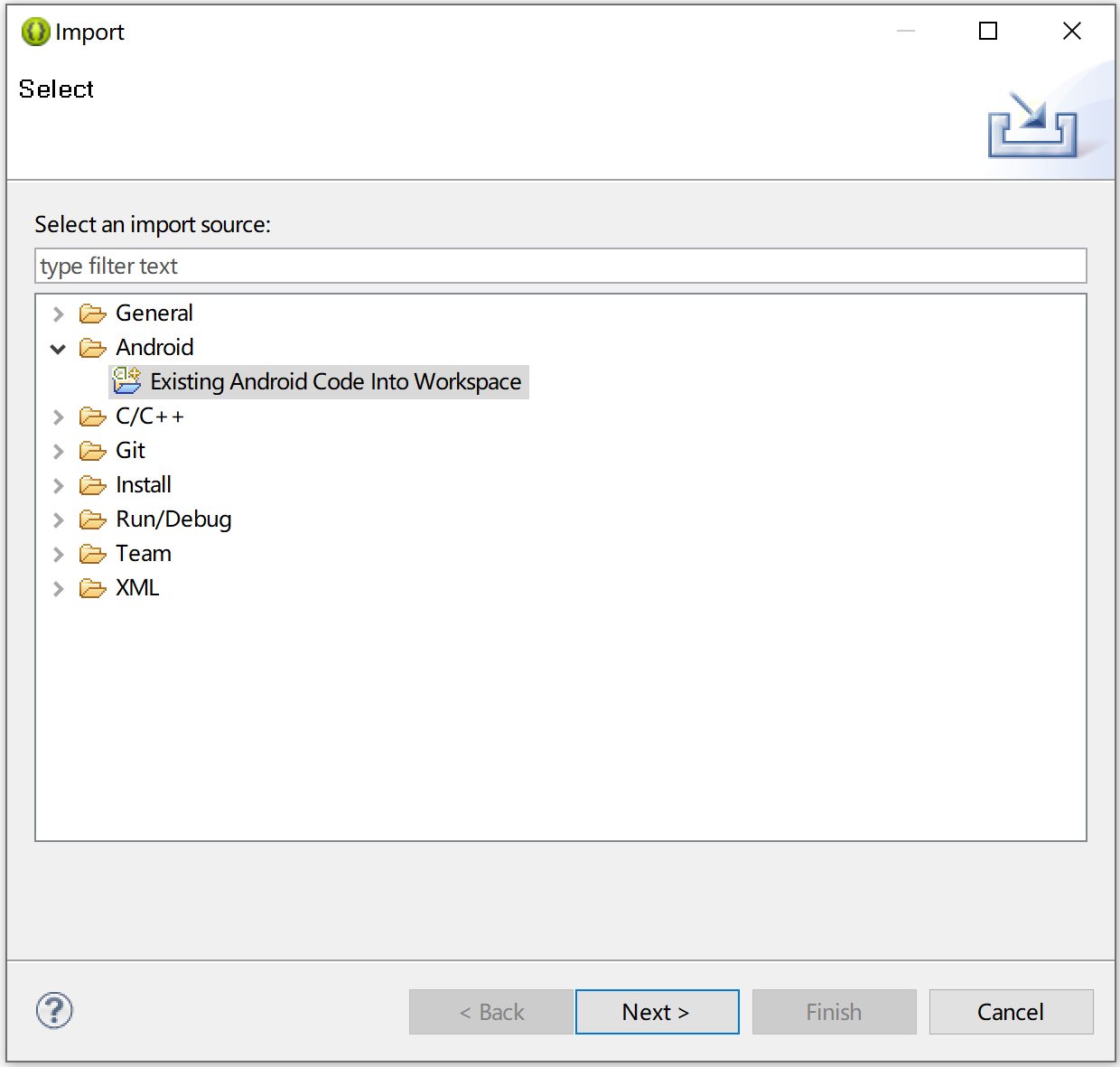
b. Click Browse and navigate to the directory where your projects are located. Select the projects to be imported under Projects and click Finish. By default, all projects are selected. You can change as needed.
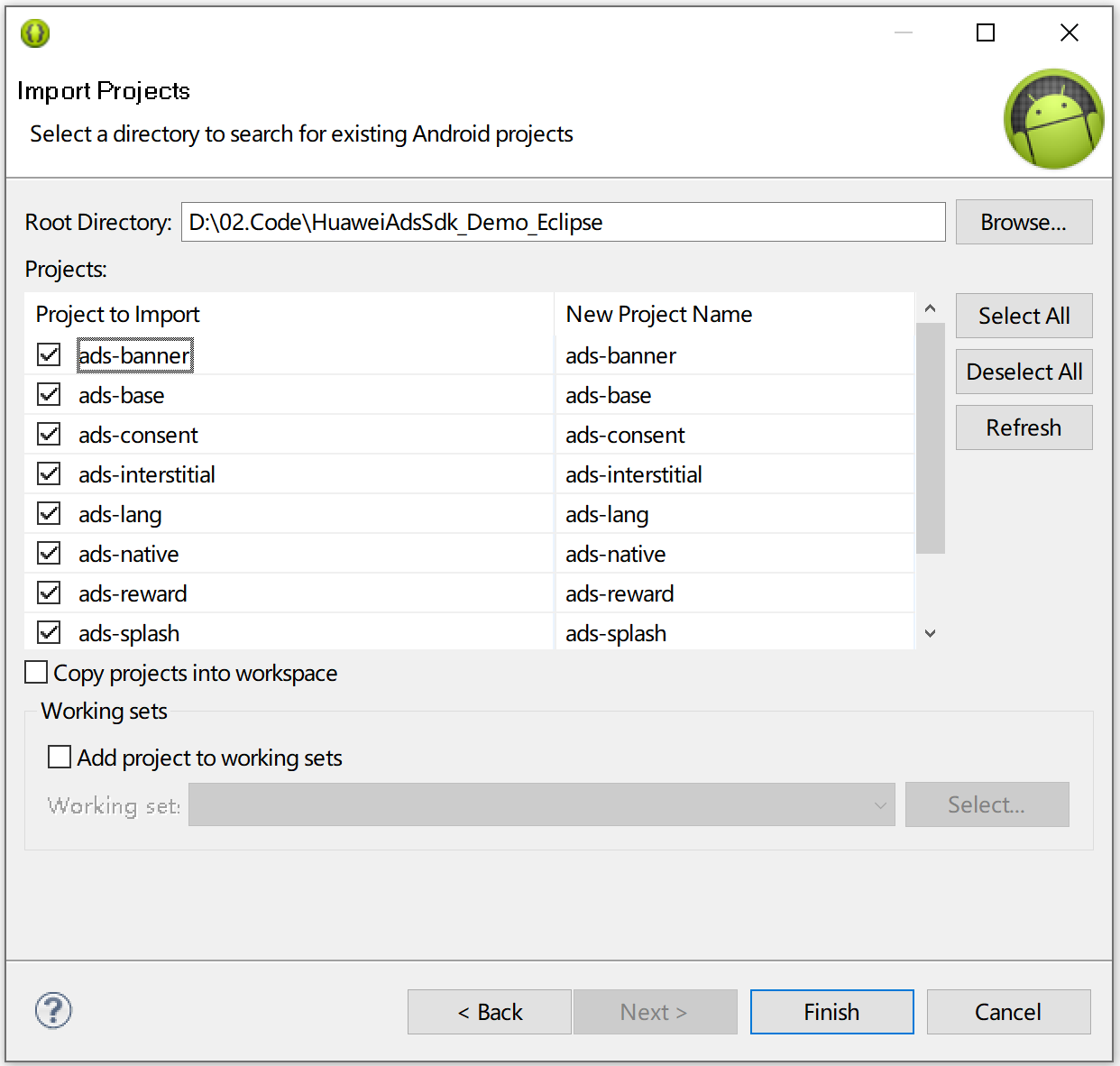
The projects to be imported must be located in the same drive as the workspace, for example, D:\. If they are not in the same drive, select Copy projects into workspace to copy the project file to the workspace.
Step1 Right-click your app project and choose Properties from the shortcut menu.
Step2 Choose Android from the navigation tree, click Add, select the imported projects, and click OK.
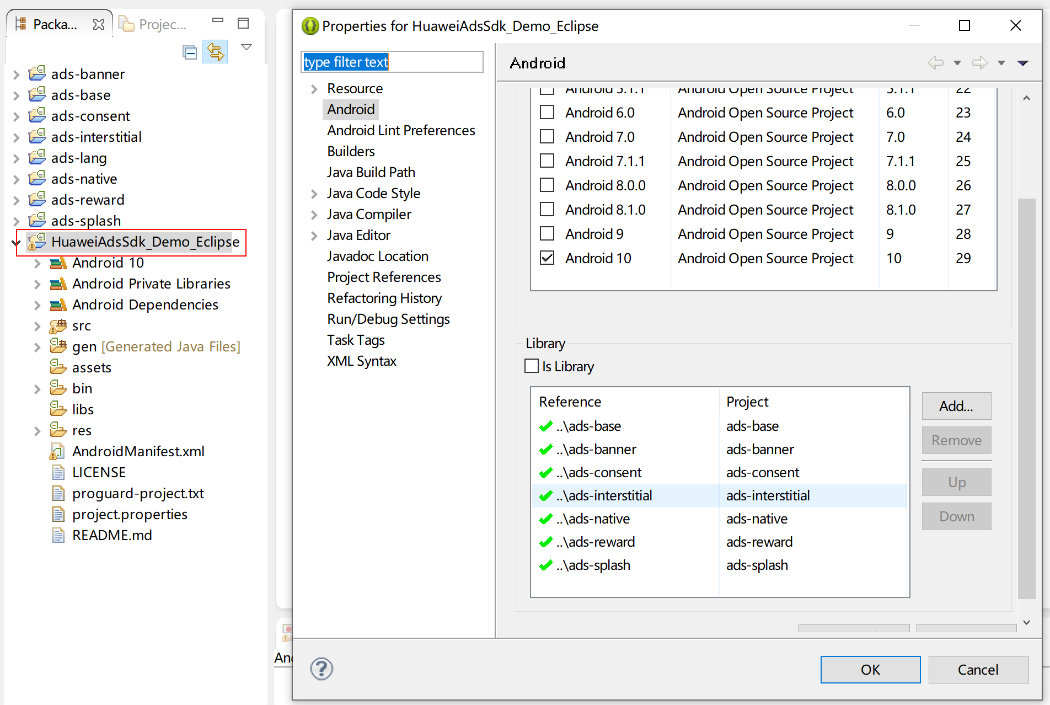
Step3 Set the ads-banner and ads-native projects as dependencies on the ads-base project, as shown in the following figure.
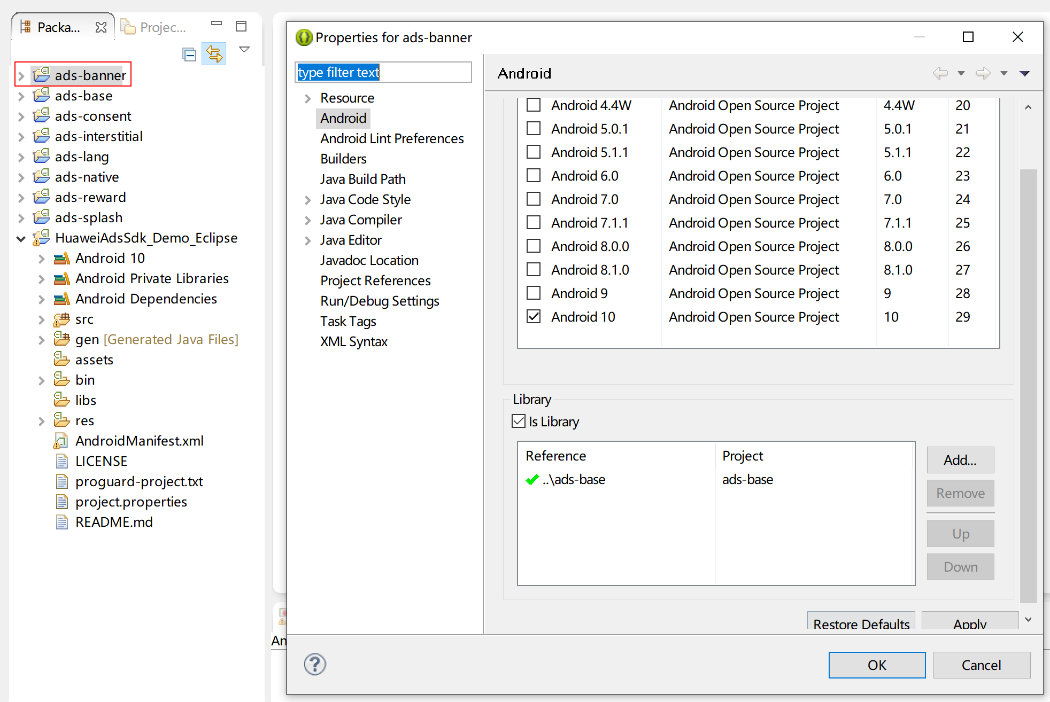
If the value of minSdkVersion in the AndroidManifest.xml file of your app project is less than 19, you are advised to change the value to 19 or delete the following configuration from the AndroidManifest.xml file of each SDK project to avoid compilation errors.
- <uses-sdk
- android:minSdkVersion="19"
- android:targetSdkVersion="29" />
As the XML file in the Eclipse IDE does not support the dollar sign ($), replace ${applicationId} in the AndroidManifest.xml file of the ads-base project with your app package name.
- <application>
- ...
- <activity android:name="com.huawei.openalliance.ad.activity.PPSLauncherActivity"
- android:theme="@android:style/Theme.Translucent.NoTitleBar"
- android:exported="true">
- <intent-filter>
- <action android:name="android.intent.action.VIEW"/>
- <category android:name="android.intent.category.DEFAULT"/>
- <category android:name="android.intent.category.BROWSABLE"/>
- <data android:scheme="hwpps" android:host="${applicationId}"/>
- </intent-filter>
- </activity>
- ...
- </application>
Configure the following information in the project.properties file of your app project:
- target=android-29
- manifestmerger.enabled=true
To allow HTTP network requests on mobile phones with targetSdkVersion 28 or later, you are advised to perform the following configuration in the AndroidManifest.xml file:
- <application
- ...
- android:usesCleartextTraffic="true"
- >
- ...
- </application>
Before building the APK, configure obfuscation scripts to prevent the HUAWEI Ads SDK from being obfuscated. If obfuscation arises, the HUAWEI Ads SDK may not function properly.
The configuration file in Android Studio is proguard-rules.pro, and that in Eclipse is proguard-project.txt.
Open the obfuscation script file of your project.
Add configurations to exclude the HUAWEI Ads SDK from obfuscation.
- -keep class com.huawei.openalliance.ad.** { *; }
- -keep class com.huawei.hms.ads.** { *; }
You are advised to call the HwAds.init() API to initialize the HUAWEI Ads SDK upon app launch. You need to implement the AdSampleApplication class.
The sample code is as follows:
Add your app name to AndroidManifest.xml.
- <application
- android:name=".AdSampleApplication"
- ...
- >
- ...
- </application>
Implement the AdSampleApplication class and initialize the SDK.
- ...
- import com.huawei.hms.ads.HwAds;
- ...
- public class AdSampleApplication extends Application {
- @Override
- public void onCreate() {
- super.onCreate();
- HwAds.init(this);
- }
- ...
- }
Alternatively, you can initialize the SDK in an Activity.
The sample code is as follows:
- ...
- import com.huawei.hms.ads.HwAds;
- ...
- public class MainActivity extends Activity {
- private BannerView bannerView;
- @Override
- protected void onCreate(Bundle savedInstanceState) {
- super.onCreate(savedInstanceState);
- setContentView(R.layout.activity_main);
- // Initialize the HUAWEI Ads SDK.
- HwAds.init(this);
- ...
- }
- }