If you want to integrate the in-app purchase capability of the HMS SDK, make sure that the APK name ends with .HUAWEI or .huawei. Otherwise, the app will fail the review process.

Before you start developing an app, configure app information in AppGallery Connect.
Before you get started,you must register as a HUAWEI developer and complete identity verification on the
HUAWEI Developer website. For details, please refer to Register a HUAWEI ID.
Create an app by following instructions in Creating an AppGallery Connect Project and Adding an App to the Project. Configure basic app information as follows:
Platform: Android
Device: Mobile phone
App category: App
If you want to integrate the in-app purchase capability of the HMS SDK, make sure that the APK name ends with .HUAWEI or .huawei. Otherwise, the app will fail the review process.
A signing certificate fingerprint is used to verify the authenticity of an app when it attempts to access HMS Core (APK) through the HMS SDK. Before using HMS Core (APK), you must locally generate the signing certificate fingerprint, and configure it in AppGallery Connect.
Please ensure that the following conditions are met:
You have created the app's signature file.
The Java JDK has been installed on your PC.
Perform the following steps:
1. Open the command line tool (using the cmd command) and run the cd command to go to the directory where keytool.exe is located. In the following example, the Java program is installed in Program Files in the C drive.
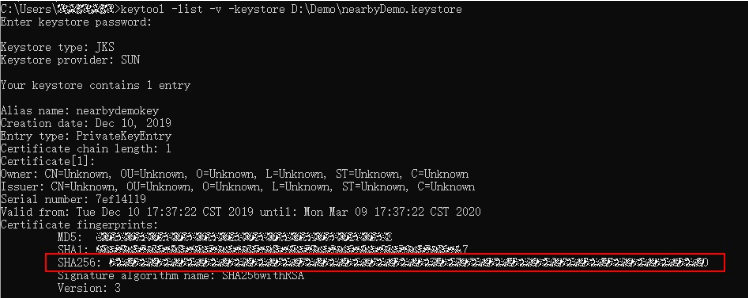
2. Run keytool -list -v -keystore <keystore-file> and respond as prompted.
In the preceding command, <keystore-file> indicates the complete path to the app's signature file.
Example:
- >keytool -list -v -keystore E:\HmsSample\android.keystore
3. Obtain the SHA-256 fingerprint from the result.
1.Sign in to AppGallery Connect and click My projects.
2.Find your app project, and click the desired app name.
3.Go to Project Setting > General information. In the App information area, click the  icon next to SHA-256 certificate fingerprint, and enter the obtained SHA256 certificate fingerprint.
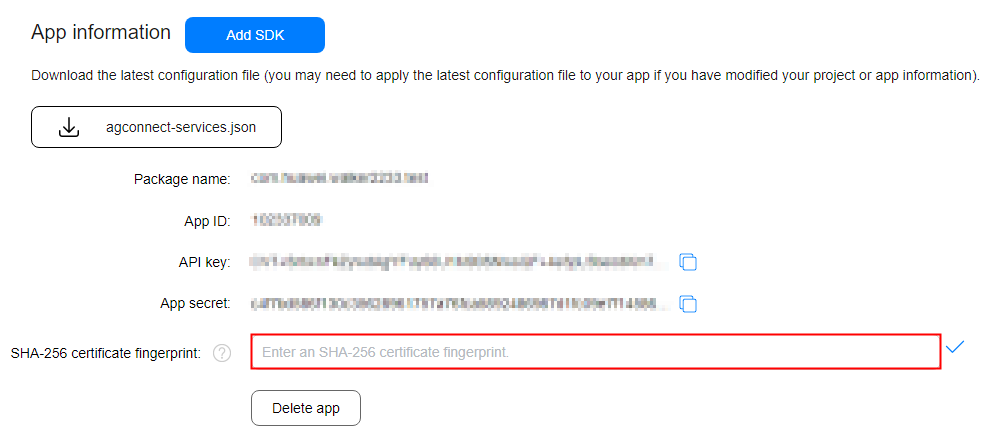
4. After completing the configuration, click  . The configuration will take effect in about 15 minutes.
Before obtaining the agconnect-services.json file, ensure that you have enabled the Advanced Analytics service. For details, please refer to HUAWEI Analytics Development Guide.
If you have performed any modification such as setting the data storage location and enabling or managing some APIs, you need to download the latest agconnect-services.json file and use the file to replace the existing one in the app directory of your Android Studio project.
If you are using Android Studio, you can integrate your HMS SDK by using the Maven repository. Before you start developing an app, integrate the HMS SDK into your Android Studio first.
To remotely integrate the HMS SDK using the Maven repository, perform the following steps:
1. Add the AppGallery Connect configuration file of the app to your Android Studio.
(1) Sign in to AppGallery Connect and select My projects.
(2) Find your app project and click the app that needs to integrate the HMS SDK.
(3) In the App information area on the Project Setting page, download the agconnect-services.json file.
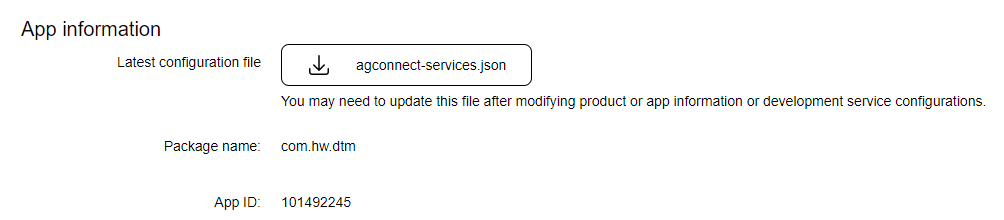
(4) Copy the agconnect-services.json file to the app root directory.
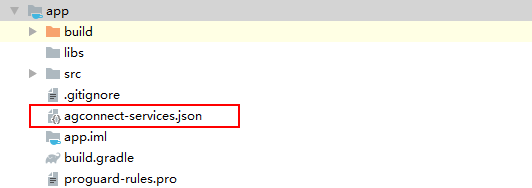
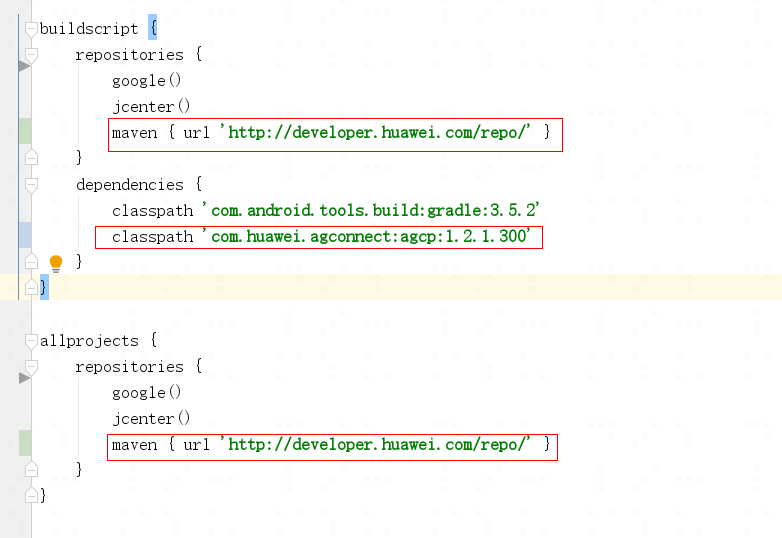
2. Add the Maven repository address and AppGallery Connect service dependencies in the build.gradle file of your project.
- maven {url 'https://developer.huawei.com/repo/'}
- classpath 'com.huawei.agconnect:agcp:1.2.1.300'
3. Add plug-in configuration and SDK version in the build.gradle file in the app directory.
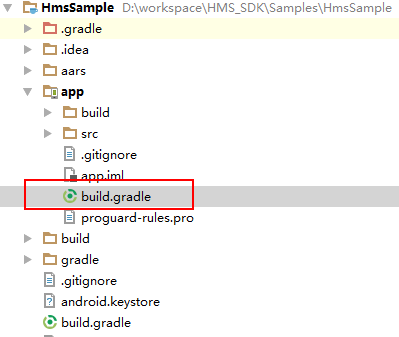
(1) Open the build.gradle file in the app directory.
(2) Configure build dependencies. Replace {version} with the actual SDK version number, for example, implementation 'com.huawei.hms:hianalytics:4.0.2.300' and 'com.huawei.hms:dtm-api:4.0.4.300'.
- implementation 'com.huawei.hms:hianalytics:{version}'
- implementation 'com.huawei.hms:dtm-api:{version}'
(3) Add the AppGallery Connect plug-in dependency to the end of the file.
- apply plugin: 'com.huawei.agconnect'
4. Click Sync Now or Sync Project with Gradle Files to build a project. If an error occurs, check the network connection and the configurations in the build.gradle file.
Before starting your development in the Eclipse Integrated Development Environment (IDE), download the HMS SDK and integrate it into your app project.
1. Integrate the HiAnalytics SDK before you integrate the DTM SDK. For details about how to integrate the HiAnalytics SDK, visit the following link: HUAWEI Analytics Kit Development Guide
2.Download the HMS Base SDK and DTM SDK, and decompress the ZIP packages.
(1). HMS Base SDK: HMS Base SDK
(2). DTM SDK for Eclipse: Eclipse SDK Download
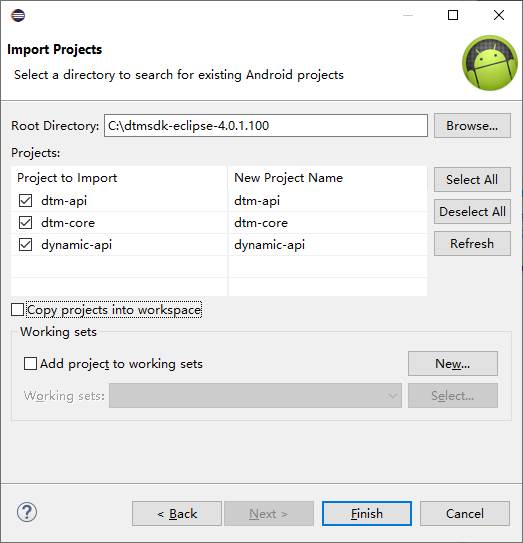
3. Go to File > Import to import all SDK projects to your workspace.
(1) Go to Android > Existing Android Code Into Workspace and click Next.
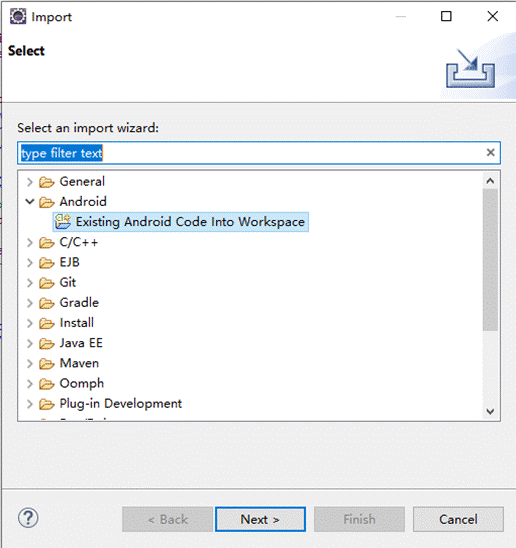
(2) Click Browse and navigate to the directory where your projects are located. Select the projects to be imported under Projects and click Finish. By default, all projects are selected. You can change as needed.
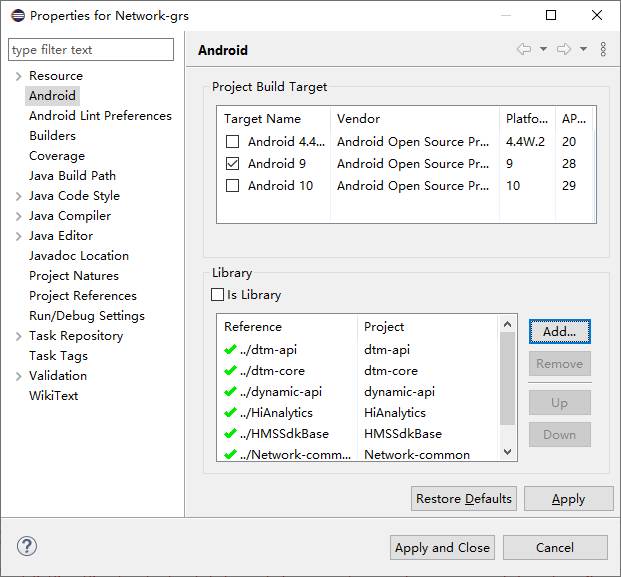
1. Right-click your app project and choose Properties from the shortcut menu.
2. Choose Android from the navigation tree, click Add, select the imported projects, and click Apply and Close.
3. As the XML file in the Eclipse IDE does not support the dollar sign ($), replace ${applicationId} in the AndroidManifest.xml file of the dtm-api project with your app package name.
- </application>
- <activity
- android:name="com.huawei.hms.dtm.PreviewActivity"
- android:exported="true"
- android:noHistory="true" >
- <meta-data
- android:name="hwc-theme"
- android:value="androidhwext:style/Theme.Emui" />
- <intent-filter>
- <data android:scheme="dtm.configuration.${applicationId}" />
- <action android:name="android.intent.action.VIEW" />
- <category android:name="android.intent.category.DEFAULT" />
- <category android:name="android.intent.category.BROWSABLE" />
- </intent-filter>
- </activity>
- </application>
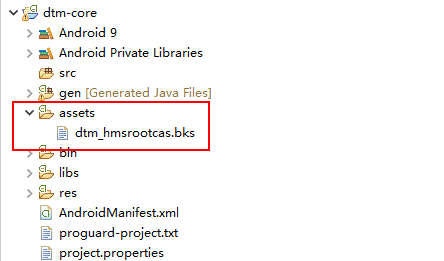
Copy the resource file in the assets directory of the dtm-core project to the assets directory of your app project.
Before building the APK, configure obfuscation scripts to prevent HUAWEI Analytics Kit and DTM from being obfuscated. If obfuscation arises, HUAWEI Analytics and DTM may not function properly.
1. Open the obfuscation script file of your project. The configuration file is proguard-rules.pro for Android Studio and proguard-project.txt for Eclipse.
2. Add configurations to exclude HUAWEI Analytics Kit and DTM from obfuscation.
- -dontwarn com.huawei.hms.**
- -keep interface com.huawei.hms.analytics.type.HAEventType{*;}
- -keep interface com.huawei.hms.analytics.type.HAParamType{*;}
- -keep class com.huawei.hms.analytics.HiAnalyticsTools{
- public static void enableLog();
- public static void enableLog(int);
- }
- -keep class com.huawei.hms.analytics.HiAnalyticsInstance{*;}
- -keep class com.huawei.hms.analytics.HiAnalytics{*;}
- -keep class com.huawei.hms.feature.** {public *;}
- -keep public class com.huawei.hms.common.** {public *;}
- -keep class com.huawei.hms.analytics.internal.filter.EventFilter{
- public void logFilteredEvent(java.lang.String, android.os.Bundle);
- public java.lang.String getUserProfile(java.lang.String);
- }
- -keep public class com.huawei.hms.dtm.EventFilter {
- public <fields>;
- public <methods>;
- }
3. If you have used AndResGuard, add it to the whitelist in the obfuscation script file.
- "R.string.hms*",
- "R.string.connect_server_fail_prompt_toast",
- "R.string.getting_message_fail_prompt_toast",
- "R.string.no_available_network_prompt_toast",
- "R.string.third_app_*",
- "R.string.upsdk_*",
- "R.layout.hms*",
- "R.layout.upsdk_*",
- "R.drawable.upsdk*",
- "R.color.upsdk*",
- "R.dimen.upsdk*",
- "R.style.upsdk*",
- "R.string.agc*"