App update refers to the process in which HMS SDK downloads a later version of the app from HUAWEI AppGallery and installs it. An app update can be automatically triggered by the app background or manually by the user after successful app startup.
Please refer to the following for the interactions:
The user starts the app or triggers the update check in the app.
The app detects an update and displays the update confirmation page.
The user confirms the update and is directed to the app update page in Huawei AppGallery to perform the update.
Before developing an app, you will need to register as a HUAWEI developer and complete identity verification on the HUAWEI Developer website. For details, please refer to Account Registration and Verification.
To create a game app, please refer to Creating an App in AppGallery Connect and upload an interim APK file.
1. Sign in to AppGallery Connect and select My apps.
2. Find your app from the list, and click the link under Android App in the Mobile phone column.
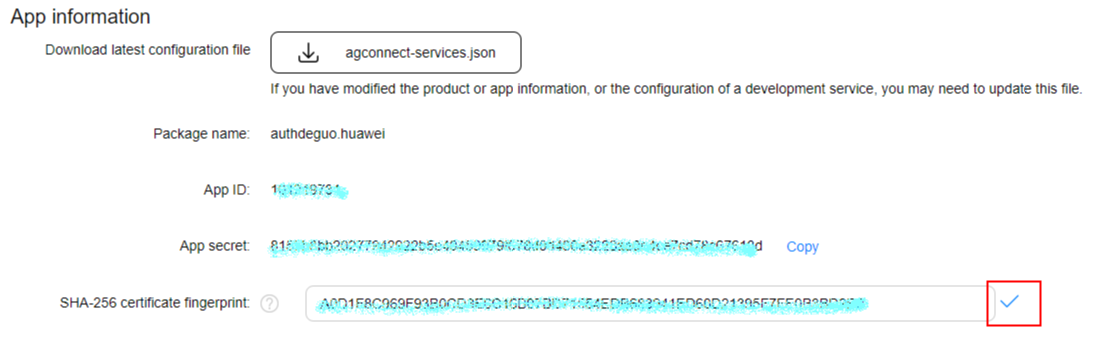
3. Go to Development > Overview > App information and set SHA-256 certificate fingerprint to the SHA-256 fingerprint of your app. For details about how to generate a SHA-256 fingerprint, please refer to Generating a Signing Certificate Fingerprint.
4. After completing configuration, click .
The update capability of HMS SDK is integrated in Game Service. To use the update capability of HMS SDK, integrate the Game Service SDK.
For AndroidStudio, Huawei provides an HMS SDK that can be integrated by using the Maven repository.
1. Add the AppGallery Connect configuration file of the current app to your AndroidStudio.
a. Sign in to AppGallery Connect and select My apps.
b. Find your app from the list, and click the app name
c. Go to Develop > Project setting.
d. In the App information section, click agconnect-services.json to download the configuration file.
e. Copy the agconnect-services.json file to the app root directory.
2. Configure the Maven repository address for HMS SDK and the AppGallery Connect plug-in address.
a. Open the build.gradle file in the root directory of your AndroidStudio project.
b. Go to allprojects -> repositories and configure the Maven repository address for HMS SDK.
- allprojects {
- repositories {
- google()
- jcenter()
- maven {url 'https://developer.huawei.com/repo/'}
- }
- }
c. Go to buildscript->repositories and configure the Maven repository address for HMS SDK.
- buildscript {
- repositories {
- google()
- jcenter()
- maven {url 'https://developer.huawei.com/repo/'}
- }
- }
d. Go to buildscript->dependencies and configure the AppGallery Connect plug-in address.
- buildscript {
- dependencies {
- classpath 'com.huawei.agconnect:agcp:1.3.1.300'
- }
- }
3. Add compile dependencies.
a. Open the build.gradle file in the app directory.
b. Add the AppGallery Connect plug-in dependency to the bottom of the file.
- apply plugin: 'com.huawei.agconnect'
c. Configure compile dependencies.
- dependencies {
- implementation 'com.huawei.hms:base:4.0.4.301'
- implementation 'com.huawei.hms:game:4.0.3.301'
- }
4. Re-open the modified build.gradle file. You will find a Sync Now link in the upper right corner of the page. Click Sync Now and wait until synchronization has completed.
Before starting your development in the Eclipse Integrated Development Environment (IDE), download the HMS SDK and integrate it into your app project.
1. Download the .zip packages of the HMS Base SDK and HMS Core Game Service SDK at the following URLs, and decompress the packages.
HMS Base SDK: HMS Base SDK
HUAWEI Game Service SDK: HUAWEI Game Service SDK
SDK | Project | Description | Remarks |
HMS Base SDK | HMSSdkBase | HMS SDK core function package | The SDK is mandatory. |
Agconnect-core | HMS SDK dependency package | ||
| HMSSdkAvailableUpdate | |||
| HMSSdkDevice | |||
| HMSSdkLog | |||
| HMSSdkStats | |||
| HMSSdkUI | |||
Network-common | |||
Network-grs | |||
| Tasks | |||
Update | |||
HUAWEI Game Service SDK | Hmssdk-game | Provides the upgrading functions. | The SDK is mandatory. |
2. Import all SDK projects to your workspace.
a. Go to File > Import > Android > Existing Android Code Into Workspace and click Next.
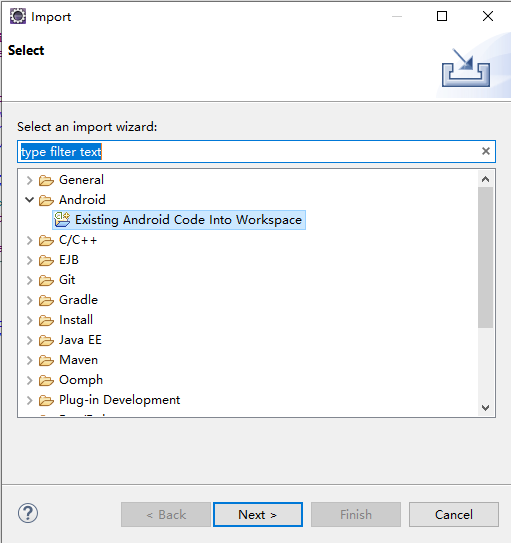
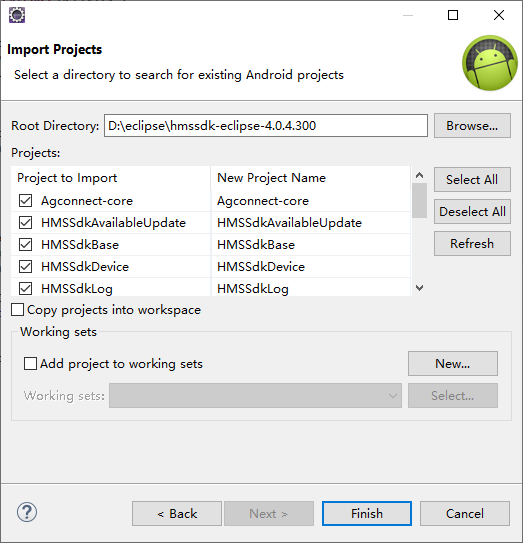
b. Click Browse and navigate to the directory where your projects are located. Select the projects to be imported under Projects and click Finish. By default, all projects are selected. You can change as needed.
NOTE: The projects to be imported must be located in the same drive as the workspace, for example, D:\. If they are not in the same drive, select Copy projects into workspace to copy the project file to the workspace.
1. Right-click your app project and choose Properties from the shortcut menu.
2. Choose Resource > Android from the navigation tree, click Add, select the imported projects, and click Apply and Close.
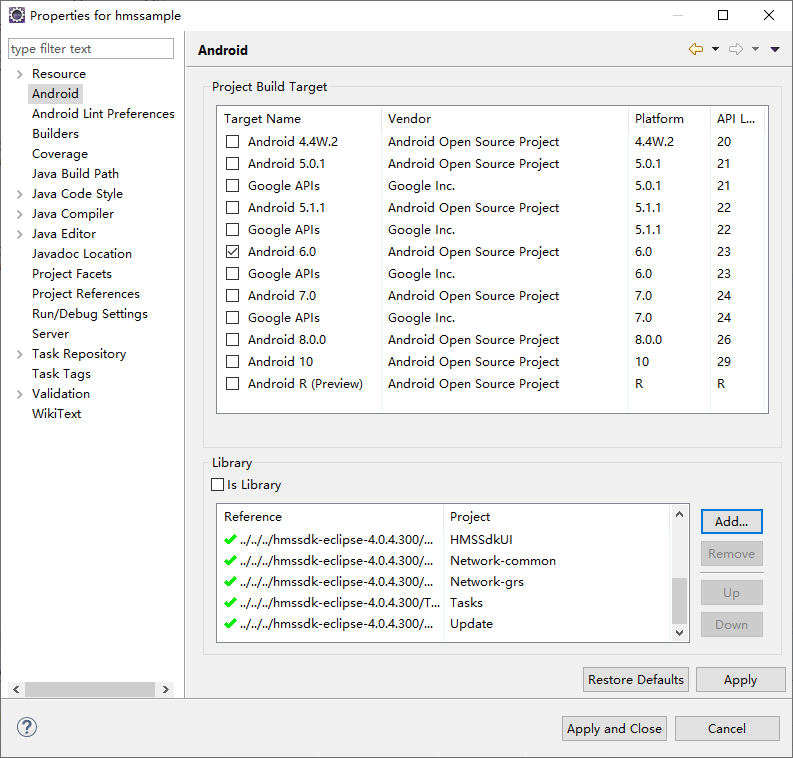
3. Right-click the HMSSdkAvailableUpdate project and choose Properties from the shortcut menu.
4. Choose Android from the navigation tree. Then, click Add in the Library area, select the HMSSdkUI project, and click Apply and Close.
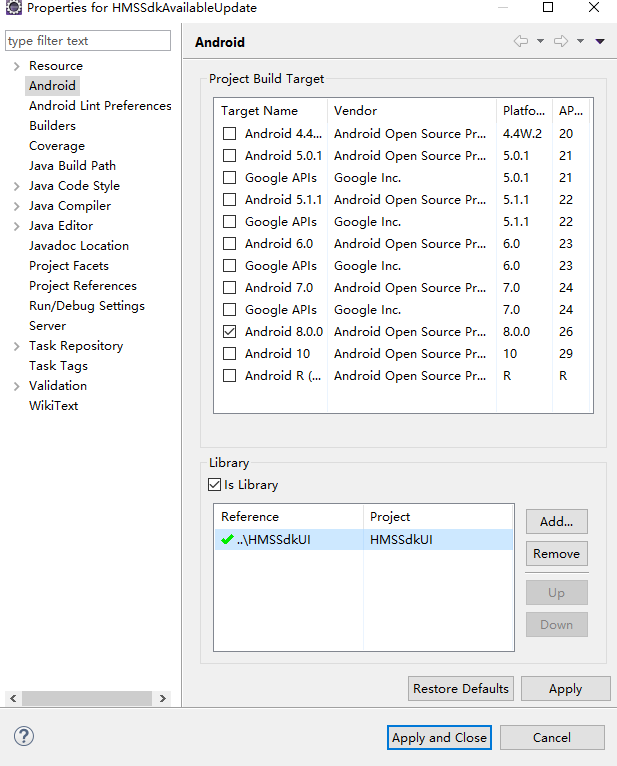
5. As the XML file in the Eclipse IDE does not support the dollar sign ($), replace ${applicationId} in the AndroidManifest.xml file of the HMSSdkAvaliableUpdate and Agconnect-core projects with your app package name.
- <application>
- <provider
- android:name="com.huawei.agconnect.core.provider.AGConnectInitializeProvider"
- android:authorities="${applicationId}.AGCInitializeProvider"
- android:exported="false" />
- <service
- android:name="com.huawei.agconnect.core.ServiceDiscovery"
- android:exported="false" />
- </application>
Copy the properties files in the assets directory of the HMSSdkStats project to the assets directory of your app project.
NOTE: If any other kits are involved, copy the properties files of these kits to your app project directory.
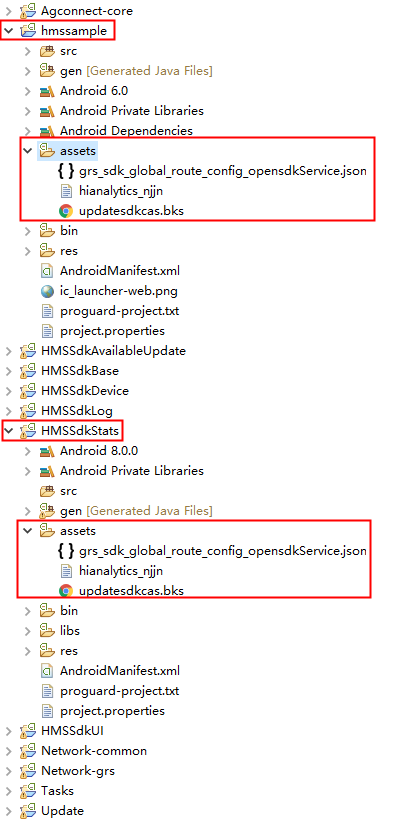
Find and open the file in your project directory and add the following code to merge the manifest files in the subprojects:
- manifestmerger.enabled=true
1. Sign in to AppGallery Connect and select My apps.
2. Find your app from the list and click the app name.
3. Go to Develop > Project setting > App information.
4. Click agconnect-services.json to download the configuration file.
5. The Eclipse IDE does not support the AppGallery Connect plug-in. Therefore, you need to place the agconnect-services.json file in the assets directory of your project and add the following code to the Application subclass of the project. If the project does not have an Application subclass, you need to create a subclass that is inherited from the Application subclass. For example, create a MyApplication class.
- public class MyApplication extends Application{
- @Override
- public void onCreate() {
- super.onCreate();
- }
- // TODO: Add the following code:
- @Override
- protected void attachBaseContext(Context context) {
- super.attachBaseContext(context);
- AGConnectServicesConfig config = AGConnectServicesConfig.fromContext(context);
- config.overlayWith(new LazyInputStream(context) {
- public InputStream get(Context context) {
- try {
- return context.getAssets().open("agconnect-services.json");
- } catch (IOException e) {
- return null;
- }
- }
- });
- }
- // TODO: End
- }
You still need to import the following classes:
- import java.io.IOException;
- import java.io.InputStream;
- import com.huawei.agconnect.config.AGConnectServicesConfig;
- import com.huawei.agconnect.config.LazyInputStream;
- import android.app.Application;
- import android.content.Context;
- import android.util.Log;
6. Open the AndroidManifest.xml file of your project and add the Application subclass name to the application section. If the subclass name has been added, skip this step. In the following example, add the MyApplication class name.
- <application
- android:name=".MyApplication"
- ...
- >
- ...
7. In the Eclipse IDE menu bar, click Project, then Clean.
Do not obfuscate HMS SDK before compiling the APK. Otherwise, function errors may occur.
The configuration file in Android Studio is proguard-rules.pro, and that in Eclipse is proguard-project.txt.
1. Open the obfuscation configuration file of your project.
2. Add configuration to ensure that HMS SDK is not obfuscated.
- -ignorewarnings
- -keepattributes *Annotation*
- -keepattributes Exceptions
- -keepattributes InnerClasses
- -keepattributes Signature
- -keepattributes SourceFile,LineNumberTable
- -keep class com.hianalytics.android.**{*;}
- -keep class com.huawei.updatesdk.**{*;}
- -keep class com.huawei.hms.**{*;}
- -keep class com.huawei.gamebox.plugin.gameservice.**{*;}
- -keep interface com.huawei.hms.analytics.type.HAEventType{*;}
- -keep interface com.huawei.hms.analytics.type.HAParamType{*;}
- -keep class com.huawei.hms.analytics.HiAnalyticsTools{
- public static void enableLog();
- public static void enableLog(int);
- }
- -keep class com.huawei.hms.analytics.HiAnalyticsInstance{*;}
- -keep class com.huawei.hms.analytics.HiAnalytics{*;}
3. If you have used AndResGuard, add the AndResGuard allowlist to the obfuscation configuration file.
- "R.string.agc*",
- "R.string.hms*",
- "R.string.connect_server_fail_prompt_toast",
- "R.string.getting_message_fail_prompt_toast",
- "R.string.no_available_network_prompt_toast",
- "R.string.third_app_*",
- "R.layout.hms*",
- "R.drawable.upsdk*",
- "R.color.upsdk*",
- "R.dimen.upsdk*",
- "R.style.upsdk*",
- "R.id.scroll_layout",
- "R.id.divider",
- "R.id.name_textview",
- "R.id.version_textview",
- "R.id.appsize_textview",
- "R.id.allsize_textview",
- "R.id.content_textview",
- "R.id.third_app_dl_progress_text",
- "R.id.cancel_bg",
- "R.id.third_app_dl_progressbar",
- "R.id.upsdk*",
- "R.string.upsdk*",
- "R.layout.upsdk*"
After an app is launched or when a user proactively checks whether there is a later version, call the related API of HMS SDK to check whether there is a later version available in HUAWEI AppGallery. If yes, display a pop-up asking the user whether to update the app.
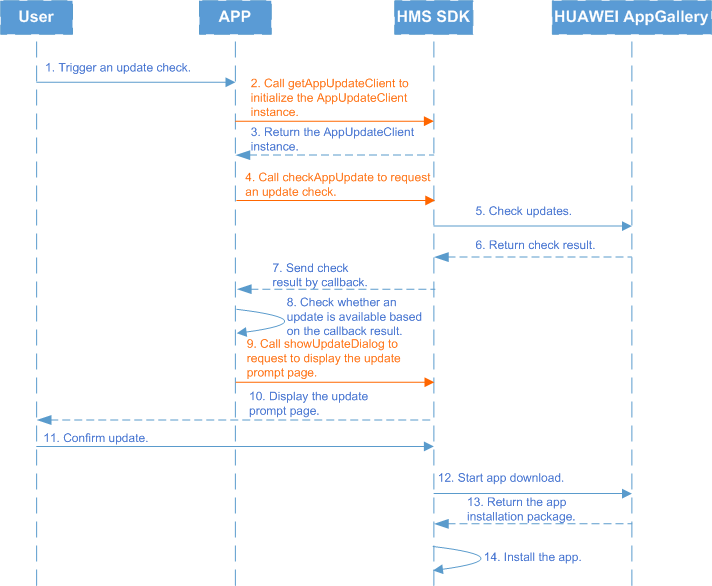
The user triggers an update check, for example, by starting the app or manually performing the check on the update check page.
The app calls JosApps.getAppUpdateClient to request to initialize the AppUpdateClient instance.
HMS SDK returns the AppUpdateClient instance of the current app to the app.
The app calls the AppUpdateClient.checkAppUpdate method to request an update check.
HMS SDK queries the latest app version information in Huawei AppGallery.
HUAWEI AppGallery sends the app version information back to HMS SDK.
HMS SDK sends the check result to the app by means of callback.
The app checks the ApkUpgradeInfo instance returned by the onUpdateInfo method in the callback result and checks whether an update is available.
● If an update is available, proceed to the next step.
● If no update is available, the process ends.
The app calls the AppUpdateClient.showUpdateDialog method to request to display the update pop-up for the user.
HMS SDK displays the update pop-up to the user.
The user acknowledges the app to be updated on the update confirmation page.
HMS SDK sends a request to HUAWEI AppGallery to download the latest app installation package.
HUAWEI AppGallery sends the app installation package back to HMS SDK.
HMS SDK downloads the installation package and installs it.
The key steps for updating a app are as follows:
1.Call JosApps.getAppUpdateClient to initialize the AppUpdateClient object.
- AppUpdateClient client = JosApps.getAppUpdateClient(this);
2. Call AppUpdateClient.checkAppUpdate to check updates.
(1) Call the checkAppUpdate method.
- public void checkUpdate() {
- AppUpdateClient client = JosApps.getAppUpdateClient(this);
- client.checkAppUpdate(this, new UpdateCallBack(this));
- }
(2) Define the callback method for checking updates and obtain the ApkUpgradeInfo object from the callback result.
- private static class UpdateCallBack implements CheckUpdateCallBack {
- private AppApiActivity apiActivity;
- private UpdateCallBack(AppApiActivity apiActivity) {
- this.apiActivity = apiActivity;
- }
- public void onUpdateInfo(Intent intent) {
- if (intent != null) {
- int status = intent.getIntExtra(UpdateKey.STATUS, DEFAULT_VALUE);
- int rtnCode = intent.getIntExtra(UpdateKey.FAIL_CODE, DEFAULT_VALUE);
- String rtnMessage = intent.getStringExtra(UpdateKey.FAIL_REASON);
- Serializable info = intent.getSerializableExtra(UpdateKey.INFO);
- if (info instanceof ApkUpgradeInfo) {
- apiActivity.showLog("There is a new update");
- apiActivity.apkUpgradeInfo = (ApkUpgradeInfo) info;
- }
- apiActivity.showLog("onUpdateInfo status: " + status + ", rtnCode: " + rtnCode + ", rtnMessage: " + rtnMessage);
- }
- }
- }
3. When detecting that an update is available, the app calls AppUpdateClient.showUpdateDialog in the callback method of checkAppUpdate to display the update pop-up.
- public void checkUpdatePop(boolean forceUpdate) {
- AppUpdateClient client = JosApps.getAppUpdateClient(this);
- client.showUpdateDialog(this, apkUpgradeInfo, forceUpdate);
- Log.i(TAG, "checkUpdatePop success");
- }