HUAWEI AppGallery Connect supports the following management functions: event management, user attribute management, page management, data export, app debugging, analysis settings, and app management. You can customize indicators to meet the requirements in different application scenarios.
Procedure
Sign in to AppGallery Connect and select "My projects".
Click the app to manage.
Go to "Analyze > Manage > Events".
Manage events.
HUAWEI Analytics Kit supports event management. For example, you can specify event parameters to be analyzed. A maximum of 25 parameters can be defined for each event. The total number of parameters defined for all events in a project cannot exceed 100.
Through event management, you can:
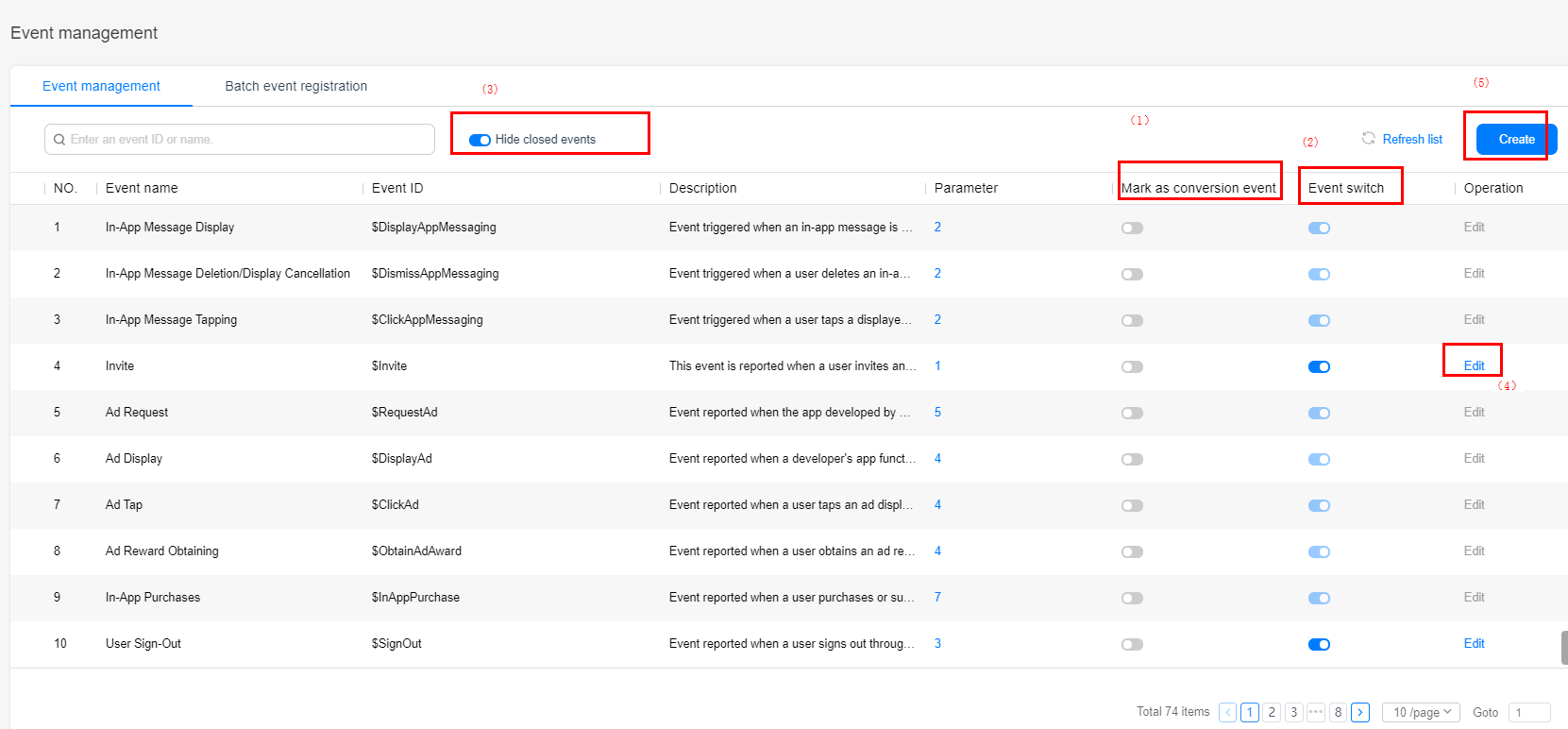
(1) Mark an event as a conversion event, as shown in (1).
(2) Enable or disable the analysis of an event, as shown in area (2). If analysis of an event is disabled, the Analytics Kit will not analyze the event, and the event is not counted in the audience analysis and funnel analysis reports.
(3) Hide closed events, as shown by (3). If this function is enabled (default), closed events will no longer be displayed.
(4) Modify analysis parameters of an event. The procedure is as follows:
a. Click Edit, as shown in (4).
b. On the Edit event page, add parameters and modify parameter attributes.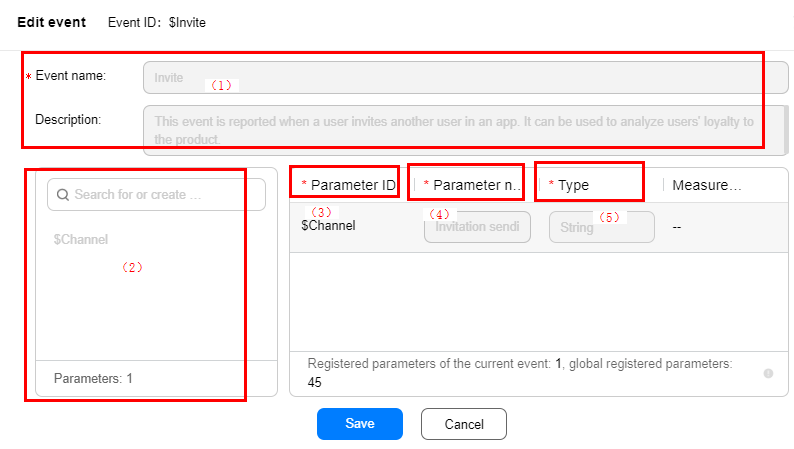
In area (1), modify the event name and description.
In area (2), query an event parameter or add an event parameter by entering the name of an event parameter and clicking Add. The added parameters are displayed in the lower part.
In area (3), change the parameter name. The parameter name will be used as the chart title in the analysis report. You are advised to set it to a readable name.
In area (4), select a parameter type. Currently, the following parameter types are supported: string and numeric.
In area (5), you can set the measurement unit for a numeric-type parameter.
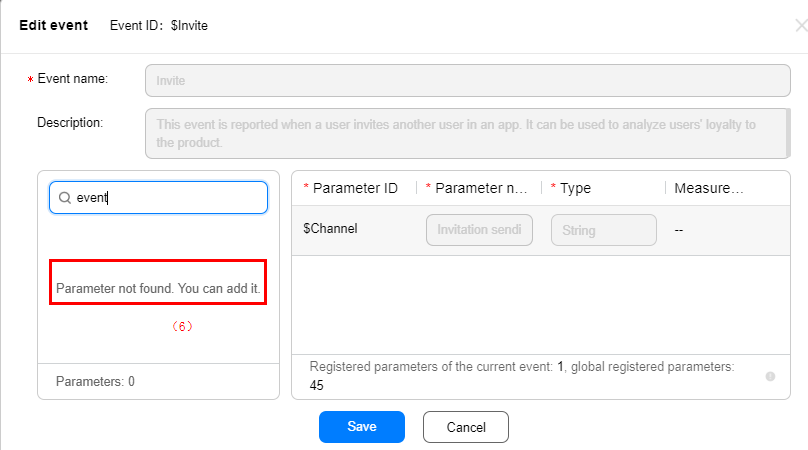
In area (6), if the event parameter you searched is not found, you can click Add to add it.
(5) To create an event, perform the following steps:
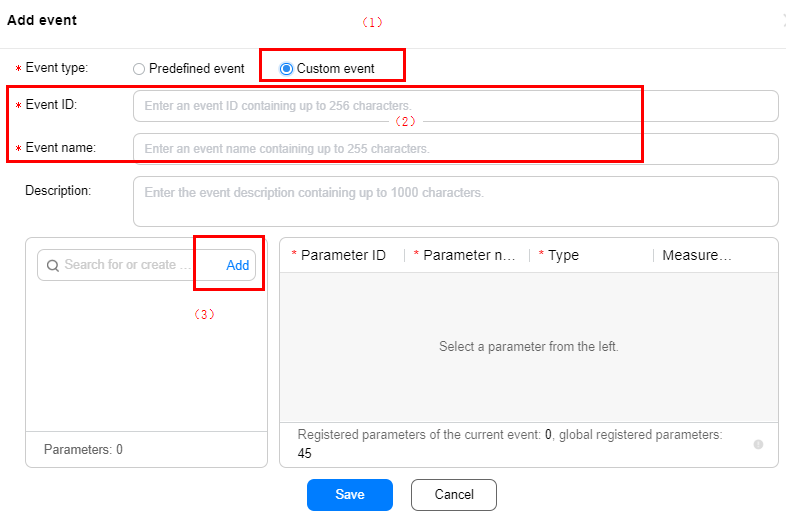
Select the type of the event, which can be Predefined event or Custom event.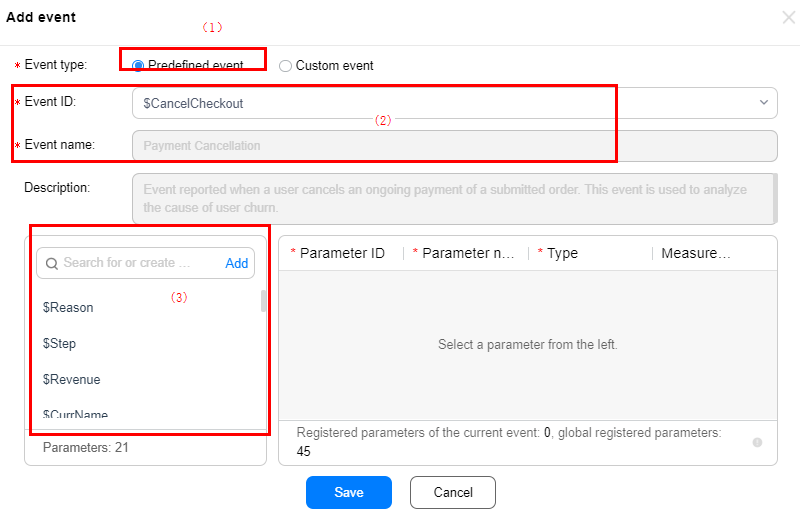
If you select Predefined event as shown in area (1), you can select a predefined event ID from the drop-down list box (search supported). The event name and description in area (2) cannot be edited. You can add parameters in area (3).
If you select Custom event as shown in area (1), you can enter the event ID, name, and description, and add parameters in area (3).
Register events in batches.
Click Download template to download the template. The following provides an example of filling in the template.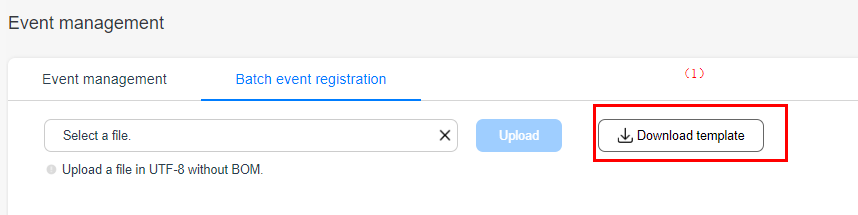
The information below $EVENT_DEFINE is an event configuration with fields separated by commas in this sequence: event ID, event name, and event description. Each line represents an event configuration record.
Example:
| Event ID | Event Name | Description |
|---|---|---|
ADDPRODUCT2CART | Add to cart | This event is reported when a user adds a product to the shopping cart. It can be used with VIEWPRODUCT and STARTCHECKOUT to construct funnel analysis for product purchase. It can also be used to analyze products that users are interested in, helping you promote the products to the users. |
The information below $PARAM_DEFINE is an event parameter configuration with fields separated by commas in this sequence: event ID, parameter ID, parameter name, parameter type, and parameter unit. Each line represents an event parameter configuration record. Set the parameter type and unit according to the following table.
The following table lists the enumerated values of parameter type.
| Type | Enum |
|---|---|
String | 0 |
Numeric | 1 |
The following table lists the enumerated values of the parameter unit.
| Type | Enum |
|---|---|
Currency configured by a developer | CURRENCY |
Year | YEAR |
Month | MONTH |
Day | DAY |
Hour | HOUR |
Minute | MINUTE |
Second | SECOND |
Millisecond | MILLISECOND |
Meter | METER |
Kilometer | KILOMETER |
Mile | MILE |
Example:
| Event ID | Parameter ID | Parameter | Type | Parameter (Unit) |
|---|---|---|---|---|
ADDPRODUCT2CART | PRICE | Purchase price | 1 | CURRENCY |
ADDPRODUCT2CART | PRODUCTNAME | Product name | 0 |
If the format is incorrect, an error message is displayed during upload, as shown in area (2). Modify the file as prompted and upload it again.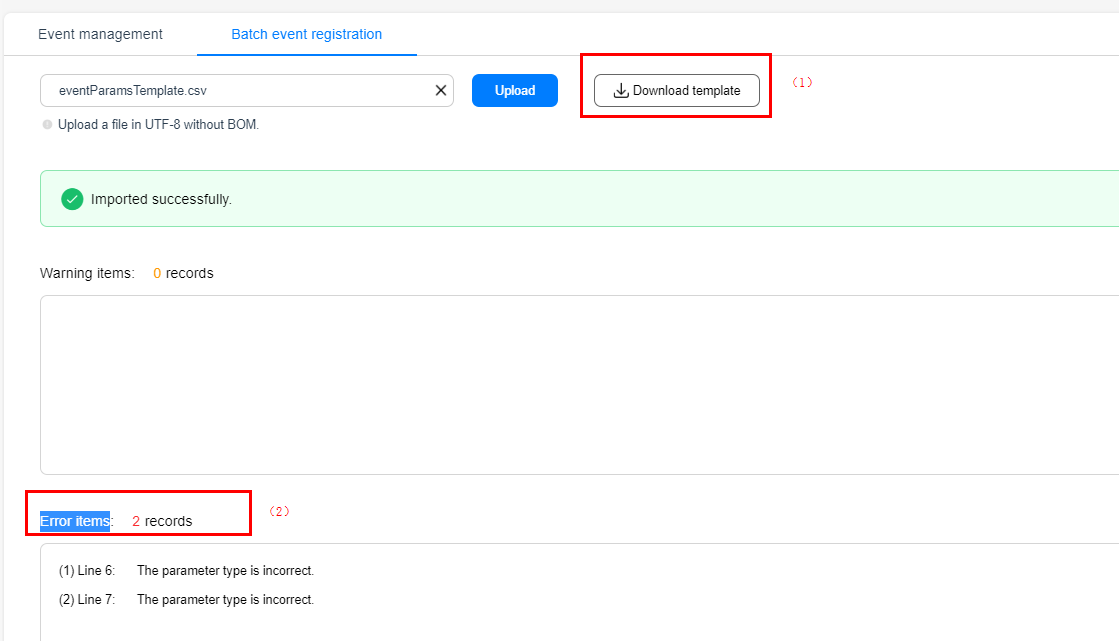
Specifications
Event modifications are valid for all reports in the system. For example, if a custom event parameter is added for an event, the custom event parameter can be used in all reports.
The modification of an event name or description takes effect immediately, whereas addition or deletion of an event or event parameter takes effect on the next day.
You can maintain your custom user attributes, which can be used to define audiences or as criteria for filtering various reports.
Procedure
Sign in to AppGallery Connect and select "My projects".
Click the app to manage.
Go to "Analyze > Manage > User attributes".

On the User attributes page, you can perform the following operations:
View basic information about each user attribute, including the attribute ID, attribute name, creation date, and description.
Manage user attributes, such as creating and editing a user attribute.
(1) To manage user attributes:
Click Create at the upper right corner of the User attributes page to create a user attribute.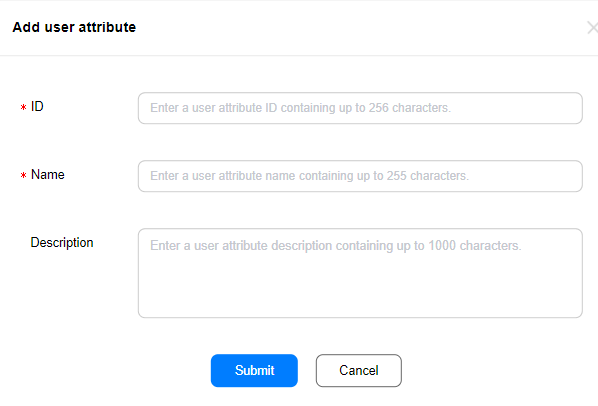
The following table describes the related parameters.
Parameter | Description |
ID | Enter a user attribute ID, which contains up to 256 characters. |
Name | Enter a user attribute name that is easy to remember and understand. |
Description | Enter he information such as the purpose and scenario for defining this user attribute. |
On the User attributes page, click Edit in the Operation column to modify a custom user attribute.
You can add, edit, and delete pages to be analyzed through page management. The number of access times and average stay time of these pages are displayed in the Page analysis report.
Procedure
Sign in to AppGallery Connect and select "My projects".
Click the app to manage.
Go to "Analyze > Manage > Pages".
Through page management, you can:
View basic page information, including the page ID, page name, page description, and creation time.
Create, edit, or delete a page.
(1) Create a page.
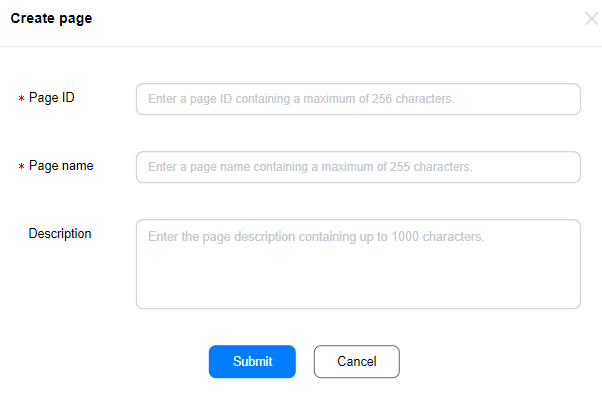
Click Create in the upper right corner of the Page management page. Enter the page ID, page name, and page description. Click Submit.
(2) Edit or delete a page.
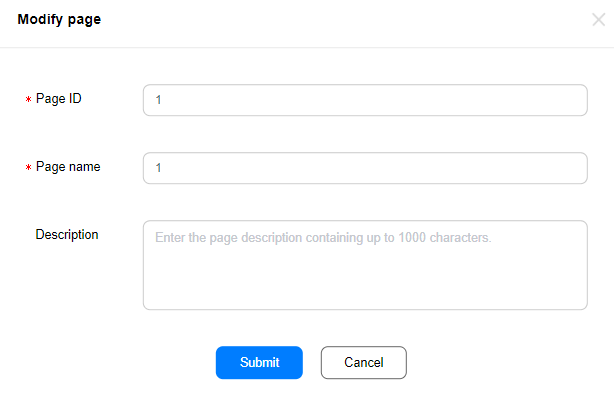
To modify a page, click Edit in area (1) to change the page ID, page name, or page description, and click Submit.
To delete the page, click Delete in area (2).
HUAWEI Analytics Kit provides the function of downloading event data for developers. The downloaded data can then be imported into your analysis systems to customize reports and audiences. This helps personalized analysis and marketing activity creation.
You can export data in either of the following ways:
Create a data export request on the GUI. After the export is successful, you can click the download link to download the data.
Call an API through programming to periodically download the data
Procedure
Sign in to AppGallery Connect and select "My projects".
Click the app to manage.
Go to Analyze > Manage > Export data.
On the Export data page, you can view basic information about the data export request, including the start time, end time, creation mode, and status.
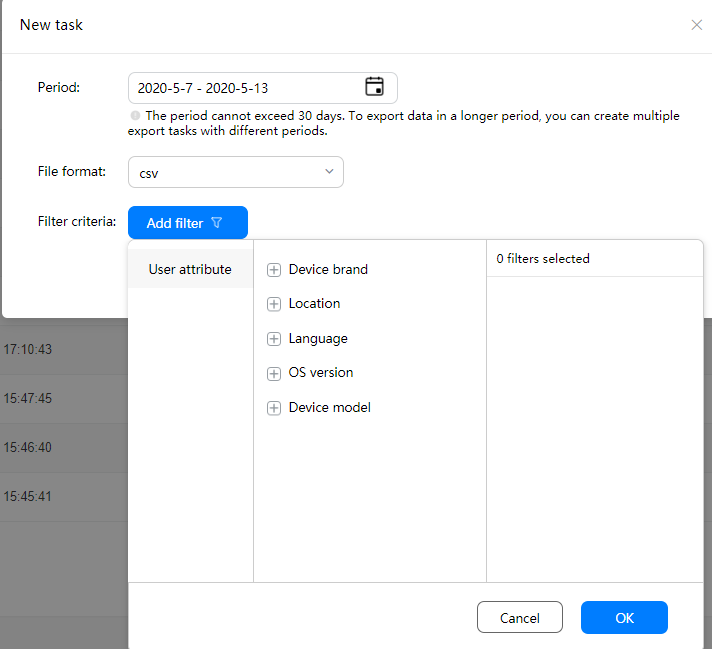
Click New task in the upper-right corner to export event data in a specified period. User attributes can be used as filter criteria.
After the data is exported successfully, click the link to download the data. For details about the fields in the exported file, please refer to Data Export Description.
During app development, the product manager and technical team can cooperate with each other through app debugging to perform the final commissioning on data reporting, preventing tracing point omission and event attribute setting errors.
Enabling the Debug Mode
Procedure
Enable the debug mode on your device and ensure that the network is normal. Then, start to perform operations on the app client.
Sign in to AppGallery Connect and select My projects.
Click the app to manage.
Go to Analyze > Manage > App debugging
Viewing Debugging Event Details (Real-time Update)
The app debugging page displays events reported by the app in the last 60 seconds or last 30 minutes.
If you select Last 60 seconds, the displayed page is as follows.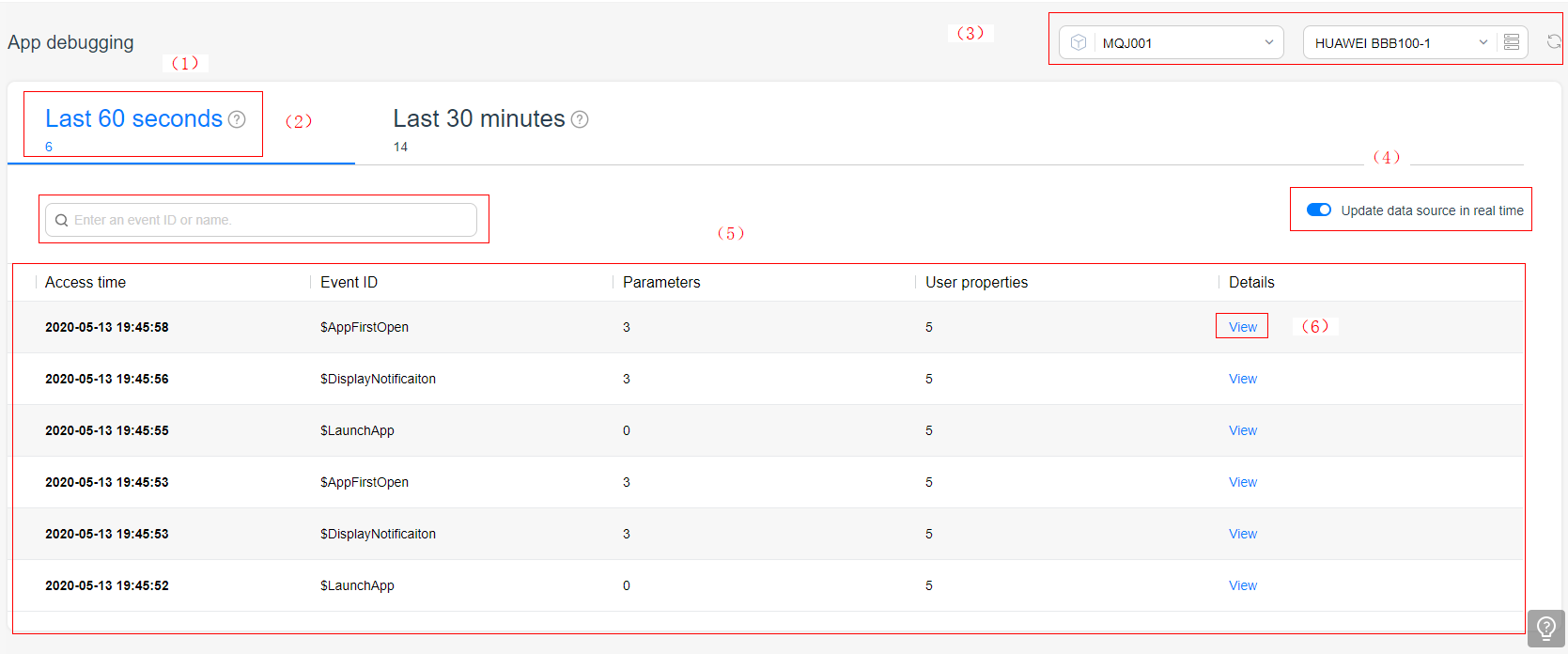
In area (1), 8 indicates the number of received messages.
In area (2), you can search events by event name.
In area (3), you can select a project from the left drop-down list box, and select the device that reports data from the right drop-down list box. Click the icon on the right to manage debugged devices. If a debugged device is no longer needed, click Delete to remove it.
In area (4), the switch is used to enable or disable real-time data source update. By default, the switch is enabled.
In area (5), the received debugging data is displayed in a table in descending order of time. If the user pauses the real-time update, the table will not be refreshed in real time.
In area (6), you can click View to view the event details.
If you select Last 30 minutes, the displayed page is as follows.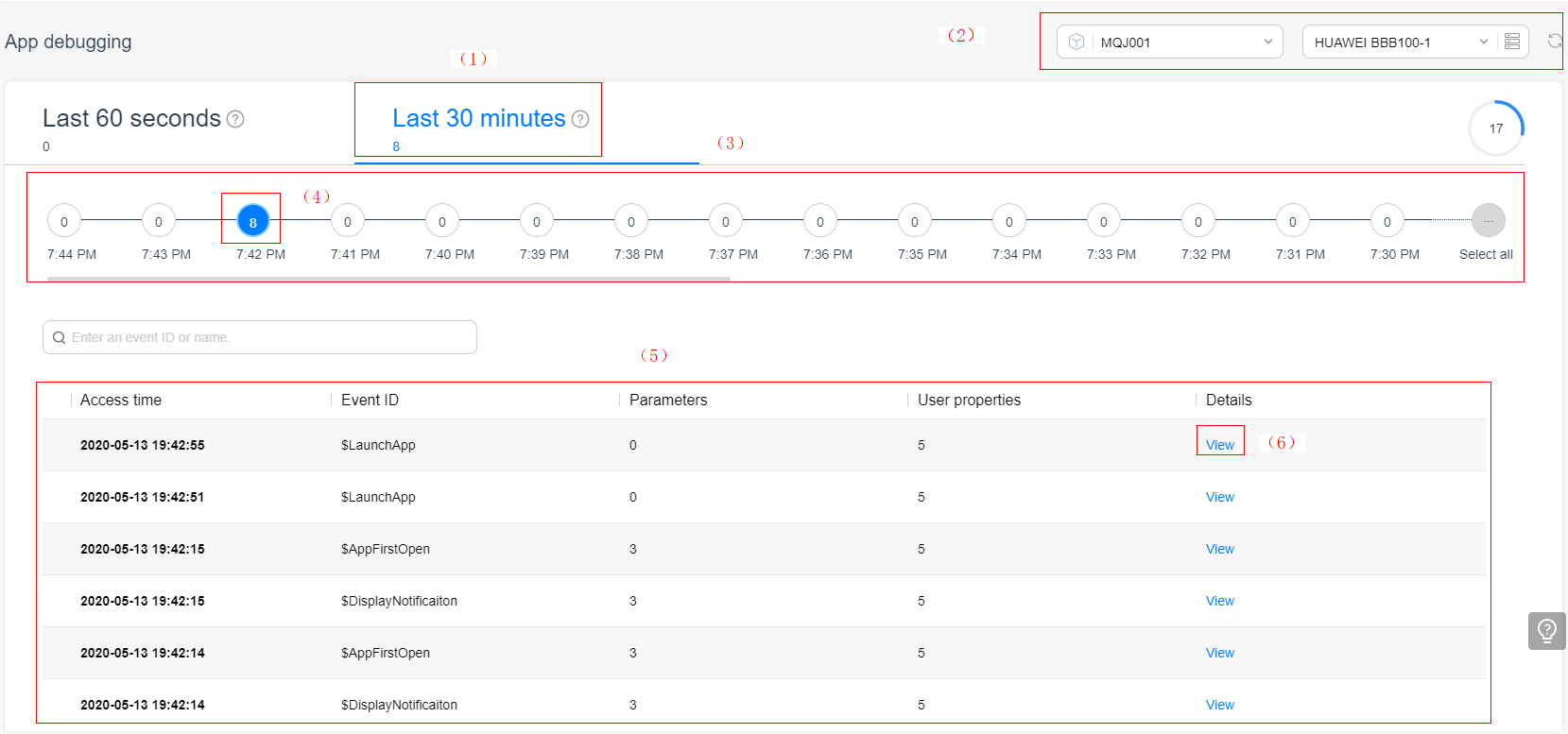
In area (1), 14 indicates the number of received messages.
In area (2), you can manage or delete a debugged device.
In the preceding figure, the time axis of the last 30 minutes is displayed in area (3), and each point indicates one minute. For example, in area (4), the number in the circle indicates the number of debugging events received in this minute. When you click, the data displayed in area (5) is updated synchronously.
In area (6), you can click View to view the event details.
The events and user attributes of the debugged device are displayed in the Hot events and Current user attributes.
If you click a hot event, the reporting times, values, and update time sequence of each parameter value are displayed.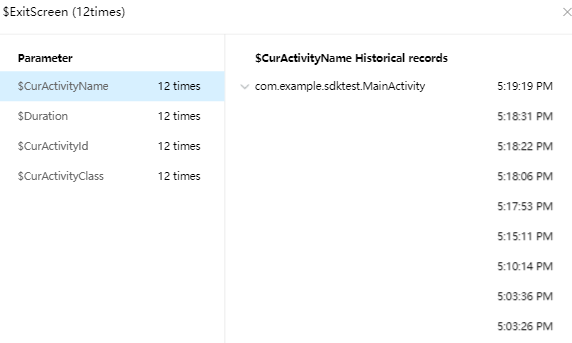
If you cick a user attribute, the reporting times, values, and update time sequence of each user attribute are displayed.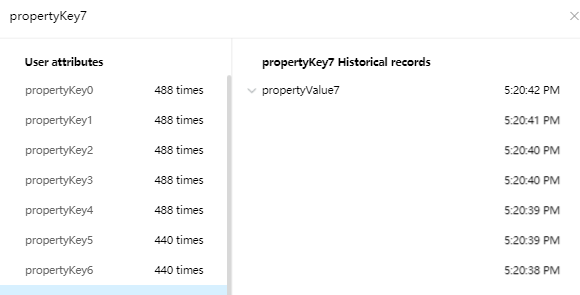
Specifications
The seconds flow is updated every 10 seconds.
The minute flow is updated every minute.
A maximum of 100 debugged devices are supported.
Before using the DebugView, ensure that the device time is correct. If the device time is incorrect, the delayed or missing events may occur in the analysis report.
You can manage settings for advanced analytics on the Analysis settings page.
Procedure
Sign in to AppGallery Connect and select "My projects".
Click the app to manage.
Go to "Analyze > Manage > Analysis settings".
Managing Basic Product Information
Querying basic product information.
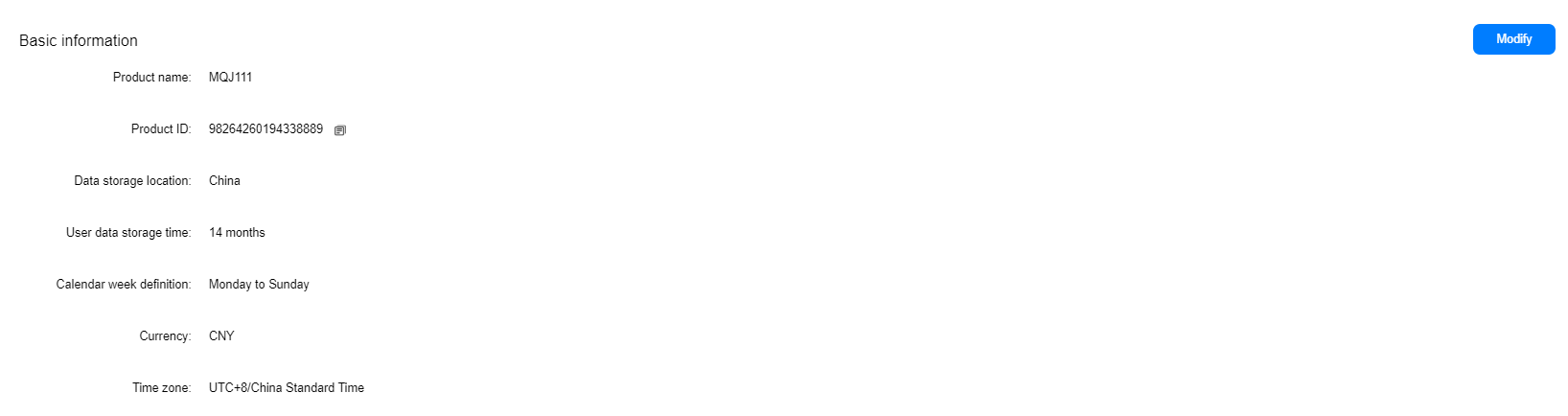
Click Modify to change the calendar week definition and currency.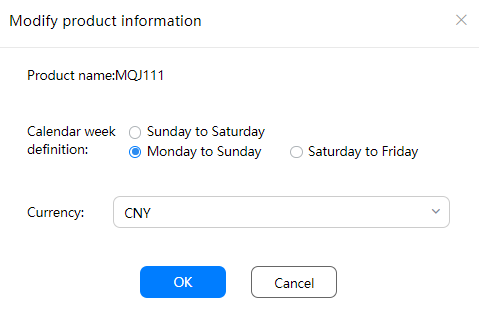
Configuring Data Sharing
You can enable or disable data sharing.
If you disable data sharing, your custom audiences cannot be used by other AppGallery Connect products.

Configuring Industry Analysis
You can enable or disable industry analysis.
If you enable industry analysis, you can view the industry comparison data in the industry analysis report, user analysis report, and retention analysis report on the Project overview page. You are advised to enable this function.
Excluding Test Devices
You can exclude data reported by the test devices from reports. If you enable this function, the data reported by test devices will be excluded from all reports.
A test device is a device that has reported data in debug mode.
HUAWEI Analytics Kit allows you to identify users in your app by user ID or device. If you want to analyze the data of the same account on different devices and platforms, or analyze the behavior of users who have signed in, you can choose to identify users by user ID.
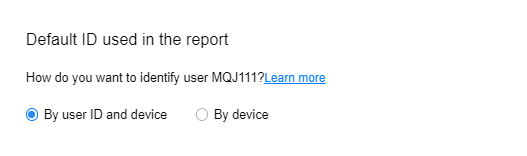
You can view the User-ID data since February 11, 2020.
If you select By user ID and device, user statistics (except user lifecycle, attribution analysis, funnel analysis, new user retention, and active user retention) are collected based on sign-in user IDs and the device IDs that are not set with user IDs (provided that user IDs have been set for data reporting). You can select Login status in the filter control to view information about only users who have signed in.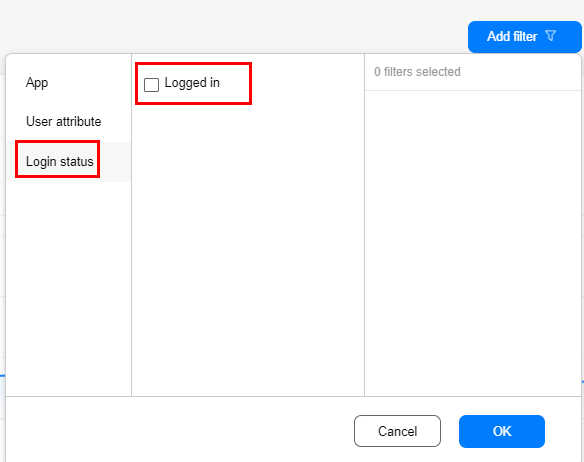
If you select By device, all user metrics are collected by device ID, and Login status is not displayed in the filter control.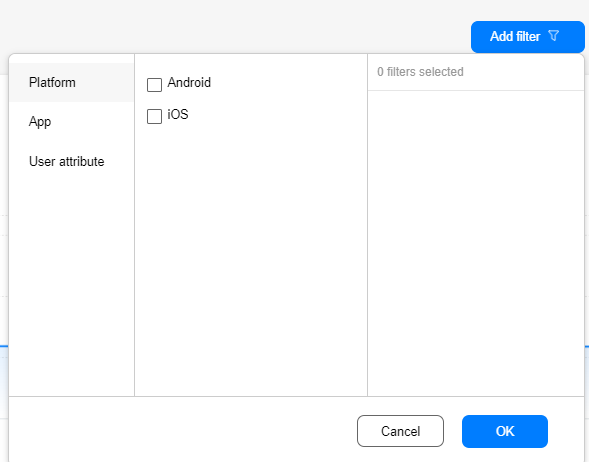
If you select By user ID and device, User-ID needs to be reported. For details about how User-ID is reported, please refer to setUserId(userId). You can determine when to call this API. It is recommended that this API be called once when a user ID can be obtained (for example, sign-in), and the API needs to be called only one time if the user does not switch to a new user ID. After this API is called, the system updates the guest status data before sign-in to the data of the user ID (in the same session time range). If you do not want to use setUserId to identify a user (for example, sign-out), make sure that userID is set to null.
If user IDs are used for data statistics, attribution analysis, funnel analysis, new user retention, and active user retention cannot be filtered by device.
Currently, audiences can be calculated only by device ID. If user IDs are used for data statistics, audiences are calculated based on the device to which a user signed in last time.
If a user signs in to multiple devices on the same day, the user is identified by filtering device attributes on the two devices. That is, the user belongs to both devices X and Y.
Managing APIs
Configure the callback address. For details, please refer to Setting the Callback API.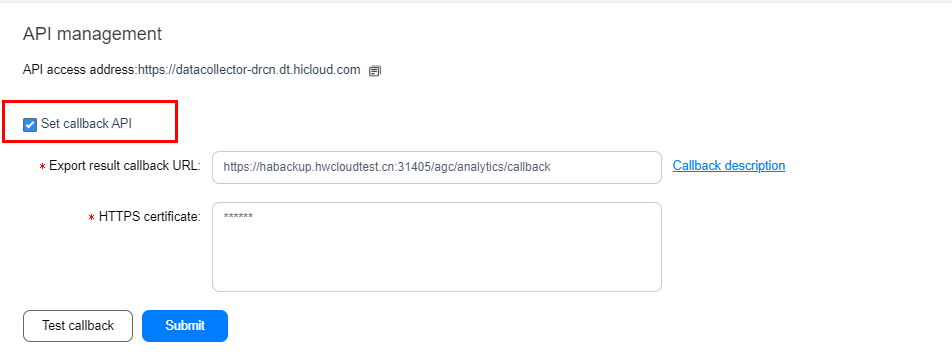
On the Apps page, you can enable or disable an app and set related access parameters.
Procedure
Sign in to AppGallery Connect and select "My projects".
Click the app to manage.
Go to "Analyze > Manage > Apps".
View app information in your project, including the app ID, app name, software package name, app type, and enabled time.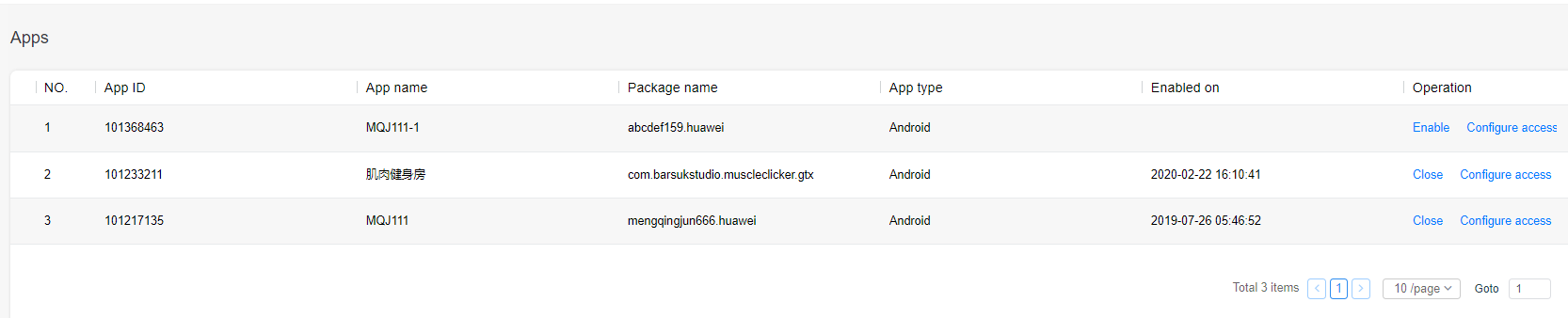
Click Close to close the app. To enable the app after it is closed, click Enable.
Click "Configure access" to configure app access information as instructed.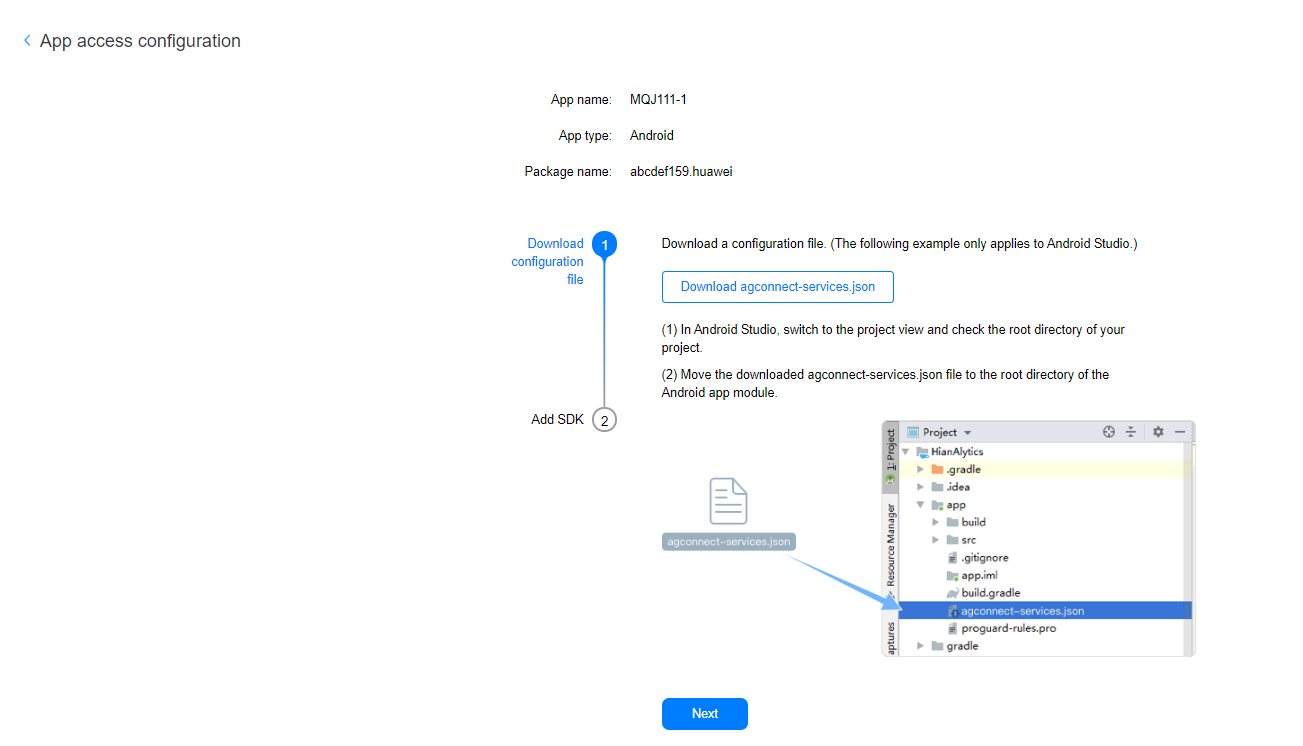
Number of events supported by an app: 500 at maximum (including predefined events and custom events).
Number of parameters supported by an event and a project: 25 and 100 at most (excluding the parameters for automatically collected events).
Number of parameter values (accumulated) that can be collected for each string-type parameter of an app: 500 (Excess parameter values are classified as others.).
Event ID and parameter ID: 256 characters at maximum.
Event name and parameter name: 255 characters at maximum.
Event description: 1000 characters at maximum.
User attribute ID: 256 characters at maximum.
User attribute name: 255 characters at maximum.
Number of user attributes supported by an app: 25 at maximum.
Page name and page ID: must be unique.
Page ID: 256 characters at maximum.
Page name: 255 characters at maximum.
Page description: 1000 characters at maximum.
Number of pages: 5000 at maximum.
Data export period: 30 days at maximum.
Number of ongoing export tasks supported by an app: 3 at maximum.