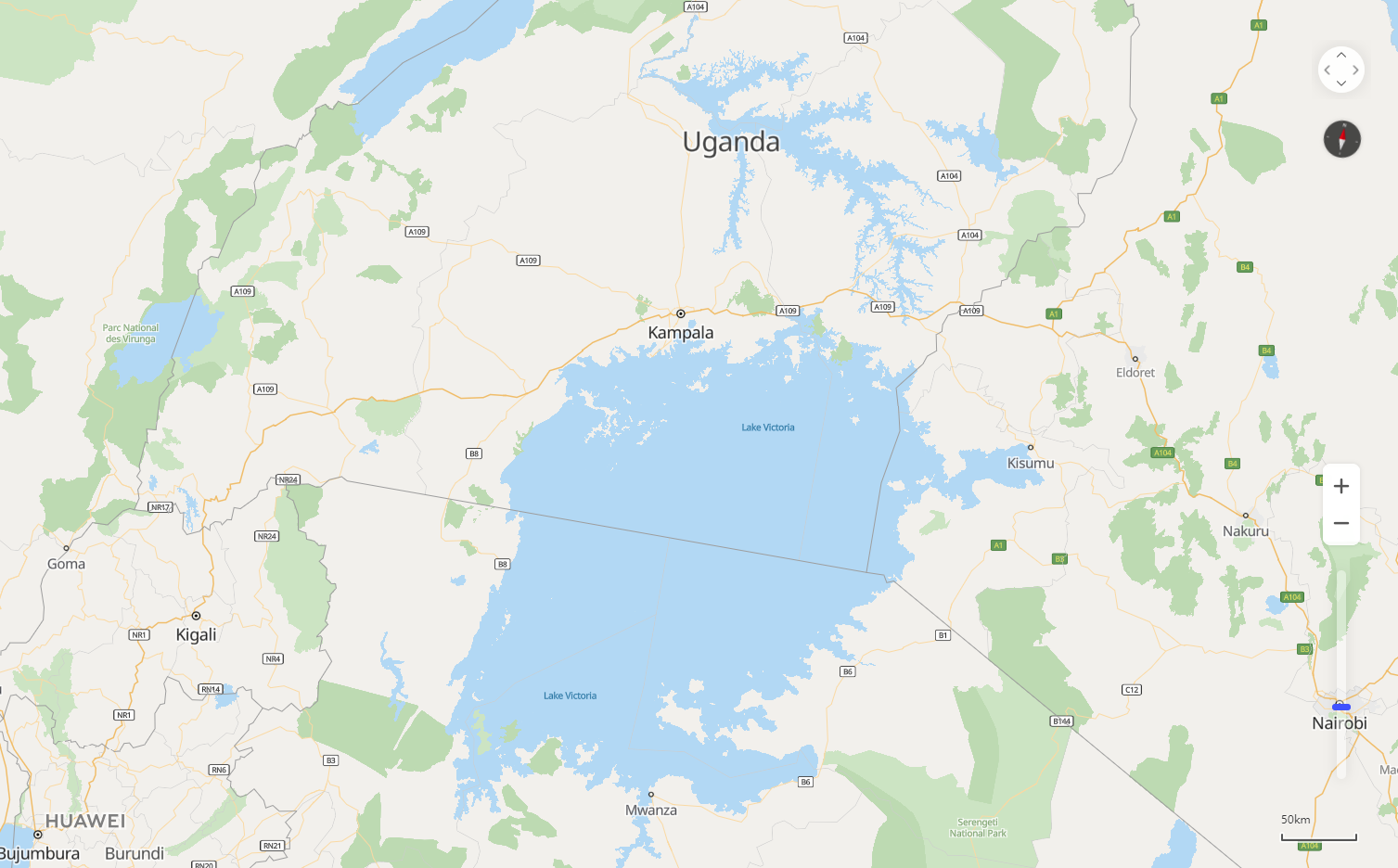
Map controls are used by users to interacting with the map. HUAWEI Map Kit provides various UI controls, including the scale, zoom slider, zoom button, compass, pan button, and copyright information.
Figure 1: Map controls
1. Scale: You can use scaleControl to specify whether to display the scale and use scaleControlOptions to set the scale unit. The default value is false, indicating that the scale is not displayed. If the value is true, the scale will be displayed in the lower right corner of the map.
- var mapOptions = {};
- mapOptions.center = {lat: 48.856613, lng: 2.352222};
- mapOptions.zoom = 10;
- mapOptions.scaleControl = true; // Set to display the scale.
- mapOptions.scaleControlOptions = {
- units: "imperial" // Set the scale unit to inch.
- };
2. Zoom slider: You can use zoomSlider to specify whether to display the zoom slider. The default value is false, indicating that the zoom slider is not displayed. If the value is true, the zoom slider will be displayed in the lower right corner of the map.
- var mapOptions = {};
- mapOptions.center = {lat: 48.856613, lng: 2.352222};
- mapOptions.zoom = 10;
- mapOptions.zoomSlider = true; // Set to display the zoom slider.
3. Zoom button: You can use zoomControl to specify whether to display the zoom button. The default value is true, indicating that the zoom button will be displayed in the lower right corner of the map.
- var mapOptions = {};
- mapOptions.center = {lat: 48.856613, lng: 2.352222};
- mapOptions.zoom = 10;
- mapOptions.zoomControl = false; // Set not to display the zoom button.
4. Compass: You can use rotateControl to specify whether to display the compass. The default value is false, indicating that the compass is not displayed. If the value is true, the compass will be automatically displayed in the upper right corner when the map does not head north.
- var mapOptions = {};
- mapOptions.center = {lat: 48.856613, lng: 2.352222};
- mapOptions.zoom = 10;
- mapOptions.rotateControl= true; // Set to display the compass.
5. Pan button: You can use navigationControl to specify whether to display the pan button. The default value is false, indicating that the pan button is not displayed. If the value is true, the pan button will be displayed in the upper right corner of the map.
- var mapOptions = {};
- mapOptions.center = {lat: 48.856613, lng: 2.352222};
- mapOptions.zoom = 10;
- mapOptions.navigationControl= true; // Set to display the pan button.
6. Copyright information: You can use copyrightControl to specify whether to display the copyright information and use copyrightControlOptions to customize the copyright information and style. The default value is false, indicating that the copyright information is not displayed.
- var mapOptions = {};
- mapOptions.center = {lat: 48.856613, lng: 2.352222};
- mapOptions.zoom = 10;
- mapOptions.copyrightControl = true; // Set to display the copyright information.
- mapOptions.copyrightControlOptions = {value: "<font style='position: absolute; left: 20px; bottom: 20px; z-index: 101' size='5' color='red'>HUAWEI</font>",}// Set the copyright information.
1. Map moving: You can call the map.panTo(latLng) method to move the map center to a specified coordinate point.
- <tr>
- <td>X/Latitude:</td>
- <td><input id="xLatInput" type="text" value="48.8"/></td>
- </tr>
- <tr>
- <td>Y/Longitude:</td>
- <td><input id="yLngInput" type="text" value="2.3"/></td>
- </tr>
- var lat = Number(document.getElementById("xLatInput").value);
- var lng = Number(document.getElementById("yLngInput").value);
- map.panTo({lat: lat, lng: lng});
2. Map shift: You can call the map.panBy(x, y) method to shift the map center by the specified x and y values (in pixels).
- <tr>
- <td>X/Latitude:</td>
- <td><input id="xLatInput" type="text" value="100"/></td>
- </tr>
- <tr>
- <td>Y/Longitude:</td>
- <td><input id="yLngInput" type="text" value="100"/></td>
- </tr>
- var x = Number(document.getElementById("xLatInput").value);
- var y = Number(document.getElementById("yLngInput").value);
- map.panBy(x, y);
3. Zoom: You can use the map.setZoom(zoom) method to set the zoom level of a map. You can also use the map.zoomIn() or map.zoomOut() method to increase or decrease the zoom level by one each time.
- <tr>
- <td>Super Input:</td>
- <td><input id="superInput" type="text" value=""/></td>
- </tr>
- var zoom = Number(document.getElementById("superInput").value);
- map.setZoom(zoom);// Set the map zoom coefficient.
- map.zoomIn();// Zoom in the map by one level.
- setTimeout(function () {
- map.zoomOut();// Zoom out the map by one level.
- }, 5000);
4. Area control: You can use map.fitBounds(bounds) to set the map display scope.
- <tr>
- <td>SouthWestLat:</td>
- <td><input id="swLatInput" type="text" value="39.82"/></td>
- </tr>
- <tr>
- <td>SouthWestLng:</td>
- <td><input id="swLngInput" type="text" value="116.3"/></td>
- </tr>
- <tr>
- <td>NorthEastLat:</td>
- <td><input id="neLatInput" type="text" value="40.0"/></td>
- </tr>
- <tr>
- <td>NorthEastLng:</td>
- <td><input id="neLngInput" type="text" value="116.5"/></td>
- </tr>
- var swLat = Number(document.getElementById("swLatInput").value);
- var swLng = Number(document.getElementById("swLngInput").value);
- var neLat = Number(document.getElementById("neLatInput").value);
- var neLng = Number(document.getElementById("neLngInput").value);
- map.fitBounds({
- sw: {lng: swLng, lat: swLat},
- ne: {lng: neLng, lat: neLat},
- });
1. Map click event:
- map.on('click', () => {
- map.zoomIn();
- });
2. Map center change event:
- map.onCenterChanged(centerChangePost);
- function centerChangePost() {
- var center = map.getCenter();
- alert( 'Lng:'+center.lng+'\n'+'Lat:'+center.lat);
- }
3. Map heading change event:
- map.onHeadingChanged(headingChangePost);
- function headingChangePost() {
- alert('Heading Changed!')
- }
4. Map zoom level change event:
- map.onZoomChanged(zoomChangePost);
- function zoomChangePost() {
- alert('Zoom Changed!')
- }
The following table describes the map events.
| Event | Description | Usage |
| click | Click on the left button of the mouse once or more. | map.on('click', callback): The callback parameter indicates a customized callback function. |
| singleclick | Click on the left button of the mouse once. | map.on('singleclick', callback): The callback parameter indicates a customized callback function. |
| dblclick | Double-click on the left button of the mouse. | map.on('dblclick', callback): The callback parameter indicates a customized callback function. |
| contextmenu | Click on the right button of the mouse. | map.on('contextmenu', callback): The callback parameter indicates a customized callback function. |
| pointermove | Moving of the mouse pointer. | map.on('pointermove', callback): The callback parameter indicates a customized callback function. |
| pointerdown | Mouse button press. | map.on('pointerdown', callback): The callback parameter indicates a customized callback function. |
| pointerup | Mouse button release. | map.on('pointerup', callback): The callback parameter indicates a customized callback function. |
| movestart | Map moving start. | map.on('movestart', callback): The callback parameter indicates a customized callback function. |
| moveend | Map moving stop. | map.on('moveend', callback): The callback parameter indicates a customized callback function. |
| pointerdrag | Map dragging. | map.on('pointerdrag', callback): The callback parameter indicates a customized callback function. |
| onCenterChanged | Map center change. | map.onCenterChanged(callback): The callback parameter indicates a customized callback function. |
| onHeadingChanged | Map heading change. | map.onHeadingChanged(callback): The callback parameter indicates a customized callback function. |
| onZoomChanged | Map zoom level change. | map.onZoomChanged(callback): The callback parameter indicates a customized callback function. |