概述
本文适用于视频播放类应用开发,针对市场上主流视频播放应用常见场景,介绍如何基于AVPlayer系统播放器实现嵌入式短视频播放。本文指导开发者实现以下几种场景:
通过AVPlayer实现视频资源加载、播放、暂停、停止、退出操作,包含了静音播放、倍数设置和字幕挂载等功能,实现原理详情可参考《基于AVPlayer基础播控实践》。焦点管理、前后台感知、横竖屏切换和旋转感知、画中画、视频首帧显示等场景实现可参考《基于AVPlayer长视频播放实践》。

[h2]实现原理
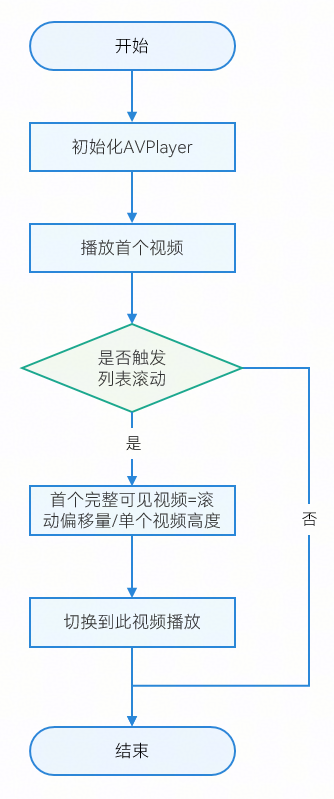
使用AVPlayer接口实现视频播放列表页面。通过监听列表滑动onScrollStop()事件,在滑动停止时获取滑动偏移量offset,计算首个可完全展示的视频的索引,切换至该视频播放,实现视频列表中首个可见视频自动播放效果。
逻辑如下:
[h2]开发步骤
创建视频列表的模拟数据。
export const VIDEO_DATA: VideoItemData[] = [ new VideoItemData($r('app.string.info_detail'), 0, '1.mp4', $r(`app.media.preview1`)), new VideoItemData($r('app.string.info_detail'), 0, '2.mp4', $r(`app.media.preview2`)), new VideoItemData($r('app.string.info_detail'), 0, '3.mp4', $r(`app.media.preview3`)), // ... ];声明initAVPlayer()方法初始化AVPlayer实例。
public async initAVPlayer(source: VideoData, surfaceId: string) { // ... this.avPlayer = await media.createAVPlayer(); this.setAVPlayerCallback(); // ... }创建setStateChangeCallback()状态回调函数,AVPlayerState状态为prepared时,使用emitter.emit()传递当前AVPlayer实例的高度和宽度。
private setStateChangeCallback() { // ... this.avPlayer.on('stateChange', async (state) => { // ... switch (state) { // ... case 'prepared': // ... let eventData: emitter.EventData = { data: { 'percent': this.avPlayer.width / this.avPlayer.height } }; emitter.emit(CommonConstants.AVPLAYER_PREPARED, eventData); // ... break; // ... } }); }使用getDefaultDisplaySync()方法获取当前屏幕宽度,以默认16:9的屏幕比例,通过屏幕宽度计算RelativeContainer组件的高度和宽度,计算ListItem所需高度;订阅AVPlayerState状态为prepared的事件,获取AVPlayer实例的高度和宽度。
aboutToAppear() { try { this.windowClass.setWindowSystemBarProperties({ statusBarColor: '#1A1A1A' }).catch((error: BusinessError) => { hilog.error(Constants.DOMAIN, TAG, `setWindowSystemBarProperties failed, Code:${error.code}, message:${error.message}`); }); let winWidth = this.getUIContext().px2vp(display.getDefaultDisplaySync().width); this.frameWidth = winWidth - Constants.LIST_ITEM_LEFT_PADDING - Constants.LIST_ITEM_RIGHT_PADDING; this.frameHeight = Math.floor(this.frameWidth / Constants.WH_RADIO); this.listItemHeight = this.frameHeight + Constants.TITLE_HEIGHT + Constants.LIST_ITEM_TOP_PADDING + Constants.INFO_AREA_HEIGHT; emitter.on('prepared', (eventData: emitter.EventData) => { let vWidth: number = eventData.data!.width; let vHeight: number = eventData.data!.height; let surfaceID: string = eventData.data!.surfaceID; if (this.playIdx < this.dataSource.totalCount()) { let playSurfaceID = this.dataSource.getData(this.playIdx).surfaceID; if (playSurfaceID === surfaceID) { this.setXComponentWH(vWidth, vHeight); } } }); } catch (error) { if (error.code !== null && error.message !== null) { hilog.error(Constants.DOMAIN, TAG, `aboutToAppear failed, code is ${error.code}, message is ${error.message}`); } } }根据AVPlayer实例的高度、宽度计算设置XComponent的高度、宽度。
setXComponentWH(vWidth: number, vHeight: number) {
  let radio = vWidth / vHeight;
  if (radio > 1) {
    this.xWidth = this.frameWidth;
    this.xHeight = Math.floor(this.xWidth / radio);
    if (this.xHeight > this.frameHeight) {
      this.xHeight = this.frameHeight;
      this.xWidth = Math.floor(this.xHeight * radio);
    }
  } else {
    this.xHeight = this.frameHeight;
    this.xWidth = Math.floor(this.xHeight * radio);
    if (this.xWidth > this.frameWidth) {
      this.xWidth = this.frameWidth;
      this.xHeight = Math.floor(this.xWidth / radio);
    }
  }
}
声明AvPlayerController实例。
private avPlayerController: AvPlayerController = new AvPlayerController();
在页面的onDidBuild()函数中加载模拟视频数据,初始化加载首个视频数据。
onDidBuild(): void { this.dataSource.loadData(); this.play(this.playIdx); }根据所需播放视频的索引,获取视频相关信息,使用videoReset()方法重置AVPlayer实例,随后利用获取的视频信息调用本节第2步骤initAVPlayer()方法重新初始化,设置该实例的surfaceId,确保其在指定surfaceId的组件上播放。
play(index: number) { this.startRender = false; this.avPlayerController.videoReset().then(() => { // ... this.isMuted = true; this.avPlayerController.initAVPlayer({ type: VideoDataType.RAW_FILE, videoSrc: this.dataSource.getData(index).src!, name: $r("app.string.app_name"), description: '', caption: '', index: 0, seekTime: stopTime, isMuted: true, head: $r("app.media.preview1") }, surfaceID); // ... }); }用List显示视频列表,使用LazyForEach对列表数据进行懒加载。
List({ scroller: this.listScroller }) { LazyForEach(this.dataSource, (info: VideoInfo, index: number) => { ListItem() { this.videoItemBuilder(info, index) } // ... }, (info: VideoInfo) => info.id) }创建XComponent组件,提供一个Surface,用于图形绘制或将视频画面嵌入视图。
XComponent({ type: XComponentType.SURFACE, controller: info.xController })在XComponent组件的onLoad()加载事件中,使用getXComponentSurfaceId()获取该播放组件的Id,将其Id设置到AVPlayer的surfaceId上,即可实现在该组件上播放视频。
.onLoad(() => { let surfaceID = info.xController!.getXComponentSurfaceId(); info.surfaceID = surfaceID; if (info.id === this.unloadID) { this.play(index); } })设置List的onScrollStop()事件,在列表滑动停止时触发,根据滑动偏移量及单个ListItem的高度计算当前屏幕内首个可完整显示的视频索引。若计算得出的视频索引与当前播放视频索引不符,则使用play()方法重新初始化AVPlayer,切换至计算得出的视频进行播放。
 .onScrollStop(() => {
   let yOffset = this.listScroller.currentOffset().yOffset;
   let curIndex = Math.floor(yOffset / (this.listItemHeight + Constants.LIST_DIVIDER_WIDTH));
   let offsetInItem = yOffset - curIndex * (this.listItemHeight + Constants.LIST_DIVIDER_WIDTH);
   if (offsetInItem > Constants.LIST_ITEM_TOP_PADDING + 34) {
     curIndex += 1;
   }
   this.curIndex = curIndex;
   if (curIndex !== this.playIdx && curIndex < this.dataSource.totalCount()) {
     setTimeout(() => {
       if (this.curIndex === curIndex && this.curIndex !== this.playIdx) {
         this.play(curIndex);
       }
     }, Constants.DELAY_MS);
   }
 })

[h2]实现原理
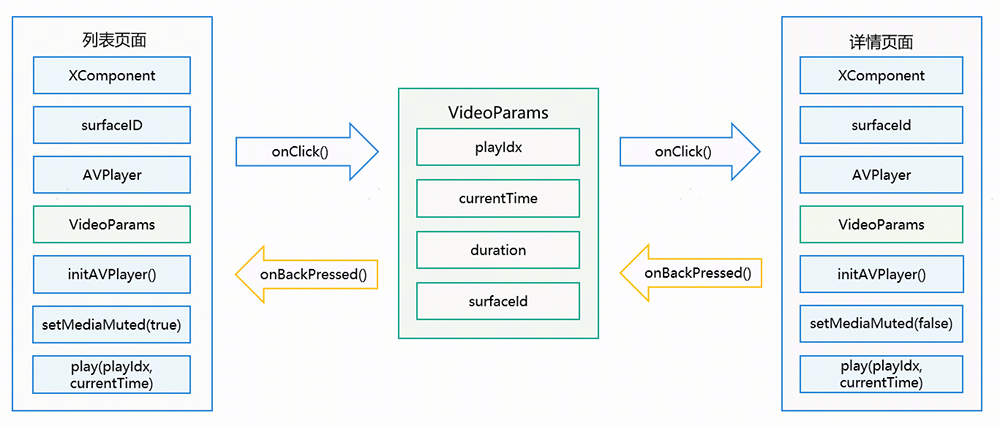
基于AVPlayer与XComponent实现视频播放,通过切换AVPlayer的surfaceId控制不同XComponent播放视频,实现转场效果,使用seek()方法跳转至指定位置播放,主要分为两部分:
列表页面跳转到详情页面:当点击正在播放的视频时,记录当前播放视频的索引、播放进度、总时长、surfaceId信息,并在页面跳转pushPathByName()方法中传入此视频信息。在视频播放详情页面使用getParamByIndex()接收传入信息,根据接收的视频信息使用initAVPlayer()初始化AVPlayer实例,初始化新的XComponent组件和surfaceID,将其绑定到AVPlayer上,使用seek()方法从记录的播放进度开始播放。
详情页面返回到列表页面:在详情页面点击返回时,记录当前播放视频的索引、播放进度、总时长、原surfaceId信息,并在页面回调onBackPressed()函数中,使用pop()方法传入此视频信息,根据接收的视频信息,使用play(index)初始化AVPlayer,将其surfaceId设置为原surfaceId,使用seek()方法从记录的播放进度开始播放。
逻辑如下:
[h2]开发步骤
创建route_map.json路由配置文件,配置视频跳转播放页面参数信息。
{
  "routerMap": [
    {
      "name": "DetailPage",
      "pageSourceFile": "src/main/ets/pages/DetailPage.ets",
      "buildFunction": "detailPageBuilder"
    }
  ]
}
创建AppRouter.ets文件,声明页面路由相关操作方法。
public getPathStack(): NavPathStack { return this.pathStack; }在首页的Navigation组件中使用getPathStack()获取页面路由信息。
build() { Navigation(AppRouter.getInstance().getPathStack()) { // ... } .hideTitleBar(true) .width('100%') .height('100%') .mode(NavigationMode.Stack) }在pushPathByName()基础上封装pushByName()方法,用于页面跳转时的参数传递。
public static pushByName(name: string, param: Object, onPop: Callback<PopInfo>): void { AppRouter.instance.pushPathByName(name, param, onPop); }设置XComponent的点击事件,当用户点击当前播放的视频时,保存当前播放进度,然后使用上一步中pushByName()方法,在页面跳转的同时将当前播放视频相关信息传递到视频详情页面。
.onClick(() => { AppStorage.setOrCreate(Constants.SURFACE_ID_KEY, info.surfaceID); this.avPlayerController.videoPause(); info.stopTime = this.avPlayerController.currentTime; info.duration = this.avPlayerController.duration; AppRouter.pushByName(Constants.DETAIL_PAGE_NAME, new VideoParams(info, this.playIdx, index), () => { let param: VideoParams = AppStorage.get("BackParam") as VideoParams; let _index = param.index; this.dataSource.getData(_index).stopTime = param.videoInfo.stopTime; this.play(param.playIdx); }) })基于getParamByIndex()封装getLastParams()方法,用于页面跳转后获取传递的参数。
public static getLastParams(): Object { return AppRouter.instance.pathStack.getParamByIndex(AppRouter.instance.pathStack.size() - 1) as Object; }在视频详情页面的aboutToAppear()事件中,使用上一步中getLastParams()方法获取传递的参数信息,取消AVPlayer实例的静音设置。
aboutToAppear(): void { try { this.mainWin = this.windowStage.getMainWindowSync(); this.windowClass = this.context.windowStage.getMainWindowSync(); } catch (error) { let err = error as BusinessError; hilog.error(Constants.DOMAIN, TAG, `getMainWindowSync error, code: ${err.code};message: ${err.message};`); } this.setOrientation(); // ... let params = AppRouter.getLastParams() as VideoParams; this.info = params.videoInfo; this.playIdx = params.playIdx; this.index = params.index; this.src = params.videoInfo.src as string; this.currentTime = this.info.stopTime as number; this.duration = this.info.duration; this.avPlayerController.videoMuted(false); // ... }在视频详情页面创建XComponent组件。
XComponent({ type: XComponentType.SURFACE, controller: this.xComponentController }) .id(`videoXComponent_${this.info?.id}`)XComponent的onLoad()事件中重新初始化AVPlayer实例,将跳转时的播放时间进度currentTime传递给AVPlayer,然后使用seek()跳转到currentTime时间帧继续播放。
.onLoad(() => {
  this.surfaceId = this.xComponentController.getXComponentSurfaceId();
  if (this.avPlayerController !== undefined) {
    this.avPlayerController.initAVPlayer({
      type: VideoDataType.RAW_FILE,
      videoSrc: this.src,
      name: $r("app.string.app_name"),
      description: '',
      caption: 'captions.srt',
      index: 0,
      seekTime: this.currentTime,
      head: $r("app.media.preview1")
    }, this.surfaceId);
  }
})
声明handleBackAction()方法,当在详情页面点击返回按钮时,记录当前播放视频的信息,包括视频当前进度、总时长、索引等。
handleBackAction() { if (this.isLayoutFullScreen) { this.isLayoutFullScreen = false; this.setWindowDirection(window.Orientation.PORTRAIT); } this.isPIPShow = false; this.windowClass?.setWindowSystemBarProperties({ statusBarColor: '#1A1A1A' }).catch((error: BusinessError) => { hilog.error(Constants.DOMAIN, TAG, `setWindowSystemBarProperties: Failed. code: ${error.code} ;message: ${error.message}`); }); this.avPlayerController.videoPause(); this.isPlaying = false; if (this.info !== undefined) { this.info.stopTime = this.avPlayerController.currentTime; } let param: VideoParams = new VideoParams( this.info as VideoInfo, this.playIdx, this.index ) AppStorage.setOrCreate("BackParam", param); AppRouter.popWithParam(Object({ result: true })); }在视频列表页面的点击跳转事件pushByName()方法中,使用回调函数接收详情页面返回参数信息,随后调用play()方法(参考嵌入式视频列表自动播放开发步骤8),设置seekTime为currentTime以继续播放。
.onClick(() => {
  AppStorage.setOrCreate(Constants.SURFACE_ID_KEY, info.surfaceID);
  this.avPlayerController.videoPause();

  info.stopTime = this.avPlayerController.currentTime;
  info.duration = this.avPlayerController.duration;
  AppRouter.pushByName(Constants.DETAIL_PAGE_NAME,
    new VideoParams(info, this.playIdx, index), () => {
      let param: VideoParams = AppStorage.get("BackParam") as VideoParams;
      let _index = param.index;
      this.dataSource.getData(_index).stopTime = param.videoInfo.stopTime;
      this.play(param.playIdx);
    })
})