DevEco Studio supports black-box testing with coverage, without the need to develop test cases. Simply push the instrumented HAP package to the device, simulate user operations on the app/atomic service, and generate a coverage report after the test is complete. Currently, only the stage model is supported.
Constraints
- For versions earlier than DevEco Studio 6.0.1 Beta1, code coverage testing is only supported for UIAbility.
- Since DevEco Studio 6.0.1 Beta1, coverage data can be collected when the inherited ExtensionAbility contains either the onDump or onDestroy method. If neither method exists, code coverage testing cannot be performed.
- Obfuscation is unavailable for coverage tests.
Preparations
Connect the device to your PC and sign the app/atomic service. For details, see Running Your App/Atomic Service on a Local Real Device and Signing Your App/Service.
Filtering Files for Coverage Testing
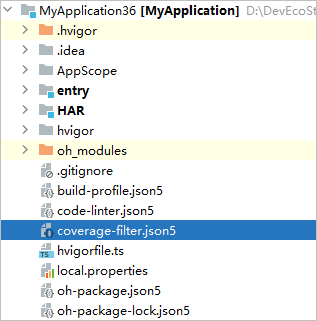
Since DevEco Studio 5.1.0 Release, you can customize the files be included in coverage testing. Create the coverage-filter.json5 file in the project directory and configure related fields in the file. DevEco Studio will filter files based on the configuration in this file during compilation instrumentation.

After the configuration file is modified, incremental compilation is not triggered. You need to recompile the instrumentation and perform the test again.
[h2]Fields in the coverage-filter.json5 File
The coverage-filter.json5 file supports the following fields.
Name | Mandatory/Optional | Type | Applicable Coverage Types | Description |
|---|---|---|---|---|
include | Optional | String array | Black-box coverage Instrument coverage Local coverage | Paths of files or folders included in coverage statistics.
NOTE: The priority of include is higher than that of exclude. |
exclude | Optional | String array | Black-box coverage Instrument coverage Local coverage | Paths of files or folders excluded from coverage statistics.
|
includeHar | Optional | String array | Black-box coverage Instrument coverage Local coverage | Remote source HAR package included in coverage statistics. Remote bytecode HAR packages and wildcards are not supported. This field is supported since version 26.0.0. |
extraAbilities | Optional | Object array | Black-box coverage | Supplementary configuration entries for externally imported Ability classes to collect black-box coverage data. If the ability configured in module.json5 is implemented by importing an external Ability class and exported in the current file via export, black-box coverage data cannot be generated for this ability. Configure the path field under extraAbilities with the path of the external ability to generate its black-box coverage data. Relative paths are supported, but wildcards are not. See the example below. This field is supported since version 26.0.0. |
Example configuration:
// xxx.ets
import EntryAbility  from './EntryAbility';
export default EntryAbility;

// coverage-filter.json5
{
  "extraAbilities": [
    {
      "path": "entry/src/main/ets/entryability/EntryAbility.ets",   // Relative path of the imported EntryAbility
    },
  ],
}
[h2]coverage-filter.json5 File Example
// For 26.0.0 or later versions:
{
  "include":[
    "entry/src/main/ets/pages"  // Matches all files under the pages directory without wildcards.
  ],
  "exclude":[
    "**/src/**/HspTest?.ets",   // Matches files such as HspTest1.ets and HspTest2.ets in the src directory.
    "**/src/**/*Test1.*",       // Matches all files whose names contain Test1. in the src directory.
    "**/src/**/utils"    	// Matches all files in the utils folder under the src directory.
  ],
  "includeHar":[
    "math"
  ],
  "extraAbilities": [
    {
      "path": "entry/src/main/ets/entryability/EntryAbility.ets"
    }
  ]
}
// For versions earlier than 26.0.0:
{
  "include":[
    "entry/src/main/ets/pages/aaa.ets"
  ],
  "exclude":[
    "entry/src/main/ets/pages"
  ]
} [h2]Compilation and Installation
You can compile and install the app using DevEco Studio or the CLI by following the procedure:
- Method 1: using DevEco Studio, supported since DevEco Studio 6.0.2 Beta1
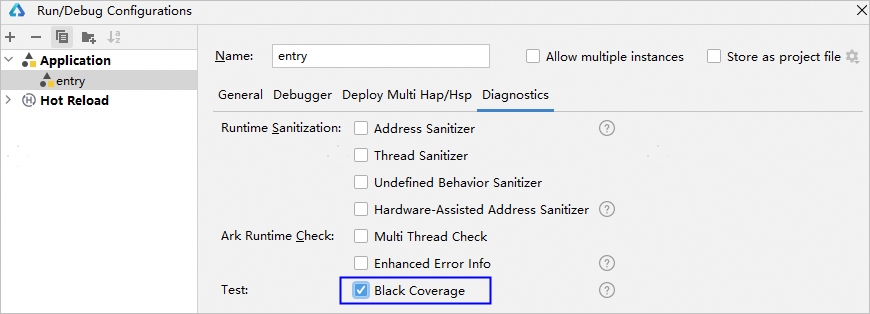
- Choose Run > Edit Configurations > Diagnostics from the menu bar, and select Black Coverage to enable black-box coverage testing.

- This configuration does not take effect in debugging scenarios, where the app runs without instrumentation.
- In attach debugging and wait-for-debugging scenarios, enabling this feature may result in inaccurate breakpoints. You are advised to disable it.
- Click
 on the toolbar. DevEco Studio starts the instrumentation compilation process and pushes the package to the device for installation.
- Choose Run > Edit Configurations > Diagnostics from the menu bar, and select Black Coverage to enable black-box coverage testing.
- Method 2: using the CLI
- Run the Hvigor instrumentation compilation command. After the compilation, the init_coverage.json file is generated in the {projectPath}/{moduleName}/.test/default/intermediates/ohosTest directory for generating a coverage report later.
hvigorw --mode module -p module={moduleName@targetName} -p product={productName} -p buildMode=test -p ohos-test-coverage=true -p coverage-mode=black assembleHap --parallel --incremental --daemon- moduleName: module on which the test is performed.
- targetName/productName: currently active target/product. To check the current target/product, click
 in the upper-right corner of DevEco Studio.

If the HAP depends on an HSP, compile the HSP separately by replacing assembleHap in the preceding command with assembleHsp.
- Uninstall the app to be tested from the device. If the app is not installed on the device, skip this step. For details about how to use the hdc tool, see hdc.
hdc uninstall {bundleName}- bundleName: name of the installed app package on the device.
- Install the HAP generated after instrumentation and compilation on the device. If the HAP depends on an HSP, install the HSP as well.
hdc install {SignedHapPath}- SignedHapPath: path of the signed HAP package, which is usually located in the module's build\{productName}\outputs\{targetName} directory.
- Run the Hvigor instrumentation compilation command. After the compilation, the init_coverage.json file is generated in the {projectPath}/{moduleName}/.test/default/intermediates/ohosTest directory for generating a coverage report later.
[h2]Performing the Test
- For UIAbility and ExtensionAbility with the onDump method, execute the following command to generate coverage data. UIAbility is supported since DevEco Studio 5.1.0 Release, and ExtensionAbility is supported since DevEco Studio 6.0.1 Beta1.
hdc shell aa dump -c -l
- For UIAbility, exit the app to trigger the onDestroy() callback.
- For ExtensionAbility with the onDestroy method, coverage data is generated when the ability is destroyed and its onDestroy() callback is triggered. This feature is supported since DevEco Studio 6.0.1 Beta1.
- For UIAbility, use the EventHub API to notify the UIAbility for coverage data generation. This feature is supported since DevEco Studio 6.0.2 Beta1.
const context = this.getUIContext().getHostContext() as common.UIAbilityContext;
context.eventHub.emit('coverage');

Since API version 13, if the user closes an app by clearing recent tasks, the onDestroy() callback will not be executed, which results in a failure to obtain coverage data.
[h2]Generating the Coverage Report
- Run the following command to download the JSON files of coverage data. This command copies all files in the cache directory to the specified LocalPath directory.
// For apps, LocalPath is optional. If it is not specified, files are stored in the directory where the command is executed by default. hdc file recv data/app/el2/100/base/{bundleName}/haps/{moduleName}/cache {LocalPath} // For atomic services, LocalPath is mandatory. hdc file recv -b {bundleName} ls ./data/storage/el2/base/haps/{moduleName}/cache {LocalPath}- LocalPath: local path for saving the downloaded files.

In scenarios where multiple modules interact with each other through navigation, you only need to obtain the coverage report file generated for the module that is last exited. However, in special cases where there is no navigation between modules, you must obtain the coverage report files generated for each module.
- Generate a coverage report file.
hvigorw collectCoverage -p projectPath={projectPath} -p reportPath={reportPath} -p coverageFile={projectPath}/{moduleName}/.test/default/intermediates/ohosTest/init_coverage.json#{LocalPath/bjc_cov_yyyyMMdd_HHmmss_SSS.json} -p patch={patchPath}- projectPath: project path.
- reportPath: path for generating the coverage report file.
- bjc_cov_yyyyMMdd_HHmmss_SSS.json: latest JSON file saved to the specified LocalPath directory. In the file name, yyyyMMdd_HHmmss_SSS represents a timestamp (year, month, day, hour, minute, second, and millisecond) when the file is generated.
- patchPath: (optional) path to the code patch file for incremental code coverage statistics. Only absolute paths are supported, and the file suffix must be .patch or .diff. Such files can be generated using commands such as git diff. This field is supported since version 26.0.0.

In scenarios where modules interact with each other through navigation, the value of coverageFile is created by combining the paths of all module-specific init_coverage.json files with the bjc_cov_yyyyMMdd_HHmmss_SSS.json file name using the number sign (#).
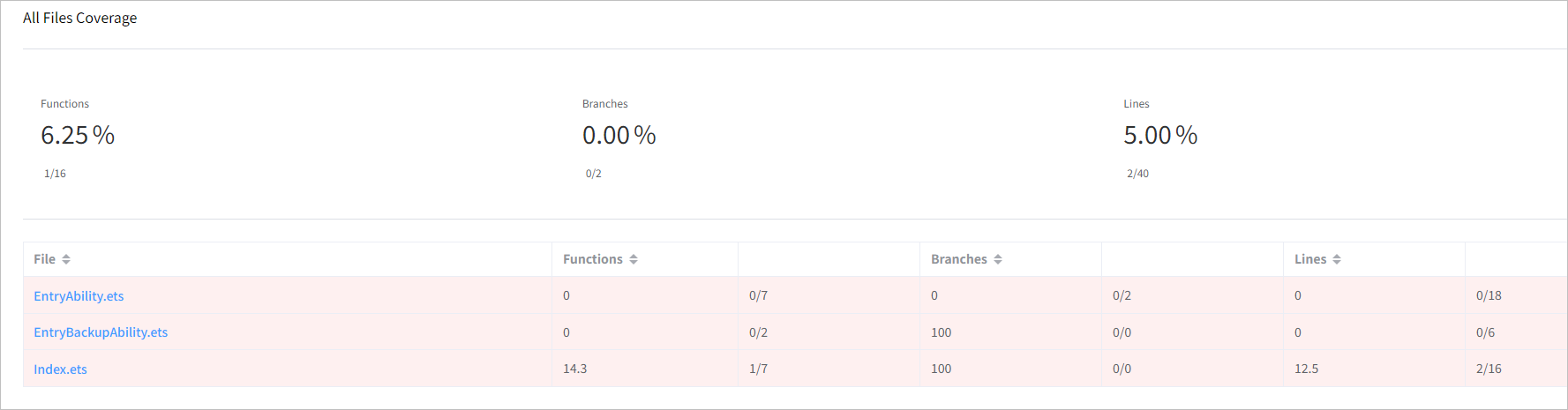
- Locate the report file on your local PC and open it in a web browser. For details about how coverage is calculated, see Viewing Coverage Reports.
Viewing Coverage Reports
After the coverage test is complete, two reports are generated: one in HTML format for visual report inspection, and one in JSON format (the coverageReport.json file) that records detailed coverage data. For descriptions of the fields in the file, see Interpreting the coverageReport.json File.
[h2]Interpreting the Coverage Report
The test coverage report provides insights across three key metrics:
- Function coverage (Functions): checks whether every function within the codebase has been called at least once.
- Branch coverage (Branches): checks whether all branches in the control flow have been traversed.
- Line coverage (Lines): checks whether every line of executable code has been run.
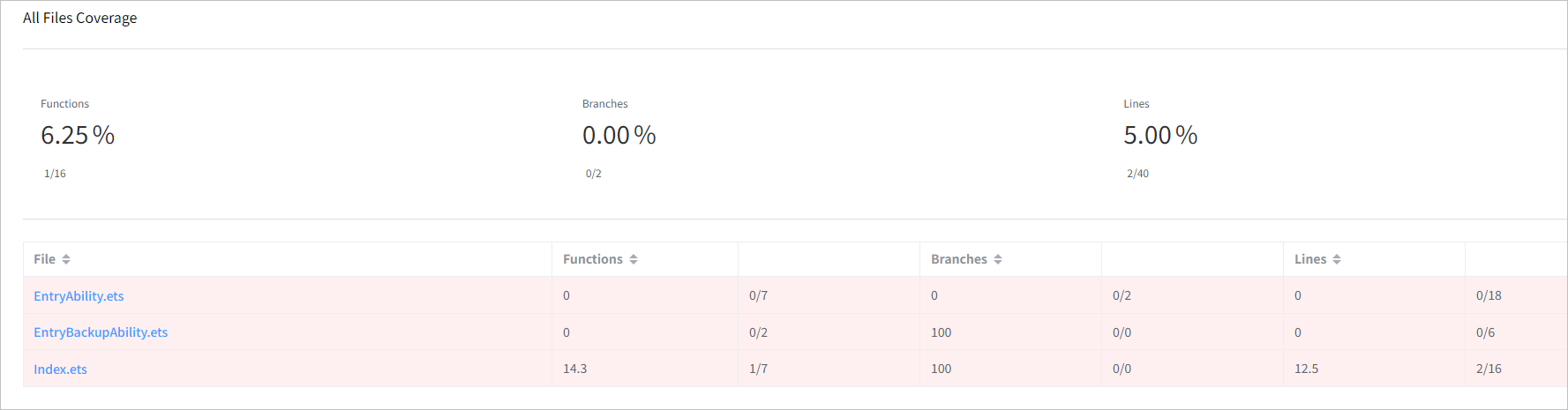
The following is a breakdown of the specifics for the three metrics of coverage:
- Flow control
Common control flow statements include if, while, do...while, switch, for, the ternary operator (condition ? exprIfTrue : exprIfFalse), and so on. You need to ensure that every boundary condition (that is, branch) of the control flow is executed.
- Lines of source code vs. lines of executable code
- Line coverage refers to the lines of executable code, not all lines in the source file (including empty lines). Generally, each line containing a statement should be counted as an executable line.
- For DevEco Studio's coverage testing engine, only the statements in methods are counted. In a method:
- If a line contains executable code, it is counted as an executable line (+1).
- If a line consists solely of the punctuation mark ({), it is counted as an executable line (+1).
- If a line contains only punctuation marks, such as "}", "})", or "});", it is classified as a non-executable line and is not counted (+0).

Arrow functions declared within a method are included in line coverage. Arrow functions used as parameters are excluded from line coverage.
Example:
import { window } from '@kit.ArkUI';  // +0 (outside the method scope; not counted)
let filePath :string;               // +0 (outside the method scope; not counted)
const fileName = 'a.txt';          // +0 (outside the method scope; not counted)

export function doTheThing ()  // +1
{                              // +1
  let s1: string;              // +1
  const str = 'aaa';           // +1
  console.log(str);            // +1
}                              // +0

export class Person {         // +0 (outside the method scope; not counted)
  name: string = ''           // +0 (outside the method scope; not counted)
  constructor (n:string) {    // +1 (constructor)
    this.name = n;            // +1
  }                           // +0

  static sayHello () {        // +1 (static method of a class)
    console.log('hello');     // +1
  }                           // +0

  walk () {                   // +1 (instance method of a class)
    for (                     // +1
      let i=0;                // +1
      i < 10;                 // +1
      i++)                    // +1
    {                         // +1
    }                         // +0
  }                           // +0
}                             // +0

function func ():object {    // +1
  return Object({        // +1 (statement split over multiple lines)
    a: 1,                // +1
    b: 2,                // +1
  })                     // +0
}                        // +0

func();                  // +0 (outside the method scope; not counted)

function foo(n:number, m:number){}   // +1

function bar():number {              // +1
  return 1;                          // +1
}

foo(1, bar());                       // +0 (outside the method scope; not counted)
- Notations on the left side of coverage reports:
- Gray: The line is excluded from coverage statistics.
- Pink: The statement or function is not covered.
- Green: The statement or function is covered.
- Nx: The current executable line was executed N times.
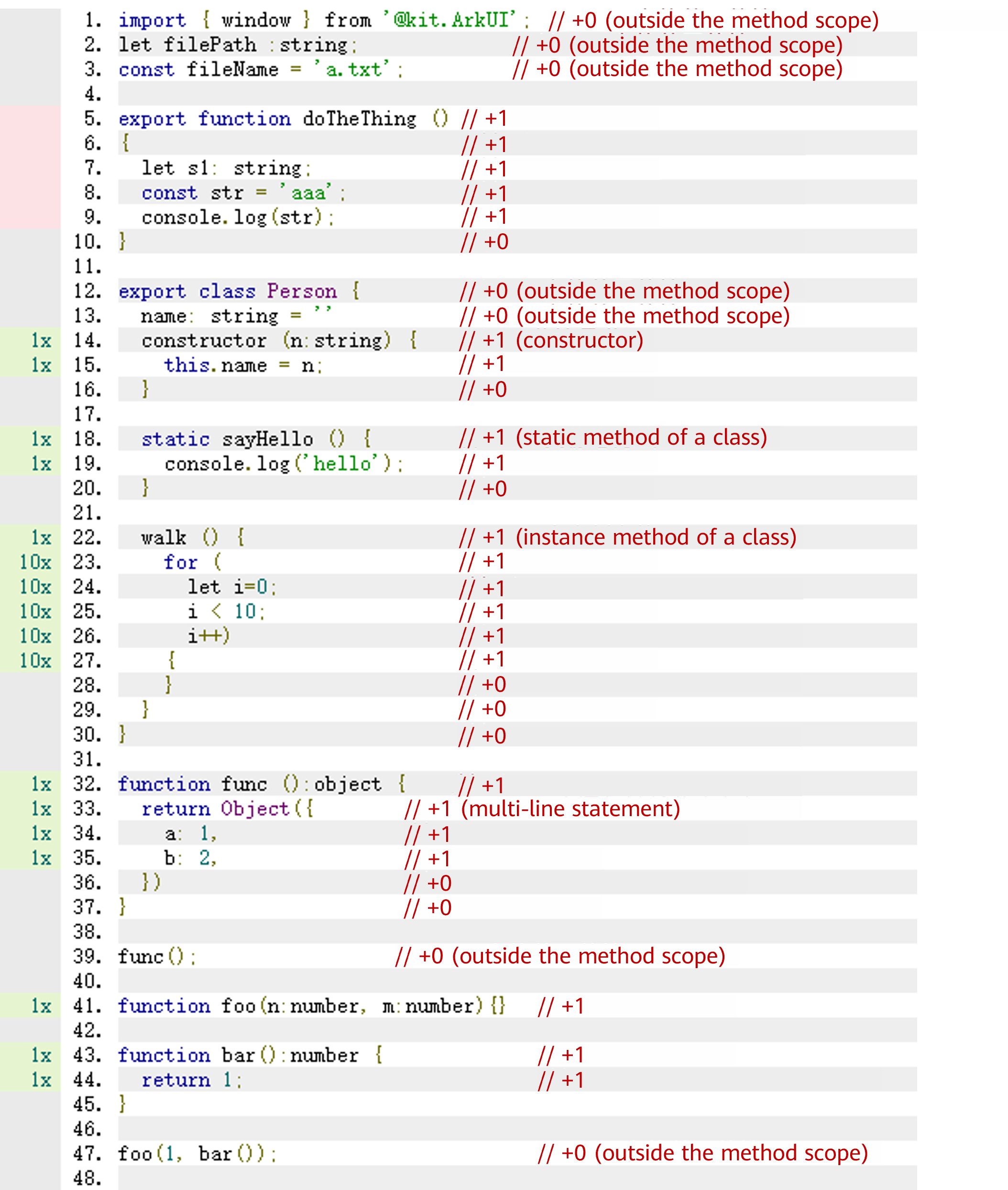
- Ignoring specified code using comment syntax
There may be branches in the code that are difficult or even impossible to test. To exclude such code from being counted in the coverage rate, you can use the instrument ignore syntax.

To use this feature, first clear the cache by choosing Build > Clean Project from the menu bar.
- Ignoring an entire file: Add the comment // instrument ignore file or /* instrument ignore file */ in the source file. This way, the file will no longer be instrumented, and it will not appear in the coverage report.
- Ignoring code blocks, classes, or functions: Add /* instrument ignore next */ or // instrument ignore next before the code block to ignore it.
- Ignoring if/else branches: Add // instrument ignore if or /* instrument ignore if */ before the conditional expression to ignore the if branch, and // instrument ignore else or /* instrument ignore else */ to ignore the else branch.
import {testA} from './Index'
// instrument ignore file: Ignore the entire file.

// instrument ignore next: Ignore the following code block.
export function sum(a:number,b:number){
  return a+b;
}
sum(1,2);

let a = 1;
// instrument ignore else: Ignore the else branch.
if (a!=1) {
  // do something
  console.log('BBB');
}else {
  console.log('AAA');
}

// instrument ignore if: Ignore the if branch.
if (a==1) {
  // do something
  console.log('BBB');
}else {
  console.log('AAA');
}
[h2]Interpreting the coverageReport.json File
The coverageReport.json file records detailed coverage data. The meanings of each field in the file are described below.
Before reading this section, please review Interpreting the Coverage Report to understand the related concepts and calculation methods for line, branch, and function coverage.
- The summary field records the overall coverage metrics for the test, including line, function, and branch coverage, as shown in the following example.
{ "summary": { "lines": { // Line statistics "total": 43, // Number of executable lines "covered": 12, // Number of lines covered "pct": 27.91 // Line coverage percentage }, "functions": { // Function statistics "total": 17, // Number of functions "covered": 4, // Number of functions covered "pct": 23.53 // Function coverage percentage }, "branches": { // Branch statistics "total": 2, // Number of branches "covered": 0, // Number of branches covered "pct": 0 // Branch coverage percentage } }, } - files is an array that records the detailed coverage data for all files. Each element in the array corresponds to a file.Taking a file as an example, the meanings of its fields are as follows.
{
  "files": [
    {
      "version": "bjc v1.0.0",   // Coverage algorithm version
      "versionCode": 10000,      // Version code for the coverage algorithm
      "path": "D:/DevEcoStudioProjects/MyApplication36/application/src/main/ets/applicationability/ApplicationAbility.ets",  // File path
      "hash": "6828362e96a78934b93db4b980fa5ad83af85a111bf187e74da89ae0c0ec613a",  // File hash
      "lineCnt": 44,     // Total number of lines in the file
      "count": 0,        // Execution count
      "projectPath": "D:/DevEcoStudioProjects/MyApplication36",     // Project path
      "functions": [],   // List of functions in the file
      "exeLine": {},     // Executable code lines
      "summary": {}      // File-level coverage summary
    },
  ]
}
- functions
functions is an array that records the detailed coverage data for all functions in the file. Each element in the array corresponds to a function.
"functions": [ { "name": "ApplicationAbility.onCreate", // Function name (anonymous_N for an anonymous function) "count": 0, // Function execution count "regions": [], // Corresponding code regions "branches": [], // Branches "ignored": 0, // Ignored execution count "index": 0 // Function index within the file, starting from 0 }, ]- regions
regions is an array of executable lines, which may contain one or more elements.
The first element is the code region corresponding to the method. If there are more than one element, the subsequent elements are executable code regions within the method. The fields in each element are described as follows:
"regions": [ { "startLoc": { // Start location of the code "line": 8, // Start line number "col": 3 // Start column number }, "endLoc": { // End location of the code "line": 10, // End line number "col": 4 // End column number }, "count": 0, // Execution count "ignored": 0 // Ignored execution count } ]- If a method has no implementation (an empty method), the regions array contains only one element, which is the code region corresponding to the method, as shown in the following example.
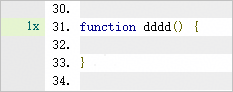
{ "name": "dddd", "count": 1, "regions": [ { "startLoc": { "line": 31, "col": 1 }, "endLoc": { "line": 33, "col": 2 }, "count": 1, "ignored": 0 } ], }, - If there is only one code region within a method, the regions array contains two elements, as shown in the following example.
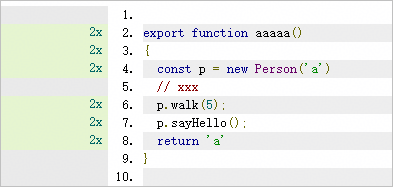
{ "name": "aaaaa", "count": 2, "regions": [ { // Code region corresponding to the method "startLoc": { "line": 2, "col": 1 }, "endLoc": { "line": 9, "col": 2 }, "count": 2, "ignored": 0 }, { // Executable code region "startLoc": { "line": 4, "col": 3 }, "endLoc": { "line": 9, "col": 2 }, "count": 2, "ignored": 0 } ], } - If a method contains multiple code regions, each additional code region adds one element to the regions array, as shown in the following example.
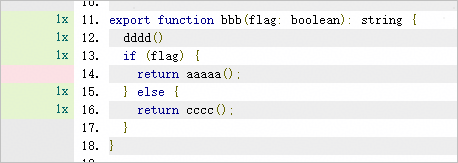
{
  "name": "bbb",
  "count": 1,
  "regions": [
    {    // Code region corresponding to the method (lines 11 to 18)
      "startLoc": {
        "line": 11,
        "col": 1
      },
      "endLoc": {
        "line": 18,
        "col": 2
      },
      "count": 1,
      "ignored": 0
    },
    {    // First executable code region (lines 13 to 15)
      "startLoc": {
        "line": 13,
        "col": 13
      },
      "endLoc": {
        "line": 15,
        "col": 4
      },
      "count": 0,    // Code not executed because flag is false
      "ignored": 0
    },
    {    // Second executable code region (lines 15 to 17)
      "startLoc": {
        "line": 15,
        "col": 10
      },
      "endLoc": {
        "line": 17,
        "col": 4
      },
      "count": 1,    // Code executed
      "ignored": 0
    }
  ],
}
- If a method has no implementation (an empty method), the regions array contains only one element, which is the code region corresponding to the method, as shown in the following example.
- branches
branches is an array that includes code blocks related to conditional statements such as if and switch case. The definitions of each field in the elements are as follows:
"branches": [
  {
    "startLoc": {      // Start location of the code
      "line": 46,      // Start line number
      "col": 10        // Start column number
    },
    "endLoc": {        // End location of the code
      "line": 46,      // End line number
      "col": 11        // End column number
    },
    "trueCount": 0,    // Number of times the true branch was taken (0 means not taken)
    "falseCount": 1,   // Number of times the false branch was taken (0 means not taken)
    "group": [         // Grouping (not involved in if statements; involved in switch case)
      0,               // group:[0,1] means elements 0 and 1 in the branches array belong to the same switch case.
      1
    ],
    "ignored": 0       // Ignored execution count
  }
]
Example 1: calling eeee(2)
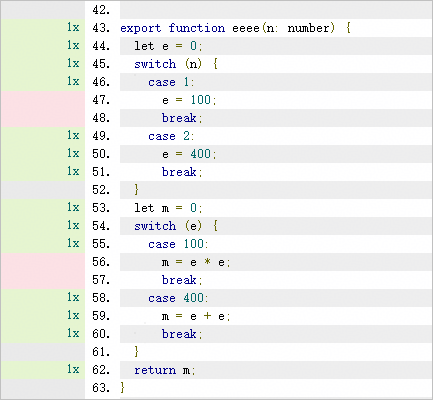
{
  "name": "eeee",
  "count": 1,
  "regions": [
    // ...
  ],
  "branches": [
    {
      "startLoc": {
        "line": 46,
        "col": 10
      },
      "endLoc": {
        "line": 46,
        "col": 11
      },
      "trueCount": 0,     // The true branch was never taken.
      "falseCount": 1,    // The false branch was taken once.
      "group": [          // Elements 0 and 1 belong to the same switch case; elements 2 and 3 belong to another switch case.
        0,
        1
      ],
      "ignored": 0
    },
    {
      "startLoc": {
        "line": 49,
        "col": 10
      },
      "endLoc": {
        "line": 49,
        "col": 11
      },
      "trueCount": 1,
      "falseCount": 0,
      "group": [
        0,
        1
      ],
      "ignored": 0
    },
    {
      "startLoc": {
        "line": 55,
        "col": 10
      },
      "endLoc": {
        "line": 55,
        "col": 13
      },
      "trueCount": 0,
      "falseCount": 1,
      "group": [
        2,
        3
      ],
      "ignored": 0
    },
    {
      "startLoc": {
        "line": 58,
        "col": 10
      },
      "endLoc": {
        "line": 58,
        "col": 13
      },
      "trueCount": 1,
      "falseCount": 0,
      "group": [
        2,
        3
      ],
      "ignored": 0
    }
  ],
}
Example 2: calling bbb twice, with arguments 2 and -1 respectively
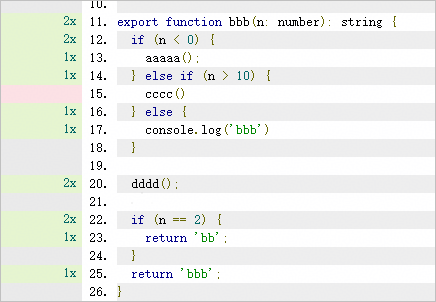
Element 0 in branches corresponds to line 12, with both trueCount and falseCount being 1, meaning the true branch and false branch of this condition were each taken once (the condition was met once, and not met once).
{
  "name": "bbb",
  "count": 2,
  "regions": [
    // ...
  ],
  "branches": [
    {
      "startLoc": {
        "line": 12,
        "col": 7
      },
      "endLoc": {
        "line": 12,
        "col": 12
      },
      "trueCount": 1,
      "falseCount": 1,
      "group": [],
      "ignored": 0
    },
    {
      "startLoc": {
        "line": 14,
        "col": 14
      },
      "endLoc": {
        "line": 14,
        "col": 20
      },
      "trueCount": 0,
      "falseCount": 1,
      "group": [],
      "ignored": 0
    },
    {
      "startLoc": {
        "line": 22,
        "col": 7
      },
      "endLoc": {
        "line": 22,
        "col": 13
      },
      "trueCount": 1,
      "falseCount": 1,
      "group": [],
      "ignored": 0
    }
  ]
}
- regions
- exeLine
exeLine records the line numbers of all executable lines, as shown in the following example:
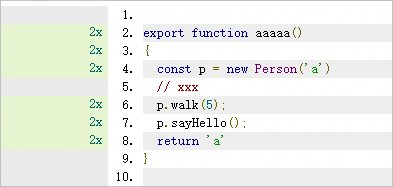
The generated exeLine is as follows:
"exeLine": { "0": 2, "1": 3, "2": 4, "3": 6, "4": 7, "5": 8, } - summary
summary records the detailed coverage data of a single file.
"summary": {
  "lines": {           // Line statistics
    "total": 10,       // Number of executable lines
    "covered": 5,      // Number of lines covered
    "pct": 50,         // Line coverage percentage
    "executedLineCount": [     // Number of code line executions (-1: not counted; 0: not executed; 1 to N: executed 1 to N times)
      -1,
      -1,
      -1,
      0,
      -1,
      1,
      0,
      2,
      2,
      -1,
      1,
      1,
      0,
      0,
      0,
      -1
    ]
  },
  "functions": {    // Function statistics
    "total": 6,     // Number of functions
    "covered": 5,   // Number of functions covered
    "pct": 83.33    // Function coverage percentage
  },
  "branches": {     // Branch statistics
    "total": 2,     // Number of branches
    "covered": 1,   // Number of branches covered
    "pct": 50       // Branch coverage percentage
  }
}