In the native code debugging window, click Layout Settings  and select Modules to open the Modules pane.
During native code debugging, the Modules window lists and displays information about the .so files used by the app. You can click the properties to sort them in ascending or descending order, with string matching search supported.
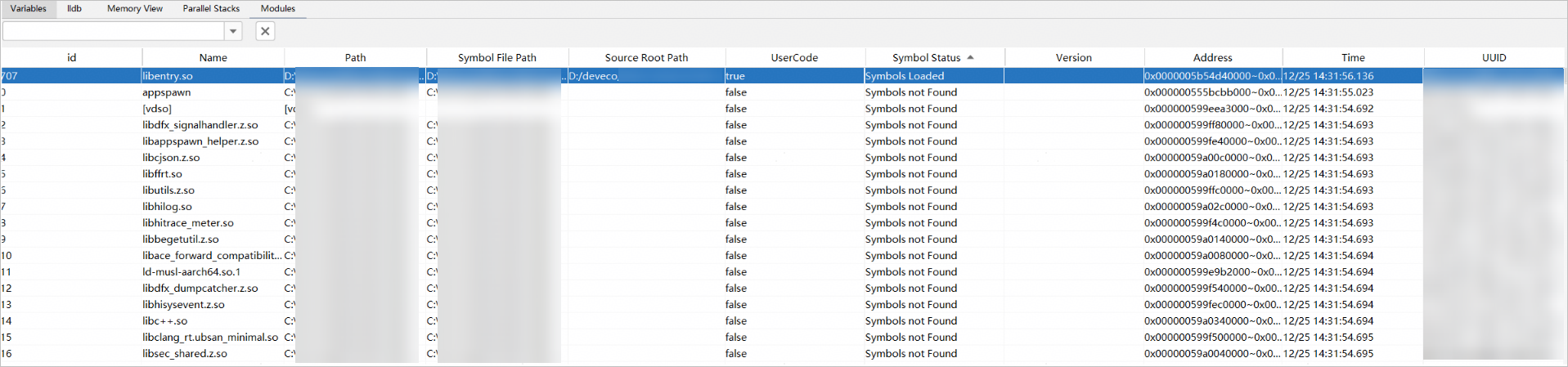
- Loading symbol table files
If symbols are not loaded, right-click the module and select Load Modules to load a local .so file containing symbol information. After successful loading, the Symbol Status column displays Symbols Loaded.
To restore the symbols to their initial states, right-click the module and choose Reset Modules.
- Mapping source code paths
The loaded symbol table file uses its compile-time path by default. If the path does not match your local source file path, associate the source files. Specifically, right-click the module, choose Set Source Mapping, and select the local source file path. After successful mapping, the Source Root Path column displays the mapped path.
To revert to the default path, right-click the module and select Reset Source Mappings.