[h2]Extract
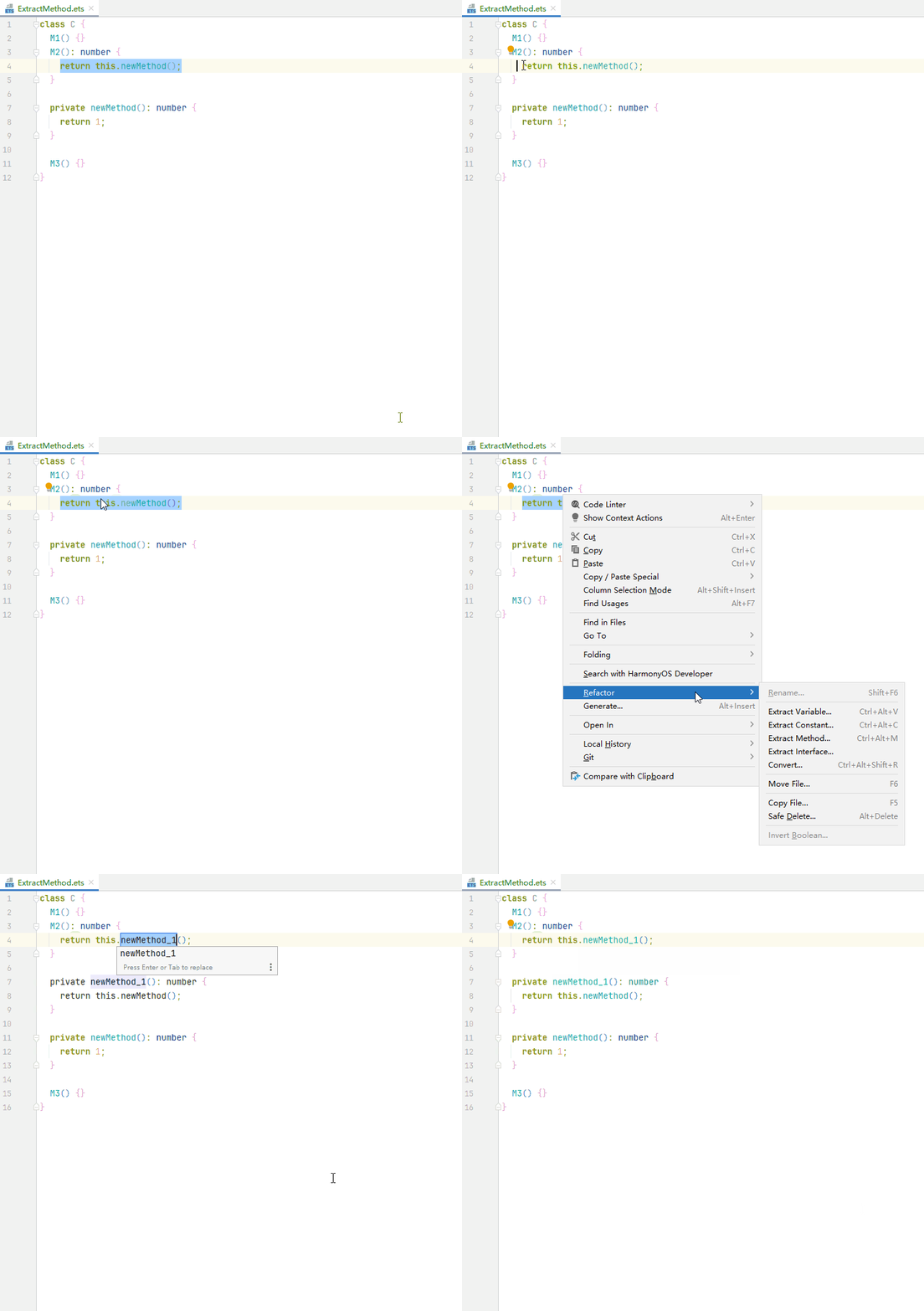
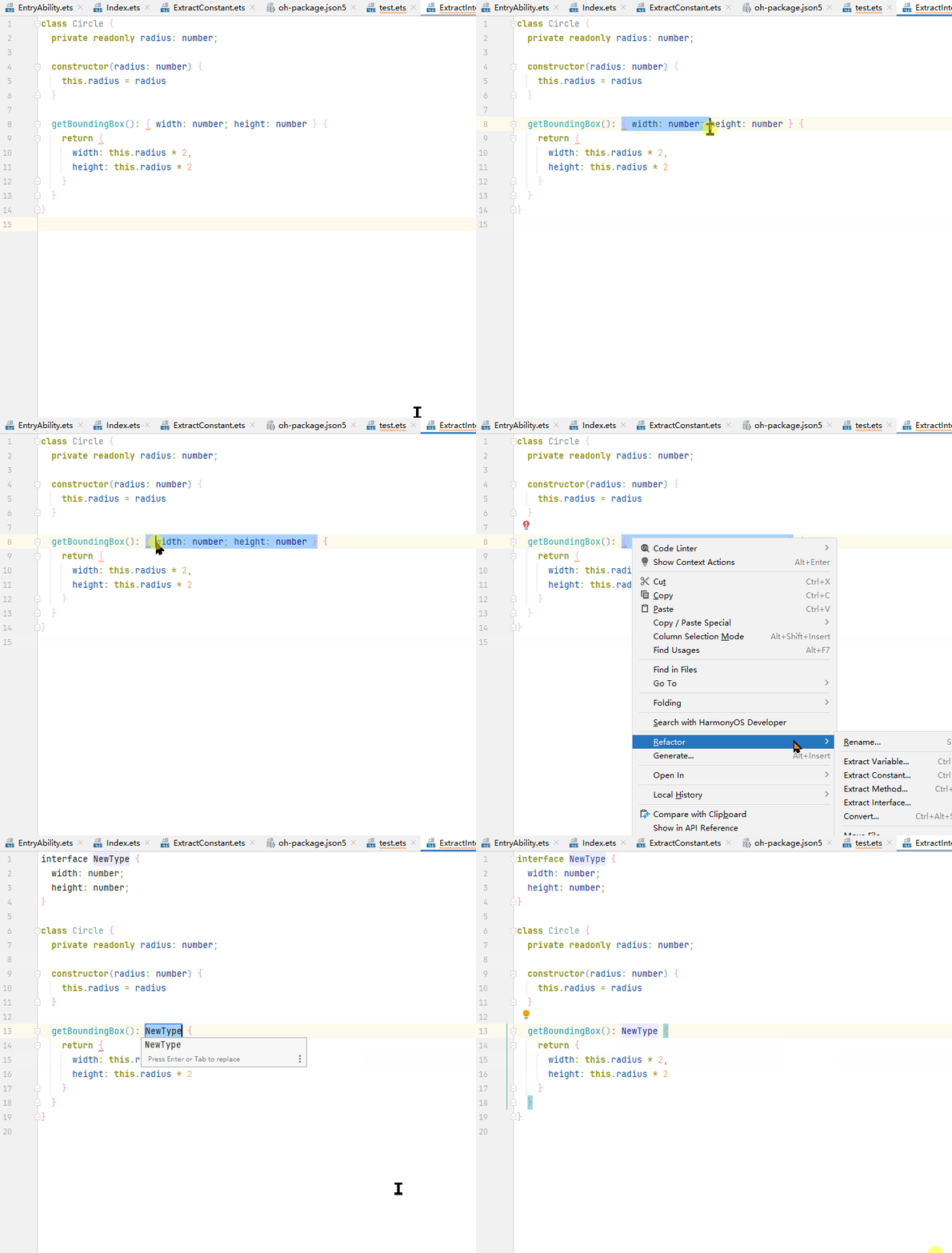
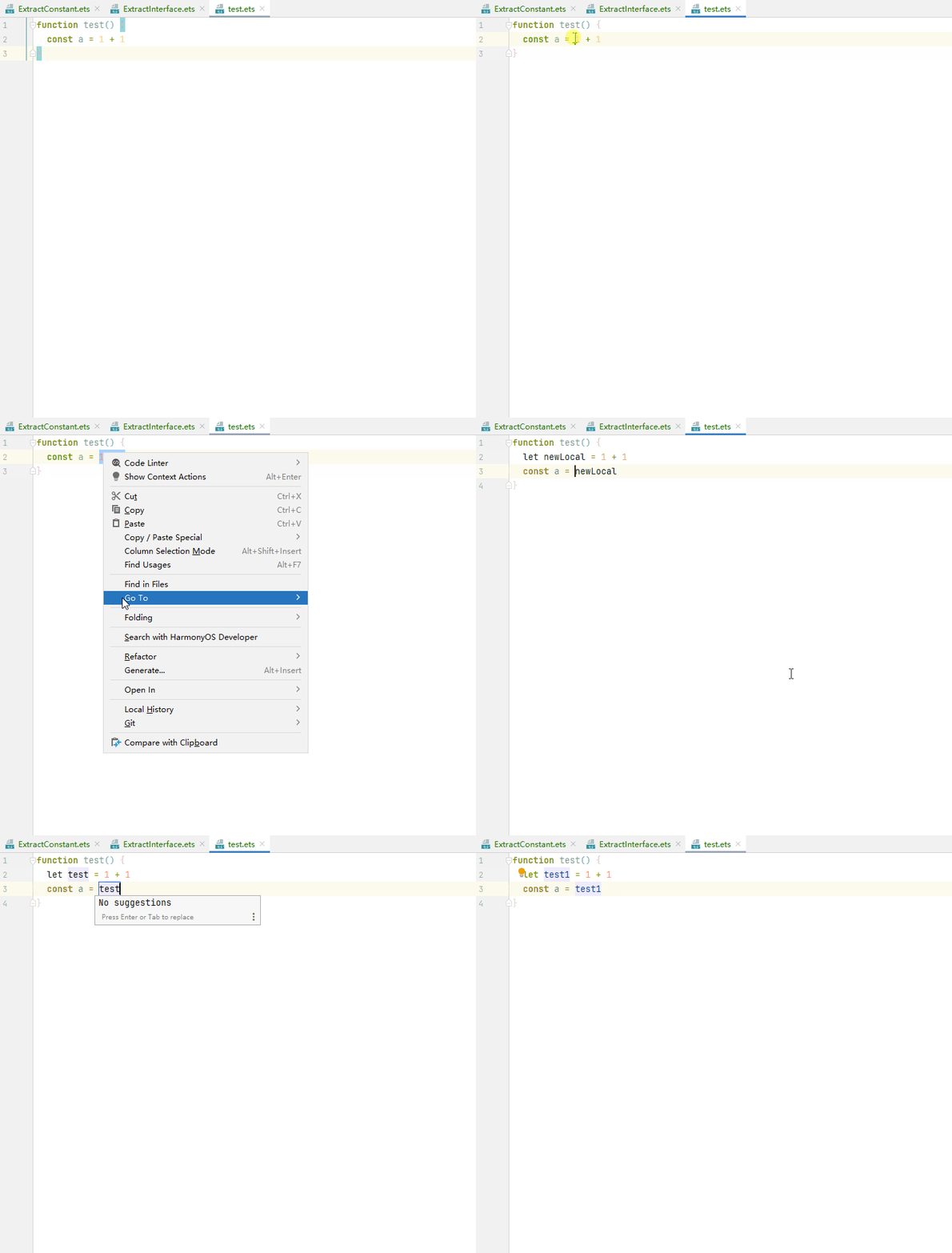
This refactoring offers a safe, convenient way to extract selected code block or expression into a new method, constant, interface, variable, or type alias in the local scope. In the editor, select the code fragment you want to extract, right-click it, choose Refactor from the shortcut menu, and select a refactoring.

The Extract Type Alias refactoring is only available for TypeScript.
The Extract Method refactoring works for both code blocks and complete statements.
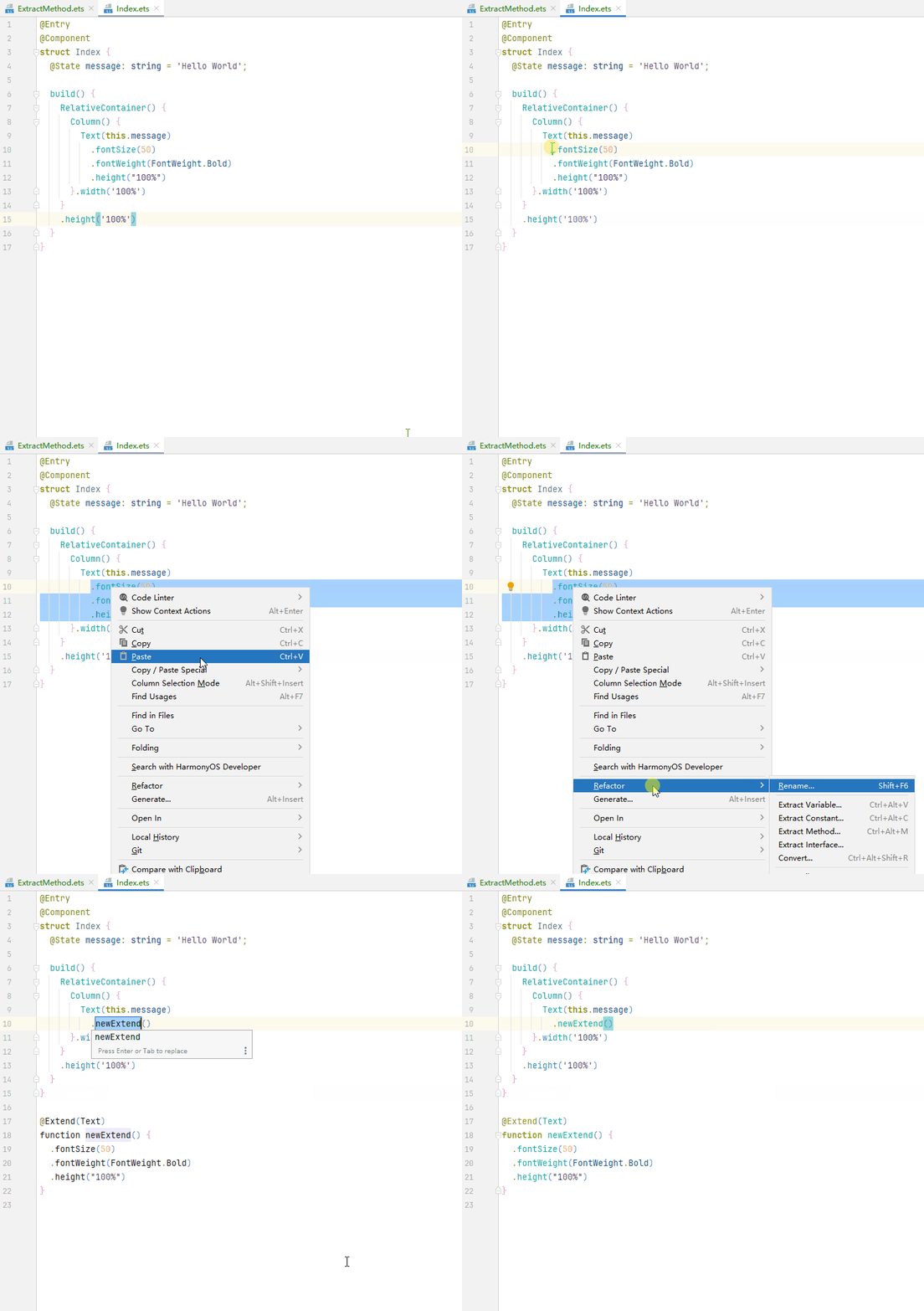
In ArkTS code, you can extract code for invoking a component into an @Builder decorated method, or extract a component attribute expression into an @Styles or @Extend decorated method.
How to use: Select the component or attribute for which you want to extract code, right-click it, choose Refactor from the shortcut menu, and select Extract Method.... Private attributes of components can be extracted into @Extend decorated methods, and universal attributes can be extracted into @Styles or @Extend decorated methods.
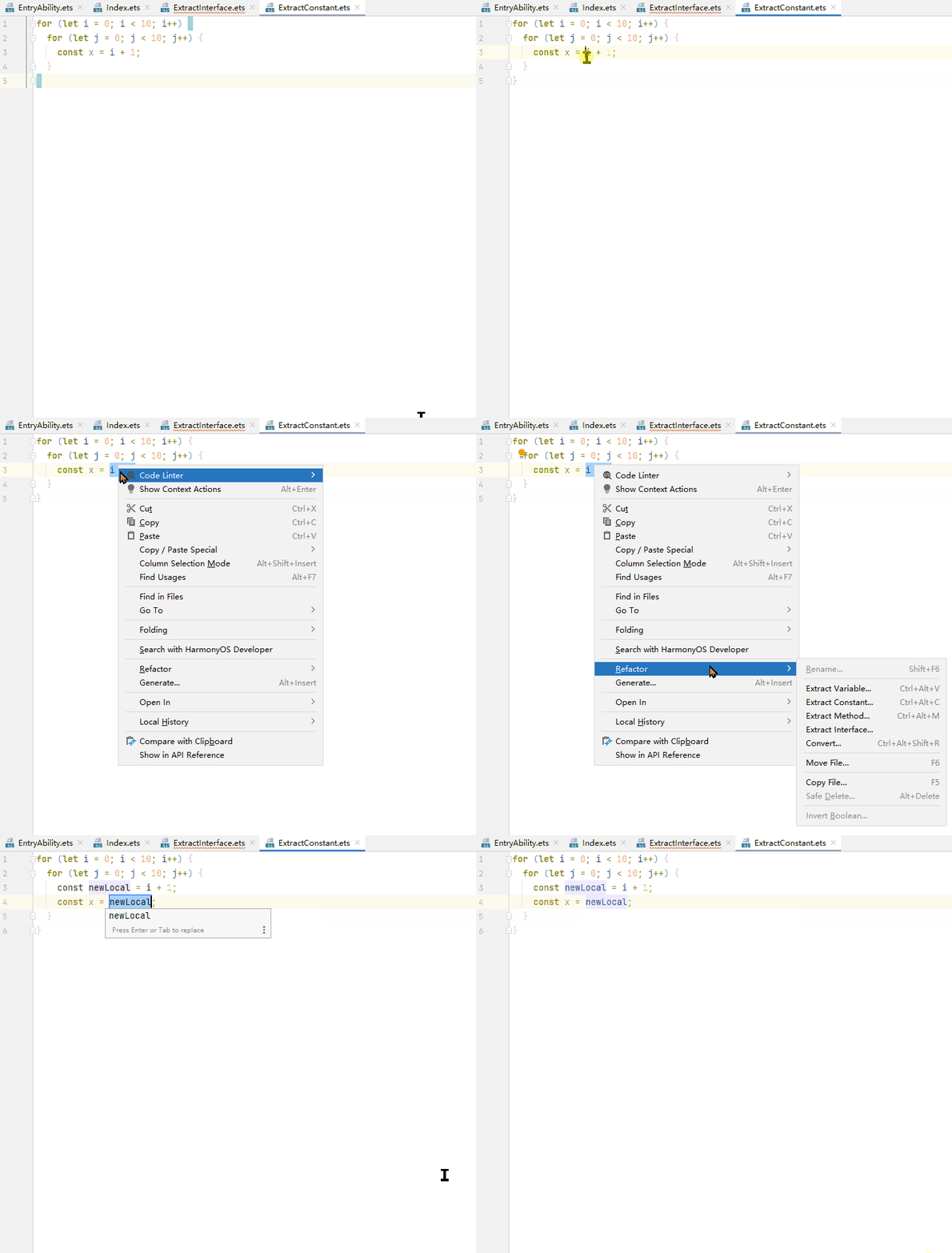
You can extract a constant from a single-line expression.
You can extract an interface from the variables of the selected object.
You can select an expression and extract it into a variable.
[h2]Convert
Within refactoring, several useful conversion options are provided, as listed in the table below.
Option | Description | How to Use | Programming Language |
|---|---|---|---|
Convert to class | Converts a function in the JS source code into an ES6 class. | Click or select a function name, right-click Refactor > Convert or press Ctrl+Alt+Shift+R (Option+Shift+Command+R on macOS), and select the target conversion mode from the displayed dialog box. NOTE: If the function is being referenced in the current project, conflicts may occur. In this case, find references to it through Find Usages, and then click Do Refactor to ignore the conflict and execute the conversion; alternatively, modify the code in all places where the function is referenced to solve the conflict, and then execute the conversion again. | JS |
Convert to anonymous function | Converts an arrow function into an anonymous function. | Select the variable assigned to the desired arrow function, right-click and choose Refactor > Convert or press Ctrl+Alt+Shift+R (Option+Shift+Command+R on macOS), and select the target conversion mode from the displayed dialog box. | JS/TS |
Convert to named function | Converts an arrow function into a named function. | Select the variable assigned to the desired arrow function, right-click and choose Refactor > Convert or press Ctrl+Alt+Shift+R (Option+Shift+Command+R on macOS), and select the target conversion mode from the displayed dialog box. | JS/TS/ArkTS |
Convert to arrow function | Converts an anonymous function into an arrow function. | Select the variable assigned to the desired anonymous function, right-click and choose Refactor > Convert or press Ctrl+Alt+Shift+R (Option+Shift+Command+R on macOS), and select the target conversion mode from the displayed dialog box. | JS/TS/ArkTS |
Convert default export to named export | Implements conversion between default exports and named exports. | Fully select a default export statement, right-click and choose Refactor > Convert or press Ctrl+Alt+Shift+R (Option+Shift+Command+R on macOS), and select the target conversion mode from the displayed dialog box. | JS/TS/ArkTS |
Convert named export to default export | Fully select a named export statement, right-click and choose Refactor > Convert or press Ctrl+Alt+Shift+R (Option+Shift+Command+R on macOS), and select the target conversion mode from the displayed dialog box. | ||
Convert named imports to namespace import | Implement conversion between namespace imports and namespace imports. | Fully select the desired import statements, right-click and choose Refactor > Convert or press Ctrl+Alt+Shift+R (Option+Shift+Command+R on macOS), and select the target conversion mode from the displayed dialog box. | JS/TS/ArkTS |
Convert namespace import to named imports | Fully select a namespace import statement, right-click and choose Refactor > Convert or press Ctrl+Alt+Shift+R (Option+Shift+Command+R on macOS), and select the target conversion mode from the displayed dialog box. | ||
Convert to template string | Converts a string into a template literal. | Select a string or entire expression, right-click and choose Refactor > Convert or press Ctrl+Alt+Shift+R (Option+Shift+Command+R on macOS), and select the target conversion mode from the displayed dialog box. | JS/TS/ArkTS |
Convert to optional chain expression | Converts a null check expression into an optional chain expression. | Select the desired consecutive null-checking expression, right-click and choose Refactor > Convert or press Ctrl+Alt+Shift+R (Option+Shift+Command+R on macOS), and select the target conversion mode from the displayed dialog box. | JS/TS/ArkTS |
[h2]Rename
Use the Rename refactoring to change names of variables, methods, object attributes, files, and modules and to correct all the references to them throughout code.
How to use: Select the symbol you to rename, (such as a variable, class, interface, or custom component), right-click it, choose Refactor from the shortcut menu, and select Rename... (or press Shift+F6). In the dialog box that appears, enter a new name, specify the scope for the refactoring in Scope, and click Refactor.
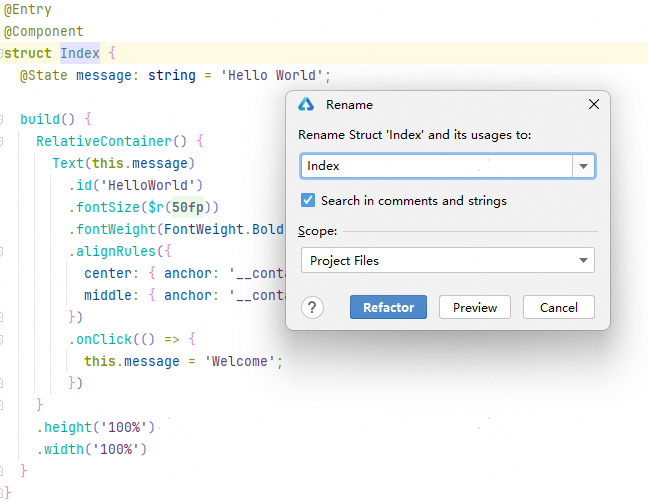
You can further specify references that do not need to be renamed. In the Rename... dialog box, click Preview. In the preview window displayed, right-click the item that does not need to be renamed and choose Exclude/Remove from the shortcut menu. When you are done, click Do Refactor.


If there is a C++ interface call within the ArkTS file, after you use the Rename feature, the function name involved in the C++ file will also be renamed.
[h2]Move File
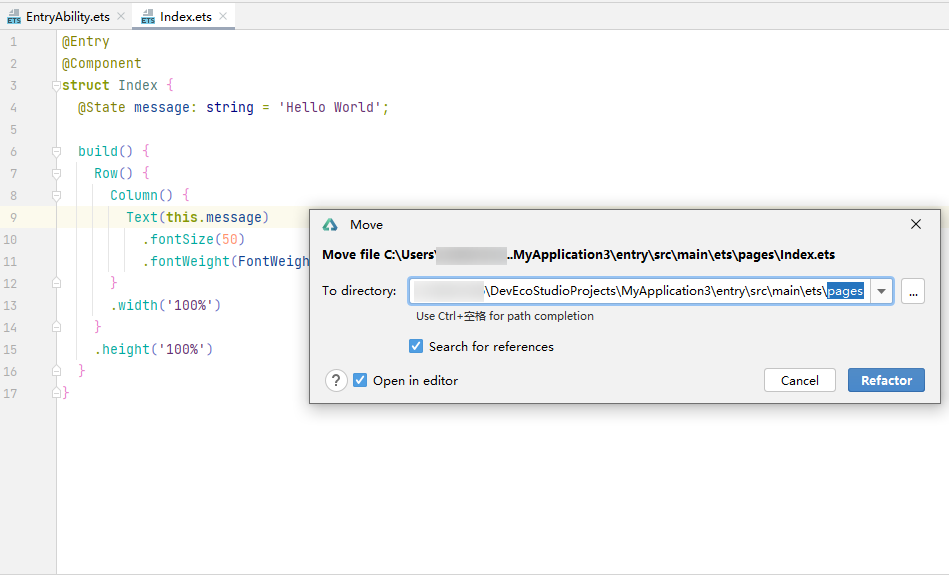
With the Move File refactoring, you can easily move a file between directories. Right-click the file and choose Refactor > Move File... from the shortcut menu. When prompted, specify the destination directory and click Refactor to move the file. Depending on your preferences, you may also select Search for references to search for and update the references to the file in the project, and select Open in editor to open the moved file in the editor.
Since version 26.0.0, the import method for moved symbols has been optimized for cross-module file movement. When files are moved into or out of a module, Index.ets automatically adapts to these modifications.
[h2]Safe Delete
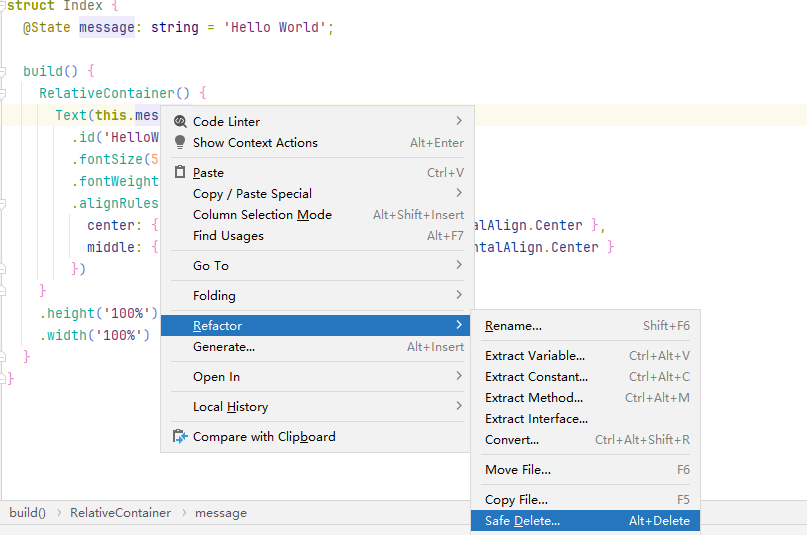
If you are looking to safely delete files and symbols (variables, functions, or classes) from your code, use this Safe Delete refactoring. If there are references to the item to be deleted, the editor will prompt you to make necessary adjustments.
How to use: Right-click the symbol or file you want to delete, and choose Refactor > Safe Delete from the shortcut menu. Click OK to search for usages of the item in the code. If any usage is found, click View Usages to view them. Proceed with necessary adjustments. If you click Delete Anyway, the item will be deleted regardless of conflicts.
C++ Code Refactoring
In C++ code, use the reliable refactorings to improve your development efficiency.
[h2]Inline
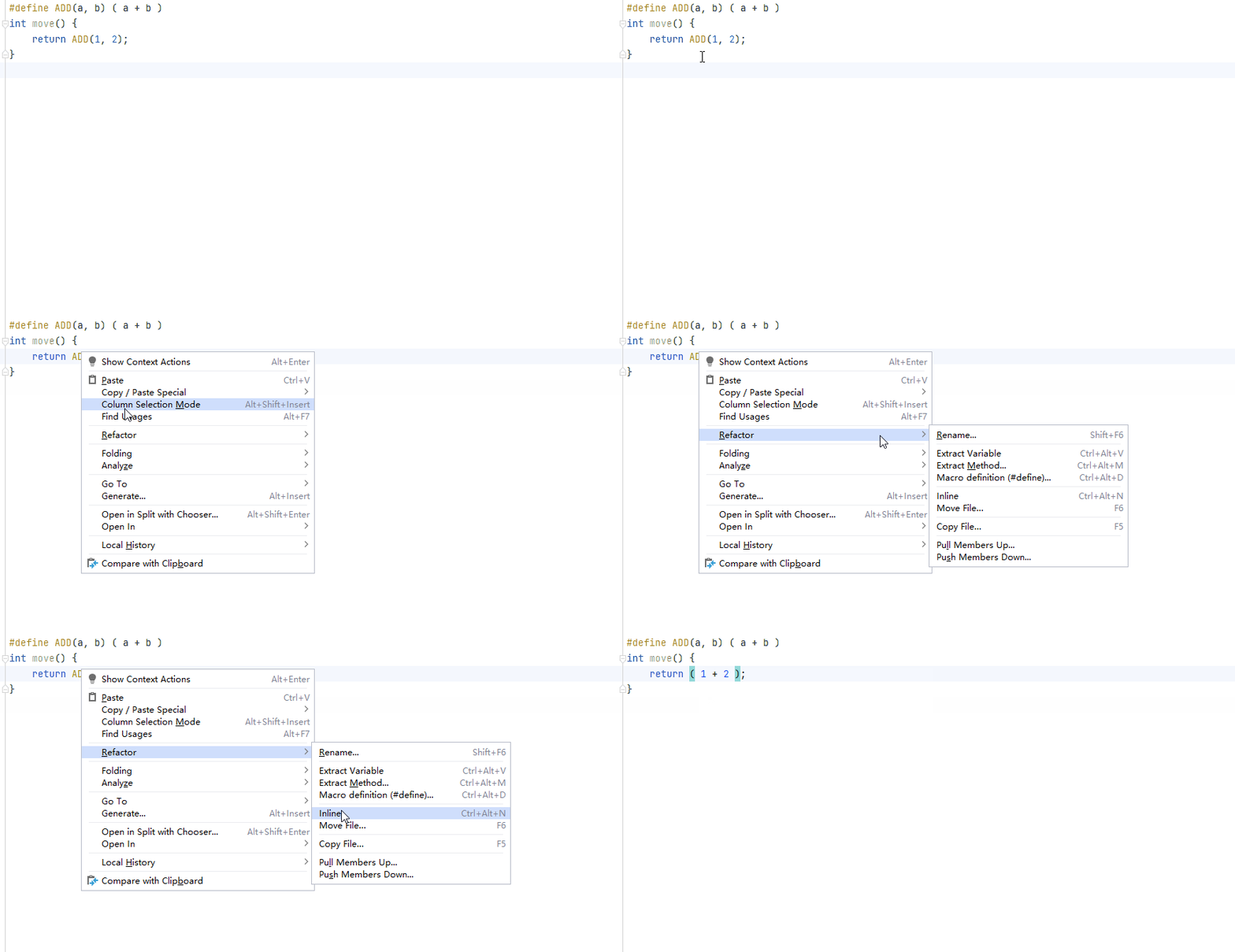
The Inline refactoring replaces the macro inline with its expansion. Right-click the macro you want to expand and choose Refactor > Inline.
[h2]Swap If Branches
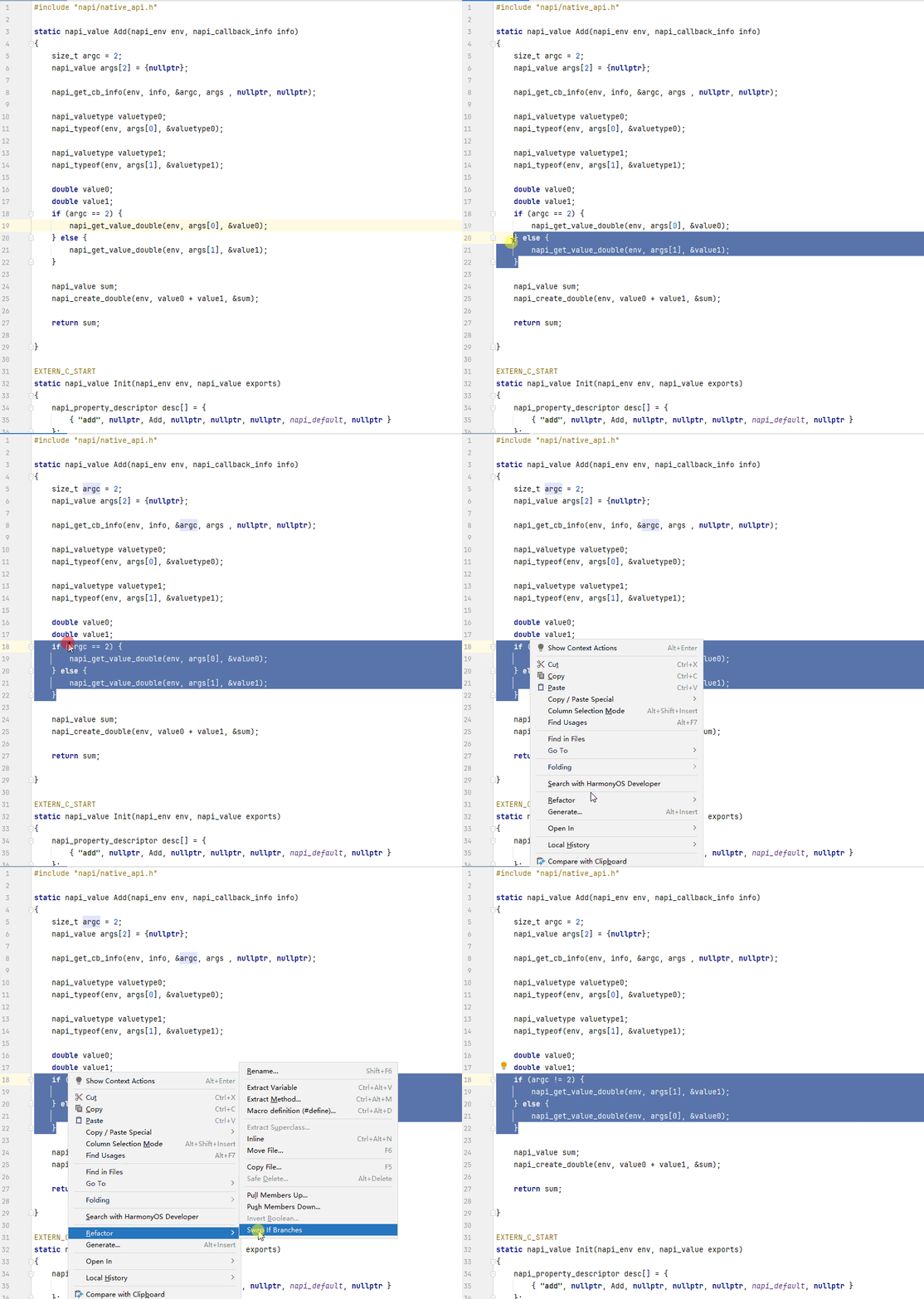
The Swap If Branches refactoring lets you swap if branches of the selected if-else statement and negate its condition.
Constraints
- The selected code block must be a complete if-else statement with a pair of braces ({}).
- If the selected if-else statement contains a nested if-else statement, the refactoring only applies to the outermost statement. For the if() -else if()-else() structure, the refactoring only applies to the if-else structure at the last layer.
- The condition of a value assignment statement cannot be negated.
How to Use
Right-click an if-else statement, and choose Refactor > Swap If Branches.
[h2]Move to Declaration
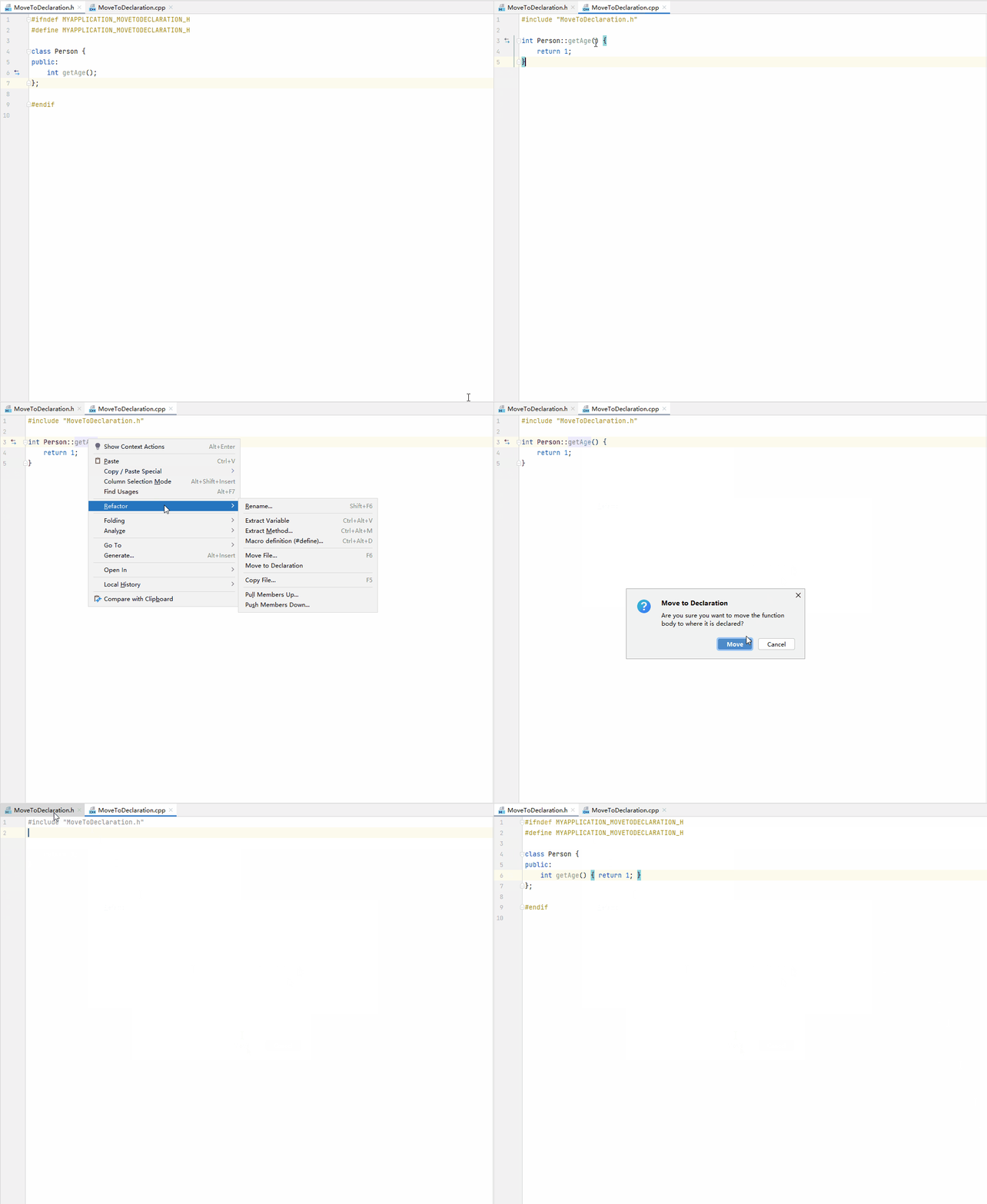
The Move to Declaration refactoring lets you move a function body from a source file to its declaration in a header file. Right-click a function name, and choose Refactor > Move to Declaration.
[h2]Move to Implementation
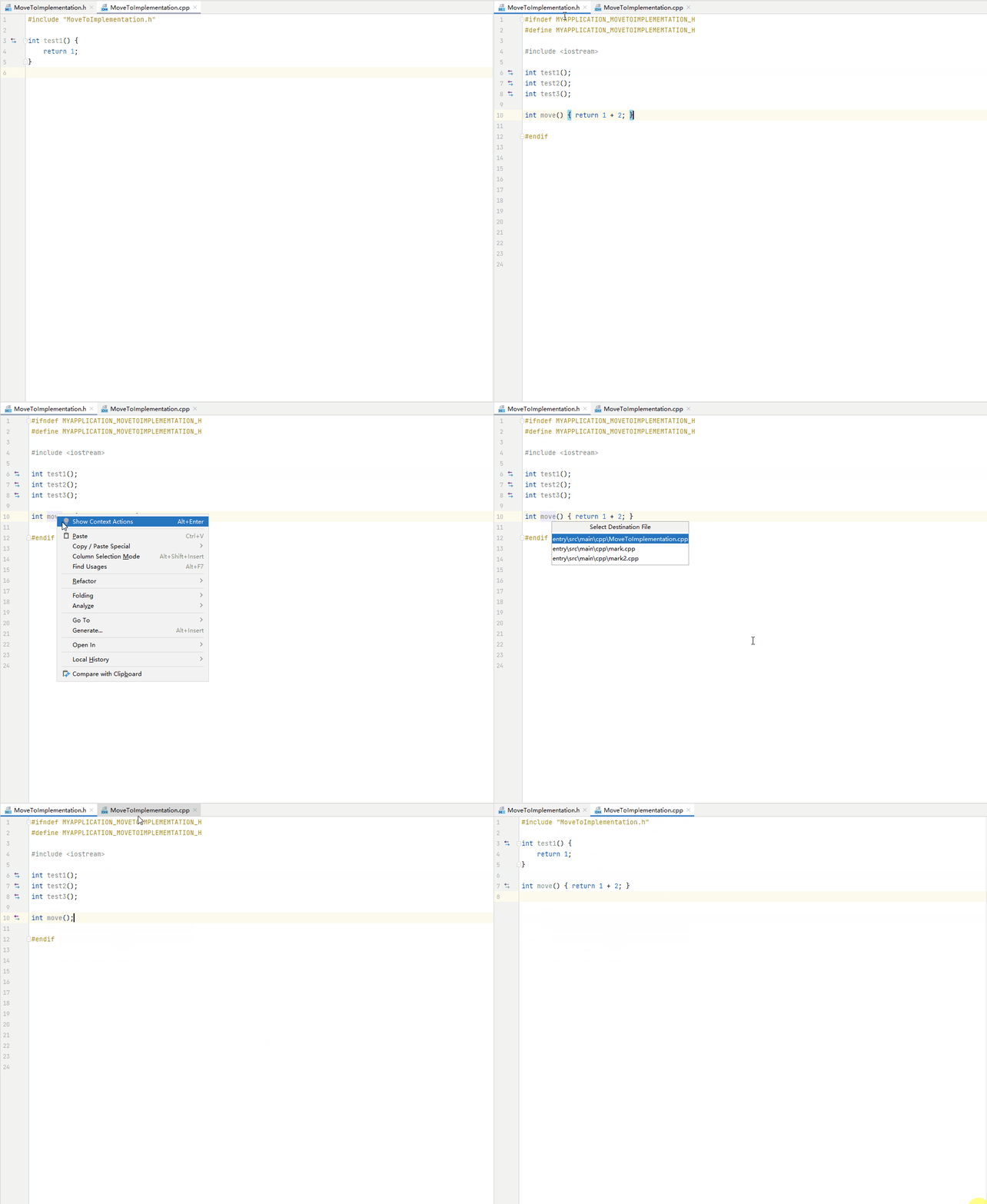
The Move to Implementation refactoring lets you move a function declaration to where the function is used. Right-click a function name, choose Refactor > Move to Implementation, and select the destination file.
[h2]Convert To Raw String
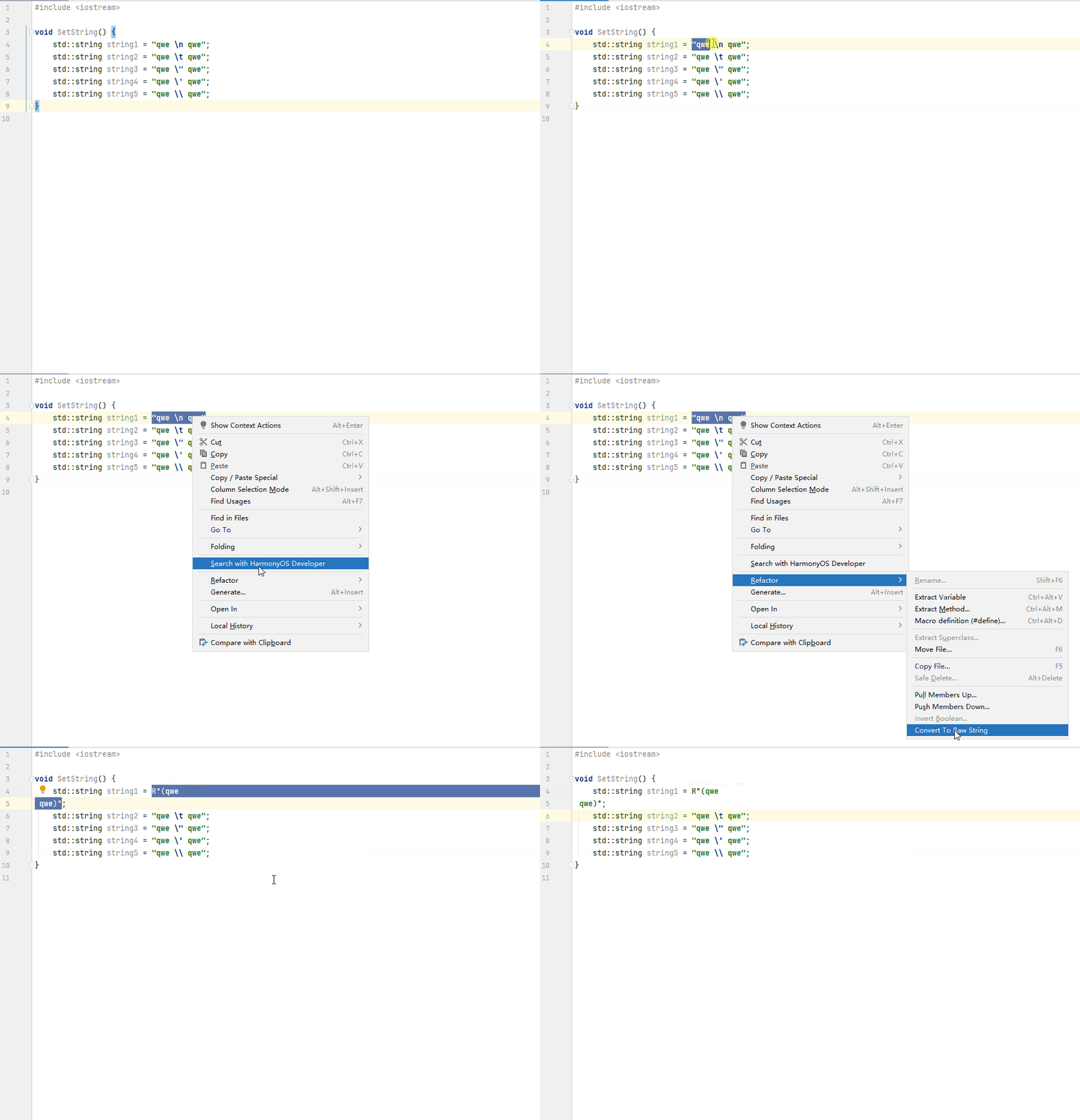
With the Convert To Raw String refactoring, you can convert a string that contains escape characters (\n, \t, \", \\, \') into a raw string. Currently, only standard strings are supported. Other strings, such as u8-prefixed strings, are not supported.
Right-click the string you want to convert, and choose Refactor > Convert To Raw String.
[h2]Generate-Constructor
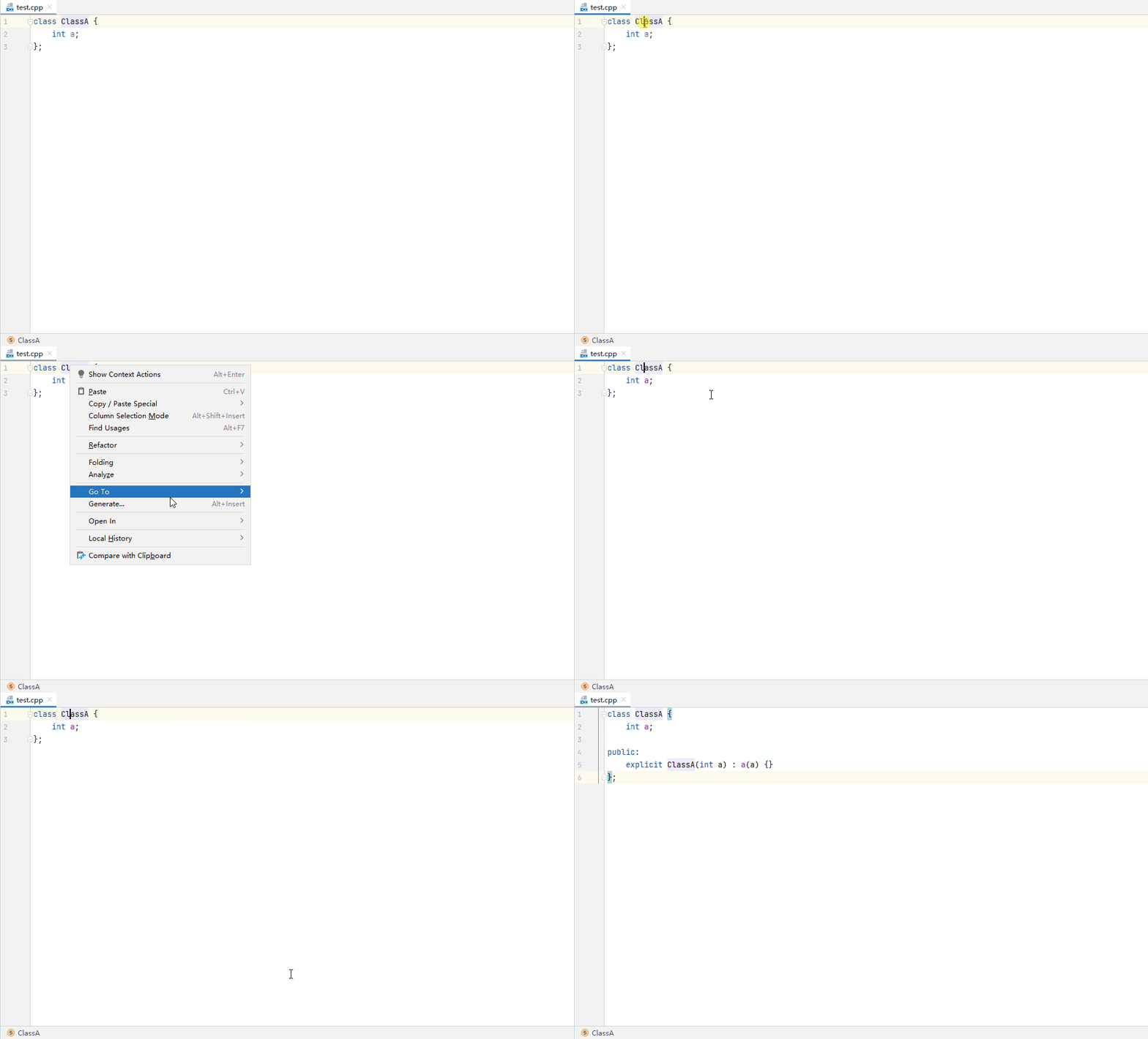
Within refactoring, you can generate a default constructor for member variables of a class.
Constraints
- Uninitialized member variables of a class are not supported.
- This refactoring does not work in locations other than the class keyword, class names, and curly braces.
- This refactoring does not apply to classes that already have a constructor with input parameters.
How to use: Right-click a class name, and choose Generate... > Constructor; when prompted, click Define.
[h2]Extract Variable
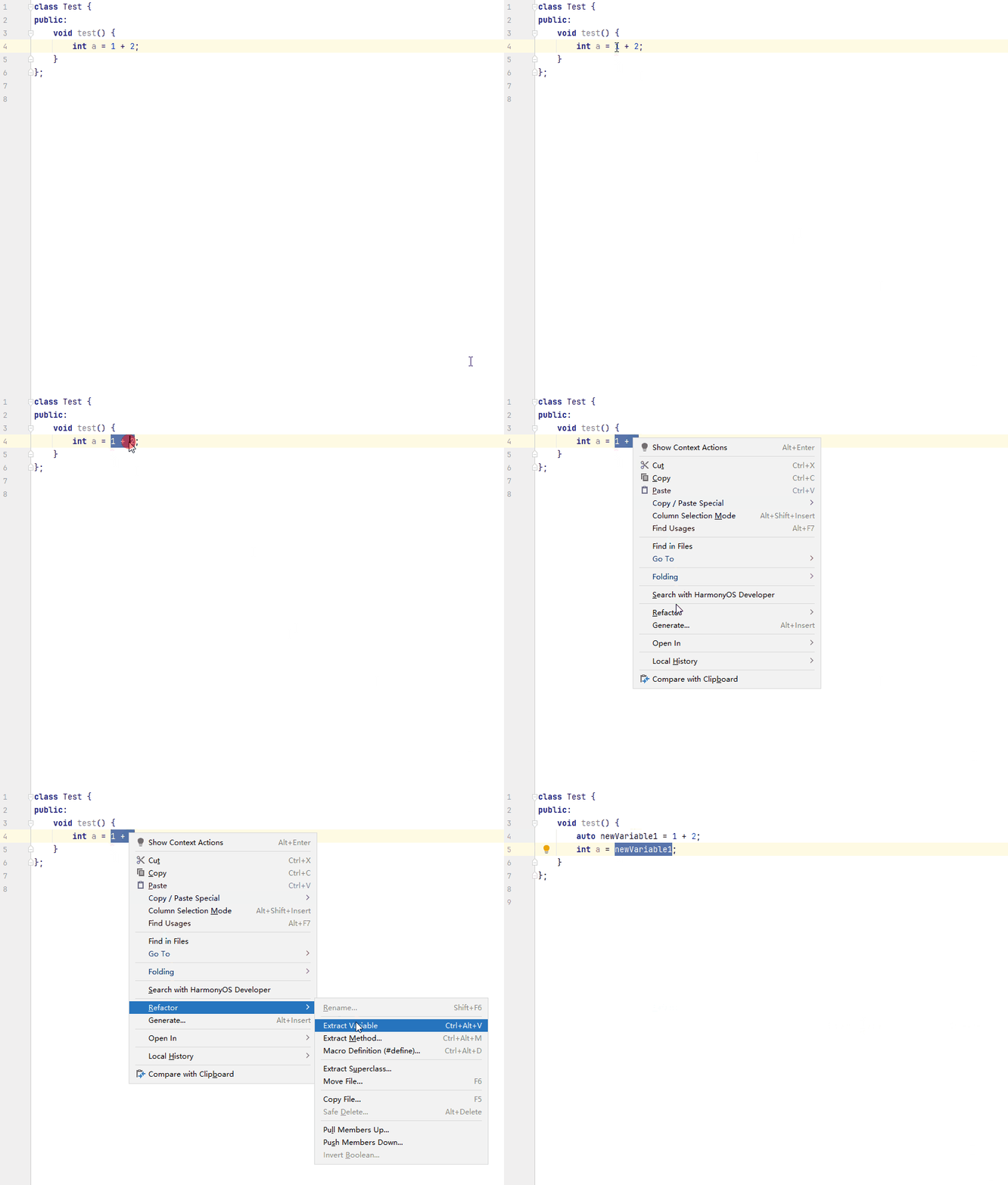
The Extract Variable refactoring enables you to create a local variable for the selected expression. Right-click an expression, and choose Refactor > Extract Variable.
[h2]Remove Using Namespace
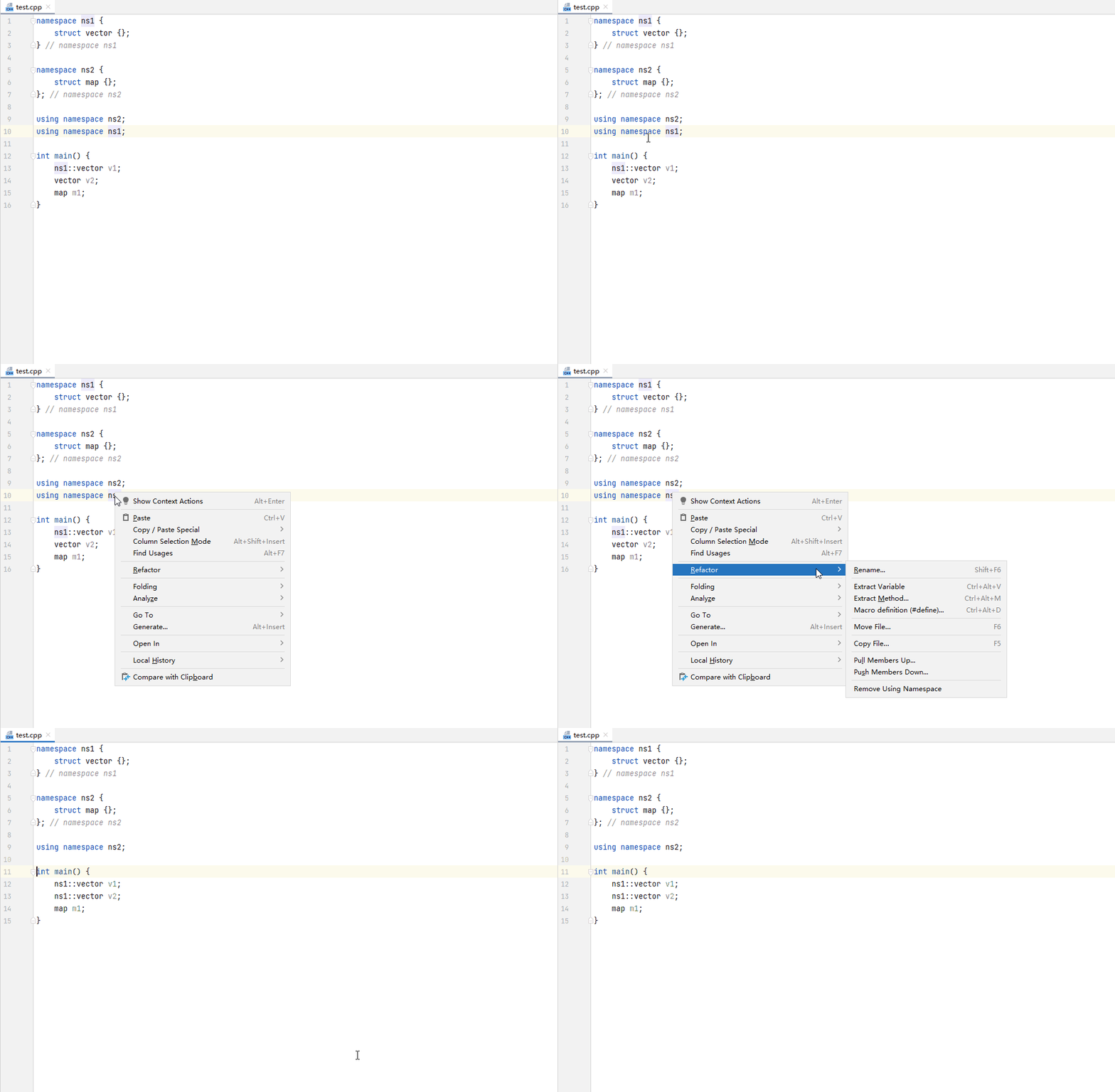
The Remove Using Namespace refactoring lets you remove a namespace to avoid name conflicts. Right-click the namespace you want to remove, and choose Refactor > Remove Using Namespace.
[h2]Add Using
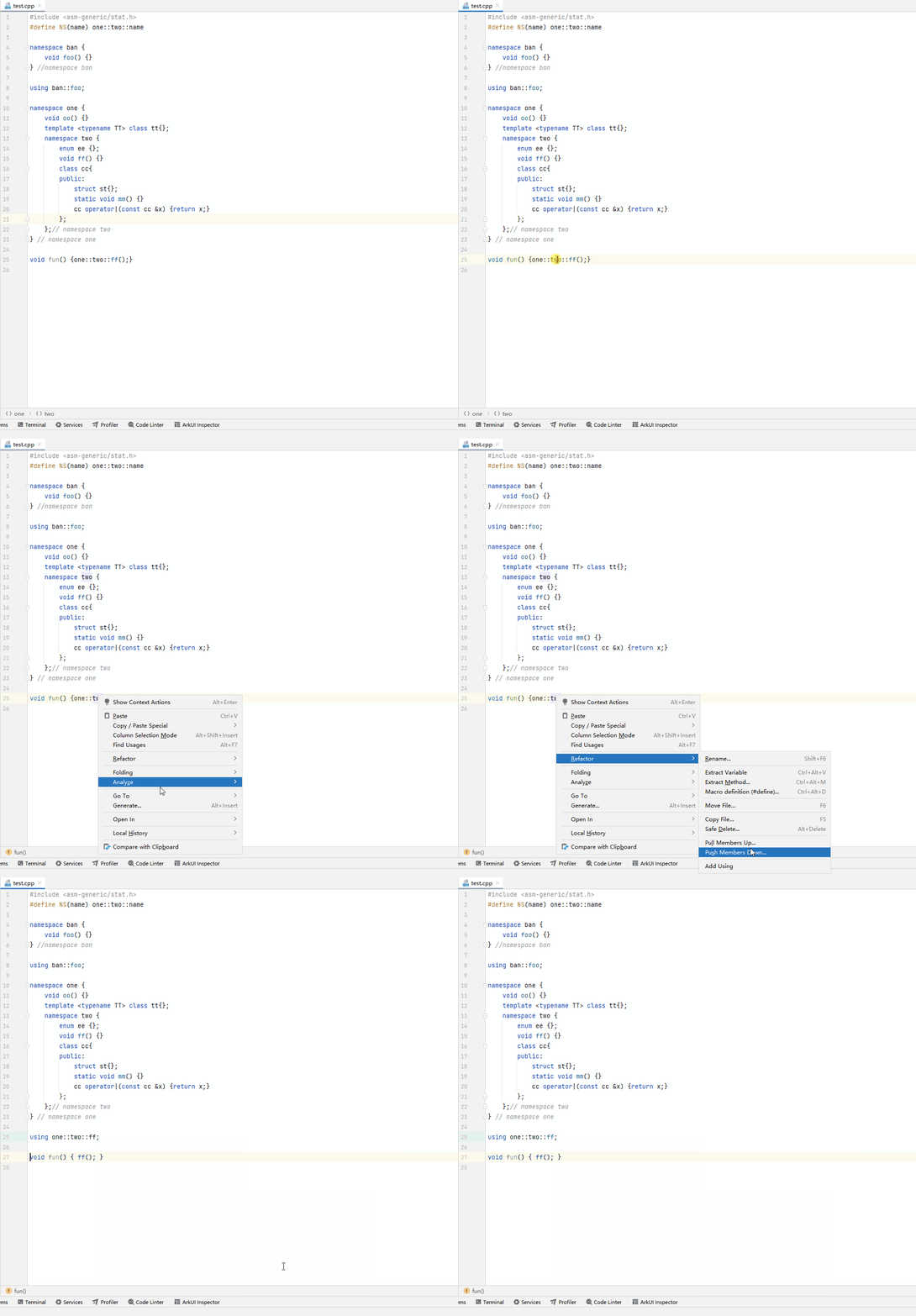
The Add Using refactoring lets you add a using declaration to define a type alias. Right-click the code where you want to add a using declaration, and choose Refactor > Add Using.