Since version 26.0.0, device mirroring is available for connected devices, allowing you to view the device screen and control the device remotely, improving development and debugging efficiency.
Constraints
- Only HarmonyOS devices (excluding wearables) connected via USB or Wi-Fi are supported.
- This feature is available only in the Chinese mainland.
Procedure
- Click Screen Mirroring at the bottom of DevEco Studio or choose View > Tool Windows > Screen Mirroring from the menu bar to open the device mirroring pane.
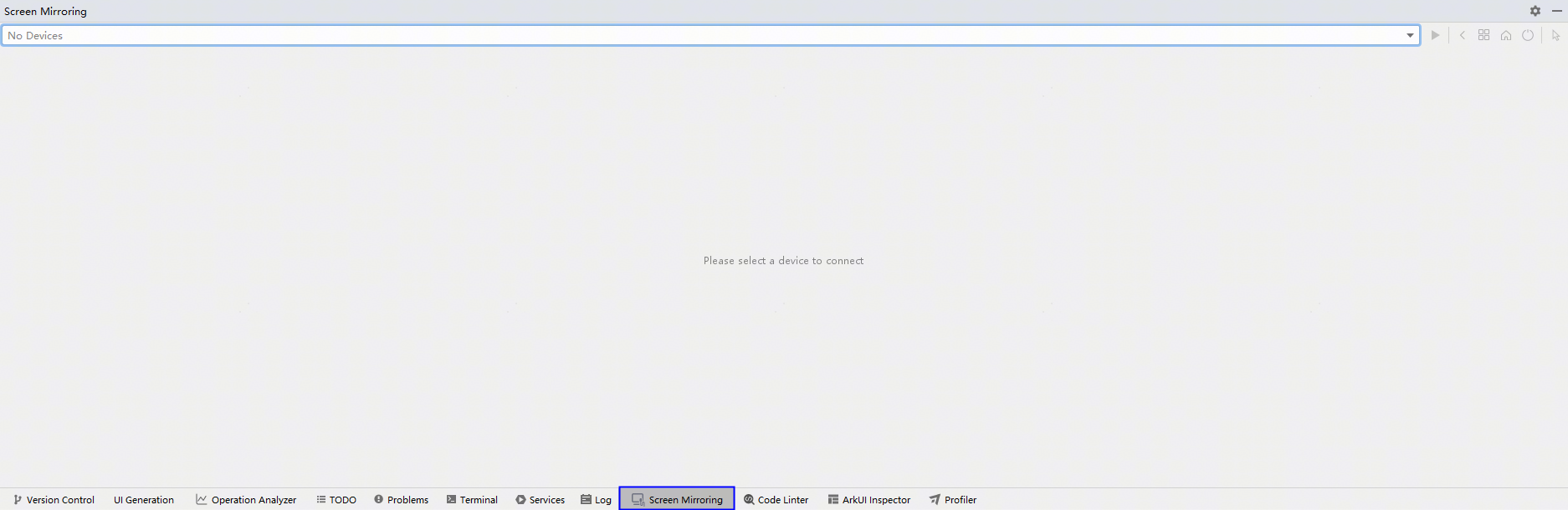
- Select a device (which must already be connected) from the drop-down list and click
 to start mirroring.

- After mirroring starts, the following control buttons are available:
 : Stop mirroring.
 : Refresh and reconnect the device.
 (back key): Return to the previous screen or exit apps.
 : View the list of recently used apps.
 (home key): Return to the home screen.
 (power key): Lock or wake up the screen.
 : Switch the screen interaction mode, which defaults to the mouse mode. Click this icon to switch to the touchscreen mode, with the icon changed to
 .
- Mouse control and keyboard input are also supported. See below for details.
Controlling the Screen
You can use your mouse to simulate touch or mouse interactions with the device screen.
Operation | Description |
|---|---|
Tap | Click the left mouse button to simulate a tap, such as tapping an app icon. |
Double-tap | Double-click the left mouse button to simulate a double-tap on a 2-in-1 device, such as double-tapping an app icon. |
Tap/Long-press | Click or long-press the right button to open menus, consistent with device native behavior. For example, long-pressing on the screen brings up a menu, which can be replicated by long-pressing the right button during mirroring. |
Drag and drop | Press and hold the left mouse button to simulate a long press , such as pressing and holding an icon to drag it. |
Swipe | Press and hold the left mouse button and drag to simulate a swipe gesture. In mouse mode, this can be used to select text, and in touchscreen mode, it can be used to scroll through lists or pages. |
Using the Keyboard
Click the input box and use the computer keyboard to enter characters on the device.
Installing Apps and Uploading Files
You can drag files to install apps and upload files to the device.
- Installing apps: Drag HAPs or HSPs to auto-install them on the device. Multiple packages can be installed in a batch.
- Uploading files: Drag local files to the device screen to upload them. Batch upload is supported. Uploaded files are stored in the /storage/media/100/local/files/Docs/Download/ directory on the device. Files with the same name are overwritten. Upload may fail if the total size exceeds 10 GB. You can view uploaded files in Files > My Phone > Downloads on the device.