During debugging, you can view global/static variables, register variables, and local variables in Variables.
Displaying Global/Static Variables
To display global/static variables in the Variables pane during the debugging process, choose Edit Configurations and check Show static/global variables in the Variables Pane.
Simplify STL
On the menu bar, choose File > Settings (DevEco Studio > Preferences/Settings on macOS) > Build, Execution, Deployment > Debugger > C++ Debugger. Select Display STL variables as visualization in the Variables Pane to display simplified STL variable values. To display variables in their original structure, leave Display STL variables as visualization in the Variables Pane unselected.
Observing a Variable
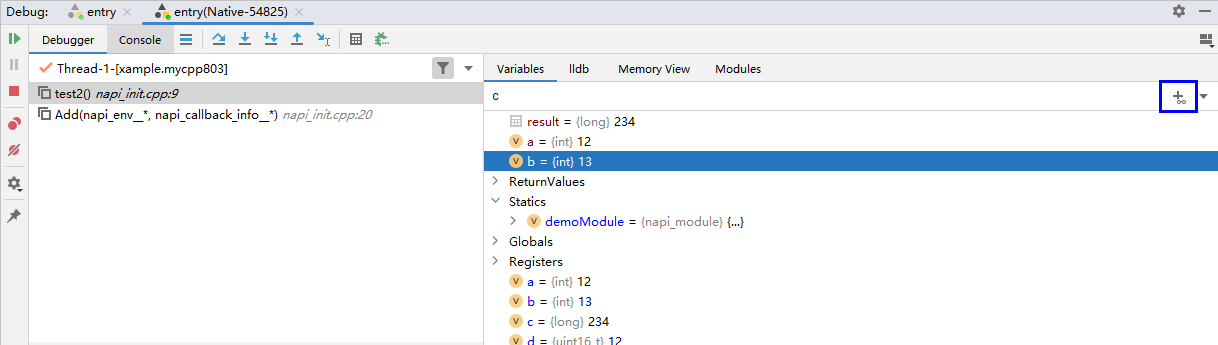
Enter an expression in the Watches list and click  Add to Watches, or right-click a variable and choose Add to Watches from the shortcut menu and add an expression. Then, the value of the expression will be calculated each time the app is paused.
Evaluating an Expression
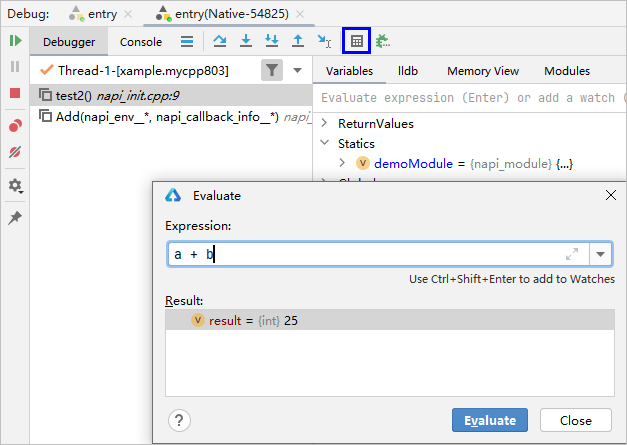
Click the Evaluate Expression button or enter an expression in Expression on the Evaluate dialog box.
Viewing the Hexadecimal View
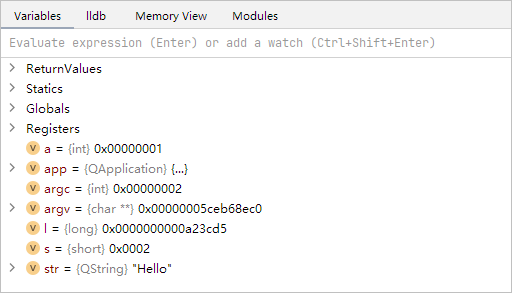
On the Variables tab, right-click anywhere and choose Show As Hex Values from the shortcut menu. The integer variables on the page will be displayed in hexadecimal format.
Viewing Function Return Values
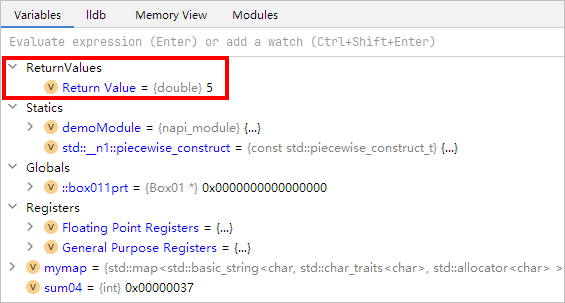
After you use Step Out to step out of a function, the ReturnValues section in the variable list displays the return value of the stepped-out function.

- Data structures longer than 64 bits cannot be viewed.
- Return values of the reference type cannot be viewed.
- When a breakpoint exists at the location where the Step Out feature returns, the function return value cannot be viewed.
