00401000 Failed to Obtain the Bundle Name
Error Message
The bundleName attribute does not exist.
Symptom
Failed to obtain the bundle name.
Possible Causes
The bundleName field in the app.json5 file is empty or missing.
Solution
Check whether bundleName is correctly configured in the app.json5 file.
00401001 Failed to Obtain product During Attach Debugging
Error Message
The product to debug cannot be empty.
Symptom
Failed to obtain product during attach debugging.
Possible Causes
product configured for the current module is incorrect.
Solution
Ensure that the applyToProducts configuration for the corresponding module in the project-level build-profile.json5 file is correct. For details, see Building a HAP and App Pack.
00401002 Failed to Obtain target During Attach Debugging
Error Message
The target to debug cannot be empty.
Symptom
Failed to obtain target during attach debugging.
Possible Causes
target configured for the current module is incorrect.
Solution
Ensure that the applyToProducts configuration for the corresponding module in the project-level build-profile.json5 file is correct. For details, see Building a HAP and App Pack.
00401003 Failed to Start Debugging
Error Message
Failed to start debugging. Click the Debug button again to retry.
Symptom
Failed to start debugging.
Possible Causes
An exception occurs during the debugging startup process.
Solution
Click the Debug button to restart debugging.
00401004 SysCap Verification Failed
Error Message
Please try to match the API version of the device and the app. The current device does not contain the following SysCap attributes in the rpcid.json file: XXX. Make sure the device supports all the SysCap attributes required for running the app.
Symptom
The currently connected device lacks the SysCap that the app requires.
Possible Causes
The device version does not match the app.
Solution
- Method 1: Update the device system version.
- Method 2: Create a syscap.json file in the src/main directory of the HAP module and remove the unsupported SysCap indicated in the error message.
The following uses SystemCapability.Security.DeviceAuth as an example:
// entry/src/main/syscap.json
{
  "devices": {
    "general": ["phone"]  // Same as deviceTypes in module.json5
  },
  "production": {
    "removedSysCaps": [
      "SystemCapability.Security.DeviceAuth"
    ]
  }
}
00401005 Ability Not Specified
Error Message
Error running entry : Ability not specified.
Symptom
No ability is specified.
Possible Causes
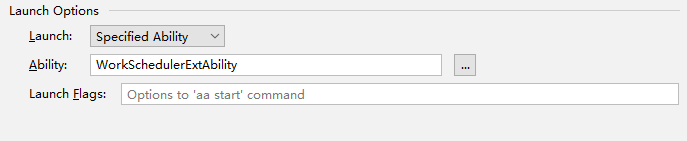
No ability is specified after Specified Ability is selected in the Run/Debug Configurations panel.
Solution
Open the Run/Debug Configurations panel and set the ability under Specified Ability.
00401006 Debugging with the Previewer Not Supported in Release Build Mode
Error Message
Cannot debug the project in previewer when its build mode is release.
Symptom
The Previewer does not support debugging in release build mode.
Possible Causes
The Previewer is used for debugging, and the build mode is release.
Solution
Change the build mode to debug and start debugging again.
00401007 Running or Debugging Not Allowed During Project Synchronization
Error Message
Project sync is in progress. Wait until it is complete before you start running or debugging.
Symptom
A run or debug operation is initiated while the project synchronization is in progress.
Possible Causes
A run or debug operation is initiated while the project synchronization is in progress.
Solution
Wait for the project synchronization to complete before initiating a run or debug operation.
00401008 Empty Module in the Run/Debug Configurations Panel
Error Message
No module found. Make sure the project sync is completed successfully and the module is set in Edit Configuration > General.
Symptom
The module in the current Run/Debug Configurations panel is empty.
Possible Causes
The project synchronization failed.
Solution
Synchronize the project again and ensure that the synchronization is successful.
00401009 Failed to Obtain target During Runtime
Error Message
The target can not be empty. Check the build-profile.json5 file of the project root directory and make sure the targets of the modules in configuration is set to specified product: default in applyToProducts.
Symptom
target is empty during runtime.
Possible Causes
target configured for the current module is incorrect.
Solution
Ensure that the applyToProducts configuration for the corresponding module in the project-level build-profile.json5 file is correct. For details, see Building a HAP and App Pack.
00401010 Failed to Obtain product During Runtime
Error Message
The product can not be empty.
Symptom
product is empty during runtime.
Possible Causes
The product configuration is incorrect.
Solution
Ensure that the applyToProducts configuration for the corresponding module in the project-level build-profile.json5 file is correct. For details, see Building a HAP and App Pack.
00401011 Failed to Run or Debug the App When No Ability is Launched
Error Message
Cannot run or debug the app when no ability is launched. Specify an ability (the default or any specified one) to launch under Launch Options in Run/Debug Configurations, and then try again.
Symptom
Failed to run or debug the app when no ability is launched. Set an ability (default or specified) under Launch Options in the Run/Debug Configurations panel and try again.
Possible Causes
Launch Options in the Run/Debug Configurations panel is set to Nothing.
Solution
Set an ability (default or specified) under Launch Options in the Run/Debug Configurations panel and try again.
00401012 Debugging with the Previewer Does Not Support ExtensionAbility
Error Message
Debugging with Previewer does not support the ExtensionAbility type.
Symptom
Debugging with the Previewer does not support ExtensionAbility.
Possible Causes
During debugging with the Previewer, Specified Ability in the Run/Debug Configurations panel is set to ExtensionAbility.
Solution
Set an ability (default or a specified one other than ExtensionAbility) under Launch Options in the Run/Debug Configurations panel and try again.
00401013 Previewer Debugging Not Supported for This App
Error Message
Previewer does not support this app.
Symptom
Previewer debugging is not supported for this app.
Possible Causes
- Previewer debugging is not supported for FA model projects.
- Previewer debugging is not supported for projects with an API version earlier than 10.
Solution
- Use the Previewer to run and debug stage model projects with an API version 10 or later.
- Select another device or emulator for running and debugging.
00401014 The Simulator Does Not Support This App
Error Message
Simulator does not support this app.
Symptom
The Simulator does not support this app.
Possible Causes
The app is not a lite wearable app.
Solution
- For a non-lite wearable project, use a real device or an emulator to run it.
- For a lite wearable project, ensure that the device list in the config.json file includes liteWearable.
00401015 No Device Selected
Error Message
Select a device first.
Symptom
No device is selected. Select a device first.
Possible Causes
No device is selected.
Solution
Connect a real device, or start the Emulator and select a device, then run or debug the app.
00401016 Operation Exception
Error Message
Some exceptions occurred in this operation, please re-run.
Symptom
An exception occurs during the current operation. Please re-run.
Possible Causes
The currently connected device is abnormal.
Solution
Reconnect the device and run the project again.
00401017 Failed to Install the HAP
Error Message
FileTransfer Failed: Error while Deploy Hap.
Symptom
Failed to install the HAP.
Possible Causes
The device connection is abnormal.
Solution
- If a real device is used: Replace the data cable or the USB port on the PC and try again.
- If an emulator is used:
- In the device list window of the local emulator, click Wipe User Data to clear the data, start the emulator, and run the project again.
- Open the CLI, navigate to sdk\default\openharmony\toolchains in the DevEco Studio installation directory, run the hdc kill -r command, start the emulator, and run the project again.
00401018 Failed to Obtain the Device System API Version
Error Message
Failed to get the device apiVersion.
Symptom
Failed to obtain the device system API version.
Possible Causes
The connection to the selected device is abnormal.
Solution
Reconnect the device or restart DevEco Studio.
00401019 Mismatch Between Project's Minimum Compatible API Version and Device API Version
Error Message
compatibleSdkVersion and releaseType of the app do not match the apiVersion and releaseType on the device.
Symptom
The minimum compatible API version configured in the project does not match the device API version.
Possible Causes
The minimum compatible version configured in the project is later than the device API version.
Solution
Run the hdc shell param get const.ohos.apiversion command to query the API version of the current device and compare it with the API version of the compatibleSdkVersion field configured in the project-level build-profile.json5 file. If the versions do not match, adopt the following solutions:
Solution 1: Upgrade the device system version to match the version required by the project. You can do this through the system settings on the device.
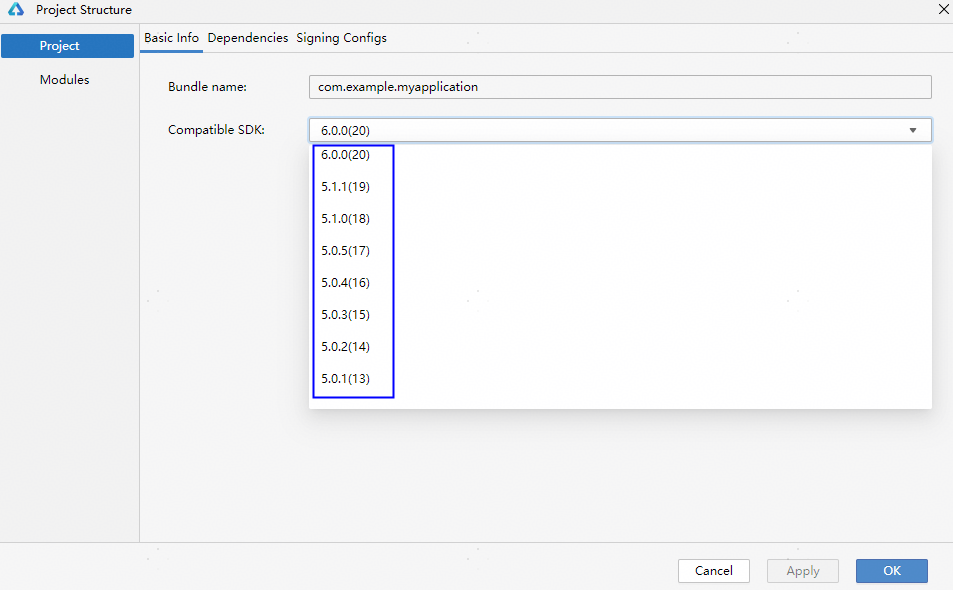
Solution 2: Lower the compatible API version of the project. Click  in the upper-right corner of DevEco Studio and select an earlier version for Compatible SDK.
00401020 No Available Port Number
Error Message
No port available.
Symptom
There is no available port number.
Possible Causes
Ports on the current computer are restricted by security software or occupied.
Solution
- Check if any security software is blocking ports; if so, disable the port restrictions.
- Restart the computer.
00401021 No Executable Ability Found
Error Message
No executable ability found.
Symptom
No executable ability is found.
Possible Causes
The ability is not configured correctly, and the project fails to be synchronized.
Solution
Synchronize the project again.
00401022 Local HAP Does Not Exist
Error Message
The local package does not exist.
Symptom
The local HAP does not exist.
Possible Causes
- The build and packaging failed.
- The build task is canceled in the runtime configuration, so no local HAP is generated.
- The project synchronization is abnormal, and the sync directory required for the build is not generated.
Solution
- Choose Build > Clean Project on the menu bar to clear the cache and try again.
- Check whether the build task is canceled in the runtime configuration; if so, add the build task again.

- Choose File > Sync and Refresh Project on the menu bar to synchronize the project again. Ensure that the project synchronization succeeds before running the project.
00401023 config.json or module.json File Does Not Exist in the HAP
Error Message
The config.json or module.json file in the hap file does not exist.
Symptom
The config.json or module.json file does not exist in the HAP.
Possible Causes
The HAP generated during compilation and build is incorrect.
Solution
Choose Build > Clean Project on the menu bar to clear the cache and try again.
00401024 Number of Files in the HAP Exceeds One Million
Error Message
Make sure the file count in the HAP does not exceed 1,000,000.
Symptom
The number of files in the HAP exceeds one million.
Possible Causes
The number of files in the generated HAP exceeds one million, possibly due to too many resource files.
Solution
Check and streamline the project resource files, then repackage them.
00401025 config.json or module.json File in the HAP Is Empty
Error Message
The config.json or module.json file content is empty.
Symptom
The config.json or module.json file in the HAP is empty.
Possible Causes
The HAP generated during compilation and build is incorrect.
Solution
Choose Build > Clean Project on the menu bar to clear the cache and try again.
00401026 Device Type or API Version of the Connected Device Does Not Match the Project Configuration
Error Message
The deviceType or apiVersion of the target device does not match that configured in the XXX file.
Symptom
The device type or API version (apiVersion) of the connected device does not match the project configuration.
Possible Causes
- The device type configured in the config.json or module.json5 file of the project does not match the selected device.
- apiVersion configured in the module-level build-profile.json5 file does not match the selected device.
Solution
- Use a matching device.
- Add the type of the currently connected device to deviceType in the config.json or module.json5 file, and add the API version of the current device to apiVersion in the module-level build-profile.json5 file.
00401027 No Device Connected
Error Message
The current device cannot be empty.
Symptom
No device is connected.
Possible Causes
No device is connected, or the device connection is abnormal.
Solution
Reconnect the device and start debugging again.
00401028 FA Model Project Does Not Support DebugLine
Error Message
The FA model does not support the debugLine.
Symptom
The FA model project does not support DebugLine.
Possible Causes
The FA model project does not support DebugLine.
Solution
Deselect Enable DebugLine in the Run/Debug Configurations panel.
00401029 Failed to Obtain the SDK Version
Error Message
Failed to obtain the SDK version. Check whether the SDK is installed.
Symptom
Failed to obtain the SDK version. Check whether the SDK is installed.
Possible Causes
The SDK is not downloaded, or the user-defined SDK configuration is incorrect.
Solution
Download the corresponding SDK or reconfigure the custom SDK.
00401030 Outdated SDK Version Does Not Support DebugLine
Error Message
The SDK version is too low to support DebugLine. Update it to 4.1.0.21 or a later version.
Symptom
The SDK version is outdated and does not support DebugLine. Upgrade the version to 4.1.0.21 or later.
Possible Causes
The SDK version is earlier than 4.1.0.21.
Solution
Download and install DevEco Studio from the official website.
00401031 Failed to Obtain the Hvigor Version
Error Message
Failed to obtain the Hvigor version.
Symptom
Failed to obtain the Hvigor version.
Possible Causes
The Hvigor tool is missing in DevEco Studio.
Solution
Check whether the Hvigor tool exists in the tools directory under the DevEco Studio installation directory. If it does not exist, download DevEco Studio again from the official website.
00401032 Outdated Hvigor Version Does Not Support DebugLine
Error Message
The Hvigor version is too low to support DebugLine. Update it to 3.0.3-rc.1.s or a later version.
Symptom
The Hvigor version is outdated and does not support DebugLine. Upgrade Hvigor to version 3.0.3-rc.1.s or later.
Possible Causes
The DevEco Studio version is outdated.
Solution
Download and install DevEco Studio from the official website.
00401033 SDK Version Does Not Support TSan
Error Message
TSan is not supported by the current SDK version. Update the DevEco Studio to the latest version and make sure the API version of your project is 12 or later.
Symptom
The current SDK version does not support TSan. Upgrade DevEco Studio to the latest version and ensure that the API version of your project is 12 or later.
Possible Causes
The DevEco Studio version is outdated or the API version of your project is earlier than 12.
Solution
Upgrade DevEco Studio to the latest version and ensure that the API version of your project is 12 or later.
00401034 Main Module is Null
Error Message
Main module is null.
Symptom
The main module is null.
Possible Causes
The project fails to be synchronized.
Solution
Choose File > Sync and Refresh Project from the menu bar to synchronize the project again. Ensure that the project synchronization succeeds before running the project.
00401035 Target Device Does Not Support TSan
Error Message
Thread Sanitizer is not supported on the target device. Disable this feature under Run > Edit Configurations > Diagnostics and try again. This feature is only available on phone,tablet,2in1,tv.
Symptom
The currently connected device does not support TSan. Deselect Thread Sanitizer in the runtime configuration and try again. Only phones, tablets, 2-in-1 devices, and TVs support TSan.
Possible Causes
The currently connected device is not a phone, tablet, 2-in-1 device, or TV.
Solution
Use a device that supports TSan, or choose Run > Edit Configurations > Diagnostics and deselect Thread Sanitizer.
00401036 Device System Version Does Not Support TSan
Error Message
TSan is not supported on the current system version of the target device. Update the device system version to the latest version.
Symptom
The current device system version does not support TSan. Update the device system to the latest version.
Possible Causes
The current device system version does not support TSan.
Solution
Update the device system to the latest version.
00401037 Hot Reload Does Not Support Running/Debugging with the Previewer
Error Message
Cannot run or debug this module in Previewer while it has hot reload configured. Remove the hot reload configuration and try again.
Symptom
Hot reload is enabled in the currently selected runtime configuration, which does not support running/debugging with the Previewer. Reselect the runtime configuration and try again.
Possible Causes
Hot reload is enabled in the currently selected runtime configuration, which does not support running/debugging with the Previewer.
Solution
Run or debug the app on a real device or an emulator, or reselect the runtime configuration to run or debug with the Previewer.
00401052 Configuration File in the HAP Exceeds 10 MB
Error Message
Make sure the module.json file in the HAP does not exceed 10 MB.
Symptom
The size of the module.json configuration file in the HAP exceeds 10 MB.
Possible Causes
The size of the module.json5 configuration file in the HAP exceeds 10 MB.
Solution
Optimize the content of the module.json5 configuration file.
00401060 Local HAP Does Not Exist
Error Message
Failed to open the file. The directory or file does not exist.
Symptom
The local HAP does not exist.
Possible Causes
The HAP does not exist. Check whether the signed HAP is successfully packaged.
Solution
Ensure that the signed HAP is successfully packaged before running. For details about how to sign the HAP, see Configuring a Debug Signature.
00401061 Insufficient Permissions to Access the HAP Path
Error Message
Failed to open the file. The current directory is not accessible due to insufficient permissions.
Symptom
HAP deployment failed due to insufficient permissions to access the HAP path.
Possible Causes
Insufficient permissions to access the HAP path.
Solution
For Windows, move the project out of the C drive. For macOS, grant DevEco Studio full disk access permissions, then re-run the project.
00401062 Insufficient Available Disk Space on the Device
Error Message
File transfer failed due to insufficient disk space on the device.
Symptom
HAP deployment failed due to insufficient available disk space on the device.
Possible Causes
Data cannot be written due to insufficient available disk space on the device.
Solution
Check the available disk space on the device. If an emulator is used to run the project, click Wipe User Data to clear the emulator data, then restart the emulator and re-run the project.
00401063 The Simulator Does Not Support Debugging in Release Mode
Error Message
Cannot debug the project in the Simulator when its build mode is release.
Symptom
The Simulator does not support debugging in release mode.
Possible Causes
The Simulator is used for debugging, and the build mode is release.
Solution
Change the build mode to debug and start debugging again.