Since DevEco Studio 6.0.2 Beta1, the Database Inspector has been added, allowing you to execute SQL statements directly in DevEco Studio to view and modify your app database. This eliminates the need to export the database locally, improving development and debugging efficiency. It currently supports SQLite and vector databases.
You can also debug databases using the CLI. For detailed instructions, see vector-store Database Debugging Tool Guide and SQLite Debugging Tool.
When to Use
- When an app operation modifies the database content, you can check in real time whether the updated content meets expectations.
- You can modify data in the database in real time to construct test scenarios, improving testing efficiency.
Constraints
- The device system must be API version 22 or later. For systems earlier than API version 22, SQLite databases are view-only and cannot be modified, and vector databases are not supported.
- Apps signed with a release certificate are not supported.
- Only databases under the database directory can be debugged.
- Encrypted databases are not supported; use non-encrypted databases instead.
- Debugging private user or multi-user databases is not supported. Switch to the default user and use its corresponding database for debugging.
- Databases cannot be imported or exported.
- SQL execution constraints:
- SQL execution does not support history logging.
- SQL execution does not support transactions.
- Since version 26.0.0, the Database Inspector supports syntax highlighting and auto-completion hints for keywords, table names, and field names in SQLite databases.
- Since version 26.0.0, the SQL editor allows you to execute multiple SQL statements separated by semicolons (;), or right-click one or more SQL statements to execute them.
Procedure
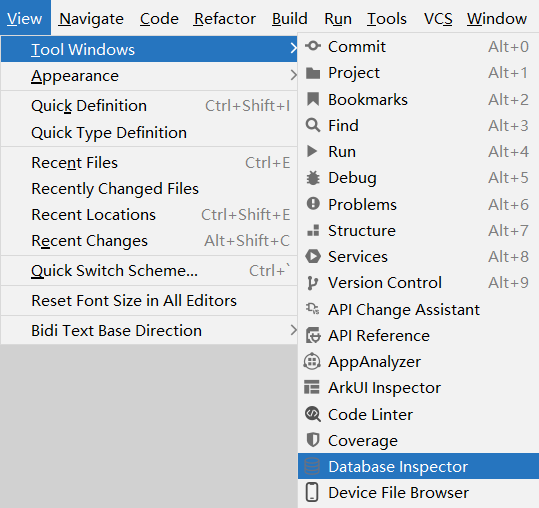
- Choose View > Tool Windows > Database Inspector from the menu bar to open the Database Inspector.
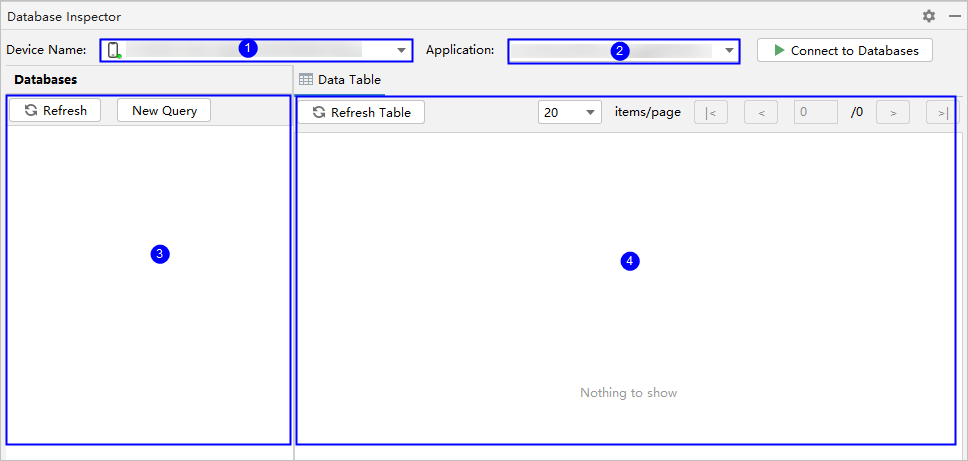
The functions of each area on the Database Inspector page are as follows: ① device selection; ② app package name selection; ③ database and table information display; ④ SQL execution and data viewing.
- Select a device (which must already be connected) from the drop-down list.
- Select a package name and click Connect to Databases on the right to view the database information.

Depending on the device's API version, the Database Inspector shows different database paths: for those earlier than API version 22, the database is downloaded to the local computer and its path is displayed; for API version 22 and later, the path shown is the one to the database on the device.
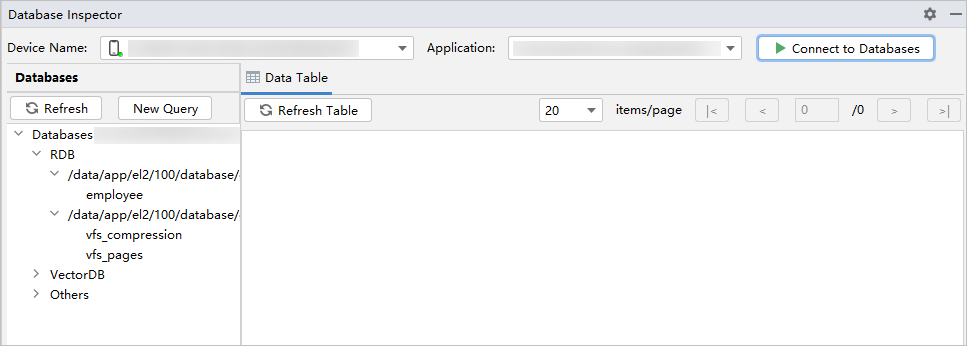
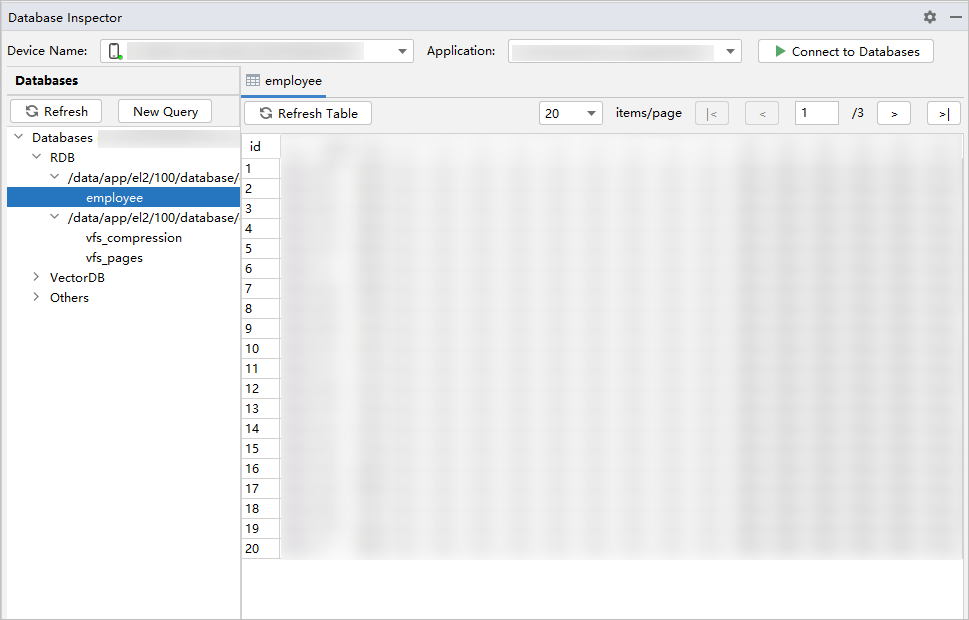
- Double-click a database table name to display its data in the right pane, with a default of 20 entries per page.
Since version 26.0.0, visual editing of table data is supported (limited to basic data types: strings, numbers, booleans, and more; binary data types are not supported). Double-click a cell, enter data, and press Enter or click another area to submit the changes.
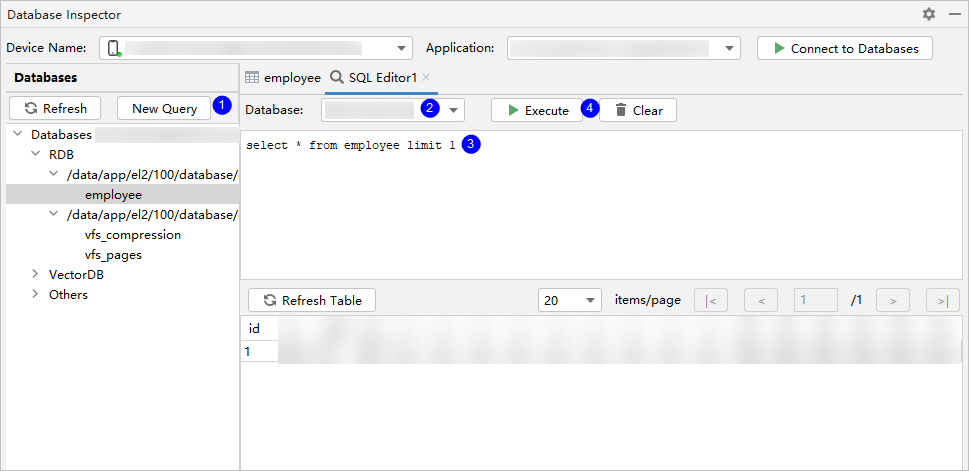
- Click New Query on the left pane; an SQL Editor tab will appear on the right. Select the desired database, enter the SQL statement, and click Execute to view or modify data.
After modifying data, click Refresh Table below the SQL input box to refresh the data on the page.

- After data is modified via SQL statements or updated by the app, the data display page does not support automatic refreshing. You must re-execute the query statement or click the refresh button.
- Modifications must be made via SQL statements; direct editing within the data view is not supported.