If DevEco Studio freezes, crashes, or encounters other faults during development, you can use either of the following methods to send back logs to help improve the stability and experience of DevEco Studio.

Currently, this feature is available only in the Chinese mainland.
Method 1
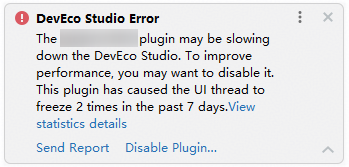
Click Send Report in the DevEco Studio Error dialog box and then click OK to send back logs to DevEco Studio.
Method 2
- Enable data collection. Specifically, choose File > Settings (DevEco Studio > Preferences/Settings on macOS) > Appearance & Behavior > System Settings > Data Sharing, and select Send usage statistics.

Send back DevEco Studio logs.
- Version 26.0.0 or later
- Choose Help > Collect Logs and Diagnostic Data from the menu bar or click
 Feedback on the right of the tool window.
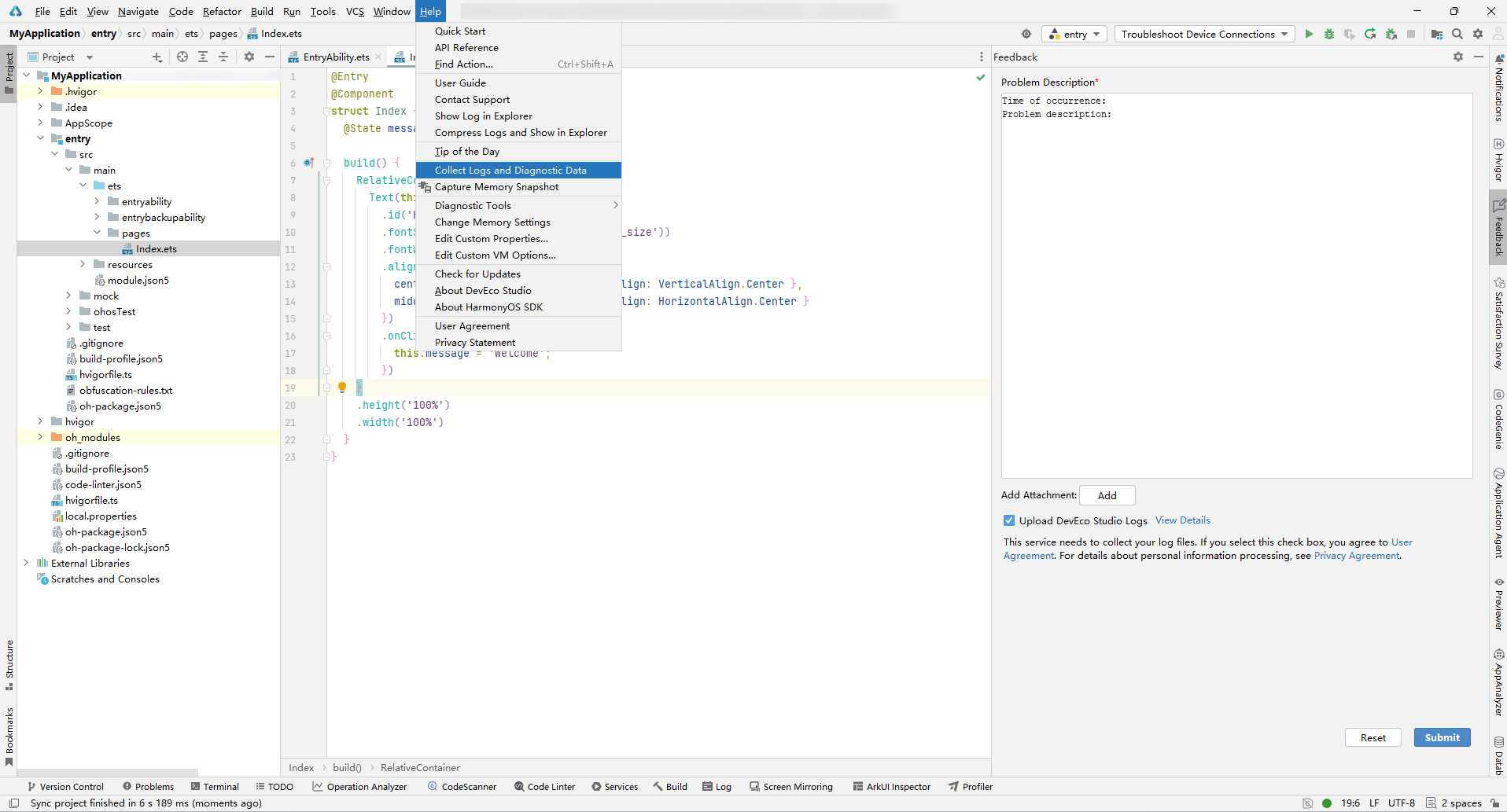
- Enter the issue description in Problem Description, click Add to upload an image or a video file, and click View Details to browse and select the log files to be uploaded. Select Upload DevEco Studio Logs and click Submit to send the logs back to DevEco Studio.
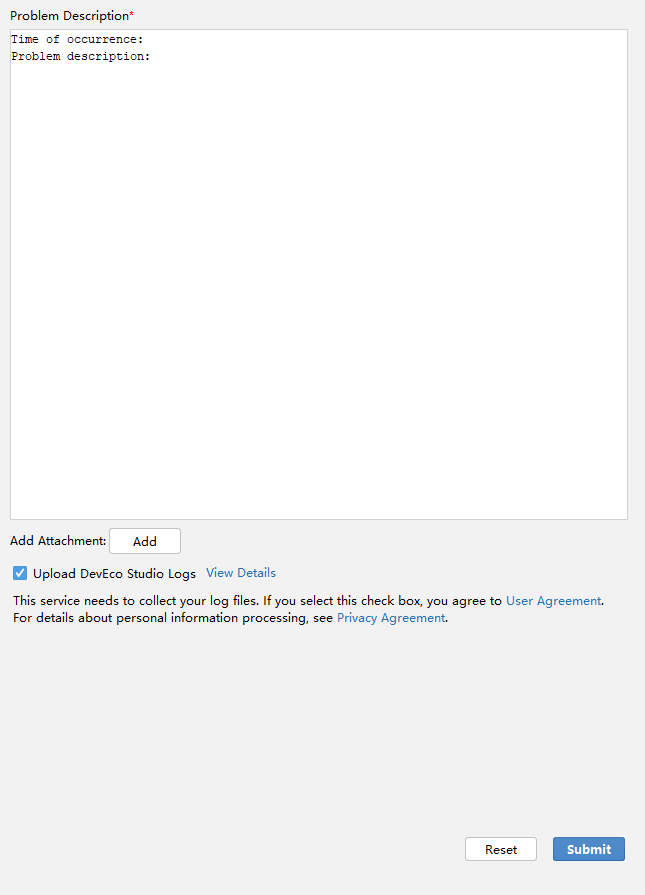

Attachments and log files support a maximum file size of 500 MB. Only images or videos can be uploaded as attachments.
- Choose Help > Collect Logs and Diagnostic Data from the menu bar or click
- Versions earlier than 26.0.0
- Choose Help > Collect Logs and Diagnostic Data from the menu bar.
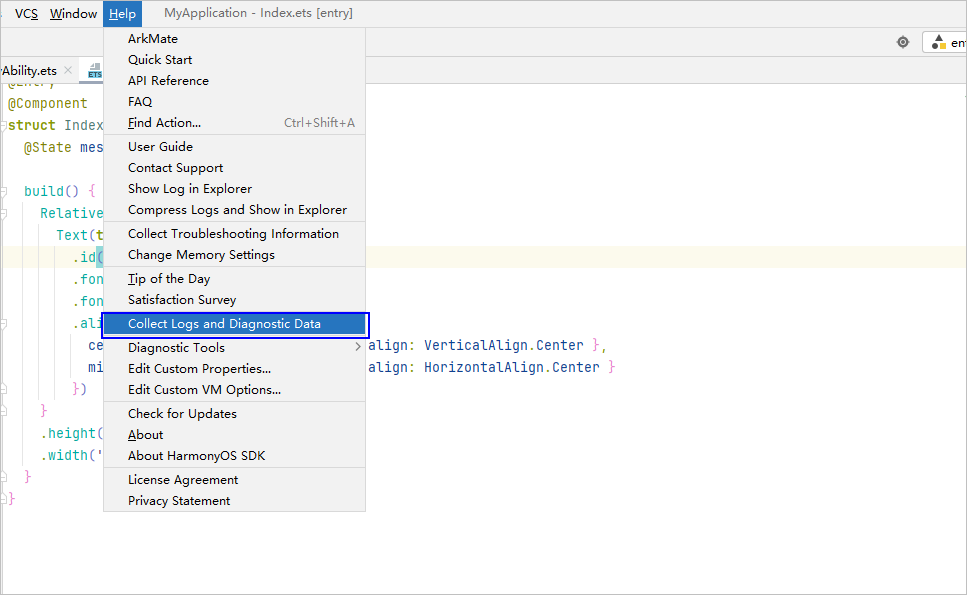
- Select the .log files and click OK to send the logs back to DevEco Studio.
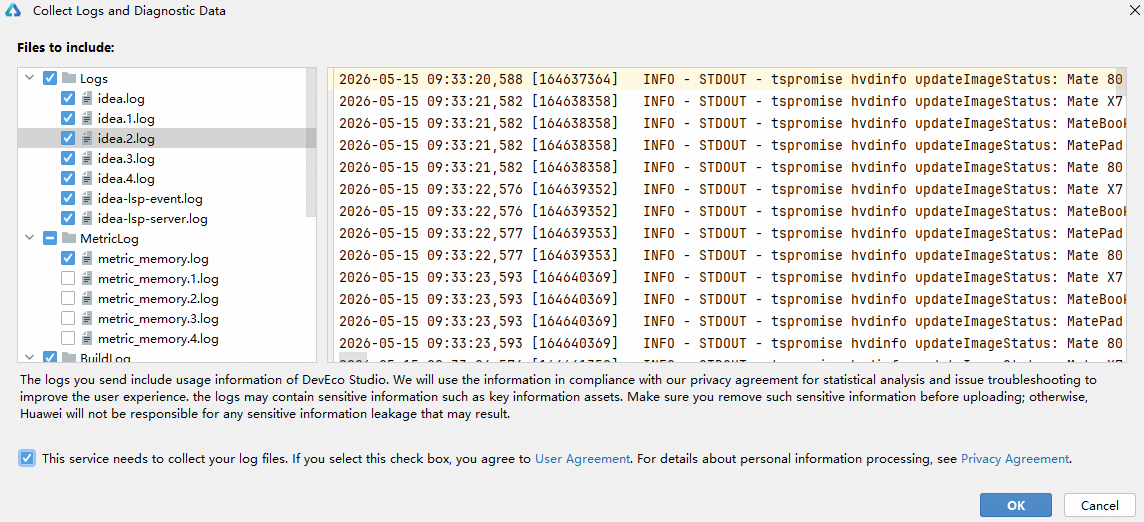
- Choose Help > Collect Logs and Diagnostic Data from the menu bar.
- Version 26.0.0 or later