Use Cases
Test message analysis is a message tracing capability provided by Push Kit. It helps you query the delivery status of test messages (with testMessage set to true) during the integration of Push Kit.
This capability applies to the following scenario: When your app server calls the REST API to send a message, service response code 80000000 is returned, indicating that the message is successfully sent; however, the device does not receive the message.
You can use this test message analysis capability to troubleshoot such cases. You only need to enter the unique request ID and token to query the delivery history and brief description of the test message.

For non-test messages, sign in to AppGallery Connect and choose Push Kit > More > Self-service analysis (beta) to query the message delivery status.
Constraints
-
This capability supports querying only test messages (with testMessage set to true) for HarmonyOS NEXT/5.x and later versions.
-
A request ID remains valid for three days. After the validity period expires, the request ID cannot be used for query.
-
Before using this capability, ensure that you have selected the correct project and the app corresponding to the token belongs to the selected project.
Procedure
-
Sign in to AppGallery Connect, click Development and services, and find and click the desired project in the project list. Then, choose Grow > Push Kit > Test message analysis (beta).
-
Track the message: Enter the requestId value returned when the REST API is called to send the message, together with token, and click Search to view the message delivery status.

requestId is a message response parameter returned when the app server calls the REST API to send the message.
-
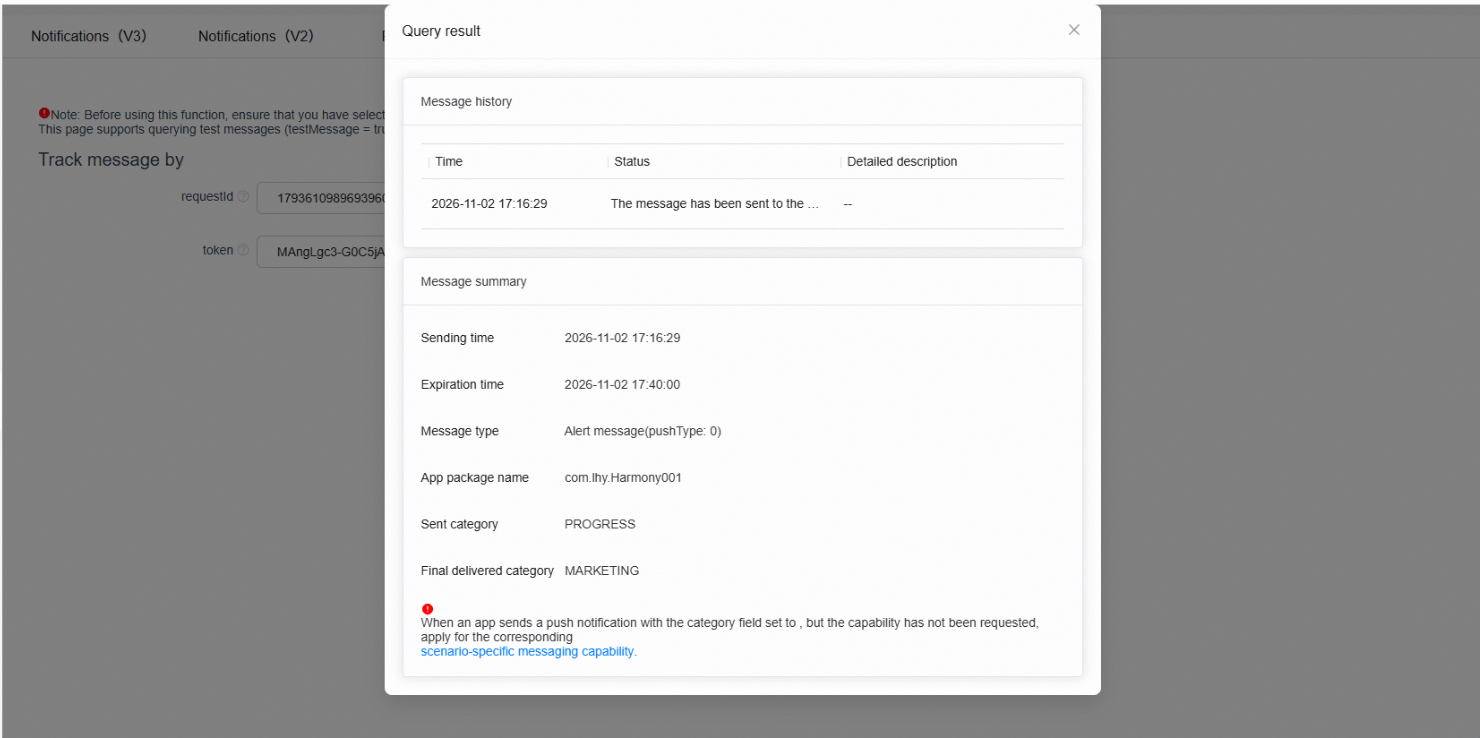
Click Search to view the delivery status of the test message, including the message history and message summary.
The fields in the Message history area are described as follows:
-
Time: time when the message enters the current status, in YYYY-MM-DD HH:mm:ss format.
-
Status: brief description of the current message status, for example, "Frequency control applies because too many test messages were sent."
-
Detailed description: further description of the current status, including the cause of the delivery failure and handling suggestions, to help you locate and rectify the issue.
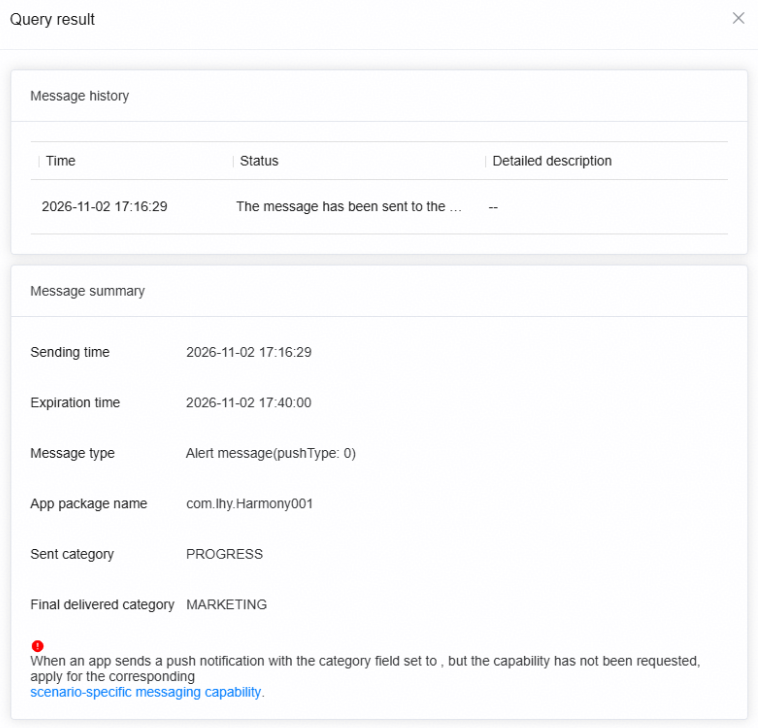
The fields in the Message summary area are described as follows:
-
Sending time: time when your app server calls the REST API to send the test message.
-
Expiration time: time when the test message expires. After the expiration time, the message is no longer delivered or displayed.
-
Message type: type of the test message, which is used to distinguish different push scenarios, for example, Alert message(pushType: 0).
-
App package name: name of the used app package.
The following two fields exist in the Message summary area only for notification messages and text-to-speech messages:
-
Sent category: category value passed in the request body when you call the REST API to send a notification message or text-to-speech message. This value is used to identify the service category of the message.
-
Final delivered category: category value that takes effect when the message is delivered. The value may be different from the category value specified during message delivery. For details, please refer to Typical Scenarios.
-
Typical Scenarios
If your app does not have the permissions of pushing scenario-specific messages, or the permission type granted does not match the value of the category field in the request body when the REST API is called, the message is classified as a news and marketing message by default (the actual value of category is MARKETING). News and marketing messages are subject to frequency control. Each app can push up to 2 or 5 (depending on the app category) such messages to a single device per day. Once the quota is exceeded, the device will not receive these messages.
Therefore, before specifying a category value in your request body, ensure that the corresponding permission has been obtained. If not, apply for the scenario-specific message permission.