场景介绍
自由窗口状态下默认支持窗口大小缩放,且主窗口默认存在标题栏,与非自由窗口存在差异,为避免应用在自由窗口状态下出现界面截断、遮挡或控件叠加等问题,需要应用进行适配。
本章将列举应用可能出现的布局问题,并提供相应的解决方案。
-
应用在自由窗口状态和非自由窗口状态下,如果需要做差异化布局,可通过接口查询当前窗口是否处于自由窗口状态。
-
窗口被缩小到极致时,应用布局错乱或内容截断,可通过限制自由窗口尺寸,避免过度缩放。
-
窗口尺寸包含了标题栏区域和窗口内的可绘制区域,如果应用是通过获取窗口尺寸进行内容布局,则需要考虑标题栏的尺寸,调整布局避让标题栏和窗口三键,避免应用布局被标题栏向下挤压,发生内容截断。
-
视频类应用无法全屏播放视频,需要调用接口实现自由窗口状态下窗口进入全屏显示。
查询当前窗口是否处于自由窗口状态
应用在自由窗口状态和非自由窗口状态下,如果需要做差异化布局,可通过接口查询当前窗口是否处于自由窗口状态。
| 接口 | 功能 | 使用场景 |
|---|---|---|
| isInFreeWindowMode() | 查询当前窗口是否处于自由窗口状态 | 检测窗口是否处于自由窗口状态,以便根据实际情况调整布局或功能。 |
| on('freeWindowModeChange') | 开启自由窗口状态变化事件的监听 | 自由窗口状态发生变化时,通知应用,以便根据实际情况调整布局或功能。 |
| off('freeWindowModeChange') | 关闭自由窗口状态变化事件的监听 | 应用退出前,关闭自由窗口状态变化事件的监听。 |
限制自由窗口尺寸
自适应布局可以保证窗口尺寸在一定范围内变化时,页面的显示是正常的。当窗口尺寸变化较大时,就需要额外借助响应式布局能力(如断点等)调整页面结构以保证显示正常。通常每个断点都需要开发者精心适配,以获得最佳的显示效果,考虑到设计及开发成本等实际因素的限制,应用不可能适配从零到正无穷的所有窗口宽度。
不同设备或不同设备状态下,系统默认的自由窗口尺寸的调节范围可能不同。开发者可通过以下三种方式限制自由窗口的最大和最小尺寸。
-
通过setWindowLimits(windowLimits: WindowLimits)接口或setWindowLimits(windowLimits: WindowLimits, isForcible: boolean)设置当前应用窗口的尺寸限制。
maxWidth:窗口的最大宽度,默认单位为px。
maxHeight:窗口的最大高度,默认单位为px。
minWidth:窗口的最小宽度,默认单位为px。
minHeight:窗口的最小高度,默认单位为px。
import { UIAbility } from '@kit.AbilityKit'; import { window } from '@kit.ArkUI'; export default class EntryAbility extends UIAbility { onWindowStageCreate(windowStage: window.WindowStage): void { windowStage.loadContent('pages/Index', (err) => { let windowClass = windowStage.getMainWindowSync(); try { let windowLimits: window.WindowLimits = { maxWidth: 1500, maxHeight: 1000, minWidth: 600, minHeight: 500 }; let promise = windowClass.setWindowLimits(windowLimits); promise.then((data) => { console.info('Succeeded in changing the window limits. Cause:' + JSON.stringify(data)); }).catch((err: BusinessError) => { console.error(`Failed to change the window limits. Cause code: ${err.code}, message: ${err.message}`); }); } catch (exception) { console.error(`Failed to change the window limits. Cause code: ${exception.code}, message: ${exception.message}`); } }); } } -
应用在使用startAbility()接口拉起主窗口时可通过StartOptions指定主窗口尺寸限制。
minWindowWidth:窗口的最小宽度,单位为vp。
minWindowHeight:窗口的最小高度,单位为vp。
maxWindowWidth:窗口的最大宽度,单位为vp。
maxWindowHeight:窗口的最大高度,单位为vp。
// ets/entryability/EntryAbility.ets
// 示例应用的入口
import { UIAbility } from '@kit.AbilityKit';
import { window } from '@kit.ArkUI';
export default class EntryAbility extends UIAbility {
  onWindowStageCreate(windowStage: window.WindowStage): void {
    windowStage.loadContent('pages/Index', (err) => {});
  }
}
// ets/pages/Index.ets // 示例应用的主页面,用于创建按钮调用接口启动目标Ability import { common, StartOptions } from '@kit.AbilityKit'; @Entry @Component struct Index { private context = this.getUIContext().getHostContext() as common.UIAbilityContext build() { Row() { Row() { Button('启动测试窗口') .onClick(() => { // 定义目标Ability的want参数 let want: Want = { deviceId: '', bundleName: 'com.example.myapplication', moduleName: 'entry', abilityName: 'WindowTestAbility', } let options: StartOptions = { displayId: 0, minWindowWidth: 600, minWindowHeight: 500, maxWindowWidth: 1500, maxWindowHeight: 1000, }; try { // 启动目标Ability this.context.startAbility(want, options, (err: BusinessError) => { if (err.code) { // 处理业务逻辑错误 console.error(`startAbility failed, code is ${err.code}, message is ${err.message}`); return; } // 执行正常业务 console.info('startAbility succeed'); }); } catch (err) { // 处理入参错误异常 let code = (err as BusinessError).code; let message = (err as BusinessError).message; console.error(`startAbility failed, code is ${code}, message is ${message}`); } }) } } .width('100%') .height('100%') } }// ets/windowtestability/WindowTestAbility.ets // 新创建的UIAbility import { window } from '@kit.ArkUI'; import { UIAbility } from '@kit.AbilityKit'; export default class WindowTestAbility extends UIAbility { onWindowStageCreate(windowStage: window.WindowStage): void { // Main window is created, set main page for this ability windowStage.loadContent('pages/Index', (err) => { if (err.code) { console.info(`Failed to load the content. Cause: ${JSON.stringify(err)}`); return; } console.info('Succeeded in loading the content.'); }); } }// ets/module.json5 // module.json5配置文件,用于配置UIAbility的name,路径等属性 { "module": { "name": "entry", "type": "entry", "description": "$string:module_desc", "mainElement": "EntryAbility", "deviceTypes": [ "phone", "tablet", "2in1" ], "deliveryWithInstall": true, "installationFree": false, "pages": "$profile:main_pages", "abilities": [ { "name": "EntryAbility", "srcEntry": "./ets/entryability/EntryAbility.ets", "description": "$string:EntryAbility_desc", "icon": "$media:layered_image", "label": "$string:EntryAbility_label", "startWindowIcon": "$media:startIcon", "startWindowBackground": "$color:start_window_background", "exported": true, "skills": [ { "entities": [ "entity.system.home" ], "actions": [ "ohos.want.action.home" ] } ] }, { "name": "WindowTestAbility", "srcEntry": "./ets/windowtestability/WindowTestAbility.ets", "icon": "$media:layered_image", "startWindowIcon": "$media:startIcon", "startWindowBackground": "$color:start_window_background" } ], "extensionAbilities": [ { "name": "EntryBackupAbility", "srcEntry": "./ets/entrybackupability/EntryBackupAbility.ets", "type": "backup", "exported": false, "metadata": [ { "name": "ohos.extension.backup", "resource": "$profile:backup_config" } ], } ] } } -
可通过module.json5配置文件中的abilities标签限制主窗口处于自由窗口状态下的最大和最小尺寸。
maxWindowWidth:当前UIAbility组件支持的最大的窗口宽度,单位为vp。
minWindowWidth:当前UIAbility组件支持的最小的窗口宽度,单位为vp。
maxWindowHeight:当前UIAbility组件支持的最大的窗口高度,单位为vp。
minWindowHeight:当前UIAbility组件支持的最小的窗口高度,单位为vp。
{
  // ...
    "abilities": [
      {
        "name": "EntryAbility",
        "srcEntry": "./ets/entryability/EntryAbility.ets",
        "launchType": "singleton",
        "description": "$string:description_main_ability",
        "icon": "$media:layered_image",
        "label": "$string:EntryAbility_label",
        "permissions": [],
        "metadata": [],
        "exported": true,
        "continuable": true,
        "skills": [
          {
            "actions": [
              "ohos.want.action.home"
            ],
            "entities": [
              "entity.system.home"
            ],
            "uris": []
          }
        ],
        "backgroundModes": [
          "dataTransfer"
        ],
        "startWindowIcon": "$media:icon",
        "startWindowBackground": "$color:red",
        "removeMissionAfterTerminate": true,
        "allowSelfRedirect": true,  // 从API version 23开始,支持该标签
        "orientation": "$string:orientation",
        "supportWindowMode": [
          "fullscreen",
          "split",
          "floating"
        ],
        "maxWindowRatio": 3.5,
        "minWindowRatio": 0.5,
        "maxWindowWidth": 2560,
        "minWindowWidth": 1400,
        "maxWindowHeight": 300,
        "minWindowHeight": 200,
        "excludeFromMissions": false,
        "preferMultiWindowOrientation": "default",
        "isolationProcess": false,
        "continueType": [
          "continueType1",
          "continueType2"
        ],
        "continueBundleName": [
          "com.example.myapplication1",
          "com.example.myapplication2"
        ],
        "process": ":processTag"
      }
    ],
    // ...
}

-
如果开发者希望针对不同设备类型配置不同的最小值,可通过多HAP工程实现。
-
窗口尺寸限制的最终生效结果由默认系统限制、应用配置和运行时设置的数据取交集得到,优先级从高到低依次为:
-
应用通过setWindowLimits()设置自由窗口尺寸限制。
-
应用使用startAbility()接口拉起主窗口时通过StartOptions指定自由窗口尺寸限制。
-
使用module.json5配置文件中的abilities标签限制自由窗口的最大和最小尺寸。
-
默认系统限制(对于不同产品和窗口类型,windowLimits系统默认限制存在差异)。
-
-
自由窗口状态下,主窗口可通过setAspectRatio(ratio: number)设置窗口内容布局的比例,如果先设置了WindowLimits,后设置的ratio与其冲突,会返回错误码401;如果先设置了ratio,后设置的WindowLimits与其冲突,窗口的宽高比可能会不跟随设置的宽高比(ratio)。
调整布局避让标题栏和窗口三键
自由窗口状态下,应用根据窗口尺寸动态布局时,如果适配得当,可让页面元素合理显示,还能解决不同设备上的兼容性问题。
但需注意,自由窗口状态下窗口尺寸包含了标题栏区域和窗口内的可绘制区域,当需要计算页面元素相对于窗口的位置时,需要考虑避让标题栏。
标题栏是指窗口左上角的应用图标、标题以及与窗口等宽的顶部区域。
示意图中,windowRect为窗口尺寸,类型为Rect;drawableRect为可绘制区域尺寸,类型为Rect;decorHeight为标题栏高度,类型为number,单位为vp;density为本窗口所处屏幕的系统显示大小缩放系数,类型为number;w为窗口宽度,类型为number,单位为px;h为窗口高度,类型为number,单位为px。
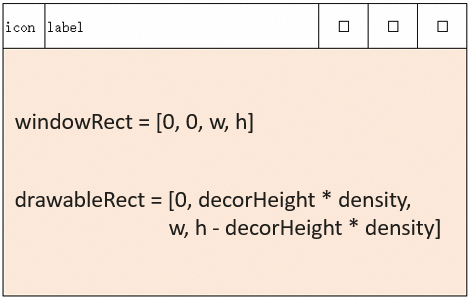
典型场景及对应方案如下:
如果应用页面底部是固定高度的功能按钮,在计算底部功能按钮位置时,若只用窗口高度减去底部功能按钮高度,则会导致底部功能按钮向下偏移一个标题栏高度的位置,从而出现显示不全的情况。
有以下三种方式解决以上问题:
-
当应用按照窗口尺寸进行布局时,页面元素的Y轴坐标需额外减去标题栏高度,标题栏高度可通过接口getWindowDecorHeight()获取,单位为vp。
-
通过接口getWindowProperties()获取窗口内的可绘制区域尺寸进行布局。
-
通过接口setWindowDecorVisible()隐藏标题栏,实现自由窗口的沉浸式布局。
窗口三键是指窗口右上角的窗口最大化/还原、窗口最小化和关闭窗口三个按钮。
如果应用希望在窗口内有更大的可绘制区域,可以通过隐藏标题栏,并适配窗口三键的位置和尺寸。
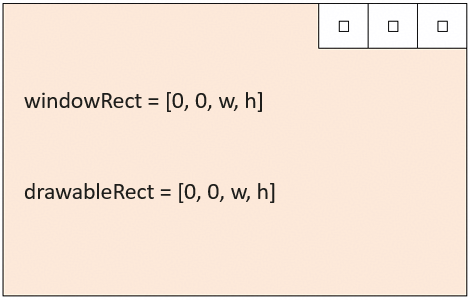
典型场景及对应方案如下:
应用在页面顶部绘制与窗口三键并排的自定义工具栏或者是页签栏,可以按以下步骤进行适配。
-
通过setWindowDecorVisible()接口隐藏标题栏。
-
通过getTitleButtonRect()接口或on('windowTitleButtonRectChange')接口获取到窗口三键的位置和尺寸,在页面顶部元素布局时,去除窗口三键的区域。
 // EntryAbility.ets
 // 示例应用的入口
 import { UIAbility } from '@kit.AbilityKit';
 import { window } from '@kit.ArkUI';
 export default class EntryAbility extends UIAbility {
   onWindowStageCreate(windowStage: window.WindowStage): void {
     windowStage.loadContent('pages/Index', (err) => {
       if (err.code) {
         console.info('Failed to load the content. Cause: %{public}s', JSON.stringify(err));
         return;
       }
       AppStorage.setOrCreate<window.WindowStage>('windowStage', windowStage);
     });
   }
 }
// Index.ets // 示例应用的主页面 import { window } from '@kit.ArkUI'; @Entry @Component struct Index { @State message: string = 'Top layout area, do not hide the title bar.'; private mainWindow: window.Window | null = null; @State private topAreaHeight: number = 50; @State private topAreaWidth: number | string = '100%'; @State private titleButtonRect: window.TitleButtonRect = { right: 0, top: 0, width: 0, height: 0 }; @State private windowSize: window.Size = { width: 0, height: 0 } aboutToAppear(): void { let windowStage = AppStorage.get<window.WindowStage>('windowStage'); if (!windowStage) { return; } this.mainWindow = windowStage.getMainWindowSync(); this.topAreaHeight = this.mainWindow.getWindowDecorHeight(); this.mainWindow.on("windowSizeChange", (data) => { this.windowSize = data; this.topAreaWidth = this.getUIContext().px2vp(this.windowSize.width) - this.titleButtonRect.width; }) } private updateTitleButtonRect(): void { if (!this.mainWindow) { return; } try { let WindowProperties = this.mainWindow.getWindowProperties(); this.windowSize.width = WindowProperties.drawableRect.width; this.titleButtonRect = this.mainWindow.getTitleButtonRect(); this.topAreaHeight = this.titleButtonRect.height; this.topAreaWidth = this.getUIContext().px2vp(this.windowSize.width) - this.titleButtonRect.width; console.info(`titleButtonRect: ${JSON.stringify(this.titleButtonRect)}`); } catch (exception) { console.error(`Failed to get the area of title buttons. Cause code: ${exception.code}, message: ${exception.message}`); } } build() { RelativeContainer() { Row() { Row() { Stack() { Row() { Text(this.message) }.width('100%').height('100%') .justifyContent(FlexAlign.Center) .backgroundColor(Color.Pink) }.position({ x: 0, y: 0 }) .width(this.topAreaWidth) } .position({ x: 0, y: 0 }) .height(this.topAreaHeight) .width('100%') Row() { Button('hide the title bar and avoid the three buttons.') .onClick(() => { if (!this.mainWindow) { return; } this.message = 'Top layout area, hide the title bar and avoid the three buttons.'; this.mainWindow.setWindowDecorVisible(false); this.updateTitleButtonRect(); }) Button('do not hide the title bar.') .onClick(() => { if (!this.mainWindow) { return; } this.message = 'Top layout area, do not hide the title bar.'; this.mainWindow.setWindowDecorVisible(true); this.topAreaHeight = this.mainWindow.getWindowDecorHeight(); this.topAreaWidth = '100%'; }) .margin(20) }.height('50%') .width('100%') .alignItems(VerticalAlign.Center) .justifyContent(FlexAlign.Center) } .height('100%') .width('100%') } .height('100%') .width('100%') } }
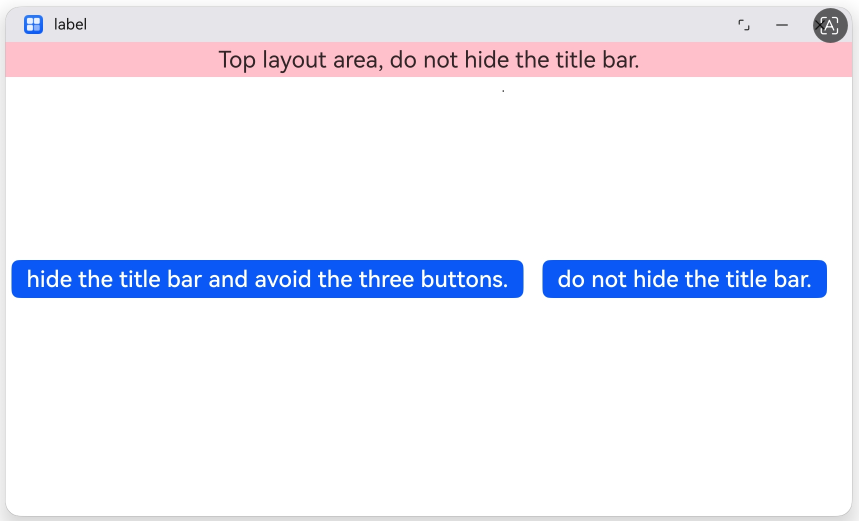
示例代码效果图如下:
下图表示不隐藏标题栏时,应用最顶部的布局区域(粉色区域)只能在标题栏之下。
下图表示隐藏标题栏时,避让窗口三键后,应用最顶部可用于布局的区域(粉色区域)。

自由窗口状态下窗口进入全屏显示
在PC/2in1设备或开启电脑模式的Tablet设备上,点击窗口最大化按钮,窗口默认以最大化显示,且不会自动隐藏标题栏、Dock栏。如果应用需要进入沉浸式全屏显示,隐藏标题栏、Dock栏,则需要进行适配。
典型场景及对应方案如下:
-
对于视频类应用,在自由窗口状态下,部分页面可能需要隐藏Dock栏、标题栏,实现全屏播放视频的效果。
可以在应用界面增加视频全屏按钮,在按钮的onClick事件中调用maximize()接口进入全屏显示。
-
播放PPT时,页面需要隐藏并禁止hover Dock栏、标题栏,以免影响PPT演示效果。
可以在应用界面增加PPT播放按钮,在按钮的onClick事件中调用maximize()接口,传参ENTER_IMMERSIVE_DISABLE_TITLE_AND_DOCK_HOVER进入全屏显示,并禁止hover Dock栏、标题栏。

在进入全屏播放后,如果需要退出全屏播放,有以下两种方式:
-
调用recover()接口将窗口从全屏模式下还原为自由悬浮窗口模式(即窗口模式为window.WindowStatusType.FLOATING),并恢复到进入该模式之前的大小和位置。
-
调用maximize()接口,传参EXIT_IMMERSIVE,将窗口从全屏改变为最大化状态。