After a successful login on a web page, the user can save the user name and password to the Password Vault. When the web page is opened again, the Password Vault can automatically fill in the user name and password.
On a Mobile Phone
The following uses the HUAWEI Developers website as an example:
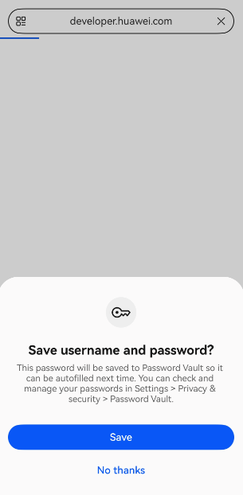
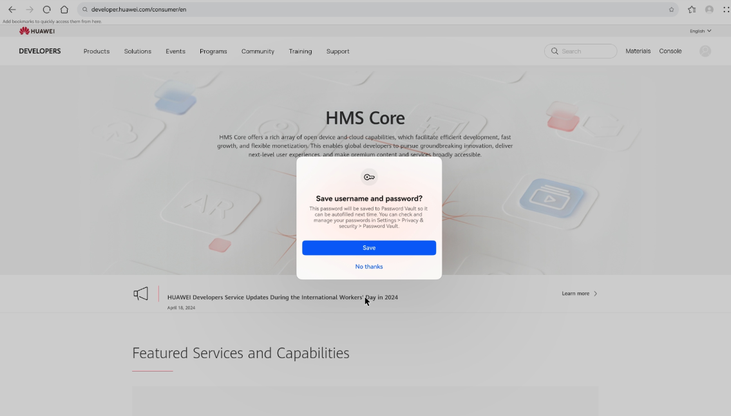
Once the user successfully logs in with their user name and password, ArkWeb prompts the user to save the user name and password to the Password Vault.
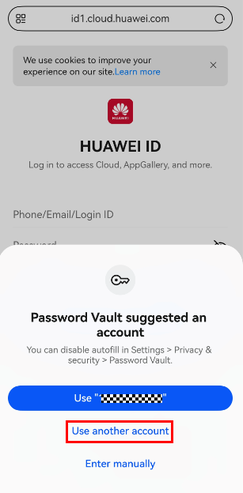
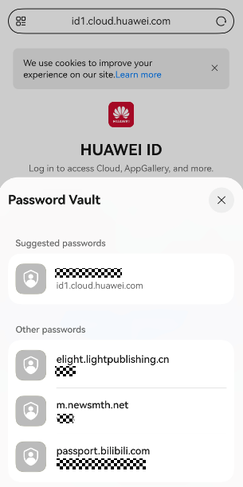
On the next visit to the website, touching the user name or password text box brings up a dialog box, asking the user to log in with a previously saved account.
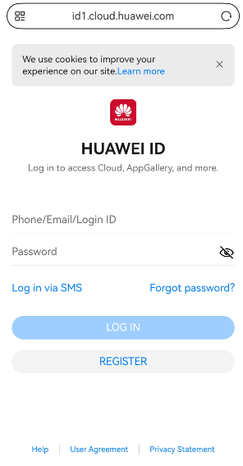
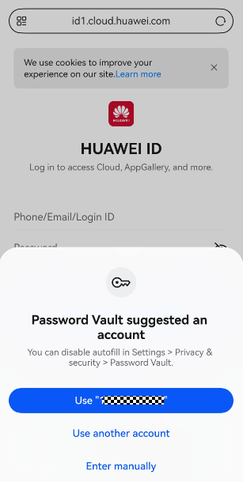
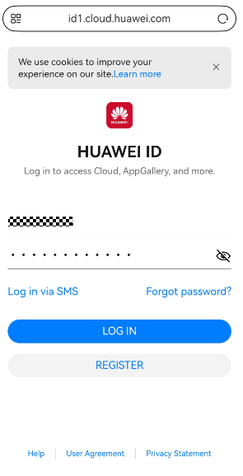
If the user chooses to log in with the suggested account, ArkWeb automatically fills in the previously saved user name and password once the user is authenticated successfully.
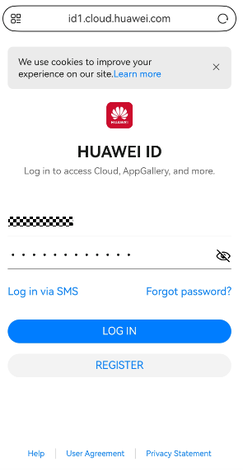
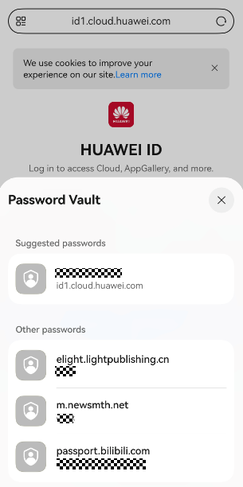
If the user opts for Use another account, they can select another account saved in the Password Vault. After the authentication, the user name and password are entered on the web page.
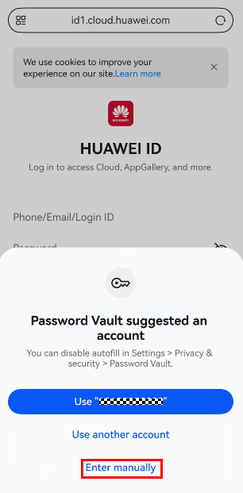
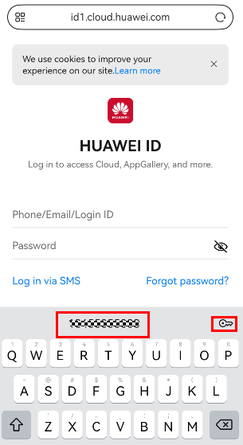
When Enter manually or any place outside the dialog box is touched, the Celia Keyboard is displayed, showing the user name and key icon that can be used to fill in the password.
The user can touch the user name to enter the user name and password on the web page or touch the key icon to select a saved account.
On a 2-in-1 Device
The following uses the HUAWEI Developers website as an example:
Once the user successfully logs in with their user name and password, ArkWeb prompts the user to save the user name and password to the Password Vault.
On the next visit to the website, touching the user name or password text box brings up the Password Vault drop-down list.
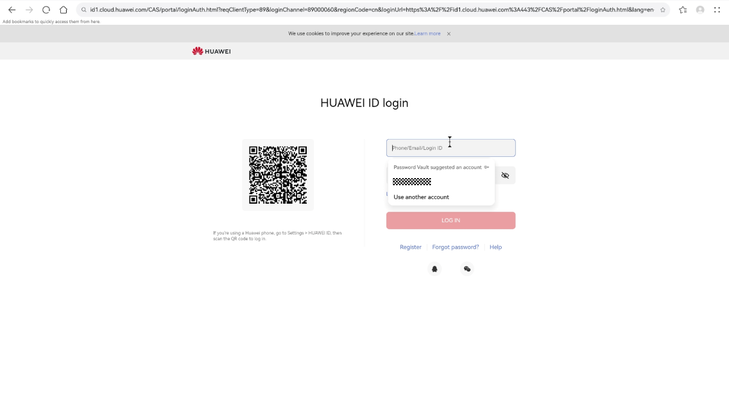
If the user chooses to log in with the suggested account, ArkWeb automatically fills in the previously saved user name and password once the user is authenticated successfully.
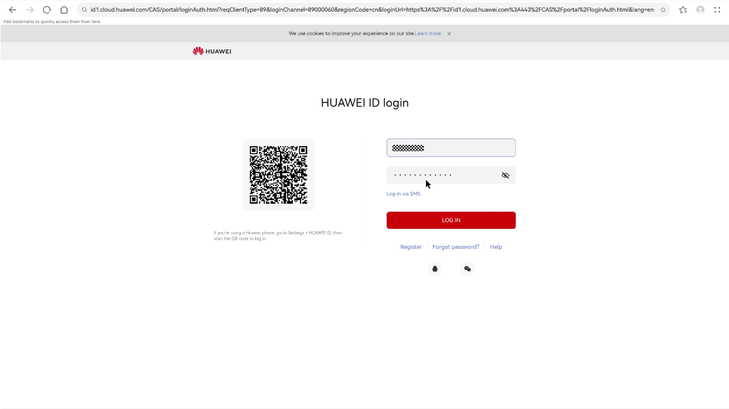
The user can also touch Use another account in the drop-down list to select another account saved in the Password Vault. After the authentication, the user name and password are entered on the web page.
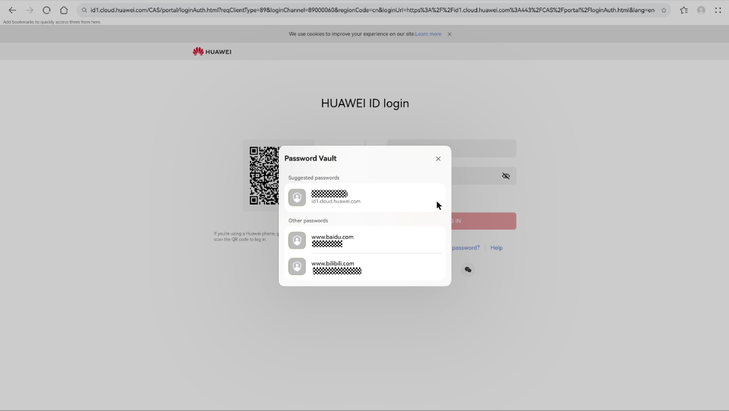
Storage Specifications of Web Page Passwords
After the password form is successfully submitted, ArkWeb triggers page redirection to another page to trigger password saving.
When using ArkWeb to implement HTML5 login in a native application, do not destroy the ArkWeb instance immediately after successful login. Otherwise, the system will not be able to prompt users to save the password.
Specifications of the Web Page Password Form
ArkWeb uses the Chromium intelligent algorithm to automatically identify user names and passwords on web pages. The algorithm has certain restrictions on the design of the user name and password form.
[h2]Recommended Password Login Form
Use static login pages or login form elements instead of dynamically inserting form elements such as <form> and <input> to pages using JS scripts.
Use the <input> element to implement the user name and password text boxes and integrate them into the same <form> element. By default, the user name and password text boxes are editable, and the login scenario has exactly one <input> element whose type is "password" .
Logins are triggered by buttons, and a successful login should bring up a new page.
The username box carries the autocomplete="username" and id or name attributes, and the following recommended values are used, which facilitates the algorithm to infer the username element.
const char* const kUsernameLatin[] = {
    "gatti",      "uzantonomo",   "solonanarana",    "nombredeusuario",
    "olumulo",    "nomenusoris",  "enwdefnyddiwr",   "nomdutilisateur",
    "lolowera",   "notandanafn",  "nomedeusuario",   "vartotojovardas",
    "username",   "ahanjirimara", "gebruikersnaam",  "numedeutilizator",
    "brugernavn", "benotzernumm", "jinalamtumiaji",  "erabiltzaileizena",
    "brukernavn", "benutzername", "sunanmaiamfani",  "foydalanuvchinomi",
    "mosebedisi", "kasutajanimi", "ainmcleachdaidh", "igamalomsebenzisi",
    "nomdusuari", "lomsebenzisi", "jenengpanganggo", "ingoakaiwhakamahi",
    "nomeutente", "namapengguna"};

const char* const kUserLatin[] = {
    "user",   "wosuta",   "gebruiker",  "utilizator",
    "usor",   "notandi",  "gumagamit",  "vartotojas",
    "fammi",  "olumulo",  "maiamfani",  "cleachdaidh",
    "utent",  "pemakai",  "mpampiasa",  "umsebenzisi",
    "bruger", "usuario",  "panganggo",  "utilisateur",
    "bruker", "benotzer", "uporabnik",  "doutilizador",
    "numake", "benutzer", "covneegsiv", "erabiltzaile",
    "usuari", "kasutaja", "defnyddiwr", "kaiwhakamahi",
    "utente", "korisnik", "mosebedisi", "foydalanuvchi",
    "uzanto", "pengguna", "mushandisi"};

const char* const kUsernameNonLatin[] = {
 "用户名", "کاتيجونالو", "用户名", "የተጠቃሚስም",
 "логин", "اسمالمستخدم", "נאמען", "کاصارفکانام",
 "ユーザ名", "όνομα χρήστη", "brûkersnamme", "корисничкоиме",
 "nonitilizatè", "корисничкоиме", "ngaranpamaké", "ຊື່ຜູ້ໃຊ້",
 "användarnamn", "యూజర్పేరు", "korisničkoime", "пайдаланушыаты",
 "שםמשתמש", "ім'якористувача", "کارننوم", "хэрэглэгчийннэр",
 "nomedeusuário", "имяпользователя", "têntruynhập", "பயனர்பெயர்",
 "ainmúsáideora", "ชื่อผู้ใช้", "사용자이름", "імякарыстальніка", "lietotājvārds",
 "потребителскоиме", "uporabniškoime", "колдонуучунунаты", "kullanıcıadı",
 "පරිශීලකනාමය", "istifadəçiadı", "օգտագործողիանունը", "navêbikarhêner", "ಬಳಕೆದಾರಹೆಸರು",
 "emriipërdoruesit", "वापरकर्तानाव", "käyttäjätunnus", "વપરાશકર્તાનામ", "felhasználónév",
 "उपयोगकर्तानाम", "nazwaużytkownika", "ഉപയോക്തൃനാമം", "სახელი", "အသုံးပြုသူအမည်",
 "نامکاربری", "प्रयोगकर्तानाम", "uživatelskéjméno", "ব্যবহারকারীরনাম",
 "užívateľskémeno", "ឈ្មោះអ្នកប្រើប្រាស់"};

const char* const kUserNonLatin[] = {
 "用户", "użytkownik", "tagatafaʻaaogā", "دکارونکيعکس",
 "用戶", "užívateľ", "корисник", "карыстальнік",
 "brûker", "kullanıcı", "истифода", "អ្នកប្រើ",
 "ọrụ", "ተጠቃሚ", "באַניצער", "хэрэглэгчийн",
 "يوزر", "istifadəçi", "ຜູ້ໃຊ້", "пользователь",
 "صارف", "meahoʻohana", "потребител", "वापरकर्ता",
 "uživatel", "ユーザー", "מִשׁתַמֵשׁ", "ผู้ใช้งาน",
 "사용자", "bikaranîvan", "колдонуучу", "વપરાશકર્તા",
 "përdorues", "ngườidùng", "корисникот", "उपयोगकर्ता",
 "itilizatè", "χρήστης", "користувач", "օգտվողիանձնագիրը",
 "használó", "faoiúsáideoir", "შესახებ", "ব্যবহারকারী",
 "lietotājs", "பயனர்", "ಬಳಕೆದಾರ", "ഉപയോക്താവ്",
 "کاربر", "యూజర్", "පරිශීලක", "प्रयोगकर्ता", "användare",
 "المستعمل", "пайдаланушы", "အသုံးပြုသူကို", "käyttäjä"};

const char* const kTechnicalWords[] = {
    "uid",         "newtel",     "uaccount",   "regaccount",  "ureg",
    "loginid",     "laddress",   "accountreg", "regid",       "regname",
    "loginname",   "membername", "uname",      "ucreate",     "loginmail",
    "accountname", "umail",      "loginreg",   "accountid",   "loginaccount",
    "ulogin",      "regemail",   "newmobile",  "accountlogin"};

const char* const kWeakWords[] = {"id", "login", "mail"};
In the login scenario, the password text box carries the autocomplete="current-password" attribute.
Set the password text box immediately next to the user name text box. Do not insert other <input> elements (including invisible ones) between them.
If the user name and password text boxes are invisible on the static page, ensure that they exist on the static page instead of inserting the password form during page redirection.
Example 1:

Example 2:
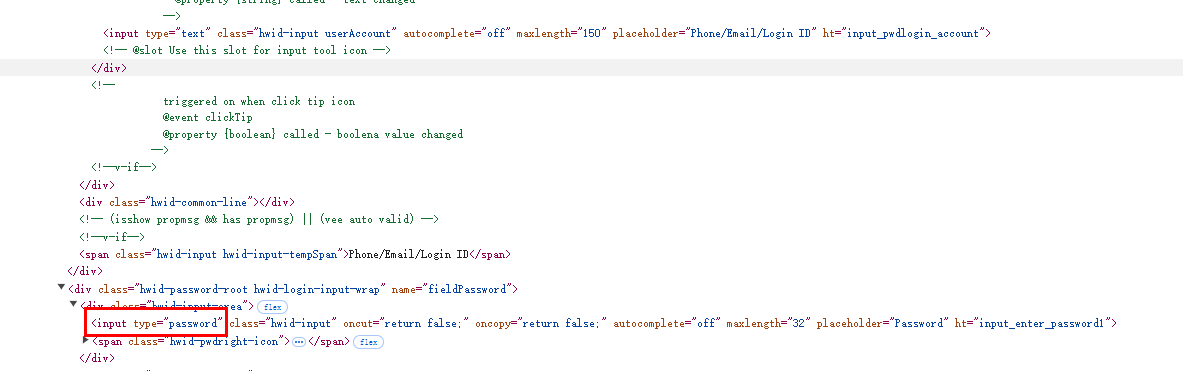
[h2]Password Login Form Types That Do Not Support Automatic Filling
The initial page does not contain the user name and password form element. After the login page is displayed, a user name and password form of the non- <form> type is added.
The password text box carries the autocomplete="new-password" attribute.
The user name and verification code text boxes carry the type="number" attribute. No password text box is provided.
There is an <input> element between the user name and password text boxes. As a result, the user name element inferred by the algorithm does not meet the user expectation.
The focused state or value of the <input> element is changed on the web page using a javascript script.
The following password type identifiers are matched in the id, name, and label of the user name <input> element:
const char* const kNegativeLatin[] = {
    "pin",    "parola",   "wagwoord",   "wachtwoord",
    "fake",   "parole",   "givenname",  "achinsinsi",
    "token",  "parool",   "firstname",  "facalfaire",
    "fname",  "lozinka",  "pasahitza",  "focalfaire",
    "lname",  "passord",  "pasiwedhi",  "iphasiwedi",
    "geslo",  "huahuna",  "passwuert",  "katalaluan",
    "heslo",  "fullname", "phasewete",  "adgangskode",
    "parol",  "optional", "wachtwurd",  "contrasenya",
    "sandi",  "lastname", "cyfrinair",  "contrasinal",
    "senha",  "kupuhipa", "katasandi",  "kalmarsirri",
    "password", "loluszais",  "tenimiafina",
    "second", "passwort", "middlename", "paroladordine",
    "codice", "pasvorto", "familyname", "inomboloyokuvula",
    "modpas", "salasana", "motdepasse", "numeraeleiloaesesi",
    "captcha"};

const char* const kNegativeNonLatin[] = {
    "fjalëkalim", "የይለፍቃል", "كلمهالسر", "գաղտնաբառ",
    "пароль", "পাসওয়ার্ড", "парола", "密码", "密碼",
    "დაგავიწყდათ", "κωδικόςπρόσβασης", "પાસવર્ડ", "סיסמה",
    "पासवर्ड", "jelszó", "lykilorð", "paswọọdụ",
    "パスワード", "ಪಾಸ್ವರ್ಡ್", "пароль", "ការពាក្យសម្ងាត់",
    "암호", "şîfre", "купуясөз", "ລະຫັດຜ່ານ",
    "slaptažodis", "лозинка", "पासवर्ड", "нууцүг",
    "စကားဝှက်ကို", "पासवर्ड", "رمز", "کلمهعبور",
    "hasło", "пароль", "лозинка", "پاسورڊ",
    "මුරපදය", "contraseña", "lösenord", "гузарвожа",
    "கடவுச்சொல்", "పాస్వర్డ్", "รหัสผ่าน", "пароль",
    "پاسورڈ", "mậtkhẩu", "פּאַראָל", "ọrọigbaniwọle"};
In the <input> element of the user name, the value of autocomplete is "one-time-code" or "cc-*" , or the regular expression of the id and name attributes can match the following one-time-code or credit card identifier:
inline constexpr char16_t kOneTimePwdRe[] =
    u"one.?time|sms.?(code|token|password|pwd|pass)";

inline constexpr char16_t kCardCvcRe[] =
    u"verification|card.?identification|security.?code|card.?code"
    u"|security.?value"
    u"|security.?number|card.?pin|c-v-v"
    u"|código de segurança"  // pt-BR
    u"|código de seguridad"  // es-MX
    u"|karten.?prüfn"        // de-DE
    u"|(?:cvn|cvv|cvc|csc|cvd|ccv)"
    // We used to match "cid", but it is a substring of "cidade" (Portuguese for
    // "city") and needs to be handled carefully.
    u"|\\bcid\\b|cccid";
After the page is loaded, the type attribute of <input> is changed to "password" only after the login button is touched.