Sandbox testing allows you to simulate virtual payments for orders during the testing phase of IAP Kit integration.
You are advised to use sandbox testing to debug your virtual products while they are still in draft or pre-submission state, before you submit them for official review. By setting up sandbox test accounts, you can simulate real-world virtual product transactions. This allows you to identify and fix any issues during testing, ensuring a stable and smooth purchase experience for users once your products go live.

Sandbox orders are not real transactions and cannot be found in Developer center > My reports > HUAWEI IAP.
Preparing for Sandbox Testing
-
Adding test accounts
Before the test, you need to add test accounts in Users and permissions in AppGallery Connect. These test accounts must be real HUAWEI IDs. Before performing tests in the IAP Kit sandbox environment on a device, sign in to the device with the test account already added. To add a test account, do as follows:
-
Sign in to AppGallery Connect and click Users and permissions.
-
Go to Sandbox > Test accounts and click Add.

-
Specify test account information and click OK.
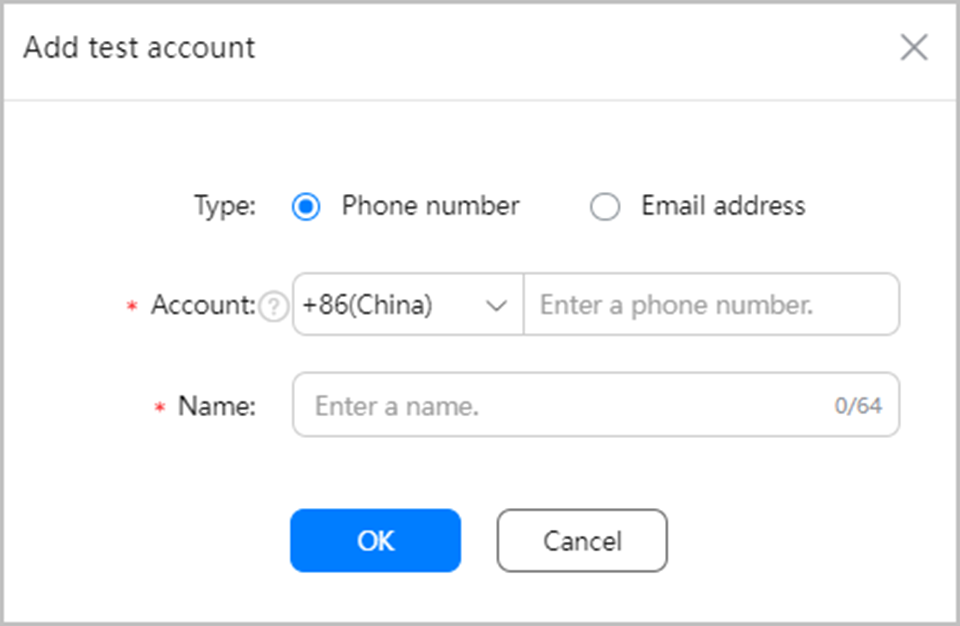

It takes 5 to 10 minutes for the configuration to take effect.
-
-
Building an app with a debug signature
Sandbox testing is available only for the app with a debug signature. To build a debug-signature app, perform the following steps:
-
Manual signing: You need to apply for a debug certificate in AGC, register a debug device, apply for a debug profile, and then perform manual signing.
-
Troubleshooting Sandbox Access Issues
If you fail to access the sandbox, please refer to Preparing for Sandbox Testing to check the following items:
-
Check whether a test account has been added in AppGallery Connect.
-
Whether the app has a debug signature.
Besides, you can also use the isSandboxActivated API within your app to figure out why the sandbox environment does not work.
Testing Consumable or Non-consumable Purchases
During sandbox testing, the createPurchase API is called to bring up the checkout screen. Users go through the standard purchase process, but no actual charges will be incurred.
-
The purchasing process in the sandbox environment mirrors that of the production environment, requiring users to bind a payment method. However, no actual charges will be incurred during this process.
-
In the receipt information PurchaseOrderPayload of a successful payment, an environment field with the value SANDBOX will be included to indicate that this payment happens in the sandbox environment.
-
In the sandbox environment, after a non-consumable is purchased, your app needs to acknowledge the delivery. Then, the non-consumable can be purchased again for testing purposes. After the delivery is acknowledged, the order cannot be queried through the queryPurchases API.
-
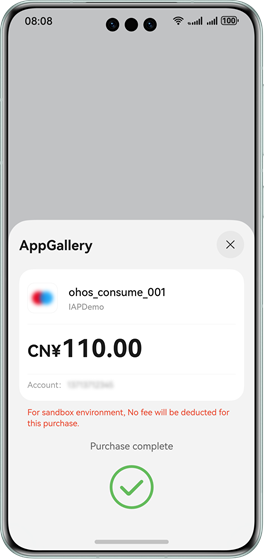
A sandbox testing reminder will be displayed on the checkout screen and also the result screen, as shown in the figures below.

If the screens in the following figures are not displayed, it means this transaction is not in the sandbox environment, and further testing will incur real charges. Refer to Troubleshooting Sandbox Access Issues for a self-check.

Testing Auto-renewable Subscriptions
The purchase process of auto-renewable subscriptions is similar to that of consumables and non-consumables. However, subscriptions introduce complexities like renewal result (successful or failed) and billing cycle. To help you test your app's subscription features faster, we have added a "time machine" in the sandbox environment. This makes subscription renewals happen much quicker. In the sandbox, 10 seconds is like a whole day in real life. For example, for a weekly subscription, the renewal will occur 70 seconds after the initial purchase is successful.
-
The subscription process in the sandbox environment mirrors that of the production environment, requiring users to bind a payment method. However, no actual charges will be incurred during this process.
-
In the receipt information PurchaseOrderPayload of a successful payment, an environment field with the value SANDBOX will be included to indicate that this payment happens in the sandbox environment.
-
Auto-renewal processing does not require actual payment, and IAP Kit will return a success result directly.
-
In the sandbox testing environment, once the user initiates the first subscription cycle, the system will automatically renew it five more times (six cycles in total). After that, the user must manually resume the subscription. If a promotional offer is involved, the system will first complete auto-renewals for the promotional period, then proceed with the standard six-cycle renewal. In this case, the total number of renewals equals the number of promotional cycles plus six.
-
A sandbox testing reminder will be displayed on the checkout screen and also the result screen, as shown in the figures below.


Testing Non-renewable Subscriptions
During sandbox testing, the createPurchase API is called to bring up the checkout screen. Users go through the standard purchase process, but no actual charges will be incurred.
-
The purchasing process in the sandbox environment mirrors that of the production environment, requiring users to bind a payment method. However, no actual charges will be incurred during this process.
-
In the receipt information PurchaseOrderPayload of a successful payment, an environment field with the value SANDBOX will be included to indicate that this payment happens in the sandbox environment.
-
A sandbox testing reminder will be displayed on the checkout screen and also the result screen, as shown in the figures below.


Testing Refund Requests
You can use a sandbox account to submit a refund request for an order generated in the sandbox environment. For this refund request, the IAP server will automatically skip the refund review and also the payment refunding to the original payment method (as no actual charges are made in the sandbox environment). The IAP server will automatically approve the refund request by default in the sandbox environment and simultaneously send a refund success event notification to your server. Upon receiving this notification, you can test scenarios such as in-app benefits revocation.
To test a refund request, proceed as follows:
-
Purchase a product with a sandbox account in the app's sandbox environment. A sandbox order is automatically created under Settings > HUAWEI ID > Payment & purchases > Purchase history on the test device.
-
Tap the sandbox order whose refund request is to be tested. Then, on the Details screen, tap Report issue.

-
On the Report issue screen, tap Request refund, select a reason, fill in necessary information, and tap Submit.


-
After the refund request is submitted, the IAP server skips both the refund review and the payment refunding to the original payment method. The IAP server then automatically approves the refund request and simultaneously sends a refund success event notification (NotificationSubtype: REFUND_TRANSACTION) to your server. If you have configured the address of the sandbox environment server, the notification will be sent to this server. For details, please refer to Activating the In-App Purchases Service and Configuring Event Notifications.
-
After receiving the refund success event notification, you can simulate in-app operations like revoking benefits for the involved sandbox account in the sandbox environment for testing purposes.
Clearing the Purchase History of a Sandbox Account
You can clear the purchase history of a sandbox account for a fresh start of more testing. Clearing the purchase history indicates that all purchase records (including auto-renewable subscriptions, consumables, and non-consumables) generated by the test account in the sandbox environment will be deleted. Then, the account can purchase auto-renewable subscriptions, consumables, and non-consumables in the sandbox environment again. The operation of clearing the purchase history cannot be undone. This operation does not affect data in the production environment.
Here are the steps to clear the purchase history of a sandbox account:
-
Sign in to AppGallery Connect and click Users and permissions.

-
In the navigation pane on the left, choose Sandbox > Test accounts, select a test account, and click Clear purchase history in the upper right corner.

-
In the dialog box that is displayed, click OK. The purchase history of this account in the sandbox environment will be cleared, and this operation cannot be undone. If this account has a significant purchase history, the process of clearing its purchase history could be time-consuming.

Testing the Scenario Where a Product Purchase Fails
When the sandbox testing conditions are met, call the createPurchase API to bring up the checkout screen. If the configuration for interrupting your test account's purchase flow is enabled, you will be blocked right after confirming an order. This is useful for you to test how your app's error handling for failed purchases. To simulate a purchase failure, follow these steps:
-
In AppGallery Connect, enable the configuration for interrupting your test account's purchase flow.

If you have changed the configuration for interrupting your test account's purchase flow, wait 3 to 5 minutes before placing an order to make sure that the configuration actually takes effect.
-
Try purchasing a consumable, non-consumable, non-renewable subscription, or auto-renewable subscription. The checkout screen is displayed as expected.
-
After confirming the purchase, you will see a message indicating that the service is unavailable and try again later, and your app will receive error 1001860056 indicating that the transaction is rejected.

If the purchase result is different from what is expected, wait 1 minute and try again.
Testing the Scenario Where a Subscription Auto-Renewal Fails
When the sandbox testing conditions are met and your test account has already purchased an auto-renewable subscription, you can simulate a failed renewal. To do this, first enable the configuration for interrupting your test account's purchase flow in AppGallery Connect. When the test account's subscription repeatedly fails to renew, the subscription will eventually expire. At this point, the IAP server will send a notification to your app server indicating the subscription has expired. Upon receiving this expiry event notification, you can test scenarios like revoking in-app benefits.
To simulate a subscription auto-renewal failure, follow these steps:
-
Try purchasing an auto-renewable subscription.
-
In AppGallery Connect, enable the configuration for interrupting your test account's purchase flow.

If you have changed the configuration for interrupting your test account's purchase flow, wait 3 to 5 minutes before placing an order to make sure that the configuration actually takes effect.
-
On the test device, go to Settings > HUAWEI ID > Payment and purchases > Subscriptions and check the details of the subscription mentioned in the preceding step. You will see a subscription auto-renewable exception message.