An audio playback application must notice audio stream state changes and perform corresponding operations. For example, when detecting that an audio stream is being played or paused, the application must change the UI display of the Play button.
The examples in each of the following steps are code snippets. You can click the link at the bottom right of the sample code to obtain the complete sample codes.
Reading or Listening for Audio Stream State Changes in the Application
Refer to Using AudioRenderer for Audio Playback (ArkTS) or audio.createAudioRenderer to create an AudioRenderer, and then use either of the following methods to check audio stream state changes.
-
Obtain the property state of the AudioRenderer.
import { audio } from '@kit.AudioKit'; // ... let audioRendererState: audio.AudioState = audioRenderer.state; console.info(`Current state is: ${audioRendererState}`); -
Register stateChange to listen for state changes of the AudioRenderer.
import { audio } from '@kit.AudioKit';
// ...
    audioRenderer.on('stateChange', (rendererState: audio.AudioState) => {
      console.info(`Succeeded in using on function, state change to: ${rendererState}`);
      // ...
    });
The application then performs an operation, for example, changing the display of the Play button, by comparing the obtained state with AudioState.
Reading or Listening for Changes in All Audio Streams
If an application needs to obtain the change information about all audio streams, it can use AudioStreamManager to read or listen for the changes of all audio streams.
The figure below shows the call relationship of audio stream management.
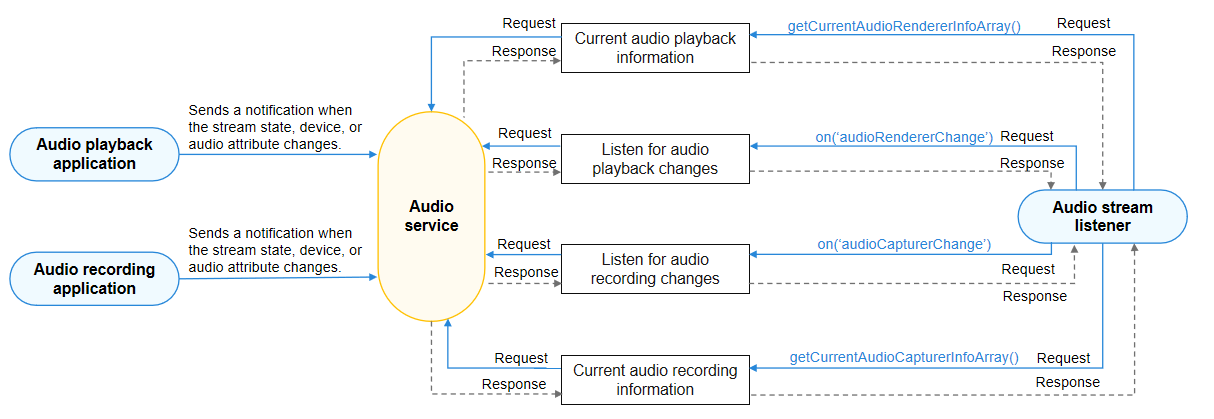
During application development, you must call getStreamManager to create an AudioStreamManager instance, through which you can manage audio streams.
For details about the APIs, see AudioStreamManager.
How to Develop
-
Create an AudioStreamManager instance.
import { audio } from '@kit.AudioKit'; // ... let audioManager = audio.getAudioManager(); // ... let audioStreamManager = audioManager.getStreamManager(); -
Use on('audioRendererChange') to listen for audio playback stream changes. If the application needs to receive a notification when the audio playback stream state or device changes, it can subscribe to this event.
import { audio } from '@kit.AudioKit'; // ... audioStreamManager.on('audioRendererChange', (audioRendererChangeInfoArray: audio.AudioRendererChangeInfoArray) => { console.info(`Succeeded in using on function. AudioRendererChangeInfoArray: ${JSON.stringify(audioRendererChangeInfoArray)}`); globalLogUpdate(`Succeeded in using on function. AudioRendererChangeInfoArray: ${JSON.stringify(audioRendererChangeInfoArray)}`, false); }); -
(Optional) Use off('audioRendererChange') to cancel listening for audio playback stream changes.
audioStreamManager.off('audioRendererChange'); console.info('Succeeded in using off function.'); -
(Optional) Use getCurrentAudioRendererInfoArray to obtain the information about all audio playback streams. This API can be used to obtain the unique ID of the audio playback stream, audio renderer information, and audio playback device information.

An app that listens for all audio stream state changes must declare the permission ohos.permission.USE_BLUETOOTH. Otherwise, the actual device name and device address cannot be obtained, and the queried device name and device address (Bluetooth device attributes) will be empty strings.
import { audio } from '@kit.AudioKit';
// ...
import { BusinessError } from '@kit.BasicServicesKit';
// ...
async function getCurrentAudioRendererInfoArray(): Promise<void> {
  await audioStreamManager.getCurrentAudioRendererInfoArray()
    .then((audioRendererChangeInfoArray: audio.AudioRendererChangeInfoArray) => {
      console.info(`Succeeded in getting current audio renderer info array. AudioRendererChangeInfoArray: ${JSON.stringify(audioRendererChangeInfoArray)}`);
      globalLogUpdate(`Succeeded in getting current audio renderer info array. AudioRendererChangeInfoArray: ${JSON.stringify(audioRendererChangeInfoArray)}`, false);
    }).catch((err: BusinessError ) => {
      console.error(`Failed to get current audio renderer info array. Code: ${err.code}, message: ${err.message}`);
      // ...
    });
}