The <image> component is used to render and display images. For details, see image.
Creating an <image> Component
Create an <image> component in the .hml file under pages/index.
<!-- index.hml -->
<div class="container">
  <image style="height: 30%;" src="common/images/bg-tv.jpg"> </image>
</div>
/* xxx.css */
.container {
  width: 100%;
  height: 100%;
  flex-direction: column;
  justify-content: center;
  align-items: center;
  background-color: #F1F3F5;
} 
Setting the Image Style
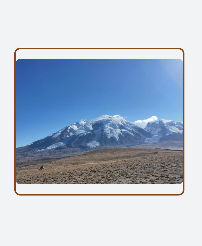
Set the width, height, and object-fit attributes to define the width, height, and scale type of the image.
<!-- index.hml -->
<div class="container">
  <image src="common/images/bg-tv.jpg"> </image>
</div>
/* xxx.css */
.container {
  width: 100%;
  height: 100%;
  flex-direction: column;
  align-items: center;
  justify-content: center;
  background-color:#F1F3F5;
}
image{
  width: 80%;
  height: 500px;
  border: 5px solid saddlebrown;
  border-radius: 20px;
  object-fit: contain;
  match-text-direction:true;
} 
Loading the Image
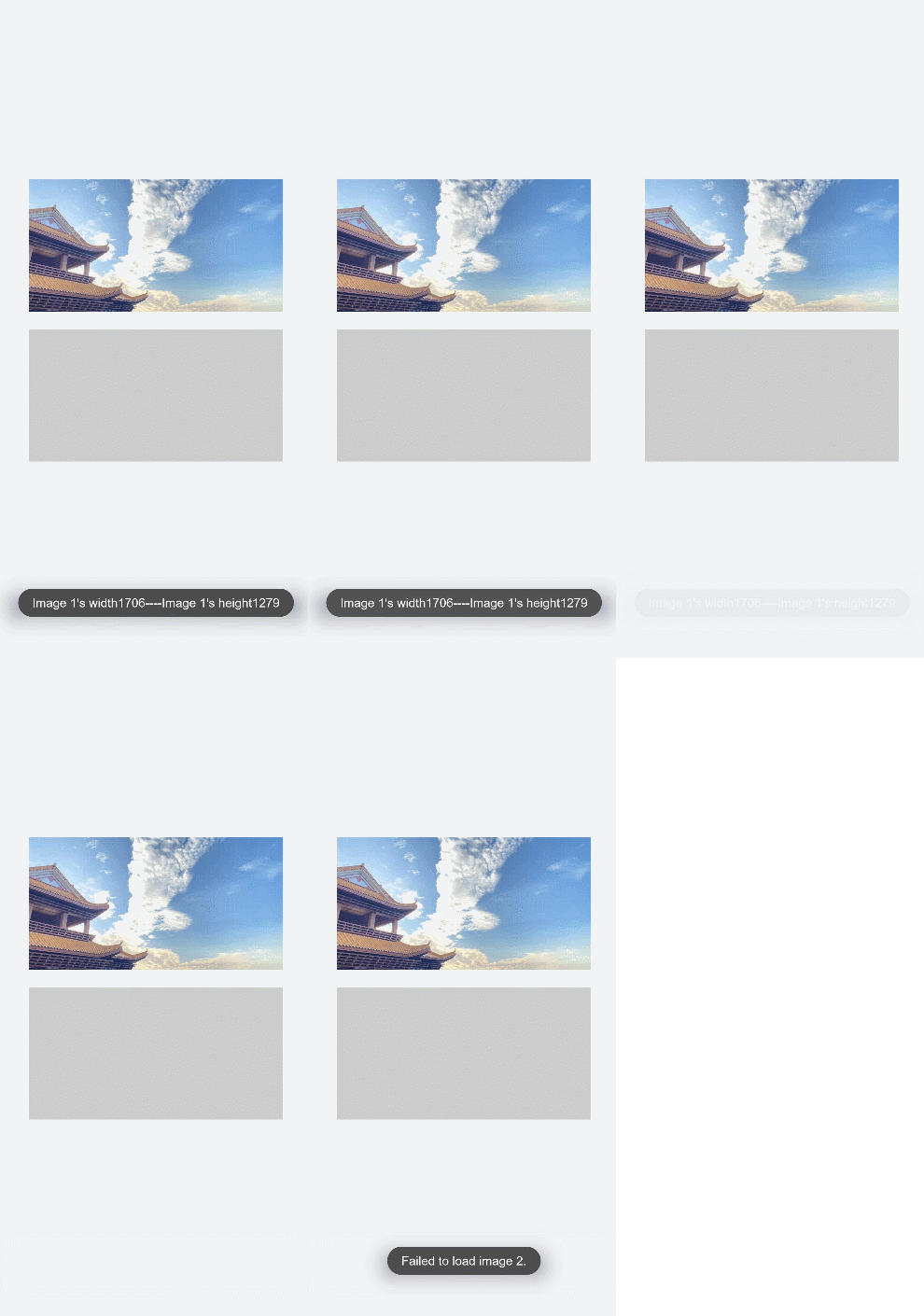
When the image is successfully loaded, the complete event is triggered, and the loaded image is returned. If an exception occurs during image loading, the error event is triggered, and the image loading failure log is printed.
<!-- index.hml -->
<div class="container" >
  <div>
    <image src="common/images/bg-tv.jpg" oncomplete="imageComplete(1)" onerror="imageError(1)"> </image>
  </div>
  <div>
    <image src="common/images/bg-tv1.jpg" oncomplete="imageComplete(2)" onerror="imageError(2)"> </image>
  </div>
</div>
/* xxx.css */
.container{
width: 100%;
height: 100%;
flex-direction: column;
justify-content: center;
align-self: center;
background-color: #F1F3F5;
}
.container div{
margin-left: 10%;
width: 80%;
height: 300px;
margin-bottom: 40px;
} // index.js
import promptAction from '@ohos.promptAction';
export default {
imageComplete(i,e){
promptAction.showToast({
message: "image "+i+"'s width"+ e.width+"----image "+i+"'s height"+e.height,
duration: 3000,
})
},
imageError(i,e){
setTimeout(()=>{
promptAction.showToast({
message: "Failed to load image "+i+".",
duration: 3000,
})
},3000)
}
} 
Example Scenario
In this scenario, after the developer long presses the image, the image is gradually hidden, and once it is fully hidden, the original image is displayed again. The timer setInterval changes the image opacity at intervals to achieve the gradual hiding effect. When the opacity reaches 0, the timer is cleared and the opacity is set to 1.
<!-- index.hml -->
<div class="page-container">
  <div class="content">
    <div class="image-container">
      <image class="testimage" src="{{testuri}}" style="opacity:{{imageopacity}};" onlongpress="changeopacity"> </image>
    </div>
    <div class="text-container">
      <text style="font-size: 37px;font-weight:bold;color:orange;text-align: center;width: 100%;">Touch and hold the image</text>
    </div>
  </div>
</div>
/* xxx.css */
.page-container {
width: 100%;
height: 100%;
flex-direction:column;
align-self: center;
justify-content: center;
background-color:#F1F3F5;
background-color: #F1F3F5;
}
.content{
flex-direction:column;
}
.image-container {
width: 100%;
height: 300px;
align-items: center;
justify-content: center;
}
.text-container {
margin-top:50px;
width: 100%;
height: 60px;
flex-direction: row;
justify-content: space-between;
}
.testimage {
width: 100%; height: 400px;
object-fit: scale-down;
border-radius: 20px;
} // index.js
import promptAction from '@ohos.promptAction';
export default {
data: {
testuri: 'common/images/bg-tv.jpg',
imageopacity:1,
timer: null
},
changeopacity: function () {
promptAction.showToast({
message: 'Touch and hold the image.'
})
var opval = this.imageopacity * 20
clearInterval(this.timer);
this.timer = setInterval(()=>{
opval--;
this.imageopacity = opval / 20
if (opval===0) {
clearInterval(this.timer)
this.imageopacity = 1
}
},100);
}
}