Overview
Network Kit provides comprehensive network information query and connection management functions, including retrieving network types, checking network availability, listening for network state changes, and querying Wi-Fi and cellular network information. These functions allow you to adapt flexibly to complex and dynamic network environments and deliver targeted solutions for diverse use cases, significantly enhancing users' network experience.
[h2]Description
In specific service scenarios such as enterprise or campus intranets, apps must connect to dedicated servers through designated networks to obtain critical data. A failure to connect to the designated network will disrupt network configuration, block authentication, or prevent access to core resources, thereby interrupting the service workflow.
This section provides an example that demonstrates how to connect to the specified Wi-Fi network. This example implements the following functions:
- Determining whether the device is already connected to the specified Wi-Fi network
- Obtaining the list of the Wi-Fi networks scanned by the system
- Tapping a Wi-Fi network on the list to establish a connection
Figure 1 Connecting to a specified network

[h2]Solution
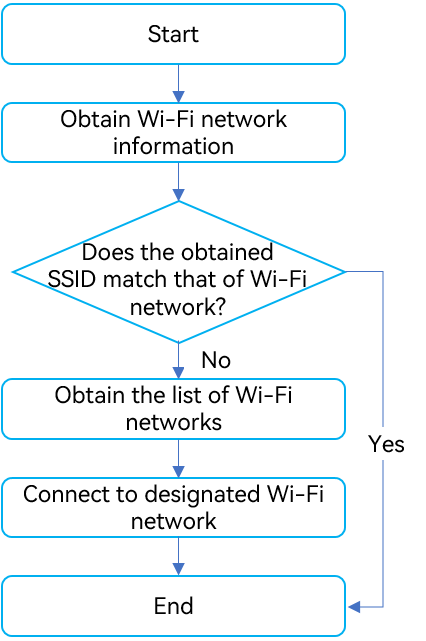
Connecting to a specified Wi-Fi network is implemented by using APIs of the @ohos.wifiManager (WLAN) module and the @ohos.net.connection module. The @ohos.wifiManager module provides functions such as checking whether Wi-Fi is enabled, obtaining the Wi-Fi list, and initiating a connection to the specified Wi-Fi network. The @ohos.net.connection module provides functions such as detecting network connectivity and determining whether login authentication (such as Portal authentication) is required for network access. The flowchart is as follows.
[h2]Development Procedure
Declare the required network permissions.
Before performing network-related operations, declare the required permissions in the module.json5 configuration file of the app. The permissions involved include:
ohos.permission.GET_NETWORK_INFO: used to obtain network information, such as the default network and network type.
ohos.permission.GET_WIFI_INFO: used to obtain Wi-Fi information, such as whether Wi-Fi is enabled and the Wi-Fi list.
ohos.permission.SET_WIFI_INFO: used to perform Wi-Fi connection operations.
ohos.permission.INTERNET: used to access the Internet.
{
  "module": {
    // ...
    "requestPermissions": [
      {
        "name": "ohos.permission.INTERNET",
        // ...
      },
      {
        "name": "ohos.permission.GET_NETWORK_INFO",
        // ...
      },
      {
        "name": "ohos.permission.SET_WIFI_INFO",
        // ...
      },
      {
        "name": "ohos.permission.GET_WIFI_INFO",
        // ...
      },
      // ...
    ]
  }
}
Obtain Wi-Fi information, and check whether the device is already connected to a specified Wi-Fi network.
Use the getDefaultNetSync() API to check whether the default network is connected, and use the getNetCapabilitiesSync() method to obtain the type of the default network. If the network type is Wi-Fi, use the getLinkedInfoSync() method to obtain the information about the connected Wi-Fi network, including the SSID. Compare the obtained SSID with the SSID of the specified Wi-Fi network. If they match, it indicates that the device is already connected to the specified Wi-Fi network.
checkNetwork(): void {
  try {
    let netHandle = connection.getDefaultNetSync();
    if (netHandle.netId === 0) {
      showToast(this.uiContext, $r('app.string.no_network_tips'));
      return;
    }
    let netCapability = connection.getNetCapabilitiesSync(netHandle);
    let networkCap = netCapability.networkCap || [];
    let bearerTypes: connection.NetBearType[] = netCapability.bearerTypes;
    let isWifi = bearerTypes.includes(connection.NetBearType.BEARER_WIFI);
    if (!isWifi) {
      showToast(this.uiContext, $r('app.string.network_is_not_wifi'));
      return;
    }
    let linkedInfo = wifiManager.getLinkedInfoSync();
    let ssid: string = linkedInfo.ssid;
    if (ssid === TARGET_WIFI_SSID) {
      // ...
    } else {
      showToast(this.uiContext, $r('app.string.not_connected_spec_wifi'));
    }
  } catch (err) {
    let error = err as BusinessError;
    Logger.error(TAG, `checkNetwork err, code: ${error.code}, message: ${error.message}`);
  }
}
The getNetCapabilitiesSync() method is used to obtain the network capability information object, whose networkCap attribute contains the specific network capabilities. If connection.NetCap.NET_CAPABILITY_VALIDATED is present, the device can access the Internet. If connection.NetCap.NET_CAPABILITY_PORTAL is present, the device can access the network only after being authenticated.
if (ssid === TARGET_WIFI_SSID) {
  if (networkCap.includes(connection.NetCap.NET_CAPABILITY_VALIDATED)) {
    showToast(this.uiContext, $r('app.string.connected_to_spec_wifi'));
  } else if (networkCap.includes(connection.NetCap.NET_CAPABILITY_PORTAL)) {
    showToast(this.uiContext, $r('app.string.network_need_auth'));
  } else {
    showToast(this.uiContext, $r('app.string.result_network_unavailable'));
  }
} else {
  showToast(this.uiContext, $r('app.string.not_connected_spec_wifi'));
}
Obtain the list of Wi-Fi networks scanned by the system.
Before obtaining the Wi-Fi list, you need to use the isWifiActive() method to check whether the Wi-Fi function is enabled. If the Wi-Fi function is enabled, you can call the getScanInfoList() method to obtain the nearby Wi-Fi networks scanned by the system and return an array containing information about all scanned Wi-Fi networks. Each element in the array contains detailed Wi-Fi information such as the SSID, encryption type, and signal strength.
getScanList(): void {
  try {
    let isWifiActive = wifiManager.isWifiActive();
    if (!isWifiActive) {
      showToast(this.uiContext, $r('app.string.turn_on_wlan_tips'));
      return;
    }
    this.getLinkedInfo();
    let temp = wifiManager.getScanInfoList();
    if (temp.length > 0) {
      this.scanInfoList = this.uniqueBySsid(temp);
      Logger.info(TAG, `getScanList length: ${this.scanInfoList.length}`);
    }
  } catch (err) {
    let error = err as BusinessError;
    Logger.error(TAG, `getScanList err, code: ${error.code}, message: ${error.message}`);
  }
}
Connect to a specified Wi-Fi network.
First, create a Wi-Fi configuration object that contains the SSID, password, and security type (such as WPA2_PSK) of the Wi-Fi network to be connected. Then, use the addCandidateConfig() method to pass the configuration object to add the candidate network configuration. Then, the connectToCandidateConfig() method is called to initiate a connection request.
connectWifi() {
  let config: wifiManager.WifiDeviceConfig = {
    ssid: this.ssid,
    preSharedKey: this.wifiPassword,
    securityType: this.securityType
  }

  try {
    wifiManager.addCandidateConfig(config).then(result => {
      Logger.info(TAG, `addCandidateConfig success, networkId: ${result}`);
      wifiManager.connectToCandidateConfig(result);
    });
  } catch (err) {
    Logger.error(TAG, `connectWifi error: ${JSON.stringify(err)}`);
  }
}
[h2]Description
This section uses online video playback as an example scenario to demonstrate network state awareness capabilities. It explains how to dynamically adjust video playback behavior upon detecting network state changes to optimize user experience. The following table explains how to enhance video playback experience through network state awareness.
Wi-Fi to cellular transition: When the network switches from Wi-Fi to cellular data, playback is paused immediately and users are notified of the network change to prevent unexpected data charges.
Cellular to Wi-Fi transition: When the network switches from cellular to Wi-Fi, previously paused videos resume automatically, allowing users to continue watching without manual intervention.
Weak network detection: When a weak network condition is detected, users are alerted about poor network quality. Additionally, the system may automatically switch networks based on current network performance.
Network disconnection: When network disconnection is detected, users are prompted to check their network connection to prevent poor user experience caused by sudden video interruption.
[h2]Solution
The implementation of network status awareness is centered on real-time monitoring of network status changes and coordinating adjustments to video playback services. This functionality primarily relies on two modules: @ohos.net.connection (Internet connection management) and netQuality (network quality). This section focuses on network state change detection during video playback scenarios. For detailed video playback implementation, see the sample code. To prevent network fluctuations from affecting playback smoothness, you are advised to implement caching mechanisms.
Network state listening is implemented through the following key APIs:
- on('netCapabilitiesChange'): subscribes to the network capability change event. This event is triggered when the network type is switched (for example, from Wi-Fi to cellular network) or the network status changes from unavailable to available.
- on('netLost'): subscribes to the network loss event. This event is triggered when the network is severely interrupted or disconnected.
- on('netUnavailable'): subscribes to the network unavailability event. This event is triggered when the network is unavailable.
- on('netAvailable'): subscribes to the network availability event, which is triggered when the network is available.
- netQuality.on('netSceneChange'): subscribes to the network status information, for example, when the network environment changes from normal to weak.
The following table demonstrates the video playback experience using network state awareness as an example.
| Network status awareness | Process data |
|---|---|
| Wi-Fi to cellular network switching (network type change) | Pause playback and display a message indicating that the video will consume mobile data if playback continues. |
| Cellular network to Wi-Fi switching (network type change) | Plays the video at the normal speed. |
| Weak network (network capability change) | Display a dialog box indicating poor network conditions. (You can implement the video quality switching functionality, prompting users to lower the video resolution in weak network conditions.) |
| Network disconnection (network capability change) | Display a dialog box indicating that the network is disconnected, and show an error page when video loading fails. |
| Network unavailability (network capability change) | Display a dialog box indicating that the network is unavailable, and show an error page when video loading fails. |
| Network availability (network capability change) | Follow the same processing as network type change. |
[h2]Development Procedure
Subscribe to netAvailable and netUnavailable events.
Use on('netAvailable') to subscribe to the network availability event. When the event is received, check whether the current network can access the Internet. If the Internet access is allowed but the playback fails due to network faults, reset the player and continue to play the video.
import { connection } from '@kit.NetworkKit';this.netCon = connection.createNetConnection(); this.netCon.on('netAvailable', (data: connection.NetHandle) => { Logger.info(TAG, `on netAvailable, Succeeded to get netAvailable: ${JSON.stringify(data)}`); this.isNetAvailable = NetworkUtil.isNetworkAvailable(); this.isCellular = NetworkUtil.isCellular(); if (this.isNetAvailable && this.isPlayError && !this.isCellular) { this.controller.reset(); } });public static isNetworkAvailable(): boolean { try { let netHandle = connection.getDefaultNetSync(); if (netHandle.netId === 0) { return false; } let netCapability = connection.getNetCapabilitiesSync(netHandle); let networkCaps: connection.NetCap[] = netCapability.networkCap || []; return networkCaps.includes(connection.NetCap.NET_CAPABILITY_VALIDATED); } catch (err) { let error = err as BusinessError; Logger.error(TAG, `getNetworkType err, errCode: ${error.code}, error mesage: ${error.message}`); } return false; }Use on('netUnavailable') to subscribe to the network unavailability event. When the network unavailability event is received, a toast message is displayed to notify the user that the network is unavailable.
this.netCon.on('netUnavailable', () => {
  Logger.info(TAG, 'on netUnavailable, Succeeded to get unavailable net event');
  this.isNetAvailable = false;
  showToast(this.uiContext, $r('app.string.result_network_unavailable'));
});
Registers a listener for netCapabilitiesChange events.
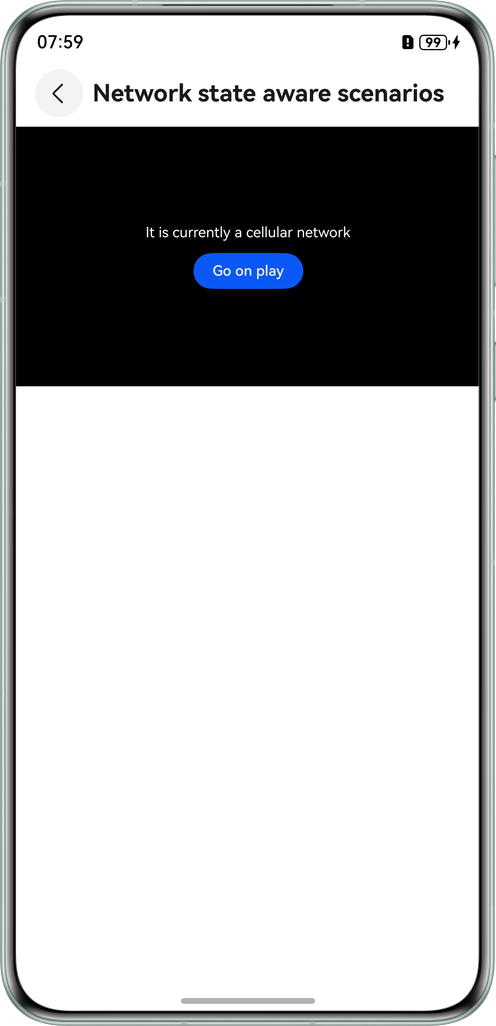
You can use the on('netCapabilitiesChange') method to subscribe to the event notification of Wi-Fi and cellular network switching. When the network is switched to the cellular network, the playback is paused. Otherwise, the video continues to be played.
this.netCon.on('netCapabilitiesChange', (data: connection.NetCapabilityInfo) => {
  Logger.info(TAG, `on netCapabilitiesChange, Succeeded to get netCapabilitiesChange: ${JSON.stringify(data)}`);
  if (data.netCap.bearerTypes.includes(connection.NetBearType.BEARER_CELLULAR)) {
    this.isCellular = true;
    this.isShowController = false;
    this.controller.pause();
    showToast(this.getUIContext(), $r('app.string.current_cellular_tips'))
    this.isShowGoOn = true;
  } else {
    this.isCellular = false;
    this.isShowController = true;
    this.controller.start();
    this.isShowGoOn = false;
  }
});
The following figure shows the video playback effect after the Wi-Fi network is switched to the cellular network.
Registers a listener for netLost events.
You can use the on('netLost') method to subscribe to the network disconnection event and use Toast to notify the user that the network is disconnected.
this.netCon.on('netLost', (data: connection.NetHandle) => {
  Logger.info(TAG, `on netLost, Succeeded to get netLost: ${JSON.stringify(data)}`);
  this.isNetAvailable = false;
  this.isCellular = false;
  showToast(this.uiContext, $r('app.string.network_disconnect_tips'));
});
The following figure shows the effect when the network is disconnected.

When the network is disconnected, the video cache will continue to play. After the cache finishes playing, the onError method of the Video component will be triggered. If the network remains disconnected, prompt the user to check for network faults.
Video({ src: this.videoUrl, controller: this.controller })
// ...
  .onError(() => {
    Logger.error(TAG, 'Video onError');
    this.lastTime = this.currentTime;
    this.isShowController = false;
    this.isPlayError = true;
    this.isPlaying = false;
    this.isNetAvailable = NetworkUtil.isNetworkAvailable();
  })
The following figure displays the effect when a playback error occurs.

Subscribe to network state changes.
Call the register() API to subscribe to the specified network status change notification. This API must be called after the on() method is called. For example, if the specified network is available, the on('netAvailable') and on('netCapabilitiesChange') callbacks are triggered. If the network is unavailable within the timeout interval, the on('netUnavailable') callback is triggered. If the network is disconnected, the on('netLost') callback is triggered.
this.netCon.register((error: BusinessError) => {
  if (error) {
    Logger.error(TAG, `networkListen fail: ${JSON.stringify(error)}`);
  }
});
Subscribe to netSceneChange events.
Use the netQuality.on('netSceneChange') method to subscribe to the network scenario change notification. When the network is in a weak signal scenario or congestion scenario, a toast dialog box is displayed to notify the user that the current network is poor. It is recommended that you implement the function of switching between resources of different resolutions. In this scenario, prompt users to switch the resolution.
import { netQuality } from '@kit.NetworkBoostKit';
  onNetSceneChange() {
    try {
      netQuality.on('netSceneChange', (list: netQuality.NetworkScene[]) => {
        Logger.info(TAG, `on netSceneChange, Succeeded receive netSceneChange info: ${list.length}`);
        if (list.length > 0) {
          list.forEach((networkScene) => {
            if (networkScene.scene === 'weakSignal' || networkScene.scene === 'congestion') {
              this.promptAction.showToast({ message: $r('app.string.network_bad_tips') });
            }
          });
        }
      });
    } catch (err) {
      Logger.error(TAG, `on netSceneChange err: ${JSON.stringify(err)}`);
    }
  }
Unsubscribe from network state changes and netSceneChange events.
When exiting the page, call unregister() to unsubscribe from network state change notifications, and call netQuality.off('netSceneChange') to unsubscribe from scene changes.
aboutToDisappear(): void {
  this.netCon?.unregister((err: BusinessError) => {
    if (err) {
      Logger.error(TAG, `unregister failed, err: ${JSON.stringify(err)}`);
    }
  });
  try {
    netQuality.off('netSceneChange');
  } catch (err) {
    Logger.error(TAG, `off netSceneChange err: ${JSON.stringify(err)}`);
  }
}
[h2]Description
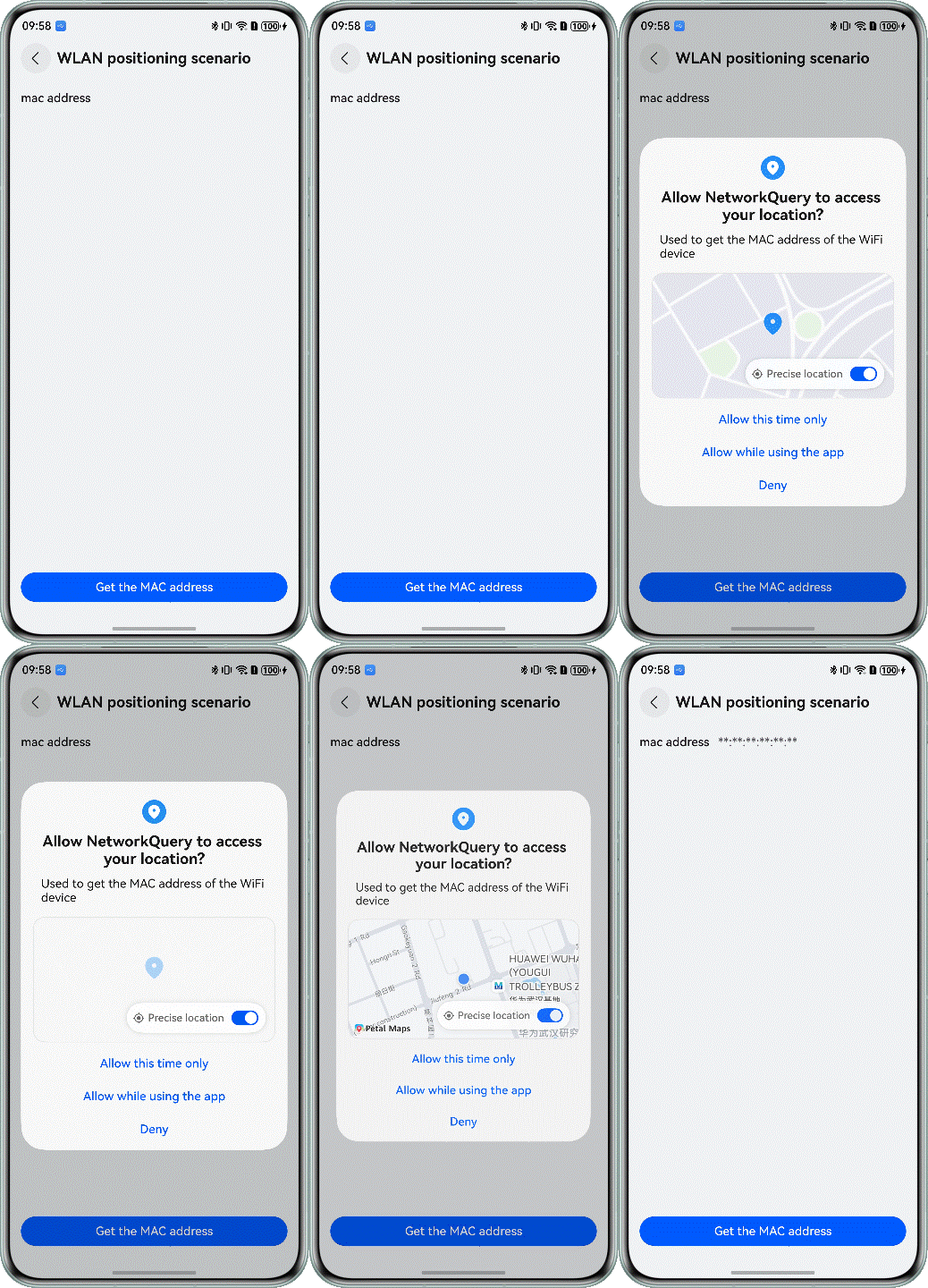
In employee attendance systems, some companies use WLAN-based location services for clocking in and out. Employees need to connect to the company's designated Wi-Fi network, and the app can only perform clock-in/clock-out operations after obtaining the MAC address of the Wi-Fi network. This section describes how to obtain the Wi-Fi MAC address.
Figure 2 Obtaining the Wi-Fi MAC address
[h2]Solution
Use the getCurrentWifiBssidForLocating() method of the @ohos.geoLocationManager (location service) module to obtain the MAC address (Bssid) of the currently connected Wi-Fi network. Compare the obtained MAC address with that stored on the server to determine whether the clock-in or clock-out operation is successful. The implementation logic of the server is left to your discretion and is not covered in this document.

Note that although the getLinkedInfo() method of @ohos.wifiManager can also be used to obtain the MAC address (Bssid) of the currently connected Wi-Fi network, the actual MAC address can be returned only after the ohos.permission.GET_WIFI_PEERS_MAC permission (available only to system apps) is applied for. Otherwise, a random address is returned. Therefore, this method is not recommended for Wi-Fi clock-in/out and other scenarios that require the actual MAC address.
[h2]Development Procedure
Check the WLAN connection state.
Use wifiManager.isWifiActive() and wifiManager.isConnected() to obtain the WLAN switch status and connection status, respectively. Ensure that the device is connected to a Wi-Fi network.
import { wifiManager } from '@kit.ConnectivityKit';
  isWiFiConnected(): boolean {
    try {
      if (!wifiManager.isWifiActive()) {
        showToast(this.getUIContext(), $r('app.string.turn_on_wlan_tips'));
        return false;
      }

      if (wifiManager.isConnected()) {
        return true;
      } else {
        showToast(this.getUIContext(), $r('app.string.wifi_not_connect_tips'));
        return false;
      }
    } catch (err) {
      let error = err as BusinessError;
      Logger.error(TAG, `checkWifiStatus err, errCode: ${error.code}, error mesage: ${error.message}`);
    }
    return false;
  }
Request the location permissions.
Request the ohos.permission.LOCATION and ohos.permission.APPROXIMATELY_LOCATION permissions to obtain the MAC address (bssid attribute) of the currently connected Wi-Fi network. Specifically, declare the permissions in the module.json5 file.
{
  "module": {
    // ...
    "requestPermissions": [
      // ...
      {
        "name": "ohos.permission.LOCATION",
        // ...
      },
      {
        "name": "ohos.permission.APPROXIMATELY_LOCATION",
        // ...
      }
    ]
  }
}
Dynamically request the required location permissions.
import { abilityAccessCtrl, bundleManager, Permissions } from '@kit.AbilityKit';
  async requestPermissions(): Promise<number> {

    return new Promise((resolve, reject) => {
      try {
        const permissions: Permissions[] = ['ohos.permission.LOCATION', 'ohos.permission.APPROXIMATELY_LOCATION'];
        const accessManager = abilityAccessCtrl.createAtManager();
        const bundleFlags = bundleManager.BundleFlag.GET_BUNDLE_INFO_WITH_APPLICATION;
        const bundleInfo = bundleManager.getBundleInfoForSelfSync(bundleFlags);
        const grantStatus = accessManager.checkAccessTokenSync(bundleInfo.appInfo.accessTokenId, permissions[0]);
        if (grantStatus === abilityAccessCtrl.GrantStatus.PERMISSION_GRANTED) {
          resolve(0);
          return;
        }
        accessManager.requestPermissionsFromUser(this.getUIContext().getHostContext(), permissions).then((data) => {
          Logger.info(TAG, `request permissions result: ${JSON.stringify(data)}`);
          let grantStatus: number[] = data.authResults;
          if (grantStatus.length > 0 && grantStatus[0] === 0) {
            Logger.info(TAG, 'request permissions granted');
            resolve(0);
          } else {
            Logger.info('request permissions denied');
            showToast(this.getUIContext(), $r('app.string.no_location_permission_tips'));
            resolve(-1);
          }
        }).catch((error: BusinessError) => {
          Logger.error(TAG, `request permissions exception, Catch error:${JSON.stringify(error)}`);
          reject(error);
        })
      } catch (err) {
        let error = err as BusinessError;
        Logger.error(TAG, `requestPermissions err, errCode: ${error.code}, error mesage: ${error.message}`);
      }
    });
  }
Obtain the MAC address of the Wi-Fi network.
Obtains the MAC address of the Wi-Fi network using the geoLocationManager.getCurrentWifiBssidForLocating() method.
import { geoLocationManager } from '@kit.LocationKit';
  getWiFiBssid() {
    if (this.isWiFiConnected()) {
      this.requestPermissions().then(result => {
        if (result === 0) {
          Logger.info(TAG, 'request location permissions success');
          try {
            let bssid: string = geoLocationManager.getCurrentWifiBssidForLocating();
            Logger.info(TAG, `getCurrentWifiBssidForLocating wifi bssid success: ${bssid}`);
            this.macAddress = bssid;
          } catch (error) {
            Logger.error(TAG, `getCurrentWifiBssidForLocatingerror: ${JSON.stringify(error)}`);
          }
        }
      });
    }
  }
[h2]Description
Users may experience network faults (such as access failure, slow loading, or connection interruption) when using network functions of an app. To facilitate fault locating, you need to obtain information such as route, network type, proxy, DNS, gateway, carrier, signal strength, and delay. By analyzing this data, you can determine whether the fault occurs on the device, carrier, or server side, and take corresponding measures to restore normal operation of the network and apps.
This section describes how to obtain common network information, including the following:
- Network Type
- Network proxy information
- Route information
- IP address of the current network
- DNS server on the current network
- Current Wi-Fi signal strength
- Wi-Fi MAC address of the current device
- Cellular network standard
- Radio switch state of the primary SIM card
- Carrier name
- Roaming state
- Cellular network signal strength
- Network delay

[h2]Solution
You can obtain the network information required for network fault diagnosis by calling the APIs of the following modules:
- @ohos.net.connection (Internet connection management): used to obtain basic network information, such as the network type, IP address, gateway, and DNS server. The getNetCapabilitiesSync() method is used to obtain network capability information, including the network type and whether the network is available. The getConnectionPropertiesSync() method is used to obtain network configuration information, including the IP address, gateway, and DNS.
- @ohos.wifiManager (WLAN): obtains information such as the signal strength and MAC address of the Wi-Fi network. Use the getLinkedInfoSync() method to obtain the signal strength (rssi attribute) and MAC address (bssid attribute) of the currently connected Wi-Fi network.
- @ohos.telephony.radio(network search): obtains cellular network information, such as the carrier name, network standard, signal strength, roaming status, and whether the radio of the primary card is enabled. For example, the getOperatorNameSync() method obtains the carrier name, and the getSignalInformationSync() method obtains the signal strength information and the network standard.
- netQuality(Network quality): provides capabilities such as real-time network quality evaluation, network scenario recognition, and weak signal prediction. Use netQuality.on('netQosChange') to subscribe to network quality information, including the signal strength, download speed, and network latency.
This section provides reference check items and specifications for network fault diagnosis. You can select check items and define specifications based on your service requirements.
- Network availability: If the network is unavailable, the check result is that the network is unavailable.
- Network connection: If the network is not connected, the check result is that the network is not connected.
- Network signal strength: If the Wi-Fi signal strength is lower than –70 dBm and the cellular signal strength is lower than –100 dBm, the check result is that the current network quality is poor.
- Latency: If rttMs is greater than 100 ms, the check result is that the current network quality is poor.
- Download speed: If the download speed is less than 1 MB/s, the check result is that the current network quality is poor.
If none of the preceding check items is abnormal, the check result is that the network is normal. The signal strength, latency, and download speed are obtained by starting a download task using request.agent.create() and averaging the values over 10 seconds.
[h2]Development Procedure
Allows an application to obtain the network connection information.
This step integrates various basic network connection information that can be obtained through the @ohos.net.connection module. The getNetCapabilitiesSync() method is used to obtain the network type and whether the network is available.
checkNetAvailable(): void {
  try {
    let netHandle = connection.getDefaultNetSync();
    if (netHandle.netId === 0) {
      this.hasNetwork = false;
      this.checkResult = $r('app.string.result_network_not_connect');
      return;
    }
    this.hasNetwork = true;
    let netCapability = connection.getNetCapabilitiesSync(netHandle);
    let bearerTypes: connection.NetBearType[] = netCapability.bearerTypes;
    let netCaps: connection.NetCap[] = netCapability.networkCap || [];
    this.networkType = NetworkUtil.getNetworkTypeStr(bearerTypes[0]);
    this.isNetAvailable = netCaps.includes(connection.NetCap.NET_CAPABILITY_VALIDATED);
    if (this.isNetAvailable) {
      this.checkResult = $r('app.string.result_network_available');
    } else {
      this.checkResult = $r('app.string.result_network_unavailable');
    }
  } catch (err) {
    let error = err as BusinessError;
    Logger.error(TAG, `getNetworkType err, errCode: ${error.code}, error mesage: ${error.message}`);
  }
}
The getConnectionPropertiesSync() method is used to obtain the route information, IP address information, and DNS service information, and the getDefaultHttpProxy() method is used to obtain the proxy information.
getConnectionInfo(): void {
  try {
    let netHandle = connection.getDefaultNetSync();
    let properties = connection.getConnectionPropertiesSync(netHandle);
    let routes = properties.routes || [];
    let addresses = properties.linkAddresses || [];
    let dnses = properties.dnses || [];
    // ...
    connection.getDefaultHttpProxy().then((data: connection.HttpProxy) => {
      Logger.info(TAG, `getDefaultHttpProxy success, data: ${JSON.stringify(data)}`);
      this.proxyInfo = JSON.stringify(data);
    }).catch((error: BusinessError) => {
      Logger.error(TAG, `getDefaultHttpProxy err, code: ${error.code}, mesage: ${error.message}`);
    });
  } catch (err) {
    let error = err as BusinessError;
    Logger.error(TAG, `getConnectionInfo err, code: ${error.code}, message: ${error.message}`);
  }
}
Obtaining Wi-Fi Information
The getLinkedInfoSync() method of the @ohos.wifiManager module is used to obtain the signal strength and MAC address, which are critical to diagnosing problems such as unstable Wi-Fi connection and weak signals.
getWifiInfo(): void {
  try {
    let linkInfo = wifiManager.getLinkedInfoSync();
    this.wifiSignal = `${linkInfo.rssi}dBm`;
    this.wifiMac = linkInfo.macAddress;
  } catch (err) {
    let error = err as BusinessError;
    Logger.error(TAG, `getWifiRssi err, code: ${error.code}, message: ${error.message}`);
  }
}
Obtains cellular network information.
Use APIs of the @ohos.telephony.radio module to obtain the cellular network information.
- Use the radio.getOperatorNameSync() method to obtain the carrier name.
- Use the radio.isRadioOn() method to check whether the radio of the primary cellular card is enabled.
- Use the radio.getNetworkState() method to check whether the cellular network is in roaming state.
- Use the radio.getSignalInformationSync() method to obtain the signal strength and RAT of the cellular network.
async getCellularInfo(): Promise<void> {
  try {
    let primarySlotId = await radio.getPrimarySlotId();
    this.operatorName = radio.getOperatorNameSync(primarySlotId);
    this.isRadioOn = await radio.isRadioOn(primarySlotId);
    let networkState = await radio.getNetworkState(primarySlotId);
    this.isRoaming = networkState.isRoaming + '';
    let signalInfos: radio.SignalInformation[] = radio.getSignalInformationSync(primarySlotId);
    if (signalInfos.length > 0) {
      let signalInfo = signalInfos[0];
      this.cellularSignal = signalInfo.dBm + 'dBm';
      this.cellularType = NetworkUtil.getCellularTypeStr(signalInfo.signalType);
    }
  } catch (err) {
    let error = err as BusinessError;
    Logger.error(TAG, `getCellularInfo err, errCode: ${error.code}, error mesage: ${error.message}`);
  }
}
Run a network quality test.
The system first determines whether the network is connected and available. If the network is not connected or unavailable, the system displays the check results indicating network disconnection or network unavailability.
checkNetAvailable(): void {
  try {
    let netHandle = connection.getDefaultNetSync();
    if (netHandle.netId === 0) {
      this.hasNetwork = false;
      this.checkResult = $r('app.string.result_network_not_connect');
      return;
    }
    this.hasNetwork = true;
    let netCapability = connection.getNetCapabilitiesSync(netHandle);
    let bearerTypes: connection.NetBearType[] = netCapability.bearerTypes;
    let netCaps: connection.NetCap[] = netCapability.networkCap || [];
    this.networkType = NetworkUtil.getNetworkTypeStr(bearerTypes[0]);
    this.isNetAvailable = netCaps.includes(connection.NetCap.NET_CAPABILITY_VALIDATED);
    if (this.isNetAvailable) {
      this.checkResult = $r('app.string.result_network_available');
    } else {
      this.checkResult = $r('app.string.result_network_unavailable');
    }
  } catch (err) {
    let error = err as BusinessError;
    Logger.error(TAG, `getNetworkType err, errCode: ${error.code}, error mesage: ${error.message}`);
  }
}
If the network is connected, start the download task to test the network quality. The download task runs for 10 seconds.
queryNetworkInfo() {
  this.checkNetAvailable();
  if (!this.hasNetwork) {
    this.clearContent();
    return;
  }
  this.getConnectionInfo();
  this.getWifiInfo();
  this.getCellularInfo();

  if (this.timeoutId === -1 && TEST_DOWNLOAD_URL !== '') {
    this.checkResult = $r('app.string.result_is_checking');
    NetworkUtil.downloadFile(this.context, TEST_DOWNLOAD_URL, this.cachePath);
    this.timeoutId = setTimeout(() => {
      NetworkUtil.removeTask();
      this.timeoutId = -1;
    }, 10000)
  }
}
During the download task, the system uses the on('netQosChange') API of the netQuality module to monitor network quality changes in real time and obtain key indicators such as latency and download speed. The system then calculates the average download speed, average latency, and average signal strength for both Wi-Fi and cellular networks over this period. After that, these indicators are compared with the design specifications to obtain the test result. For details about the specifications, see Solution.
onQosChange(): void {
  try {
    netQuality.on('netQosChange', (list: netQuality.NetworkQos[]) => {
      if (list.length > 0) {
        list.forEach(async (qos) => {
          // ...
          if (this.timeoutId !== -1 && TEST_DOWNLOAD_URL !== '') {
            let wifiRssi = NetworkUtil.getWifiSignalRssi();
            let cellularRssi = await NetworkUtil.getCellularSignalRssi();
            this.totalSpeed += qos.linkDownRate;
            this.totalRttMs += qos.rttMs;
            this.totalWifiRssi += wifiRssi;
            this.totalCellularRssi += cellularRssi;
            this.rttMsTimes += 1;
          }
          if ((this.timeoutId === -1) && (this.rttMsTimes !== 0) && (TEST_DOWNLOAD_URL !== '')) {
            let avgSpeed = this.totalSpeed / 8 / 1024 / 1024 / 10;
            let avgRttMs = this.totalRttMs / this.rttMsTimes;
            let avgWifiRssi = this.totalWifiRssi / this.rttMsTimes;
            let avgCellularRssi = this.totalCellularRssi / this.rttMsTimes;
            // ...
            if (avgSpeed < 1 || avgRttMs > 100) {
              this.checkResult = $r('app.string.network_bad_tips');
              return;
            }
            if ((this.networkType === 'wifi' && avgWifiRssi < -70) ||
              (this.networkType === 'cellular' && avgCellularRssi < -100)) {
              this.checkResult = $r('app.string.network_bad_tips');
            } else {
              this.checkResult = $r('app.string.result_network_normal');
            }
          }
        });
      }
    });
  } catch (err) {
    let error = err as BusinessError;
    Logger.error(TAG, `on netQosChange err, code: ${error.code}, message: ${error.message}`);
  }
}