When an error occurs during emulator running, you can submit error details. On the extensions menu bar, open the bug report page.
- On the left pane, check the screenshot of the device captured when the error occurs.
- Under Issue description, enter details about the bug to help locate and solve the issue more quickly.
- Under Context of Log Files, view the collected logs.
- In the lower right corner of the page, select the checkbox to agree to the User Agreement and click Save to store the bug log locally.
Log in to the HarmonyOS Developer website to submit the error. During submission, upload the saved bug log to the attachments section.

00801001 Hyper-V Is Not Enabled
Error Message
Hyper-V Not Enabled.
Symptom
"Hyper-V Not Enabled" is reported when the emulator is started.
Possible Causes
- Run the emulator in a virtual Windows environment, such as a cloud desktop. Currently, the emulator cannot run on a VM.
- If Hyper-V is not enabled on Windows, perform the following steps.
Solution
- Check whether the CPU model supports virtualization. If not, the emulator cannot be used.
- If the CPU supports virtualization, choose Control Panel > Programs > Programs and Features > Turn Windows features on or off (for Windows 11, go to System > Optional features > Related settings > More Windows features). Check whether Hyper-V, Windows Hypervisor Platform, and Virtual Machine Platform are listed.
- If no, Hyper-V is not preinstalled in the system. Install Hyper-V that matches the system version.
- If yes, select the three features, click OK, and restart the computer.
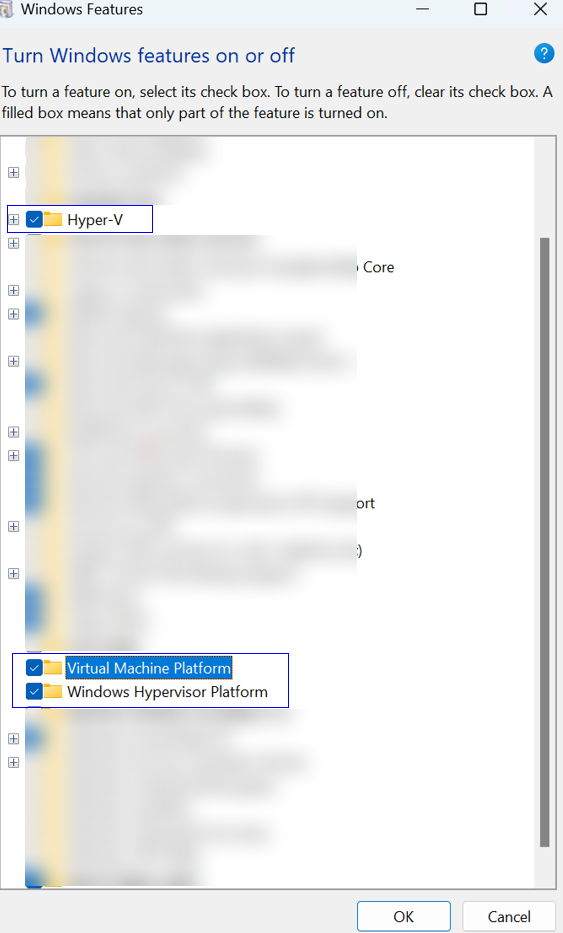
- If the error persists, open the CLI as an administrator, run the following command, and restart the computer.
bcdedit /set hypervisorlaunchtype auto
- If the issue persists, choose Task Manager > Performance. If Virtualization is disabled or not enabled, it is disabled in the BIOS. In this case, go to the BIOS settings page based on the mainboard model of the computer and enable the virtualization feature.

For details about how to install Hyper-V, see Install Hyper-V and System requirements for Hyper-V on Windows and Windows Server.
00801002 Insufficient Disk Space
Error Message
The available disk space is less than the amount of space required to run the emulator.
Symptom
The error message "The available disk space is less than the amount of space required to run the emulator" is displayed.
Possible Causes
The disk space of the emulator does not meet its startup requirements.
Solution
- Free up the disk space or change the disk location where the emulator resides.
- If the operating system is macOS and the displayed available disk space is larger than the space required by the emulator, open Disk Utility and check the amount of space available. Determine if there is reclaimable space causing the actual available space to be far less than the displayed available space. If so, try clearing unnecessary APFS snapshots and local cache files from Disk Utility.
00801003 Image File Path Changed
Error Message
The Image path has changed. Please clear image data before start.
Symptom
The error message "The Image path has changed. Please clear image data before start" is displayed.
Possible Causes
The path for storing the image file is changed.
Solution
Click OK to clear the image data, and then start the emulator. If you do not want to clear the image data, click Cancel, change the image path to the original one, and start the emulator.
00801004 CPU Does Not Support AES Instructions
Error Message
Emulator cannot start on this computer because its CPU does not support AES instructions.
Symptom
The error message "Emulator cannot start on this computer because its CPU does not support AES instructions" is displayed.
Possible Causes
The current CPU does not support AES instructions.
Solution
The current computer does not support the Emulator. You are advised to replace the computer with one that supports the Emulator. For details, see Working Environment.
00801005 Insufficient Allocable Memory
Error Message
Emulator failed to start due to insufficient memory.
Symptom
The error message "Emulator failed to start due to insufficient memory" is displayed.
Possible Causes
The idle memory of the system does not meet the memory requirements for starting the Emulator.
Solution
- Open Task Manager and choose the Details tab, right-click the table header and choose Select columns and select Commit size. Click the Commit size column to sort the processes, and close some processes with high commit size.

- Choose Task Manager > Performance > Memory and ensure that the remaining committed memory size is greater than the RAM size set for the Emulator.

00801006 Windows System Version Out of Date
Error Message
To avoid emulator malfunctions and unexpected computer restarts, update your PC to Windows 10 (OS build 18363 or later) and then try again.
Symptom
The error message "To avoid emulator malfunctions and unexpected computer restarts, update your PC to Windows 10 (OS build 18363 or later) and then try again" is displayed.
Possible Causes
The current Windows version is outdated.
Solution
Upgrade the Windows version as instructed.
00801007 Disk Space of the Emulator Is Insufficient
Error Message
The remaining disk space of the emulator is insufficient. Please clear the emulator data and then restart the emulator.
Symptom
The error message "The remaining disk space of the emulator is insufficient. Please clear the emulator data and then restart the emulator" is displayed.
Possible Causes
The disk space of the emulator is insufficient.
Solution
Clear the emulator data and restart the emulator.
00801008 Image File Missing
Error Message
The system-image file is missing.
Symptom
The emulator fails to be started, and the error message "The system-image file is missing" is displayed.
Possible Causes
The image file is damaged or lost.
Solution
Use either of the following methods to solve the problem:
- Download the image again. For details, see Creating an Emulator or Downloading an Image.
- Delete the created emulator and create a new one.
00801009 Unsupported Image Version
Error Message
The current emulator image version is too low.
Symptom
The error message "The current emulator image version is too low" is displayed.
Possible Causes
The current image version is outdated.
Solution
Download the image again. For details, see Creating an Emulator or Downloading an Image.
00801010 Image Version Mismatch
Error Message
The Image version has changed. Please clear image data before start.
Symptom
The error message "The Image version has changed. Please clear image data before start" is displayed.
Possible Causes
The image version is changed.
Solution
Click OK to clear the image data and start the emulator. If the image data of the old version still exists on the local PC, click Cancel to replace the image data with that of the old version and start the emulator.
00801011 Outdated macOS Version
Error Message
To avoid emulator malfunctions and unexpected computer restarts, update your Mac to 12.5 or later.
Symptom
The error message "To avoid emulator malfunctions and unexpected computer restarts, update your Mac to 12.5 or later" is displayed.
Possible Causes
The current macOS version is outdated.
Solution
Upgrade the macOS version to the prompted version or later.
00801012 Emulator Configuration File Is Damaged or Abnormal
Error Message
The emulator configuration file is damaged or abnormal.
Symptom
The error message "The emulator configuration file is damaged or abnormal" is displayed.
Possible Causes
The configuration file of the local emulator is damaged or abnormal.
Solution
- In the Local Emulator window, click Wipe User Data to clear the emulator data, and then restart the emulator.
- Create an emulator and start it.
00801013 Outdated Graphics Driver Version
Error Message
The graphics card in use does not support OpenGL 4.1 or later. Update the graphics card driver or use another graphics card.
Symptom
The error message "The graphics card in use does not support OpenGL 4.1 or later. Update the graphics card driver or use another graphics card" is displayed.
Possible Causes
The graphics driver is outdated, or does not support OpenGL 4.1 or later.
Solution
Upgrade the graphics driver. If the graphics card does not support OpenGL, replace the graphics card. For details, see Working Environment.
00801014 SDK Path Is Changed
Error Message
Sdk Path has been changed.
Symptom
The emulator fails to be started, and the error message "Sdk Path has been changed" is displayed.
Possible Causes
The SDK path is changed when the emulator is started.
Solution
Use either of the following methods to solve the problem:
- In the Local Emulator window, click Wipe User Data to clear the emulator data, and then restart the emulator.
- Create an emulator and start it.
00801015 Local Emulator Does Not Exist
Error Message
No local emulator found.
Symptom
The emulator fails to be started, and the error message "No local emulator found" is displayed.
Possible Causes
The local emulator file is missing or damaged.
Solution
Delete the emulator and create a new one.
00801016 No Matching Device Found Due to Abnormal HDC Operation
Error Message
Can't find device, may be Hdc is not normal running.
Symptom
The error message "Can't find device, may be Hdc is not normal running" is displayed.
Possible Causes
The hdc process is abnormal, or the emulator image does not match the DevEco Studio version.
Solution
- Run the following command to terminate the hdc process, and then try again. For more information about the hdc tool, see hdc.
hdc kill
- If the issue persists, restart DevEco Studio and the emulator, and try again.
- Download the emulator image again. For details, see Creating an Emulator or Downloading an Image.
- If the hdc environment variable has been configured, check whether it is correctly configured.
00801017 Failed to Install and Parse the .so File
Error Message
The XXX ABI type is missing. Make sure it is configured for all .so files in the HAPs/HSPs.
Symptom
When you start debugging or run a C++ app or atomic service, the error message "The XXX ABI type is missing. Make sure it is configured for all .so files in the HAPs/HSPs" is displayed.
Possible Causes
The Application Binary Interface (ABI) supported by the device does not match that configured in the C++ project.
Solution
- For details, see 9568347 Failed to Parse Native SO Files.
- If the project configuration cannot be modified, you can use the cloud debugging service and select a HarmonyOS NEXT device for development and debugging. For details, see Cloud Debugging.
00801018 Insufficient Emulator Memory
Error Message
The emulator RAM is insufficient.
Symptom
The default RAM of the emulator is 4 GB. When the emulator RAM is insufficient, an error message pops up, and the emulator may freeze or crash.
Possible Causes
The RAM allocated to the emulator is less than 500 MB.
Solution
Increase the emulator RAM when creating the emulator. For details, see Creating an Emulator or Creating an Emulator.
00801019 Image File Verification Failure
Error Message
Failed to verify the image file.
Symptom
The emulator fails to be started, and the error message "Failed to verify the image file" is displayed.
Possible Causes
The emulator image file does not match the image signature file.
Solution
Download the image again. For details, see Creating an Emulator or Downloading an Image.
00801020 Unsupported by Arm-based Windows
Error Message
Failed to start the Emulator. It does not work with Windows on Arm.
Symptom
The emulator fails to be started, and the error message "Failed to start the Emulator. It does not work with Windows on Arm" is displayed.
Possible Causes
The emulator does not work with Windows on ARM.
Solution
Change the system type and then use the emulator. For details about the running environment requirements, see Working Environment.
00802001 Emulator Screen Freezing
Error Message
Emulator Freeze.
Symptom
The emulator image system runs abnormally, and a crash report is displayed. ErrorType is Emulator Freeze.
Possible Causes
- Insufficient system resources, such as insufficient system memory and excessively high CPU consumption.
- Other unknown causes.
Solution
- On the displayed crash report dialog box, click Save to store the bug log locally. Then, log in to the HarmonyOS Developer website to submit the error. During submission, upload the saved bug log to the attachments section.
- Clear data and restart the emulator.
- If the issue persists, free up system resources. Open the Task Manager to check the current CPU and memory usage of the local host while the emulator is running. Excessively high CPU or memory consumption may cause the emulator to crash. In this case, close some resource-intensive programs based on your usage scenarios to free up system resources, and then restart the emulator.
00802002 Emulator Does Not Respond
Error Message
Emulator Graphic Hung.
Symptom
The emulator does not respond, and a crash report is displayed. ErrorType is Emulator Graphic Hung.
Possible Causes
- An exception occurs in graphics rendering-related processes.
- The CPU usage is too high.
- The GPU performance is poor.
Solution
- On the displayed crash report dialog box, click Save to store the bug log locally. Then, log in to the HarmonyOS Developer website to submit the error. During submission, upload the saved bug log to the attachments section.
- Clear data and restart the emulator.
- Terminate some programs with high CPU usage to free up system resources, and then restart the emulator.
- Update the driver, restart your computer, or upgrade your hardware to update the emulator to meet its recommended configurations.
00802003 Emulator Crashes
Error Message
Emulator Crash.
Symptom
The emulator crashes unexpectedly and a crash report is displayed. ErrorType is Emulator Crash.
Possible Causes
- Insufficient system memory, insufficient video memory, and so on.
- Abnormal exit due to an internal error.
Solution
- On the displayed crash report dialog box, click Save to store the bug log locally. Then, log in to the HarmonyOS Developer website to submit the error. During submission, upload the saved bug log to the attachments section.
- Clear data and restart the emulator.
- Free up the system memory, update your graphics driver, or restart your computer.