目录

Adding App Icons to the Quick Bar

After adding app icons to the quick bar, you can customize the shortcut menu category, window category, icon, and progress bar of the app.

Use Cases

The quick bar refers to the icon area at the bottom of the screen on a PC/2-in-1 device, as shown in the following figure.
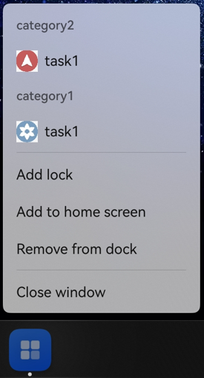
After an app icon is added to the quick bar, the icon menu will display the customized menu items. You can add, delete, update, and query menu items. The following is an example.
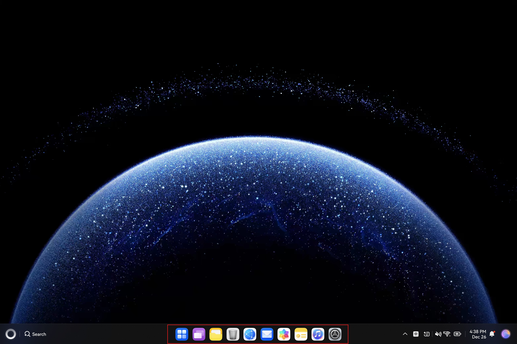
API Description

The following lists the APIs related to operating an app icon in the quick bar. For details, please refer to the API Reference.

The APIs provided by Desktop Extension Kit take effect only on PCs/2-in-1 devices.

Table 1 APIs related to operating an app icon in the quick bar

API Description
getCustomCategories(context: common.Context): Promise<CustomCategory[]> Obtains all categories defined in the quick bar menu.
addCustomCategory(context: common.Context, categoryName: string): Promise<CustomCategory> Adds a quick bar menu category.
updateCustomCategory(context: common.Context, category: CustomCategory): Promise<void> Updates a quick bar menu category.
deleteCustomCategory(context: common.Context, categoryId: number): Promise<void> Deletes a quick bar menu category.
getTasksFromCategory(context: common.Context, categoryId: number): Promise<QuickTask[]> Obtains all tasks in a quick bar menu category.
addQuickTask(context: common.Context, categoryId: number, taskInfo: QuickTaskInfo): Promise<QuickTask> Adds a quick bar menu task.
updateQuickTask(context: common.Context, task: QuickTask): Promise<void> Updates a quick bar menu task.
deleteQuickTask(context: common.Context, taskId: number): Promise<void> Deletes a quick bar menu task.
addQuickBarGroup(context: common.Context, group: QuickBarGroup): Promise<void> Adds a quick bar category.
deleteQuickBarGroup(context: common.Context, groupKey: string): Promise<void> Deletes a quick bar category.
getQuickBarGroups(context: common.Context): Promise<QuickBarGroup[]> Obtains information about all categories.
setWindowToGroup(context: common.Context, windowid:string, groupKey?: string): Promise<void> Adds a window to a category.
setQuickBarCombineIcon(context: common.Context, combineIcon: image.PixelMap): Promise<void> Sets the quick bar converged icon.
setQuickBarLayeredIcon(context: common.Context, foregroundIcon: image.PixelMap, backgroundIcon: image.PixelMap): Promise<void> Sets the quick bar layered icon.
setProgressState(context: common.Context, state: ProgressState): Promise<void> Sets the progress bar status of the quick bar.
setProgressValue(context: common.Context, completed: number, total: number): Promise<void> Sets the progress bar of the quick bar icon.
isQuickBarCapabilitySupported(context: common.Context): Promise<boolean> Checks whether the quick bar capability is supported.

Checking Whether the Quick Bar Is Supported

  1. Import required modules.

    import { quickBarManager } from '@kit.DeskTopExtensionKit';
  2. Call isQuickBarCapabilitySupported to check whether the current device supports the quick bar. You can customize the menu category, window category, icon, and progress bar of the quick bar only when the value of isSupport is true.

    let context: Context | undefined = this.getUIContext().getHostContext();
    if (context === undefined) {
      return;
    }
    
    try {
      const isSupport = await quickBarManager.isQuickBarCapabilitySupported(context);
      console.info(`isQuickBarCapabilitySupported: ${isSupport}`);
    } catch (error) {
      console.error(`isQuickBarCapabilitySupported failed. error code: ${error.code}, error message: ${error.message}`);
    }

Customizing Menu Categories in the Quick Bar

  1. Import required modules.

    import quickBarManager from '@hms.pcService.quickBarManager';
    import { image } from '@kit.ImageKit';
    import { resourceManager } from '@kit.LocalizationKit';
  2. Create a TestAbility.ets file (for example, in the entry/src/main/ets/entryability directory) and a TestIndex page (for example, in the entry/src/main/ets/pages directory), which is the page to display after the icon menu task is clicked.

    let TAG = 'TestAbility';
    
    export default class TestAbility extends UIAbility {
      onCreate() {
        console.info(TAG, `onCreate`);
      }
    
      onWindowStageCreate(windowStage: window.WindowStage) {
        // Load a page.
        windowStage.loadContent('pages/TestIndex');
      }
    
      onForeground() {
        console.info(TAG, `onForeground`);
      }
    
      onBackground() {
        console.info(TAG, `onBackground`);
      }
    
      onWindowStageDestroy(): void {
        console.info(TAG, `onWindowStageDestroy`);
      }
    
      onDestroy() {
        console.info(TAG, `onDestroy`);
      }
    }
  3. Configure the ability information in the module.json5 file of the module to which TestAbility belongs.

    {
        "name": "TestAbility",
        "srcEntry": "./ets/entryability/TestAbility.ets",
        "description": "$string:EntryAbility_desc",
        "icon": "$media:layered_image",
        "label": "$string:EntryAbility_label",
        "startWindowIcon": "$media:startIcon",
        "startWindowBackground": "$color:start_window_background",
        "exported": true,
        "skills": [
            {
                "entities": [
                    "entity.system.home"
                ],
                "actions": [
                    "action.system.home"
                ]
            }
        ],
    }
  4. In the page component (for example, TestIndex.ets), call the addCustomCategory API to add a quick bar menu category. You can add tasks to the category after it is added.

    /**
     * Context information can be obtained using the built-in method of the custom component.
     * Specific method: this.getUIContext().getHostContext()
     */
    async function addCustomCategory(context: Context) {
      if (context === undefined) {
       return;
      }
      try {
        const res = await quickBarManager.addCustomCategory(context, 'recent tasks')
        console.info(`customCategory info: ${JSON.stringify(res)}`)
      } catch (error) {
        console.error(`addCustomCategory failed. error code: ${error.code}, error message: ${error.message}`);
      }
    }
  5. After adding a category, you can call the addQuickTask API to add tasks to the category. The added menu item will be displayed after you right-click the app icon in the quick bar.

    /**
     * Context information can be obtained using the built-in method of the custom component.
     * Specific method: this.getUIContext().getHostContext()
     */
    async function addQuickTask(context: Context) {
      if (context === undefined) {
       return
      }
    
      // Obtain a resource manager.
      const resourceMgr: resourceManager.ResourceManager = context.resourceManager;
      // Create white pixelMap. You need to place the taskImage.png image (24 vp × 24 vp) in the rawfile folder beforehand.
      const fileData = resourceMgr.getRawFileContentSync('taskImage.png');
      const imageSource = image.createImageSource(fileData.buffer);
      const imagePixelMap = await imageSource.createPixelMap();
    
      // Build parameters.
      let parameters: quickBarManager.ParameterItem = {
        key: 'testKey',
        value: 'testValue'
      }
      let task: quickBarManager.QuickTaskInfo = {
        taskName: 'test task name',
        abilityName: 'TestAbility',
        // This parameter is optional.
        moduleName: 'entry',
        // This parameter is optional.
        taskIcon: imagePixelMap,
        // This parameter is optional.
        taskDetail: 'description of the task',
        // This parameter is optional.
        parameters: [parameters]
      }
      try {
        // Obtain all category information and add the task to the desired category.
        const categoryList = await quickBarManager.getCustomCategories(context);
        // Add the task to the first category.
        let res = await quickBarManager.addQuickTask(context, categoryList[0].categoryId, task);
        console.info(`quickTask info: ${JSON.stringify(res)}`);
      } catch (error) {
        console.error(`addQuickTask failed. error code: ${error.code}, error message: ${error.message}`);
      }
    }
  6. Call the getCustomCategories API to obtain the information about all categories.

    /**
     * Context information can be obtained using the built-in method of the custom component.
     * Specific method: this.getUIContext().getHostContext()
     */
    async function getCustomCategories(context: Context) {
      if (context === undefined) {
        return;
      }
      try {
        const res = await quickBarManager.getCustomCategories(context);
        console.info(`customCategoryList info: ${JSON.stringify(res)}`);
      } catch (error) {
        console.error(`getCustomCategories failed. error code: ${error.code}, error message: ${error.message}`);
      }
    }
  7. Call the getTasksFromCategory API to obtain information about all tasks in a category. In this example, information about all tasks in the first category is obtained.

    /**
     * Context information can be obtained using the built-in method of the custom component.
     * Specific method: this.getUIContext().getHostContext()
     */
    async function getTasksFromCategory(context: Context) {
      if (context === undefined) {
        return;
      }
      try {
        // Obtain all category information and the tasks in the category.
        const category = await quickBarManager.getCustomCategories(context);
        // Obtain all tasks in the first category.
        const res = await quickBarManager.getTasksFromCategory(context, category[0].categoryId)
        console.info(`quickTaskList info: ${JSON.stringify(res)}`);
      } catch (error) {
        console.error(`getTasksFromCategory failed. error code: ${error.code}, error message: ${error.message}`);
     }
    }
  8. Call the updateCustomCategory API to update the quick bar menu category information, and update the category name.

    /**
     * Context information can be obtained using the built-in method of the custom component.
     * Specific method: this.getUIContext().getHostContext()
     */
    async function updateCustomCategory(context: Context) {
      if (context === undefined) {
        return;
      }
      const category: quickBarManager.CustomCategory = {
        categoryId: 1,
        categoryName: 'demo'
      }
      try {
        await quickBarManager.updateCustomCategory(context, category);
      } catch (error) {
        console.error(`updateCustomCategory failed. error code: ${error.code}, error message: ${error.message}`);
      }
    }
  9. Call the updateQuickTask API to update the quick bar menu task information. The following sample code shows how to update the icon information of a task.

    /**
     * Context information can be obtained using the built-in method of the custom component.
     * Specific method: this.getUIContext().getHostContext()
     */
    async function updateQuickTask(context: Context) {
      if (context === undefined) {
        return;
      }
      // Obtain a resource manager.
      const resourceMgr: resourceManager.ResourceManager = context.resourceManager;
      // Create pixelMap for the task. You need to place the testUpdateImage.png image in the rawfile folder beforehand.
      const fileData = resourceMgr.getRawFileContentSync('testUpdateImage.png');
      const imageSource = image.createImageSource(fileData.buffer);
      const imagePixelMap = await imageSource.createPixelMap();
      // Build parameters.
      let parameters: quickBarManager.ParameterItem = {
        key: 'testKey',
        value: 'testValue'
      }
      let taskInfo: quickBarManager.QuickTaskInfo = {
        taskName: 'newTaskName',
        abilityName: 'newEntryAbility',
        // This parameter is optional.
        moduleName: 'newModuleName',
        // This parameter is optional.
        taskIcon: imagePixelMap,
        // This parameter is optional.
        taskDetail: 'Task description',
        // This parameter is optional.
        parameters: [parameters]
      }
    
      const task: quickBarManager.QuickTask = {
        taskId: 1,
        categoryId: 1,
        taskInfo: taskInfo
      }
    
      try {
        await quickBarManager.updateQuickTask(context, task);
      } catch (error) {
        console.error(`updateQuickTask failed. error code: ${error.code}, error message: ${error.message}`);
      }
    }
  10. Call the deleteQuickTask API to delete an unnecessary quick bar menu task. In this example, the task whose taskId is 1 is deleted.

    /**
     * Context information can be obtained using the built-in method of the custom component.
     * Specific method: this.getUIContext().getHostContext()
     */
    async function deleteQuickTask(context: Context) {
      if (context === undefined) {
        return;
      }
      try {
        // Delete the task whose ID is 1.
        await quickBarManager.deleteQuickTask(context, 1);
      } catch (error) {
        console.error(`deleteQuickTask failed. error code: ${error.code}, error message: ${error.message}`);
      }
    }
  11. Call the deleteCustomCategory API to delete the unnecessary quick bar menu category. In this example, the category whose categoryId is 1 is deleted, and all tasks in the category are also deleted.

    /**
     * Context information can be obtained using the built-in method of the custom component.
     * Specific method: this.getUIContext().getHostContext()
     */
    async function deleteCustomCategory(context: Context) {
      if (context === undefined) {
        return;
      }
      try {
        // Delete the category whose ID is 1.
        await quickBarManager.deleteCustomCategory(context, 1);
      } catch (error) {
        console.error(`deleteCustomCategory failed. error code: ${error.code}, error message: ${error.message}`);
      }
    }

Adding Windows to Quick Bar Menu Categories

  1. Import required modules.

    import { quickBarManager } from '@kit.DeskTopExtensionKit';
    import { image } from '@kit.ImageKit';
    import { resourceManager } from '@kit.LocalizationKit';
  2. Create an empty page file in the entry/src/main/ets/pages directory and add a button component. Call the addQuickBarGroup API in the onClick method of the button control to add a quick bar category.

    // Obtain a resource manager.
    const context: Context | undefined = this.getUIContext().getHostContext();
    if (!context) {
      console.error('context is null');
      return;
    }
    const resourceMgr: resourceManager.ResourceManager = context.resourceManager;
    
    // Obtain an image from the rawfile directory.
    const whiteFileData = resourceMgr.getRawFileContentSync('icon.png');
    const whiteImageSource = image.createImageSource(whiteFileData.buffer);
    const imagePixelMap = await whiteImageSource.createPixelMap();
    
    try {
      // Add a category.
      await quickBarManager.addQuickBarGroup(context, {
        groupKey: 'group_one', // Category name.
        groupIcon: imagePixelMap // Category icon.
      });
    } catch (error) {
      console.error(`error code: ${error.code}, error message: ${error.message}`);
    }
  3. Add a button control and call the getQuickBarGroups API in the onClick method to obtain information about all categories.

    const context: Context | undefined = this.getUIContext().getHostContext();
    if (!context) {
      console.error('context is null');
      return;
    }
    
    try {
      // Obtain all categories.
      const groups = await quickBarManager.getQuickBarGroups(context);
      console.info(`groups: ${JSON.stringify(groups)}`);
    } catch (error) {
      console.error(`error code: ${error.code}, error message: ${error.message}`);
    }
  4. Add a button control and call the setWindowToGroup API in the onClick method to add window information to a category.

    const context: Context | undefined = this.getUIContext().getHostContext();
    if (!context) {
      console.error('context is null');
      return;
    }
    
    try {
      // Add the window whose ID is 80 to the category named group_one.
      await quickBarManager.setWindowToGroup(context, '80', 'group_one');
    } catch (error) {
      console.error(`deleteCustomCategory failed. error code: ${error.code}, error message: ${error.message}`);
    }
  5. Add a button control and call the deleteQuickBarGroup API in the onClick method to delete a quick bar category.

    const context: Context | undefined = this.getUIContext().getHostContext();
    if (!context) {
      console.error('context is null');
      return;
    }
    
    try {
      // Delete the category named group_one.
      await quickBarManager.deleteQuickBarGroup(context, 'group_one');
    } catch (error) {
      console.error(`error code: ${error?.code}, error message: ${error?.message}`);
    }

Customizing the Icon and Progress Bar in the Quick Bar

  1. Import required modules.

    import { quickBarManager }  from '@kit.DeskTopExtensionKit';
    import { resourceManager } from '@kit.LocalizationKit';
    import { image } from '@kit.ImageKit';
  2. Call setQuickBarCombineIcon to set the converged icon for the quick bar.

    let context: Context | undefined = this.getUIContext().getHostContext();
    if (context === undefined) {
      return;
    }
    try {
      // Obtain a resource manager.
      const resourceMgr: resourceManager.ResourceManager = context.resourceManager;
      // Create pixelMap for the icon. You need to place the icon.png image in the rawfile folder beforehand.
      const fileData = resourceMgr.getRawFileContentSync('icon.png');
      const imageSource = image.createImageSource(fileData.buffer);
      const imagePixelMap = await imageSource.createPixelMap();
    
      await quickBarManager.setQuickBarCombineIcon(context, imagePixelMap);
      console.info('setQuickBarCombineIcon success');
    } catch (error) {
      console.error(`setQuickBarCombineIcon failed. error code: ${error.code}, error message: ${error.message}`);
    }
  3. Call setQuickBarLayeredIcon to set the layered icon for the quick bar.

    let context: Context | undefined = this.getUIContext().getHostContext();
    if (context === undefined) {
      return;
    }
    try {
      // Obtain a resource manager.
      const resourceMgr: resourceManager.ResourceManager = context.resourceManager;
      // Create pixelMap for the foreground image. You need to place the foreground.png image in the rawfile folder beforehand.
      const foregroundFileData = resourceMgr.getRawFileContentSync('foreground.png');
      const foregroundImageSource = image.createImageSource(foregroundFileData.buffer);
      const foregroundPixelMap = await foregroundImageSource.createPixelMap();
    
      // Create pixelMap for the background image. You need to place the background.png image in the rawfile folder beforehand.
      const backgroundFileData = resourceMgr.getRawFileContentSync('background.png');
      const backgroundImageSource = image.createImageSource(backgroundFileData.buffer);
      const backgroundPixelMap = await backgroundImageSource.createPixelMap();
    
      await quickBarManager.setQuickBarLayeredIcon(context, foregroundPixelMap, backgroundPixelMap);
      console.info('setQuickBarLayeredIcon success');
    } catch (error) {
      console.error(`setQuickBarLayeredIcon failed. error code: ${error.code}, error message: ${error.message}`);
    }
  4. Call setProgressValue to set the progress bar in the quick bar. If the progress bar status is not set before this API is called, the default status is NORMAL.

    let context: Context | undefined = this.getUIContext().getHostContext();
    if (context === undefined) {
      return;
    }
    const completed: number = 50;
    const total: number = 100;
    
    try {
      await quickBarManager.setProgressValue(context, completed, total);
      console.info('setProgressValue success');
    } catch (error) {
      console.error(`setProgressValue failed. error code: ${error.code}, error message: ${error.message}`);
    }
  5. Call setProgressState to set the progress bar status for the quick bar.

    let context: Context | undefined = this.getUIContext().getHostContext();
    if (context === undefined) {
      return;
    }
    
    try {
      // Set the progress status to PAUSED.
      await quickBarManager.setProgressState(context, quickBarManager.ProgressState.PAUSED);
      console.info('setProgressState success');
    } catch (error) {
      console.error(`setProgressState failed. error code: ${error.code}, error message: ${error.message}`);
    }