Scenario Description
The long screenshot function of the Web component allows users to capture screenshots of web page content, providing a quick and convenient way to share and save data. This ensures that users can capture and share the complete information of the web pages they are browsing.
Effect
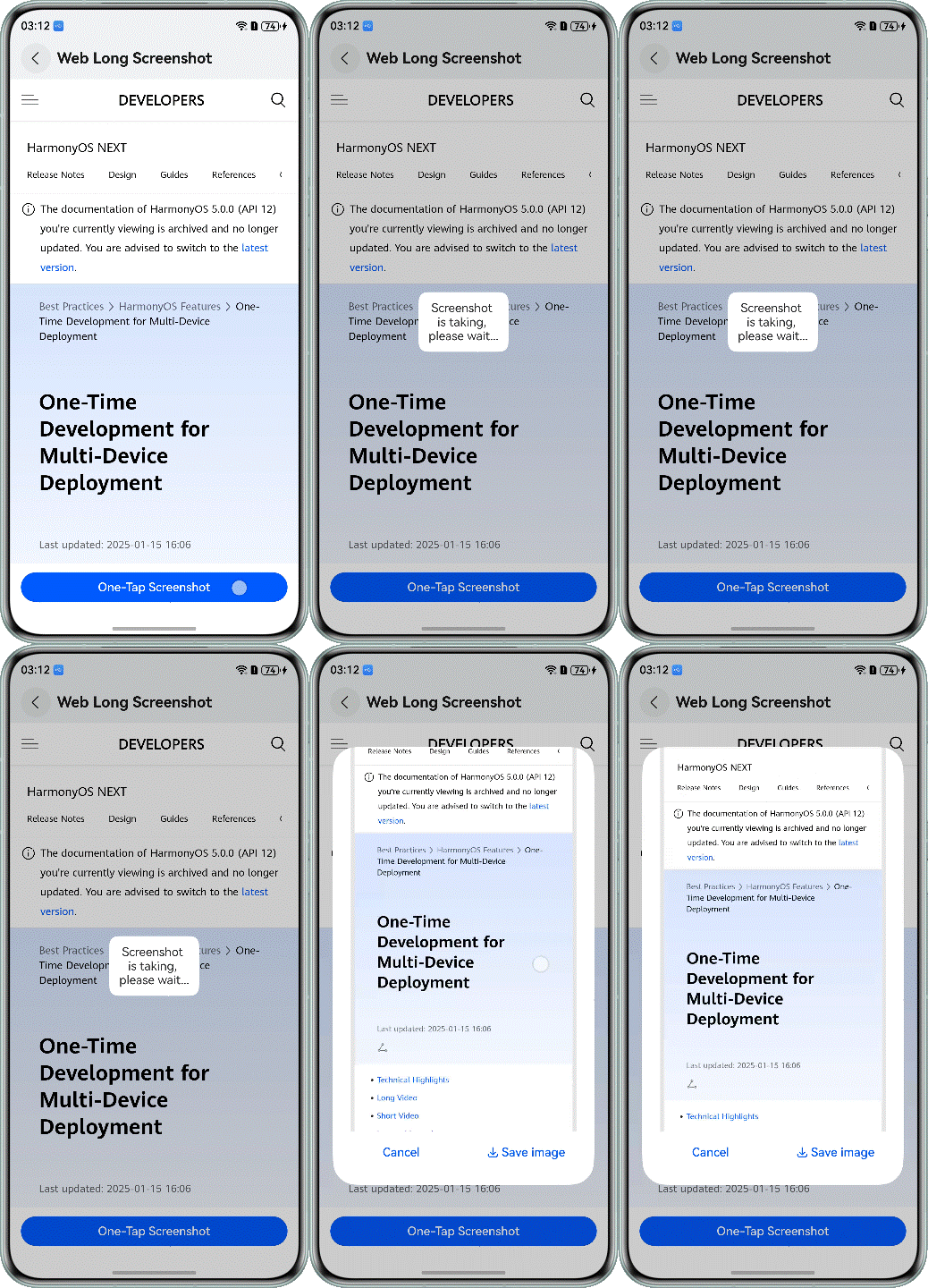
Tap the One-Tap Screenshot button to take a long screenshot of the entire web page and save the screenshot to the album.
Implementation
The Web component can take a long screenshot by using the screenshot scrolling solution or the webPageSnapshot method provided by WebView. The webPageSnapshot method provided by WebView is suitable for long screenshots of pages with simple structures and static elements. If a web page contains dynamic resources and the structure is complex, for example, web pages with a fixed title header, the screenshot scrolling solution is recommended.
Capturing a long screenshot using the screenshot scrolling method
The development process of scrolling long screenshots for the Web component is similar to that of Implementing Long Screenshot for Scrollable Components, except for the method of controlling the scrolling of the component. The List component uses Scroller, while the Web component uses webViewController.
During the scrolling screenshot process, webViewController controls the scrolling of the Web component by calling the webViewController.scrollBy method. To determine whether the bottom of the page has been reached, use the this.webViewController.getPageHeight() method to obtain the total height of the web page content. For details, see Obtaining the Web Page Content Height. Add the current offset (this.curYOffset) to the height of the component and compare the sum with the total height of the web page. If the sum is less than the total height of the web page, it indicates that the bottom has not been reached.
async snapAndMerge() {
  try {
    this.scrollYOffsets.push(this.curYOffset);
    const pixelMap = await this.getUIContext().getComponentSnapshot().get(WEB_ID);
    let area: image.PositionArea =
      await ImageUtils.getSnapshotArea(this.getUIContext(), pixelMap, this.scrollYOffsets, this.webComponentWidth,
        this.webComponentHeight);
    this.areaArray.push(area);
    if (Math.ceil(this.curYOffset + this.webComponentHeight) < this.webviewController.getPageHeight()) {
      this.webviewController.scrollBy(0, this.scrollHeight, 500);
      await CommonUtils.sleep(600)
      await this.snapAndMerge();
    } else {
      this.mergedImage =
        await ImageUtils.mergeImage(this.getUIContext(), this.areaArray,
          this.scrollYOffsets[this.scrollYOffsets.length - 1], this.webComponentHeight);
    }
  } catch (err) {
    let error = err as BusinessError;
    Logger.error(TAG, `snapAndMerge err, errCode: ${error.code}, error message: ${error.message}`);
  }
}
Capturing a long screenshot of a web page using the webPageSnapshot() method
To use the webPageSnapshot() method to capture a long screenshot of a web page, perform the following steps:
Initialize the Web component and call the enableWholeWebPageDrawing() method to enable the full drawing capability of the web page.
aboutToAppear(): void {
  try {
    webview.WebviewController.initializeWebEngine();
    webview.WebviewController.enableWholeWebPageDrawing();
    webview.WebviewController.prepareForPageLoad(EXAMPLE_URL, true, 2);
  } catch (err) {
    let error = err as BusinessError;
    Logger.error(TAG, `web snapshot init err, errCode: ${error.code}, error message: ${error.message}`);
  }
}
Obtain the height and width of the web page.
async getWebSize() {
  const SCRIPT = '[document.documentElement.scrollWidth, document.documentElement.scrollHeight]';
  try {
    this.webviewController.runJavaScriptExt(SCRIPT).then((result) => {
      if (result.getType() === webview.JsMessageType.ARRAY) {
        this.h5Width = (result.getArray() as number[])[0];
        this.h5Height = (result.getArray() as number[])[1];
        Logger.info(TAG, `h5Width is ${this.h5Width}, h5Height is ${this.h5Height}`);
      }
    }).catch((error: BusinessError) => {
      Logger.error(TAG, `getWebSize exception, errCode: ${error.code}, error message: ${error.message}`);
    });
  } catch (error) {
    let err = error as BusinessError;
    Logger.error(TAG, `getWebSize failed, errCode: ${err.code}, error message: ${err.message}`);
  }
}
Call the webPageSnapshot() method to take a screenshot of the web page.
async webSnapshot() {
  try {
    this.webviewController.webPageSnapshot({ id: WEB_ID, size: { width: this.h5Width, height: this.h5Height } },
      async (error, result) => {
        if (result) {
          this.longPixelMap = result.imagePixelMap;
        }
      });
  } catch (error) {
    let err = error as BusinessError;
    Logger.error(TAG, `webSnapshot err, errCode: ${err.code}, error message: ${err.message}`);
  }
}

When loading an HTML file, you need to configure the network permission in the module.json5 file in the entry/src/main directory. The sample code is as follows:
{
 "module": {
   "requestPermissions": [
     {
       "name": "ohos.permission.INTERNET"
     }
   ]
 }
}