Since API version 26.0.0, the system supports customizing the layout of control buttons in the Media Controller. This document describes how to customize the control types displayed in the Media Controller.
Basic Concepts
Common control buttons in the Media Controller include play, pause, previous, next, fast-forward, rewind, favorite, loop mode, and speed.
An app sets the session type through the input parameter AVSessionType of the avSession.createAVSession API. The Media Controller displays the corresponding control button combination based on the type. For details, see Creating AVSession. For example, the buttons (from left to right) displayed on the level-2 page of the Media Controller for audio sessions are as follows: favorite, previous, play/pause, next, and loop mode.
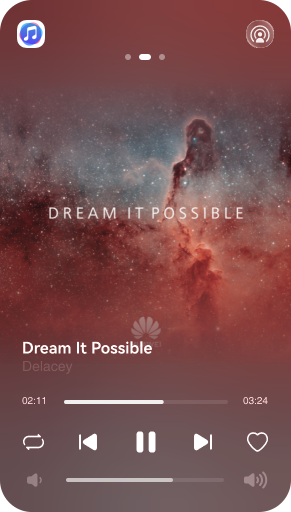
The control buttons in the Media Controller can be displayed in Triplet or Quintuple mode.
- Triplet: Three control buttons are displayed, for example, the level-1 page of the Media Controller.
- Quintuple: Five control buttons are displayed, for example, the level-2 page of the Media Controller.
Rules for numbering buttons (from left to right):
- Quintuple: position 4, position 2, position 1, position 3, and position 5
- Triplet: position 2, position 1, and position 3


The subsequent descriptions in this document comply with the numbering rules.
Integration Solution
The system provides the setMediaCenterControlType API for the app to set the list of control types that need to be displayed preferentially in the Media Controller. The Media Controller customizes the layout of control buttons on each page based on the list.
For details about the control types that can be set, see AVMediaCenterControlType. The play/pause command is not included because the play/pause control button is always displayed in the first position on the Media Controller page.
The system provides dedicated APIs for the control types with selection ranges, such as the loop mode and speed.
-
Loop mode: Use setSupportedLoopModes to set the list of supported loop modes. The Media Controller displays the corresponding loop mode icon based on the list. For details about the modes that can be set, see LoopMode.
-
Speed: Use setSupportedPlaySpeeds to set the supported speed list. The Media Controller displays the corresponding speed icons based on the list.
[h2]Button Layout Rules
The Media Controller parses the control type list set through the setMediaCenterControlType API and arranges the control buttons in the triplet or quintuple based on specific rules. This arrangement is irrelevant to the sequence of elements in the input control type list, but is related to whether the control type exists in the list. The display of the loop mode and the speed button is also related to the selection range set by the app.
The arrangement rules are as follows:
-
Position 1 is fixedly occupied by the play/pause button.
-
Position 2 preferentially displays the next track button. If the list does not contain the next track, the following buttons are displayed in sequence: rewind > loop mode > favorite.
-
Position 3 preferentially displays the previous track button. If the list does not contain the previous track, the following buttons are displayed in sequence: fast-forward > favorite > speed.
-
Position 4 preferentially displays the rewind button. If the list does not contain the rewind button, the following buttons are displayed in sequence: loop mode > favorite.
-
Position 5 preferentially displays the fast-forward button. If the list does not contain the fast-forward button, the following buttons are displayed in sequence: favorite > speed.
-
The previous and next track buttons appear in pairs, and the fast-forward and rewind buttons appear in pairs. If the list contains only one of them, the system supports the other one by default.
-
The loop mode button can be displayed only if the list contains a loop mode and either of the following conditions is met: The on('setLoopMode') listener is registered; or the on('setTargetLoopMode') listener is registered and a loop mode list with a length greater than 1 is set through setSupportedLoopModes. The loop mode button is displayed only in position 2 or 4 (on the left of the play/pause button).
-
The speed button is displayed only when the list contains a speeds button and a speed list with a length greater than 1 is set through setSupportedPlaySpeeds. The speed button is displayed only in position 3 or 5 (on the right of the play/pause button).
-
When the triplet or quintet supports both the loop mode and favorite, the favorite button is displayed on the right of the loop mode button.
-
When the triplet or quintet supports both the speed and favorite, the favorite button is displayed on the left of the speed button.
-
When the triplet or quintet supports the favorite but does not support the loop mode or speed, the favorite button is preferentially displayed in position 3 or 5 (on the right of the play/pause button).
-
The supported control buttons are preferentially filled in positions 2 and 3, followed by positions 4 and 5. The remaining control buttons are displayed in the more small entry window.


This solution involves only the button display layout. The logic for dimming buttons still complies with Handling Unsupported Control Commands.
Reference Cases

The following sample code shows how the app displays the loop mode, previous, play/pause, next, and speed from left to right in the Media Controller.
import { avSession as AVSessionManager } from '@kit.AVSessionKit';

// ...

@Entry
@Component
struct Index {
  @State message: string = 'hello world';
  // ...

  build() {
    Column() {
      // ...
      Text(this.message)
        .onClick(async () => {
          try {
            let context = this.getUIContext().getHostContext() as Context;
            // It is assumed that an AVSession object has been created. For details about how to create an AVSession object, see the node snippet above.
            let type: AVSessionManager.AVSessionType = 'audio';
            let session = await AVSessionManager.createAVSession(context, 'SESSION_NAME', type);
            // Set necessary AVSession metadata and listeners.
            let metadata: AVSessionManager.AVMetadata = {
              assetId: '0',
              title: 'TITLE',
            };
            await session.setAVMetadata(metadata);
            session.on('play', () => {
              console.info(`onPlay`);
            });
            // Call the API to set the list of supported control command types.
            session.setMediaCenterControlType(['playNext', 'setLoopMode', 'setSpeed']);
            // Register the 'setTargetLoopMode' listener and set the supported loop mode range so that the Media Controller can display the loop mode button.
            session.on('setTargetLoopMode', (loopMode: AVSessionManager.LoopMode) => {
              console.info(`targetLoopMode change: ${loopMode}`);
            });
            session.setSupportedLoopModes(
              [AVSessionManager.LoopMode.LOOP_MODE_SINGLE, AVSessionManager.LoopMode.LOOP_MODE_LIST,
                AVSessionManager.LoopMode.LOOP_MODE_SHUFFLE]);
            // Set the supported speed range so that the Media Controller can display the speed button.
            session.setSupportedPlaySpeeds([0.5, 1.0, 2]);
            // After the setting is complete, the triplet of the Media Controller displays the previous, play/pause, and next buttons; the quintet displays the loop mode, previous, play/pause, next, and speed buttons.
            // ...
          } catch (err) {
            console.error(`Failed to setMediaCenterControlType. Code: ${err.code}, message: ${err.message}`);
          }

        })
    }
    .width('100%')
    .height('100%')
  }
}