What Should I Do If the Memory Usage Is Too High During Compilation?
Symptom
During compilation and build, memory or CPU usage is too high, resulting in issues such as slow response in DevEco Studio.
Solution
- During hvigor build, memory usage during compilation can be reduced by decreasing cached data in memory and reducing the number of threads.
You can add configurations to hvigor-config.json5.
"properties": {
  // Setting to 0 means no memory cache configuration is enabled; the default value is 4; the smaller the value, the less data cached in the memory.
  "hvigor.pool.cache.capacity": 0,
  // The default value is the number of CPU cores minus 1, including ohos.arkCompile.maxSize; the smaller the value, the less memory used.
  "hvigor.pool.maxSize" : 5,
  // The default value is 5; the smaller the value, the less memory used.
  "ohos.arkCompile.maxSize": 3,
  // The default value true enables memory cache, which results in more memory used; the value false means the opposite.
  "hvigor.enableMemoryCache": false
},
After the values of hvigor.pool.maxSize and ohos.arkCompile.maxSize are set to smaller numbers and hvigor.enableMemoryCache is set to false, the compilation time may increase.
- If the preceding modifications do not yield significant results, you can compile in a non-parallel mode.
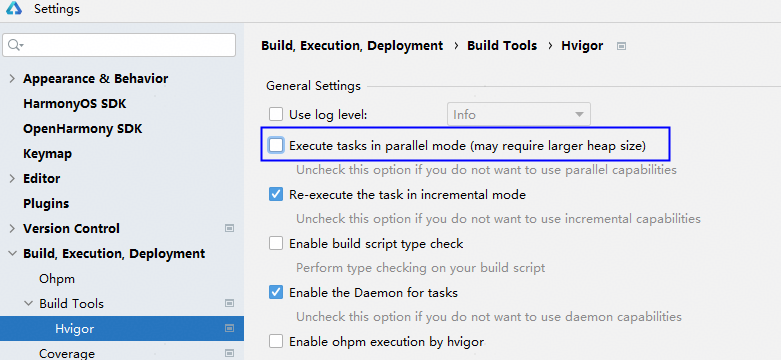
- On the menu bar, choose File > Settings (DevEco Studio > Preferences/Settings on macOS) > Build, Execution, Deployment > Build Tools > Hvigor and deselect Execute tasks in parallel mode (may require larger heap size).
- In the pipeline scenario, append --no-parallel to the command. The following is an example:
hvigorw assembleHap --no-parallel

Using the non-parallel mode for compilation will reduce memory usage, but it may also lead to an increase in compilation time.
- On the menu bar, choose File > Settings (DevEco Studio > Preferences/Settings on macOS) > Build, Execution, Deployment > Build Tools > Hvigor and deselect Execute tasks in parallel mode (may require larger heap size).
What Should I Do If the Error Message "Cannot read properties of undefined(reading 'XXX')" Is Displayed During Build?
Rectify the fault based on the value of XXX. If the fault persists, refer to the final solution.
- Scenario 1:
Symptom
During the compilation and build process, the error "Cannot read properties of undefined(reading 'setEnabled')" occurs.
Cause Analysis
The hvigorfile.ts file contains the following code:
import { hvigor, getHvigorNode } from "@ohos/hvigor"
import { hapTasks} from '@ohos/hvigor-ohos-plugin';
// Problematic code
getHvigorNode(__filename).getTaskByName('XXX').setEnabled(false);
export default {
    system: hapTasks, /* Built-in plugin of Hvigor. It cannot be modified. */
    plugins: []         /* Custom plugin to extend the functionality of Hvigor. */
}
Solution
- Ensure that the specified task is a task in the current HvigorNode.
For example, if the error occurs in hvigorfile.ts of the entry module, valid task names include the following: default@SignHap, default@CollectDebugSymbol, and assembleHap, as shown in the following figure.

- Use getTaskByName only in the Hvigor configuration phase or later lifecycle phases, including beforeNodeEvaluate, afterNodeEvaluate, nodesEvaluated, taskGraphResolved, and buildFinished.
- Ensure that the specified task is a task in the current HvigorNode.
- Scenario 2:
Symptom
During the compilation and build process, the error "Cannot read properties of undefined(reading 'isSO')" occurs.
Solution
Upgrade DevEco Studio to 5.1.0.840 or later.
- Scenario 3:
Symptom
During the compilation and build process, an error "Cannot read properties of undefined(reading 'getPluginId')" occurs.
Solution
Set system in the export default object in hvigorfile.ts to appTasks, hapTasks, hspTasks, or harTasks.
import { appTasks } from '@ohos/hvigor-ohos-plugin'; export default { system: appTasks, /* Built-in plugin of Hvigor. It cannot be modified. */ plugins:[] /* Custom plugin to extend the functionality of Hvigor. */ } - Scenario 4:
Symptom
During the compilation and build process, the error "Cannot read properties of undefined(reading 'getNeedExecTargetServiceList')" occurs.
Solution
Set the type field in module.json5 of the module to match the system field of the export default object in hvigorfile.ts. For the corresponding mappings between type and system, refer to the table below.
Table 1 type in module.json5
system of the export default object in hvigorfile.ts
entry
hapTasks
feature
hapTasks
shared
hspTasks
har
harTasks
- Scenario 5:
Symptom
During the compilation and build process, the error "Cannot read properties of undefined(reading 'app')" occurs.
Solution
Ensure that the AppScope/app.json5 file exists in the project directory.
- Scenario 6:
Symptom
When a unit test is performed in the Linux environment, the error "Cannot read properties of undefined(reading 'toString')" occurs.
Solution
Currently, unit tests are not supported in the Linux environment.
- Scenario 7:
Symptom
During the compilation and build process, the error "Cannot read properties of undefined(reading 'kind')" occurs.
Solution
Refer to the following code examples:
// Negative example: empty array class w { public a: [][] = [] test() { console.log("1", this.a[0]) } } // Positive example class w { public a: string[][] = [] test() { console.log("1", this.a[0]) } } - Scenario 8:
Symptom
During the compilation and build process, the error "Cannot read properties of undefined(reading 'clear')" occurs.
Cause Analysis
Configure the following content in the hvigor/hvigor-config.json5 file in the project root directory to open the stack.
"debugging": {
  "stacktrace": true                /* Disable stacktrace compilation. Value: [ true | false ]. Default: false */
},
Check whether the stack content is as follows:

Solution
If your DevEco Studio is using third-party plugins, such as security hardening plugins, disable them and check whether the issue persists. If the issue persists, refer to the final solution.
- Final solution
If none of the preceding solutions work, open the stack and check the code based on the stack information.
To open the stack, add the following content to the hvigor/hvigor-config.json5 file in the project root directory:
"debugging": {
  "stacktrace": true                /* Disable stacktrace compilation. Value: [ true | false ]. Default: false */
},
Check the hvigorconfig.ts and hvigorfile.ts files first, and then check other files.
If no problem is found in the preceding files, submit a ticket online.
What Should I Do If the Error Message "Duplicated files found in module xxx. This may cause unexpected errors at runtime" Is Displayed During Build?
Symptom
During the compilation and build process, an error occurs: "Duplicated files found in module xxx. This may cause unexpected errors at runtime".
The error occurs when there are different versions of an .so file with the same name. For example, if you copy the .so file from the har module's product to the libs directory of the entry module, then there is a libhar.so file in both the har module and the entry module. In this case, if you configure the entry module to depend on the har module, the build of the entry module will result in an error.

Solution
Use configurations such as select, pickFirsts, and pickLasts to choose the .so files to be used. select provides precise selection capabilities for native products, with a higher priority than excludes, pickFirsts, and other configuration items. pickFirsts and pickLasts pack the .so file with the highest priority. The priority order refers to the order of dependency collection, and the later it is collected, the higher the priority.
For details, see Configuring for C++ Builds.
Based on the preceding example, you can add a select configuration in the entry module's build-profile.json5 file to choose the .so file from the har module, set package to the "har", and include to "libhar.so".

What Should I Do If the Error Message "input module releaseType is different" Is Displayed During Build?
Symptom
When an App Pack is packaged, the message "input module releaseType is different" is displayed.

Solution
According to the module names indicated in the error message, check whether the apiReleaseType fields are consistent between the modules.
The apiReleaseType field is automatically generated by the compilation and build tool and is saved in the module.json file of the HAP/HSP. As shown in the figure below, first confirm whether this field is consistent between the modules. If there is an inconsistency, you need to repackage each module of the app with the same version of the SDK, and then package the App Pack.

What Should I Do If the Error Message "debug is different" Is Displayed During Build?
Symptom
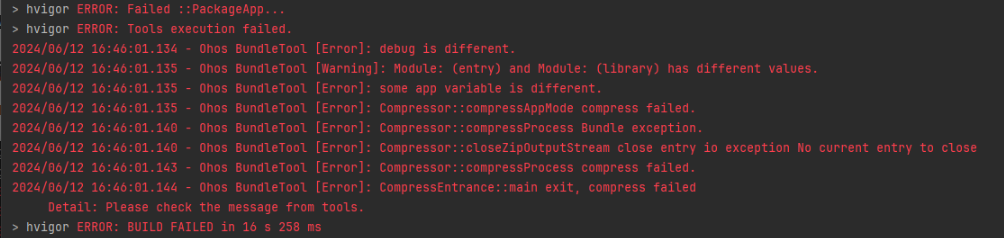
When an App Pack is packaged, the message "debug is different" is displayed.
Solution
Based on the module names indicated in the error message, check whether the debug fields are consistent between modules, especially between local modules and externally referenced modules.
1. The debug field is automatically generated by the compilation and build tool and saved in the module.json file of the HAP/HSP, as shown in the figure below. First, confirm whether the fields are consistent across all modules.

2. Set Build Mode, based on which the compilation and build tool generates the debug flag.

What Should I Do If the Error Message "proxy data is duplicated" Is Displayed During Build?
Symptom
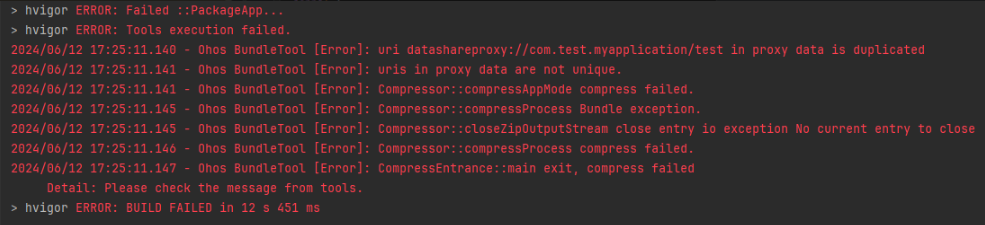
When an App Pack is packaged, the message "uri datashareproxy://bundleName/** in proxy data is duplicated" is displayed.
Solution
The proxyData field lists the data proxies provided by the module and is only allowed to be configured in entry and feature modules. The URIs configured in different proxyData configurations must not be duplicated. In light of this, if the preceding issue occurs, check whether the proxyData configurations with the same URI is configured between modules.

What Should I Do If the Error Message "Init keystore failed: parseAlgParameters failed: ObjectIdentifier()" Is Displayed During Compilation?
Symptom
During compilation and build, an error occurs: "Init keystore failed: parseAlgParameters failed: ObjectIdentifier()".
hap-sign-tool: error: ACCESS_ERROR, code: 109. Details: Init keystore failed: parseAlgParameters failed: ObjectIdentifier() -- data isn't an object ID (tag = 48) Detail: Please check the message from tools
Analysis
Using a higher version of JDK to generate a key pair (.p12), and then using a lower version of JDK to execute the signing command, can lead to incompatibility, causing the .p12 file to fail to parse, and the signing to fail.
Scenarios
- When DevEco Studio generates a key pair, it uses the pre-installed JDK by default. If a lower-version JDK is used for signing locally, an error will occur.
- If a key pair is generated locally using a higher-version JDK, and signing is performed via DevEco Studio, an error will occur because the pre-installed JDK within DevEco Studio has a lower version than the JDK used locally.
Solution
Check the JDK version currently in use and the version used to generate the key pair, and use a JDK version that matches for executing the signing command.
What Should I Do If the Error Message "generate SignerBlock failed" Is Displayed During Compilation?
Symptom
During compilation and build, an error occurs: message: generate SignerBlock failed.
hap-sign-tool: error: {errorcode:0,message:generate SignerBlock failed} Analysis
The public and private key pair used for signing does not match. In this case, if you sign with the private key, verification with the public key will fail. Ensure that the private key (keyalias) and public key (appCertPath) are used in pairs.
Scenarios
- When the signing material is generated locally, the correct CSR (.csr file) corresponding to keyalias is not exported. As a result, the public key does not match the private key corresponding to keyalias when the certificate is generated.
- The keyalias or appCertPath file is incorrect.
Solution
Select the correct, paired keyalias and appCertPath files.
What Should I Do If the Error Message "java.io.IOException: DerValue.getOID, not an OID 49" Is Displayed During Compilation?
Symptom
During the compilation and build process, the error message "java.io.IOException: DerValue.getOID, not an OID 49" is displayed.
hap-sign-tool: error: ACCESS_ERROR, code: 109. Details: java.io.IOException: DerValue.getOID, not an OID 49 Detail: Please check the message from tools
Possible Cause
The certificate file fails to parse, and the certificate's OID could not be found.
Scenarios
- The certificate has been tampered with.
- The appCertPath parameter has a non-certificate file passed in.
Solution
Make sure the certificate is correct.
What Should I Do If the Error Message "JS heap out of memory" Is Displayed During Compilation?
Symptom
The error message "JS heap out of memory" is displayed during compilation and build.

Solution
The memory for running Hvigor is insufficient. When Hvigor of version 3.1.0 or later is used, modify the maximum memory for running Hvigor. Do as follows:
Select Enable the Daemon for tasks.

Set the value of maxOldSpaceSize in hvigor-config.json5 to a larger value (for example, 8192) based on the project size.
"nodeOptions": {
  "maxOldSpaceSize": 8192
}
What Should I Do If the Error Message "JS heap out of memory" Is Displayed During Compilation in Linux?
Symptom
In a Linux environment, the system has 64 GB of memory. The hvigorw script is configured with --max-old-space-size=40960. During the compilation and build process, an error "JS heap out of memory" occurs even though the actual memory usage has not reached the configured limit (for example, only around 20 GB is used).
FATAL ERROR: NewSpace::Rebalance Allocation failed - JavaScript heap out of memory
Writing Node.js report to file: report.20200512.172528.47517.24.011.json
Node.js report completed
1: 0xa295e0 node::Abort() [node]
2: 0x9782df node::FatalError(char const*, char const*) [node]
3: 0xb99c2e v8::Utils::ReportOOMFailure(v8::internal::Isolate*, char const*, bool) [node]
4: 0xb99fa7 v8::internal::V8::FatalProcessOutOfMemory(v8::internal::Isolate*, char const*, bool) [node]
5: 0xd3a3b5 [node]
6: 0xd74f27 [node]
7: 0xd84707 v8::internal::MarkCompactCollector::CollectGarbage() [node]
8: 0xd481b9 v8::internal::Heap::MarkCompact() [node]
9: 0xd48f0b v8::internal::Heap::PerformGarbageCollection(v8::internal::GarbageCollector, v8::GCCallbackFlags) [node]
10: 0xd499a5 v8::internal::Heap::CollectGarbage(v8::internal::AllocationSpace, v8::internal::GarbageCollectionReason, v8::GCCallbackFlags) [node]
11: 0xd4aebf v8::internal::Heap::HandleGCRequest() [node]
12: 0xcf5f97 v8::internal::StackGuard::HandleInterrupts() [node]
13: 0x104b803 v8::internal::Runtime_StackGuard(int, unsigned long*, v8::internal::Isolate*) [node]
14: 0x13a5a99 [node]
Aborted (core dumped)
Possible Causes
As a parameter related to the kernel's virtual memory subsystem, vm.max_map_count controls the maximum number of memory mapping areas that a process can have. It is commonly used to limit the number of files a process can open, especially in cases where a large number of memory-mapped files are used.
On Linux, the default value of vm.max_map_count is usually a relatively small number, such as 65530. However, for some apps that require a large number of memory mappings or for specific use cases, you may need to increase the value of this parameter to allow for more memory mapping areas.
Solution
Change the value of vm.max_map_count.
- Temporary modification:
sysctl -w vm.max_map_count=new_value
- Permanent modification: Edit the /etc/sysctl.conf file and add or modify the following line:
Vm.max_map_count=new_value
Save the file and run the following command to apply the changes:
sysctl -p
What Should I Do If the Error Message "Cannot find module XXX or its corresponding type declarations" Is Displayed During Compilation?
- Scenario 1:
Symptom
When the native file (.so) is referenced during stage model project compilation, the error message "Cannot find module XXX or its corresponding type declarations." is displayed.
Solution
During compilation and build of the current stage model project, the syntax of the symbols exported from the native file (.so) is verified. If a native file (.so) without the corresponding declaration file (.d.ts) is referenced, the syntax verification tool reports an error message indicating that the corresponding declaration file cannot be found.
If a similar problem occurs, perform the following to troubleshoot:
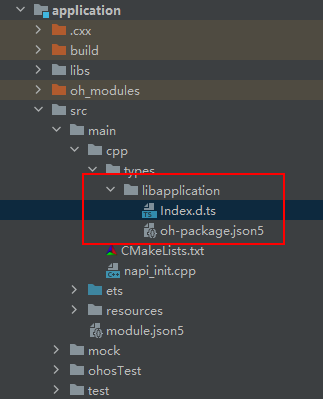
- Create the types/libxxx directory in the corresponding cpp directory, add the index.d.ts file to the directory to declare the native type symbol, and add the oh-package.json5 configuration file for the verification tool module querying.

- Add the local dependency of the native module to oh-package.json5 in the module referenced by the native module, and click Sync Now to synchronize the project as prompted. The following figure uses the entry module as an example to describe how to reference a native module.

- Create the types/libxxx directory in the corresponding cpp directory, add the index.d.ts file to the directory to declare the native type symbol, and add the oh-package.json5 configuration file for the verification tool module querying.
- Scenario 2:
Symptom
When a third-party package is referenced, the build fails and the error message "Cannot find module 'xxx' or its corresponding type declarations" is displayed.

Solution
Open the oh-package.json5 file of the corresponding module or project to check whether the third-party package has been installed. If the third-party package has not been installed, run ohpm install to install it. If the third-party package has been installed, check whether the main field is correctly configured. If the entry file is not configured or incorrectly configured, configure it correctly.
- Scenario 3:
Symptom
The referenced package path is obfuscated. In the code, the path is directly concatenated to the end of the referenced package. As a result, the module cannot be referenced and an error is reported.
Sample code:

It is referenced in the code as follows:
 In this case, the module cannot be found. As a result, an error is reported.
Solution
Change the reference mode to the recommended one.

- Scenario 4:
Symptom
The referenced module oh_package.json5 is incorrectly configured. The ohpm install command is executed and the dependency is successfully installed. However, an error message is displayed, indicating that the module cannot be found.

The types field is incorrectly configured in the oh_package.json5 file of the referenced module.
This field takes precedence over the main field. In other words, if the value configured in the types field does not exist, an error message is displayed, indicating that the module cannot be found.

Solution
If the package does not contain the d.ets declaration, this field can be deleted. If the configured value does not exist or is incorrect, an error is reported.
- Scenario 5:
Symptom
The name of the module referenced in dependencies of oh_package.json5 is different from that imported in actual use.
For example, a module is referenced in oh_package.json5 as follows:
"dependencies": { "har": "file:../har" }The import statement uses HAR or other names instead of har as configured in dependencies. The values must match exactly. (Currently, this issue occurs only on Linux.)
Solution
Change the name of the module referenced in dependencies of oh_package.json5 to the same as that imported in actual use.
- Scenario 6:
Symptom
The value of the main field in oh_package.json5 of the referenced module is inconsistent with the actual file name.
Solution
Change the case of the main field to be the same as that of the actual file name.
- Scenario 7:
Symptom
The stage model project fails to be built, with the message "Cannot find module '@bundle:rollup_plugin_ignore_empty_module_placeholder' or its corresponding type declarations".

Solution
This issue occurs when the project references a .d.ts declaration file that does not have the corresponding implementation file.
- Search for rollup_plugin_ignore_empty_module_placeholder in the build directory to locate the intermediate file where the error is reported, and find the corresponding project file based on the intermediate file.
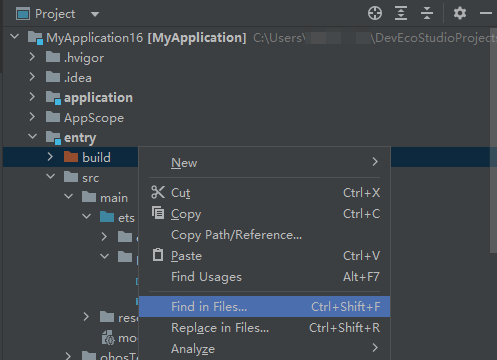
Enter rollup_plugin_ignore_empty_module_placeholder in the text box to locate the intermediate file where the error is reported.

- Explicitly declare a symbolic type reference by adding type to the reference type file:
export type {T} from './type';
- In addition, check whether value type symbols are referenced from d.ts/d.ets. Do not declare value variables in the declaration file.

- Search for rollup_plugin_ignore_empty_module_placeholder in the build directory to locate the intermediate file where the error is reported, and find the corresponding project file based on the intermediate file.
What Should I Do If the Error Message "Module 'xxx' has no exported member 'yyy'" Is Displayed During Compilation?
Symptom
The stage model project fails to be compiled and built. The error message "Module 'xxx' has no exported member 'yyy'" is displayed, where the yyy symbol is exported from the x.js file using export * from 'x.js'.
Solution
During compilation and build of the stage model project, the syntax of the .js file is not checked. Therefore, when using export * from 'x.js' to export symbols from an x.js file, "Module 'xxx' has no exported member 'yyy'" is reported where the symbol is referenced.
If a similar problem occurs, perform the following to troubleshoot:
- Method 1 (recommended): Use the symbol explicit export syntax to re-export symbols from the x.js file.
export { yyy } from 'x.js'
- Method 2: Add a declaration file (.d.ts) of the x.js file and do not specify the file name extension during reference.

What Should I Do If the Error Message "Could not load ${file1} (imported by ${file2}): Maximum call stack size exceeded" Is Displayed During Compilation?
Symptom
The stage model project fails to be compiled and built, and the message "ERROR: Could not load ${file1} (imported by ${file2}): Maximum call stack size exceeded" is displayed.

Solution
This problem occurs because file1 is the code outside the current project.

Create a Static Library module, migrate the code outside the project to the Static Library module, and reference HAR using HAP to implement cross-module reference.
What Should I Do If the Error Message "Failed to get a resolved OhmUrl by filepath xx" Is Displayed During Compilation?
- Scenario 1:
Symptom
When the dependency of a third-party package is configured in devDependencies, if the source code references the API in the dependency, the compilation fails. In the following example, the third-party package @hms-security/ucs-appauth depends on @network/gr in devDependencies. When the source code uses the API of @network/grs, the compilation fails and the error message "ArkTS:ERROR Failed to get a resolved OhmUrl by filepath xxx" is displayed.
 Cause Analysis
- Find the source code file in yellow. The warning messages for dependencies are displayed.

- Go to the oh-package.json5 file in the package and check whether the dependencies are configured in devDependencies.

Solution- Provide an improvement suggestion to the package development team: Runtime dependencies cannot be configured in devDependencies.
- Import the third-party packages in devDependencies to the dependency upper layer.
- Find the source code file in yellow. The warning messages for dependencies are displayed.
- Scenario 2:
Symptom
Compilation fails with the error message "ArkTS:ERROR Failed to get a resolved OhmUrl by filepath xxx."

Cause Analysis
Check whether the srcPath path specified by field modules in the build-profile.json5 file of the project directory is different from the actual path and whether the path uses incorrect letter cases.
Solution
Change the value of srcPath in field modules in the build-profile.json5 file of the project directory to the actual path.
- Scenario 3:
Symptom
Project A references a module of project B using relative paths. This reference causes an error.


 Solution
- Transfer the HAR of project B to project A as a module reference for project A.
- Package the HAR of project B in advance and reference the module using .har in project A.
- Upload the module to the repository and reference it using the version number.
- Scenario 4
Symptom
Compilation fails with the error message "Error Message: Failed to get a resolved OhmUrl for 'hvigor_ignore_xxxxx' imported by xxx."
Solution
If the module containing hvigor_ignore_xxxxx is a HAR module, check the oh_package.json5 file for the presence of "packageType": "InterfaceHar". If it exists, remove it.
- Scenario 5
Symptom
Compilation fails with the error message "Failed to get a resolved OhmUrl for 'xxx' imported by 'yyy'."

Cause Analysis
- Check whether the module where yyy is located is a bytecode HAR. If the value of useNormalizedOHMUrl in the project-level build-profile.json5 file is true (the default value is false), the bytecode HAR is built by default.
- If the module where yyy is located is a bytecode HAR, check whether the dependency xxx is configured under dependencies in the project-level oh_package.json5 file but not in the module-level oh_package.json5 file of the yyy module.
Solution
- Add the dependency xxx to dependencies in the oh_package.json5 file of the yyy module.

- Change the yyy module to a non-bytecode HAR, add the byteCodeHar field to the module-level build-profile.json5 file, and set the field to false.
"buildOption": {
  "arkOptions": {
    "byteCodeHar": false
  }
}
- Scenario 6
Ensure that the current DevEco Studio version matches the SDK version. Choose Help > About DevEco Studio and Help > About HarmonyOS SDK to check the DevEco Studio and SDK versions.

- Scenario 7
Symptom
The error message "ArkTS:ERROR Failed to get a resolved OhmUrl by filepath xxx" is accompanied with the message "ERROR: ArkTS:ERROR failed to execute es2ab."

Solution
The project references a non-standard module directory (that is, the directory does not contain the module description file module.json5). Create a Static Library module and migrate the code in utils/common to the Static Library module, and reference HAR using HAP to implement cross-module reference.
What Should I Do If the Error Message "Property xxx does not exist on type 'typeof BuildProfile'." Is Displayed During Compilation?
Symptom 1
The user-defined parameter BuildProfile is used. No exception occurs in the compilation phase, but the compilation fails, with the message "Property xxx does not exist on type 'typeof BuildProfile'."

Solution
Check whether the key values of user-defined parameters configured in targets > buildProfileFields in build-profile.json5 of the current module are the same. If they are different, change them to the same.
The following is an example of incorrect configuration that causes the compilation error:
"targets": [
  {
    "name": "default",
    "config": {
      "buildOption": {
        "arkOptions": {
          "buildProfileFields": {
            "targetName": "default"
          }
        }
      }
    }
  },
  {
    "name": "default1",
    "config": {
      "buildOption": {
        "arkOptions": {
          "buildProfileFields": {
            "targetName1": "default1"
          }
        }
      }
    }
  },
]
Change all the key values of buildProfileFields in targets to the same. The following is an example:
"targets": [
  {
    "name": "default",
    "config": {
      "buildOption": {
        "arkOptions": {
          "buildProfileFields": {
            "targetName": "default"
          }
        }
      }
    }
  },
  {
    "name": "default1",
    "config": {
      "buildOption": {
        "arkOptions": {
          "buildProfileFields": {
            "targetName": "default1"
          }
        }
      }
    }
  },
]
Symptom 2
The custom parameter BuildProfile used is marked red by the compiler, and the build fails with "Property xxx does not exist on type 'typeof BuildProfile'." reported.

Solution
Ensure that the user-defined parameter is added to buildProfileFields in build-profile.json5 of the current module.
What Should I Do If PC Stuttering Occurs Due to C++ Project Compilation?
Symptom
For a C++ project with a large amount of code, the CPU usage is high during C++ compilation. As a result, the computer may freeze or respond slowly.
Solution
If a similar problem occurs, perform the following to troubleshoot:
"arguments": "-DCMAKE_JOB_POOL_COMPILE:STRING=compile -DCMAKE_JOB_POOL_LINK:STRING=link -DCMAKE_JOB_POOLS:STRING=compile=2;link=2",
It should be noted that if the values of compile and link are changed, the compilation duration may increase.
What Should I Do If the Error Message "A 'undefined symbol' error has occurred" Is Displayed During C++ Compilation?
Symptom
During compilation of a HarmonyOS C++ project, the error message "A 'undefined symbol' error has occurred" is displayed.
Solution
The "undefined symbol" error typically indicates that the linker cannot find the definition of a specific symbol. This issue often occurs when source files are not compiled or linked correctly, or when the necessary library files are missing. To locate and rectify this issue, perform the following steps:
1. Make sure all source files are included in the CMake build.
Check your CMakeLists.txt file to ensure that all relevant source files are included in the project.
cmake_minimum_required(VERSION 3.10)
project(MyProject)
set(CMAKE_CXX_STANDARD 17)
include_directories(${CMAKE_CURRENT_SOURCE_DIR}
                    ${CMAKE_CURRENT_SOURCE_DIR}/include)
# Add all source files.
add_library(myProgram SHARED main.cpp myLibrary.cpp)
2. Confirm the symbol definitions in the source files.
Make sure symbols are correctly defined in all relevant source files. For example, check whether myLibrary.cpp includes the definition of myFunction.
myLibrary.cpp
#include "myLibrary.h"
void myFunction() {
// Function implementation
}
myLibrary.h
#ifndef MY_LIBRARY_H
#define MY_LIBRARY_H
void myFunction();
#endif
3. Check the compilation and linking order.
Make sure all source files and library files are compiled and linked in the correct order. CMake and Ninja usually handle this order issue, but problems may arise during manual compilation.
4. Clean and regenerate build files.
Sometimes, build files may become corrupted or symbol definitions may be lost. Try cleaning the build directory and regenerating the build files:
hvigorw clean 1
Alternatively, manually delete the .cxx directory from the module.
5. Check library paths and linker flags.
If using third-party libraries, make sure the library paths and linker flags are correctly configured in the CMakeLists.txt file. Sample code:
cmake_minimum_required(VERSION 3.10)
project(MyProject)
set(CMAKE_CXX_STANDARD 17)
# Ensure that the header file of the involved third-party library is added.
include_directories(${PATH_TO_EXTERNAL_LIBRARY}
                    ${PATH_TO_EXTERNAL_LIBRARY}/include)
# Add a source file.
add_library(myProgram SHARED main.cpp myLibrary.cpp)
# Link the third-party library.
target_link_libraries(myProgram PUBLIC /path/to/external/library)
6. Enable verbose compilation and linking output.
To understand the detailed compilation and linking process, you can enable more verbose output. Add the following to the CMakeLists.txt file:
set(CMAKE_VERBOSE_MAKEFILE ON)
7. Check the Ninja output logs.
By default, Ninja generates a .ninja_log file containing detailed information about the build process. You can check this log file to identify issues that occur during the build process.
cat {module}/.cxx/default/default/arm64-v8a/.ninja_log Check the log file for the source file or header file containing the symbols.
8. Use the nm tool to check symbols.
Inspect the symbols in the target file and library file to ensure that the symbol definitions exist.
You can do so with the nm tool in the SDK: sdk/default/openharmony/native/llvm/bin/llvm-nm.
Check the target file.
nm myLibrary.o | grep myFunction
Check the third-party library file.
nm /path/to/external/library | grep myFunction
Conclusion
By following the above steps, you can locate and resolve the "error: undefined symbol" issue. When compiling a C++ project with CMake, Ninja, and LLVM, ensure that all source files and library files are correctly included in the project and that the compilation and linking options are correctly configured. If the issue persists, consult the compilation and linking output logs for clues to help you identify the specific cause.
What Should I Do If the Error Message "A 'unknown type name' error has occurred" Is Displayed During C++ Compilation?
Symptom
During compilation of a HarmonyOS C++ project, the error message "A 'unknown type name' error has occurred" is displayed.
Solution
This error occurs when the compiler cannot recognize a certain type. This may be due to the type not being defined, the relevant header file not being included, or the path to the included header file being incorrect. To locate and rectify this issue, perform the following steps:
- Check for included header files.
Make sure all necessary header files are correctly included in the source file. For example, if you are using a custom type or a type provided by a library, be sure to include the relevant header file in the file where the type is used.
Example
// main.cpp #include "myLibrary.h" int main() { MyType obj; // Use a custom type. return 0; } // myLibrary.h #ifndef MY_LIBRARY_H #define MY_LIBRARY_H class MyType { public: MyType() {} void doSomething(); }; #endif - Verify header file paths.
Make sure the search paths for header files are correctly set in the CMakeLists.txt file. You can add header file directories using include_directories.
Example CMakeLists.txt:
cmake_minimum_required(VERSION 3.10) project(MyProject) set(CMAKE_CXX_STANDARD 17) # Add a header file directory. include_directories(${CMAKE_SOURCE_DIR}/include) # Add a source file. add_library(myProgram SHARED src/main.cpp src/myLibrary.cpp) - Clean and regenerate build files.
Sometimes, build files may become corrupted or symbol definitions may be lost. Try cleaning the build directory and regenerating the build files:
hvigorw clean
Alternatively, manually delete the .cxx directory from the module.
- Enable verbose compilation output.
To understand the detailed compilation process, you can enable more verbose output. Add the following to the CMakeLists.txt file:
set(CMAKE_VERBOSE_MAKEFILE ON)
- Check the compilation output logs.
By default, Ninja generates a .ninja_log file containing detailed information about the build process. You can check this log file to identify issues that occur during the build process.
cat .cxx/default/default/arm64-v8a/.ninja_log
- Use CMake's message function for debugging.
Add the message function in the CMakeLists.txt file to print debugging information to ensure that paths and variables are correctly set.
Example
message(STATUS "Source directory: ${CMAKE_SOURCE_DIR}") message(STATUS "Include directories: ${CMAKE_INCLUDE_PATH}") - If the error-causing API is a system API, check the initial version in the corresponding API reference to confirm whether the API is available in the current version.
Conclusion
By following the above steps, you can locate and resolve the "error: unknown type name" issue. When compiling a C++ project with CMake, Ninja, and LLVM, it is crucial to ensure that all header files are correctly included and that the correct header file paths are set. If the issue persists, consult the compilation output logs for clues to help you identify the specific cause.
What Should I Do If Error Message "LABEL_VALUE_ERROR" Is Displayed?
Symptom
The LABEL_VALUE_ERROR message is displayed during project synchronization or building.

Solution
Set the label field in the config.json file to the resource reference mode.
- Choose resources > base > element and add the corresponding character string to the string.json file.
- Reference the string resource again in the config.json file.

What Should I Do If Error Message "Schema validate failed" Is Displayed Due to Missing Startup Window Information of an App/Atomic Service?
Symptom
An error occurs during project synchronization or build, and the error message "Schema validate failed" is displayed.

Solution
During app/atomic service development, you can set the icon and background color of the startup window. The startup window settings are automatically configured when you create a project. If you accidentally delete a required field, the system generates an error to alert you and prevent misconfiguration. The following describes how to reset the startup page information. You can customize the icon and background color of the startup page.
To improve the cold start performance of your app/atomic service, you can set the icon and background color on the startup window as follows:
- Right-click resources > base > element and choose New > Element Resource File from the shortcut menu to create a resource file.

- In the dialog box displayed, name the file, for example, color, and set Root element to color.

After the creation is complete, the color.json file shown below is displayed.

- Copy the color.json file created in 2 to the ohosTest > resources > base > element directory of the module.
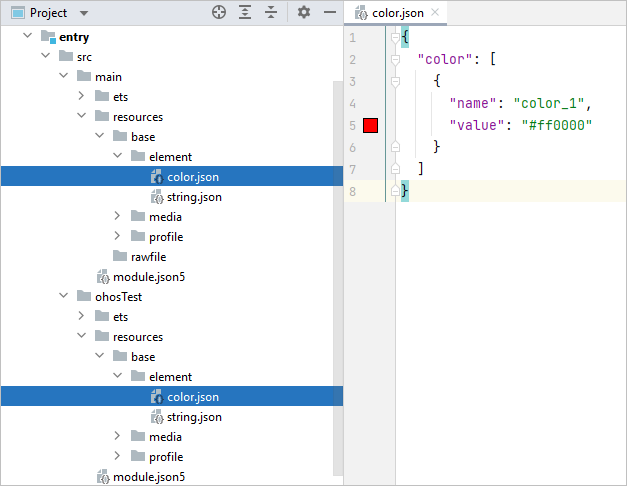
- Add the startWindowIcon and startWindowBackground fields to the abilities array in the src > main > module.json5 file of the module. If any field is missing, the error message "ERROR: Schema validate failed" is reported. The startWindowIcon field is used to index the icon resource in resources > base > media of the module, and the startWindowBackground field is used to index the color in resources > base > element > color.json.

- Add the startWindowIcon and startWindowBackground fields to the abilities array in the src > ohosTest > module.json5 file. The startWindowIcon field is used to index the icon resource in resources > base > media of module ohosTest, and the startWindowBackground field is used to index the color in resources > base > element > color.json.
What Should I Do If the Error Message "Schema validate failed" Is Displayed During Compilation?
Symptom
An error occurs during compilation via DevEco Studio, and the error message "Schema validate failed" is displayed.
Solution
The cause is that some fields are missing or spelled incorrectly in the configuration file. Locate the fault based on the error details.
For example, if name in the abilities tag in module.json5 is misspelled to nam, the following error information is displayed:
	 Detail: Please check the following fields.
{
  instancePath: 'module.abilities[0]',
  keyword: 'required',
  params: { missingProperty: 'name' },
  message: "must have required property 'name'",
  location: 'D:/MyApplication/entry/src/main/module.json5:15:8'
}
{
  instancePath: 'module.abilities[0]',
  keyword: 'required',
  params: { missingProperty: 'srcEntrance' },
  message: "must have required property 'srcEntrance'",
  location: 'D:/MyApplication/entry/src/main/module.json5:15:8'
}
{
  instancePath: 'module.abilities[0]',
  keyword: 'required',
  params: { missingProperty: 'name' },
  message: "must have required property 'name'",
  location: 'D:/MyApplication/entry/src/main/module.json5:15:8'
}
{
  instancePath: 'module.abilities[0]',
  keyword: 'oneOf',
  params: { passingSchemas: null },
  message: 'must match exactly one schema in oneOf',
  location: 'D:/MyApplication/entry/src/main/module.json5:15:8'
}
{
  instancePath: 'module.abilities[0]',
  keyword: 'enum',
  params: {
    allowedValues: [
      'priority',
      'name',
      'srcEntrance',
      'srcEntry',
      'launchType',
      'description',
      'icon',
      'label',
      'permissions',
      'metadata',
      'visible',
      'exported',
      'skills',
      'backgroundModes',
      'continuable',
      'startWindowIcon',
      'startWindowBackground',
      'removeMissionAfterTerminate',
      'orientation',
      'supportWindowMode',
      'maxWindowRatio',
      'minWindowRatio',
      'maxWindowWidth',
      'minWindowWidth',
      'maxWindowHeight',
      'minWindowHeight',
      'excludeFromMissions'
    ]
  },
  message: 'must be equal to one of the allowed values',
  location: 'D:/MyApplication/entry/src/main/module.json5:15:8'
}
{
  instancePath: 'module.abilities[0]',
  keyword: 'propertyNames',
  params: { propertyName: 'nam' },
  message: 'property name must be valid',
  location: 'D:/MyApplication/entry/src/main/module.json5:15:8'
}
Keywords in the preceding error information:
- instancePath: location of the error in the file. 'module.abilities[0]' indicates the first abilities in the module.json5 file.
- keyword: optional configuration property of the erroneous field, such as 'required', 'oneOf', 'enum', and 'propertyNames' in this example.
- required: indicates that the field is mandatory but has not been configured, likely due to its absence or a misspelling.
- oneOf: indicates that the current configuration does not meet the oneOf requirement. As indicated by instancePath, the error lies with the abilities tag. To address this, in DevEco Studio, press and hold Ctrl and click abilities to go to the corresponding module.json file. You can see that one of the following two groups must be configured. A further check reveals that a spelling error has led to the name property not being configured.

- enum: lists all configurable properties in the tag. You can determine the correct spelling of the properties based on the enumerated values.
- propertyNames: indicates that there is a spelling error in the field. For example, propertyName:'nam' indicates that nam is an incorrect property name.
- params: detailed information corresponding to different keywords. For example, if keyword is required, params with missingProperty: 'name' indicates that the name property is missing.
- message: instructions on what needs to be corrected. For example, if keyword is required, message might state that the name property must be configured.
- location: specific location of the error, which takes you to the error in the code upon a click.
What Should I Do If the Error Message "No available entry module found" Is Displayed During Compilation?
Symptom
An error occurs during compilation via DevEco Studio, and the error message "No available entry module found" is displayed.
Solution
The dependent entry module needs to be configured in the feature module. During compilation, DevEco Studio checks whether the entry module on which the feature module depends exists. If an error similar to above is reported, the possible causes are as follows:
- In the build-profile.json5 file of the feature module, the name configured for the entryModules field is different from the actual name of the entry module. In this case, modify the value of entryModules to the name of the entry module.
- In the modules field of the project-level build-profile.json5 file, the feature module is placed before the entry module. Since DevEco Studio configures modules from front to back during compilation, if the entry module is not read or configured when the feature module is configured, an error indicating that the entry module does not exist is reported. Place the feature module after the dependent entry module in the modules field.
What Should I Do If the Error Message "keystore password was incorrect" Is Displayed During Compilation?
Symptom
An error occurs during compilation via DevEco Studio, and the error message "keystore password was incorrect" is displayed.
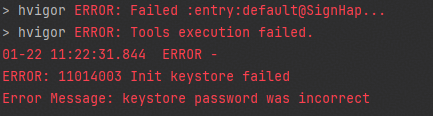
Possible Cause
The password of the keystore (.p12) is incorrect.

storePassword and keyPassword are customized by the developer when the .p12 file is created. Remember the passwords. The build-profile.json5 file of the DevEco Studio project contains the ciphertext of the password. However, the signing tool requires the plaintext of the password. Therefore, the value in the build-profile.json5 file cannot be directly used in the signing tool.
Common Scenarios
- Incorrect password.
- An actual password is required in the command line, but a ciphertext password is entered by mistake.
- The key (keyAlias) password is mixed up with the keystore (.p12) password.
Solution
The cause is that the signature password in the signature file is incorrect.

Developers can solve this problem by re-signing.
1. Choose File > Project Structure > Project > Signing Configs.
2. Select Automatically generate signature, wait for re-signing, and click OK.

What Should I Do If the Error Message "please check deviceType or distroFilter of the module" Is Displayed During Compilation?
Symptom
An error occurs during compilation via DevEco Studio. One of the following messages is displayed:
- Module: (xxx) and Module: (xxx) are entry, please check deviceType or distroFilter of the module.

- Module: (xxx) and Module: (xxx) have the same moduleName, please check deviceType or distroFilter of the module.

- Module: (xxx) and Module: (xxx) have the same packageName, please check deviceType or distroFilter of the module.
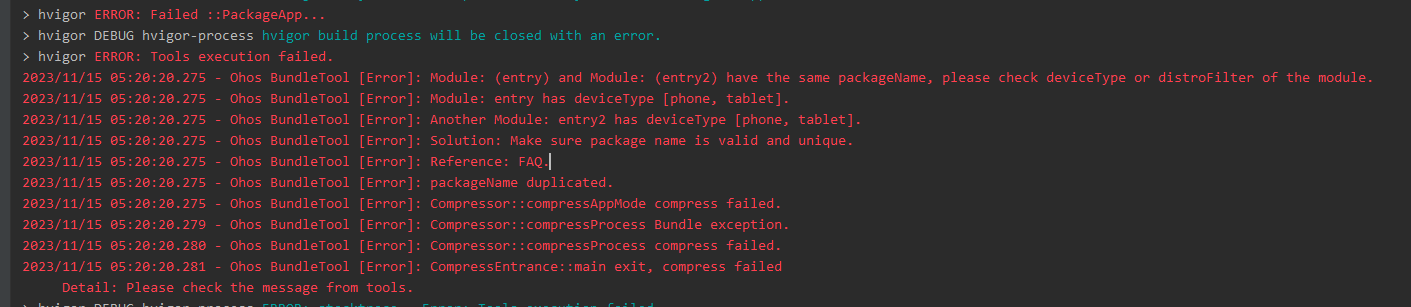
- Module: (xxx) and Module: (xxx) have the same ability name.

Solution
Modify the project to ensure that it meets the HAP uniqueness verification logic during packaging. For details, see Logic for Checking HAP Uniqueness.
What Should I Do If the Error Message "Failed to generate test project build system" Is Displayed During Compilation?
Symptom
During multi-module native build, the error message "Failed to generate test project build system." is displayed.

Solution
Delete the .cxx folder under the module that reports the error, select the module to be built, and run the Make Module ${moduleName} command to build the module separately. Do not build multiple modules at the same time.

What Should I Do If the Third-Party Dependency Library of a C/C++ Project Is Not Packaged into the HAP?
Symptom
When a C/C++ project depends on a third-party so. file, the third-party so. file is not packaged into the HAP file after it is generated.
Solution
Currently, DevEco Studio has limited addressing modes for third-party so. files in C/C++ projects. If third-party so. files are not packaged into HAP, modify the so. file import mode.
- Define an alias (for example, jsbind_shared_lib_tracing), indicating the third-party so. file to be imported.
- Use SHARED IMPORT to define the so. file import mode as dynamic import.
- Use IMPORTED_LOCATION to specify the location where the so. file is imported.
- Declare the defined three-party so. file to the target.

- Generate a HAP again and ensure that the third-party .so file is packaged into the HAP.
What Should I Do If Files in the src/main/cpp Directory of the Static Library Module Are Not Packaged into the HAR?
Symptom
Click Build > Make Module ${libraryName} to compile and build the HAR, files in the cpp directory are not displayed in the build product.

Solution
When Hvigor 2.5.0-s or later is used for HAR compilation and build, only the local dependencies specified in dependencies in the current module are included in the .har file. The dependencies specified in devDependencies are not included.
Move the corresponding local dependency to dependencies and recompile it.

What Should I Do If the Error Message "ArkTS:WARN: For details about ArkTS syntax errors" Is Displayed During Compilation?
Symptom
During project build, the error message "ArkTS:WARN: For details about ArkTS syntax errors, see FAQs" is displayed.

Solution
Check the error message for specific ArkTS syntax rule violations, which are enclosed in brackets, such as (arkts-no-var). Then, refer to the TypeScript to ArkTS Cookbook and modify your code to comply with the ArkTS syntax specifications.
What Should I Do If the Error Message "ninja: error: mkdir(xxx): No such file or directory" Is Displayed During Compilation?
Symptom
An error is reported during native project compilation, and the following warning and error message are displayed:
A warning message is generated indicating that the length of the project directory exceeds 250 characters. For example:

The compilation error message "ninja: error: mkdir(xxx): No such file or directory" is displayed, as shown in the following figure.

Solution
The default value of CMAKE_OBJECT_PATH_MAX is 250. If the actual path length of the object file in the project exceeds this limit, a compilation error is reported.
You need to set CMAKE_OBJECT_PATH_MAX in CMakeLists.txt based on the actual path length of the object file. The procedure is as follows:
- Method 1: Add a file name length to the default value of CMAKE_OBJECT_PATH_MAX.
In the example, the warning message file is TextMeasureCache.cpp.obj, whose name contains 24 characters. Add 24 to the default value 250, that is, configure it to set(CMAKE_OBJECT_PATH_MAX 274).
- Method 2: Calculate the value of CMAKE_OBJECT_PATH_MAX based on the actual path length of the object file.
Calculation formula: CMAKE_OBJECT_PATH_MAX = Total path length – Length of the directory in the object file + Number of characters in the CMake hash value (fixed at 32)
- Total path length = Length of the object file directory + Length of the object file. In the following example, the total length of the object file directory and object file is 297 characters.

- Length of the directory in the object file: In the example, the length of __/__/__/__/__/third-party/rn/ReactCommon/react/renderer/textlayoutmanager is 74 characters. Replace it with the actual length.
- Number of characters in the CMake hash value: length of the hash value when CMake converts a long path to a hash value. The value is fixed at 32.
Therefore, in this example, CMAKE_OBJECT_PATH_MAX = 297 - 74 + 32 = 255, that is, set it to set(CMAKE_OBJECT_PATH_MAX 255).
- Total path length = Length of the object file directory + Length of the object file. In the following example, the total length of the object file directory and object file is 297 characters.
What Should I Do If the Error Message "(is the command line too long?)" Is Displayed During Compilation?
Symptom
An error is reported during native project compilation, and the following warning and error message are displayed:
A warning message is generated indicating that the length of the project directory exceeds 250 characters. For example:

The compilation error message "(is the command line too long?)" is displayed, as shown in the following figure.

Solution
The default value of CMAKE_OBJECT_PATH_MAX is 250. If the actual path length of the object file in the project exceeds this limit, a compilation error is reported.
You need to set CMAKE_OBJECT_PATH_MAX in CMakeLists.txt based on the actual path length of the object file. The procedure is as follows:
- Method 1: Add a file name length to the default value of CMAKE_OBJECT_PATH_MAX.
In the example, the warning message file is TextMeasureCache.cpp.obj, whose name contains 24 characters. Add 24 to the default value 250, that is, configure it to set(CMAKE_OBJECT_PATH_MAX 274).
- Method 2: Calculate the value of CMAKE_OBJECT_PATH_MAX based on the actual path length of the object file.
Calculation formula: CMAKE_OBJECT_PATH_MAX = Total path length – Length of the directory in the object file + Number of characters in the CMake hash value (fixed at 32)
- Total path length = Length of the object file directory + Length of the object file. In the following example, the total length of the object file directory and object file is 297 characters.

- Length of the directory in the object file: In the example, the length of __/__/__/__/__/third-party/rn/ReactCommon/react/renderer/textlayoutmanager is 74 characters. Replace it with the actual length.
- Number of characters in the CMake hash value: length of the hash value when CMake converts a long path to a hash value. The value is fixed at 32.
Therefore, in this example, CMAKE_OBJECT_PATH_MAX = 297 - 74 + 32 = 255, that is, set it to set(CMAKE_OBJECT_PATH_MAX 255).
- Total path length = Length of the object file directory + Length of the object file. In the following example, the total length of the object file directory and object file is 297 characters.
- Method 3: If the error persists after CMAKE_OBJECT_PATH_MAX is correctly configured, change the project storage path to a shorter directory.
After CMAKE_OBJECT_PATH_MAX is correctly configured, CMake converts the long path into a 32-character hash value to shorten the path length. If the converted path is still too long, change the project storage path to a shorter directory.
What Should I Do If the Error Message "CMake Error: The following variables are used in this project, but they are set to NOTFOUND" Is Displayed During Compilation?
Symptom
When find_path is used in a native project, the following error information is displayed:

Solution
In the CMake cross-compilation configuration file (ohos.toolchain.cmake) provided by the OpenHarmony SDK, the search path is restricted to CMAKE_SYSROOT.
If you need to add a search path, use the list API to add a custom path in CMakeLists.txt. For example, add D:demo to the search path.
list(APPEND CMAKE_FIND_ROOT_PATH_MODE_INCLUDE "D:demo")
After the path is added, you can use find_path to search files in the D:demo directory.
What Should I Do If the Error Message "Unknown resource name" Is Displayed During Compilation?
- Scenario 1
Symptom
In a project, module A references module B. When module A is compiled, an error message "Unknown resource name 'xxxx'" is displayed, indicating that the resources of module B cannot be found.

Solution
Ensure that the following conditions are met:
- Resources must be stored in the resource/base directory.
- Module B has been installed.
- Module A references the resources of module B by the defined module name instead of the relative path.
- Scenario 2
Symptom
The method of referencing a module is incorrect. If the code of another module is referenced, an error message is displayed, indicating that the resource cannot be found.


Solution
Add the module under dependencies in the oh_package.json5 module.
An example is provided as follows.

- Scenario 3
Symptom
HSP A applies for a permission that references resources. When all components that depend on HSP A are built, an error message is displayed, indicating that the resources referenced by HSP A cannot be found.
Solution
Manually configure the corresponding resource in the referencing party.
What Should I Do If the Error Message "Task xxx was not found in the project xxx" Is Displayed During Build?
Symptom
When the build command is manually executed on the CLI, the build fails and the error message "Task xxx was not found in the project xxx" is displayed.
 Cause Analysis
- Run the hvigorw tasks command to check whether the corresponding command exists.
- Check whether the type field in module.json5 of the corresponding project matches the command execution module. As shown in the preceding figure, the assembleHar command is used to package the HAR module in the project. If the type field in module.json5 is not har, the preceding error message is displayed.
Solution
- Run the correct command.
- Check the type field in module.json5 of the corresponding project and run the corresponding command.
What Should I Do If the Error Message "The reason and usedScene attributes are mandatory for user_grant permissions" Is Displayed During Compilation?
Symptom
Compilation via DevEco Studio fails, and the error message "The reason and usedScene attributes are mandatory for user_grant permissions" is displayed.

Possible Causes
In DevEco Studio NEXT Developer Preview2 and later versions, the following rule is added: In an app package, the permission list requestPermissions under the module of all Entry.hap and Feature.hap must be specified. (requestPermissions can be left empty by default. If it is not empty, the name field is mandatory. For the user_grant permission, the reason and usedScene fields are mandatory.)
Solution
Go to the corresponding module.json5 file and supplement the reason and usedScene fields under requestPermissions. The following is an example:
"requestPermissions": [
  {
    "name": "ohos.permission.READ_IMAGEVIDEO",
    "reason": "$string:module_desc",
    "usedScene": {
      "abilities": [
        "EntryAbility"
      ],
      "when": "inuse"
    }
  }
]
What Should I Do If the Error Message "Only one default card can be configured in the form_config.json file" Is Displayed During Compilation?
Symptom
Compilation via DevEco Studio fails, and the error message "Only one default card can be configured in the form_config.json file" is displayed.

Possible Causes
In DevEco Studio NEXT Developer Preview2 and later versions, the following rule is added: In the widget configuration file, isDefault cannot be left empty. Each UIAbility has only one default widget.
Solution
Go to the corresponding module.json5 file, select the default widget, and set the isDefault field of other widgets to false.
What Should I Do If the Error Message "In the form_config.json file, if the value of the updateEnabled field is true, the updateDuration and scheduleUpdateTime fields cannot be both empty" Is Displayed During Compilation?
Symptom
Compilation via DevEco Studio fails, and the error message "In the form_config.json file, if the value of the updateEnabled field is true, the updateDuration and scheduleUpdateTime fields cannot be both empty." is displayed.

Possible Causes
In DevEco Studio NEXT Developer Preview2 and later versions, the following rule is added: updateEnabled in the widget configuration file cannot be left empty. If updateEnabled is set to true, you can select either updateDuration or scheduledUpdateTime and configure it. If both updateDuration and scheduledUpdateTime are configured, updateDuration takes effect first.
Solution
Open the module.json5 file and set updateEnabled to false or add updateDuration and scheduledUpdateTime as required.
What Should I Do If the Error Message "The path XX is not writable. please choose a new location" Is Displayed During Compilation?
Symptom
When DevEco Studio is opened directly from a .dmg file on macOS, any attempt to build a project results in the error message "The path XX is not writable. Please choose a new location."

Possible Causes
Opening DevEco Studio from the .dmg file launches it in read-only mode, and the files built into DevEco Studio do not have write permissions.
Solution
Drag DevEco-Studio.app to Applications and install DevEco Studio by following the onscreen instructions.
What Should I Do If the Error Message "Property 'XX' does not exist on type 'typeof BuildProfile'" Is Displayed During Compilation?
Symptom
The external interface provided by the local HSP module uses a custom parameter BuildProfileFileds, which is not defined in the HAP, and the HAP references this interface, causing the compilation to fail with the message "Property 'XX' does not exist on type 'typeof BuildProfile'".

Solution
You can resolve this issue in two ways:
- Configure the same custom parameter BuildProfileFileds in the HAP as in the HSP.
- Configure the same custom parameter BuildProfileFields (as defined in the HSP) in the project-level build-profile.json5 file. This way, the custom parameter in the HSP takes effect globally.
What Should I Do If the Error Message "The useNormalizedOHMUrl settings of packages xxx and the project useNormalizedOHMUrl: xxx do not match" Is Displayed During Compilation?
Symptom
Error message "The useNormalizedOHMUrl settings of packages xxx and the project useNormalizedOHMUrl: xxx do not match" is displayed during compilation
Solution
When useNormalizedOHMUrl is set to true, the ohmurl uses a new method of concatenation and parsing. As such, it cannot be mixed with the old ohmurl; otherwise, it cannot be recognized at runtime.
You can resolve this issue in two ways:
- Modify the useNormalizedOHMUrl field in the project-level build-profile.json5 file of the problematic dependency package to be consistent with the current project. Then, regenerate the dependency package and replace the original one (the default value for useNormalizedOHMUrl is false).
{ "app": { "products": [ { "buildOption": { "strictMode": { "useNormalizedOHMUrl": true } } } ] } } - If there are many dependency packages with inconsistent useNormalizedOHMUrl values, you are advised to change the value of useNormalizedOHMUrl in the project-level build-profile.json5 and replace other inconsistent dependency packages.
If the issue persists, the HSP is a local package. In this case, import the HSP by adding it to modules in the project-level build-profile.json5 file. The following is an example:
"modules": [
  {
    name: "hsp",   // HSP dependency
    srcPath: "../MyApplication_stageB/hsp",   // Absolute or relative path of the HSP dependency
  }
]
What Should I Do If the Error message "Could not resolve 'xxx' from" Is Displayed When the 'xxx' Directory Exists?
Symptom
The error message "Could not resolve 'xxx' from" is displayed during compilation, but the xxx directory exists and contains an Index file.
Possible Causes
When referencing a directory, the compiler automatically concatenates a lowercase index file, but the directory contains an uppercase Index file. During compilation in a case-sensitive environment, the index file cannot be found, resulting in an error.
Solution
When referencing a directory, explicitly specify the reference to the Index file in the directory, for example, xxx/Index.
What Should I Do If the User Directory Does Not Contain an .npmrc File?
Symptom
During an attempt to create a project, the error message "Error: The hvigor depends on the npmrc file. Configure the npmrc file first." is displayed.
Possible Causes
There is no .npmrc file in the user directory.
Solution
Create an .npmrc file in your user directory and configure the following information:
registry=https://repo.huaweicloud.com/repository/npm/
@ohos:registry=https://repo.harmonyos.com/npm/
What Should I Do If the Error Message "Error: 'icon' value `$media:icons` invalid value." Is Displayed During Compilation?
Symptom
The error message "Error: 'icon' value `$media:icons` invalid value" is displayed during compilation.
ERROR: Failed :entry:default@CompileResource...
ERROR: Tools execution failed.
Error: ref `$media:icons` don`t be defined.
Error: 'icon' value `$media:icons` invalid value.
at D:\project\process_profile\default\module.json
Detail: Please check the message from tools.
Possible Cause
When a referenced resource does not exist, the file path indicated by the compilation error is the build directory.
Common Scenarios
- The resource file is not added.
- The resource file is deleted accidentally.
Solution
Search globally for the resource ID indicated by the error to check whether the erroneous resource exists.
What Should I Do If the Error Message "Error: cJSON_Parse failed, please check the JSON file." Is Displayed During Compilation?
Symptom
The error message "Error: cJSON_Parse failed, please check the JSON file" is displayed during compilation.

Possible Cause
The module.json file format is invalid.
Common Scenarios
1. There is an extra comma (,) at the end of the JSON file.
2. The root element is not enclosed in curly braces ({}).
Solution
Verify the format of the JSON file indicated by the error.
What Should I Do If the Error Message "Error: the name 'XXX' can only contain [a-zA-Z0-9_]." Is Displayed During Compilation?
Symptom
The error message "Error: the name 'XXX' can only contain [a-zA-Z0-9_]" is displayed during compilation.

Solution
Verify the file name. The file name can contain only uppercase letters, lowercase letters, digits, and underscores (_).
What Should I Do If the Error Message "Cannot add xxxx items to index" Is Displayed During Compilation?
Symptom
The error message "Cannot add xxxx items to index" is displayed during compilation.
Possible Causes
There is a function within the compiled file that contains a large number of object literals, array literals, and strings, causing the number of items to exceed the limit (65536).
Solution
Check the relevant files and split the functions that have the aforementioned causes.
What Should I Do If the Compilation Hangs with the Error Message Displayed: The modules directory at "xxx/workspace/node_modules" will be removed and reinstalled from scratch. Proceed? (Y/n) > true?
Symptom
The compilation hangs, with the error message displayed: The modules directory at "xxx/workspace/node_modules" will be removed and reinstalled from scratch. Proceed? (Y/n) > true.

Possible Causes
The pnpm version used for installing the build plugin is different from that used by DevEco Studio.
Solution
- Use DevEco Studio 26.0.0 or later.
- If you are still using the current DevEco Studio version, delete the path mentioned in the error message (in the preceding example, delete the C:\Users\xxxx\.hvigor\project_caches\8e4ab2ae81c130fec666aeb0b81bd299 directory) and the C:\Users\xxxx\.hvigor\wrapper directory.