Q:Stack容器内子组件默认会在同一位置堆叠放置,如何去调整这些子组件的坐标位置,例如按某种规则堆叠或设置其处于任意坐标上?
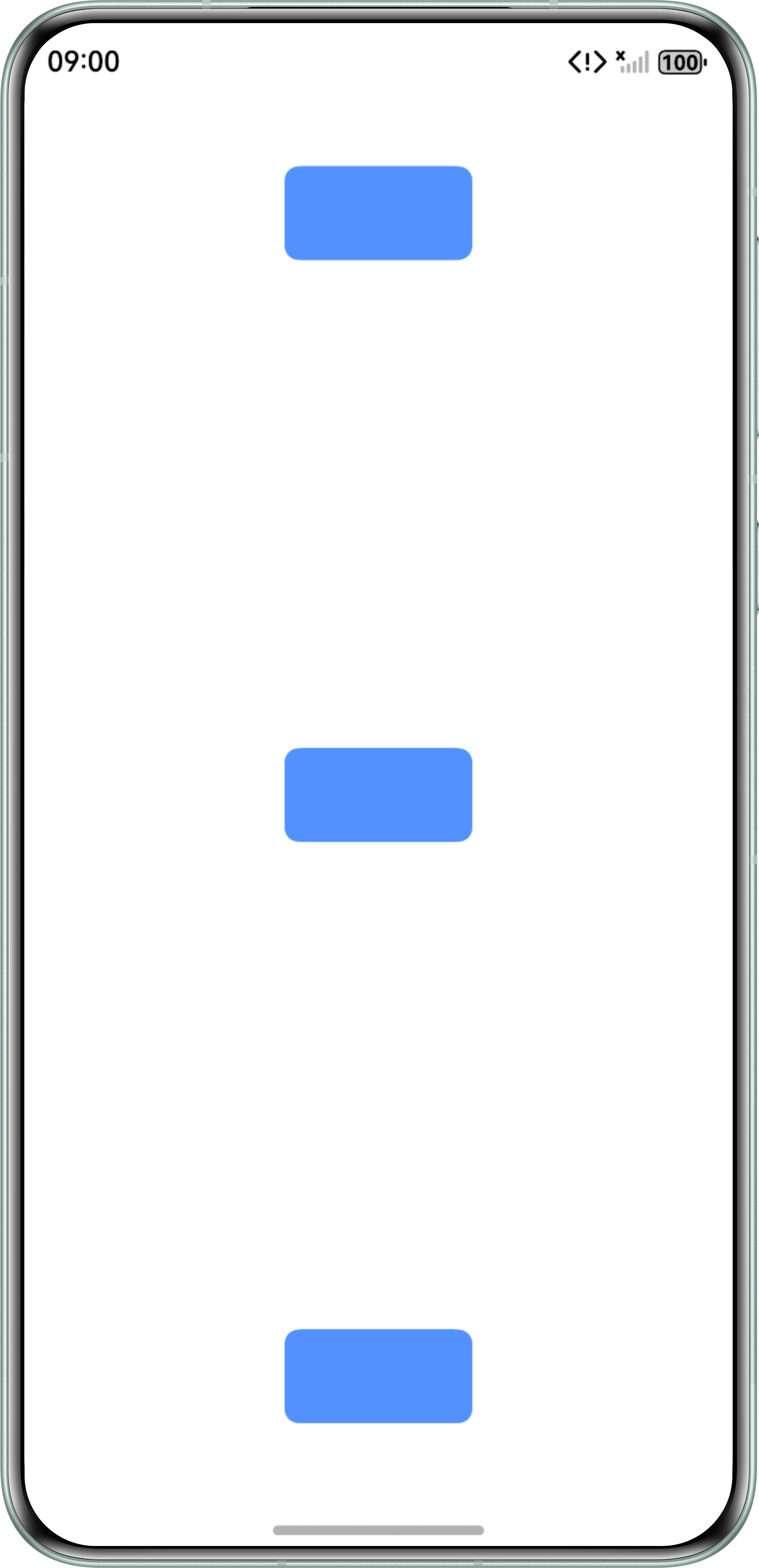
- 方案一:Stack布局常用于堆叠多个子组件。然而,有时需要进一步增强布局的灵活性,使得单个组件能够更好地满足不同的布局需求。为了实现这一点,可以将每个子组件嵌套在一个Column容器中。这样做可以利用Column的特性,使其能够根据父容器的尺寸自动调整子组件的位置和大小。例如,通过给Column设置justifyContent属性,可以使其中的组件分别处于竖直方向上的顶部,居中和底部位置。
@Entry
@Component
struct StackLayout {
  build() {
    Stack() {
      Column() {
        Column()
          .borderRadius(8)
          .width(100)
          .height(50)
          .backgroundColor('#5291FF');
      }
      .justifyContent(FlexAlign.Start)
      .width('100%')
      .height('100%');

      Column() {
        Column()
          .borderRadius(8)
          .width(100)
          .height(50)
          .backgroundColor('#5291FF');
      }
      .justifyContent(FlexAlign.Center)
      .width('100%')
      .height('100%');

      Column() {
        Column()
          .borderRadius(8)
          .width(100)
          .height(50)
          .backgroundColor('#5291FF');
      }
      .justifyContent(FlexAlign.End)
      .width('100%')
      .height('100%');
    }
    .height('90%')
    .offset({ x: '0%', y: '5%' });
  }
}
实现效果如下:
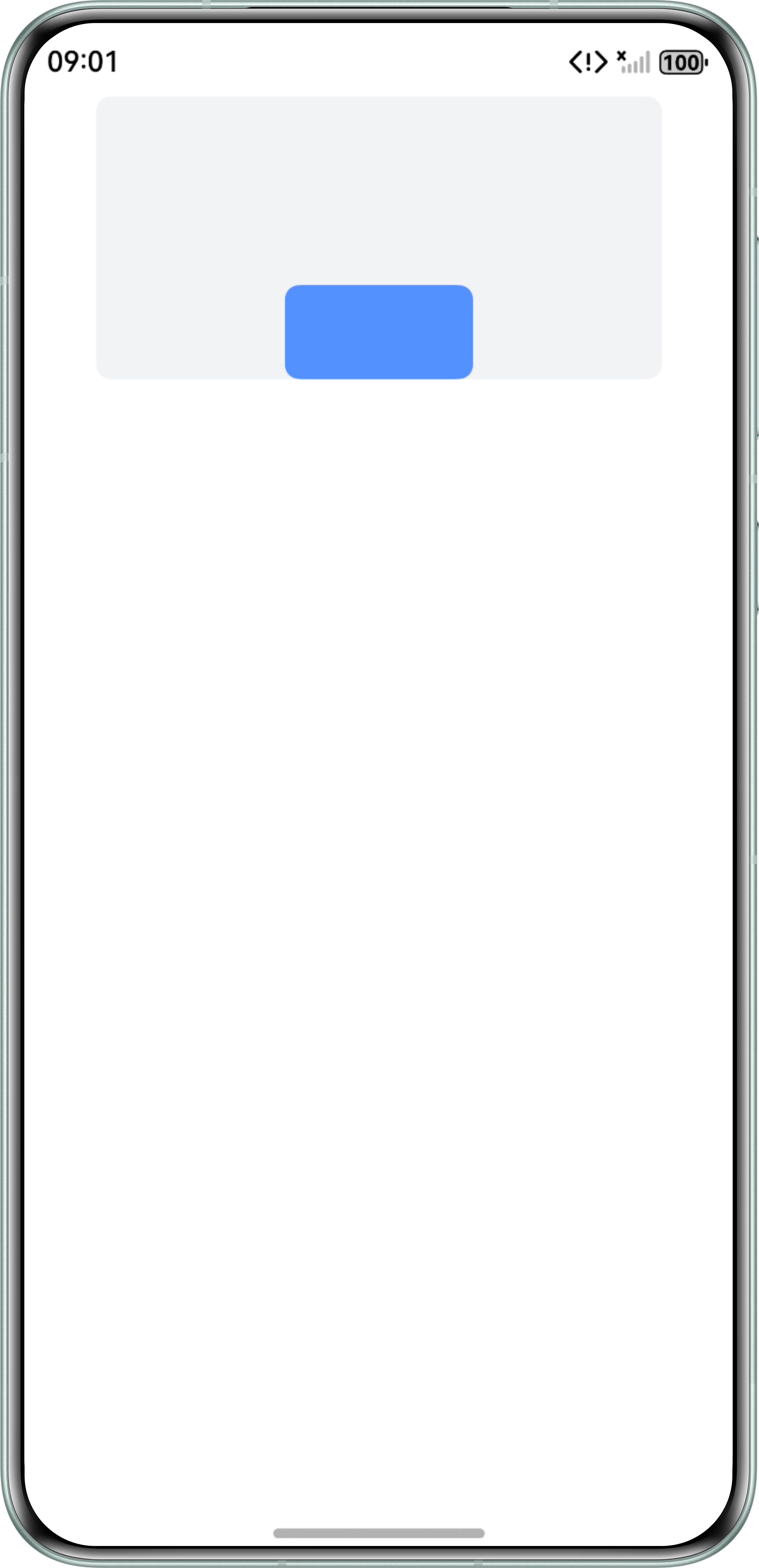
- 方案二:需要精确地控制单个子组件的位置,可以使用offset和position去做具体的调整。其中,offset控制子组件相对于自身原始位置的偏移,position控制子组件在父组件中的绝对位置。
例如,通过position调整单个子组件至垂直方向底部,水平方向居中(alignContent参数可以使所有子组件在此处进行重叠,但无法指定单个子组件的位置)。
@Entry
@Component
struct StackExample {
  build() {
    Column() {
      Stack() {
        Column()
          .borderRadius(8)
          .backgroundColor('#5291FF')
          .width(100)
          .height(50)
          .position({ x: 150 - 50, y: 150 - 50 });
      }
      .width(300)
      .height(150)
      .backgroundColor('#F1F3F5')
      .borderRadius(8);
    }
    .alignItems(HorizontalAlign.Center)
    .width('100%')
    .height('100%');
  }
}
实现效果如下:
Q:在Stack中,如果有两个兄弟组件,组件A被组件B覆盖,用户点击组件B时,是否可以将点击事件透传给组件A,触发组件A的onClick回调,而不触发组件B的onClick回调?
A:将组件B的hitTestBehavior属性设置为HitTestMode.None即可。参考代码如下:
@Entry @Component struct StackExample { build() { Stack({ alignContent: Alignment.Bottom }) { Text('A') .width('90%') .height('100%') .backgroundColor(0xd2cab3) .align(Alignment.Top) .onClick(() => { console.log('TextA click') }) Text('B') .width('70%') .height('60%') .backgroundColor(0xc1cbac) .align(Alignment.Top) .hitTestBehavior(HitTestMode.None) .onClick(() => { console.log('TextB click') }) } .width('100%') .height(150) .margin({ top: 5 }) } }参考链接:触摸测试控制。
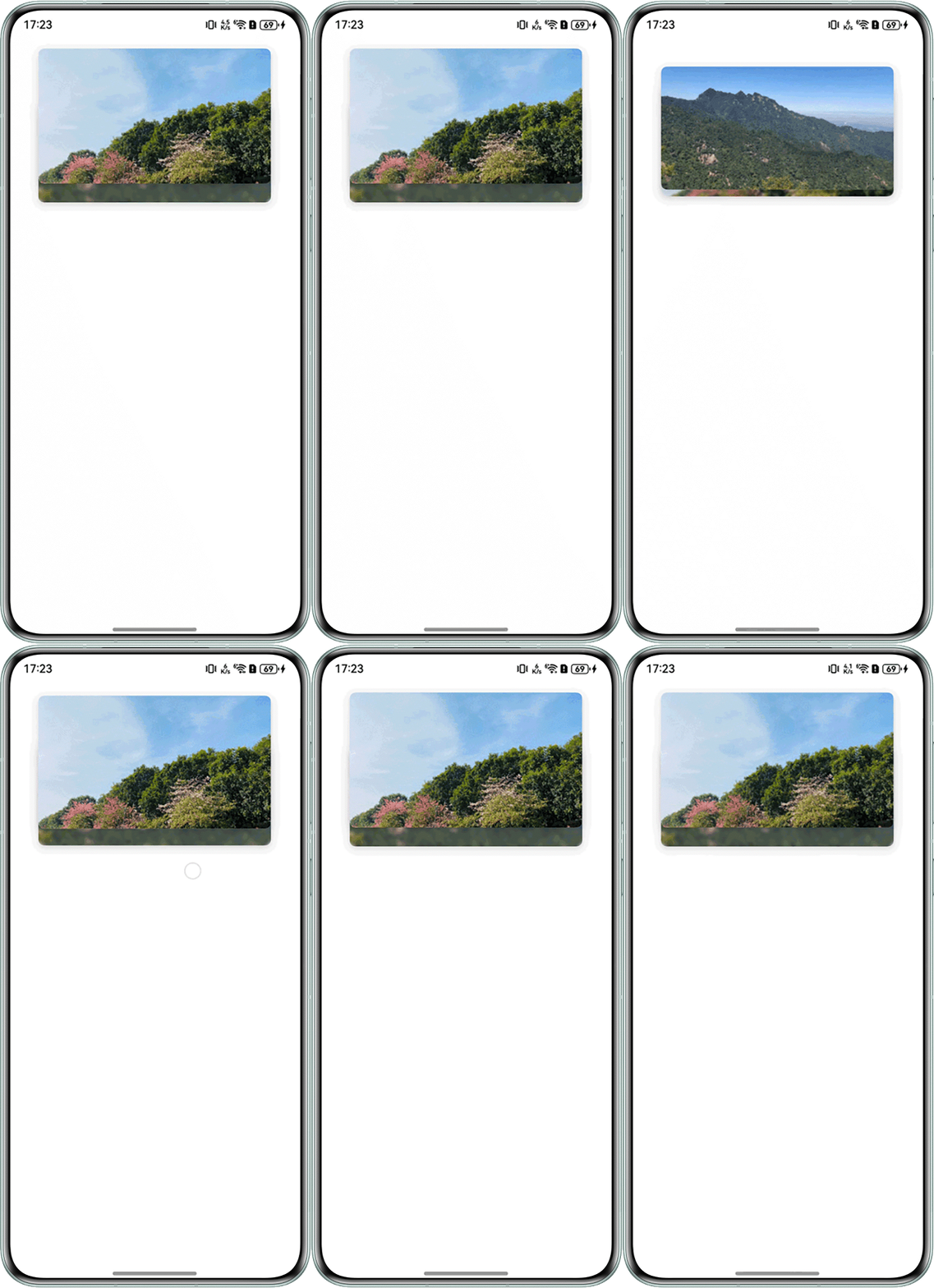
- 上下堆叠:Swiper内容像卡片堆叠,在底部留部分空间显示下一页的内容,上下滑实现卡片切换。
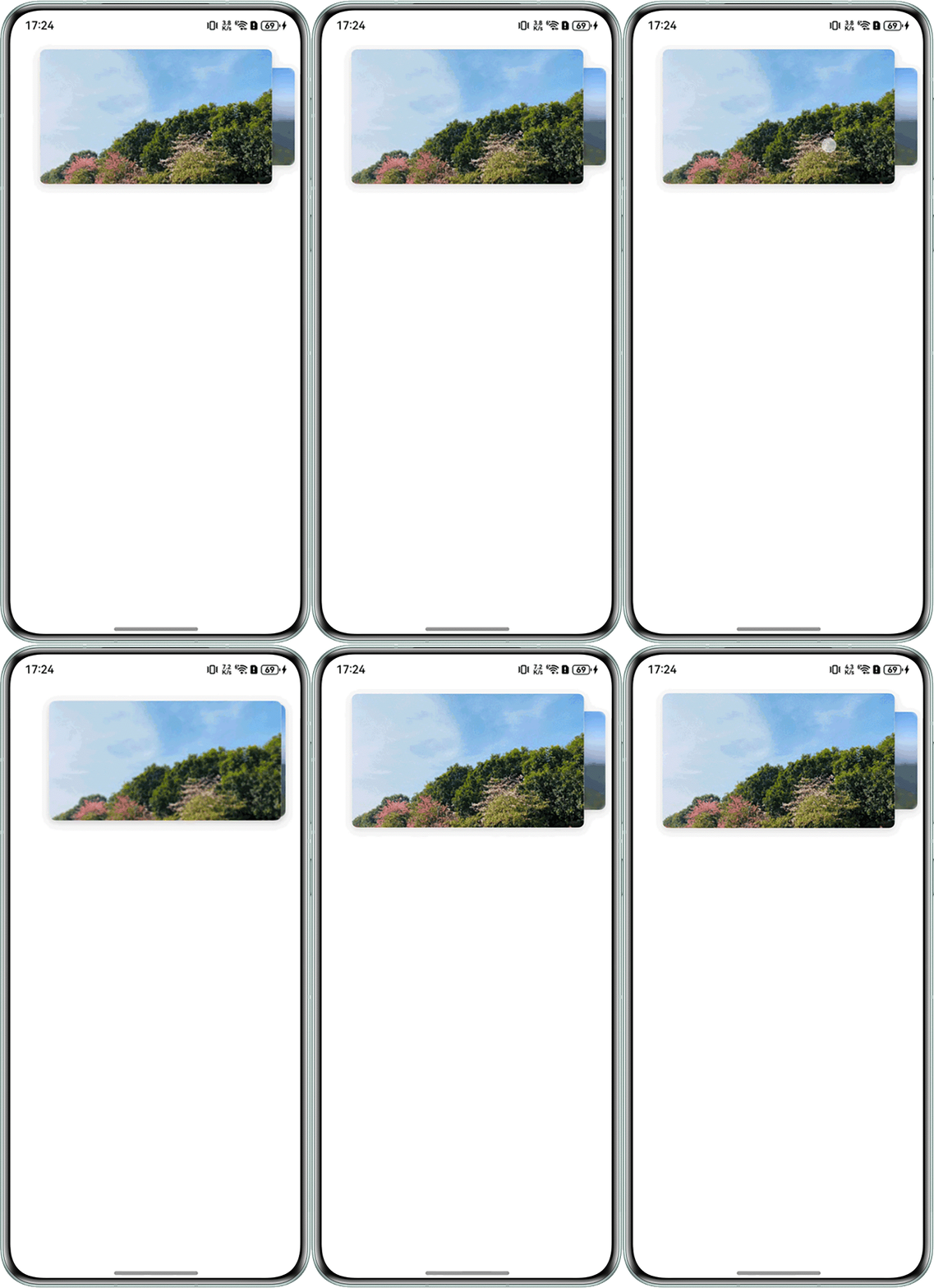
- 左右堆叠:Swiper内容像卡片堆叠,在右侧留部分空间显示下一页的内容,左右滑实现卡片切换。
- 倒V型多层堆叠:Swiper内容呈倒V型多层堆叠展示,中间卡片尺寸最大,两侧卡片逐层缩小并向下偏移,支持自动轮播和左右滑动手动切换。
A:实现方式如下:
- 上下堆叠实现。
自定义实现卡片堆叠的组件:使用Stack组件堆叠需要展示的图片,设置最上面的图片向上偏移部分距离,露出下一张图片的底部。为Stack绑定上下滑动的手势处理,实现切换图片逻辑,同时使用animateTo接口设置图片切换动画。
export class SwiperData {
  imageSrc: Resource;

  constructor(imageSrc: Resource) {
    this.imageSrc = imageSrc;
  }
}

@Component
export struct SwiperStackComponent {
  @Link currentIndex: number;
  @Prop swiperData: SwiperData[];
  private halfCount: number = Math.floor(3 / 2);
  private automaticSlidingDuration: number = 300;

  aboutToAppear(): void {
    this.currentIndex = 0;
  }

  // 修改堆叠方向系数计算
  getImgCoefficients(index: number): number {
    const coefficient = this.currentIndex - index;
    const tempCoefficient = Math.abs(coefficient);
    if (tempCoefficient <= this.halfCount) {
      return coefficient;
    }
    const dataLength = this.swiperData.length;
    let tempOffset = dataLength - tempCoefficient;
    if (tempOffset <= this.halfCount) {
      return coefficient > 0 ? -tempOffset : tempOffset;
    }
    return 0;
  }

  // 修改堆叠方向偏移量计算
  getOffSet(index: number): number {
    let offsetIndex = this.getImgCoefficients(index);
    const tempOffset = Math.abs(offsetIndex);
    let offset = 0;
    if (tempOffset === 1) {
      if (offsetIndex === 1) {
        offsetIndex = -1;
      }
      offset = 50 * offsetIndex;
    }
    return -offset;
  }

  startAnimation(isLeft: boolean, duration: number): void {
    this.getUIContext().animateTo({ duration: duration, }, () => {
      const dataLength: number = this.swiperData.length;
      const tempIndex: number = isLeft ? this.currentIndex + 1 : this.currentIndex - 1 + dataLength;
      this.currentIndex = tempIndex % dataLength;
    });
  }

  build() {
    Stack() {
      ForEach(this.swiperData, (item: SwiperData, index: number) => {
        Stack({ alignContent: Alignment.Bottom }) {
          Image(item.imageSrc)
            .objectFit(ImageFit.Cover)
            .width('100%')
            .height('100%')
            .borderRadius(8);
        }
        .offset({ x: 0, y: this.getOffSet(index) })
        .shadow(ShadowStyle.OUTER_DEFAULT_SM)
        .backgroundColor(Color.White)
        .borderRadius(8)
        .blur(index !== this.currentIndex ? 12 : 0)
        // 通过animateTo实现动画并且同时改变currentIndex数据中间值来判断组件zIndex实现切换动画
        .zIndex(index !== this.currentIndex && this.getImgCoefficients(index) === 0 ?
          0 : 2 - Math.abs(this.getImgCoefficients(index)))
        .width(310)
        .height(index !== this.currentIndex ? 130 : 180);
      });
    }
    .height(200)
    .width('100%')
    .gesture(
      PanGesture({ direction: PanDirection.Vertical })
        .onActionStart((event: GestureEvent) => {
          this.startAnimation(event.offsetY < 0, this.automaticSlidingDuration);
        })
    )
    .alignContent(Alignment.Center)
    .padding({ left: 12, right: 12, top: 12 });
  }
}
在页面中直接使用上面封装好的SwiperStackComponent即可,示例如下:传给SwiperStackComponent要堆叠的图片。
@Entry
@Component
struct StackSwiperDemo {
  @State currentIndex: number = 0;
  // 图片资源需自行配置
  @State swiperData: SwiperData[] = [
    new SwiperData($r('app.media.img1')),
    new SwiperData($r('app.media.img2')),
    new SwiperData($r('app.media.img3')),
  ];

  build() {
    Column() {
      SwiperStackComponent({
        currentIndex: this.currentIndex,
        swiperData: this.swiperData,
      });
    };
  }
}
效果预览:
- 左右堆叠实现。
和上下堆叠实现类似,只需微调SwiperStackComponent代码即可。
- 将内层Stack在Y方向上的偏移改为X方向上的偏移:
Stack({ alignContent: Alignment.Bottom }) { Image(item.imageSrc) .objectFit(ImageFit.Cover) .width('100%') .height('100%') .borderRadius(8); } .offset({ x: this.getOffSet(index), y: 0 }) // 偏移改为X方向上的偏移 - 外层Stack的滑动手势改为左右滑动,动画效果改为X方向上的判断:
.gesture( // 滑动手势改为左右滑动 PanGesture({ direction: PanDirection.Horizontal }) .onActionStart((event: GestureEvent) => { // 改成X轴方向判定 this.startAnimation(event.offsetX < 0, this.automaticSlidingDuration); }) ) - 由于屏幕X方向比Y方向要窄,可以修改getOffSet函数改变偏移的距离:
offset = 20 * offsetIndex; // 改变偏移的距离
效果预览:

堆叠方向的偏移量可根据需求,通过修改自定义组件SwiperStackComponent的getImgCoefficients函数和getOffSet函数来调整。
- 将内层Stack在Y方向上的偏移改为X方向上的偏移:
- 倒V型多层堆叠实现。
倒V型堆叠效果的核心是:每层卡片使用固定尺寸而非等比缩放,通过精确计算水平偏移量控制两侧露出宽度。所有卡片以最大尺寸(116×162)为基础挂载在Stack中,通过scale分别缩放到目标尺寸,配合translate控制位置。使用Stack容器实现塔型堆叠布局,配合setInterval定时器自动切换currentIndex驱动animateTo动画,即可实现走马灯不停轮播的堆叠效果。同时支持左右滑动手势手动切换,滑动时自动暂停轮播。
@Entry
@Component
struct InvertedVImageCarousel {
  @State currentIndex: number = 0;
  @State dragOffsetX: number = 0;
  @State isDragging: boolean = false;

  private imageResources: Resource[] = [
    $r('app.media.card1'),
    $r('app.media.card2'),
    $r('app.media.card3'),
    $r('app.media.card4'),
    $r('app.media.card5')
  ];

  // 三层尺寸定义
  private baseW: number = 116;
  private baseH: number = 162;

  private layer2ScaleX: number = 94 / 116;
  private layer2ScaleY: number = 130 / 162;
  private layer3ScaleX: number = 72 / 116;
  private layer3ScaleY: number = 100 / 162;

  private layer2OffsetX: number = 71;
  private layer3OffsetX: number = 122;
  private layer2OffsetY: number = 36;
  private layer3OffsetY: number = 72;

  // 自动轮播参数
  private autoPlayTimer: number = -1;
  private autoPlayInterval: number = 2500;
  private autoPlayDuration: number = 500;

  // 手势参数
  private swipeThreshold: number = 50;
  private dragRefWidth: number = 116;

  aboutToAppear() {
    this.startAutoPlay();
  }

  aboutToDisappear() {
    this.stopAutoPlay();
  }

  private startAutoPlay(): void {
    this.stopAutoPlay();
    this.autoPlayTimer = setInterval(() => {
      if (this.isDragging) {
        return;
      }
      this.getUIContext().animateTo({
        duration: this.autoPlayDuration,
        curve: Curve.EaseInOut
      }, () => {
        this.currentIndex = (this.currentIndex + 1) % this.imageResources.length;
      });
    }, this.autoPlayInterval);
  }

  private stopAutoPlay(): void {
    if (this.autoPlayTimer !== -1) {
      clearInterval(this.autoPlayTimer);
      this.autoPlayTimer = -1;
    }
  }

  // 循环差值
  private getEffectiveDiff(index: number): number {
    let diff = index - this.currentIndex;
    let n = this.imageResources.length;
    if (diff > n / 2) {
      diff -= n;
    } else if (diff < -n / 2) {
      diff += n;
    }
    return diff;
  }

  // 滑动进度
  private getSwipeProgress(): number {
    return Math.max(Math.min(-this.dragOffsetX / this.dragRefWidth, 1.0), 0.0);
  }

  private getReverseProgress(): number {
    return Math.max(Math.min(this.dragOffsetX / this.dragRefWidth, 1.0), 0.0);
  }

  // 静态属性
  private getStaticScaleX(diff: number): number {
    let abs = Math.abs(diff);
    if (abs === 0) return 1.0;
    if (abs === 1) return this.layer2ScaleX;
    return this.layer3ScaleX;
  }

  private getStaticScaleY(diff: number): number {
    let abs = Math.abs(diff);
    if (abs === 0) return 1.0;
    if (abs === 1) return this.layer2ScaleY;
    return this.layer3ScaleY;
  }

  private getStaticTranslateX(diff: number): number {
    if (diff === 0) return 0;
    let abs = Math.abs(diff);
    let sign = diff > 0 ? 1 : -1;
    if (abs === 1) return sign * this.layer2OffsetX;
    return sign * this.layer3OffsetX;
  }

  private getStaticTranslateY(diff: number): number {
    let abs = Math.abs(diff);
    if (abs === 0) return 0;
    if (abs === 1) return this.layer2OffsetY;
    return this.layer3OffsetY;
  }

  private getStaticOpacity(diff: number): number {
    return Math.abs(diff) <= 2 ? 1.0 : 0.0;
  }

  // 动态属性
  private calcScaleX(index: number): number {
    let diff = this.getEffectiveDiff(index);
    let p = this.getSwipeProgress();
    let r = this.getReverseProgress();

    if (diff === 0) {
      return 1.0 + (this.layer2ScaleX - 1.0) * Math.max(p, r);
    }
    let s = this.getStaticScaleX(diff);
    let l = this.getStaticScaleX(diff - 1);
    let rr = this.getStaticScaleX(diff + 1);
    return s * (1 - p - r) + l * p + rr * r;
  }

  private calcScaleY(index: number): number {
    let diff = this.getEffectiveDiff(index);
    let p = this.getSwipeProgress();
    let r = this.getReverseProgress();

    if (diff === 0) {
      return 1.0 + (this.layer2ScaleY - 1.0) * Math.max(p, r);
    }
    let s = this.getStaticScaleY(diff);
    let l = this.getStaticScaleY(diff - 1);
    let rr = this.getStaticScaleY(diff + 1);
    return s * (1 - p - r) + l * p + rr * r;
  }

  private calcTranslateX(index: number): number {
    let diff = this.getEffectiveDiff(index);
    let p = this.getSwipeProgress();
    let r = this.getReverseProgress();

    if (diff === 0) {
      return this.dragOffsetX;
    }
    let s = this.getStaticTranslateX(diff);
    let l = this.getStaticTranslateX(diff - 1);
    let rr = this.getStaticTranslateX(diff + 1);
    return s * (1 - p - r) + l * p + rr * r;
  }

  private calcTranslateY(index: number): number {
    let diff = this.getEffectiveDiff(index);
    let p = this.getSwipeProgress();
    let r = this.getReverseProgress();

    if (diff === 0) {
      return this.layer2OffsetY * Math.max(p, r);
    }
    let s = this.getStaticTranslateY(diff);
    let l = this.getStaticTranslateY(diff - 1);
    let rr = this.getStaticTranslateY(diff + 1);
    return s * (1 - p - r) + l * p + rr * r;
  }

  private calcZIndex(index: number): number {
    let diff = this.getEffectiveDiff(index);
    return 100 - Math.abs(diff) * 10;
  }

  private calcOpacity(index: number): number {
    let diff = this.getEffectiveDiff(index);
    let p = this.getSwipeProgress();
    let r = this.getReverseProgress();
    let s = this.getStaticOpacity(diff);
    let l = this.getStaticOpacity(diff - 1);
    let rr = this.getStaticOpacity(diff + 1);
    return s * (1 - p - r) + l * p + rr * r;
  }

  build() {
    Column({ space: 24 }) {
      // 倒V型图片堆叠区域
      Stack({ alignContent: Alignment.Center }) {
        ForEach(this.imageResources, (item: Resource, index: number) => {
          Image(item)
            .width(this.baseW)
            .height(this.baseH)
            .borderRadius(14)
            .objectFit(ImageFit.Cover)
            .zIndex(this.calcZIndex(index))
            .translate({ x: this.calcTranslateX(index), y: this.calcTranslateY(index) })
            .scale({ x: this.calcScaleX(index), y: this.calcScaleY(index) })
            .opacity(this.calcOpacity(index))
        }, (item: Resource, index: number) => index.toString())
      }
      .width('100%')
      .height(280)
      .clip(true)
      .gesture(
        PanGesture({ direction: PanDirection.Horizontal })
          .onActionStart(() => {
            this.isDragging = true;
          })
          .onActionUpdate((event: GestureEvent) => {
            this.dragOffsetX = event.offsetX;
          })
          .onActionEnd((event: GestureEvent) => {
            this.isDragging = false;
            if (event.offsetX < -this.swipeThreshold) {
              this.getUIContext().animateTo({ duration: 350, curve: Curve.EaseOut }, () => {
                this.currentIndex = (this.currentIndex + 1) % this.imageResources.length;
                this.dragOffsetX = 0;
              });
            }
            else if (event.offsetX > this.swipeThreshold) {
              this.getUIContext().animateTo({ duration: 350, curve: Curve.EaseOut }, () => {
                this.currentIndex = (this.currentIndex - 1 + this.imageResources.length) % this.imageResources.length;
                this.dragOffsetX = 0;
              });
            }
            else {
              this.getUIContext().animateTo({ duration: 200, curve: Curve.EaseOut }, () => {
                this.dragOffsetX = 0;
              });
            }
          })
      )

      // 提示文字
      Text('自动轮播中 · 左右滑动可手动切换')
        .fontSize(14)
        .fontColor('#999999')
    }
    .width('100%')
    .height('100%')
    .backgroundColor('#F2F3F5')
    .justifyContent(FlexAlign.Center)
  }
}
如需调整各层尺寸,修改以下参数即可:
参数
修改效果
baseW / baseH
第一层卡片尺寸
layer2ScaleX / layer2ScaleY
第二层缩放比例(目标宽/基础宽)
layer3ScaleX / layer3ScaleY
第三层缩放比例
layer2OffsetX
第二层水平偏移,影响露出宽度
layer3OffsetX
第三层水平偏移,影响露出宽度
layer2OffsetY / layer3OffsetY
各层向下偏移量,影响倒V高度差
Q:如何实现页面加载的loading效果?
A:使用Stack堆叠组件和LoadingProgress加载组件实现页面首次加载时的等待效果。参考代码如下:
@Entry
@Component
struct PageLoading {
  @State isLoading: boolean = true;

  aboutToAppear(): void {
    // Simulate network request operation, request data from the network 3 seconds later, notify the component, and change the list data
    setTimeout(() => {
      this.isLoading = false;
    }, 3000);
  }

  build() {
    Stack() {
      if (this.isLoading) {
        Column() {
          LoadingProgress()
            .color(Color.White)
            .width(80).height(80)
          Text('Effortlessly loading..')
            .fontSize(16)
            .fontColor(Color.White)
        }
        .width('100%')
        .height('100%')
        .backgroundColor('#40000000')
        .justifyContent(FlexAlign.Center)
      } else {
        Column(){
          Text('主页')
        }
      }
    }
    .width('100%')
    .height('100%')
    .backgroundColor(Color.White)
  }
}