Q:如何使用rcp模块不同接口在不同应用场景上传文件,并详细说明上传接口中重要参数的使用场景和含义?
A:开发准备,申请获取网络权限:ohos.permission.INTERNET。
方案一:rcp模块快速上传文件。
场景1:使用文件路径上传文件。
- 获取沙箱路径。
this.sandboxDir = this.getUIContext().getHostContext()!.filesDir;
- 将文件复制到应用沙箱中。
fileIo.copyFileSync(srcFile.fd, sandboxFilename);
- 使用文件路径新建UploadFromFile类型实例,文件路径必须为应用沙箱文件路径,其他路径无效。
let sandboxFileName = await copyFileToSandBox(sandboxDir); this.uploadFileForCommon(sandboxFileName); - 新建rcp会话session实例,使用uploadFromFile方法创建文件上传请求。
let session = rcp.createSession();
    session.uploadFromFile('xx.xx.xx.xx', new rcp.UploadFromFile(fileOrPath)) // 需开发者自行配置请求地址
      .then((response: rcp.Response) => {
        console.info(`Upload succeeded: ${response}`);
      })
      .catch((err: BusinessError) => {
        console.error(`Upload failed: ${JSON.stringify(err)}`);
      }).finally(() => {
      session.close();
    });
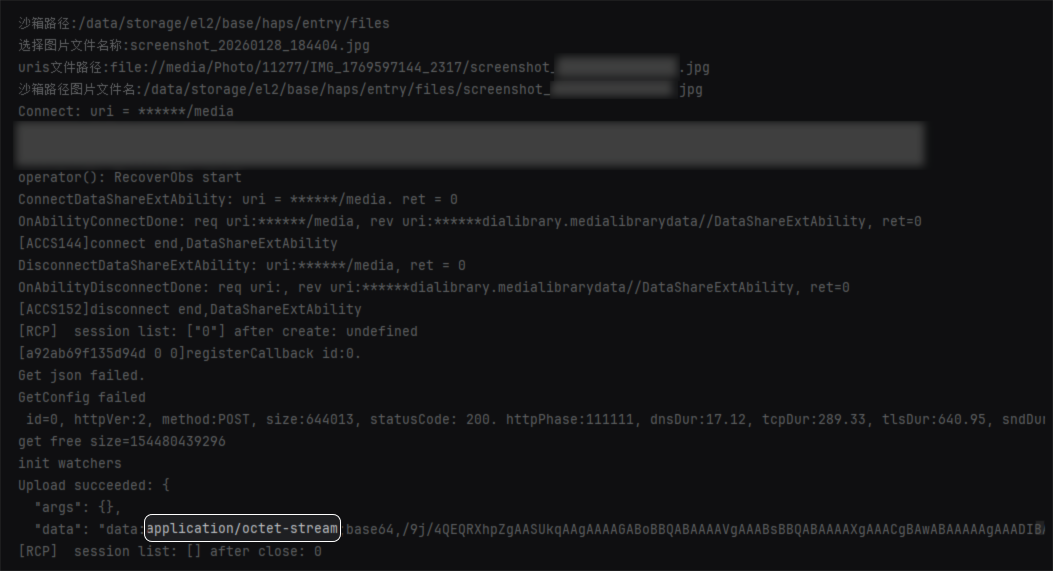
场景1运行效果:使用uploadFromFile方法上传文件content-type系统默认为'application/octet-stream',运行日志如下图所示。
场景2:使用读取文件数据回调函数作为入参上传文件,具体参考官方指南上传功能实现。
方案二:使用多部件表单上传文件。
场景1:使用应用沙箱文件路径上传表单文件。
- 获取沙箱路径,将文件复制到应用沙箱中,与方案一场景1一致。
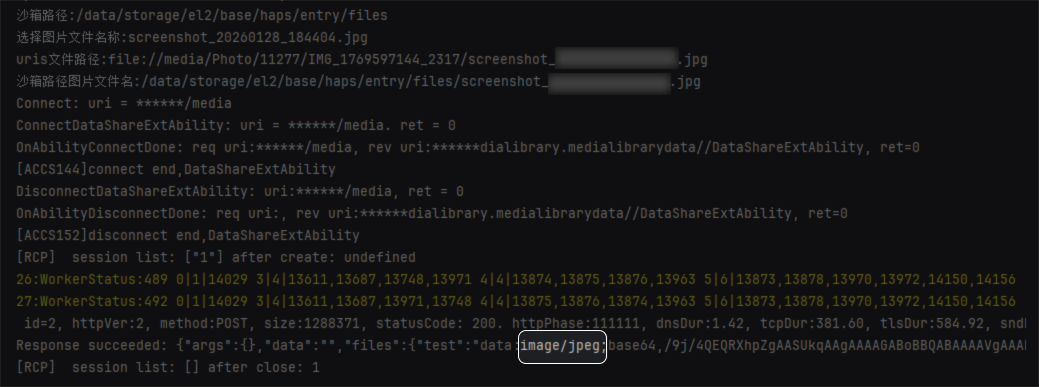
- 构建单部分表单参数MultipartFormFieldValue,其中remoteFileName和contentType可以不填写,不填写系统默认使用原文件名和通过后缀识别contentType,如jpg后缀文件会被识别为'image/jpeg'等,contentOrPath为应用沙箱文件路径字符串。
let multiFormFieldValue = this.buildMultipartFormFieldValue(remoteFileName, sandBoxFileName, 'image/jpeg');
- 构建多部件表单,构建时必须显式指明类型,如果不能显式声明类型,系统会识别为json格式字符数据,非表单格式数据,多部件可以通过参数keys设置每个部件表单的传输顺序,可以通过参数boundary设置每个部件表单之间的分隔符,或者不设置由系统随机生成。
let multiForm = new rcp.MultipartForm({ 'test': multiFormFieldValue, 'test1': multiFormFieldValue }); - 新建rcp会话实例,发起请求。
uploadMultiPartFormFileForCommon(multiForm: rcp.MultipartForm) {
    let req = new rcp.Request('xx.xx.xx.xx'); // 需开发者自行配置请求地址
    req.content = multiForm;
    req.method = 'POST';
    try {
      const session = rcp.createSession();
      session.fetch(req).then((resp: rcp.Response) => {
        console.info(`Response succeeded: ${JSON.stringify(resp)}`);
        session.close();
      }).catch((err: BusinessError) => {
        // 请求错误处理。
        console.error(`Response err: Code is ${JSON.stringify(err.code)}, message is ${JSON.stringify(err)}`);
        session.close();
      });
    } catch (err) {
      // 创建会话错误处理。
      console.error(`createSession err: Code is ${JSON.stringify(err.code)}, message is ${JSON.stringify(err)}`);
    }
  }
场景1运行效果:
使用沙箱路径上传表单文件,系统默认会根据文件名类型匹配content-type,此为图片类型文件上传,即为image/jpeg,运行日志如下图所示。
场景2:使用文件数据上传表单文件。
- 基于文件URI将文件数据读取到ArrayBuffer中,并构建类型为FileContent的contentOrPath参数。
const srcFile = fileIo.openSync(uri, fileIo.OpenMode.READ_ONLY); let stat = fileIo.statSync(srcFile.fd); console.log('文件长度:' + stat.size); let buf = new ArrayBuffer(stat.size); fileIo.readSync(srcFile.fd, buf); console.log('文件转换二进制数组:' + buf); let content: rcp.FileContent = { content: buf }; - 构建单部分表单参数MultipartFormFieldValue,由于contentOrPath已经丢失文件类型信息,通过设置remoteFileName的后缀,系统自动识别对应的文件类型。
let remoteFileName: string = 'test.jpg'; let multiFormFieldValue = this.buildMultipartFormFieldValue(remoteFileName, content, 'image/jpeg'); let multiForm = new rcp.MultipartForm({ 'test': multiFormFieldValue, 'test1': multiFormFieldValue }); - 构建多部件表单和新建rcp会话发起请求步骤和使用应用沙箱文件路径上传表单文件一致,不再赘述。
场景2运行效果:


完整示例代码:
import { ItemRestriction, SegmentButton, SegmentButtonOptions, SegmentButtonTextItem } from '@kit.ArkUI';
import { photoAccessHelper } from '@kit.MediaLibraryKit';
import fileIo from '@ohos.file.fs';
import { rcp } from '@kit.RemoteCommunicationKit';

async function getFileAssetsFromType(): Promise<string> {
  let photoPicker = new photoAccessHelper.PhotoViewPicker();
  const photoSelectOptions = new photoAccessHelper.PhotoSelectOptions(); // 创建图片选项实例
  // 选择媒体文件类型和选择媒体文件的最大数目
  photoSelectOptions.MIMEType = photoAccessHelper.PhotoViewMIMETypes.IMAGE_TYPE; // 选择媒体文件类型为Image
  photoSelectOptions.maxSelectNumber = 1; // 选择媒体文件的最大数目
  photoSelectOptions.isEditSupported = true;
  photoSelectOptions.isOriginalSupported = true;
  let photoSelectResult: photoAccessHelper.PhotoSelectResult = await photoPicker.select(photoSelectOptions);
  let uris: Array<string> = photoSelectResult.photoUris;
  if (uris.length === 0) {
    console.info('getFileAssetsFromType 没有图片选中');
  }
  return uris[0];
}

async function copyFileToSandBox(sandboxDir: string): Promise<string> {
  let uri: string = await getFileAssetsFromType();
  if (uri.length === 0) {
    console.info('copyFileToSandBox 没有图片选中');
    return '';
  }
  const fileName = uri.split('/').pop() || 'default.jpg'; // 提取文件名
  console.info('沙箱路径:' + sandboxDir);
  console.info('选择图片文件名称:' + fileName);
  console.info('uris文件路径:' + uri);
  let sandboxFilename = `${sandboxDir}/${fileName}`; // 也可以直接使用沙箱路径字符串如:/data/storage/el2/base/files
  console.info('沙箱路径图片文件名:' + sandboxFilename);
  const srcFile = fileIo.openSync(uri, fileIo.OpenMode.READ_ONLY); // 复制文件到沙箱
  try {
    fileIo.copyFileSync(srcFile.fd, sandboxFilename);
  } catch (error) {
    console.error('copy file error');
  }
  fileIo.closeSync(srcFile);
  return sandboxFilename;
}

@Component
struct SingleFileUpload {
  sandPathMsg: string = '使用应用沙箱路径上传文件';
  sandboxDir: string = '';

  aboutToAppear(): void {
    this.sandboxDir = this.getUIContext().getHostContext()!.filesDir;
  }

  uploadFileForCommon(fileOrPath: rcp.Path | rcp.LocalFile | rcp.ReadFile) {
    let session = rcp.createSession();
    session.uploadFromFile('xx.xx.xx.xx', new rcp.UploadFromFile(fileOrPath)) // 需开发者自行配置请求地址
      .then((response: rcp.Response) => {
        console.info(`Upload succeeded: ${response}`);
      })
      .catch((err: BusinessError) => {
        console.error(`Upload failed: ${JSON.stringify(err)}`);
      }).finally(() => {
      session.close();
    });
  }

  async rcpUploadSandBoxFile(sandboxDir: string) {
    let sandboxFileName = await copyFileToSandBox(sandboxDir);
    this.uploadFileForCommon(sandboxFileName);
  }

  build() {
    Column() {
      Button(this.sandPathMsg)
        .onClick(() => {
          this.rcpUploadSandBoxFile(this.sandboxDir);
        });
    }
    .width('100%')
    .height('100%');
  }
}

@Component
struct MultiPartFormUploadFile {
  sandPathMsg: string = '场景1:使用应用沙箱路径上传表单文件';
  fileBufferMsg: string = '场景2:使用文件数据上传表单文件';
  sandboxDir: string = '';

  aboutToAppear(): void {
    this.sandboxDir = this.getUIContext().getHostContext()!.filesDir;
  }

  buildMultipartFormFieldValue(fileName: string | undefined,
    pathOrContent: rcp.Path | rcp.FileContent | rcp.GetDataCallback,
    contentType: string | undefined): rcp.MultipartFormFieldValue {
    let result: rcp.MultipartFormFieldValue = {
      remoteFileName: fileName,
      contentType: contentType,
      contentOrPath: pathOrContent
    };
    return result;
  }

  uploadMultiPartFormFileForCommon(multiForm: rcp.MultipartForm) {
    let req = new rcp.Request('xx.xx.xx.xx'); // 需开发者自行配置请求地址
    req.content = multiForm;
    req.method = 'POST';
    try {
      const session = rcp.createSession();
      session.fetch(req).then((resp: rcp.Response) => {
        console.info(`Response succeeded: ${JSON.stringify(resp)}`);
        session.close();
      }).catch((err: BusinessError) => {
        // 请求错误处理。
        console.error(`Response err: Code is ${JSON.stringify(err.code)}, message is ${JSON.stringify(err)}`);
        session.close();
      });
    } catch (err) {
      // 创建会话错误处理。
      console.error(`createSession err: Code is ${JSON.stringify(err.code)}, message is ${JSON.stringify(err)}`);
    }
  }

  async uploadFormSandBoxFile(sandboxDir: string) {
    let remoteFileName: string = 'test.jpg';
    let sandBoxFileName = await copyFileToSandBox(sandboxDir);
    let multiFormFieldValue = this.buildMultipartFormFieldValue(remoteFileName, sandBoxFileName, 'image/jpeg');
    let multiForm = new rcp.MultipartForm({ 'test': multiFormFieldValue, 'test1': multiFormFieldValue });
    this.uploadMultiPartFormFileForCommon(multiForm);
  }

  async uploadFormFileBuffer() {
    let uri: string = await getFileAssetsFromType();
    if (uri.length === 0) {
      console.info('uploadFormFileBuffer 没有图片选中');
      return;
    }
    console.info('uris文件路径:' + uri);
    const srcFile = fileIo.openSync(uri, fileIo.OpenMode.READ_ONLY);
    let stat = fileIo.statSync(srcFile.fd);
    console.log('文件长度:' + stat.size);
    let buf = new ArrayBuffer(stat.size);
    fileIo.readSync(srcFile.fd, buf);
    console.log('文件转换二进制数组:' + buf);
    let content: rcp.FileContent = { content: buf };
    let remoteFileName: string = 'test.jpg';
    let multiFormFieldValue = this.buildMultipartFormFieldValue(remoteFileName, content, 'image/jpeg');
    let multiForm = new rcp.MultipartForm({ 'test': multiFormFieldValue, 'test1': multiFormFieldValue });
    this.uploadMultiPartFormFileForCommon(multiForm);
  }

  build() {
    Column() {
      Button(this.sandPathMsg)
        .onClick(() => {
          this.uploadFormSandBoxFile(this.sandboxDir);
        })
        .margin(16)
        .width('100%');
      Button(this.fileBufferMsg)
        .onClick(() => {
          this.uploadFormFileBuffer();
        })
        .margin(16)
        .width('100%');
    }
    .width('100%')
    .height('100%');
  }
}

@Entry
@Component
struct UploadFile {
  fontColor: string = '#182431';
  selectedFontColor: string = '#0A59F7';
  @State currentIndex: number = 0;
  @State selectedIndex: number = 0;
  @State tabSelectedIndexes: number[] = [0]; // SegmentButton默认选项
  @State tabOptions: SegmentButtonOptions = SegmentButtonOptions.tab({
    buttons: [{ text: '快速上传文件' }, { text: '多部分表单上传文件' },] as ItemRestriction<SegmentButtonTextItem>,
    backgroundColor: '#0d000000',
    selectedBackgroundColor: $r('sys.color.white'),
    fontWeight: 400,
    selectedFontWeight: 500,
    textPadding: 6
  });
  private controller: TabsController = new TabsController();

  @Builder
  tabBuilder(index: number, name: string) {
    Column() {
      Text(name)
        .fontColor(this.selectedIndex === index ? this.selectedFontColor : this.fontColor)
        .fontSize(16)
        .fontWeight(this.selectedIndex === index ? 500 : 400)
        .lineHeight(22)
        .margin({ top: 17, bottom: 7 });
      Divider()
        .strokeWidth(2)
        .color('#007DFF')
        .opacity(this.selectedIndex === index ? 1 : 0);
    }.width('100%');
  }

  build() {
    Column() {
      SegmentButton({
        options: this.tabOptions,
        selectedIndexes: $tabSelectedIndexes,
        onItemClicked: (index) => {
          this.getUIContext().animateTo({ duration: 400 }, () => {
            this.currentIndex = index;
            this.controller.changeIndex(index);
          });
        }
      })
        .borderRadius(20)
        .margin({
          bottom: 16
        })
        .width('100%')
        .height(40);

      Tabs({ barPosition: BarPosition.Start, index: this.currentIndex, controller: this.controller }) {
        TabContent() {
          SingleFileUpload();
        }.tabBar(this.tabBuilder(0, '快速上传文件'));

        TabContent() {
          MultiPartFormUploadFile();
        }.tabBar(this.tabBuilder(1, '多部分表单上传文件'));

      }
      .vertical(false)
      .barMode(BarMode.Fixed)
      .barWidth(360)
      .barHeight(0)
      .onChange((index: number) => {
        // currentIndex控制TabContent显示页签
        this.currentIndex = index;
        this.selectedIndex = index;
      })
      .onAnimationStart((index: number, targetIndex: number, event: TabsAnimationEvent) => {
        if (index === targetIndex) {
          return;
        }
        console.info(`event currentOffset ${event.currentOffset}`);
        // selectedIndex控制自定义TabBar内Image和Text颜色切换
        this.selectedIndex = targetIndex;
      })
      .width('100%')
      .height('100%');
    }
    .width('100%')
    .padding({
      left: 16,
      right: 16,
      top: 12
    });
  }
}