背景知识
- Tabs组件可以在一个页面内实现不同内容视图的切换,同时提供导航栏页签的UI实现。在API15或以上版本,Tabs组件新增TabOptions参数,其中的barModifier参数用于设置TabBar的通用属性,可以控制TabBar的页签布局;而在低于API15的版本中,Tabs组件本身不提供方法使TabBar导航页签栏居左显示。
- Stack:用于界面层叠布局的容器组件。
- position:设置组件相对于父组件内容区的位置。
- 自定义页签可以利用容器组件的排列方式实现TabBar居左显示,以下提供两种方法:
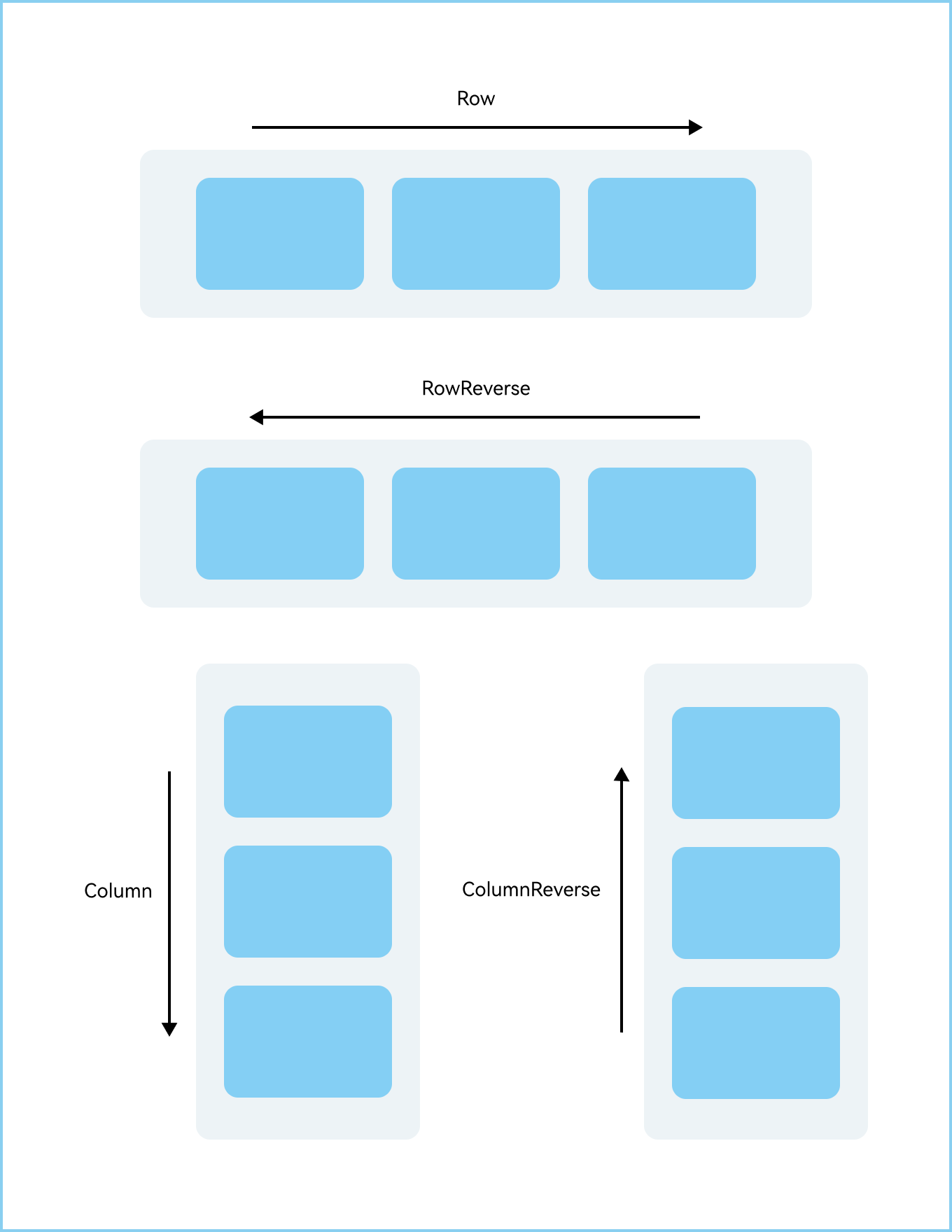
- 将页签按Row(横向从左往右)的方向放置在弹性布局Flex容器内,利用Flex容器实现TabBar居左的效果。Flex容器内子元素的布局方向如下图所示:
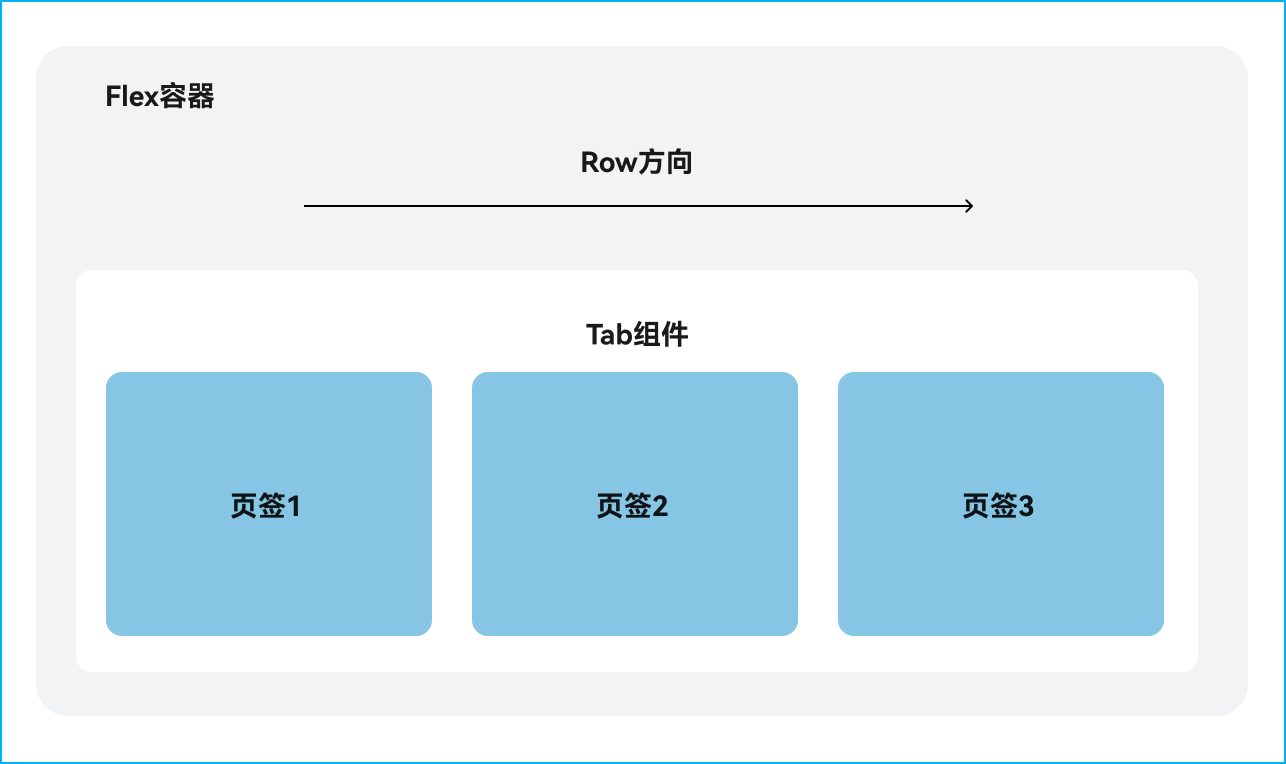
因此使用Flex容器实现问题描述中的期望目标可以拆解成如下结构:
- 通过横向的Scroll组件实现自定义TabBar。
- 将页签按Row(横向从左往右)的方向放置在弹性布局Flex容器内,利用Flex容器实现TabBar居左的效果。Flex容器内子元素的布局方向如下图所示:
解决方案
TabBar实现居左或居右样式实现方案如下:
实现场景 | 实现方式 | 实现方法 | 适用场景 | |
左 | 右 | |||
barModifier参数实现 | barModifier参数 | 设置align属性为Alignment.Start,并设置Tabs属性barMode为BarMode.Scrollable。 | 设置align属性为Alignment.End,并设置Tabs属性barMode为BarMode.Scrollable。 | 仅需简单对齐,无需深度定制样式。 |
滚动容器实现 | Scroll | Scroll设置宽度,Scroll外部Row的reverse属性设置为false。 | Scroll设置宽度,Scroll外部Row的reverse属性设置为true。 | 放置较多的页签数量。 |
行列与堆叠容器实现 | Flex | 放入Flex容器中,direction属性设置为FlexDirection.Row。 | 放入Flex容器中,direction属性设置为FlexDirection.RowReverse。 | 放置较少的页签数量。 |
Stack | 放入Stack容器中,alignContent属性设置为Alignment.TopStart,每个页签通过position设置偏移值。 | 放入Stack容器中,alignContent属性设置为Alignment.TopEnd,每个页签通过position设置偏移值。 | ||
TabBar实现居左或居右的方式类似,本文以居左为例。
- 方案一:使用barModifier参数,设置TabBar布局(仅适用于API15及以上版本)。
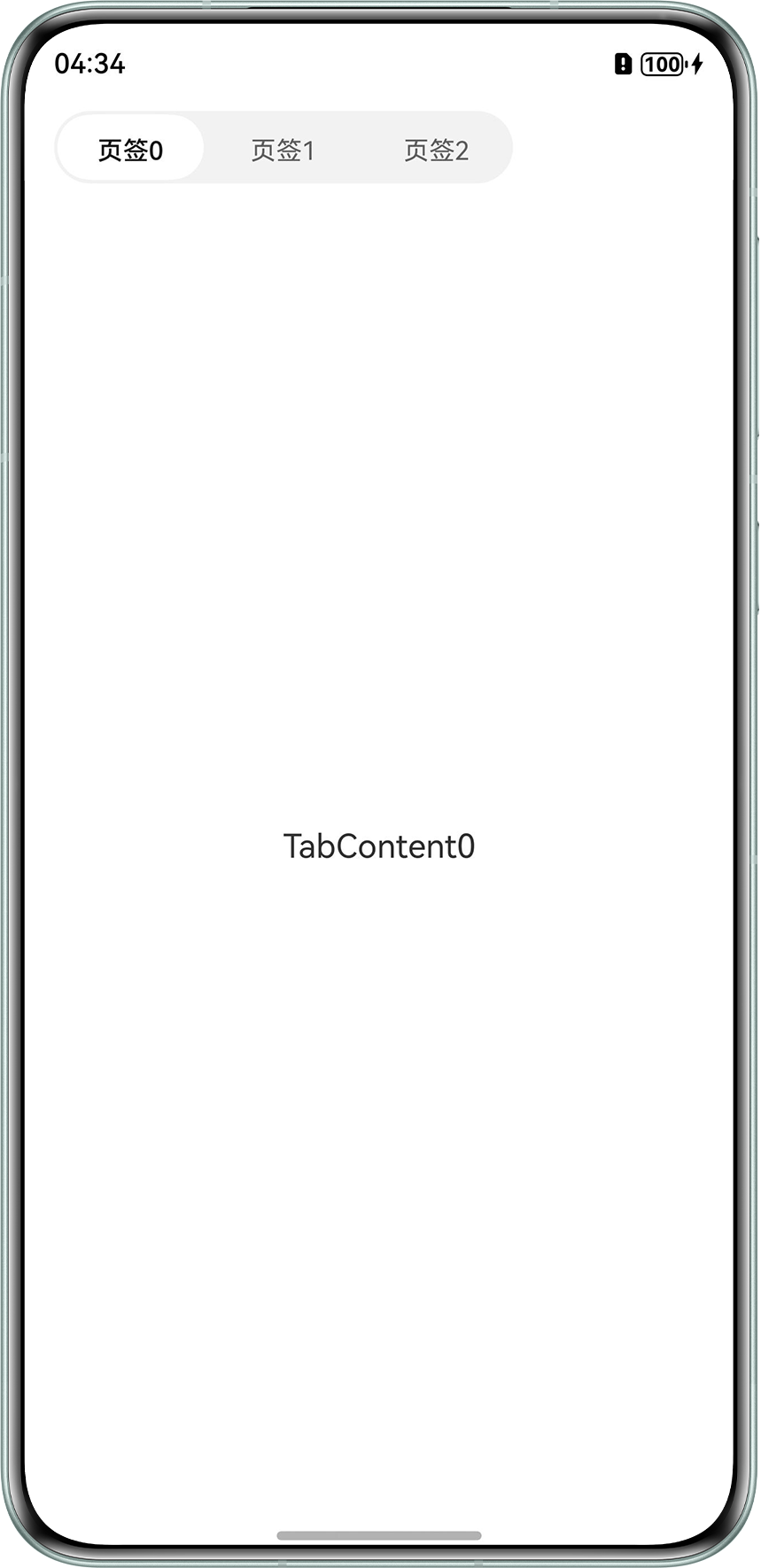
在Tabs组件的TabOptions参数配置barModifier,设置align属性为Alignment.Start,并设置Tabs属性barMode为BarMode.Scrollable,实现页签在页面顶部居左显示。如果设置为Alignment.End,实现居右对齐。
示例代码如下:
import { CommonModifier } from '@kit.ArkUI'; @Entry @Component struct LeftTabBar { private content: number[] = [0, 1, 2]; @State tabBarModifier: CommonModifier = new CommonModifier(); @State currentIndex: number = 0; @Builder tabBuilder(index: number, name: string) { Column() { Text(name) .width('80vp') .height('36vp') .textAlign(TextAlign.Center) .textVerticalAlign(TextVerticalAlign.CENTER) .fontColor(this.currentIndex === index ? '#e6000000' : '#99000000') .fontSize(14) .fontWeight(this.currentIndex === index ? 500 : 400) .lineHeight(40) .backgroundColor(this.currentIndex === index ? Color.White : '#00000000') .borderRadius('50vp'); } .backgroundColor('#0d000000') .borderRadius({ topLeft: index === 0 ? 50 : 0, bottomLeft: index === 0 ? 50 : 0, topRight: index === 2 ? 50 : 0, bottomRight: index === 2 ? 50 : 0 }) .margin({ top: 5 }) .padding(2); } aboutToAppear(): void { // 设置TabBar页签居左显示 this.tabBarModifier.align(Alignment.Start); } build() { Tabs({ barPosition: BarPosition.Start, barModifier: this.tabBarModifier.margin({ left: 16 }) }) { ForEach(this.content, (index: number) => { TabContent() { Column() { Text(`TabContent${index}`) .fontSize(18) .height('100%') .textAlign(TextAlign.Center); } .height('100%') .width('100%'); } .tabBar(this.tabBuilder(index, `页签${index}`)); }, (item: number) => item.toString()); } .width('100%') // 必须设置barMode为BarMode.Scrollable,barModifier参数才能生效 .barMode(BarMode.Scrollable) .onChange((index: number) => { this.currentIndex = index; }); } }也可参考官网Tabs组件的示例16(页签对齐布局),示例包含了barModifier的各种设置效果。其中,点击按钮Alignment.Start后,实现了TabBar居左的效果。
参考图如下:
- 方案二:Scroll容器实现自定义TabBar居左样式。
- 自定义TabBar样式。
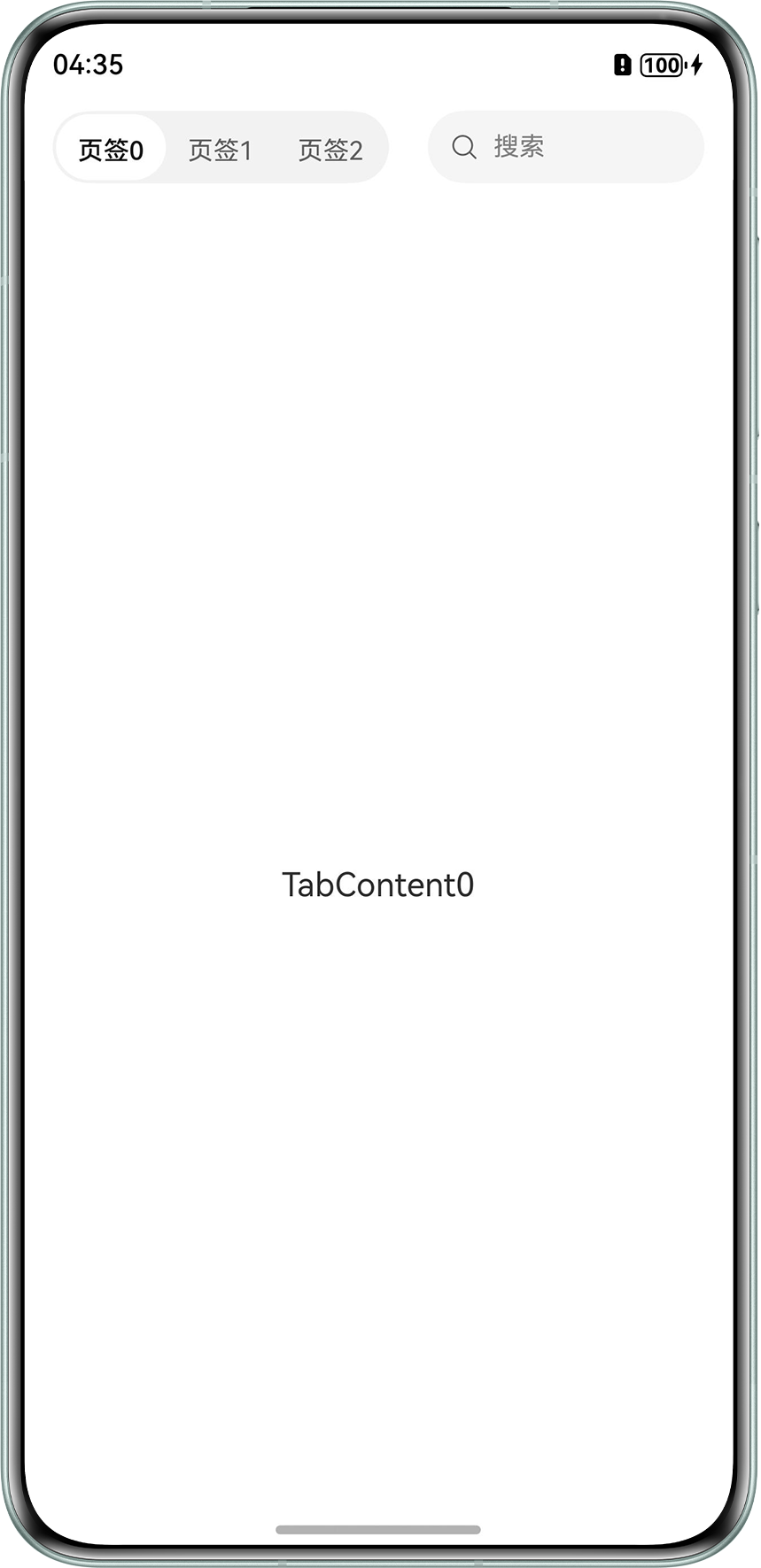
- TabBar放置在Scroll中,Scroll设置50%宽度,Scroll外部Row的reverse属性设置为false,可实现居左对齐。如果设置reverse为true,可实现居右对齐。
示例代码如下:@Entry @Component struct LeftTabBar2 { private tabArray: number[] = [0, 1, 2]; @State focusIndex: number = 0; private controller: TabsController = new TabsController(); controllerSearch: SearchController = new SearchController(); @Builder myScroll() { Row() { Scroll() { Row() { ForEach(this.tabArray, (item: number, index: number) => { Row() { Text(`页签${item}`) .width('60vp') .height('36vp') .textAlign(TextAlign.Center) .textVerticalAlign(TextVerticalAlign.CENTER) .fontColor(this.focusIndex === index ? '#e6000000' : '#99000000') .fontSize(14) .fontWeight(this.focusIndex === index ? 500 : 400) .lineHeight(40) .borderRadius('50vp') .backgroundColor(this.focusIndex === index ? Color.White : '#00000000'); } .borderRadius({ topLeft: index === 0 ? 50 : 0, bottomLeft: index === 0 ? 50 : 0, topRight: index === 2 ? 50 : 0, bottomRight: index === 2 ? 50 : 0 }) .onClick(() => { this.controller.changeIndex(index); this.focusIndex = index; }); }); } .backgroundColor('#0d000000') .padding(2) .borderRadius({ topLeft: 50, bottomLeft: 50, topRight: 50, bottomRight: 50 }); } .width('50%') .align(Alignment.Start) .scrollable(ScrollDirection.Horizontal) .scrollBar(BarState.Off) .margin({ left: 16 }); Search({ placeholder: '搜索', controller: this.controllerSearch }) .width('40%') .height(40) .backgroundColor('#F5F5F5') .placeholderColor(Color.Grey) .placeholderFont({ size: 14, weight: 400 }) .textFont({ size: 14, weight: 400 }) .margin({ left: 16 }); } .reverse(false) .padding({ right: 10 }) .height(50) .backgroundColor(Color.White); } build() { Column() { List({ space: 20, initialIndex: 0 }) { ListItemGroup({ header: this.myScroll() }) { ListItem() { Tabs({ barPosition: BarPosition.Start, controller: this.controller }) { ForEach(this.tabArray, (item: number) => { TabContent() { Text(`TabContent${item}`) .fontSize(18); } .width('100%'); }, ((item: number) => item.toString())); } .onChange((index: number) => { this.focusIndex = index; }) .barHeight(0); }; }; } .sticky(StickyStyle.Header) .listDirection(Axis.Vertical) .scrollBar(BarState.Off) .edgeEffect(EdgeEffect.None) .width('100%'); } .width('100%') .height('100%') .padding({ top: 5 }); } }参考图如下:
- 方案三:行列与堆叠容器实现自定义TabBar居左样式。实现方式参考demo基于Tabs组件实现常见导航样式。
- Flex容器实现自定义TabBar居左样式。
- 自定义TabBar样式。
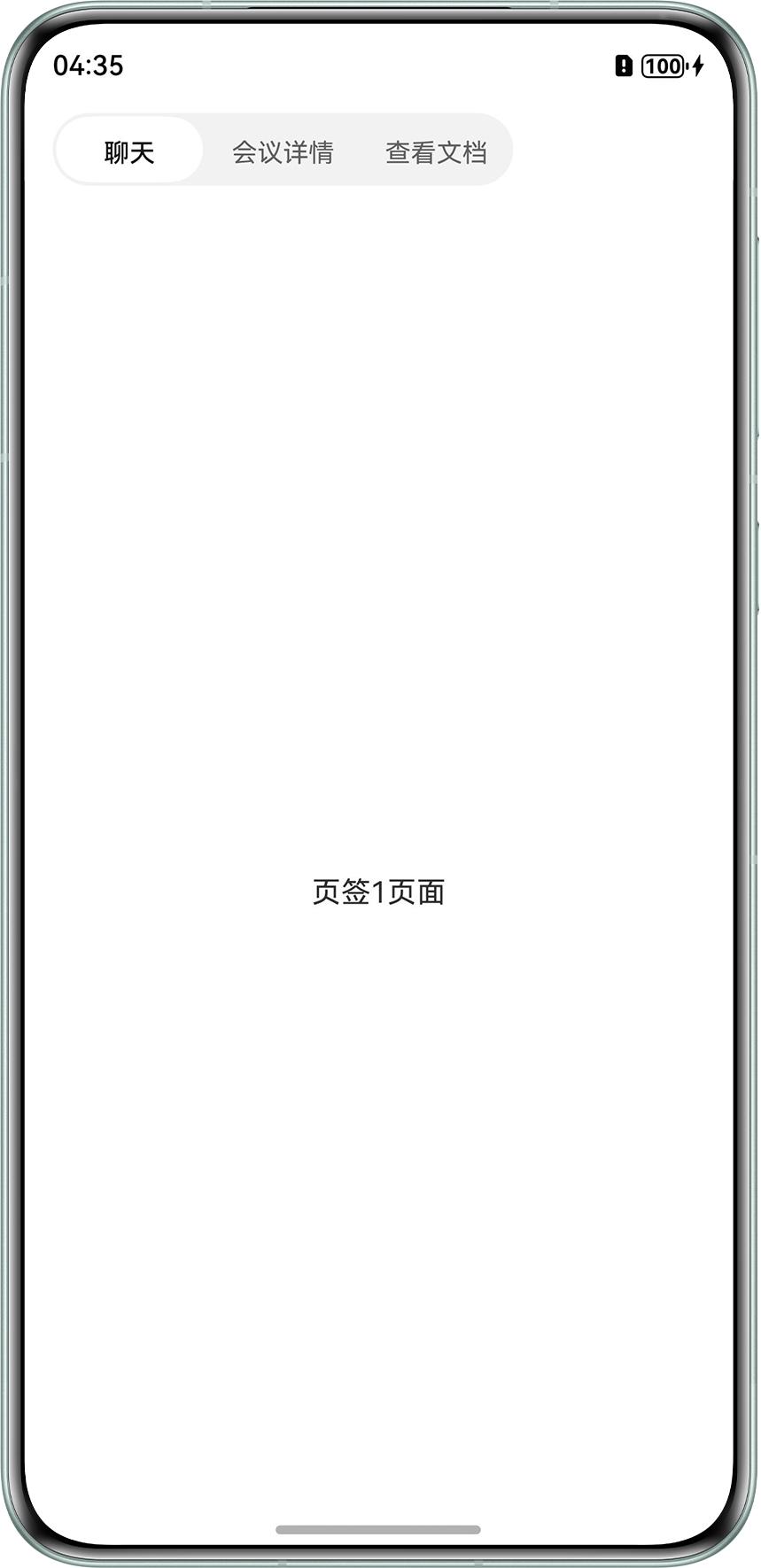
- 将自定义的页签样式放入Flex容器中,direction属性设置为FlexDirection.Row,使得自定义的TabBar从左往右排列,如果设置为FlexDirection.RowReverse,实现TabBar居右设置。
示例代码如下:@Entry @Component struct LeftTabBar3 { private tabsController: TabsController = new TabsController(); @State currentIndex: number = 0; @Builder TabBarBuilder(title: string, targetIndex: number) { Column() { Text(title) .width('80vp') .height('36vp') .textAlign(TextAlign.Center) .textVerticalAlign(TextVerticalAlign.CENTER) .fontColor(this.currentIndex === targetIndex ? '#e6000000' : '#99000000') .fontSize(14) .fontWeight(this.currentIndex === targetIndex ? 500 : 400) .lineHeight(40) .backgroundColor(this.currentIndex === targetIndex ? Color.White : '#00000000') .borderRadius('50vp') .onClick(() => { this.tabsController.changeIndex(targetIndex); }); } .backgroundColor('#0d000000') .borderRadius({ topLeft: targetIndex === 0 ? 50 : 0, bottomLeft: targetIndex === 0 ? 50 : 0, topRight: targetIndex === 2 ? 50 : 0, bottomRight: targetIndex === 2 ? 50 : 0 }) .margin({ top: 5 }) .padding({ top: 2, bottom: 2, left: 2, right: 2 }); } build() { Row() { Column() { Flex({ direction: FlexDirection.Row }) { this.TabBarBuilder('聊天', 0); this.TabBarBuilder('会议详情', 1); this.TabBarBuilder('查看文档', 2); } .margin({ left: 16, top: 6 }); Tabs({ barPosition: BarPosition.Start, controller: this.tabsController }) { TabContent() { Text('页签1页面'); }; TabContent() { Text('页签2页面'); }; TabContent() { Text('页签3页面'); }; } .barHeight(0) .onChange((index: number) => { this.currentIndex = index; }); }; }; } }参考图如下:
- Stack容器实现自定义TabBar居左样式。
- 自定义TabBar样式。
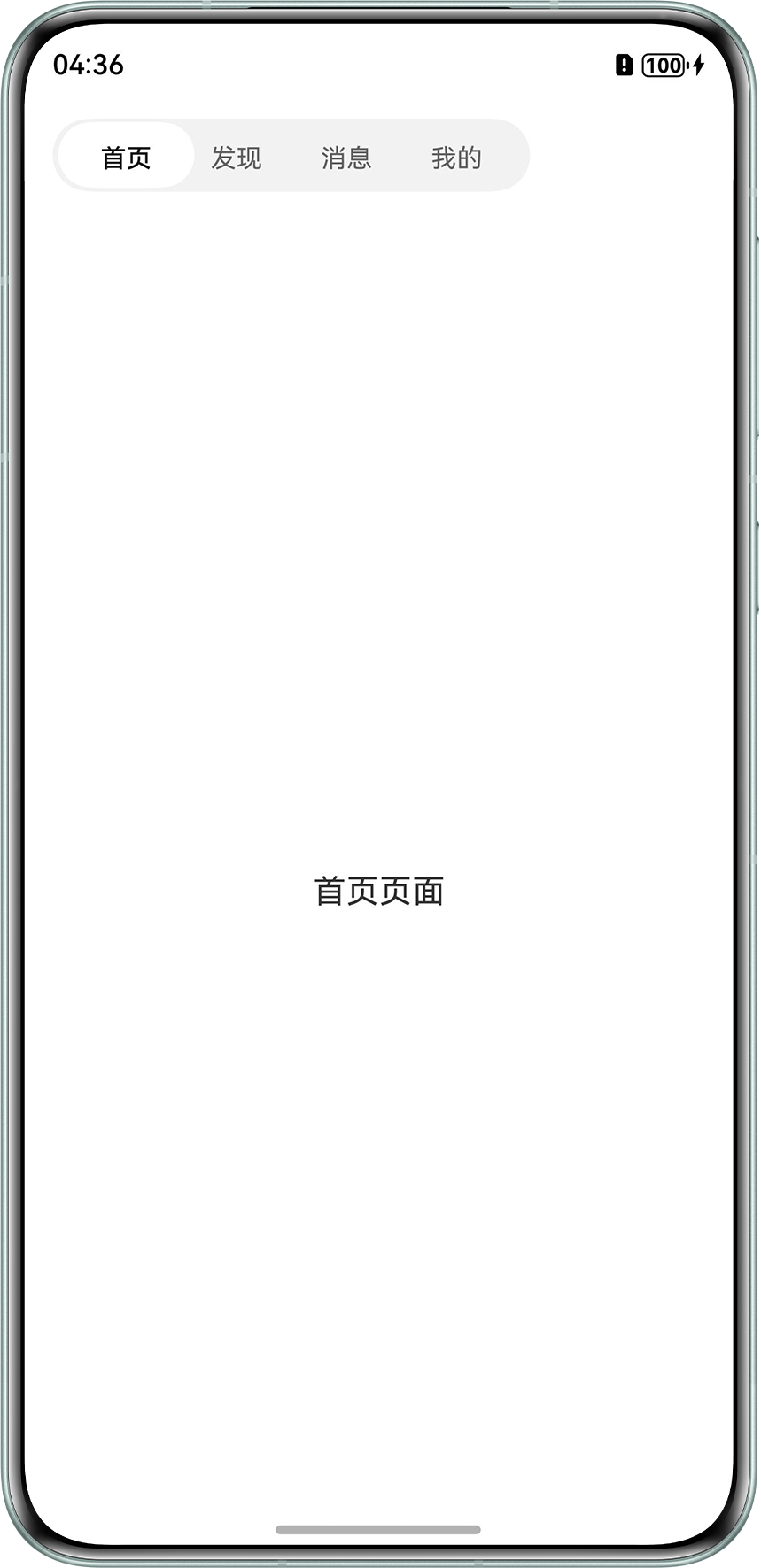
- 将自定义的页签样式放入Stack容器中,alignContent属性设置为Alignment.TopStart,每个页签通过position设置偏移值,使得TabBar左对齐。如果设置为Alignment.TopEnd,实现居右对齐。
示例代码如下:@Entry @Component struct LeftTabBar4 { private controller: TabsController = new TabsController(); @State currentIndex: number = 0; private tabList: string[] = ['首页', '发现', '消息', '我的']; private tabWidth: number = 60; // 每个页签的固定宽度 @Builder tabBuilder(title: string, targetIndex: number) { Column() { Text(title) .width('74vp') .height('36vp') .textAlign(TextAlign.Center) .textVerticalAlign(TextVerticalAlign.CENTER) .fontColor(this.currentIndex === targetIndex ? '#e6000000' : '#99000000') .fontSize(14) .fontWeight(this.currentIndex === targetIndex ? 500 : 400) .lineHeight(40) .backgroundColor(this.currentIndex === targetIndex ? Color.White : '#00000000') .borderRadius('50vp'); } .position({ x: targetIndex * this.tabWidth + 26, y: 16 }) // 按索引计算left值 .width(this.tabWidth) .height(40) .onClick(() => { this.controller.changeIndex(targetIndex); }); } build() { Column() { // 自定义TabBar容器 Stack({ alignContent: Alignment.TopStart }) { Column() .width(`${this.tabWidth * this.tabList.length + 20}`) .height(40) .backgroundColor('#0d000000') .padding(2) .borderRadius({ topLeft: 50, bottomLeft: 50, topRight: 50, bottomRight: 50 }) .position({ x: 16, y: 14 }); // 页签容器(宽度=页签数量*单个宽度) Row() { ForEach(this.tabList, (item: string, index: number) => { this.tabBuilder(item, index); }); } .width(this.tabList.length * this.tabWidth); } .height(50) .width('100%') .backgroundColor('#FFFFF'); Tabs({ controller: this.controller }) { ForEach(this.tabList, (item: string) => { TabContent() { Text(`${item}页面`) .fontSize(18) .margin(15); }; }, (item: string) => item); } .barHeight(0) .onChange((index: number) => { this.currentIndex = index; }); } .width('100%') .height('100%'); } }参考图如下:
- Flex容器实现自定义TabBar居左样式。

常见FAQ
Q:如何让设置vertical为true的TabBar顶部对齐?
A:需要设置barModifier属性如:
barModifier: this.tabBarModifier.align(Alignment.TopStart)
Q:在不自定义标题栏的前提下,如何设置Tabs的页签左对齐时的间距?
A:在方案一的前提下,可通过设置BottomTabBarStyle的padding属性实现,参考设置底部页签基本属性。示例代码如下:
Tabs({
  barPosition: BarPosition.Start,
  barModifier: new CommonModifier().align(Alignment.Start).margin({ left: 16 })
}) {
  TabContent() {
    // TabContent内容
  }
  .tabBar(BottomTabBarStyle.of('', `页签1`).labelStyle({ font: { size: 16 } }).padding({ left: 16 }));
  // 其他TabContent
  // ...
}
.width('100%')
.barMode(BarMode.Scrollable);