背景知识
HarmonyOS开发中有三种截图方式,分别是组件截图、窗口截图和屏幕截图:
- getComponentSnapshot组件截图:提供获取组件截图的能力,包括加载的组件和未加载的组件的截图。组件截图只截取组件区域内内容,超出区域的部分不会呈现。位于组件内的兄弟组件堆叠时在截图中不可见。
- snapshot:提供窗口截图能力,使用前需要用getLastWindow()、createWindow()、findWindow()中的任一方法获取到Window实例(windowClass)。
- 屏幕截图:提供屏幕截图能力,根据screenshot.pick和screenshot.capture文档描述,仅2in1设备或平板设备可以使用,如果是手机使用则会报错:“Failed to pick. Code:{"code":801}”。
其中常见的截图方式为组件截图、窗口截图,两者区别如下:
维度 | 组件截图 | 窗口截图 |
|---|---|---|
截取范围 | 组件区域内。 | 整个window窗口。 |
技术实现 | componentSnapshot.get。 | window.getLastWindow获取窗口后win.snapshot。 |
安全性 | 更安全(可避免敏感信息泄露)。 | 需处理敏感信息(如密码、支付界面)。 |
业务场景 | 组件内容转成图片。比如商品信息。 | 用户分享界面,崩溃时自动截取上下文发送报告。 |
解决方案
- 截图实现方式。
- 组件截图实现:
组件截图可参考官网示例使用组件截图。
- 窗口截图实现:通过window.getLastWindow方法获取Window实例,然后通过snapshot方法保存窗口截图。
import { window } from '@kit.ArkUI';
import { image } from '@kit.ImageKit';
import { common } from '@kit.AbilityKit';

@Entry
@Component
struct Snapshot {
  @State pixmap: PixelMap | string = '';

  build() {
    Column() {
      Button('点击').onClick(() => {
        let context = this.getUIContext().getHostContext() as Context as common.UIAbilityContext;
        window.getLastWindow(context).then(win => {
          let promise = win.snapshot();
          promise.then((pixelMap: image.PixelMap) => {
            this.pixmap = pixelMap;
          });
        });
      });
      if (this.pixmap) {
        Image(this.pixmap)
          .borderWidth(1)
          .width(300);
      }
    }
    .width('100%')
    .height('100%')
    .backgroundColor(Color.Pink);
  }
}
- 组件截图实现:
- 屏幕截图实现:
参考官网screenshot.capture实现。
- 截图常见场景。
- 场景一:长截图场景。
当用户截图分享和保存(如聊天记录、网页文章、活动海报等)的内容较长的时候,需要用户多次截图来保证内容完整性,这时可以参考官网长截图实现。
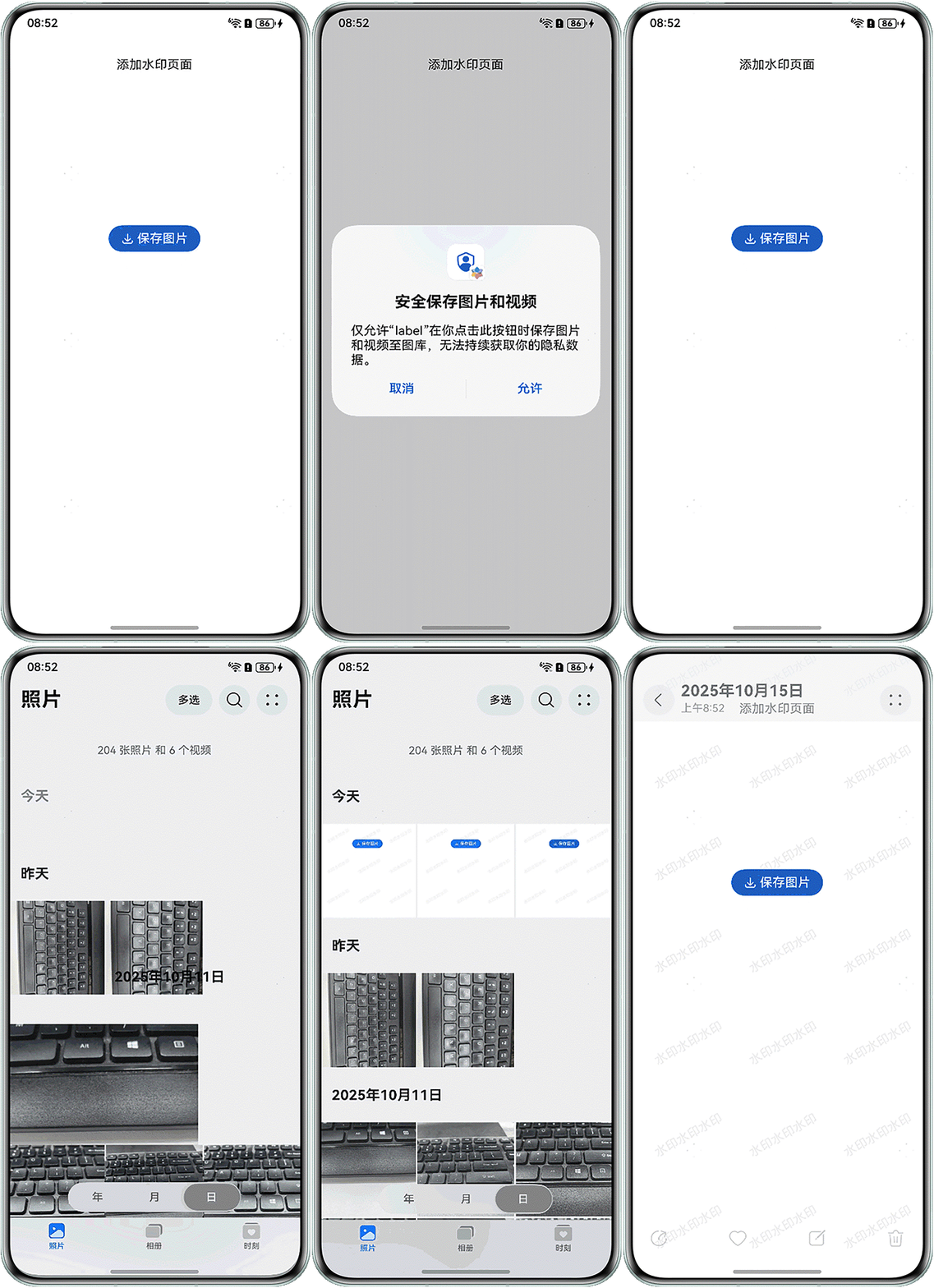
- 场景二:截图添加水印场景。
当用户截图后需要对图片添加版权保护信息、标识或者艺术效果的时候,可以参照官网水印添加实现。
实现效果展示如下:
- 场景一:长截图场景。
- 截图后保存到相册。
三种截图方式在调用API后都会返回image.PixelMap数据,这时可以利用SaveButton实现图片保存到相册,完整示例代码如下:
- 在EntryAbility.ets中保存windowStage。
import { ConfigurationConstant, UIAbility } from '@kit.AbilityKit'; import { hilog } from '@kit.PerformanceAnalysisKit'; import { window } from '@kit.ArkUI'; const DOMAIN = 0x0000; export default class EntryAbility extends UIAbility { onCreate(): void { try { this.context.getApplicationContext().setColorMode(ConfigurationConstant.ColorMode.COLOR_MODE_NOT_SET); } catch (err) { hilog.error(DOMAIN, 'testTag', 'Failed to set colorMode. Cause: %{public}s', JSON.stringify(err)); } hilog.info(DOMAIN, 'testTag', '%{public}s', 'Ability onCreate'); } onDestroy(): void { hilog.info(DOMAIN, 'testTag', '%{public}s', 'Ability onDestroy'); } onWindowStageCreate(windowStage: window.WindowStage): void { AppStorage.setOrCreate('windowStage', windowStage); // Main window is created, set main page for this ability hilog.info(DOMAIN, 'testTag', '%{public}s', 'Ability onWindowStageCreate'); windowStage.loadContent('pages/Index', (err) => { if (err.code) { hilog.error(DOMAIN, 'testTag', 'Failed to load the content. Cause: %{public}s', JSON.stringify(err)); return; } AppStorage.setOrCreate('windowStage',windowStage); hilog.info(DOMAIN, 'testTag', 'Succeeded in loading the content.'); }); } onWindowStageDestroy(): void { // Main window is destroyed, release UI related resources hilog.info(DOMAIN, 'testTag', '%{public}s', 'Ability onWindowStageDestroy'); } onForeground(): void { // Ability has brought to foreground hilog.info(DOMAIN, 'testTag', '%{public}s', 'Ability onForeground'); } onBackground(): void { // Ability has back to background hilog.info(DOMAIN, 'testTag', '%{public}s', 'Ability onBackground'); } }; - WatermarkShot.ets。
import { image } from '@kit.ImageKit';
import { window } from '@kit.ArkUI';
import { photoAccessHelper } from '@kit.MediaLibraryKit';
import { fileIo as fs } from '@kit.CoreFileKit';
import { BusinessError } from '@kit.BasicServicesKit';
import { common } from '@kit.AbilityKit';

export interface ImagePixelMap {
  pixelMap: image.PixelMap;
  width: number;
  height: number;
}

export async function imageSource2PixelMap(pixelMap: image.PixelMap): Promise<ImagePixelMap> {
  return pixelMap.getImageInfo().then((imageInfo: image.ImageInfo) => {
    const height = imageInfo.size.height;
    const width = imageInfo.size.width;
    const result: ImagePixelMap = { pixelMap, width, height };
    return result;
  });
}

export function addWatermark(
  imagePixelMap: ImagePixelMap,
  drawWatermark?: (OffscreenContext: OffscreenCanvasRenderingContext2D) => void
): image.PixelMap {
  let windowStage = AppStorage.get('windowStage') as window.WindowStage;
  const height = windowStage.getMainWindowSync().getUIContext().px2vp(imagePixelMap.height);
  const width = windowStage.getMainWindowSync().getUIContext().px2vp(imagePixelMap.width);
  const offScreenCanvas = new OffscreenCanvas(width, height);
  const offScreenContext = offScreenCanvas.getContext('2d');
  offScreenContext.drawImage(imagePixelMap.pixelMap, 0, 0, width, height);
  if (drawWatermark) {
    drawWatermark(offScreenContext);
  } else {
    offScreenContext.fillStyle = '#10000000';
    offScreenContext.font = '16vp';
    const rotationAngle = -30;
    const watermarkHeight = 120;
    const watermarkWidth = 120;
    const watermarkText = '水印水印水印';
    const colCount = Math.ceil(imagePixelMap.height / watermarkHeight);
    const rowCount = Math.ceil(imagePixelMap.width / watermarkWidth);
    for (let col = 0; col <= colCount; col++) {
      let row = 0;
      for (; row <= rowCount; row++) {
        const angle = rotationAngle * Math.PI / 180;
        offScreenContext.rotate(angle);
        const positionX = rotationAngle > 0 ? watermarkHeight * Math.tan(angle) : 0;
        const positionY = rotationAngle > 0 ? 0 : watermarkWidth * Math.tan(-angle);
        offScreenContext.fillText(watermarkText, positionX, positionY);
        offScreenContext.rotate(-angle);
        offScreenContext.translate(0, watermarkHeight);
      }
      offScreenContext.translate(0, -watermarkHeight * row);
      offScreenContext.translate(watermarkWidth, 0);
    }
  }
  return offScreenContext.getPixelMap(0, 0, width, height);
}

@Entry
@Component
struct WatermarkShot {
  @State pixmap: image.PixelMap | undefined = undefined;
  saveButtonOptions: SaveButtonOptions = {
    icon: SaveIconStyle.FULL_FILLED,
    text: SaveDescription.SAVE_IMAGE,
    buttonType: ButtonType.Capsule
  };

  private saveToPhoto() {
    let packOpts: image.PackingOption = { format: 'image/jpeg', quality: 100 };
    const imagePackerApi = image.createImagePacker();
    imagePackerApi.packToData(this.pixmap, packOpts).then(async (buffer: ArrayBuffer) => {
      let file: fs.File | undefined = undefined;
      try {
        let context = this.getUIContext().getHostContext() as Context as common.UIAbilityContext;
        let helper = photoAccessHelper.getPhotoAccessHelper(context);
        let uri = await helper.createAsset(photoAccessHelper.PhotoType.IMAGE, 'jpg');
        file = fs.openSync(uri, fs.OpenMode.READ_WRITE | fs.OpenMode.CREATE);
        fs.writeSync(file.fd, buffer);
        fs.closeSync(file);
      } catch (error) {
        try {
          if (file) {
            fs.close(file);
          }
        } catch (e) {

        }
      }
    });
  }

  build() {
    Column() {
      Row() {
        Text('添加水印页面');
      }.margin({ top: 30, bottom: 200 });

      SaveButton(this.saveButtonOptions)
        .onClick(() => {
          let context = this.getUIContext().getHostContext() as Context as common.UIAbilityContext;
          window.getLastWindow(context).then(win => {
            let promise = win.snapshot();
            promise.then(async (pixelMap: image.PixelMap) => {
              const imagePixelMap = await imageSource2PixelMap(pixelMap);
              this.pixmap = addWatermark(imagePixelMap);
              this.saveToPhoto();
            }).catch((err: BusinessError) => {
              console.error(`Failed to snapshot window. Cause code: ${err.code}, message: ${err.message}`);
            });
          });
        });
    }
    .width('100%')
    .height('100%')
    .alignItems(HorizontalAlign.Center);
  }
}
- 在EntryAbility.ets中保存windowStage。
常见FAQ
Q:调用组件截图API无响应,报错100001是什么原因?
A:根据componentSnapshot.get文档描述,100001为Id非法,检查对应Id的组件是否存在。
Q:如何进行长截图?
Q:在自定义builder中涉及图片时,时序控制难度大,容易导致资源加载不同步时,如何把自定义的builder转成PixelMap。
A:可以使用对离线组件截图。
Q:componentSnapshot组件截图范围的阈值是多少。
A:HarmonyOS的componentSnapshot.get接口存在底层硬件限制,单边尺寸超过8192px时会导致截图失败(不同设备可能有差异,但官方建议以8192px为安全阈值)。当组件宽/高任一方向超过该限制时,系统将无法生成PixelMap。
Q:组件超出手机屏幕,如何截取组件全图。
A:首先是要用scroll组件包裹住截图组件,然后再使用componentSnapshot.get获取已加载的组件的截图。
Q:c++中是否有截屏API。
A:可使用OH_ArkUI_GetNodeSnapshot进行截图。