问题现象
在移动应用开发中,屏幕涂抹交互(如签名、涂鸦、擦除)是提升用户体验的关键功能。HarmonyOS的Canvas组件结合触摸事件监听与手势识别,为开发者提供了低门槛、高性能的2D图形绘制能力。本文将通过以下常见应用场景,详解如何在Canvas上实现涂抹效果:
- 场景一:如何结合手势或者事件实现滑动路径绘制?
- 场景二:如何撤销已绘制的路径?
- 场景三:如何擦除部分绘制内容?
背景知识
- Canvas:提供画布组件,用于自定义绘制图形,开发者使用CanvasRenderingContext2D对象和OffscreenCanvasRenderingContext2D对象在Canvas组件上进行绘制,绘制对象可以是基础形状、文本、图片等。
- lineTo:从当前点到指定点进行路径连接。
- globalCompositeOperation:设置合成操作的方式,默认值为source-over。
- onTouch:手指触摸动作触发该回调。可以获取滑动过的路径坐标点。
- PanGesture:滑动手势事件,当滑动的最小距离达到设定的最小值时触发滑动手势事件。
解决方案
- 场景一:结合手势或者事件实现路径绘制。
Canvas组件可以绑定触摸事件和滑动手势来获取手指按压时的坐标,在事件触发过程中可以根据event对象获取到在屏幕上触摸的点,再结合Canvas的lineTo方法就可以把手指移动过程中的路径给记录下来,达到手指滑动屏幕就绘制的效果。
- onTouch实现如下:
@Entry @Component struct CanvasTouch { private settings: RenderingContextSettings = new RenderingContextSettings(true); private context: CanvasRenderingContext2D = new CanvasRenderingContext2D(this.settings); build() { Column() { Canvas(this.context) .width('100%') .height('100%') .backgroundColor($r('sys.color.comp_background_focus')) .onReady(() => { this.context.lineWidth = 10; this.context.strokeStyle = '#0000ff'; }) .onTouch((event: TouchEvent) => { // 获取到触摸的坐标点 let x = event.touches[0].x; let y = event.touches[0].y; if (event.type == TouchType.Down) { // 手指按下时画布移动到当前坐标点 this.context.beginPath(); this.context.moveTo(x, y); } if (event.type === TouchType.Move) { // 手指移动时画布用线条连接到当前坐标点 this.context.lineTo(x, y); this.context.stroke(); } if (event.type === TouchType.Up) { // 手指抬起时生成闭合路径 this.context.closePath(); } }) .expandSafeArea([SafeAreaType.SYSTEM], [SafeAreaEdge.TOP, SafeAreaEdge.BOTTOM]); }; } } - PanGesture实现如下:
@Entry
@Component
struct CanvasPanGesture {
  private settings: RenderingContextSettings = new RenderingContextSettings(true);
  private context: CanvasRenderingContext2D = new CanvasRenderingContext2D(this.settings);


  build() {
    Column() {
      Canvas(this.context)
        .width('100%')
        .height('100%')
        .backgroundColor($r('sys.color.comp_background_focus'))
        .onReady(() => {
          this.context.lineWidth = 10;
          this.context.strokeStyle = '#0000ff';
        })
        .gesture(
          PanGesture({ fingers: 1 })
            .onActionStart((event: GestureEvent) => {
              let x = event.fingerList[0].localX;
              let y = event.fingerList[0].localY;
              // 手指按下时画布移动到当前坐标点
              this.context.beginPath();
              this.context.moveTo(x, y);
            })
            .onActionUpdate((event: GestureEvent) => {
              let x = event.fingerList[0].localX;
              let y = event.fingerList[0].localY;
              // 手指移动时画布用线条连接到当前坐标点
              this.context.lineTo(x, y);
              this.context.stroke();
            })
            .onActionEnd(() => {
              // 手指抬起时生成闭合路径
              this.context.closePath();
            })
        )
        .expandSafeArea([SafeAreaType.SYSTEM], [SafeAreaEdge.TOP, SafeAreaEdge.BOTTOM]);
    };
  }
}
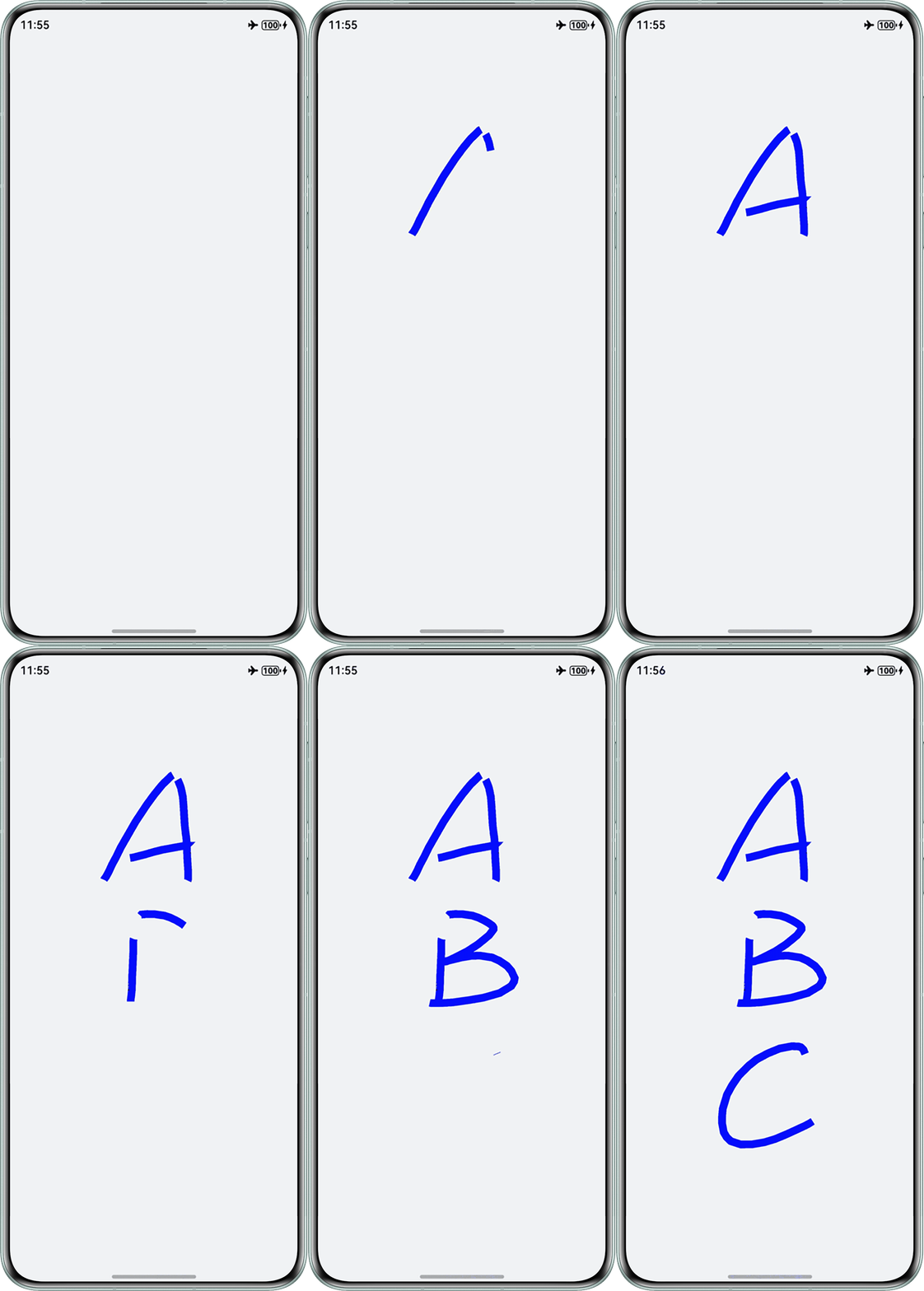
实现效果如下:
- onTouch实现如下:
- 场景二:撤销绘制的路径。
在一些签名场景,如果用户绘制错误需要重新绘制,直接使用clearRect方法清空画布体验不够友好,需要仅撤销最新的绘制路径,这时可以使用数组来存储绘制过程中的路径,然后点击撤销时移除最新路径,最后重绘剩余路径,这样即可实现撤销绘制功能。示例代码参考如下:
interface Point {
  x: number;
  y: number;
}


export class DrawingPath {
  points: Point[] = [];
}


@Entry
@Component
struct CanvasCancelDraw {
  private settings: RenderingContextSettings = new RenderingContextSettings(true);
  private context: CanvasRenderingContext2D = new CanvasRenderingContext2D(this.settings);
  private paths: DrawingPath[] = [];


  build() {
    Column() {
      Canvas(this.context)
        .width('100%')
        .height('570vp')
        .borderRadius(16)
        .backgroundColor($r('sys.color.comp_background_focus'))
        .onReady(() => {
          this.context.lineWidth = 10;
          this.context.strokeStyle = '#0000ff';
        })
        .onTouch((event: TouchEvent) => {
          let x = event.touches[0].x;
          let y = event.touches[0].y;
          if (event.type == TouchType.Down) {
            // 按下时新建一条路径
            const path = new DrawingPath();
            path.points.push({ x: x, y: y });
            this.paths.push(path);
            this.context.beginPath();
            this.context.moveTo(x, y);
          }
          if (event.type === TouchType.Move) {
            // 移动时把当前的坐标点放入最新的路径中
            this.paths[this.paths.length - 1].points.push({ x: x, y: y });
            this.context.lineTo(x, y);
            this.context.stroke();
          }
          if (event.type === TouchType.Up) {
            this.context.closePath();
          }
        });


      Row({ space: 20 }) {
        Button('清空')
          .layoutWeight(1)
          .onClick(() => {
            this.paths = [];
            this.context.clearRect(0, 0, this.context.width, this.context.height);
          });
        Button('撤销')
          .layoutWeight(1)
          .onClick(() => {
            if (this.paths.length < 1) {
              return;
            }
            this.paths.pop()!!;
            this.context.clearRect(0, 0, this.context.width, this.context.height);
            // 重绘保存的路径
            this.paths.forEach((path) => {
              if (path.points.length < 1) {
                return;
              }
              this.context.beginPath();
              this.context.moveTo(path.points[0].x, path.points[0].y);
              for (let i = 0; i < path.points.length; i++) {
                this.context.lineTo(path.points[i].x, path.points[i].y);
                this.context.stroke();
              }
              this.context.closePath();
            });
          });
      }.width('100%')
      .justifyContent(FlexAlign.Center)
      .margin(20);
    }.padding(16);
  }
}
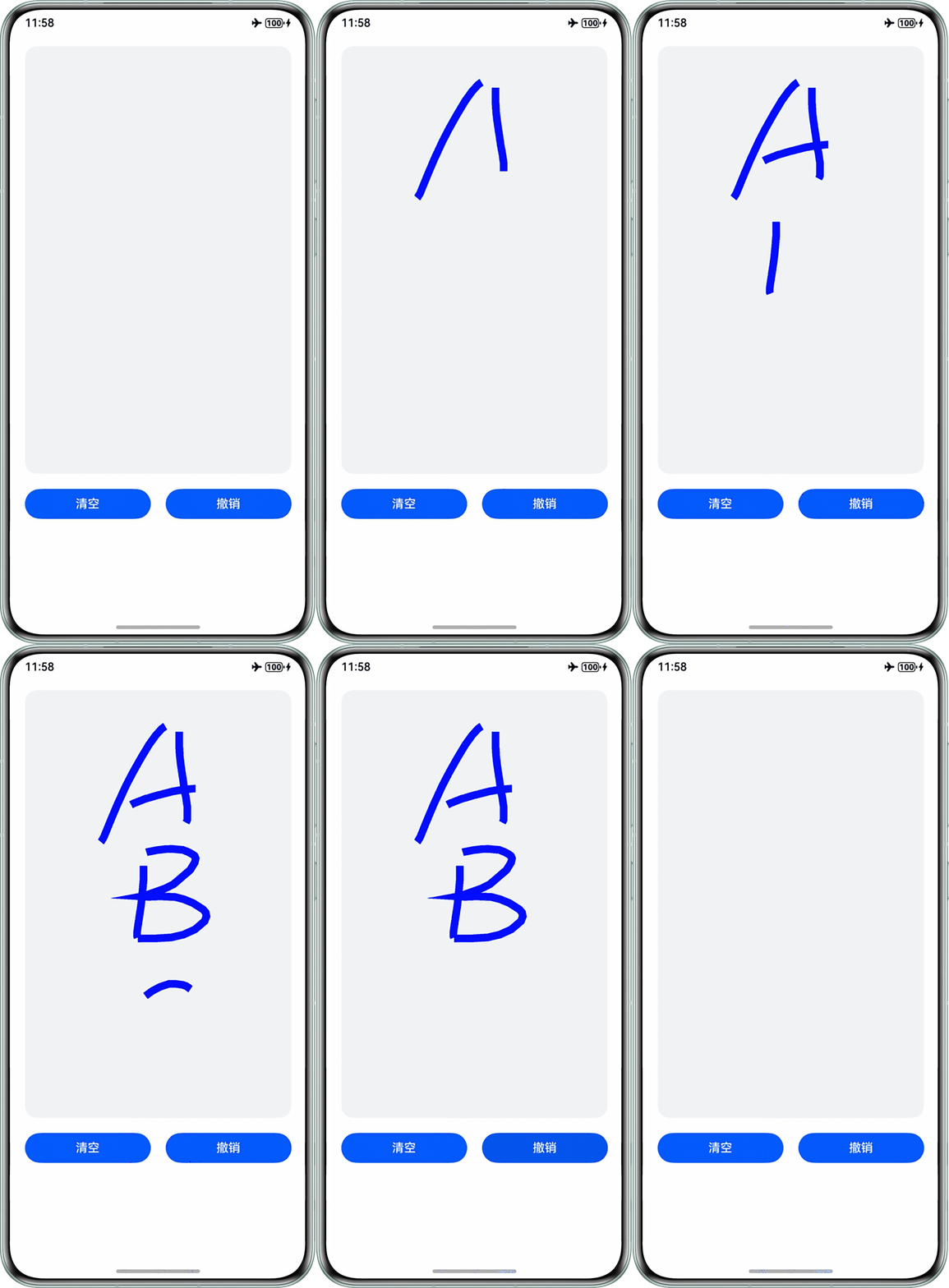
实现效果如下:
- 场景三:擦除部分绘制内容。
在一些绘图场景,可能需要在原有的线条基础上进行擦除而不是撤销,这时就需要globalCompositeOperation实现。Canvas是增量绘制,在原有的基础上进行擦除,可以通过设置globalCompositeOperation属性为destination-out来实现,示例代码参考如下:
@Entry
@Component
struct CanvasEraseDraw {
  private settings: RenderingContextSettings = new RenderingContextSettings(true);
  private context: CanvasRenderingContext2D = new CanvasRenderingContext2D(this.settings);


  build() {
    Column() {
      Canvas(this.context)
        .width('100%')
        .height('570vp')
        .borderRadius(16)
        .backgroundColor($r('sys.color.comp_background_focus'))
        .onReady(() => {
          this.context.lineWidth = 10;
          this.context.strokeStyle = '#0000ff';
        })
        .onTouch((event: TouchEvent) => {
          let x = event.touches[0].x;
          let y = event.touches[0].y;
          if (event.type == TouchType.Down) {
            this.context.beginPath();
            this.context.moveTo(x, y);
          }
          if (event.type === TouchType.Move) {
            this.context.lineTo(x, y);
            this.context.stroke();
          }
          if (event.type === TouchType.Up) {
            this.context.closePath();
          }
        });


      Row({ space: 20 }) {
        Button('清空').layoutWeight(1)
          .onClick(() => {
            this.context.clearRect(0, 0, this.context.width, this.context.height);
          });
        Button('画笔').layoutWeight(1)
          .onClick(() => {
            this.context.globalCompositeOperation = 'source-over';
            this.context.lineWidth = 10;
          });
        Button('橡皮擦').layoutWeight(1)
          .onClick(() => {
            this.context.globalCompositeOperation = 'destination-out';
            this.context.lineWidth = 30;
          });
      }
      .width('100%')
      .justifyContent(FlexAlign.Center)
      .margin(20);
    }.padding(16);
  }
}
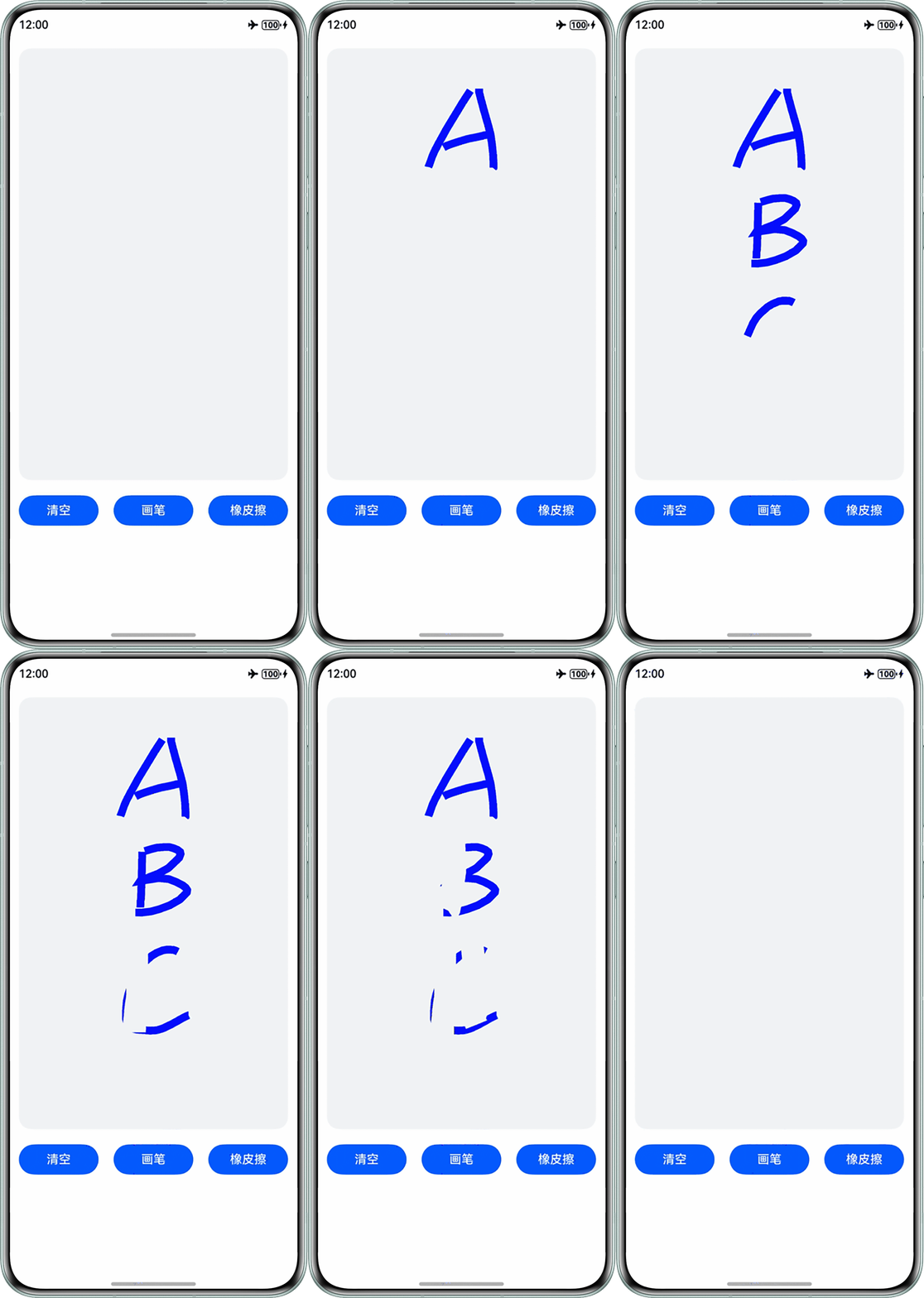
实现效果如下: