问题现象
List组件在无ListItemGroup时,设置onMove属性后能够正常实现拖拽功能,而在添加ListItemGroup后,拖拽功能则无法触发,问题代码如下:
List() {
  ForEach(this.minuteAttached, (item: string) => {
    ListItem() {
      // ...
    };
  }, (item: string, index: number) => item + index.toString())
    .onMove((from: number, to: number) => {
      let tmp = this.minuteAttached.splice(from, 1);
      this.minuteAttached.splice(to, 0, tmp[0]);
    });
};


List() {
  ListItemGroup({ header: this.headerTitleBuilder('分时指标设置') }) {
    ForEach(this.minuteAttached, (item: string) => {
      ListItem() {
        // ...
      };
    }, (item: string, index: number) => item + index.toString())
      .onMove((from: number, to: number) => {
        // 不触发
      });
  };
};
背景知识
- ListItemGroup内部的ListItem组件不支持编辑、拖拽功能。同时在onItemDragStart下面有说明,onMove接口不支持跨ListItemGroup拖拽。
- 绑定手势方法为组件绑定不同类型的手势事件,并设置事件的响应方法。
解决方案
由于ListItemGroup内部的ListItem组件不支持编辑、拖拽功能。在不放弃使用ListItemGroup组件的情况下,可以采用组合手势处理实现Item的拖拽交换,具体实现如下:
- 使用GestureGroup绑定LongPressGesture和PanGesture组合手势,长按手势识别成功后才能触发后续平移手势。
- 在LongPressGesture中更新选中的ListItem,设置长按的动画效果。
- 在PanGesture中计算ListItem平移过程中y轴的偏移量,超过设定的阈值,触发与邻近元素的交换逻辑。
import curves from '@ohos.curves';


@Entry
@Component
struct ListItemGroupExample {
  @State private arr: string[] = ['拖动1', '拖动2', '拖动3', '拖动4', '拖动5', '拖动6', '拖动7', '拖动8', '拖动9'];
  @State dragItem: string = '';
  @State scaleItem: string = '';
  @State neighborItem: string = '';
  @State neighborScale: number = -1;
  private dragRefOffset: number = 0;
  @State offsetY: number = 0;


  // 设置Item的缩放显示
  scaleSelect(item: string): number {
    if (this.scaleItem === item) {
      return 1.05;
    } else if (this.neighborItem === item) {
      return this.neighborScale;
    } else {
      return 1;
    }
  }


  animateReset() {
    this.getUIContext().animateTo({ curve: curves.interpolatingSpring(0, 1, 400, 38) }, () => {
      this.dragItem = '';
      this.neighborItem = '';
    });
    this.getUIContext().animateTo({ curve: curves.interpolatingSpring(14, 1, 170, 17), delay: 150 }, () => {
      this.scaleItem = '';
    });
  }


  // 列表数据交换
  itemMove(index: number, newIndex: number): void {
    let tmp = this.arr.splice(index, 1);
    this.arr.splice(newIndex, 0, tmp[0]);
  }


  build() {
    Column() {
      List({ space: 20, initialIndex: 0 }) {
        ListItemGroup({ space: 12, style: ListItemGroupStyle.CARD }) {
          ForEach(this.arr, (item: string) => {
            ListItem() {
              Text(item)
                .width('100%')
                .height(100)
                .fontSize(16)
                .textAlign(TextAlign.Center)
                .animation({ curve: Curve.Sharp, duration: 300 });
            }
            .width('90%')
            .borderRadius('8vp')
            .backgroundColor('#F1F3F5')
            .scale({ x: this.scaleSelect(item), y: this.scaleSelect(item) })
            .zIndex(this.dragItem === item ? 1 : 0)
            .translate(this.dragItem === item ? { y: this.offsetY } : { y: 0 })
            // 以下组合手势为顺序识别,当长按手势事件未正常触发时则不会触发拖动手势事件
            .gesture(
              GestureGroup(GestureMode.Sequence,
                LongPressGesture({ repeat: true })
                  .onAction(() => {
                    this.getUIContext().animateTo({ curve: Curve.Friction, duration: 300 }, () => {
                      this.scaleItem = item; // 设置被拖动的Item项放大
                    });
                  })
                  .onActionEnd(() => {
                    this.getUIContext().animateTo({ curve: Curve.Friction, duration: 300 }, () => {
                      this.scaleItem = ''; // 长按取消,重置
                    });
                  }),
                PanGesture({ fingers: 1, direction: null, distance: 0 })
                  .onActionStart(() => {
                    this.dragItem = item;
                    this.dragRefOffset = 0;
                  })
                  .onActionUpdate((event: GestureEvent) => {
                    // 设置拖动过程中的动画效果,与邻近Item交换,交换的判断距离由Item的高度和之间的间隔决定
                    this.offsetY = event.offsetY - this.dragRefOffset;
                    this.neighborItem = '';
                    let index = this.arr.indexOf(item);
                    let value = curves.initCurve(Curve.Sharp).interpolate(Math.abs(this.offsetY) / 120);
                    this.neighborScale = 1 - value / 20;
                    if (this.offsetY < 0) {
                      this.neighborItem = this.arr[index - 1];
                    } else if (this.offsetY > 0) {
                      this.neighborItem = this.arr[index + 1];
                    }
                    if (Math.abs(this.offsetY) > 120 / 2) {
                      this.getUIContext().animateTo({ curve: curves.interpolatingSpring(0, 1, 400, 38) }, () => {
                        this.offsetY += this.offsetY < 0 ? -120 : 120;
                        this.dragRefOffset += this.offsetY < 0 ? -120 : 120;
                        this.itemMove(index, this.offsetY < 0 ? index - 1 : index + 1);
                      });
                    }
                  }).onActionEnd(() => this.animateReset())
              ).onCancel(() => this.animateReset())
            );
          }, (item: number) => item.toString());
        };
      }.sticky(StickyStyle.Header)
      .expandSafeArea([SafeAreaType.SYSTEM], [SafeAreaEdge.BOTTOM]);
    }.width('100%').height('100%');
  }
}
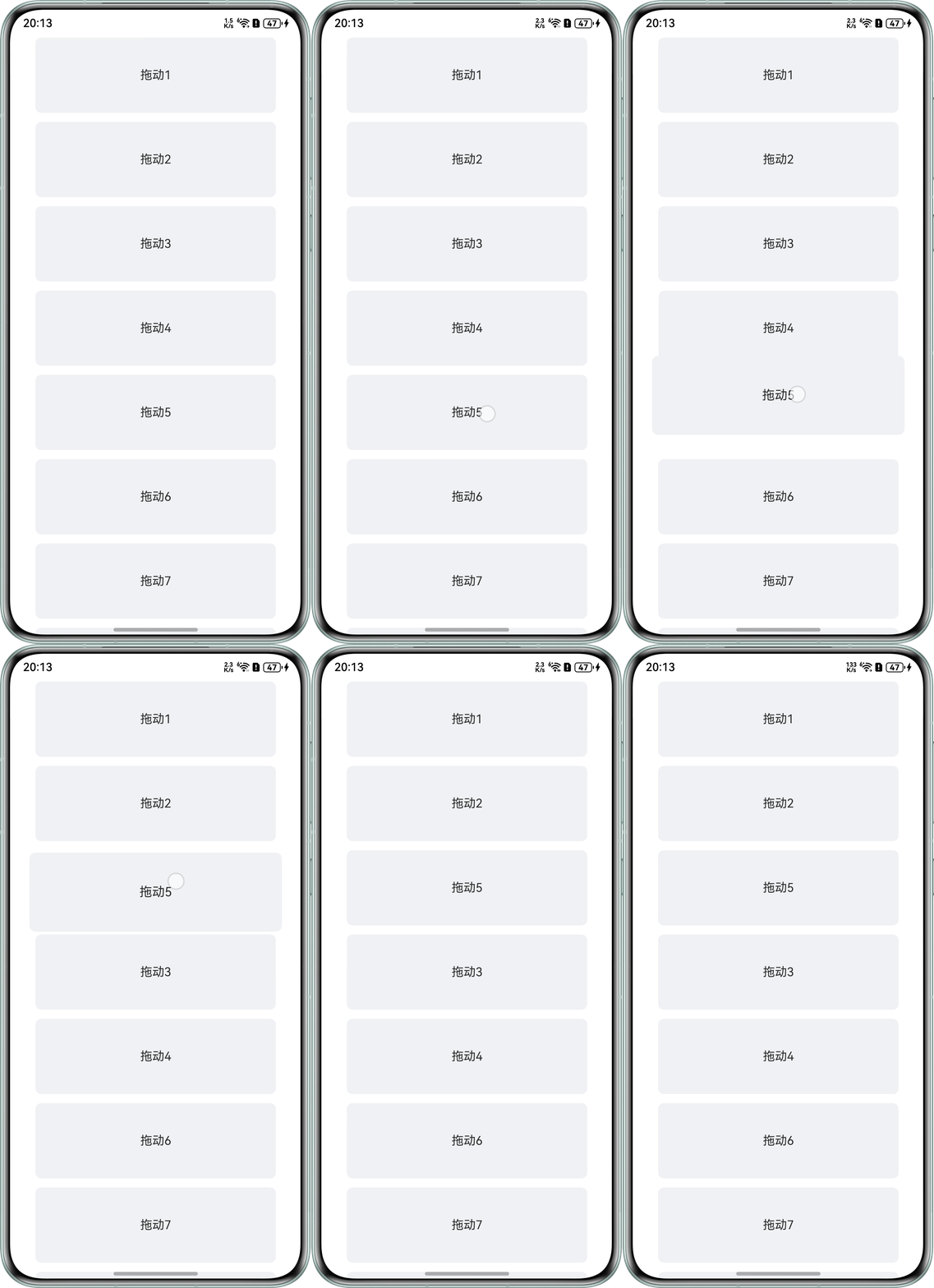
效果如下:长按即可拖拽。
常见FAQ
Q:ListItem里面有Image,给ListItem设置onMove属性失效。
A:给Image设置hitTestBehavior为HitTestMode.None。
Q:在使用List组件进行拖拽排序(onMove)时,若未显式设置高度,会导致拖拽功能无法正常触发。
A:List组件默认高度由其内容自动撑开。但在多列表共存或数据量较大超出屏幕范围等场景下,自动计算可能失效,进而干扰拖拽事件的正常响应。为解决该问题,可参考以下方案:
- 显式设置高度:为List指定固定高度,或通过动态计算赋予其明确的布局空间,确保拖拽逻辑正常执行。
- 合理分配布局空间:若页面中包含多个List,建议使用布局容器(如Column、Row)进行统一布局,结合layoutWeight等属性灵活分配各列表高度。
- 结合滚动容器使用:当列表数据量较大且需支持滚动时,可将List嵌套在Scroll容器中,同时仍需明确指定其高度以保障功能稳定。