解决方案
- 场景一:Canvas绘制如何刷新。
Canvas无自动重绘机制,需要手动触发绘制刷新,共有4种实现方式,对比如下:
实现方式
触发机制
适用场景
利用clearRect方法清空画布。
开发者手动调用。
局部刷新场景(如擦除部分区域)。
利用reset方法重置画布。
开发者手动调用。
全部重绘场景(如重置Canvas路径、样式)。
利用@Watch装饰器监听变量,根据变量变化刷新。
数据变量变更时自动触发。
数据驱动的动态内容(如实时进度条、图表)、需要与UI状态强绑定的场景,用状态管理V1实现。
利用@Monitor装饰器监听变量,根据变量变化刷新。
数据变量变更时自动触发。
数据驱动的动态内容(如实时进度条、图表)、需要与UI状态强绑定的场景,用状态管理V2实现。
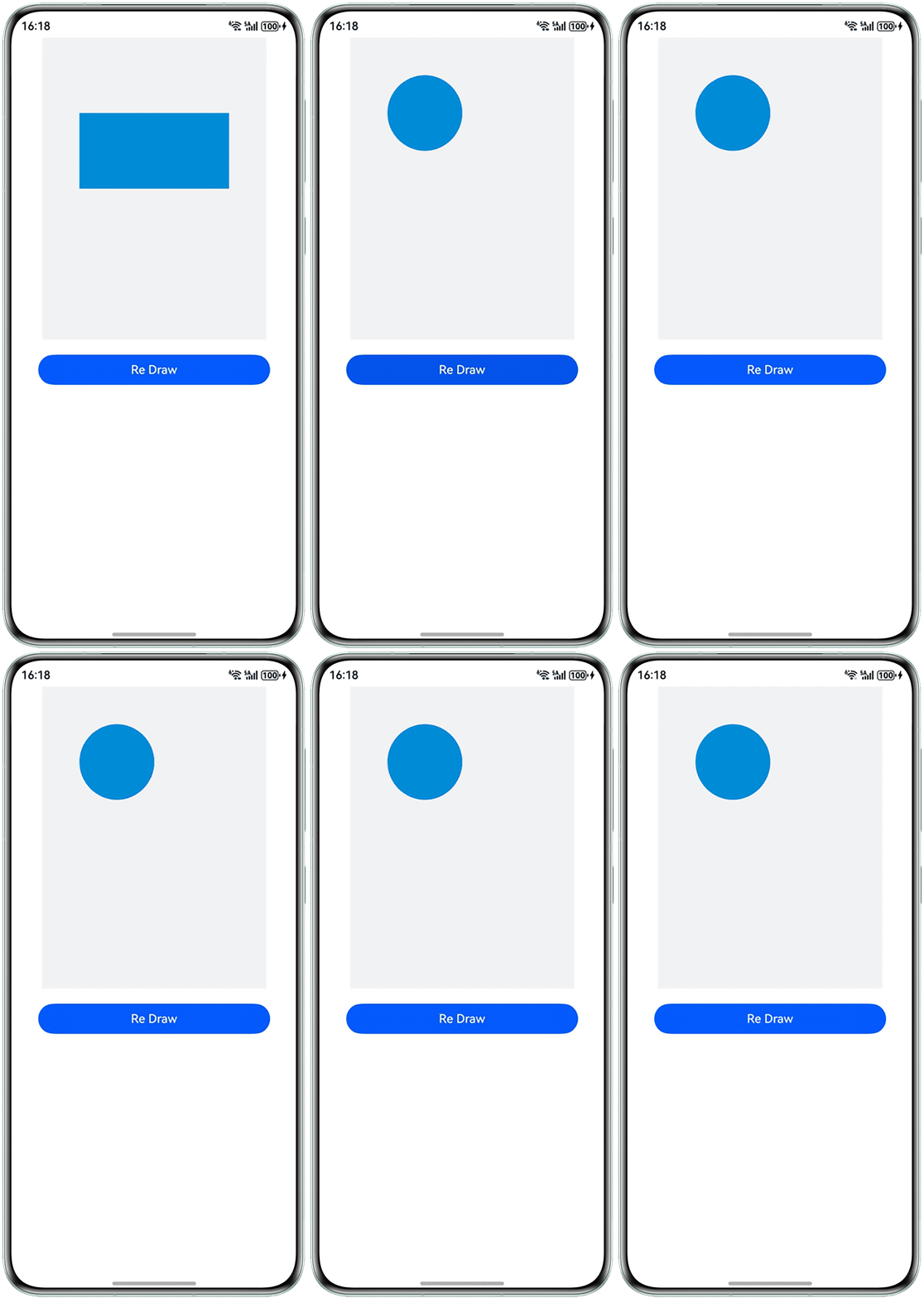
- 方式一:利用clearRect方法清空画布,进而重新绘制,代码示例如下:
@Entry
@Component
struct CanvasClearRect {
  private settings: RenderingContextSettings = new RenderingContextSettings(true);
  private context: CanvasRenderingContext2D = new CanvasRenderingContext2D(this.settings);

  build() {
    Column() {
      Canvas(this.context)
        .width(300)
        .height(400)
        .onReady(() => {
          this.context.fillStyle = '#0097D4';
          this.context.fillRect(50, 100, 200, 100);
        })
        .backgroundColor('#f1f3f5');

      Button('Re Draw')
        .width('80%')
        .margin({ top: 20 })
        .onClick(() => {
          this.draw();
        });
    }
    .height('100%')
    .width('100%');
  }

  private draw() {
    // 用clearRect清除画布中内容
    this.context.clearRect(0, 0, 300, 400);
    this.context.fillStyle = '#0097D4';
    this.context.beginPath();
    this.context.arc(100, 100, 50, 0, 2 * Math.PI);
    this.context.fill();
  }
}
实现效果如下:
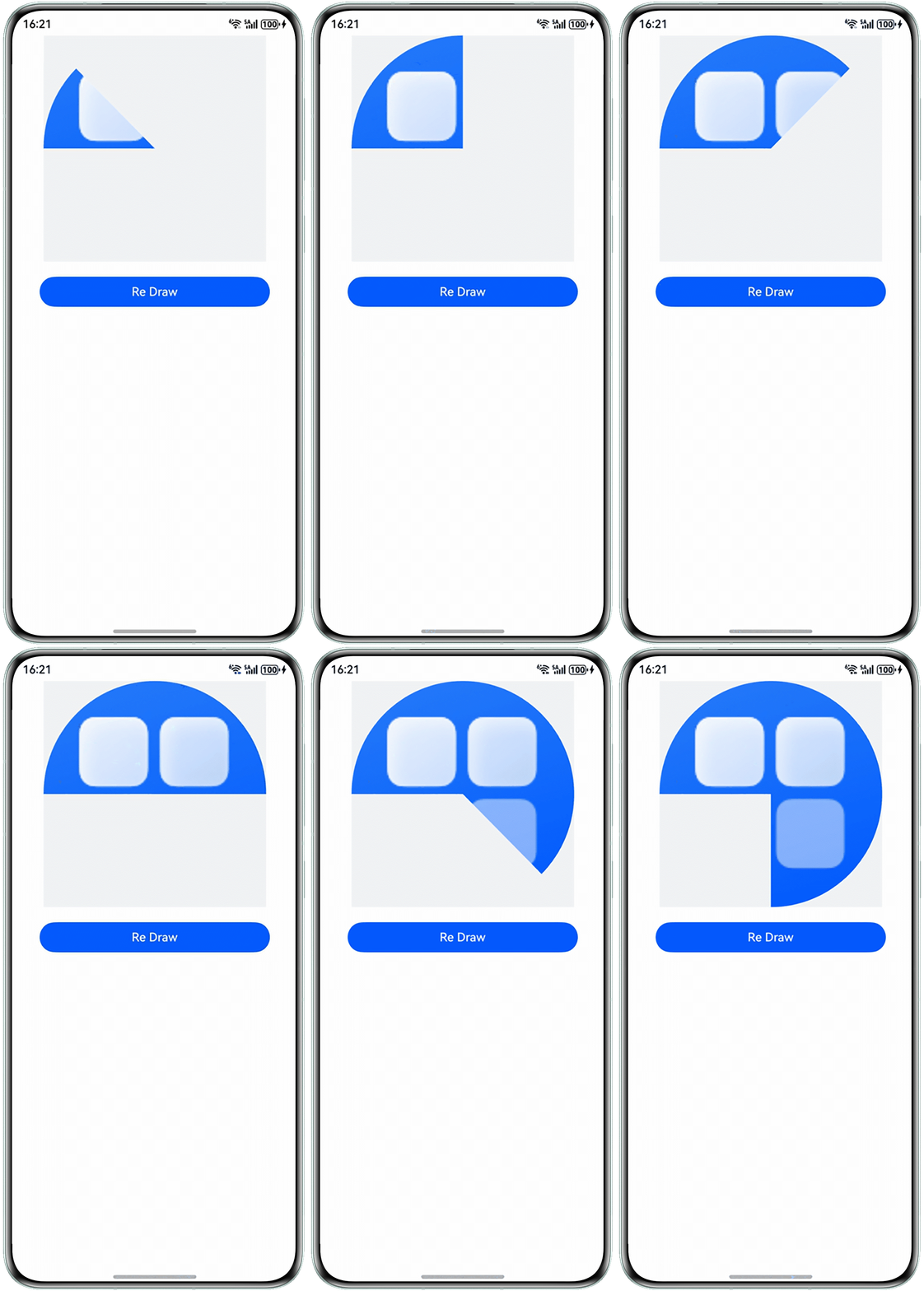
- 方式二:利用reset方法重置画布状态,清空绘制路径,代码示例如下:
@Entry
@Component
struct CanvasReset {
  private settings: RenderingContextSettings = new RenderingContextSettings(true);
  private context: CanvasRenderingContext2D = new CanvasRenderingContext2D(this.settings);
  // "common/images/example.png"需要替换为开发者所需的图像资源文件
  private img: ImageBitmap = new ImageBitmap('common/images/example.png');
  private angle: number = Math.PI * 5 / 4;

  build() {
    Column() {
      Canvas(this.context)
        .width(300)
        .height(300)
        .onReady(() => {
          this.draw();
        })
        .backgroundColor('#f1f3f5');

      Button('Re Draw')
        .width('80%')
        .margin({ top: 20 })
        .onClick(() => {
          this.angle += Math.PI / 4;
          this.draw();
        });
    }
    .height('100%')
    .width('100%');
  }

  private draw() {
    // 这里clearRect无法清除路径,需要用reset重置画布状态
    this.context.reset();
    let width = 300;
    this.context.beginPath();
    this.context.moveTo(width / 2, width / 2);
    this.context.arc(width / 2, width / 2, width / 2, Math.PI, this.angle);
    this.context.clip();
    this.context.drawImage(this.img, 0, 0, width, width);
  }
}
实现效果如下:
- 方式三:利用@Watch装饰器监听状态变量,当数据刷新时,触发重新绘制逻辑,示例参考:Canvas绘制内容如何动态更新。
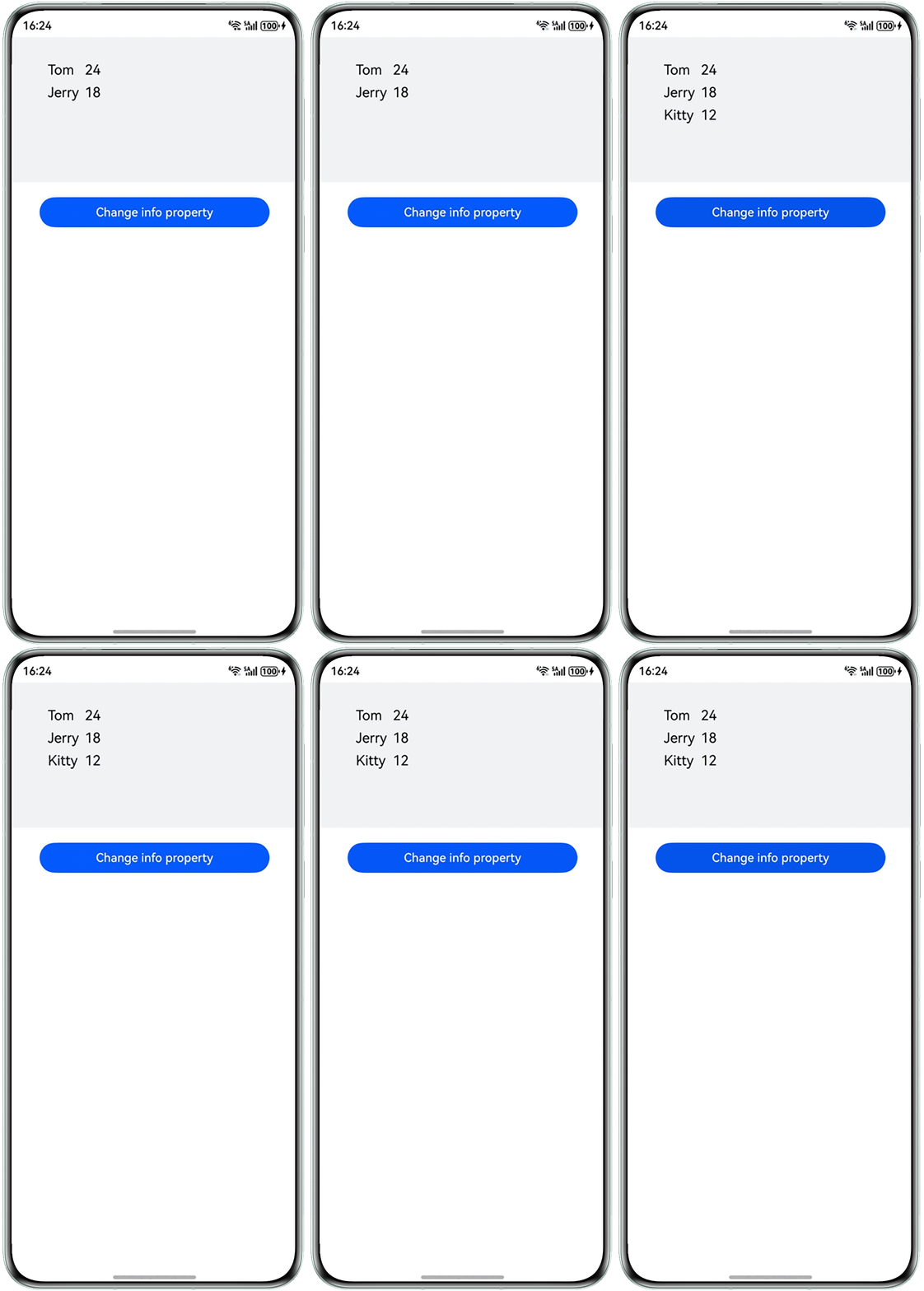
- 方式四:利用@Monitor装饰器监听嵌套Class对象属性的变化,代码示例如下:
@ObservedV2
class User {
  @Trace name: string;
  @Trace age: number;

  constructor(name: string, age: number) {
    this.name = name;
    this.age = age;
  }
}

@Entry
@ComponentV2
struct CanvasMonitor {
  private context: CanvasRenderingContext2D = new CanvasRenderingContext2D(new RenderingContextSettings(true));
  @Local userArr: Array<User> = [new User('Tom', 24), new User('Jerry', 18)];

  @Monitor('userArr.length')
  draw() {
    this.context.clearRect(0, 0, 200, 500);
    for (let i = 0; i < this.userArr.length; i++) {
      this.context.fillText(this.userArr[i].name, 50, i * 30 + 50);
      this.context.fillText(this.userArr[i].age.toString(), 100, i * 30 + 50);
    }
  }

  build() {
    Column() {
      Canvas(this.context)
        .width(300)
        .height(400)
        .onReady(() => {
          this.context.font = '60px';
          this.draw();
        })
        .height('25%')
        .width('100%')
        .backgroundColor('#f1f3f5');

      Button('Change info property')
        .width('80%')
        .margin({ top: 20 })
        .onClick(() => {
          this.userArr.push(new User('Kitty', 12));
        });
    }
    .width('100%')
    .height('100%');
  }
}
实现效果如下:
- 方式一:利用clearRect方法清空画布,进而重新绘制,代码示例如下:
- 场景二:Canvas绘制防止丢失。
Canvas的onReady方法在Canvas组件初始化完成或者发生大小变化时会触发。比如折叠屏展开场景、横竖屏切换场景以及动态扩展Canvas组件宽高场景,可能会触发onReady方法,这时在onReady方法之外绘制的内容就会丢失,需要恢复绘制,共有2种实现方式,对比如下:
实现方式
触发机制
适用场景
在onReady中恢复绘制。
Canvas初始化完成时或者发生大小变化时。
绘制内容较少时,不涉及监听尺寸变化场景。
在onAreaChange事件恢复绘制。
Canvas尺寸发生大小变化时。
需要精确根据尺寸变化进行绘制的场景。
- 方式一:在onReady方法中恢复画布绘制,示例参考:横竖屏切换时,如何防止画布被清空。
- 方式二:绑定onAreaChange方法,Canvas大小发生变化时同样会触发onAreaChange事件,这时可以在onAreaChange中恢复绘制逻辑,代码示例如下:
@Entry
@Component
struct CanvasOnAreaChange {
  private settings: RenderingContextSettings = new RenderingContextSettings(true);
  private context: CanvasRenderingContext2D = new CanvasRenderingContext2D(this.settings);
  @State myWidth: number = 300;

  build() {
    Column() {
      Canvas(this.context)
        .width(this.myWidth)
        .height(400)
        .onReady(() => {
          this.context.fillStyle = '#0097D4';
        })
        .onAreaChange(() => {
          // 监听尺寸变化事件,重新绘制,恢复画布
          this.draw();
        })
        .backgroundColor('#f1f3f5');

      Button('Change Size')
        .width('80%')
        .margin({ top: 20 })
        .onClick(() => {
          this.myWidth += 20;
        });
    }
    .height('100%')
    .width('100%');
  }

  private draw() {
    // 用clearRect清除画布中内容
    this.context.clearRect(0, 0, 300, 400);
    this.context.fillRect(50, 100, 200, 100);
  }
}
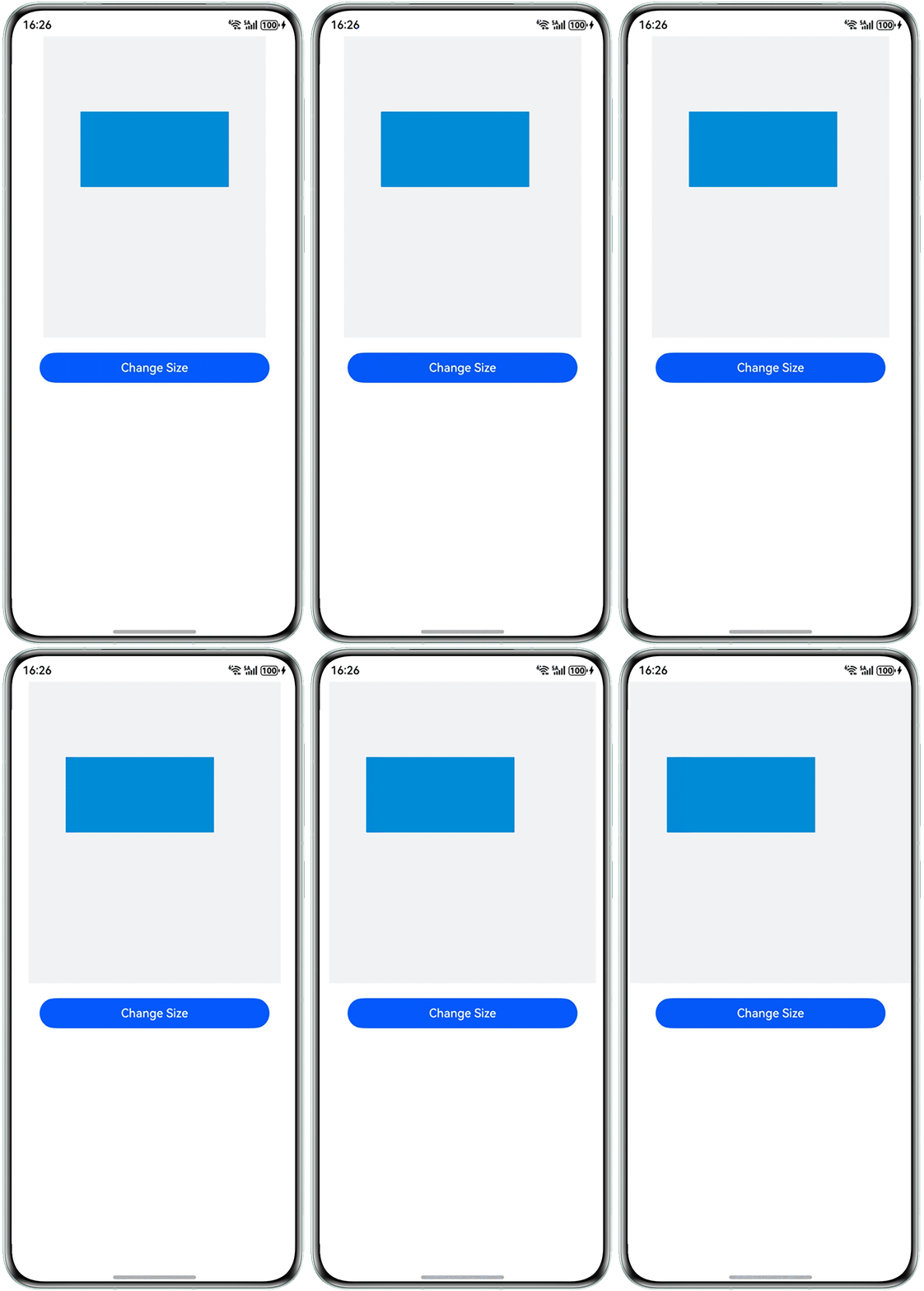
效果预览: