问题现象
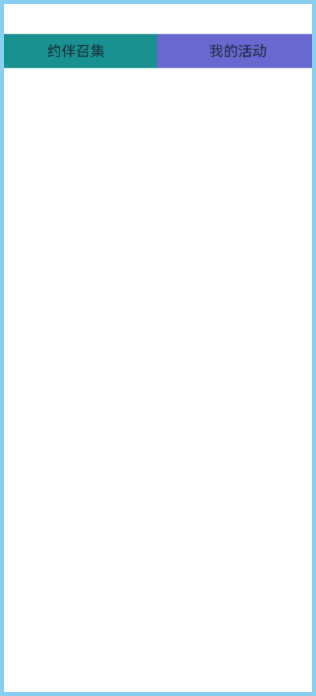
有如下代码,Flex布局,用previewer查看时,两侧占满屏幕;但是真机查看,两侧会有留白。
@Entry
@Component
struct Index {
  build() {
    Column() {
      Flex({ direction: FlexDirection.Row, justifyContent: FlexAlign.SpaceBetween }) { // 子组件在容器主轴上行布局
        Text('约伴召集')
          .width(180)
          .height(38)
          .backgroundColor('#ff1a9191')

        Text('我的活动')
          .width(180)
          .height(38)
          .backgroundColor('#ff6868d0')
      }
      .width(360)
      .height(58)
    }
    .height('100%')
    .width('100%')
  }
}
previewer效果:
真机效果:
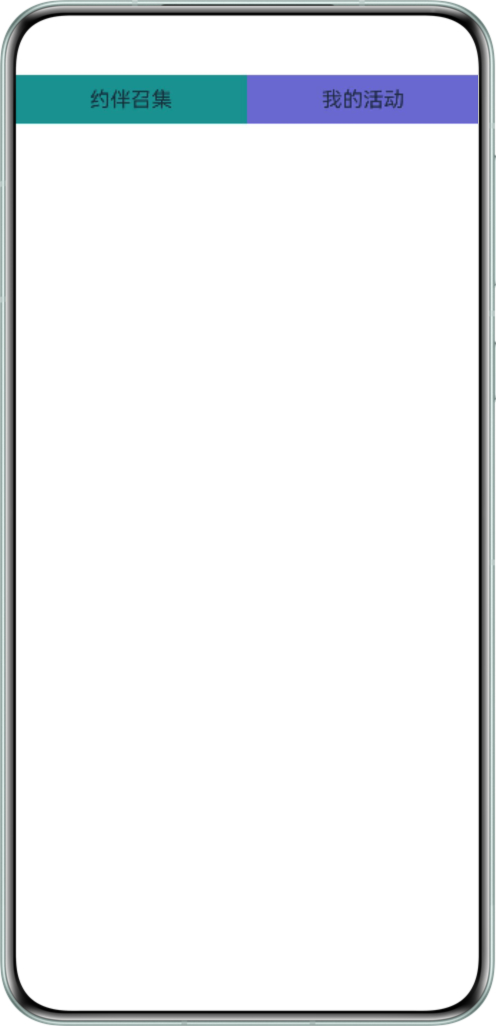
可以发现真机的Text组件两侧留有空白。

问题定位
引入display工具,添加如下代码,获取真机屏幕尺寸。
try {
  this.screenWidth = display.getDefaultDisplaySync().width;
  this.screenHeight = display.getDefaultDisplaySync().height;
} catch (e) {
  console.error('Fail with code: ' + JSON.stringify(e));
}
console.info(`width = ${this.getUIContext().px2vp(this.screenWidth)} , height = ${this.getUIContext()
  .px2vp(this.screenHeight)}`);
查看日志,可以看到获取到真机屏幕的尺寸是374vp,大于360vp,所以真机两侧存在空白。
修改建议
将Flex宽度设置为'100%',子元素Text的宽度分别设置为'50%',即可自适应设备宽度。
import { display } from '@kit.ArkUI';

@Entry
@Component
struct Index {
  private screenWidth: number = 0;
  private screenHeight: number = 0;

  build() {
    Column() {
      Flex({ direction: FlexDirection.Row, justifyContent: FlexAlign.SpaceBetween }) { // 子组件在容器主轴上行布局
        Text('约伴召集')
          .width('50%')
          .height(38)
          .backgroundColor('#ff1a9191');

        Text('我的活动')
          .width('50%')
          .height(38)
          .backgroundColor('#ff6868d0');
      }
      .width('100%')
      .height(58);
    }
    .height('100%')
    .width('100%')
    .onClick(() => {
      try {
        this.screenWidth = display.getDefaultDisplaySync().width;
        this.screenHeight = display.getDefaultDisplaySync().height;
      } catch (e) {
        console.error('Fail with code: ' + JSON.stringify(e));
      }
      console.info(`width = ${this.getUIContext().px2vp(this.screenWidth)} , height = ${this.getUIContext()
        .px2vp(this.screenHeight)}`);
    });
  }
}