背景知识
- floatingBall闪控球是一种在设备屏幕上悬浮的非全屏应用窗口,为应用提供临时的全局能力,完成跨应用交互。应用可以将关键信息(如比价、搜题或抢单等)以小窗(闪控球)模式呈现。切换为小窗(闪控球)模式后,用户可以进行其他界面操作,提升使用体验。使用约束参考约束与限制。
- screenshot.capture获取屏幕全屏截图,在API version 21之前,该接口在2in1设备、Tablet设备中可正常调用,在其他设备中返回801错误码。从API version 21开始,该接口在Phone设备、2in1设备、Tablet设备中可正常调用。
- getFloatingBallWindowInfo获得闪控球窗口信息,其返回的windowId仅用于screenshot.capture截图时排除闪控球本身,参考CaptureOption。
解决方案
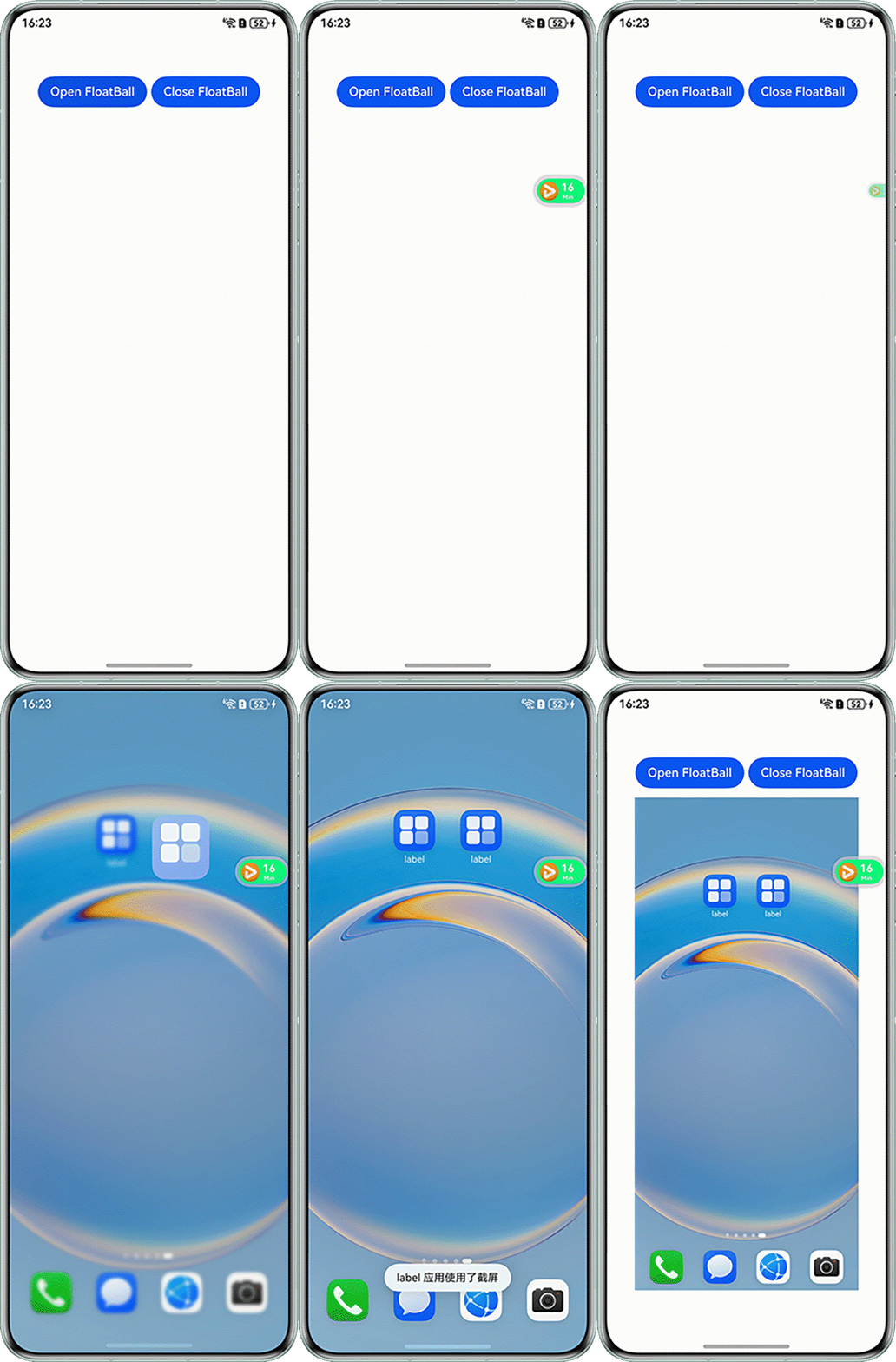
可以使用闪控球实现始终在前台展示的闪控球窗口,示例可参考全局闪控球开发指导。实现应用外截图可利用闪控球实现,具体实现步骤参考如下。
- 使用闪控球及屏幕截图需要申请ohos.permission.USE_FLOAT_BALL及ohos.permission.CUSTOM_SCREEN_CAPTURE权限,module.json5中配置参考如下:
"requestPermissions": [ { "name": "ohos.permission.USE_FLOAT_BALL" }, { "name": "ohos.permission.CUSTOM_SCREEN_CAPTURE", "reason": "$string:capture", "usedScene" : { "abilities" : [ "EntryAbility" ], "when" : "inuse" } } ], - Utils.ets:使用create()接口创建闪控球控制器;通过startFloatingBall()接口启动闪控球;通过updateFloatingBall()更新闪控球信息,以此控制闪控球展示的内容;通过stopFloatingBall()停止闪控球。当不再需要显示闪控球时,可根据业务需要关闭闪控球。
// 该页面提供工具类,展示闪控球的创建、更新、关闭逻辑 import hilog from '@ohos.hilog'; import image from '@ohos.multimedia.image'; import { BusinessError } from '@kit.BasicServicesKit'; import { floatingBall } from '@kit.ArkUI'; import { ContextUtil } from './ContextUtil'; const DOMAIN: number = 0xF811; const TAG: string = '[Sample_FloatingBall]'; export class Utils { public static getRawfilePixelMapSync(path: string): image.PixelMap { try { const BUFFER = ContextUtil.context.resourceManager.getRawFileContentSync(path); const IMAGE_SOURCE: image.ImageSource = image.createImageSource(BUFFER.buffer as ArrayBuffer); hilog.debug(DOMAIN, TAG, `Get rawfile pixelMap path '${path}' successfully`); return IMAGE_SOURCE.createPixelMapSync(); } catch (e) { hilog.error(DOMAIN, TAG, `Get rawfile pixelMap path '${path}' failed, error: ${e}`); throw e as Error; } } // 闪控球启动逻辑 public static async onClickCreateFloatingBall( floatingBallController: floatingBall.FloatingBallController | undefined, template: floatingBall.FloatingBallTemplate, onActiveRowChange: (value: number) => void, // 接收状态更新回调函数 title: string = 'title', content: string = 'content', backgroundColor: string = '#0ff77c', icon?: image.PixelMap): Promise<void> { // 注册 监听状态变化事件 floatingBallController?.on('stateChange', (state: floatingBall.FloatingBallState) => { hilog.debug(DOMAIN, TAG, `FloatingBall stateCange: ${state}`); if (state === floatingBall.FloatingBallState.STOPPED) { floatingBallController?.off('click') floatingBallController?.off('stateChange') floatingBallController = undefined; // 执行状态更新回调 onActiveRowChange?.(-1); } }) // 最后启动闪控球 let startParams: floatingBall.FloatingBallParams = icon ? { template: template, title: title, content: content, backgroundColor: backgroundColor, icon: icon } : { template: template, title: title, content: content, backgroundColor: backgroundColor } try { floatingBallController?.startFloatingBall(startParams) .then(() => { hilog.debug(DOMAIN, TAG, `succeed in starting FloatingBall`); }).catch((err: BusinessError) => { hilog.error(DOMAIN, TAG, `failed to start FloatingBall. code: ${err.code}, message: ${err.message}`); }) } catch (e) { console.error('startFloatingBall Error', e) } } // 闪控球更新逻辑 public static onClickUpdateFloatingBall( floatingBallController: floatingBall.FloatingBallController | undefined, template: floatingBall.FloatingBallTemplate, title: string = 'newTitle', content: string = 'newContent', icon?: image.PixelMap): void { // 更新时给标题、内容 随机使用数字后缀 let random_string: string = Math.floor(Math.random() * 100).toString(); let updateParams: floatingBall.FloatingBallParams = icon ? { template: template, title: title + random_string, content: content + random_string, backgroundColor: '#f6ea0a', icon: icon } : { template: template, title: title + random_string, content: content + random_string, backgroundColor: '#f6ea0a', } try { floatingBallController?.updateFloatingBall(updateParams).then(() => { hilog.debug(DOMAIN, TAG, `Succeed in updating FloatingBall`); }).catch((err: BusinessError) => { hilog.error(DOMAIN, TAG, `failed to update FloatingBall. code: ${err.code}, message: ${err.message}`); }) } catch (e) { console.error('updateFloatingBall Error:', e) } } // 闪控球停止逻辑 public static onClickStopFloatingBall(floatingBallController: floatingBall.FloatingBallController | undefined): void { // stop 是异步流程,需要通过 stateChange 状态回调获取实际删除结果 floatingBallController?.stopFloatingBall().then(() => { hilog.debug(DOMAIN, TAG, `Succeed in stopping FloatingBall`); }).catch((err: BusinessError) => { hilog.error(DOMAIN, TAG, `failed to stop FloatingBall. code: ${err.code}, message: ${err.message}`); }) } } - ContextUtil.ets:公共类,定义全局可使用的context,在使用时直接获取使用。
import { common } from '@kit.AbilityKit'; import { window } from '@kit.ArkUI'; export class ContextUtil { public static context: common.UIAbilityContext; public static win: window.Window; } - EntryAbility.ets:获取context并赋值给ContextUtil.context。
onCreate(): void { try { this.context.getApplicationContext().setColorMode(ConfigurationConstant.ColorMode.COLOR_MODE_NOT_SET); } catch (err) { hilog.error(DOMAIN, 'testTag', 'Failed to set colorMode. Cause: %{public}s', JSON.stringify(err)); } ContextUtil.context = this.context; hilog.info(DOMAIN, 'testTag', '%{public}s', 'Ability onCreate'); } - Index.ets:主页面,实现创建或关闭闪控球,并在闪控球on('click')回调中使用screenshot.capture获取截图,应用退后台闪控球也始终在前台显示,点击闪控球可获取应用外截图。
import hilog from '@ohos.hilog';
import image from '@ohos.multimedia.image';
import { floatingBall, screenshot } from '@kit.ArkUI';
import { Utils } from '../util/Utils';
import { abilityAccessCtrl, Permissions } from '@kit.AbilityKit';

const DOMAIN: number = 0xF811;
const TAG: string = '[Sample_FloatingBall]';

const PERMISSION_ARRAY: Permissions[] = ['ohos.permission.CUSTOM_SCREEN_CAPTURE'];

async function requestPermissionFromUser(context: Context): Promise<number[]> {
  const atManager: abilityAccessCtrl.AtManager = abilityAccessCtrl.createAtManager();
  const requestStatus = await atManager.requestPermissionsFromUser(context, PERMISSION_ARRAY);
  return requestStatus?.authResults;
}

@Entry
@Component
struct Index {
  // 当前可用的行,-1 表示全部行可见
  @State private activeRow: number = -1;
  // 声明闪控球控制器
  private floatingBallController: floatingBall.FloatingBallController | undefined = undefined;
  // 缓存 icon 图标
  private cachedIcon: image.PixelMap | undefined = undefined;
  @State pixMap: image.PixelMap | undefined = undefined;
  // activeRow 的状态更新函数(确保闪控球销毁时,activeRow的值更新为-1)
  private activeRowChange = (value: number) => {
    this.activeRow = value;
  };

  aboutToAppear(): void {
    requestPermissionFromUser(this.getUIContext().getHostContext() as Context);
  }

  build() {
    Column({ space: 12 }) {
      // 强调文本布局,支持标题、图标和内容
      Row({ space: 6 }) {
        Button('Open FloatBall').onClick(async () => {
          // 请在组件内获取context,确保this.getUIContext().getHostContext()返回的结果是UIAbilityContext
          if (!this.floatingBallController) {
            this.floatingBallController = await floatingBall.create({
              context: this.getUIContext().getHostContext()
            });
          }
          // 须自行替换rawfile下闪控球图标!!!
          if (this.floatingBallController) {
            // 仅当没有缓存 cachedIcon2 时才加载;有缓存时,直接使用;
            if (!this.cachedIcon) {
              let pixelMap = Utils.getRawfilePixelMapSync('video.png'); // 图片尺寸有最大限制
              if (pixelMap) {
                this.cachedIcon = pixelMap; // 把图标缓存起了
                hilog.debug(DOMAIN, TAG, `Success to load icon PixelMap`);
              } else {
                hilog.debug(DOMAIN, TAG, `Failed to load icon PixelMap`);
              }
            }
            Utils.onClickCreateFloatingBall(this.floatingBallController,
              floatingBall.FloatingBallTemplate.EMPHATIC, this.activeRowChange, '16', 'Min', '#0ff77c', this.cachedIcon);
            this.activeRow = 2;

            // 在闪控球点击回调中进行截图
            this.floatingBallController?.on('click', () => {
              hilog.debug(DOMAIN, TAG, `FloatingBall onClickEvent`);

              // 获取闪控球windowId,用于截图时屏蔽闪控球
              let windowIds: Array<number> = [];
              let captureOption: screenshot.CaptureOption = {
                'displayId': 0,
                'blackWindowIds': windowIds
              };

              this.floatingBallController?.getFloatingBallWindowInfo()
                .then((data: floatingBall.FloatingBallWindowInfo) => {
                  windowIds.push(data.windowId);

                  try {
                    // 截屏操作
                    let promise = screenshot.capture(captureOption);
                    promise.then((pixelMap: image.PixelMap) => {
                      this.pixMap = pixelMap;
                      console.info('Succeeded in saving screenshot. Pixel bytes number: ' +
                      pixelMap.getPixelBytesNumber());
                    }).catch((err: BusinessError) => {
                      console.error(`Failed to save screenshot. Code: ${err.code}, message: ${err.message}`);
                    });
                  } catch (exception) {
                    console.error(`Failed to save screenshot. Code: ${exception.code}, message: ${exception.message}`);
                  }
                  ;
                  console.info('Succeeded in getting floating ball window info. Info: ' + JSON.stringify(data));
              }).catch((err: BusinessError) => {
                console.error(`Failed to get floating ball window info. Cause code: ${err.code}, message: ${err.message}`);
              });

            });
          }
        });
        // 关闭闪控球
        Button('Close FloatBall').onClick(() => {
          Utils.onClickStopFloatingBall(this.floatingBallController);
          this.activeRow = -1; // 关闭后恢复所有行显示
        });
      }
      .width('100%')
      .justifyContent(FlexAlign.Center);

      // 截图回显
      Image(this.pixMap)
        .width('80%')
        .height('80%');
    }
    .width('100%')
    .height('100%')
    .justifyContent(FlexAlign.Center);
  }
}
效果如下:
常见FAQ
Q:为什么申请ohos.permission.USE_FLOAT_BALL权限一直不通过?
A:闪控球设计的核心交互路径是跨应用的交互操作,并且回到应用内处理业务逻辑,比如使用闪控球获取其他应用截图,然后回到应用内处理截图数据,若不符合此场景,则申请权限会被驳回。
Q:闪控球碍事时如何快速关闭?
A:可以通过拖动闪控球到垃圾桶区域或长按闪控球来快速关闭。
Q:闪控球是否支持侧边收起?
A:支持。系统版本升级到7.0.0(26) Beta1版本后即可体验侧边收起功能。
Q:闪控窗是否支持应用主动收起侧边栏或切换为闪控球?
A:不支持。闪控窗频繁切换容易引起用户疑问,不应由应用代替用户做关闭和最小化的选择。若闪控窗收起到侧边,将失去前台能力(进入进程睡眠),无法通过API再次显示。