问题现象
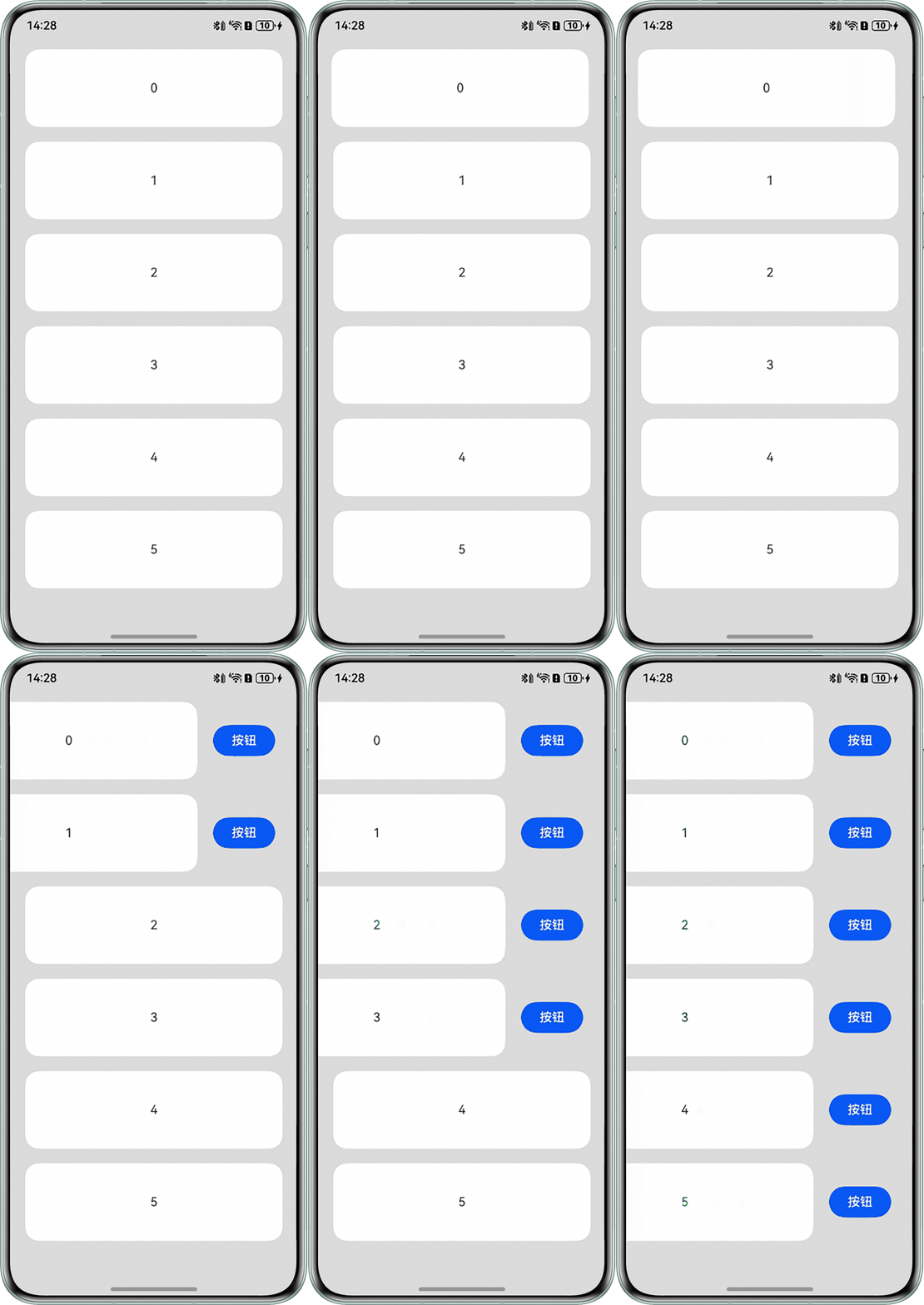
- 问题一:ListItem提供了swipeAction来实现划出动画,但当划动其中一个ListItem时,已划出的ListItem会被自动收回,希望实现的效果是已划出的ListItem保持划出状态。
- 问题二:List组件绑定swipeAction后,目前只能通过用户滑动打开,如何通过点击主动触发swipeAction?
背景知识
- List组件适合连续、多行呈现同类数据。
- List内只支持ListItem、ListItemGroup子组件。
- swipeAction用于设置ListItem的划出组件。使用跟踪滑动手势PanGesture来实现自定义滑动效果。
解决方案
- 问题一:由于swipeAction并未提供组件保持划出状态的属性,为实现上述效果,需要通过PanGesture使用手势监听自定义实现,首先在onActionUpdate中,判断组件是否处于划出状态,再通过监听手指的移动,改变组件offset属性,实现组件的左滑与恢复,最后在onActionEnd中通过判断偏移量是否超过了划出组件的一半,使用animateTo实现将划出组件逐步打开或关闭。
- 问题二:使用swipeStatus数组记录每个列表项的滑动偏移量,0表示未滑动,-110表示完全滑出(显示点击按钮)。
具体实现示例如下:
@Entry
@Component
struct ListSwipe {
  @State itemIndexArr: number[] = [0, 1, 2, 3, 4, 5];
  // 存储每个列表项的滑动状态(0:未滑动,-110:完全滑出)
  @State swipeStatus: number[] = [];


  aboutToAppear() {
    // 初始化滑动状态数组,与列表项数量一致
    this.itemIndexArr.forEach(() => {
      this.swipeStatus.push(0);
    });
  }


  // 切换滑动状态的方法
  toggleSwipe(index: number) {
    // 如果当前未滑动则滑出,已滑出则收起
    this.swipeStatus[index] = this.swipeStatus[index] === 0 ? -110 : 0;
  }


  @Builder
  itemEnd(index: number) {
    Row() {
      Button('按钮')
        .width(80)
        .onClick(() => {
          // 按需添加功能
          console.info(`index: ${index}`);
        });
    }
    .width(100)
    .height(100)
    .justifyContent(FlexAlign.SpaceEvenly);
  }


  build() {
    Column() {
      List({ space: 3 }) {
        ForEach(this.itemIndexArr, (item: number, index: number) => {
          ListItem() {
            Stack({ alignContent: Alignment.End }) {
              // 滑动操作按钮(始终在底层)
              this.itemEnd(index);


              // 列表项主内容(可滑动部分)
              Row() {
                Text('' + item)
                  .fontSize(16);
              }
              .width('100%')
              .height(100)
              .justifyContent(FlexAlign.Center)
              .borderRadius(18)
              .padding({ left: 16, right: 16 })
              .backgroundColor(Color.White)
              .onClick(() => {
                // 点击图片触发滑动状态切换
                this.toggleSwipe(index);
              })
              // 通过translate实现滑动效果
              .translate({ x: this.swipeStatus[index] })
              // 添加滑动动画
              .animation({
                duration: 300,
                curve: Curve.EaseOut
              })
              // 支持手动滑动手势
              .gesture(
                PanGesture({ direction: PanDirection.Horizontal })
                  .onActionUpdate((event: GestureEvent) => {
                    // 限制滑动范围在0到110之间
                    let newX = (this.swipeStatus[index] + event.offsetX) as number;
                    if (newX > 0) {
                      newX = 0;
                    }
                    if (newX < -110) {
                      newX = -110;
                    }
                    this.swipeStatus[index] = newX;
                  })
                  .onActionEnd(() => {
                    // 滑动结束后自动调整状态(超过一半则完全展开,否则收起)
                    if (this.swipeStatus[index] < -65) {
                      this.swipeStatus[index] = -110;
                    } else {
                      this.swipeStatus[index] = 0;
                    }
                  })
              );
            };
          }
          .padding({ left: 20, right: 20 })
          .margin({ top: 16 });
        });
      }
      .edgeEffect(EdgeEffect.None)
      .scrollBar(BarState.Off);
    }
    .backgroundColor(0xDCDCDC)
    .expandSafeArea([SafeAreaType.SYSTEM], [SafeAreaEdge.TOP, SafeAreaEdge.BOTTOM])
    .width('100%')
    .height('100%');
  }
}
实现效果如下图所示: