背景知识
当用户需要保存图片、视频等用户文件到图库时,无需在应用中申请相册管理模块权限'ohos.permission.WRITE_IMAGEVIDEO',应用可以通过安全控件或授权弹窗的方式,将用户指定的媒体资源保存到图库中。
- SaveButton:安全控件的保存控件,用户通过点击该保存按钮,可以临时获取存储权限,而不需要权限弹框授权确认。
- showAssetsCreationDialog:调用接口拉起保存确认弹窗。用户同意保存后,返回已创建并授予保存权限的uri列表,该列表永久生效,应用可使用该uri写入图片/视频。如果用户拒绝保存,将返回空列表。弹框需要显示应用名称,无法直接获取应用名称,依赖于配置项的label和icon,因此调用此接口时请确保module.json5文件中的abilities标签中配置了label和icon项。
解决方案
- 问题现象:使用fs.copyFile复制文件时报错,报错信息如下:
- 原因分析:fs.copyFile的dest参数(目标文件路径或目标文件描述符)不支持uri。
- 解决方案:使用openSync打开获取fd后再使用fs.copyFile,示例代码如下:
let srcFile = fs.openSync(srcFileUris[0], fs.OpenMode.READ_ONLY);
let desFile = fs.openSync(desFileUris[0], fs.OpenMode.READ_WRITE | fs.OpenMode.CREATE);
fs.copyFile(srcFile.fd, desFile.fd).finally(() => {
  fs.closeSync(srcFile);
  fs.closeSync(desFile);
});

- 问题现象:保存图片到相册后,有部分图片保存后相册显示白板,有部分正常显示。
- 原因分析:根据日志得出失败原因是打包大小超出限制,使用OffscreenCanvas绘制的图片过大,压缩图片时用了packing接口,该接口只能压缩25M以下图片,导致保存相册为空白。日志如下:
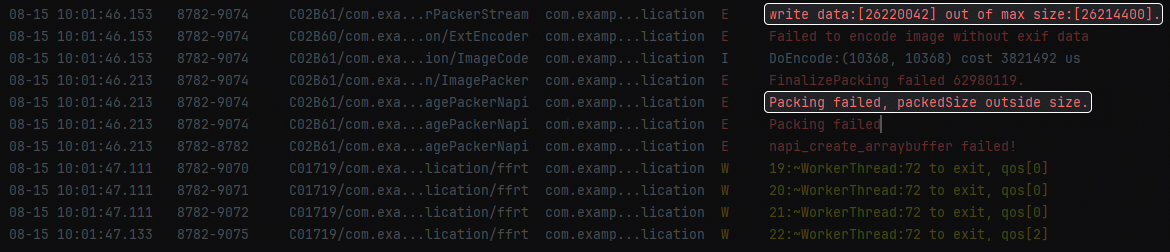
- 解决方案:压缩25M以上大图时请使用packToFile代替,示例代码如下:
import { display } from '@kit.ArkUI';
import photoAccessHelper from '@ohos.file.photoAccessHelper';
import fs from '@ohos.file.fs';
import { http } from '@kit.NetworkKit';
import { image } from '@kit.ImageKit';
import { common } from '@kit.AbilityKit';


let url = 'https://xxxxx'; // 仅供参考使用,开发者可替换为实际使用地址。


@Entry
@Component
struct SavePhotoIssue2 {
  @State pixelMap: image.PixelMap | undefined = undefined;
  @State imageScale: number = 0;
  uiContext: UIContext = this.getUIContext();


  build() {
    Column() {
      if (this.pixelMap !== undefined) {
        Image(this.pixelMap);
      }
      SaveButton().onClick(async () => {
        try {
          await this.addWaterMark(url, '水印');
        } catch (e) {
          console.info(e);
        }
      });
    }
    .height('100%')
    .width('100%');
  }


  async addWaterMark(urlIamges: string, goodsName: string) {
    let mis = await http.createHttp().request(urlIamges, { expectDataType: http.HttpDataType.ARRAY_BUFFER });
    const imageSource: image.ImageSource = image.createImageSource(mis.result as ArrayBuffer);
      imageSource.getImageInfo((err, data) => {
        if (err) {
          return;
        }
        let opts: image.DecodingOptions = {
          editable: true,
          desiredSize: {
            height: data.size.height,
            width: data.size.width
          }
        };
        imageSource.createPixelMap(opts, async (err, pixelMap) => {
          if (err) {
            return;
          }
          const offScreenCanvas = new OffscreenCanvas(data.size.width, data.size.height);
          const offScreenContext: OffscreenCanvasRenderingContext2D = offScreenCanvas.getContext('2d');
          this.imageScale = offScreenCanvas.width / display.getDefaultDisplaySync().width;
          offScreenContext.drawImage(pixelMap, 0, 0, offScreenCanvas.width, offScreenCanvas.height);
          offScreenContext.textAlign = 'right';
          offScreenContext.textBaseline = 'bottom';
          offScreenContext.fillStyle = '#FFFFFF';
          offScreenContext.font = 64 * this.imageScale + 'vp';
          offScreenContext.shadowBlur = 20;
          offScreenContext.shadowColor = '#bd2a19';
          let x = offScreenCanvas.width - 20 * this.imageScale;
          let y = offScreenCanvas.height - 20 * this.imageScale;
          offScreenContext.fillText(goodsName, x, y);
          this.pixelMap = offScreenContext.getPixelMap(0, 0, offScreenCanvas.width, offScreenCanvas.height);
          let mContext: Context = this.uiContext.getHostContext() as common.UIAbilityContext;
          const phAccessHelper = photoAccessHelper.getPhotoAccessHelper(mContext);
          const uri = await phAccessHelper.createAsset(photoAccessHelper.PhotoType.IMAGE, 'png');
          if (this.pixelMap !== undefined) {
            // 保存图片到本地
            const imagePacker = image.createImagePacker();
            try {
              // 通过uri打开媒体库文件
              let file = fs.openSync(uri, fs.OpenMode.READ_WRITE | fs.OpenMode.CREATE);
              imagePacker.packToFile(this.pixelMap, file.fd, { format: 'image/png', quality: 100 }).finally(() => {
                fs.close(file.fd).finally(() => {
                  this.uiContext.showAlertDialog({ message: '已保存至相册!' });
                  imagePacker.release();
                });
              });
            } catch (err) {
              this.uiContext.showAlertDialog({ message: '保存失败!' });
            }
          }
        });
      });
    }
}
场景三:无法显示预览图片或视频。
- 问题现象:弹出框没有预览图或视频。
- 原因分析:根据日志分析showAssetsCreationDialog的入参srcFileUri为沙箱路径。当传入uri为沙箱路径时,可正常保存图片/视频,但无界面预览。日志如下:
- 解决方案:showAssetsCreationDialog的入参srcFileUri里的uri需要使用fileUri.getUriFromPath获取沙箱文件的全路径,示例代码如下:
// 指定待保存到媒体库的位于应用沙箱的图片uri。
let srcFileUris: Array<string> = [
  filePath
];
// 指定待保存照片的创建选项,包括文件后缀和照片类型,标题和照片子类型可选。
let photoCreationConfigs: Array<photoAccessHelper.PhotoCreationConfig> = [
  {
    title: 'test', // 可选。
    fileNameExtension: 'png',
    photoType: photoAccessHelper.PhotoType.IMAGE,
    subtype: photoAccessHelper.PhotoSubtype.DEFAULT, // 可选。
  }
];
// 基于弹窗授权的方式获取媒体库的目标uri。
let desFileUris: Array<string> = await phAccessHelper.showAssetsCreationDialog(srcFileUris, photoCreationConfigs);


注意事项:
- 参数srcFileUris仅支持处理图片、视频uri。不支持手动拼接的uri,需调用接口获取,获取方式参考媒体文件uri获取方式。当传入uri为沙箱路径时,可正常保存图片/视频,但无界面预览。
- 参数photoCreationConfigs配置需与srcFileUris保持一一对应。
场景一和场景三完整示例代码如下:
import { fileIo as fs } from '@kit.CoreFileKit';
import { common } from '@kit.AbilityKit';
import { photoAccessHelper } from '@kit.MediaLibraryKit';


let filePath = '';


@Entry
@Component
struct SavePhotoIssue1AndIssue3 {
  uiContext: UIContext = this.getUIContext();


  getPath() {
    try {
      let contexts = this.getUIContext().getHostContext() as common.UIAbilityContext;
      let array = contexts.resourceManager.getRawFileContentSync('xxx.png'); // xxx.png仅供参考使用,开发者可替换为实际使用图片。
      let context = this.getUIContext().getHostContext() as common.UIAbilityContext;
      let filesDir = context.filesDir;
      filePath = filesDir + '/xxx.png'; // xxx.png仅供参考使用,开发者可替换为实际使用图片。
      let file = fs.openSync(filePath, fs.OpenMode.READ_WRITE | fs.OpenMode.CREATE);
      fs.writeSync(file.fd, array.buffer);
      fs.closeSync(file);
    } catch (e) {
      console.error(e);
    }
  }


  async saveFile() {
    try {
      let context = this.uiContext.getHostContext() as common.UIAbilityContext;
      let phAccessHelper = photoAccessHelper.getPhotoAccessHelper(context);
      // 指定待保存到媒体库的位于应用沙箱的图片uri。
      let srcFileUris: Array<string> = [
        filePath
      ];
      // 指定待保存照片的创建选项,包括文件后缀和照片类型,标题和照片子类型可选。
      let photoCreationConfigs: Array<photoAccessHelper.PhotoCreationConfig> = [
        {
          title: 'test', // 可选。
          fileNameExtension: 'png',
          photoType: photoAccessHelper.PhotoType.IMAGE,
          subtype: photoAccessHelper.PhotoSubtype.DEFAULT, // 可选。
        }
      ];
      // 基于弹窗授权的方式获取媒体库的目标uri。
      let desFileUris: Array<string> = await phAccessHelper.showAssetsCreationDialog(srcFileUris, photoCreationConfigs);
      // 将来源于应用沙箱的照片内容写入媒体库的目标uri。
      if (desFileUris.length > 0) {
        try {
          let srcFile = fs.openSync(srcFileUris[0], fs.OpenMode.READ_ONLY);
          let desFile = fs.openSync(desFileUris[0], fs.OpenMode.READ_WRITE | fs.OpenMode.CREATE);
          fs.copyFile(srcFile.fd, desFile.fd).finally(() => {
            fs.closeSync(srcFile);
            fs.closeSync(desFile);
          });
        } catch (e) {
          console.error(e);
        }
      }
      console.info('create asset by dialog successfully');
    } catch (err) {
      console.error(`failed to create asset by dialog successfully errCode is: ${err.code}, ${err.message}`);
    }
  }


  build() {
    RelativeContainer() {
      Row() {
        Button('弹窗保存')
          .margin({ top: '700lpx', left: '55lpx' })
          .onClick(() => {
            // 资源文件拷贝到沙箱路径
            this.getPath();
            // 保存资源文件到系统相册
            this.saveFile();
          });
      }.justifyContent(FlexAlign.Center).width('100%');
    }
    .height('100%')
    .width('100%');
  }
}
常见FAQ
Q:使用SaveButton保存后,需要退出APP,图库中才会显示保存的图片。
A:调用packToFile方法将图像数据打包到指定的文件描述符中,需要关闭文件描述符并释放imagePacker实例,不需要重启APP就可以显示保存的图片。
Q:如何在后台保存长视频到相册?是否有长时任务的场景来实现?
A:长时任务中没有保存到相册的场景。点击SaveButton或者showAssetsCreationDialog获得权限后,先生成文件的fd,然后就可以持续的写文件,不受时间的限制。
Q:showAssetsCreationDialog有办法设置不显示预览图吗?或者应该怎样调整才能显示出来内容的部分。
A:showAssetsCreationDialog预览图展示固定大小的区域,用的是Image的cover属性保持宽高比缩放后展示,显示图片中心区域。所以,有可能导致只预览了图片空白部分。预览图无法隐藏,可以传入uri为沙箱路径,可正常保存图片/视频,但无界面预览。
Q:使用showAssetsCreationDialog保存图片报错14000011如何处理?
A:14000011为系统内部错误,开发者可以先清理后台并重启手机尝试。开发者还需检查保存路径是否正确,showAssetsCreationDialog的入参srcFileUri里的uri需要使用fileUri.getUriFromPath获取沙箱文件的全路径。
Q:安全控件、弹窗保存图片是否存在数量限制?
A:使用SaveButton保存图片时临时授权有效期为10s,在此时间内开发者可以保存多张图片;弹窗保存图片的上限是100张。
Q:使用showAssetsCreationDialog保存图片报错保存报错401.
A:弹框需要显示应用名称,无法直接获取应用名称,依赖于配置项的label和icon,因此调用此接口时请确保module.json5文件中的abilities标签中配置了label和icon项。
Q:SaveButton保存长图失败。
A:使用SaveButton保存图片时临时授权有效期为10s,如果图片过大滚动时间超过10s会导致保存失败,建议保存图片时对图片进行限制。
Q:使用showAssetsCreationDialog接口保存图片异常。
A:showAssetsCreationDialog接口只是返回一个有权限的空文件路径,暂未向图库中保存图片,需要开发者手动实现在返回文件路径中写入图片内容。