背景知识
- OnDataReceive:接收到HTTP body时的回调,如果服务端的数据类型为数据流,实现实时接收功能。
- INetworkInputQueue:通过创建一个缓存队列,将数据写入缓存队列中,实现实时上传数据的功能。
解决方案
开发准备,申请获取网络权限:ohos.permission.INTERNET。
- 场景1:实时数据流上传
- 新建缓存区INetworkInputQueue实例。
- 使用缓存区作为请求体入参执行post方法请求。
try { const session = rcp.createSession(sessionConfig); console.info(`Post start.`); // 发起请求,相关数据在写入队列 networkInputQueue 的同时会同步进行上传 session.post('xx.xx.xx.xx', inputQueue).then((response) => { // 开发者自行根据业务设置 console.info(`Response status code is: ${response.statusCode}`); if (response && response.statusCode === 200) { console.info(`Post succeeded! response: ${response.toString()}`); } else { console.error(`Post failed.`); } session.close(); }).catch((error: Error) => { console.error(`Post error: ${JSON.stringify(error)}`); session.close(); }); } catch (error) { console.error(`create session error: ${JSON.stringify(error)}`); } - 将数据写入缓存区中实时上传。
let counter = 0;
const interval = setInterval(() => {
  // 添加数据到同步写队列
  this.networkInputQueue.write('a counter ' + counter++);
  console.info(`networkInputQueue write`);
  if (counter === 10) {
    clearInterval(interval);
    // 关闭同步写队列
    this.networkInputQueue.close();
  }
}, 1000);
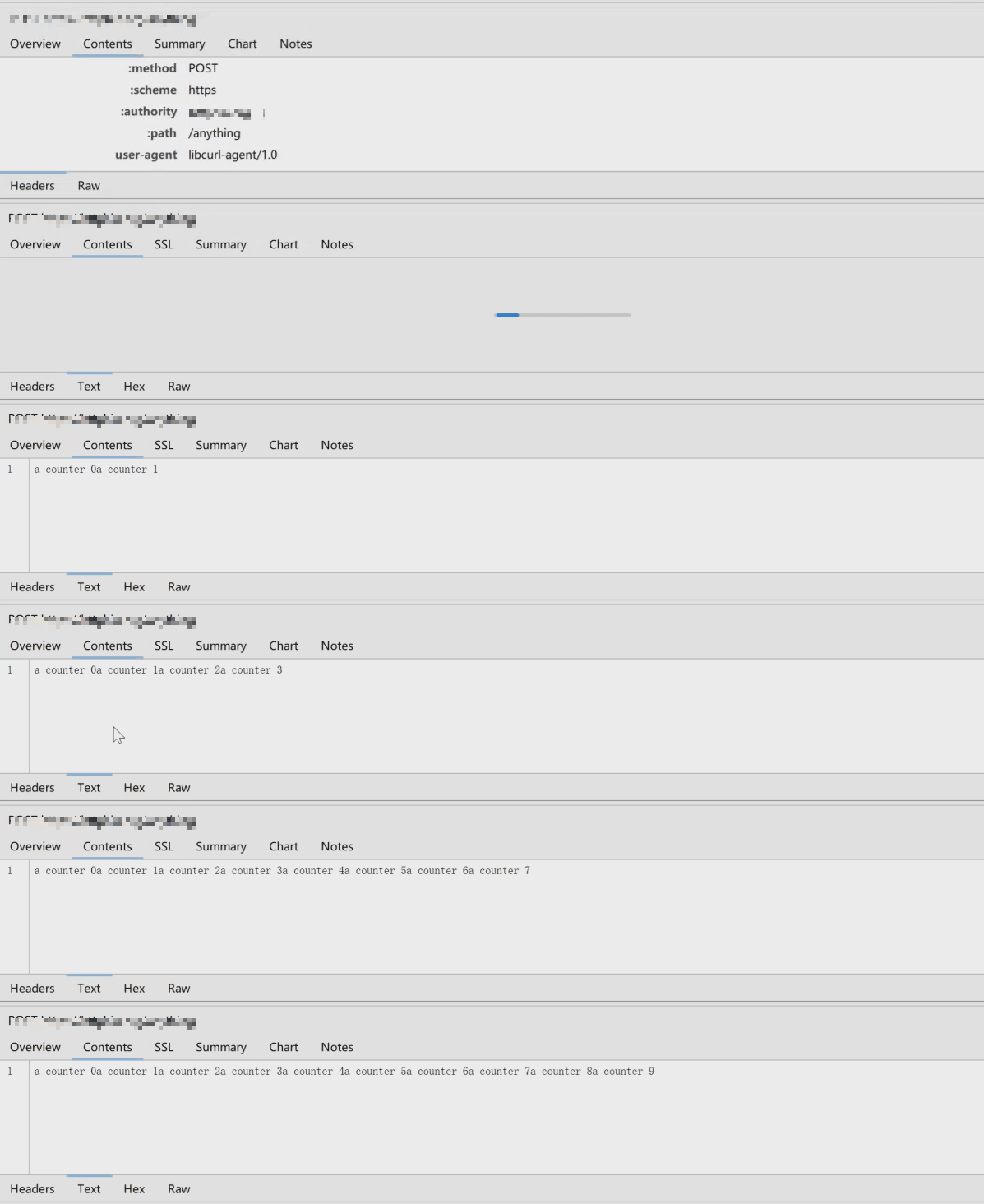
无需准备完整数据才能上传,可以将部分待上传数据写入缓存区,缓存区数据立即实时上传更新,使用抓包工具抓包效果如下。
- 场景2:实时数据流获取
实时数据流获取能力经常应用于大模型对话场景,将本地用户数据向服务端对应大模型API接口发起post请求后,实时获取数据流数据,实现流式输出效果。
- 设置OnDataReceive类型回调函数,处理实时数据流数据。
onDataReceive: (incomingData: ArrayBuffer) => { // Custom logic for handling incoming data console.info('Received data:', incomingData); const decoder = util.TextDecoder.create('utf-8'); const jsonStr = decoder.decodeToString(new Uint8Array(incomingData)); console.log(`onDataReceive: ${jsonStr}`); return incomingData.byteLength; }, - 设置请求过程中的跟踪信息选项。
const tracingConfig: rcp.TracingConfiguration = { verbose: true, infoToCollect: { textual: true, incomingHeader: true, outgoingHeader: true, incomingData: true, outgoingData: true, incomingSslData: true, outgoingSslData: true }, collectTimeInfo: true, httpEventsHandler: customHttpEventsHandler }; - 将本地用户数据发起上传请求。
try {
  const session = rcp.createSession(sessionConfig);
  // 服务端大模型API请求接口,需开发者根据实际业务自行设置
  const jsonBody: JsonBody = {
    model: 'xxx',
    messages: [{ role: 'system', content: 'You are a helpful assistant.' },
      { role: 'user', content: 'make a plan for spring' }],
    stream: true
  };
  // 请求数据地址需开发者根据实际业务设置
  session.post('xx.xx.xx.xx', jsonBody).then((response) => { // 开发者自行根据业务设置
    if (response && response.statusCode === 200) {
      console.info(`get byts succeeded.`);
    } else {
      console.error(`get byts failed.`);
    }
    session.close();
  }).catch((err: Error) => {
    console.error(`get byts error: ${err.message}`);
    session.close();
  });
} catch (error) {
  console.error(`create session error: ${JSON.stringify(error)}`);
}
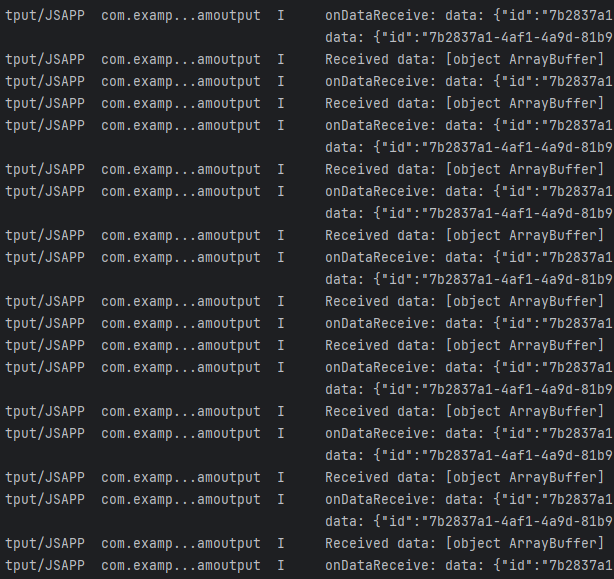
日志打印如下,OnDataReceive类型函数不停接收来自服务器的数据,并打印如下:
- 设置OnDataReceive类型回调函数,处理实时数据流数据。
完整示例代码如下:
import { rcp } from '@kit.RemoteCommunicationKit';
import { util } from '@kit.ArkTS';
import { ItemRestriction, SegmentButton, SegmentButtonOptions, SegmentButtonTextItem } from '@kit.ArkUI';

interface llmMessage {
  role: string;
  content: string;
}

interface JsonBody {
  model: string;
  messages: llmMessage[];
  stream: boolean;
}

function streamOutput() {
  // Define a custom response handler
  const customHttpEventsHandler: rcp.HttpEventsHandler = {
    onDataReceive: (incomingData: ArrayBuffer) => {
      // Custom logic for handling incoming data
      console.info('Received data:', incomingData);
      const decoder = util.TextDecoder.create('utf-8');
      const jsonStr = decoder.decodeToString(new Uint8Array(incomingData));
      console.log(`onDataReceive: ${jsonStr}`);
      return incomingData.byteLength;
    },
    onHeaderReceive: (headers: rcp.ResponseHeaders) => {
      // Custom logic for handling response headers
      console.info('Received headers:', headers);
    },
    onDataEnd: () => {
      // Custom logic for handling data transfer completion
      console.info('Data transfer complete');
    },
    onCanceled: () => {
      // Custom logic for handling cancellation
      console.info('Request/response canceled');
    },
  };

  const tracingConfig: rcp.TracingConfiguration = {
    verbose: true,
    infoToCollect: {
      textual: true,
      incomingHeader: true,
      outgoingHeader: true,
      incomingData: true,
      outgoingData: true,
      incomingSslData: true,
      outgoingSslData: true
    },
    collectTimeInfo: true,
    httpEventsHandler: customHttpEventsHandler
  };

  const sessionConfig: rcp.SessionConfiguration = {
    requestConfiguration: {
      transfer: {
        autoRedirect: true,
        timeout: {
          connectMs: 5000,
          transferMs: 3600000
        }
      },
      tracing: tracingConfig
    },
    headers: {
      'Authorization': 'Bearer xxxx', // 开发者自行根据业务设置
      'Content-Type': 'application/json'
    },
    sessionListener: {
      onCanceled: () => console.info('Session was cancelled'),
      onClosed: () => console.info('Session was closed')
    },
  };
  try {
    const session = rcp.createSession(sessionConfig);
    // 服务端大模型API请求接口,需开发者根据实际业务自行设置
    const jsonBody: JsonBody = {
      model: 'xxx',
      messages: [{ role: 'system', content: 'You are a helpful assistant.' },
        { role: 'user', content: 'make a plan for spring' }],
      stream: true
    };
    // 请求数据地址需开发者根据实际业务设置
    session.post('xx.xx.xx.xx', jsonBody).then((response) => { // 开发者自行根据业务设置
      if (response && response.statusCode === 200) {
        console.info(`get byts succeeded.`);
      } else {
        console.error(`get byts failed.`);
      }
      session.close();
    }).catch((err: Error) => {
      console.error(`get byts error: ${err.message}`);
      session.close();
    });
  } catch (error) {
    console.error(`create session error: ${JSON.stringify(error)}`);
  }
}

function uploadDatasync(inputQueue: rcp.INetworkInputQueue) {
  const customHttpEventsHandler: rcp.HttpEventsHandler = {
    onDataReceive: (incomingData: ArrayBuffer) => {
      console.info('Received data:', incomingData);
      const decoder = util.TextDecoder.create('utf-8');
      const jsonStr = decoder.decodeToString(new Uint8Array(incomingData));
      console.log(`onDataReceive: ${jsonStr}`);
      return incomingData.byteLength;
    },

    onHeaderReceive: (headers: rcp.ResponseHeaders) => {
      // Custom logic for handling response headers
      console.info('Received headers:', headers);
    },
    onDataEnd: () => {
      // Custom logic for handling data transfer completion
      console.info('Data transfer complete');
    },
    onCanceled: () => {
      // Custom logic for handling cancellation
      console.info('Request/response canceled');
    },
  };

  // Configure tracing settings
  const tracingConfig: rcp.TracingConfiguration = {
    verbose: true,
    infoToCollect: {
      textual: true,
      incomingHeader: true,
      outgoingHeader: true,
      incomingData: true,
      outgoingData: true,
      incomingSslData: true,
      outgoingSslData: true
    },
    collectTimeInfo: true,
    httpEventsHandler: customHttpEventsHandler
  };

  const sessionConfig: rcp.SessionConfiguration = {
    requestConfiguration: {
      transfer: {
        autoRedirect: true,
        timeout: {
          connectMs: 3600000,
          transferMs: 3600000
        }
      },
      tracing: tracingConfig
    },
    sessionListener: {
      onCanceled: () => console.info('Session was cancelled'),
      onClosed: () => console.info('Session was closed')
    },
  };
  try {
    const session = rcp.createSession(sessionConfig);
    console.info(`Post start.`);
    // 发起请求,相关数据在写入队列 networkInputQueue 的同时会同步进行上传
    session.post('xx.xx.xx.xx', inputQueue).then((response) => { // 开发者自行根据业务设置
      console.info(`Response status code is: ${response.statusCode}`);
      if (response && response.statusCode === 200) {
        console.info(`Post succeeded! response: ${response.toString()}`);
      } else {
        console.error(`Post failed.`);
      }
      session.close();
    }).catch((error: Error) => {
      console.error(`Post error: ${JSON.stringify(error)}`);
      session.close();
    });
  } catch (error) {
    console.error(`create session error: ${JSON.stringify(error)}`);
  }
}

@Component
struct streamUploadData {
  networkInputQueue: rcp.INetworkInputQueue = new rcp.NetworkInputQueue();

  build() {
    Column() {
      Button('发起请求')
        .onClick(() => {
          uploadDatasync(this.networkInputQueue);
        })
        .margin(16)
        .width('100%');
      Button('写入数据')
        .onClick(() => {
          let counter = 0;
          const interval = setInterval(() => {
            // 添加数据到同步写队列
            this.networkInputQueue.write('a counter ' + counter++);
            console.info(`networkInputQueue write`);
            if (counter === 10) {
              clearInterval(interval);
              // 关闭同步写队列
              this.networkInputQueue.close();
            }
          }, 1000);
        })
        .margin(16)
        .width('100%');
    }
    .width('100%')
    .height('100%');
  }
}

@Component
struct streamGetData {
  build() {
    Column() {
      Button('获取服务端数据流')
        .onClick(() => {
          streamOutput();
        })
        .margin(16)
        .width('100%');
    }
    .width('100%')
    .height('100%');
  }
}

@Entry
@Component
struct StreamDataTransfer {
  fontColor: string = '#182431';
  selectedFontColor: string = '#0A59F7';
  @State currentIndex: number = 0;
  @State selectedIndex: number = 0;
  @State tabSelectedIndexes: number[] = [0]; // SegmentButton默认选项
  @State tabOptions: SegmentButtonOptions = SegmentButtonOptions.tab({
    buttons: [{ text: '流式上传数据' }, { text: '流式接收数据' },] as ItemRestriction<SegmentButtonTextItem>,
    backgroundColor: '#0d000000',
    selectedBackgroundColor: $r('sys.color.white'),
    fontWeight: 400,
    selectedFontWeight: 500,
    textPadding: 6
  });
  private controller: TabsController = new TabsController();

  @Builder
  tabBuilder(index: number, name: string) {
    Column() {
      Text(name)
        .fontColor(this.selectedIndex === index ? this.selectedFontColor : this.fontColor)
        .fontSize(16)
        .fontWeight(this.selectedIndex === index ? 500 : 400)
        .lineHeight(22)
        .margin({ top: 17, bottom: 7 });
      Divider()
        .strokeWidth(2)
        .color('#007DFF')
        .opacity(this.selectedIndex === index ? 1 : 0);
    }.width('100%');
  }

  build() {
    Column() {
      SegmentButton({
        options: this.tabOptions,
        selectedIndexes: $tabSelectedIndexes,
        onItemClicked: (index) => {
          this.getUIContext().animateTo({ duration: 400 }, () => {
            this.currentIndex = index;
            this.controller.changeIndex(index);
          });
        }
      })
        .borderRadius(20)
        .margin({
          bottom: 16
        })
        .width('100%')
        .height(40);

      Tabs({ barPosition: BarPosition.Start, index: this.currentIndex, controller: this.controller }) {
        TabContent() {
          streamUploadData();
        }.tabBar(this.tabBuilder(0, '流式上传数据'));

        TabContent() {
          streamGetData();
        }.tabBar(this.tabBuilder(1, '流式接收数据'));

      }
      .vertical(false)
      .barMode(BarMode.Fixed)
      .barWidth(360)
      .barHeight(0)
      .onChange((index: number) => {
        // currentIndex控制TabContent显示页签
        this.currentIndex = index;
        this.selectedIndex = index;
      })
      .onAnimationStart((index: number, targetIndex: number, event: TabsAnimationEvent) => {
        if (index === targetIndex) {
          return;
        }
        console.info(`event currentOffset ${event.currentOffset}`);
        // selectedIndex控制自定义TabBar内Image和Text颜色切换
        this.selectedIndex = targetIndex;
      })
      .width('100%')
      .height('100%');
    }
    .width('100%')
    .padding({
      left: 16,
      right: 16,
      top: 12
    });
  }
}