Overview
Since API version 26.0.0, AOD Navigation Kit enables apps to integrate AOD navigation and supports the low-power navigation service proxy capability. This kit is designed for outdoor activities such as hiking, cycling, and running. It allows users to access key navigation information without frequently unlocking the screen, ensuring real-time navigation while effectively conserving device power. It helps outdoor exploration apps quickly integrate the AOD navigation capability.
[h2]Use Cases
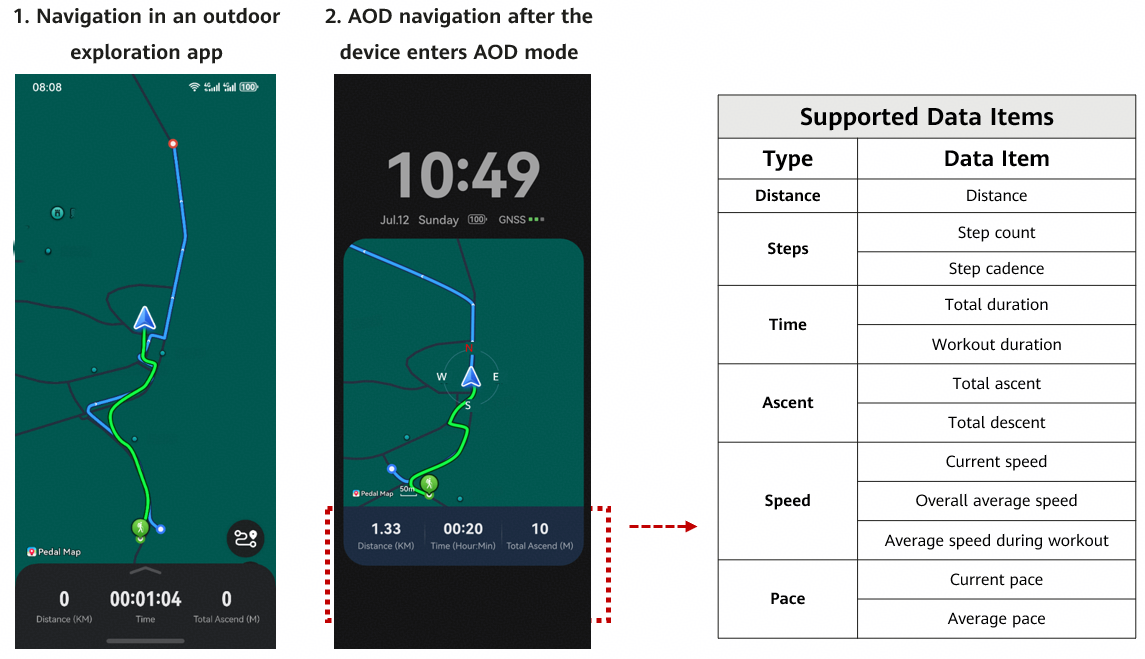
When a device enters the AOD mode, apps that have integrated the AOD navigation capability can display core information such as the route, movement track, distance, and elapsed time on the AOD screen in real time. Apps can customize the data items to be displayed, with 12 options currently available for flexible configuration.
[h2]Development Process
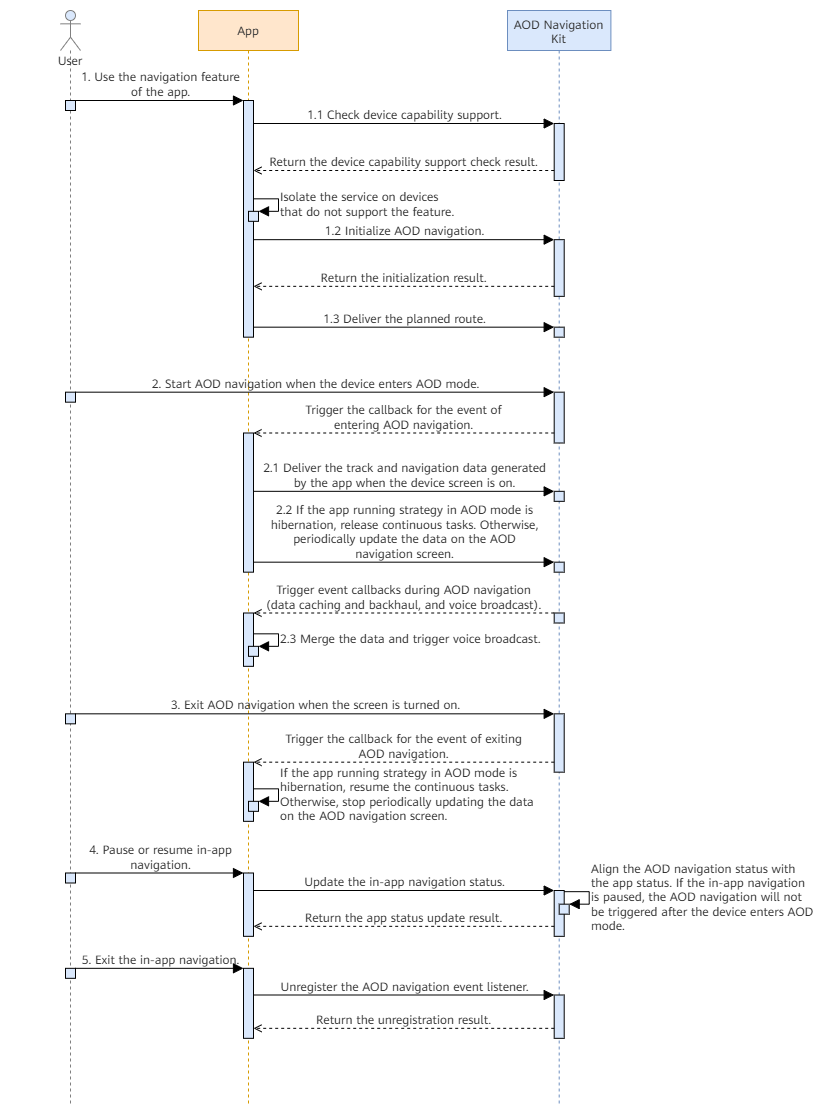
The process is as follows:
-
A user uses the navigation feature of your app.
1.1. Check whether the current device supports the AOD navigation feature by calling the isAodNaviSupported API and obtain the extended capability set supported by the current device by calling the getAodNaviExtendCapabilities API. If the device does not support the feature, isolate the service.
1.2. Call the setupAodNaviConfig API to initialize the AOD navigation feature.
1.3. Set the planned route and call the setPlanRouteToAod API to deliver the planned route to AOD Navigation Kit.
-
AOD navigation starts when the device enters AOD mode.
2.1. After receiving an AodNaviEventInfo callback for the AOD navigation start event, the app delivers the track and navigation data generated during the screen-on period to AOD Navigation Kit.
2.2. The app responds based on its initialization configuration. If the app running strategy in AOD mode is hibernation, it releases continuous tasks. Otherwise, it calls updateAodViewData to periodically update the data displayed on the AOD navigation screen.
2.3. If the app running strategy in AOD mode is hibernation, an AodNaviEventInfo (data caching or voice broadcast event) callback is triggered when certain conditions are met during AOD navigation. Upon receiving the callback, the app needs to merge relevant data or perform voice broadcast accordingly.
-
Exit AOD navigation when the device screen turns on: After receiving the AodNaviEventInfo callback for the AOD navigation exit event, the app responds based on its initialization configuration. If the app running strategy in AOD mode is hibernation, it merges relevant data and resumes continuous tasks. Otherwise, it stops calling the updateAodViewData API, and the data update ends.
-
When in-app navigation is paused or resumed, the app needs to call the updateAppRecordStatus API to update the status to AOD Navigation Kit. If in-app navigation is paused, the device will not enter AOD navigation when the device enters AOD mode.
-
When in-app navigation is exited, the app needs to call offAodNaviEvent to unregister the AOD navigation event listener.
Development Procedure
-
Import the aodNaviManager module.
import { abilityAccessCtrl, common } from '@kit.AbilityKit'; import { aodNaviManager } from '@kit.AODNavigationKit'; import { hilog } from '@kit.PerformanceAnalysisKit'; import { BusinessError } from '@kit.BasicServicesKit'; -
Check device capability support.
-
AOD navigation strongly depends on device capability and is supported only on certain devices. Your app can call the isAodNaviSupported API to check whether the current device supports AOD navigation.
// Request the location permission when using AOD navigation for the first time. let atManager: abilityAccessCtrl.AtManager = abilityAccessCtrl.createAtManager(); await atManager.requestPermissionsFromUser(this.getUIContext().getHostContext() as common.UIAbilityContext, ['ohos.permission.LOCATION', 'ohos.permission.APPROXIMATELY_LOCATION']) // Check whether the device supports AOD navigation. const isSupported: boolean = aodNaviManager.isAodNaviSupported(); hilog.info(0x0000, 'aodNavigationSample', 'Succeeded in checking whether AOD navigation is supported, supported: %{public}s', isSupported); -
Some capability sub-items depend on specific device components and are supported only on certain devices. Your app can call getAodNaviExtendCapabilities to obtain the list of capability sub-items supported by the current device.
// Obtain the list of extended capabilities supported by the device.
const capabilities: Array<aodNaviManager.AodNaviExtendDataType> =
  aodNaviManager.getAodNaviExtendCapabilities();
hilog.info(0x0000, 'aodNavigationSample', 'Succeeded in getting AOD navigation extend capabilities, capabilities: %{public}s', JSON.stringify(capabilities));
-
-
Call the isAodNaviSwitchEnabled API to check whether the AOD navigation feature (path: Settings > Home screen & style > Always On Display > Route display) is enabled.
// Check whether AOD navigation is enabled. try { const enabled: boolean = await aodNaviManager.isAodNaviSwitchEnabled(); hilog.info(0x0000, 'aodNavigationSample', 'Succeeded in checking whether AOD navigation switch is enabled, enabled: %{public}s', enabled); } catch (error) { hilog.error(0x0000, 'aodNavigationSample', 'Failed to check whether AOD navigation switch is enabled: %{public}d %{public}s', error.code, error.message); } -
Call the setupAodNaviConfig API to initialize the AOD navigation feature.
try { const config: aodNaviManager.AodNaviConfig = { // Set the app running strategy in AOD mode to hibernation. aliveStrategy: aodNaviManager.AodNaviAliveStrategy.HIBERNATE, // Set parameters for the AOD screen display. aodViewDataConfig: { aodViewDataCount: 4, aodViewDataTypes: [ aodNaviManager.AodNaviBasicDataType.DISTANCE, aodNaviManager.AodNaviBasicDataType.STEPS, aodNaviManager.AodNaviBasicDataType.CURRENT_SPEED, aodNaviManager.AodNaviBasicDataType.OVERALL_ELAPSED_TIME ] }, // Set voice broadcast parameters. aodVoiceBroadcastConfig: { distance: 1000, timeInterval: 60, enableGpsBroadcast: true }, // Set data items for service proxy. aodProxyDataTypes: [ aodNaviManager.AodNaviBasicDataType.DISTANCE, aodNaviManager.AodNaviBasicDataType.STEPS, aodNaviManager.AodNaviBasicDataType.CURRENT_SPEED, aodNaviManager.AodNaviBasicDataType.OVERALL_ELAPSED_TIME ] }; // Initialize the integration configuration. await aodNaviManager.setupAodNaviConfig(config); hilog.info(0x0000, 'aodNavigationSample', 'Succeeded in setting up AOD navigation config.'); } catch (error) { hilog.error(0x0000, 'aodNavigationSample', 'Failed to set up AOD navigation config: %{public}d %{public}s', error.code, error.message); } -
Call onAodNaviEvent to register a listener for AOD navigation events. When an event occurs, the system triggers the callback and returns AodNaviEventInfo to your app, and your app needs to handle the corresponding task based on the event information. For details about the callback event types, please refer to AodNaviEventType.
try { aodNaviManager.onAodNaviEvent((eventInfo: aodNaviManager.AodNaviEventInfo) => { hilog.info(0x0000, 'aodNavigationSample', 'Received AOD navigation event: eventType: %{public}d, eventId: %{public}s', eventInfo.eventType, eventInfo.eventId); switch (eventInfo.eventType) { // Callback for the event of entering AOD navigation. case aodNaviManager.AodNaviEventType.AOD_NAVI_ENTER: this.handleNaviEnter(eventInfo); break; // Callback for the event of exiting AOD navigation. case aodNaviManager.AodNaviEventType.AOD_NAVI_EXIT: this.handleNaviExit(eventInfo); break; // Callback for the voice broadcast event. case aodNaviManager.AodNaviEventType.AOD_NAVI_VOICE_BROADCAST: this.handleVoiceBroadcast(eventInfo); break; // Callback for the data caching event. case aodNaviManager.AodNaviEventType.AOD_NAVI_DATA_CACHE: this.handleDataCache(eventInfo); break; } }); hilog.info(0x0000, 'aodNavigationSample', 'onAodNaviEvent success.'); } catch (error) { hilog.error(0x0000, 'aodNavigationSample', 'onAodNaviEvent error: %{public}d %{public}s', error.code, error.message); } // Process the event of entering AOD navigation. async handleNaviEnter(eventInfo: aodNaviManager.AodNaviEventInfo) { let historyRoutes: aodNaviManager.HistoryRoute[] = [ { timestamp: 1234567890, longitude: 116.404, latitude: 39.915 }, { timestamp: 1234567891, longitude: 116.405, latitude: 39.916 } ]; let aodNaviData: aodNaviManager.AodNaviData = { timestamp: Date.now() / 1000, distance: 1000, steps: 1500, currentSpeed: 5.5 }; let aodNaviInteractData: aodNaviManager.AodNaviInteractData = { historyRoutes: historyRoutes, aodNaviData: aodNaviData }; try { await aodNaviManager.setNaviDataToAod(eventInfo.eventId, aodNaviInteractData); hilog.info(0x0000, 'aodNavigationSample', 'Succeeded in setting navigation data to AOD.'); } catch (error) { hilog.error(0x0000, 'aodNavigationSample', 'Failed to set navigation data to AOD: %{public}d %{public}s', error.code, error.message); } // If the app remains alive in AOD mode, the AOD navigation view data needs to be updated periodically. Otherwise, the following code is not required. const aodViewData: aodNaviManager.AodViewData = { "distance": 5.5, "steps": 5500, "currentSpeed": 11.0, "overallAvgSpeed": 12 }; try { await aodNaviManager.updateAodViewData(aodViewData); hilog.info(0x0000, 'aodNavigationSample', 'Succeeded in updating AOD view data.'); } catch (error) { hilog.error(0x0000, 'aodNavigationSample', 'Failed to update AOD view data: %{public}d %{public}s', error.code, error.message); } } // Process the event of exiting AOD navigation. async handleNaviExit(eventInfo: aodNaviManager.AodNaviEventInfo) { hilog.info(0x0000, 'aodNavigationSample', 'handleNaviExit'); } // Process the voice broadcast event. async handleVoiceBroadcast(eventInfo: aodNaviManager.AodNaviEventInfo) { hilog.info(0x0000, 'aodNavigationSample', 'handleVoiceBroadcast'); } // Process the data caching event. async handleDataCache(eventInfo: aodNaviManager.AodNaviEventInfo) { hilog.info(0x0000, 'aodNavigationSample', 'handleDataCache'); } -
Call the setPlanRouteToAod API to deliver the planned route to AOD Navigation Kit for display on the AOD screen.
try { // Plan route points. const planRoutes: Array<aodNaviManager.PlanRoute> = [ { longitude: 116.404, latitude: 39.915 }, { longitude: 116.414, latitude: 39.925 }, { longitude: 116.424, latitude: 39.935 } ]; // Markers. const markPoints: Array<aodNaviManager.MarkPoint> = [ { name: 'Start point', longitude: 116.404, latitude: 39.915 }, { name: 'End point', longitude: 116.424, latitude: 39.935 } ]; await aodNaviManager.setPlanRouteToAod(planRoutes, markPoints); hilog.info(0x0000, 'aodNavigationSample', 'Succeeded in setting plan route to AOD.'); } catch (error) { hilog.error(0x0000, 'aodNavigationSample', 'Failed to set plan route to AOD: %{public}d %{public}s', error.code, error.message); } -
When the device enters AOD mode, your app receives the AOD_NAVI_ENTER callback event. In this case, you need to call setNaviDataToAod to synchronize the track and navigation data generated by your app during the screen-on period to AOD Navigation Kit, so that the data can be properly displayed during AOD navigation.
try { await aodNaviManager.setNaviDataToAod(eventInfo.eventId, aodNaviInteractData); hilog.info(0x0000, 'aodNavigationSample', 'Succeeded in setting navigation data to AOD.'); } catch (error) { hilog.error(0x0000, 'aodNavigationSample', 'Failed to set navigation data to AOD: %{public}d %{public}s', error.code, error.message); } -
Call updateAodViewData to update the AOD navigation view data.
If the app remains alive in AOD mode, it needs to periodically call this method to update the AOD navigation view data after the device switches to AOD mode and the app receives the AOD_NAVI_ENTER callback. Note that the update frequency cannot exceed once per second.
const aodViewData: aodNaviManager.AodViewData = { "distance": 5000, "steps": 2000, "currentSpeed": 5.5 }; try { await aodNaviManager.updateAodViewData(aodViewData); hilog.info(0x0000, 'aodNavigationSample', 'Succeeded in updating AOD view data.'); } catch (error) { hilog.error(0x0000, 'aodNavigationSample', 'Failed to update AOD view data: %{public}d %{public}s', error.code, error.message); } -
Call updateAppRecordStatus to update the navigation record status of the app.
When the app is paused, AOD Navigation Kit needs to suspend the computation performed by the service proxy, and no content is displayed on the AOD screen. Therefore, whenever the app is paused or resumed, its current status must be synchronized with AOD Navigation Kit to ensure consistency between the display state and the computation state.
try { const recordStatus: aodNaviManager.AppRecordStatus = aodNaviManager.AppRecordStatus.RECORDING; await aodNaviManager.updateAppRecordStatus(recordStatus); hilog.info(0x0000, 'aodNavigationSample', 'Succeeded in updating app record status'); } catch (error) { hilog.error(0x0000, 'aodNavigationSample', 'Failed to update app record status: %{public}d %{public}s', error.code, error.message); } -
Upon navigation exit or completion in the app, it needs to call offAodNaviEvent to unregister the AOD navigation event listener to avoid unnecessary resource usage.
try {
  aodNaviManager.offAodNaviEvent();
  hilog.info(0x0000, 'aodNavigationSample', 'Succeeded in stopping AOD navigation event listener.');
} catch (error) {
  hilog.error(0x0000, 'aodNavigationSample', 'Failed to stop AOD navigation event listener:  %{public}d %{public}s', error.code, error.message);
}