After the handwriting suite is integrated, you can create a handwriting screen in your app. The screen consists of two parts: canvas and toolbar. The canvas supports drawing with a stylus or finger. The toolbar provides multiple brushes and editing tools, and allows you to adjust the settings. After the handwriting suite is integrated, Instant Shape and point prediction will be automatically enabled.
Starting from version 5.1.0(18), the handwriting suite adds support for configuring the default brush and default width of each brush on the toolbar.
Starting from version 6.0.0(20), the handwriting suite adds support for thumbnails and customizing the canvas size.
Starting from version 6.1.0(23), the handwriting suite adds support for disabling canvas scaling, setting the scrolled-to position through ScrollTo, listening to the scrolling position of the long canvas, and customizing the maximum height of the long canvas.
Starting from version 26.0.0, the handwriting suite introduces a radial menu, a preset shape tool, rectangular lasso selection, and custom tool creation capabilities.
Use Case
Create a handwriting screen in the app. The effect is as follows.
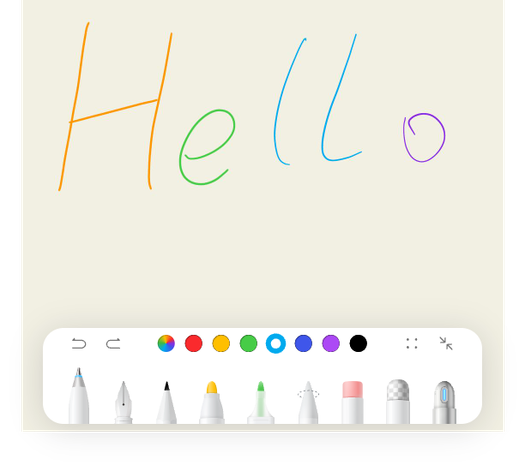
-
Handwritten files can be loaded and displayed.
-
Handwritten files can be edited and saved.
-
The handwriting suite supports only vertical (up/down) swipes, but not horizontal (left/right) swipes.

API Description
| API | Description |
|---|---|
| HandwriteComponent | Constructs a canvas control. |
| HandwriteController | Main function entry class of the canvas. |
Development Procedure
-
Set Context for EntryAbility.
import { UIAbility } from '@kit.AbilityKit'; import { window } from '@kit.ArkUI'; import GlobalContext from '../utils/ContextConfig'; export default class EntryAbility extends UIAbility { onWindowStageCreate(windowStage: window.WindowStage): void { // The main window has been created. Set the main page for this function. windowStage.loadContent('pages/HandWritingDemo', (err) => { if (err.code) { return; } }); GlobalContext.setContext(this.context); } } -
Create a GlobalContext class.
import { common } from '@kit.AbilityKit'; declare namespace globalThis { let _brushEngineContext: common.UIAbilityContext; }; export default class GlobalContext { static getContext(): common.UIAbilityContext { return globalThis._brushEngineContext; } static setContext(context: common.UIAbilityContext): void { globalThis._brushEngineContext = context; } } -
Construct a control or screen that contains a handwriting component. The following uses a control as an example.
import { HandwriteController, HandwriteComponent, PenType, PenHspInfo, HiddenToolType,
  HiddenConfig } from '@kit.Penkit';

@Entry
@Component
struct HandWriteDemoComp {
  controller: HandwriteController = new HandwriteController();
  // Obtain the path for storing the handwritten file based on the app's storage rule. The path is for reference only.
  initPath: string = this.getUIContext().getHostContext()?.filesDir + '/aa';
  penWidth: number = 5;
  ballpointPenWidth: number = 6;
  @State yOffset: number = 0;

  aboutToAppear() {
    // Set the callback for the completion of the loading action during loading.
    this.controller.onLoad(this.callback);
  }

  // Callback triggered once the handwritten file is loaded and rendered on the screen. You will be notified of the result and can then customize actions here.
  callback = () => {
    // Custom action, for example, displaying the user operation guide after the file is loaded.
  }

  build() {
    Row() {
      Stack({ alignContent: Alignment.TopStart }) {
        HandwriteComponent({
          handwriteController: this.controller,
          defaultPenType: PenType.PEN, // (Optional) Default brush.
          defaultPenInfo: [{ penType: PenType.PEN, penWidth: this.penWidth },
            { penType: PenType.BALLPOINT_PEN, penWidth: this.ballpointPenWidth }] as PenHspInfo[], // (Optional) Default width of each brush.
          widthRatio: 1, // (Optional) Width ratio of the custom canvas size (ranging from 0 to 1).
          heightRatio: 1, // (Optional) Height ratio of the custom canvas size (ranging from 0 to 1).
          maxCanvasHeight: 5000, // (Optional) Maximum height of the custom canvas.
          scaleDisabled: false, // (Optional) Whether to disable scaling.
          hiddenTools: {
            hiddenOptionalTools: [HiddenToolType.PENCIL, HiddenToolType.HIGHLIGHTER_BRUSH, HiddenToolType.MOSAIC], // (Optional) Collection of tools to be hidden.
            hiddenArcBox: false // (Optional) Whether to hide the radial menu.
          } as HiddenConfig, // (Optional) Hide unnecessary handwriting tools.
          onInit: () => {
            // Callback triggered once the canvas initialization is complete. In this case, you can call the API to load and display the note content.
            this.controller?.load(this.initPath);
          },
          onScale: (scale: number) => {
            // Callback triggered when the canvas is scaled. The scaling factor of the current handwriting control is returned. Custom actions can be performed here.
          },
          onDidScroll: (yOffset: number) => {
            // Callback triggered when the canvas is scrolled. The vertical coordinate of the current scrolling position is returned. Custom actions can be performed here.
            this.yOffset = yOffset;
          }
        })
        // (Optional) Save and obtain the thumbnail. You can adjust or delete this component as required.
        Button('save')
          .onClick(async () => {
            // Obtain the path for storing the handwritten file based on the app's storage rule. The path is for reference only.
            const path = this.getUIContext().getHostContext()?.filesDir + '/aa';
            await this.controller?.save(path).then().catch((error: BusinessError) => {
              console.error(`Failed to save. Code: ${error.code}, message: ${error.message}`);
            });
            // Obtain the thumbnail.
            this.controller.getThumbnail(this.controller?.getContentRange())?.then((pixelMap: PixelMap) => {
              if (pixelMap) {
                pixelMap.release();
                console.info('getThumbnail success');
              }
            });
          })
        // Set the scrolling position of the long canvas. The maximum scrolling distance is px2vp (1000000) minus the height of the list component.
        Search()
          .searchButton('scrollTo').onSubmit((value: string) => {
          if (!Number.isNaN(Number(value))) {
            this.controller.scrollTo(Number(value));
          }
        }).margin({ top: 100 }).width(220)
        // Offset of the current canvas.
        Text('onDidScroll:' + this.yOffset)
          .margin({ top: 150 }).width(220)
      }
      .width('100%')
    }
    .height('100%')
  }
}
For details about the complete sample code, please refer to Penkit (ArkTS).